Set Messages Tab Preferences
Display Message Preferences
You can change how messages are displayed on the Messages tab.
To set Messages tab preferences, do the following:
- In the Messages tab, click the Settings gear icon in the upper right.
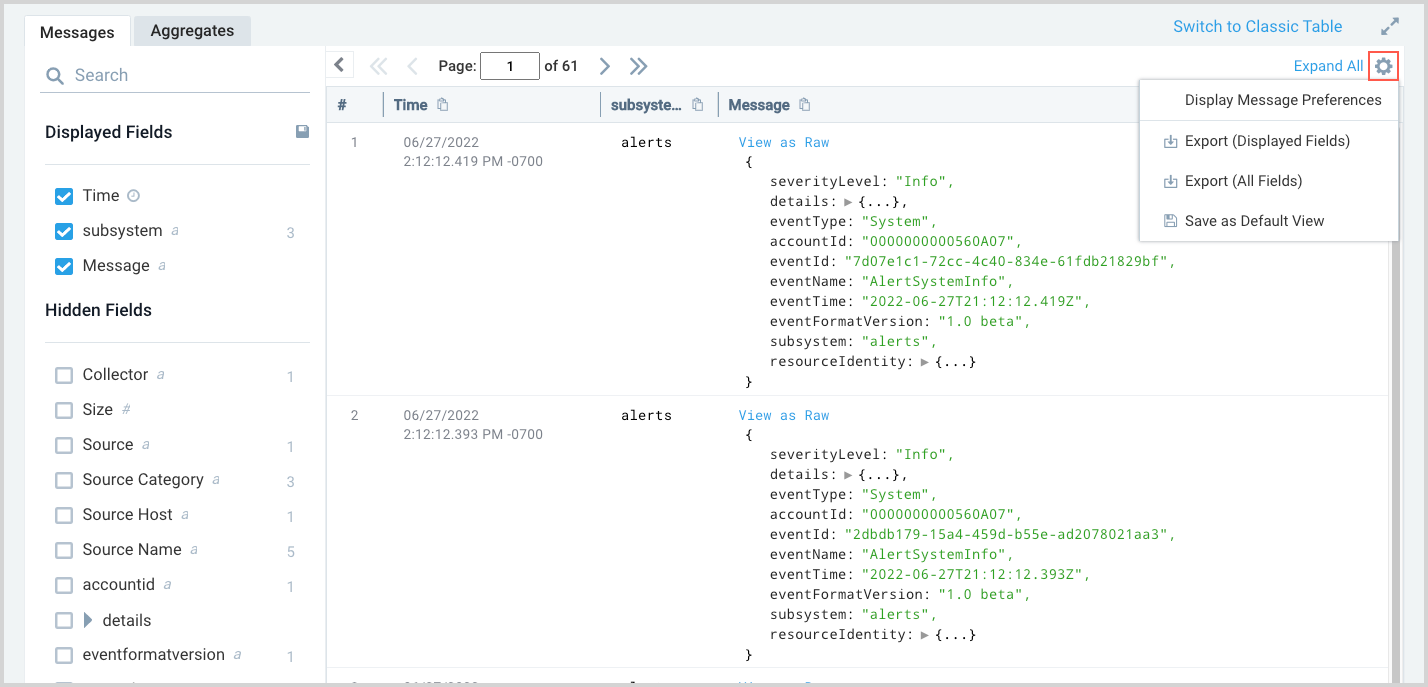
- Click Display Message Preferences to open the Message Display Preferences window.
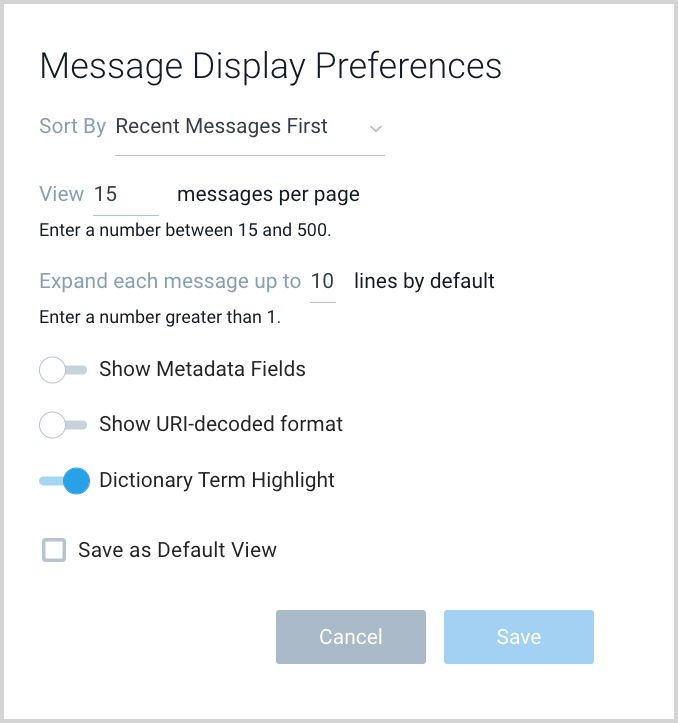
- You have the following options:
- Sort by. You can order messages by most recent or oldest.
- View n messages per page. You can set the number of messages per page to a value between 15 and 500.
- Expand each message. You can increase the number of lines that are displayed for each message. By default, this option is set to 10.
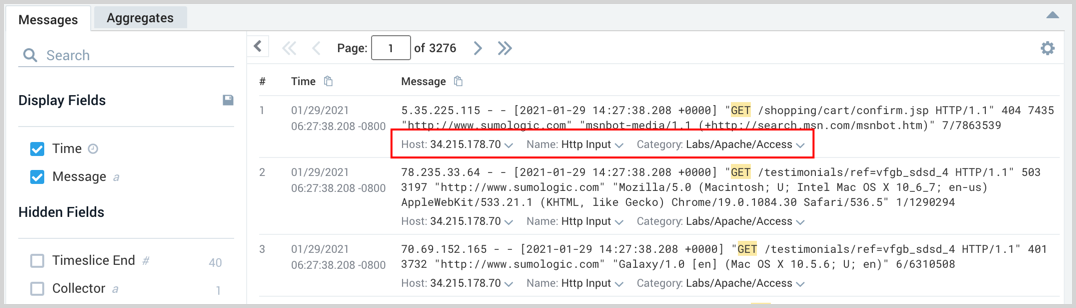
- Show Metadata Fields. When selected, metadata field names are displayed below each log message.
- Show URI-decoded format. By default, UTF characters in JSON are automatically decoded. Toggle this off if you want to intentionally include these when viewing JSON log messages in the UI.
- Dictionary Term Highlighting. When selected, the terms "error" and "exception" are displayed in red text.
- Recent Messages First / Oldest Messages First. By default, Recent Messages First is selected, but if you'd prefer to view oldest log messages at the top of the Messages pane, select Oldest Messages First.
- View 25 messages per page. The default is to show 25 log messages per Page in the Messages tab. You can set this at 15 to 500.
- Save as Default View. Click to save your choices. They will apply to all new log search tabs you open.
Export message fields
- Export (Display Fields)/Export (All Fields). To learn how to use the Export Results option, see Export Search Results.