Microsoft Exchange Trace Logs

The Microsoft Exchange Trace Logs source collects the Message Trace logs via the Microsoft Graph API.
Data collected
| Polling Interval | Data |
|---|---|
| 5 min | Message Traces |
Setup
Vendor configuration
This source requires you to register an application within Azure Active Directory, generate the client secret, give the required permission, and generate the service principal. Follow the instructions below.
Register an Azure Application
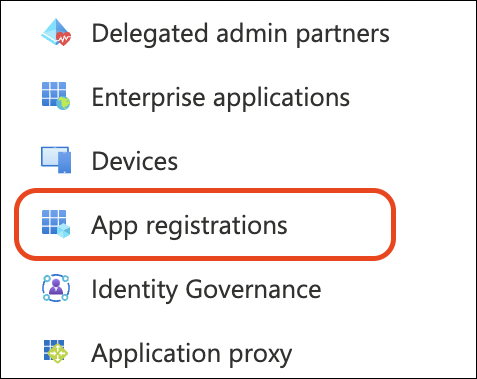
Follow the mentioned steps in Microsoft document and register the application in your Azure Directory.
Generate Client Secret
-
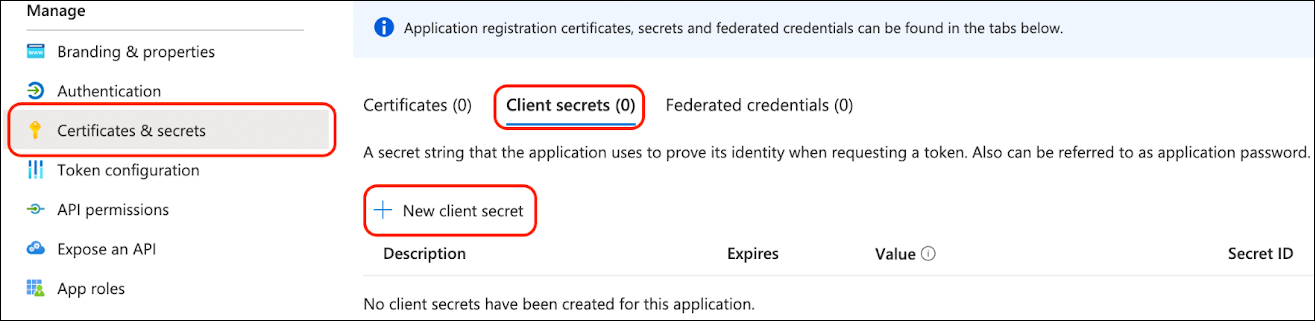
Within your Azure application setup in the previous steps, click on
Certificates & secretsfrom the left navigation pane and then clickNew client secret.
-
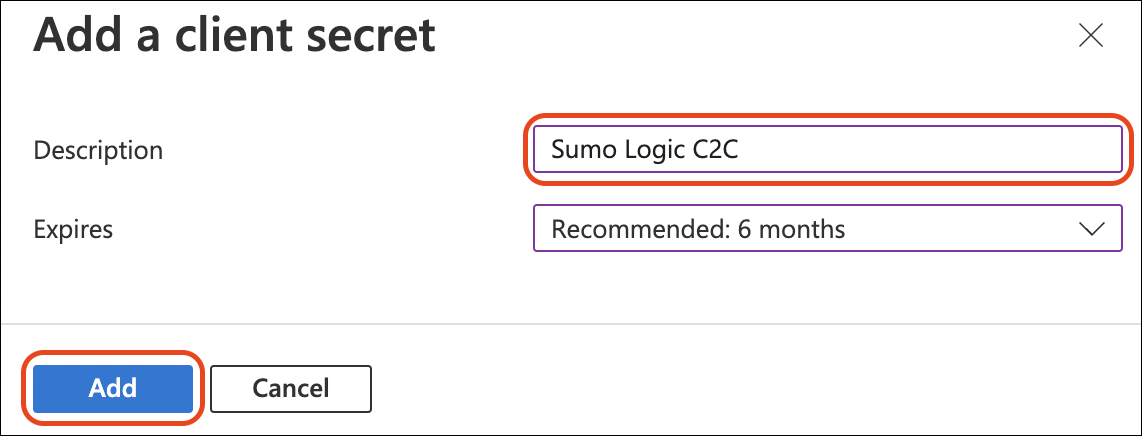
A right pane will slide out asking for a description and expiration for the secret. This secret is used by Sumo Logic to connect via OAuth 2.0 to establish continuous access to your Exchange Trace logs with an auto-generated refresh token.
-
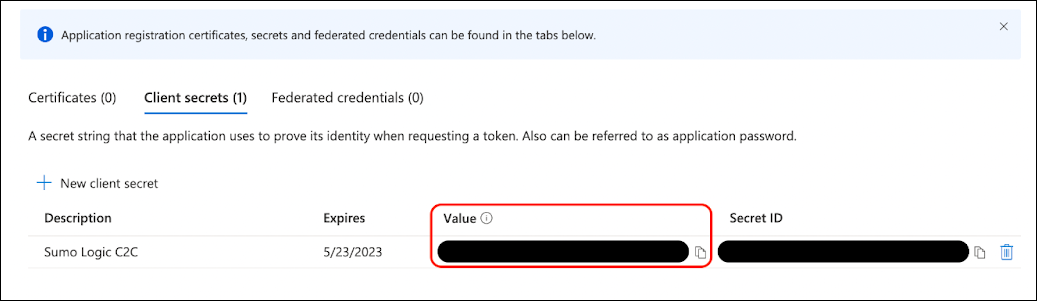
Take note of the secret value shown on this page. You will never be able to see this value from Azure after navigating away from this page. We recommend you keep it in a protected password management vault.
Grant API Permissions
Source requires the ExchangeMessageTrace.Read.All application permission to collect Exchange trace logs. Follow the instructions below to grant this permission.
-
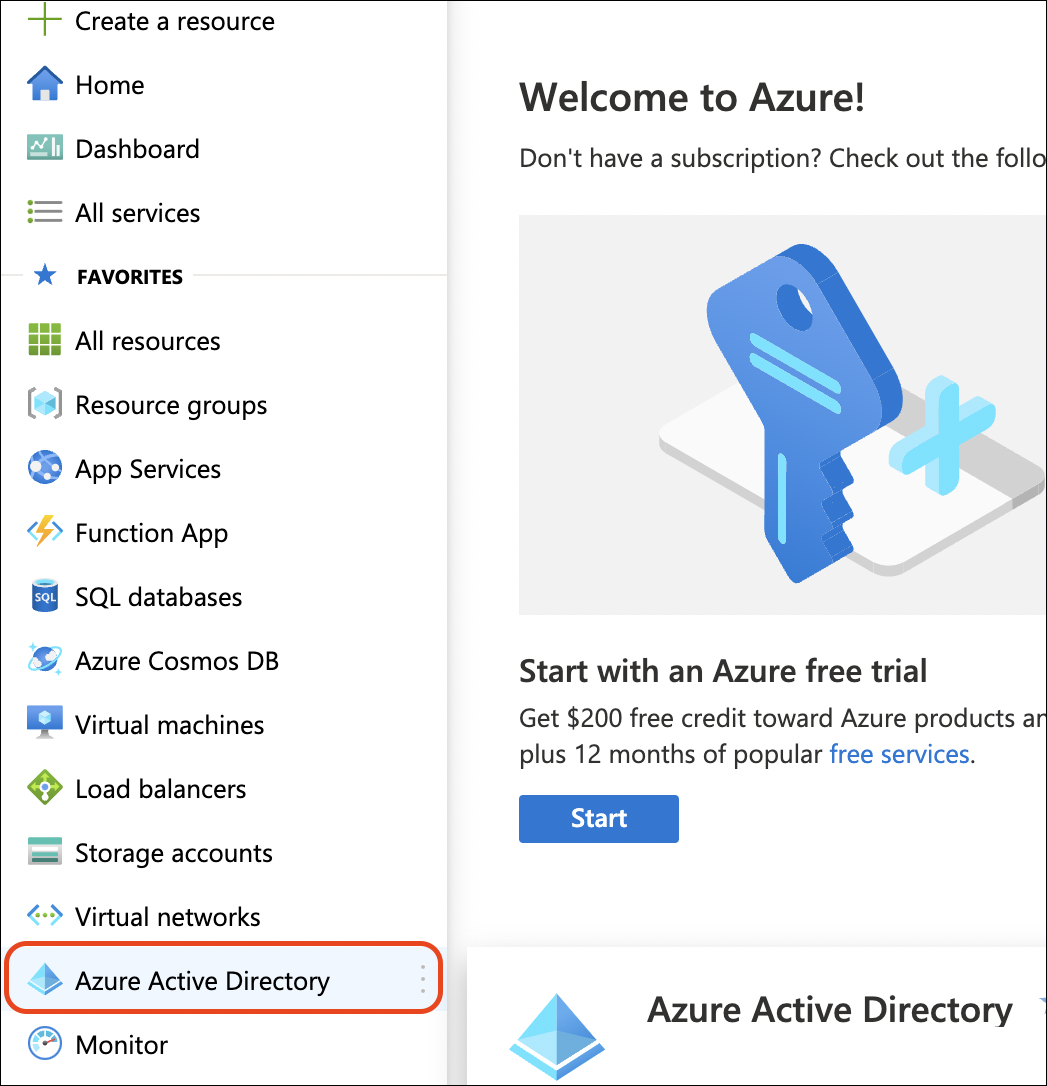
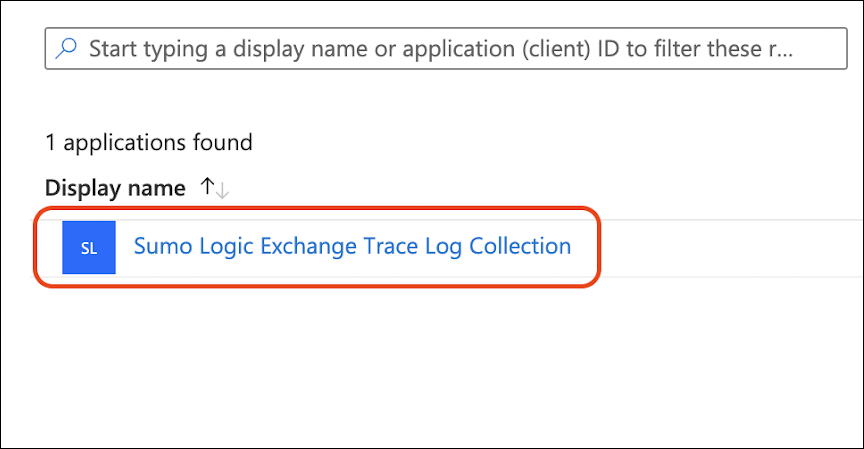
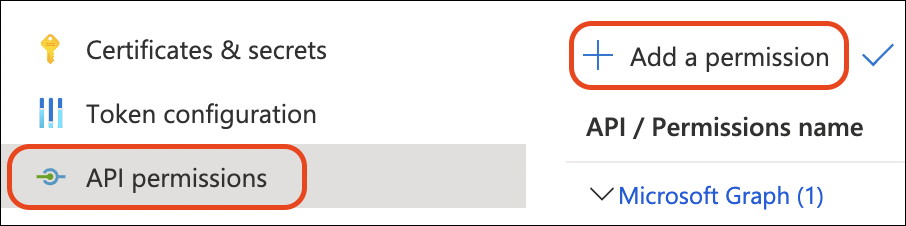
Navigate to your registered application and select
API permissionsfrom the left navigation pane, then clickAdd a permission.
-
A panel opens on the right side. Select the APIs my organization uses option and search for Microsoft Graph, then choose Application permissions.
-
Search for
ExchangeMessageTraceand select theExchangeMessageTrace.Read.Allpermission, then click Add permissions.
-
Once the permission has been added, click Grant admin consent and confirm that the permission shows a green checkmark indicating it has been successfully granted.
Generate the Service Principal
Follow the steps in the Microsoft documentation and generate the service principal for the Azure Directory.
As noted in the Microsoft documentation, service principal provisioning may take several hours to complete. We recommend waiting at least three hours after generating the service principal before configuring the source.
If you configure the source before provisioning is complete, you may encounter the following error:
Service principal-less authentication failed: The service principal for App ID 8bd644d1-64a1-4d4b-ae52-2e0cbf64e373 was not found. Please create a service principal for this app in your tenant. Provisioning may take several hours to complete.
Source configuration
When you create a Microsoft Exchange Trace Logs Source, you add it to a Hosted Collector. Before creating the Source, identify the Hosted Collector you want to use or create a new Hosted Collector. For instructions, see Configure a Hosted Collector.
If you are already using version 1.0.x of this C2C source, you will see an upgrade option. Click Upgrade, ensure that you have completed the vendor configuration above, then reconfigure the source with the correct credentials.
To configure a Microsoft Exchange Trace Logs Source:
- New UI. In the Sumo Logic main menu, select Data Management, and then under Data Collection select Collection. You can also click the Go To... menu at the top of the screen and select Collection.
Classic UI. In the main Sumo Logic menu, select Manage Data > Collection > Collection. - On the Collectors page, click Add Source next to a Hosted Collector.
- Search for and select MS Exchange Trace Logs.
- Enter a Name for the Source. The description is optional.
- (Optional) For Source Category, enter any string to tag the output collected from the Source. Category metadata is stored in a searchable field called
_sourceCategory. - (Optional) Fields. Click the +Add Field link to define the fields you want to associate. Each field needs a name (key) and a value.
 A green circle with a check mark is shown when the field exists and is enabled in the Fields table schema.
 An orange triangle with an exclamation point is shown when the field doesn't exist in the Fields table schema. In this case, you'll see an option to automatically add or enable the nonexistent fields to the Fields table schema. If a field is sent to Sumo Logic but isn’t present or enabled in the schema, it’s ignored and marked as Dropped.
- Client ID. Enter your Client ID from your Azure Application. This should be a Globally Unique Identifier (aka GUID).
- Tenant ID. Enter your Tenant ID from your Azure Application. This should be a Globally Unique Identifier (aka GUID).
- Client Secret. Enter your Client Secret generated within your Azure Application.
- Polling Interval. We recommend leaving this to its defaults. This value controls how often the Microsoft Exchange Trace Logs Source polls the Microsoft APIs for new data.
- When you are finished configuring the Source, click Submit.
After configuring the Microsoft Exchange Trace source, consider installing the Sumo Logic app for Microsoft Exchange Trace to visualize and analyze the collected data using prebuilt dashboards and monitor alerts.
JSON schema
Sources can be configured using UTF-8 encoded JSON files with the Collector Management API. See how to use JSON to configure Sources for details.
| Parameter | Type | Value | Required | Description |
|---|---|---|---|---|
| schemaRef | JSON Object | {"type":"MS Exchange Trace Logs"} | Yes | Define the specific schema type. |
| sourceType | String | "Universal" | Yes | Type of source. |
| config | JSON Object | Configuration object | Yes | Source type specific values. |
JSON example
loading...
Terraform example
loading...
Troubleshooting
Service principal-less authentication failed
If the source is facing the following error:
Service principal-less authentication failed: The service principal for App ID 8bd644d1-64a1-4d4b-ae52-2e0cbf64e373 was not found. Please create a service principal for this app in your tenant. Provisioning may take several hours to complete.
This means the service principal has either not been created or has not yet been enabled. To resolve this:
- If you have not created the service principal, follow the steps in the Generate the Service Principal section above.
- If the service principal has already been generated, as mentioned in the API response, provisioning can take several hours to complete. Wait a few hours, then reconfigure/restart the source with the correct credentials.
FAQ
Click here for more information about Cloud-to-Cloud sources.