Webhook Connection for Microsoft Azure Functions
You can trigger an Azure Function directly from a Sumo Logic alert by configuring a webhook connection. Once you set up the webhook connection, you can use it in a Scheduled Search. Currently, Azure functions are not supported in Monitors.
For example, you can create a scheduled search that triggers an Azure function when an administrator changes a user’s permissions. This function can then update a database to document the changes for audit purposes.
Create an Azure function
First, create an HTTP-triggered Azure function. For more information, see Azure Functions HTTP triggers and bindings overview.
- Create an Azure function using the template HttpTrigger-PowerShell.
- Copy and paste code of the Azure function into the code field. The following example is an HTTP-triggered PowerShell function:
$requestBody = Get-Content $req -Raw | ConvertFrom-Json

"Webhook Triggered"

$requestBody.text
$requestBody.raw
$requestBody.num
$requestBody.agg

Out-File -Encoding Ascii -FilePath $res -inputObject "Hello Sumo Logic, from Azure Function" - Click Save.
- Copy the function URL, as you will need it in the next section.
Create a Webhook connection
You need the Manage connections role capability to create webhook connections.
Configure the Webhook connection to trigger the Azure function:
- New UI. In the main Sumo Logic menu select Monitoring > Connections. You can also click the Go To... menu at the top of the screen and select Connections.
Classic UI. In the main Sumo Logic menu, select Manage Data > Monitoring > Connections. - On the Connections page, click + Add.
- For Connection Type, select Azure Functions from the dropdown.
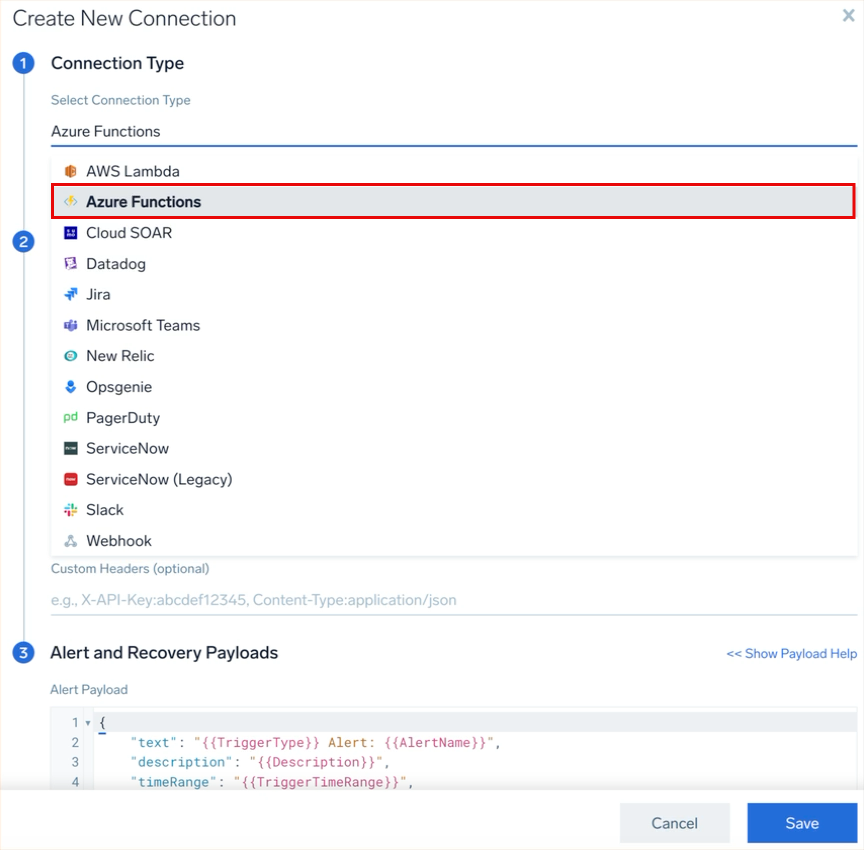
- In the Connection Settings dialog, enter:
- Name. Enter a name for the connection.
- (Optional) Description. Enter a description for the connection.
- URL. Enter the function URL for the endpoint from the previous section.
- (Optional) Authorization Header. Enter an authorization header, which may include an authorization token.
- (Optional) Custom Headers. Enter up to five comma separated key-value pairs.
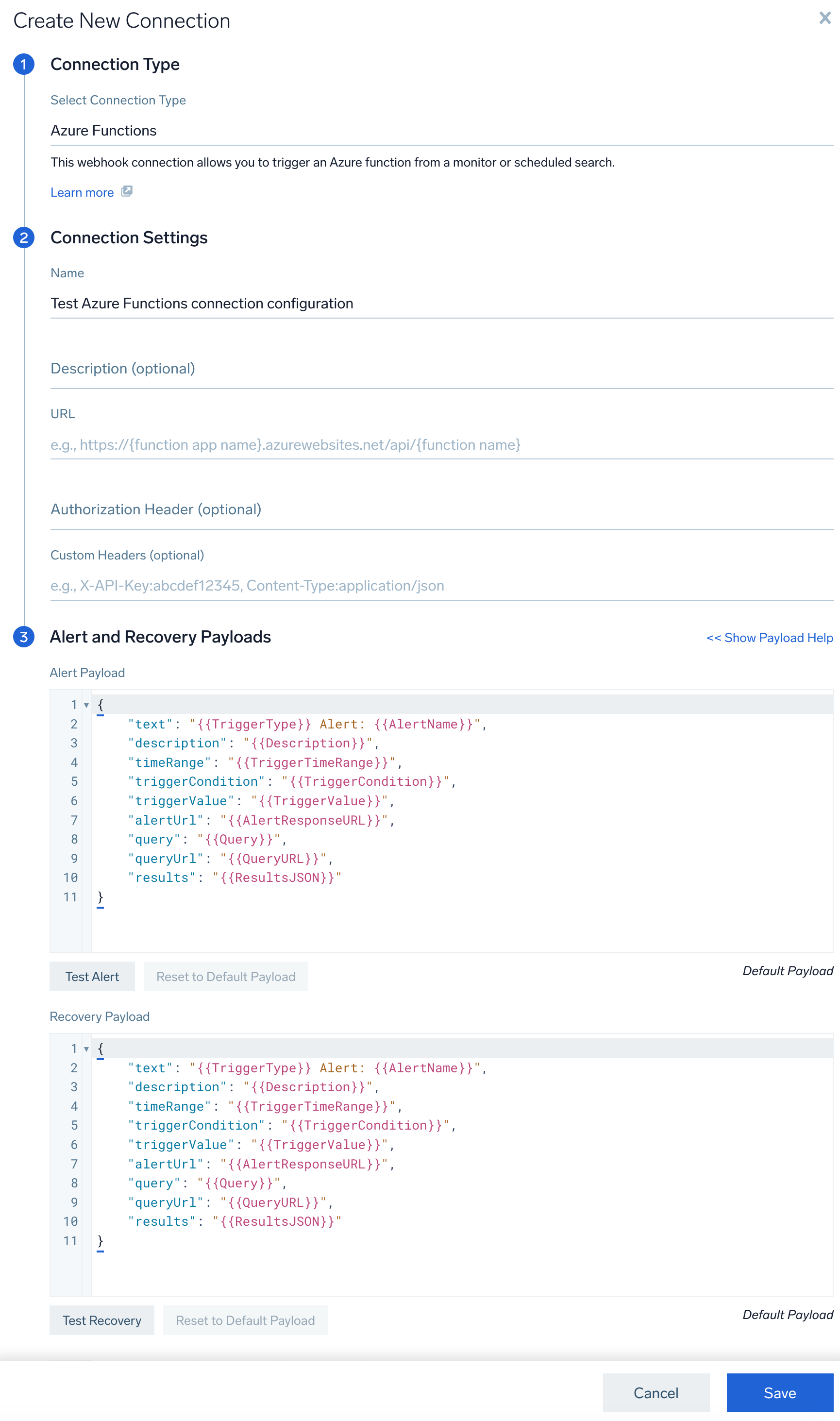
- Under Alert Payload, enter a JSON object in the format required. For details on variables that can be used as parameters within your JSON object, see Configure Webhook payload variables.
- Under Recovery Payload, you can customize your recovery notification.
- Click Test Alert or Test Recovery to test the connection. If successful, you'll see a
200 OKresponse message. - Click Save.