 Meet the new
 Sumo Logic MCP Server

The Sumo Logic MCP (Model Context Protocol) server lets MCP clients (external AI models) connect to Sumo Logic to query logs, investigate security insights, manage alerts and dashboards, and more. Use natural language to bring Sumo Logic search, evidence, and platform context into the AI tools you already use, such as developer IDEs, security workflows, and enterprise AI platforms.
At a glance
- What it does. Lets external AI clients query Sumo Logic logs, Cloud SIEM insights, alerts, and dashboards using natural language, through a set of MCP tools.
- How it works. MCP clients authenticate over OAuth 2.0 (CIMD recommended) and call MCP tools that are scoped to your Sumo Logic role permissions.
- Supported deployments. All commercial Sumo Logic deployments except Zurich and AWS European Sovereign Cloud. See the MCP server URL table for your deployment's endpoint.
- Subdomain URLs. Add your org's subdomain to the MCP server URL so CIMD clients go straight to your org's login page. See How to use your org subdomain in the MCP server URL.
- Prerequisites. An MCP-compatible client that supports HTTP/SSE transport and OAuth 2.0; MCP Server access enabled (on by default); CIMD enabled by an administrator (recommended).
- Limitations. Not intended for bulk data extraction, model training, or high-volume automated queries, and is subject to rate limits (4 requests per second, 10 concurrent).
Prefer a built-in conversational experience instead of connecting an external AI client? The MCP server exposes discrete tools that any MCP-compatible client can call (optionally guided by the sumo-investigator skill), while Mobot is Sumo Logic's own set of specialized agents — including the SOC Analyst Agent, Query Agent, Knowledge Agent, and monitor creation — built directly into the product.
Sumo Logic Academy offers free training courses covering these concepts that allow you to practice in a lab environment and level up your knowledge. Check out self-paced and free live instructor-led offerings today! (To access our self-paced courses, first sign in to our learning portal.)
- Self-paced. Extending Sumo Logic with MCP, API and Terraform.
Prerequisites
To get started with the Sumo Logic MCP server, you'll need the following:
MCP server URL for your deployment
You need the exact MCP server URL that matches your deployment, because OAuth tokens are bound to a single Sumo Logic deployment:
| Deployment | MCP Server URL |
|---|---|
| Asia Pacific (Seoul) | https://mcp.kr.sumologic.com/mcp |
| Asia Pacific (Sydney) | https://mcp.au.sumologic.com/mcp |
| Asia Pacific (Tokyo) | https://mcp.jp.sumologic.com/mcp |
| Canada (Central) | https://mcp.ca.sumologic.com/mcp |
| Europe (Frankfurt) | https://mcp.de.sumologic.com/mcp |
| Europe (Ireland) | https://mcp.eu.sumologic.com/mcp |
| US East (N. Virginia) | https://mcp.sumologic.com/mcp |
| US East (N. Virginia) - FedRAMP | https://mcp.fed.sumologic.com/mcp |
| US West (Oregon) | https://mcp.us2.sumologic.com/mcp |
The MCP server is not currently supported in our Zurich or AWS European Sovereign Cloud deployments.
How to use your org subdomain in the MCP server URL
Add your org's subdomain to the front of the MCP server URL so MCP clients that authenticate with CIMD go straight to your org's login page instead of asking users to enter the subdomain first. This can be useful if your org signs in with SAML on a subdomain.
To build the URL, add <subdomain>. before the host name in your deployment's URL from the table above:
| Deployment URL | URL with subdomain |
|---|---|
https://mcp.kr.sumologic.com/mcp | https://<subdomain>.mcp.kr.sumologic.com/mcp |
https://mcp.au.sumologic.com/mcp | https://<subdomain>.mcp.au.sumologic.com/mcp |
https://mcp.jp.sumologic.com/mcp | https://<subdomain>.mcp.jp.sumologic.com/mcp |
https://mcp.ca.sumologic.com/mcp | https://<subdomain>.mcp.ca.sumologic.com/mcp |
https://mcp.de.sumologic.com/mcp | https://<subdomain>.mcp.de.sumologic.com/mcp |
https://mcp.eu.sumologic.com/mcp | https://<subdomain>.mcp.eu.sumologic.com/mcp |
https://mcp.sumologic.com/mcp | https://<subdomain>.mcp.sumologic.com/mcp |
https://mcp.fed.sumologic.com/mcp | https://<subdomain>.mcp.fed.sumologic.com/mcp |
https://mcp.us2.sumologic.com/mcp | https://<subdomain>.mcp.us2.sumologic.com/mcp |
For example, if your subdomain is acme and your org is in US West (Oregon), use https://acme.mcp.us2.sumologic.com/mcp.
Subdomain URLs are available in all deployments that support the MCP server.
MCP-compatible client
The client must support remote HTTP/SSE transport and OAuth 2.0. The setup steps below use the Claude Code CLI, which requires a paid Claude subscription or an Anthropic Console account.
CIMD (Client ID Metadata Document) is the recommended authentication mechanism for MCP clients. To learn how CIMD works, see client.dev; for how Sumo Logic implements OAuth 2.0 and CIMD, including how an administrator enables it, see OAuth Client Setup.
The MCP server publishes scopes_supported in its OAuth Protected Resource Metadata (for example, https://mcp.sumologic.com/.well-known/oauth-protected-resource for the US1 deployment). A properly implemented client uses this list to request only MCP-relevant scopes during authorization, instead of every scope available in your org, so the resulting access token is limited to that smaller set.
The MCP server also works behind gateway aggregators, such as AWS Bedrock AgentCore Gateway, that connect to multiple MCP servers through a single endpoint. Configure the gateway's OAuth client using the Client Credentials flow. If the gateway target fails with an error resembling Error parsing ClientCredentials response, check that its credential provider config explicitly sets grantType: CLIENT_CREDENTIALS.
For client compatibility questions, contact Sumo Logic Support.
Watch this micro lesson to learn how to connect an MCP-compatible AI client, such as Claude Code or GitHub Copilot, to Sumo Logic — bringing Sumo Logic data and functionality into your AI-driven tools to support agentic AI workflows for your organization.
How to enable or disable the MCP server
Feature Management
MCP server access is enabled by default. An administrator can turn it on or off for your entire organization.
- In the main Sumo Logic menu, select Administration > Feature Management.
- In the MCP Server access row, use the Enabled toggle to turn the MCP server on or off.
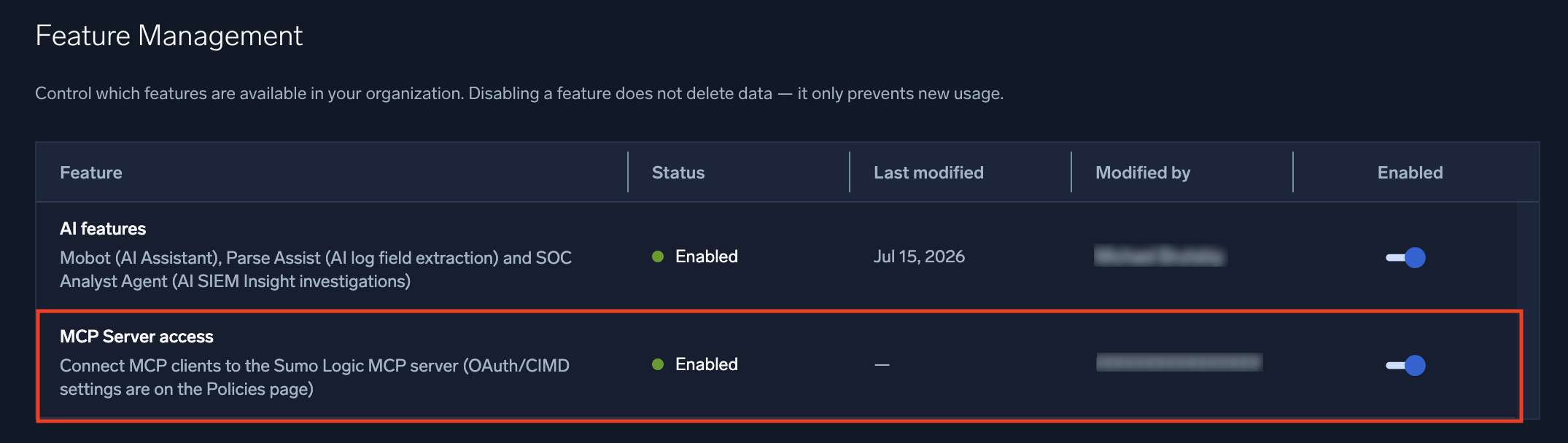
MSSP parent orgs don't see these settings on their own Feature Management page. Manage them per child org instead. See Manage features for details.
Enabling MCP Server access makes the server available for connection. Clients still authenticate with OAuth 2.0, and CIMD is enabled separately on the Policies page. See What do you need before getting started? and How to enable CIMD for MCP clients.
Disabling the MCP server prevents MCP clients from connecting, but does not delete any data. MCP Server access is a separate setting from the AI features toggle, which governs Mobot and Parse Assist, and from the SOC Analyst Agent toggle, so you can enable or disable the MCP server independently of those capabilities.
How to enable CIMD for MCP clients
CIMD is the recommended authentication mechanism for MCP clients and is disabled by default. An administrator needs to enable it for your organization before clients can authenticate.
- In the main Sumo Logic menu, select Administration, and then under Account Security Settings select Policies. You can also click the Go To... menu at the top of the screen and select Policies.
- Select the Enable CIMD Clients check box.
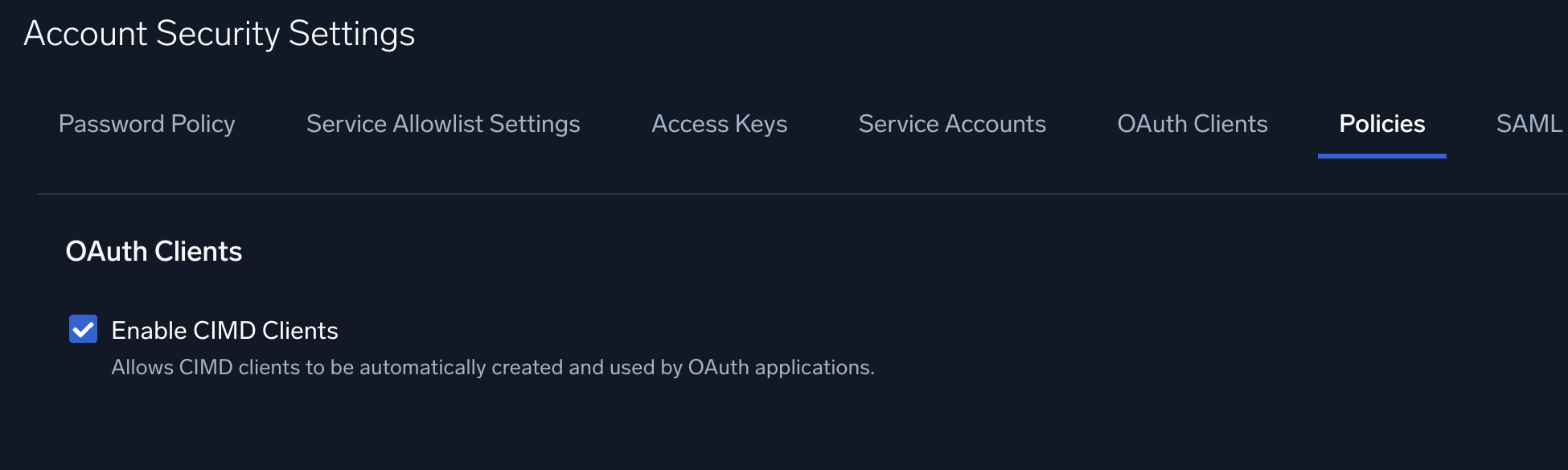
To allow only specific MCP clients, select Restrict to pre-registered clients only under OAuth Clients, and then manually create a CIMD client for each MCP client you want to allow. For steps and CIMD URLs for common clients, see Manually create a CIMD client.
For how Sumo Logic implements OAuth 2.0 and CIMD in more detail, see OAuth Client Setup.
How to configure the MCP server in Claude Code CLI
Claude Code CLI uses OAuth 2.0 with CIMD. Before proceeding, make sure an administrator has enabled CIMD on the Policies page. You do not need to create OAuth credentials; browser-based login handles authentication and token refresh automatically.
Setup
- In a Terminal window, register the MCP server. Replace
<MCP-server-URL>with your deployment's URL from the deployment URL table. Choose a scope:- User scope (available in all directories, recommended).
claude mcp add --scope user --transport http \sumo-logic "<MCP-server-URL>"
- Project scope (available only in the current directory, writes to
.mcp.json).claude mcp add --scope project --transport http \sumo-logic "<MCP-server-URL>"
- User scope (available in all directories, recommended).
- Launch Claude Code. With user scope, run
claudefrom any directory. With project scope, run it from the directory where you registered the server.claude - In Claude Code, run
/mcp. - Select sumo-logic and then Authenticate.
- Claude Code opens a browser window. Log in with your Sumo Logic credentials. If you registered the server with a subdomain URL, the browser opens your org's login page directly. Otherwise, if your org uses an identity provider, click Sign in with your identity provider, navigate to your org, and complete sign-in.
- Verify the connection with
/mcpto confirm the server is connected.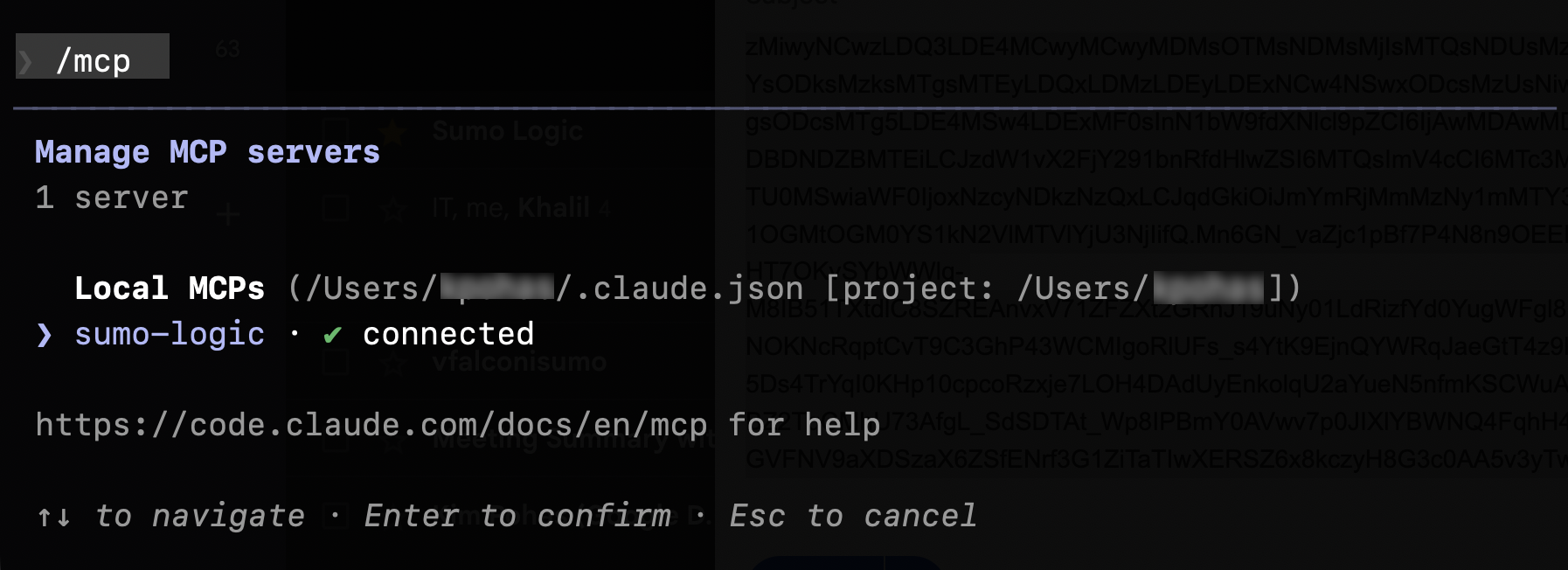
- Prompt Claude Code to
List my available MCP toolsto see what you can do. You can also refer to What MCP tools are available?
For more consistent investigation results, set up the sumo-investigator skill for Claude Code.
How to switch Sumo Logic organizations
To connect to a different Sumo Logic org:
- In Claude Code, run
/mcp. - Select sumo-logic > Clear authentication.
- Select Authenticate and log in to the new org.
If you previously granted consent for an org, you will not be prompted again. To revoke consent, go to your Sumo Logic user settings and remove the app under Personal Authorized Apps (next to Personal Access Tokens).
How to set up MCP without CIMD
CIMD is the default, recommended setup for most MCP server users. If your MCP client does not support CIMD, you'll need to connect with a manually created, pre-registered OAuth client instead. Sumo Logic supports two OAuth 2.0 flows for this:
- Authorization Code with a pre-registered client. Best for interactive clients that handle browser-based login. Follow the steps below to create the client, or see Authorization Code flow for details.
- Client Credentials. Best for service-to-service or automated clients with no interactive user. See Client Credentials flow to set it up with a service account.
Both require the Sumo Logic Administrator role to create the OAuth client and its OAuth credentials (a client ID and client secret).
How to create an OAuth client
- In Sumo Logic, go to Administration > Security > OAuth Clients.
- Click + Add OAuth Client.
- Enter a Name.
- For Client Type, select Authorization Code.
- For Redirect URI, enter:
http://localhost:8888/callback
- Select your Service Account from the dropdown.
- Optionally, add a Description.
- Under Scopes, leave every checkbox unchecked to grant access to all scopes, or select specific scopes to restrict the client's access. See What MCP tools are available? for the scope each tool requires.
- Click Save.
- Copy the Client ID and Client Secret. You'll use these in the next step.
How to register the MCP server
- Open a Terminal window (not inside the Claude Code CLI session) and copy one of the snippets below, replacing
<client-id>with the Client ID from the OAuth client you created above, and replacing<mcp-server-url>with your Sumo Logic deployment's MCP server URL.- User scope (available in all directories, recommended).
claude mcp add --transport http \--scope user \--client-id "<client-id>" --client-secret --callback-port 8888 \sumo-logic "<mcp-server-url>"
- Project scope (available only in the current directory, writes to
.mcp.json).claude mcp add --transport http \--scope project \--client-id "<client-id>" --client-secret --callback-port 8888 \sumo-logic "<mcp-server-url>"
- User scope (available in all directories, recommended).
- Run one of the above commands. Claude Code then prompts you to enter the client secret securely.
- Continue with the remaining steps in Setup above: launch Claude Code, run
/mcp, and authenticate.
Recent VS Code releases do not work with explicit client credentials. Use the default CIMD setup above for VS Code.
What MCP tools are available?
Our MCP server provides access to Sumo Logic through these tool categories:
- Utility tools. Discover relevant tools based on context.
- Alerts management. Search and retrieve alerts.
- Dashboard management. Create, retrieve, and update dashboards.
- Cloud SIEM. Manage insights, detection rules, and status updates.
- Log search. Run log search queries and retrieve results.
- Discovery. List custom fields, field extraction rules, and partitions to help scope log searches.
All tools respect your Sumo Logic permission controls and access policies. See Role capabilities for details on each required scope.
The tools your MCP client reports as available are filtered by the scopes in your OAuth access token, which map to your role's Sumo Logic capabilities. For example, if your role doesn't include View Cloud SIEM Enterprise (viewCse), Cloud SIEM tools don't appear in your client's tool list; if it doesn't include View Partitions (viewPartitions), the partition discovery tool doesn't appear. If a tool you expect to see is missing, confirm your role includes the required scope listed in the tables below.
A few scopes are granted regardless of user role, so tools that require only those scopes appear for everyone. See How permissions work for the list and how to restrict them.
Tool filtering is based on role permissions, not org licensing. If a capability isn't licensed for your org (for example, Cloud SIEM), its tools may still appear in your client's tool list even though calling them fails.
Utility tools
| Tool | Description | Required scope |
|---|---|---|
x_amz_bedrock_agentcore_search | Search/filter the available tools by context. | N/A |
Alerts management
| Tool | Description | Required scope |
|---|---|---|
alertsReadById | Get an alert or folder by ID. | View Alerts (viewAlerts) |
alertsSearch | Search alerts by status, severity, monitor name, mute status, and more. | View Alerts (viewAlerts) |
Example prompts
Show me all active alerts from the last 24 hoursFind all alerts triggered by monitor <name> in the last 7 days
Dashboard management
| Tool | Description | Required scope |
|---|---|---|
createDashboard | Create a new dashboard. | Manage Library (manageLibrary) |
getDashboard | Get a dashboard by ID. | View Library (viewLibrary) |
listDashboards | List all dashboards. | View Library (viewLibrary) |
updateDashboard | Update a dashboard by ID. | Manage Library (manageLibrary) |
Example prompts
Create a new dashboard called "System Overview" that uses the previous query to power a dashboard panel called "Total Log Count Per Minute"Add a second panel called "Error Logs Count Per Minute" that is a similar query but only has logs in it that contain the keyword "error" in them
Cloud SIEM
Insights
| Tool | Description | Required scope |
|---|---|---|
getAllInsights | Get all insights (paginated via token). | View Cloud SIEM Enterprise (viewCse) |
getInsight | Get a single insight by ID, including signals, artifacts, and entity details. | View Cloud SIEM Enterprise (viewCse) |
getInsights | Get insights with filtering by severity, status, assignee, entity, confidence, tags, and more. | View Cloud SIEM Enterprise (viewCse) |
updateInsightAssignee | Update the assignee of an insight. | View Cloud SIEM Enterprise, Manage Insight Assignee (viewCse, cseManageInsightAssignee) |
updateInsightStatus | Update the status of an insight. | View Cloud SIEM Enterprise, Manage Insight Status (viewCse, cseManageInsightStatus) |
Detection rules
| Tool | Description | Required scope |
|---|---|---|
createTemplatedMatchRule | Create a new match rule. | View Cloud SIEM Enterprise, Manage Rules (viewCse, cseManageRules) |
createThresholdRule | Create a new threshold rule. | View Cloud SIEM Enterprise, Manage Rules (viewCse, cseManageRules) |
getRule | Get a single rule by ID with optional tuning expressions. | View Cloud SIEM Enterprise, View Rules (viewCse, cseViewRules) |
getRules | Get rules with filtering by category, enabled status, rule source, score, severity, stream, tags, and more. | View Cloud SIEM Enterprise, View Rules (viewCse, cseViewRules) |
Example prompts
Show me insight <id>, including its signals and involved entitiesFind all critical insights that are still openUpdate INSIGHT-1234 status to In ProgressCreate a threshold rule that fires when more than 10 failed logins occur within 5 minutesShow me all rules in the authentication categoryGet details for rule ID <id>List all rules that have fired in the last 7 days
Log search
| Tool | Description | Required scope |
|---|---|---|
runLogSearch | Run a log search query over a time range and return aggregated records or raw messages. | Run Log Search (runLogSearch) |
Before running an unscoped query, the model first calls the Discovery tools below to identify a relevant _sourceCategory, then runs a small scoped sample query to confirm the source and discover _collector values. Queries over 30 minutes without a _sourceCategory, _collector, _index, or _view filter are rejected.
Example prompts
Run a log search for the last 5 minutes across all of my data that counts the data by 1-minute buckets and plots the result as a line graphRun a 2-day search on _sourcecategory=*proofpoint*, count by recipient and senderip
Discovery
| Tool | Description | Required scope |
|---|---|---|
listCustomFields | List all custom fields configured in your account. | View Fields (viewFields) |
listExtractionRules | List field extraction rules. | View Field Extraction Rules (viewFieldExtractionRules) |
listPartitions | List partitions in the organization, with filters for analytics tier and active status. | View Partitions (viewPartitions) |
Example prompts
What partitions and field extraction rules exist for security logs?List all active partitions in the frequent tier
Improve investigations with the sumo-investigator skill
A skill gives an AI agent standing instructions and workflow context that persist across every conversation, so you do not need to repeat detailed prompting each time you ask a question. For Claude Code, a skill is a folder containing a SKILL.md file that documents how to approach a class of tasks, in this case, investigating Sumo Logic data through the MCP server's tools.
Claude Code can invoke a skill in two ways:
- Automatically. Claude matches your question against the
descriptionandwhen_to_usecontext defined in the skill's frontmatter and invokes the skill without you needing to reference it directly. - Explicitly. Type a slash command that matches the skill's folder name, for example,
/sumo-investigator.
The skill linked below is a starting point based on Sumo Logic's internal testing of MCP tool workflows. It defines the agent's tool-use workflow (discover → sample → target) for log searches, plus guidance for triaging alerts, insights, and detection rules. Treat it as a foundation you can customize for your environment, or use as a model for additional skills of your own.
As the Sumo Logic MCP server evolves, for example, as tools are added, removed, or renamed, you may need to update this skill to match.
- Download SKILL.md.
- In Claude Code, create a
sumo-investigatorfolder in your skills directory:.claude/skills/for a project-specific skill available only in the current directory, or~/.claude/skills/to make it available across all projects. Move the downloaded file into that folder. The result should be aSKILL.mdfile at.claude/skills/sumo-investigator/SKILL.md(or the equivalent path under~/.claude/skills/). - If this is the first skill you've added, restart Claude Code so it picks up the new skills directory. Otherwise, run
/mcpto confirm the Sumo Logic MCP server is still connected. - Invoke the skill automatically by asking an investigation question, or explicitly with
/sumo-investigator.
For more information about configuring, managing, and distributing skills, see Extend Claude with skills in the Claude Code documentation.
Example workflows
These prompts demonstrate multi-step investigations that chain multiple tools together in a single session.
Triage and investigation
-
Show me all critical insights from the last 7 days that are still open, then tell me which involved entities appear most frequently. -
Get insight <id>, show me its signals and involved entities, then run a log search for that IP address in the last 24 hours to find raw events. -
Find all insights assigned to <username> that are in-progress, and list any created more than 3 days ago.
Threat hunting
-
Search logs for any outbound connections to port 4444 in the last 48 hours, extract the source hostnames, then check if any of those hostnames appear as entities in open insights. -
Find all insights tagged 'ransomware' or 'lateral-movement' from the past 30 days, get the signals for each, and run a log search aggregating activity by user account involved. -
Look up all insights where entity type is 'username' and the value contains 'svc-' (service accounts), then search logs for those accounts' authentication events in the last week.
Incident response
-
Get insight <id>, pull its full signal list and all involved entities, then search raw logs for each entity in the last 6 hours. -
Find all insights that were closed as 'False Positive' in the last 30 days, group them by rule ID, and search logs to see if those same patterns are still occurring today. -
Get insight <id> and search logs for the 30-minute window around when it was first created.
Escalation and assignment
-
Find all unassigned high-severity insights and assign them to <username>. -
Find all insights that have been sitting in 'in progress' status for more than 7 days, list them with assignee names, and reassign any unowned ones to <team>.
Situational awareness
-
List all triggered critical alerts right now, then search logs for the top affected source IP to see what it's been doing. -
Summarize all insights created in the last 24 hours: how many per severity, which entities are involved, and who they're assigned to. -
Show me all triggered critical alerts from the last hour, and check if their source entities also appear in open insights.
Entity-centric investigation
-
Given IP address <x.x.x.x>, find all insights where it appears as an entity, then search logs for its full activity in the last 24 hours. -
Find the most active entity by insight count in the last 14 days, get all its insights with full signal details, then build a timeline dashboard of its activity. -
Look up insights for hostname <server-name>, then search logs for any privilege escalation events on that host in the same timeframe.
Alert and monitor deep dives
-
Find all alerts from monitor <name>, then search logs during the last trigger window to determine if it's noisy or legitimate. -
Find all muted monitors with active Critical alerts, then search logs to see if the underlying condition has actually resolved.
Cross-tool correlation
-
Find all alerts that fired in the last hour, check if any of them are related to existing open insights, and for those that aren't, search logs to determine if a new insight should be escalated manually. -
Compare insight volume week-over-week: pull insights from the last 7 days vs the 7 days before that, broken down by severity, and identify any rules that are newly firing this week. -
Get all Critical and High insights from today, and for any with no assignee, assign them to <team>.
Team operations and reporting
-
Find all open insights assigned to the security team and show the oldest unresolved one. -
Generate a weekly report: count insights by severity and status, show the top 5 most triggered monitors from alerts, and list the 3 most common entity types involved in new insights.
Dashboard and data
-
Search for the top 10 source IPs generating authentication errors in the last hour, then create a dashboard panel showing those results. -
Get the current SIEM overview dashboard, add a new panel for open Critical insights count, and save it.
Detection rule management
-
List all enabled threshold rules and show me which ones have the highest signal counts in the last 7 days. -
Find all rules in the 'lateral-movement' category and check if any are disabled. -
Create a new match rule that detects SSH brute force attempts by looking for more than 5 failed SSH authentication events from the same source IP within 10 minutes. -
Get all rules tagged 'ransomware' and flag any that haven't fired in 30 days. -
Find all custom rules (ruleSource = 'custom'), get their details including tuning expressions, and create a summary report of which ones are actively generating insights.
Usage guidance and cost controls
When to use MCP
Use MCP for:
- Conversational investigations.
- Multi-step workflows.
- Agent-to-agent communication.
Do not use MCP for:
- Bulk data extraction (use the Search Job API instead).
- Model training.
- High-volume automated queries.
What drives MCP cost?
MCP endpoints are cost-amplifying by design. A single conversational request can trigger multiple agent steps, tool calls, retries, and retrieval operations. Valid requests that appear reasonable can generate significantly higher costs than anticipated, particularly when:
- Queries trigger broad semantic searches with high retrieval limits.
- Requests induce multi-step reasoning or planning workflows.
- Tool calls fail and trigger automatic retries.
- Workflows continue executing after client disconnect.
MCP is designed for conversational, agent-level interaction where cost per request is understood and monitored. For raw data access or high-volume operations, standard APIs remain more efficient and cost-effective.
If you're on Flex pricing, cost-amplifying patterns in log search tool calls — broad queries, multi-step investigations, retries — translate directly into scan costs. Monitor usage closely when connecting MCP clients to a Flex account.
For detailed guidance on securing MCP against cost-based attacks, see our blog post: Token Torching: How I'd burn your AI budget (so you can fix it).
What are the MCP server rate limits?
The Sumo Logic MCP server applies rate limits to keep the platform reliable and ensure fair access for all customers. Your use of the MCP server is subject to Sumo Logic's standard API rate limits: 4 requests per second per user and 10 concurrent in-flight requests per access key. MCP requests count toward these account-wide limits, along with your other API usage.
| Limit | Scope | Value |
|---|---|---|
| Requests per second | Per user | 4 requests per second |
| Concurrent in-flight requests | Per access key | 10 requests |
| Log search timeout | Per search call (MCP only) | 2 minutes |
How do the rate limits work?
Two controls do different things:
- Requests per second (4 per second). How many new requests you can start each second. When you exceed it, new requests are rejected until the rate drops.
- Concurrent in-flight requests (10). How many requests can be in progress at the same time. Even at a safe per-second rate, if requests stay open faster than they finish, you can reach this cap.
Log search runs as a single request: you send a query and get the results back. Like every tool, it counts toward your overall request limits. A search can run for up to 2 minutes, which is the gateway timeout for the synchronous call. Most searches finish well within this, but searches over wide time ranges or broad data scopes can reach it. If a search times out, the tool returns an error stating that the time limit was exceeded, with guidance to retry using a smaller time range or more specific source categories, so an agent can adjust its query and try again.
How to handle rate limits
When you exceed a limit, the server returns an HTTP 429 (Too Many Requests) response with a Retry-After header (for example, Retry-After: 1). You'll see these errors in your MCP client, measured as an average over a short window, when:
- An agent sends more than 4 requests per second through your MCP connection without pausing between calls.
- More than 10 of a user's requests are in progress at the same time.
A log search that runs longer than 2 minutes returns a separate timeout error, not a rate-limit error. Retry it with a narrower time range or tighter source scope.
To stay within the limits, your MCP client should:
- Back off and retry. Retry after a short delay, increasing the wait on repeated 429 responses (exponential backoff).
- Pace requests. Space out or batch calls instead of sending them in a tight loop.
- Scope searches. Narrow log searches by source category and time range to reduce both load and the chance of a timeout.
Rate limits may be increased for customers with higher needs. Contact your Sumo Logic account representative. Sumo Logic may adjust these rate limits over time.
How does Sumo Logic secure MCP access?
- Permissioned access. All integrations occur through secure, controlled interfaces.
- Customer control. You retain full control over how your data is accessed and used by connected AI tools.
- No model training. Customer data is never used to train AI models.
- Audit trails. All MCP interactions are logged for compliance and security review.
- Multi-tenant isolation. Tenant-level security controls are enforced at the gateway.
IP allowlisting and MCP tools
All MCP tools forward your original client IP to Sumo Logic, so IP allowlisting works consistently across all tools, including log search (runLogSearch) and Mobot.
Troubleshooting
MCP tool calls fail with 401 Request blocked by IP allowlist policy
Symptom
One or more MCP tool calls fail with 401 "Request blocked by IP allowlist policy".
Cause
Your org has an IP allowlist configured and the client IP making the MCP request is not on it.
Resolution
- Confirm your client's IP address is included in your org's IP allowlist. See Create an Allowlist for IP or CIDR Addresses.
- If the IP is already allowlisted and calls are still failing, note the exact error text, the failing tool name, and the time of failure in UTC.
- Contact Sumo Logic Support with those details and your deployment region.
FAQ
Can MCP handle multiple operations in a single request?
Yes. MCP supports multi-tool calls within a single conversational interaction.
How does MCP affect my Sumo Logic usage?
MCP-triggered actions can consume Sumo Logic resources in the same way equivalent UI or API actions do. For example, if an AI client uses MCP to run a log search, that search may consume search resources.
For bulk data retrieval or model training, the Search Job API remains the preferred option.
Where does my agent run?
Agents connected via MCP run in your own environment, not within Sumo Logic infrastructure.
What happens if you disable the MCP server?
MCP clients can no longer connect, but no data is deleted. Disabling MCP Server access does not affect Mobot, Parse Assist, or the SOC Analyst Agent, since each has its own toggle.
Is customer data used to train AI models?
No. Sumo Logic never uses customer data to train AI models, regardless of which MCP tools or clients you connect.
Can I use my org subdomain in the MCP server URL?
Yes. Add your subdomain to the front of your deployment's MCP server URL, for example https://<subdomain>.mcp.us2.sumologic.com/mcp. MCP clients that authenticate with CIMD then go directly to your org's login page instead of asking users to enter the subdomain first. See How to use your org subdomain in the MCP server URL.
What client authentication does MCP require?
MCP clients authenticate with OAuth 2.0. CIMD is the recommended mechanism and requires no manually created credentials; clients that don't support CIMD can connect with a manually created, pre-registered OAuth client instead.
Why does an MCP tool call fail with 401 Request blocked by IP allowlist policy?
Your org has an IP allowlist configured and the client IP making the request is not on it. Check that your client's IP is included in your allowlist. See MCP tool calls fail with 401 Request blocked by IP allowlist policy for troubleshooting steps.