Set Up MCP Clients for Sumo Logic

Connect your AI client to the Sumo Logic MCP server to query logs, review Cloud SIEM insights, and run Mobot investigations without leaving your integrated development environment (IDE) or terminal.
The Sumo Logic plugin is the recommended setup path. It connects the client to the MCP server and adds the sumo-investigator skill, which guides the client through log searches, alerts, insights, and dashboards.
The GitHub Copilot plugin and the Claude plugin include Mobot support. The AWS DevOps Agent update is in progress. To use Mobot with AWS DevOps Agent in the meantime, connect to the MCP server and include "use Mobot" in your query.
Before you begin
You need:
- The MCP server endpoint for your deployment. See MCP server endpoints.
- An administrator to enable Client ID Metadata Document (CIMD) support for your org, which GitHub Copilot, Claude Code, Kiro, and most other clients use to authenticate with OAuth 2.0. You do not need to create OAuth credentials for these clients.
- A Sumo Logic account. The plugin does not require the Administrator role.
AWS DevOps Agent does not use CIMD. It needs an OAuth client that an administrator creates in Sumo Logic. See Set up AWS DevOps Agent.
Choose a setup path
| Client | Setup path | Plugin or connector |
|---|---|---|
| GitHub Copilot (VS Code and CLI) | Plugin | sumo-logic |
| Claude Code and Claude Cowork | Plugin | sumologic-mcp |
| Kiro | Power | Sumo Logic power |
| AWS DevOps Agent | Capability provider | Sumo Logic capability provider |
| Cursor, Codex, ChatGPT, and other MCP clients | Manual setup | None. Plugins for Cursor and Codex are coming soon. |
Set up GitHub Copilot
The Sumo Logic plugin works with both the Copilot extension for VS Code and the Copilot CLI.
Install the GitHub Copilot plugin
- VS Code. Open the Extensions activity bar, enter
@agentPlugins sumo-logicin the search box, select the Sumo Logic plugin, and click Install. - Copilot CLI. Run the following command:
copilot plugin install sumo-logic@awesome-copilot
Connect GitHub Copilot to your deployment
- In Copilot chat, run
/sumosetup. - Select your Sumo Logic deployment when prompted. The plugin configures the MCP server with the matching endpoint.
- Reload the MCP server. In VS Code, open the Command Palette, run MCP: List Servers, and restart the
sumo-logicserver. In the Copilot CLI, restart the session. - When the server connects, a browser window opens. Log in with your Sumo Logic credentials. If your org uses an identity provider, click Sign in with your identity provider.
- Ask a question such as
Show me error logs from the last hourto verify the connection.
To invoke the investigation skill directly, use /sumo-investigator, for example:
/sumo-investigator what errors are happening in the API gateway?
Set up Claude Code and Claude Cowork
Install the Claude plugin
- Claude Code. Run
/plugin, search forsumologic-mcp, and install it. - Claude Cowork. Select Customize > Plugins > Discover, search for
sumologic-mcp, and add it.
When you first enable the plugin, you are prompted for your MCP server URL. Use the endpoint for your deployment from the MCP server endpoints.
Authenticate
- Launch Claude Code with the plugin installed.
- Run
/mcp. - Select sumo-logic > Authenticate.
- In the browser window that opens, log in with your Sumo Logic credentials. If your org uses an identity provider, click Sign in with your identity provider.
- Run
/mcpagain to confirm that sumo-logic shows as connected.
To connect to a different Sumo Logic org, see How to switch Sumo Logic organizations.
Set up Claude Code manually without the plugin
If you cannot use the plugin, register the MCP server directly. Replace <MCP-server-URL> with the endpoint for your deployment.
- In a terminal, register the server for all directories:
To register it for the current directory only, useclaude mcp add --scope user --transport http \sumo-logic "<MCP-server-URL>"
--scope projectinstead. - Launch Claude Code, run
/mcp, and select sumo-logic > Authenticate. - Install the sumo-investigator skill so Claude Code can route investigative questions.
For more detail, see How to configure the MCP server in Claude Code CLI.
Use the plugin
Invoke the investigation skill with a question:
/sumologic-mcp:sumo-investigator what errors are happening in the API gateway in the last hour?
You can also ask in plain language, and Claude calls the MCP tools directly:
Show me critical security insights from this week
Set up Kiro
Kiro uses a Sumo Logic power, which is built to the Agent Plugins specification.
Install the power
- In Kiro, open the Powers panel and select Add Custom Power > Import power from GitHub.
- Enter the repository URL
https://github.com/SumoLogic/sumologic-ai-plugins.
Connect Kiro to your deployment
- Ask Kiro to set up Sumo Logic. The built-in
sumosetupskill asks which deployment you use and adds asumo-logicserver to your Kiro MCP settings. - If Kiro cannot edit the settings file, add the following entry under the top-level
mcpServerskey in~/.kiro/settings/mcp.json. Replace<mcp-domain>with the domain for your deployment, for examplemcp.sumologic.com. If your org uses a subdomain, add it to the front of the domain in both URLs."sumo-logic": {"url": "https://<mcp-domain>/mcp","oauth": {"clientMetadataUrl": "https://<mcp-domain>/oauth/kiro-client-metadata","redirectUri": "http://localhost:8890/oauth/callback"}} - Save the file. The
sumo-logicserver appears in the Kiro MCP Servers panel within a few seconds. - In the browser window that opens, log in with your Sumo Logic credentials. If no window opens, select the sumo-logic server in the MCP Servers panel and click Authenticate.
- Ask a question such as
Show me recent error logsto verify the connection.
Kiro also lists a second server whose name starts with power-. Ignore it, because the sumo-logic server you added is the one that connects. For details, see Kiro shows an Incompatible auth server error.
To switch deployments, clear the stored authentication for the sumo-logic server in the Kiro MCP Servers panel, and then run setup again.
Set up AWS DevOps Agent
AWS DevOps Agent connects to Sumo Logic through a Sumo Logic capability provider. This client uses a pre-registered OAuth client instead of CIMD, so complete the steps in Sumo Logic before you connect in the AWS console.
Find your deployment
In Sumo Logic, open your profile menu and note the deployment in your URL. For example, service.us2.sumologic.com is US2. You select the matching region label when you connect. The labels are US1, US2, EU, DE, JP, AU, KR, CA, and FED.
Create an OAuth client
You need the Administrator role, or a role that can manage OAuth clients.
- Create an Authorization Code OAuth client. See How to create an OAuth client.
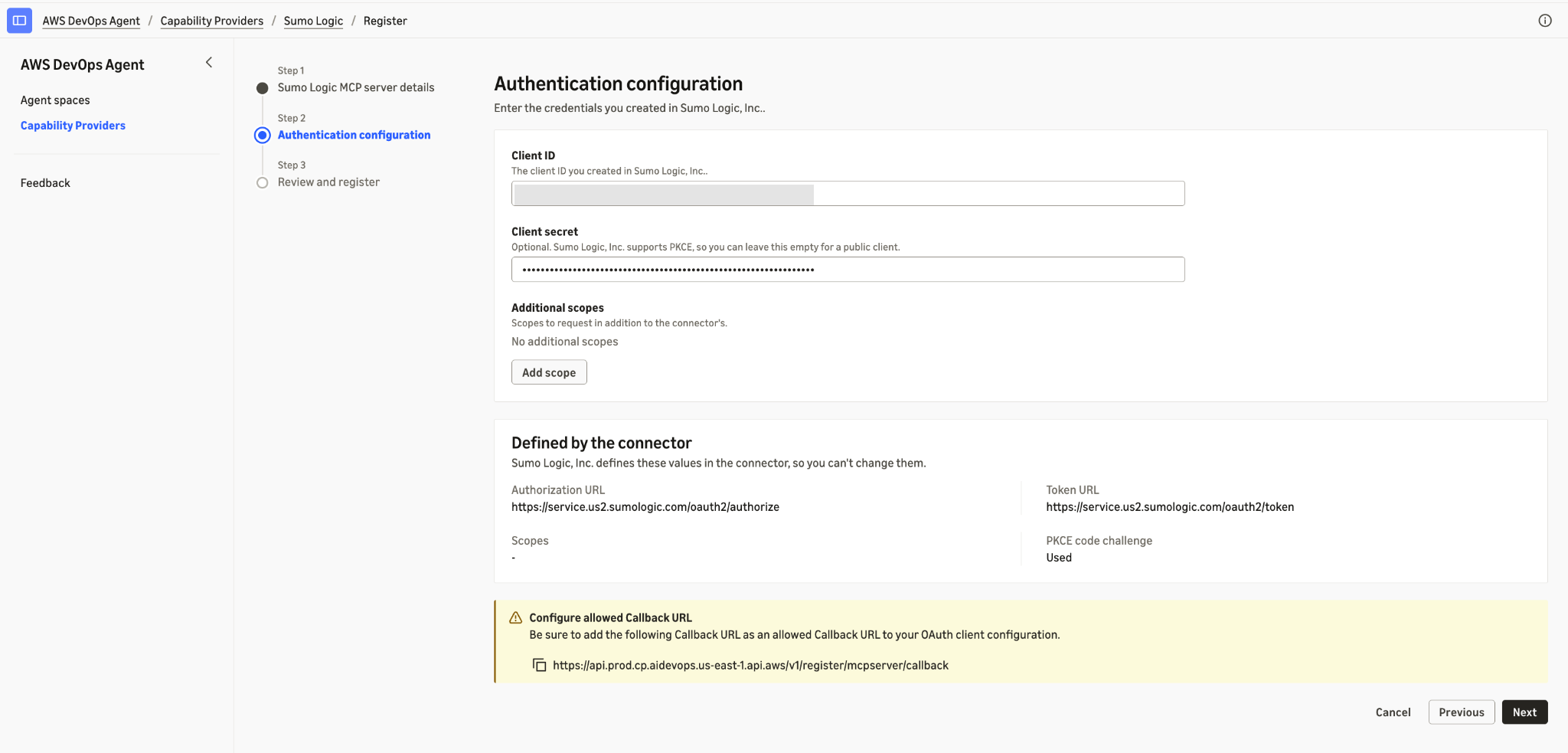
- For Redirect URI, add the callback URL that the DevOps Agent console shows in the Configure allowed Callback URL box on the Authentication configuration step. See Register the Sumo Logic capability provider.
- Under Scopes, expand each category and select only the View check boxes for the resources listed in Check permissions, plus Run Log Search. Leave every Manage check box cleared.
- Copy the Client ID and Client Secret. The secret is shown only once.
If you leave all scopes cleared, the client is granted all of them. Some scopes, such as Manage Library, which allows creating and updating dashboards, are granted regardless of the user's role, so a role alone cannot remove dashboard writes.
Sumo Logic supports Proof Key for Code Exchange (PKCE) with the S256 challenge method on its authorization server, and DevOps Agent sends the challenge. You do not need to turn on a setting.
Check permissions
The agent acts as the person who signs in, so it can only do what that user's roles allow. For investigations, a role with these capabilities is enough:
- View Partitions
- View Field Extraction Rules
- View Fields
- Run Log Search
- View Alerts (Monitors)
- View Library (dashboards)
- View Cloud SIEM Enterprise, for Cloud SIEM insights
The MCP server also has write tools, such as creating dashboards and detection rules or updating insights. Clearing the Manage scopes removes these tools from the connection. If you keep them, disable them in DevOps Agent or require approval, unless you want the agent to change Sumo Logic content.
Register the Sumo Logic capability provider
- In the AWS DevOps Agent console, click Capability Providers, search for
sumo, and click Register on the Sumo Logic card.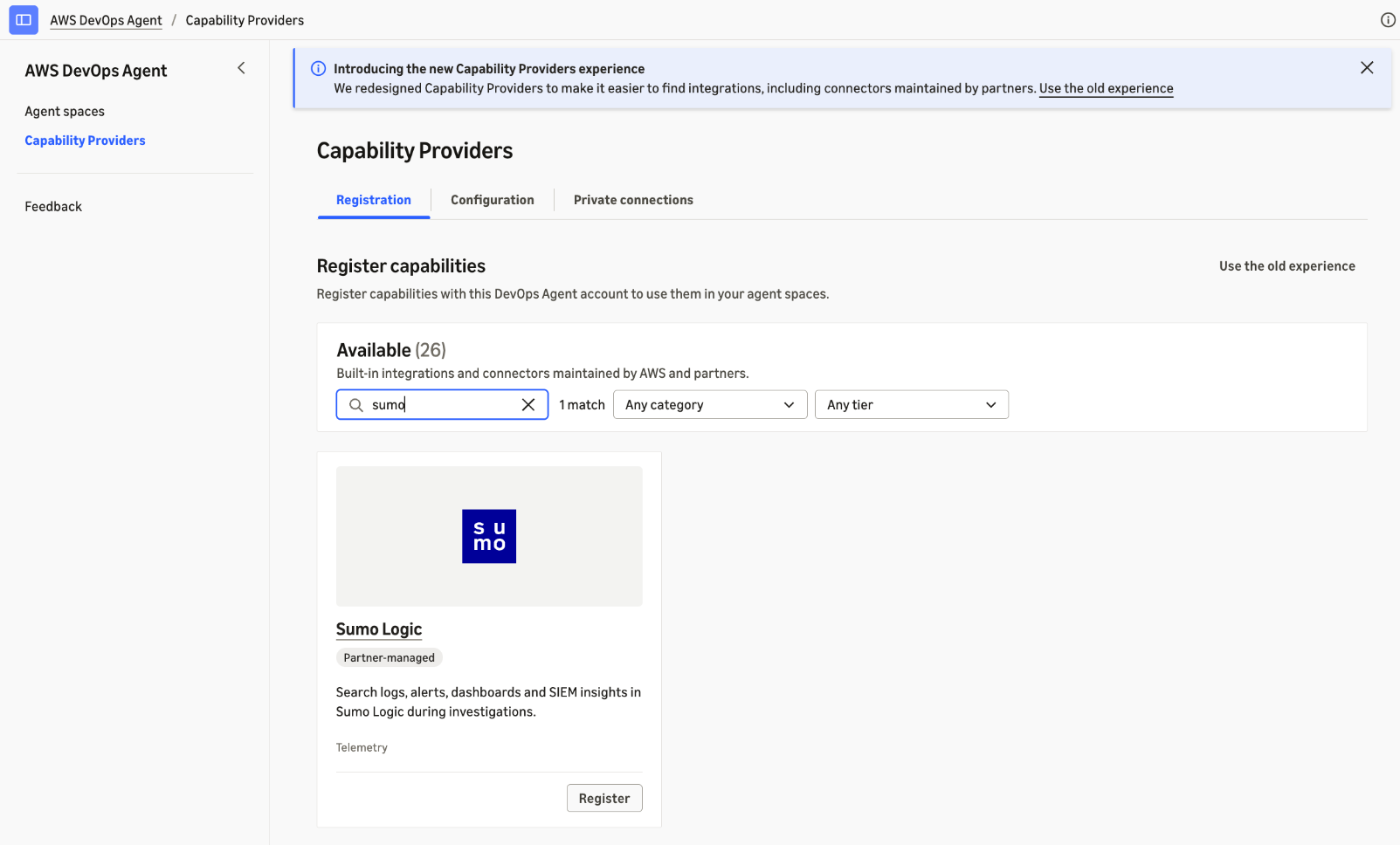
- On the Sumo Logic MCP server details step, keep the default Name of
sumo-logicor enter your own. For Endpoint, choose the region that matches your deployment, and then click Next.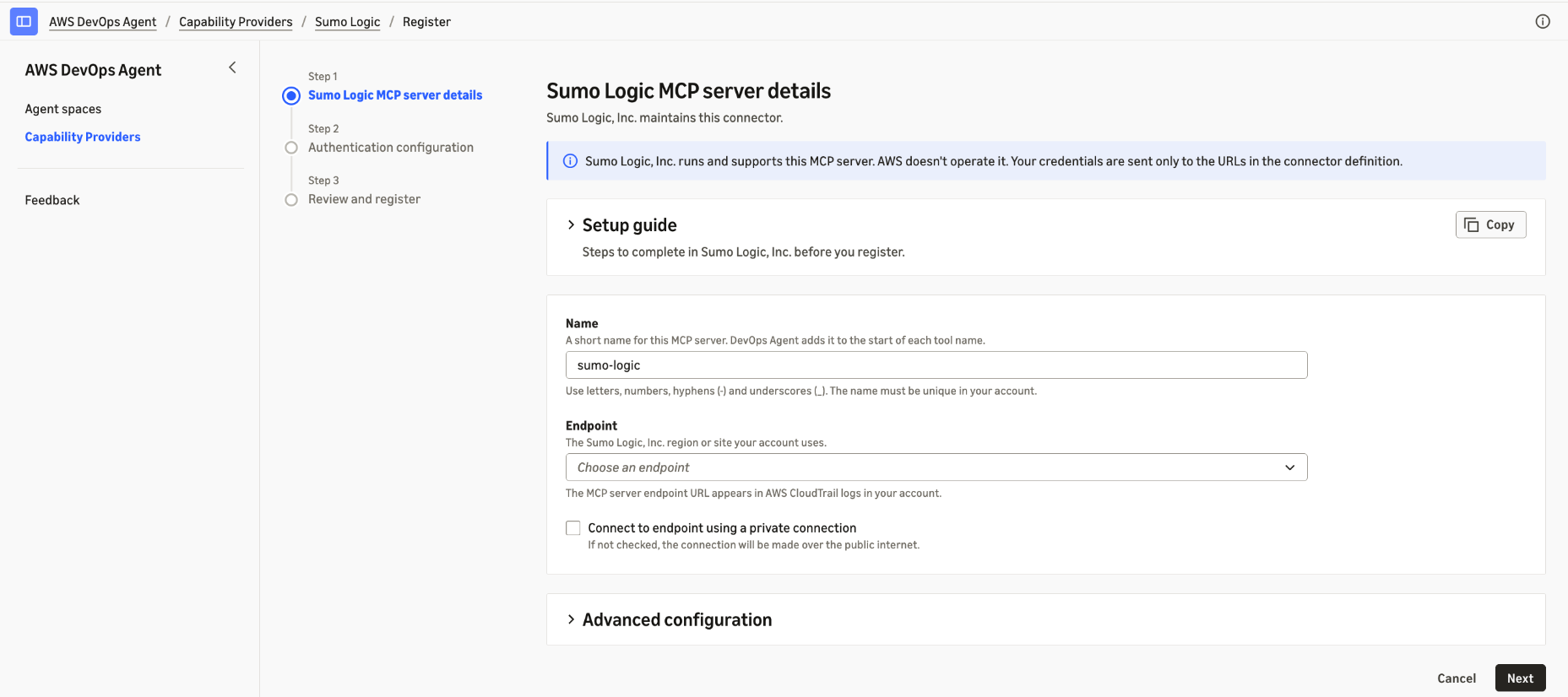
- On the Authentication configuration step, enter the Client ID and Client Secret from the OAuth client you created, and then click Next. The console marks the client secret as optional because Sumo Logic supports PKCE.
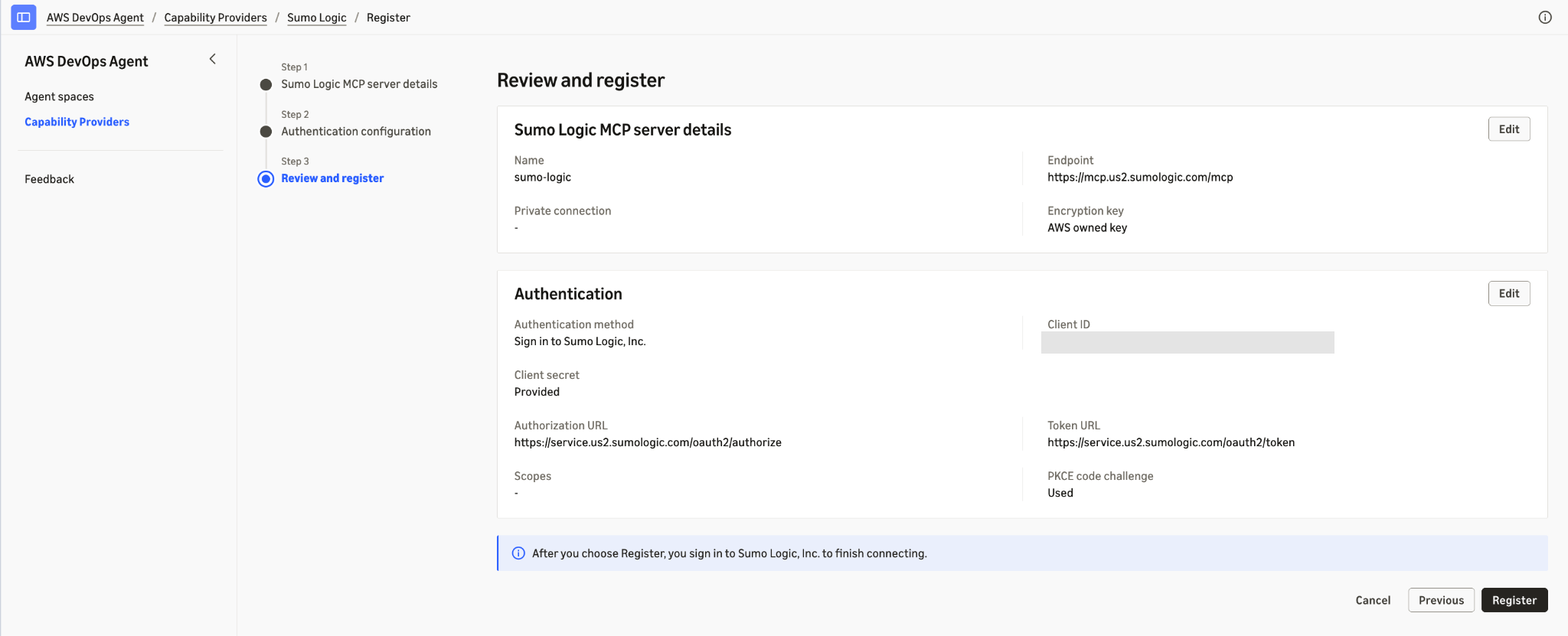
- On the Review and register step, confirm the details, and then click Register.
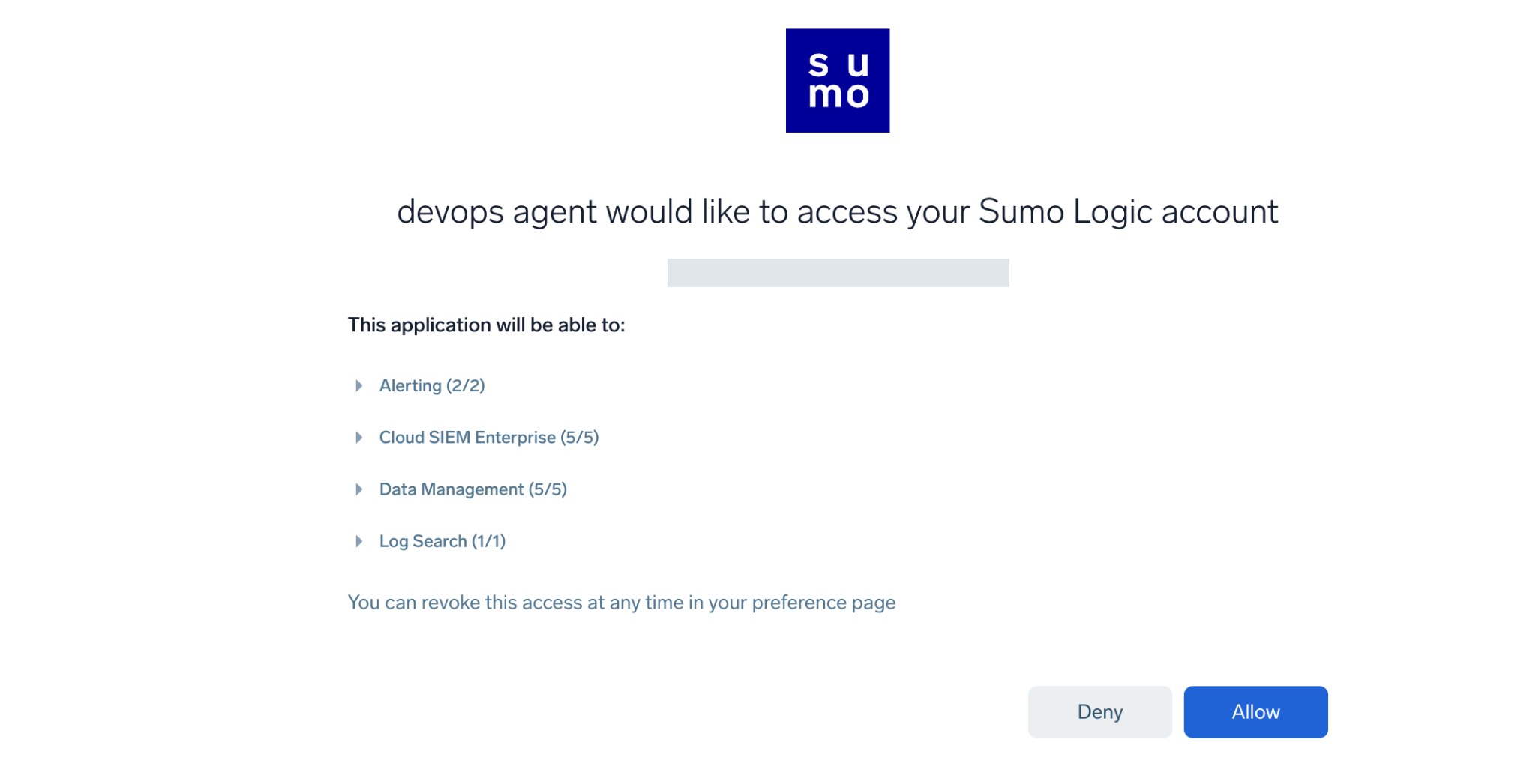
- In the Sumo Logic window that opens, log in with your Sumo Logic credentials. Review the access that DevOps Agent requests, and then click Allow.
- Back on the Capability Providers page, confirm that Sumo Logic shows as registered.
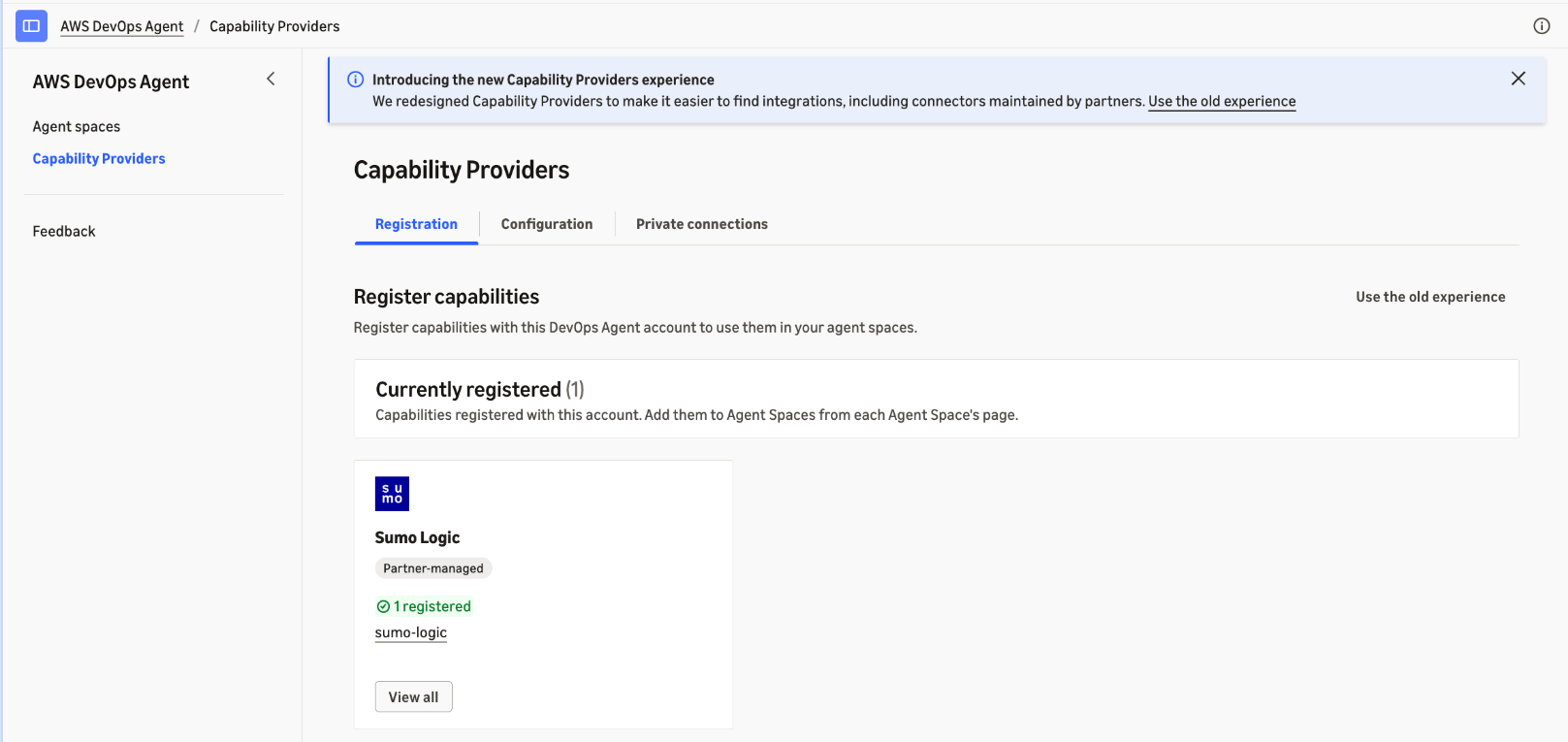
Registering the provider makes it available to all agent spaces in your account. Add it to each agent space where you want to use it.
Add Sumo Logic to an agent space
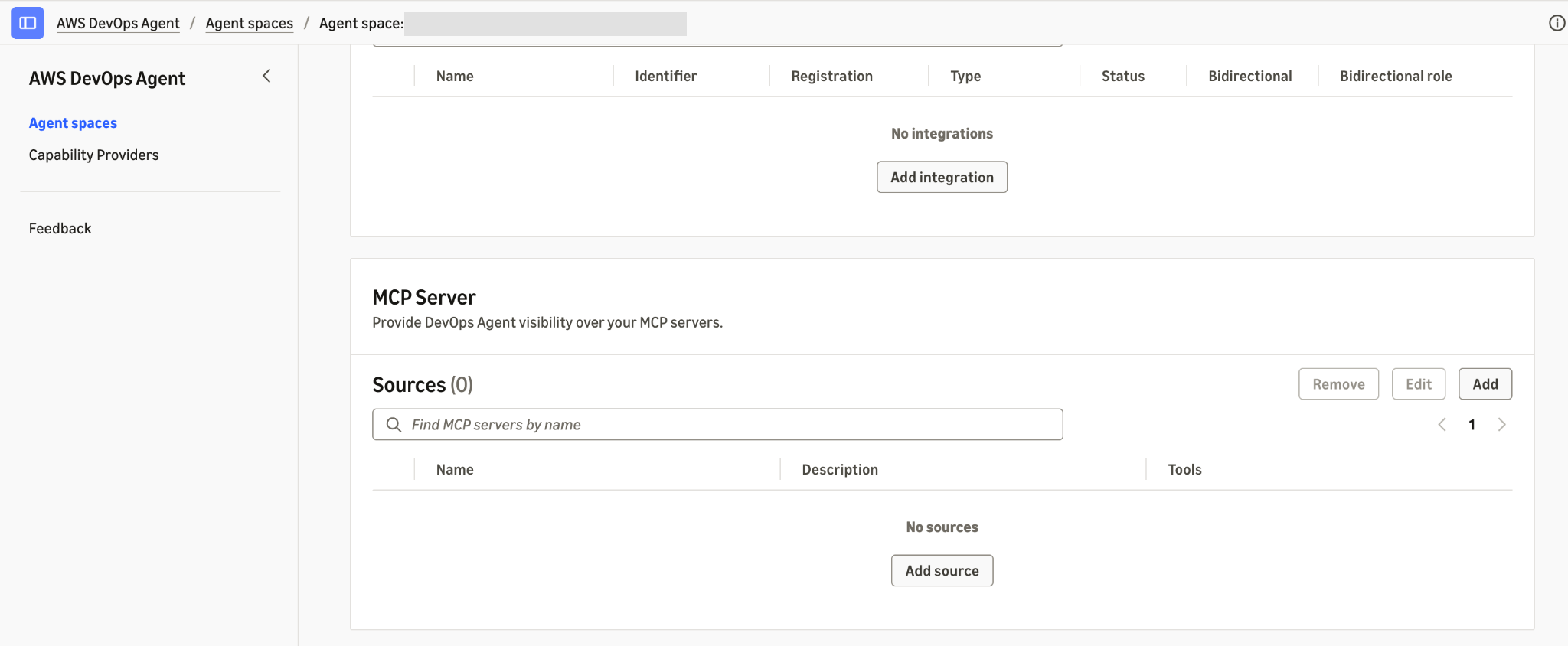
- In the DevOps Agent console, click Agent spaces and open the agent space you want to use.
- In the MCP Server section, click Add source.
- In the Add a capability dialog, find Sumo Logic and click Add.
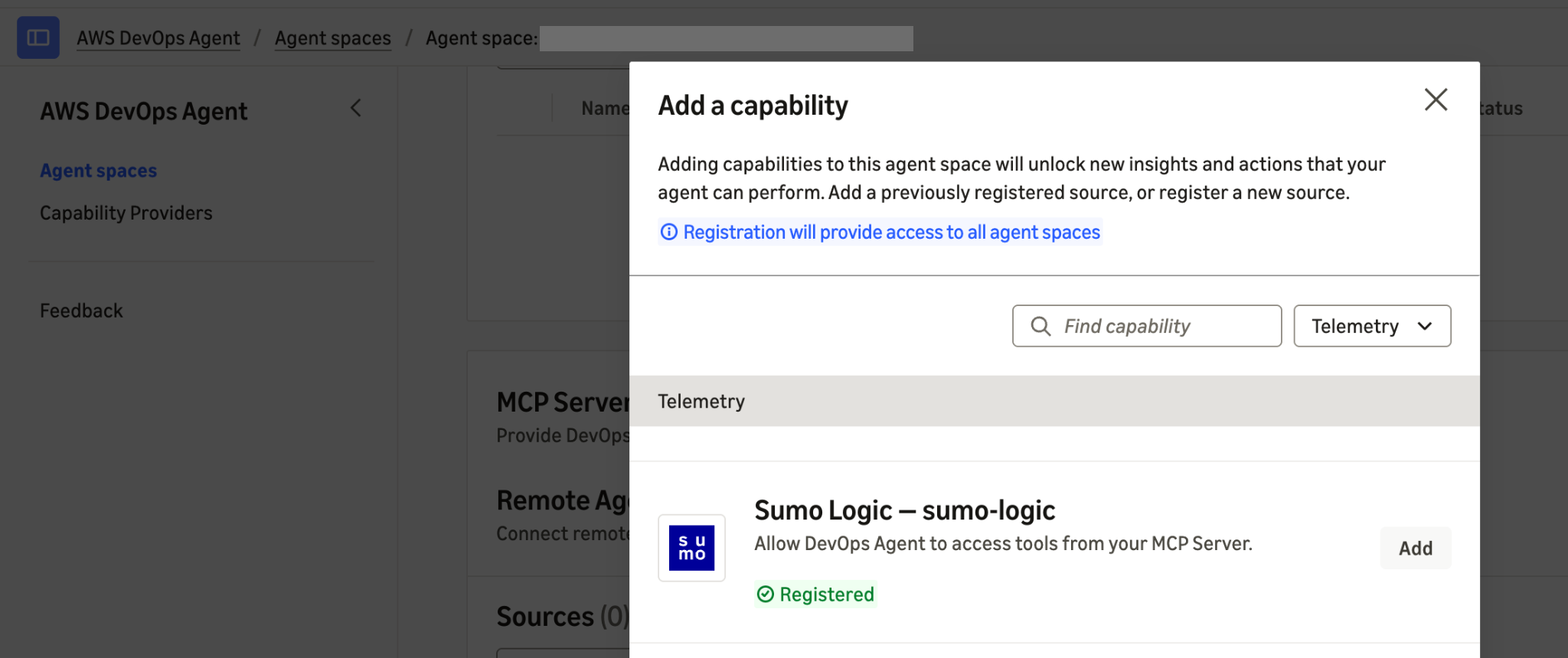
DevOps Agent then shows the tools that are available from the Sumo Logic MCP server.
Set up other clients
For a client without a Sumo Logic plugin, such as Cursor, Codex, or ChatGPT, connect to the MCP server manually and install the skill file yourself:
- Register the MCP server in your client. See How to configure the MCP server in Claude Code CLI for an example, and use the endpoint for your deployment.
- Download and install the sumo-investigator skill. See Improve investigations with the sumo-investigator skill.
If your client does not support CIMD, see How to set up MCP without CIMD.
Troubleshooting
Authentication does not start or fails
Cause
Your org has not enabled CIMD, or your client does not support it.
Resolution
- Ask an administrator to enable CIMD.
- If your client does not support CIMD, set up MCP without CIMD.
Kiro shows an Incompatible auth server error
Symptom
Kiro lists a server whose name starts with power- and shows Failed to connect: Incompatible auth server: does not support dynamic client registration.
Cause
Kiro does not let a power declare OAuth settings, and Kiro's built-in OAuth client supports only dynamic client registration. The Sumo Logic MCP server requires CIMD, so the power's own server entry cannot connect.
Resolution
Use the sumo-logic server that setup adds to your Kiro MCP settings, and ignore or disable the power- entry. If sumo-logic is missing, add it as described in Set up Kiro.
Tools are missing from your client
Cause
Your client lists only the tools that your role allows. If your role does not include a capability, the matching tools do not appear.
Resolution
Confirm that your role includes the capability each tool requires. See What MCP tools are available?.
You connect to the wrong deployment
Cause
OAuth tokens are bound to a single Sumo Logic deployment, so a client that authenticated against one deployment cannot use the URL for another.
Resolution
Clear the client's stored authentication for the sumo-logic server, and then authenticate again against the correct MCP server URL. See How to switch Sumo Logic organizations.
For other errors, such as 401 Request blocked by IP allowlist policy, see Troubleshooting on the MCP server page.