 Meet the new
 Move or Remove a Doc
When you move a doc or remove it altogether, that deletes its URL. Visiting the old URL will return a 404 - Page Not Found error, which negatively impacts customer experience and can damage our SEO.
To prevent this, create a 301 redirect. Follow these steps to ensure a smooth transition and maintain the health of our docs site.
If you have Claude Code installed, this repo's /remove-doc slash command automates the steps below, including creating the redirect, updating internal links, and removing the doc from navigation. See the README for the full command list and which ones require internal access.
Prerequisites
- You'll need a GitHub account to contribute to Sumo Logic Docs.
- We recommend adding 2FA protection when contributing to Sumo Logic repositories.
- Help us keep Sumo Logic Docs open and inclusive by reviewing our Code of Conduct.
Recommended: New to GitHub or Markdown? Try VS Code, a development application to open the repo, edit and create files, and preview pages as you write, along with the following extensions:
- Markdown All in One.
- Markdown Preview GitHub Styling.
- Markdown Preview Enhanced.
- Markdown Preview Mermaid Support.
- Mermaid Markdown Syntax Highlighting for charts and graphs.
Step 1: Fork the Sumo Logic Docs repository
- Fork the Sumo Logic Docs repository locally.
- Review our README documentation guidelines.
- Create a new branch from your forked repo using a name that best describes the work or references a GitHub issue number. For example, if you wanted to submit a Pull Request (PR) to edit our Elasticsearch app doc, you'd write something like:
<your initials>-apps-elasticsearch.
Remember to sync your fork and update branches as needed.
Step 2: Create a 301 redirect
As an example, let's say there are two docs called Nginx App and Nginx (Legacy) App, and we need to deprecate the latter.
- In your GitHub authoring tool (like VS Code), open the cid-redirects.json file, which contains all 301 redirects.
- Add a redirect from the old URL you're removing to the new URL containing the equivalent content.
"/docs/integrations/web-servers/nginx-legacy": "/docs/integrations/web-servers/nginx",
Step 3: Update internal links
Ensure any internal links pointing to the deleted doc are updated to the new URL.
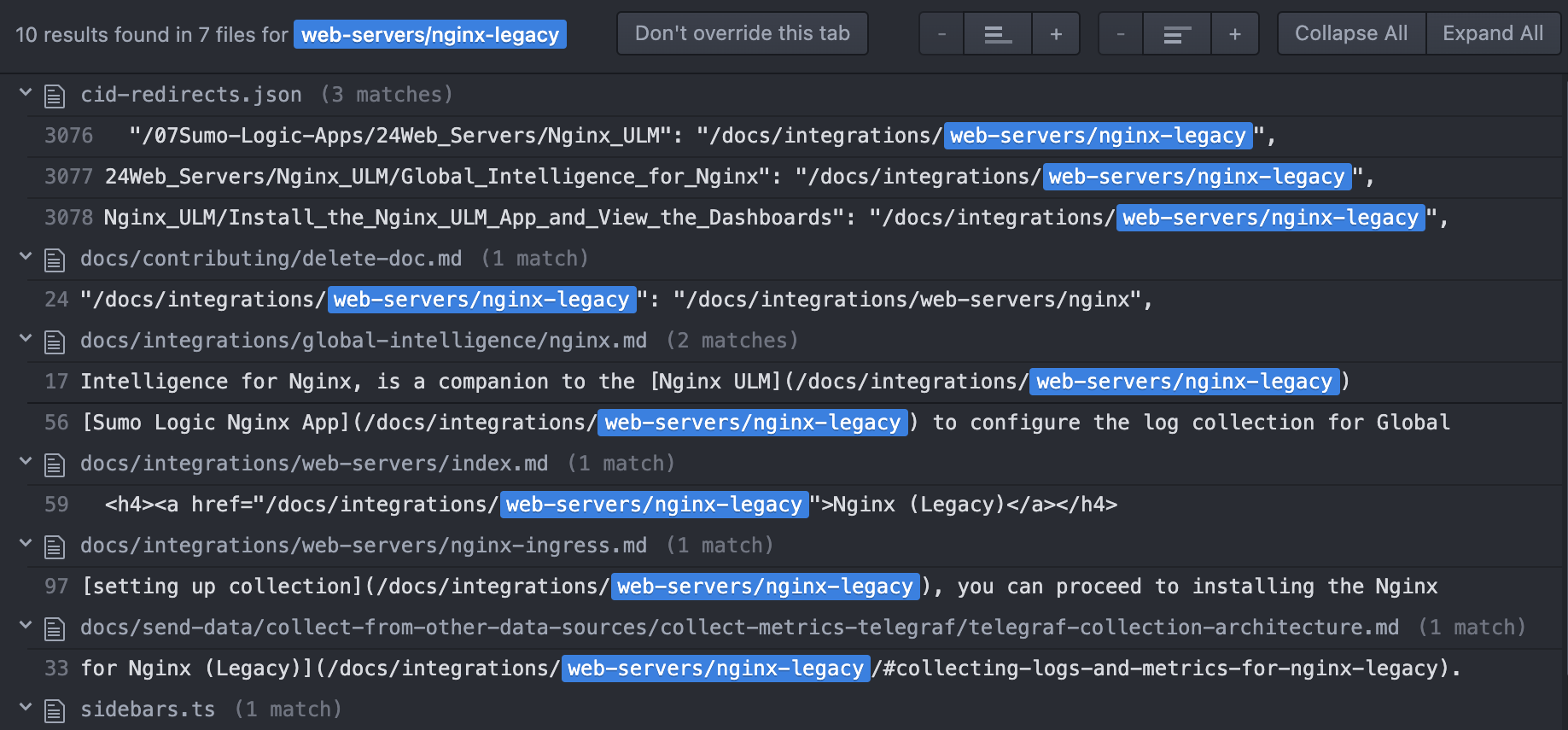
- In your GitHub authoring tool, run a search for the URL you're removing. For example, if the legacy URL appears in other documents, replace all instances with the new URL.
 warning
Never do a Find All > Replace All, as this can break unrelated items like image paths. Replace each URL one at a time.
- If applicable:
- Remove from its parent index.md hub page.
- Remove from Product List.
Step 4: Delete the doc file
Delete the actual .md doc file from the repository (in this example, it would be docs/integrations/web-servers/nginx-legacy.md).
Step 5: Remove doc from navigation
Remove the doc from the navigation menu (sidebars.ts file).
Step 6: Preview your changes
Before proceeding, you'll need to preview your changes. See the Build Locally section in our README for instructions.
This constructs and deploys a local version of the Sumo Logic Docusaurus site. Our site relies on Docusaurus, a static site generator. It creates your site as basic static HTML, JavaScript, and CSS files.
Step 7: Submit your request
- Commit your changes to the branch with a meaningful message.
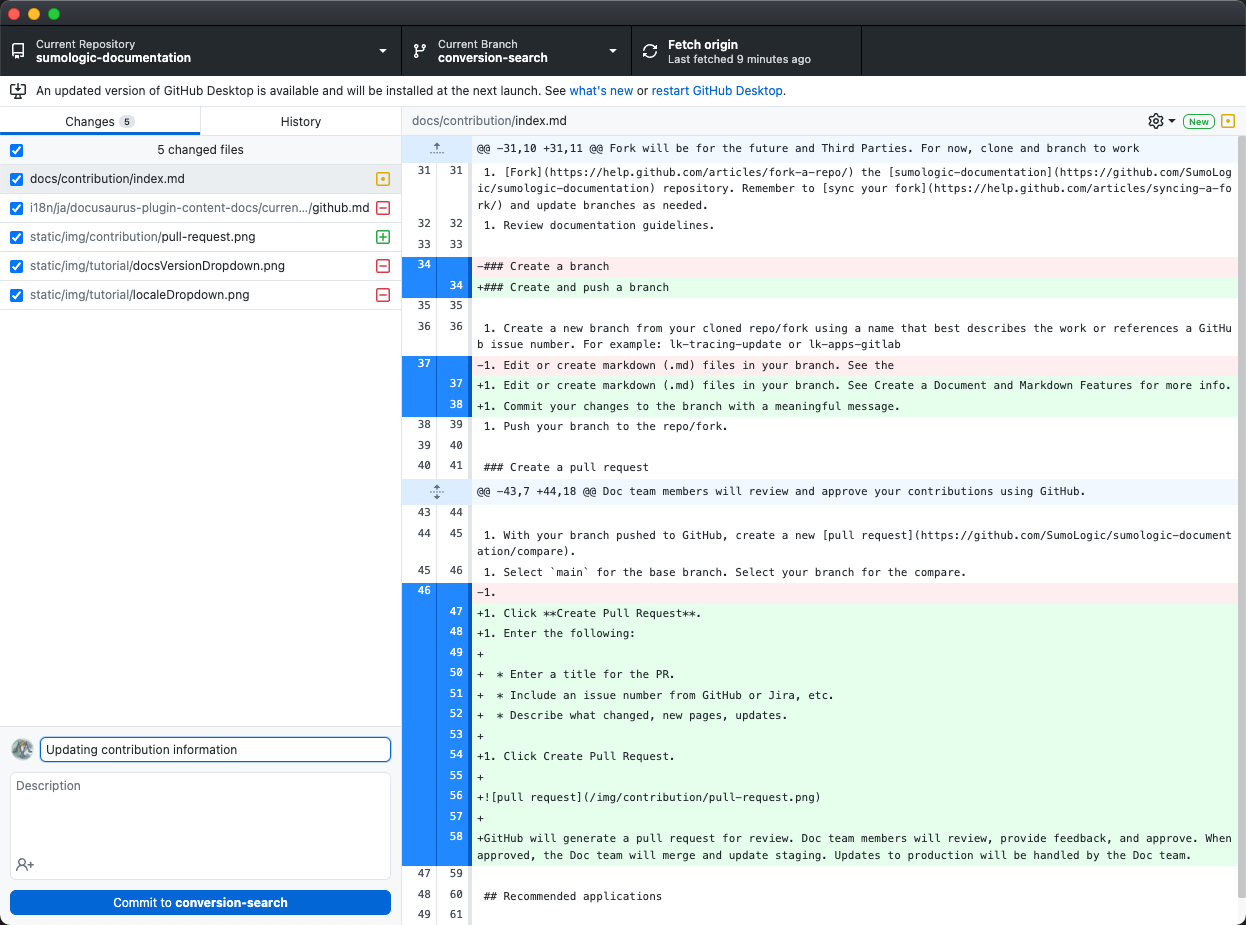
Use descriptive commit messages (and issue or ticket numbers, if applicable) that describe the changes you're making. One-line messages are fine for small changes, but bigger changes should look like this:$ git commit -m "A brief summary of the commit>> A paragraph describing what changed and its impact." - Set permissions to allow maintainers to edit and update the PR (learn more).
- Push your branch to the forked repo.
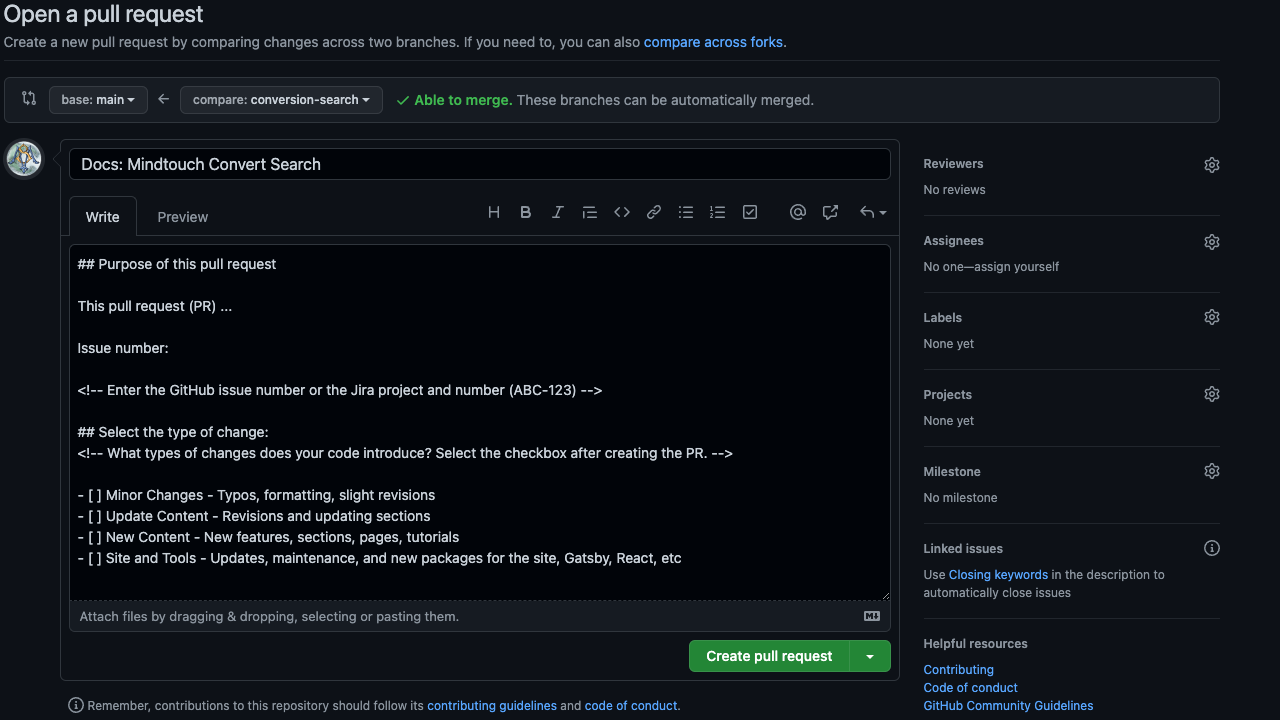
- Visit our repo after pushing your branch. If you see an option to Compare & pull request for your branch, click this.

- If you do not see it, create a new PR.
- Select
mainfor the base branch. This is the branch all staging and production content builds from. - Select your branch for the comparison.
- Click Create pull request.
- Select
- If you do not see it, create a new PR.
- On the PR page, enter the following:
- Make sure base branch is
mainand compare branch is the one you pushed. - Enter a title for the PR.
- If applicable, include a GitHub issue number (or, for internal Sumos, the Jira ticket number).
- Describe the changes you made.
- Apply a label that best describes your contribution.
- Make sure base branch is
- (Optional). For urgent, high-priority PRs (for example, doc edits tied to a GA release happening within 24 hours):
- Add the GA release date to the title. For example,
AWS Integration release (GA: Jan 1, 2026). - From the labels list, select the
hot🔥label, signifying it's an urgent PR. - For internal Sumos only: after completion of all GitHub checks, send your PR link to the #dochub Slack channel for review.
- Add the GA release date to the title. For example,
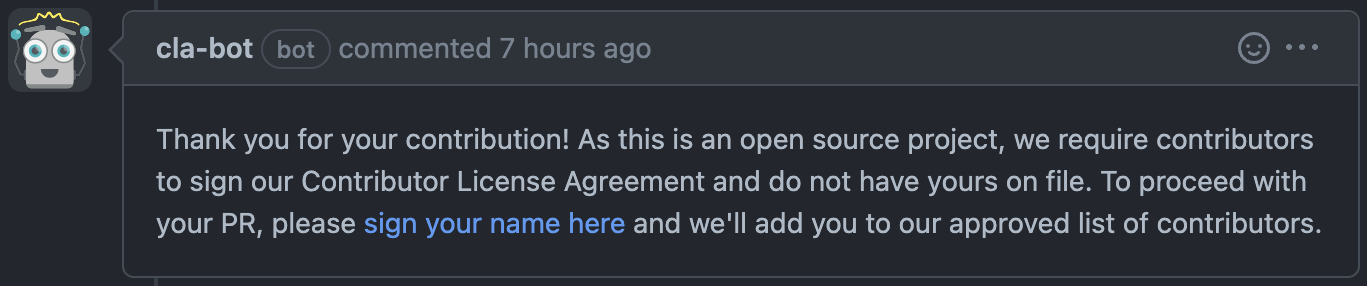
- First-time contributors will be prompted in a PR comment to sign our Contributor License Agreement. We allow individual contributions and contributions made on behalf of companies.
Step 8: Test the redirect
After your pull request is merged and deployed, visit the old URL and verify that it performs a 301 redirect to the intended destination.
What happens next?
The Docs Team will review your pull request, provide feedback, and merge approved changes to staging. They'll handle production updates separately.
Optional steps
Add deprecation note
If you're deprecating one solution in favor of another (like in the above Nginx and Nginx (Legacy) example), you may also want to add a note in the new doc stating the legacy solution has been deprecated. Check with a subject matter expert to be sure.
Hide from search engine results
It can take months for an old URL to drop from Google search engine results. If you need to hide a page immediately from Google, open a GitHub Issue and provide the details for our site admin.
Exclude pages from the site build
You can prevent content from being indexed by excluding it from compilation entirely. Pages that are not compiled into the build output will not appear on the live site or sitemap, so neither search engines nor internal site search can index them.
To exclude docs, add their paths to the docs.exclude setting in docusaurus.config.js:
presets: [
  [
    '@docusaurus/preset-classic',
    ({
      docs: {
        exclude: [
          '**/reuse/**',
          '**/ja/**',
        ],
      },
    }),
  ],
];
Any Markdown files in the listed directories are excluded from the build and will not be served or indexed. Note that /docs/reuse files are still embedded where referenced; they will not compile as standalone pages.
For finer-grained control, such as keeping a page compiled but hidden from search, use robots.txt or noindex meta tags instead. If content should never be published at all, excluding it from compilation is the most reliable approach.
If a document has already been indexed and needs to be urgently removed from Google search results, follow Google's removal instructions.