 Meet the new
 Documentation Style Guide
This is the editorial style guide for Sumo Logic documentation. Use it to keep docs consistent in voice, tone, terminology, and formatting, whether you're on the Docs Team or contributing from outside.
Our docs are built with Docusaurus, a static site generator, and written in GitHub-flavored Markdown. This is a living document: if a rule or UI term you need is not here, let us know and we'll add it.
To create a new doc quickly, use a template. Copy the file, add your content, and submit a PR. The Docs Team reviews submissions, suggests edits, adds new content to the navigation, and answers your questions.
If you have Claude Code installed, this repo's sumo-style skill applies these conventions automatically when you draft or edit docs, so you do not need to invoke it manually. See AGENTS.md for details.
Style references
This guide comes first. When it does not cover something, defer to these, in order of precedence:
- Sumo Logic Brand Guidelines. Brand Voice and Writing Style Guide. Voice, tone, and brand terms.
- Microsoft Manual of Style. UI, procedures, and technical formatting. See also User Input | Formatting Text in Instructions.
- AP Stylebook. General usage.
- The Chicago Manual of Style. Anything the above do not settle.
- Merriam-Webster Dictionary. Spelling and hyphenation.
For terminology usage guidance, see our Word List.
Learning resources
If you're new to writing tech content or would like to learn more, check out these resources:
- Write the Docs. Association of tech writers, developers, trainers, and more that have collected ideas, created training and guidelines, and actively discuss documentation.
- Google Technical Writing Courses. Self-paced courses to refine your writing. The courses may use a style different from ours, but still an excellent way to get started.
- Every Page is Page One. A helpful method for considering what goes into a page is to think of every page as page one. With the extreme use of search engines or sharing a link to find content, users may land in the middle of a section or tutorial. These ideas help hone your content and focus on user needs.
Helpful blogs on tech writing:
- Writing for the Web. Guidance on writing for the web, including insights on technical writing and learning.
- Feathers. Blog for technical and fiction writing.
- I'd rather be writing. Guides and thoughts on tech writing process and content.
Voice and tone
We write like a knowledgeable colleague who explains things clearly and helps you get your work done: genuine and trustworthy. Readers should leave a page feeling confident and informed, with what they need to stay in their workflow and a clear place to get more help.
Customers trust us with their vital data. We're committed to data observability and security. Write in a way that earns that trust.
Three rules underpin everything below: accuracy, brevity, and clarity.
Avoid hype
- Reader benefit. Lead with what the reader gains. Avoid generic adjectives like "very" and phrases like "we're the best". Show what the product does instead.
- Honest claims. Do not overpromise. Describe what the product does, not what it might do at its best. When something does not work as expected, say so and tell the reader how to get it right. For example:
✅ Do ❌ Don't Reduce thousands of log messages to a few patterns with LogReduce. LogReduce is a very powerful, best-in-class feature. - Judicious use of absolutes. Use "always" and "never" only when they are true. "Always" can imply a result that is not guaranteed, and "never" may not hold in every case.
Timeless documentation
Docs content needs to be evergreen. Avoid words that anchor a sentence to the moment you wrote it, like "now", "currently", "at this time", or "soon". Write as if there is no publish date, and describe what the product does, not when it started doing it.
| ✅ Do | ❌ Don't |
|---|---|
| Sumo Logic supports AWS CloudTrail as a log source. | Sumo Logic now supports AWS CloudTrail as a log source. |
| This field is required. | In the future, this field will be required. |
Release notes and other time-stamped content are the exception. Words like "now", "new", and forward-looking phrases like "coming in a future release" are fine there. That's the point of a release note.
Concise, human phrasing
Write the way a knowledgeable colleague would explain something in person. Cut anything that does not carry information. This also keeps our docs from reading like generic AI output.
- No throat-clearing. Start with the point. Drop preambles like "It's worth noting that", "It's important to understand", and "In this section, we will".
- No filler. Cut "simply", "just", "of course", "as you can see", "needless to say", and intensifiers like "very", "really", and "quite".
- Do not restate. Skip summary sentences that repeat what the paragraph, list, or procedure just said.
- One idea per sentence. Prefer short sentences over long ones stitched together with "and", "which", or semicolons.
- Say it once. When two sentences make the same point, keep the clearer one and delete the other.
Conversational voice
Write in an instructive, conversational voice, using the words you would use in a face-to-face conversation. Avoid a stiff, institutional voice.
- Second person. Address the reader as "you", as you would in conversation.
✅ Do ❌ Don't You'll need to provide your API key. One must provide their API key. - Friendly help. When linking to the support site, use phrases like "Need help? Let us know" instead of "Please email our support personnel".
- Humor. We have a sense of humor! We do serious work, but we do not take ourselves too seriously. That makes Sumo Logic feel likable.
- Gentle language. Use "need to" instead of "have to" or "must". "Have to" and "must" can sound harsh and unfriendly.
How-to instructions
Active voice
Use the active voice whenever possible. It gives the reader a clear call to action, reduces word count, and keeps instructions clear.
Not sure if a sentence is passive? Try the zombie test: add "by zombies" after the verb. If the sentence still makes sense, it's passive. For example, "The query was saved (by zombies)" is passive. "You saved the query (by zombies)" is not.
| ✅ Do | ❌ Don't |
|---|---|
| Sumo Logic ingests multiple streams of data. | Multiple streams of data are ingested by Sumo Logic. |
Task directives
Skip "please" in instructions. The reader needs to complete the task, and "please" adds words without adding information.
| ✅ Do | ❌ Don't |
|---|---|
| Build the query using the following... | Please build the query using the following... |
Instruction introduction (stem)
Introduce your instructions with the goal, then list the steps. This is called a stem. It focuses the task and keeps your writing active.
| ✅ Do | ❌ Don't |
|---|---|
| To add a new collector: 1. Access Sumo Logic and find the... | When you need to add a new collector, access Sumo Logic and find the... |
Conditional statements
Start with the condition. When a step begins with "if", readers know right away whether it applies to them.
| ✅ Do | ❌ Don't |
|---|---|
| If you use an Installed Collector, restart it. | Restart the collector if you use an Installed Collector. |
Inclusive language
Inclusive, culturally neutral language resonates with global audiences and makes everyone feel welcome, no matter their race, gender, socioeconomic status, or ability. For approved terms, see the Word List.
- Regional language. Do not use idioms, slang, expressions, or terms only a specific region or group understands. Phrases like "piece of cake" or "jump on the bandwagon" do not translate well and can confuse global audiences. Some idioms can also offend marginalized groups. Say what you mean directly.
- Gender neutrality. Unless you're referring to a specific person, use "they" or the person's role instead of gendered pronouns. For example:
✅ Do ❌ Don't Contact your administrator. They may need to update your role. Contact your administrator. He or she may need to update your role. - Cultural neutrality. Replace terms that carry negative connotations with culturally neutral ones. For example:
✅ Do ❌ Don't "allowlist"
"denylist"
"placeholder data"
"primary" or "main"
"press" or "click""whitelist"
"blacklist"
"dummy data"
"master"
"hit"
Plain language
- Readability. Write at about an eighth-grade reading level, especially in introductions. This helps readability and SEO. You can check your content with Writing Tester.
- Simple words. Avoid unnecessary technical jargon. Do not use words just because they sound better. Choose short, simple words over long, complicated ones.
Tone by situation
Our company voice stays the same on every page. Our tone adapts to the reader's frame of mind. Many readers arrive at our docs in the middle of an incident.
| Doc type | Reader situation | Tone |
|---|---|---|
| Troubleshooting | An error or outage | Calm and direct. Acknowledge the problem, then give the next step. |
| Concept | Learning a new concept or feature | Patient. Walk through ideas in order and point to related resources. |
| How-to | Setting up or configuring | Efficient. Give the steps and skip the background. |
| Reference | Looking up an API, operator, or field | Neutral and scannable. Get to the answer fast, no narrative. |
Abbreviations
Avoid the use of abbreviations like “e.g.”, “i.e.”, and “etc.”. Although they may be well understood, such abbreviations don’t support our goal of a conversational tone. In other words, don’t use language you wouldn’t use verbally.
| ✅ Do | ❌ Don't |
|---|---|
| for example | e.g. |
| ✅ Do | ❌ Don't |
|---|---|
| that is | i.e. |
Acronyms
An acronym uses the first initials of a word or phrase, for brevity. Our industry is full of them, and they can get confusing if their usage is not clear. Acronyms should be capitalized, if not used directly in a query. Unless the usage is clear from the context, for the first usage, spell out the phrase, then present the acronym in parenthesis.
For example, if you're writing a doc about AWS Application Load Balancer, say AWS Application Load Balancer (ALB) on first reference, and for the rest of the doc, use ALB.
All companies have numerous acronyms for products, features, solutions, and more. Our documentation includes acronyms for Sumo Logic and third-party software. Always fully spell out the first instance of the acronym on the page, then you can use it throughout. Do not spell out in a heading, but in paragraphs or bullets.
Admonitions
We call Docusaurus's callout blocks admonitions. The standard types (:::note, :::tip, :::info, :::important, :::warning, :::danger) work as documented by Docusaurus and accept full Markdown, including code blocks, links, lists, images, and videos.
Two admonition types are Sumo Logic-specific:
:::sumo. Subject matter expert guidance, best practices, and Sumo Logic-specific notes. Defaults to the title "Best Practice"; retitle as needed (for example,:::sumo Good to know).:::training. Links to training courses, certifications, and micro lessons.
Pick a type by intent:
| Type | Use for |
|---|---|
:::note | A neutral aside. |
:::tip | An optional shortcut or a better way to do something. |
:::info / :::important | Something the reader must not miss. |
:::warning | Risk of a confusing or incorrect result. |
:::danger | Risk of data loss or an unrecoverable action. |
Rendered, each type looks like this:
A neutral aside.
An optional shortcut or a better way to do something.
Something the reader must not miss.
Risk of a confusing or incorrect result.
Risk of data loss or an unrecoverable action.
 Best Practice
Subject matter expert guidance, best practices, and Sumo Logic-specific notes. Retitle as needed.
Links to training courses, certifications, and micro lessons.
Accessibility
Sumo Logic documentation follows WCAG 2.1 AA as its accessibility baseline.
For alt text guidance, see Images. For link text (avoid "click here"), see Links. For ableist and non-inclusive language, see Inclusive language.
Heading hierarchy
Do not skip heading levels. Screen readers and keyboard users navigate by headings, and a broken hierarchy makes content harder to scan.
Do: move through levels in order: H2 → H3 → H4.
Do not: jump from H2 to H4, or use headings for visual styling rather than document structure.
Color and contrast
Do not rely on color alone to convey meaning. Users with color blindness or high-contrast display modes may not perceive color differences.
- If a screenshot or diagram uses color to highlight something, add a label, callout, or annotation so the meaning is clear without color.
- For custom diagrams or graphics, use a text contrast ratio of at least 4.5:1 (WCAG AA). Check with the WebAIM Contrast Checker or TPGi's Colour Contrast Analyser.
Screen reader testing
Before submitting a PR for a new doc, consider a quick screen reader check to catch heading, link, and table issues:
- macOS: VoiceOver. Press Command+F5 to toggle.
- Windows: NVDA (free) or Narrator (Windows+Ctrl+Enter).
- Chrome: ChromeVox extension.
Capitalization
- Title case all doc titles. Example:
Cloud SOAR Incident Management and Triage. - Sentence case all other headers (H2, H3, H4). The only exception is proper nouns, which are always title case. Example:
Throughput signals and contributing factors. - In body text, do not capitalize a term unless it's a proper noun or a literal UI label. Generic product terms are lowercase: collector, source, dashboard, panel, index, partition, role, scheduled view, alert, search.
- UI label vs. concept. When you name a UI element or page as it appears on screen, match its on-screen capitalization and bold the label: the Search page, the Scheduled Views page, the Aggregates tab. When you mean the same thing as a general feature or concept, use lowercase and no bold: "scheduled views let you pre-aggregate data", "run a search". The generic word (
page,tab,button) is always lowercase. See Bold. - Always capitalized: proper nouns and product names (Sumo Logic, Cloud SIEM, Cloud SOAR, Kubernetes, Markdown, RBAC), and named UI areas when used as labels (the Library, the Search page, Admin mode).
- Feature names vs. use cases. Coined or proper feature names stay capitalized (LogReduce, LogCompare, Cloud SIEM, Cloud SOAR, Automation Service). Generic capabilities and use cases are lowercase: security data lake, threat detection and investigation, audit and compliance, application security, observability, continuous intelligence. Marketing keeps a product and feature name matrix for edge cases.
- Does it need a name at all? Before you capitalize a new feature name, ask whether it needs a branded name (see Fighting Feature Names). Default to plain descriptive language; reserve a proper name for features that are genuinely distinct and that users will refer to by name.
Code (inline)
Use single backticks (` `) to format inline code as monospace font. Example use cases include commands, operators, API method names, and error messages. For information on code blocks (scripts), see Code Blocks.
- Markdown
- Result
` = sumologic_slo_output`
_view = sumologic_slo_output
Code (blocks)
Use fenced code blocks (triple backticks) for scripts and multi-line commands a reader copies and runs. Add a language on the opening fence for syntax highlighting; see Docusaurus code blocks for titles, line highlighting, and line numbers.
- Use
sqlfor Sumo Logic queries andjsonfor Sumo Logic logs. For the full language list, see Prism's supported languages. - Code blocks are for things a reader runs. Format error messages and single identifiers as inline code, not blocks.
Embed a file from a GitHub repo
Add reference after the language on the opening fence, then put the file's GitHub URL on the next line. Docusaurus fetches the file at build time and renders it as a highlighted code block with a link back to the source:
loading...
Append #L4-L5 to the URL to embed only those lines, and add a title with json reference title="example.json". We use this heavily in the C2C source docs.
Collapsible text blocks
Use a Docusaurus <details> block to fold away long optional content: verbose examples, long code samples, or big reference lists. Put the title between the <summary> tags and the content after them. Collapsed content is still indexed for search.
| Use case | Use | Why |
|---|---|---|
| FAQ sections | ❌ DON'T | Hidden content cannot be cited by AI tools or search engines. FAQ content must be immediately visible and scannable. |
| Troubleshooting sections | ❌ DON'T | Users searching for solutions need immediate access to troubleshooting steps. |
| Critical instructions | ❌ DON'T | Required steps and warnings must always be visible. |
| Long code samples | ✅ DO | Code samples over 100 lines benefit from collapsing to reduce page scrolling. |
| Multiple installation methods | ✅ DO | Collapse each method so users can jump to their preferred approach. |
| Alternative configuration options | ✅ DO | Collapse alternatives (e.g., AWS regions, authentication methods) to reduce clutter. |
Format FAQ questions as headings
Write each FAQ question as a heading (H3 or H4), not as bold text. Headings are discrete, citable units that AI tools and answer engines can chunk and reference individually; bold is purely visual with no semantic weight. Use H3 for questions under an H2 section (e.g., ## FAQs → ### How do I reset my password?) and H4 under an H3 sub-category (e.g., ### Security and privacy → #### Is my data encrypted?).
- Markdown
- Result
<details>
<summary>Toggle me</summary>

This is the detailed content.

</details>
Toggle me
This is the detailed content.
Contractions
Using contractions contributes to our goals of striking a conversational, friendly tone.
It's okay to use common contractions like “I'm”, “they're”, and “you’ll”. Spell out all negative contractions (for example: use "cannot", not "can't"), as they can be easily mistaken for the opposite meaning.
Avoid less common contractions, like “should’ve”, or “it’ll”.
Dates
For dates in prose, we use American-style English (for example, June 5 not 5 June).
- Use the month’s full name (September). If space is a concern, use 3-letter abbreviations (Sep).
- Avoid writing dates numerically (7-25-17) and ordinal indicators (1st, 2nd, 3rd, 4th).
The notation used in the UI time range editor is an exception to some of these rules.
Downloadable files
Put the asset in static/files/, then link it like this:
<a href={useBaseUrl('files/domainCollector.ps1')} target="_blank">domainCollector.ps1</a>
Nearly all formats are supported (see Docusaurus static assets). If the file already lives in another public Sumo Logic repo, link its URL directly instead of copying it in.
Emphasis
Bold
Use bold for the name of a UI element the reader interacts with or navigates to: a button, tab, menu item, field label, checkbox, or page name. Examples: Select Save. Go to the Scheduled Views page. On the Aggregates tab, select Add to Dashboard.
Bold only the label itself. The generic word that follows it (button, tab, menu, dialog, field, page, pane) stays outside the bold and lowercase: the Search page, not Search page or the Search Page.
UI label vs. concept. Bold and match the on-screen capitalization only when you're pointing to the UI control. When you're describing the feature or concept, do not bold it, and lowercase it. Write "A scheduled view is a pre-aggregated index of your data" (concept), but "Open the Scheduled Views page" (UI label). Capitalization follows the same split (see Capitalization).
Do not use bold to emphasize ordinary words.
Italics
Use italics for:
- Defining a term the first time. For example, when defining a collector the first time, you would italicize once with the definition.
- Providing content to enter into a field.
Underlines
Never underline text.
- Markdown
- Result
Emphasis, also known as italics, with *asterisks* or _underscores_.

Strong emphasis, also known as bold, with two **asterisks** or __underscores__.

Combined emphasis with **asterisks and _underscores_**.

Strikethrough uses two tildes. ~~Scratch this.~~
Emphasis, also known as italics, with asterisks or underscores.
Strong emphasis, also known as bold, with two asterisks or underscores.
Combined emphasis with asterisks and underscores.
Strikethrough uses two tildes. Scratch this.
Font
We use Lab Grotesque in our docs site and across all Sumo Logic media.
Headings
Use hashtags # to indicate the heading level and group content. Always start with H2 headers (##) in your doc body. Link anchors also generate automatically.
- We mark a heading using a number of # for the level. This section is using an H3 heading, which is
### Headings. - Never use H1 (
#) in your document. This is generated automatically by the page title (title:in frontmatter). - Headings should always be clean, plain text. Do not use bold, italics, or code ticks.
- Be careful of using special characters. Dashes are ok, but try to avoid other punctuation.
- Markdown
- Result
## I'm an H2

### I'm an H3

#### I'm an H4

##### I'm an H5

###### I'm an H6
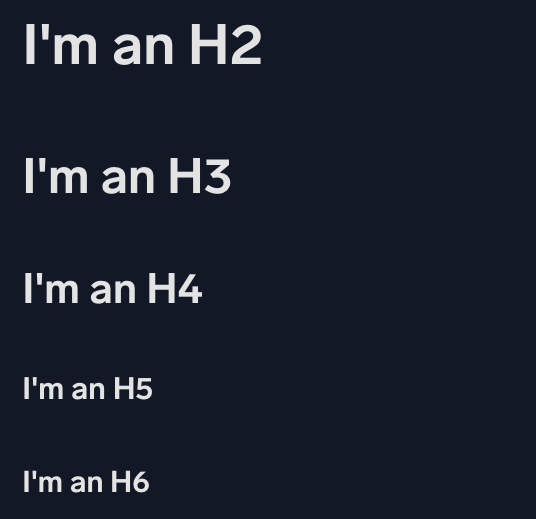
Headings must be used in correct order. The subsection of an H2 header would be H3: you would not jump to an H4 or H5. Skipping over a header level affects search and SEO structures to search crawlers like Google. Docusaurus carefully formats generated pages to ensure strong search and SEO, and malformed structures can reduce that strength.
Step headings
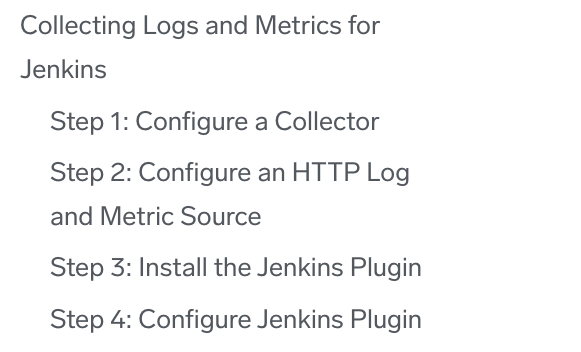
When a topic documents a long, multi-step process, break it into sections whose headings signpost each stage, and start each heading with "Step" so it's clear the section is one part of a larger configuration. For example:
Hub pages
A hub page is a section's index.md. It opens with a short intro, then lists the section's child docs as a grid of cards, with each card block containing its link, icon, title, and description.
<div className="box-wrapper">
<div className="box smallbox card">
  <div className="container">
  <a href={useBaseUrl('docs/<section>/<child-doc>')}><img src={useBaseUrl('img/icons/<icon>.png')} alt="<icon> icon" width="40"/><h4>Card title</h4></a>
  <p>One sentence on what the child doc covers.</p>
  </div>
</div>
<div className="box smallbox card">
  <div className="container">
  <a href={useBaseUrl('docs/<section>/<child-doc-2>')}><img src={useBaseUrl('img/icons/<icon>.png')} alt="<icon> icon" width="40"/><h4>Card title</h4></a>
  <p>One sentence on what the child doc covers.</p>
  </div>
</div>
</div>
- Wrap every card in one
<div className="box-wrapper">. Each card is<div className="box smallbox card">containing a<div className="container">. - An invisible overlay makes the whole card clickable, so keep the icon and the
<h4>title inside the<a>. - Keep each description to one sentence. Pull icons from
static/img/icons/. - Order cards to match the section's order in
sidebars.ts, unless the section deliberately leads with its most important docs. - The page needs a
slug:in its frontmatter (see Navigation menus).
Images
Add an image
Save images to /static/img/, which mirrors the doc folder structure. Import useBaseUrl once near the top of the doc (import useBaseUrl from '@docusaurus/useBaseUrl';), then reference the image with a path that starts with img, not /static:
<img src={useBaseUrl('img/<path>.png')} alt="<description>" style={{border: '1px solid gray'}} width="<pixels>" />
- Format. Use PNG. Do not use animated GIFs: readers cannot pause the motion (an accessibility barrier), and screen readers cannot convey them.
- Size. Keep files under 2MB. Use
widthto scale down oversized or pixelated images. - Replace, do not version. When a UI change dates an image, overwrite the existing file rather than adding a second copy. Image files are large and slow the build.
- Web-hosted images. Pass the full URL and drop
useBaseUrl:- ✅
<img src='https://sumologic-app-data-v2.s3.amazonaws.com/dashboards/Jira-OpenTelemetry/Jira-Catalina.png' alt="Jira Catalina" /> - ❌
<img src={useBaseUrl('https://sumologic-app-data-v2.s3.amazonaws.com/dashboards/Jira-OpenTelemetry/Jira-Catalina.png')} alt="Jira Catalina" />
- ✅
- Alt text. Every image needs it (screen readers, slow connections, US Government GSA Section 508). Describe the image's purpose, not its pixels (
alt="Screenshot of the image properties dialog",alt="Sumo Logic logo"). Usealt=""only for purely decorative images, and add alt text to any image you find without it.
Images in lists
When adding an image to a bulleted or sequential list, include the image snippet in-line with the list item, with a <br/> element in between, like this:
- Markdown
- Result
1. Here is a dinosaur.<br/><img src={useBaseUrl('img/reuse/docusaurus.png')} alt="Alt text" width="100"/>
- Here is a dinosaur.

Logos
When sizing images, use your discretion. For square logos, set the width to about 45-55px.
| ✅ Do | ❌ Don't |
|---|---|
 |  |
For wide logos (like in this doc), set the width to about 90-120px.
Screenshots
Use screenshots only when they clarify complex instructions. Our UI changes often, so minimizing screenshots reduces maintenance overhead.
- Prefer clear, concise text instructions over images when possible.
- Only include screenshots if they significantly aid user understanding.
- Avoid screenshots for simple UI interactions.
- When updating docs, evaluate whether screenshots are outdated or redundant.
- If you come across unnecessary screenshots, use your judgment to delete or replace them.
Make sure screenshots are large enough to be legible, but never wider than 800px. Avoid oversized images.
By default, images that you insert into a page are set to be responsive-resized for the type of device the reader is using.
Use the following syntax to add screenshots:
<img src={useBaseUrl('img/<your-image-file>.png')} alt="Descriptive alt text" style={{border: '1px solid gray'}} width="500" />
Add appropriate alt text for accessibility. See Add an image for more.
| ✅ Do | ❌ Don't |
|---|---|
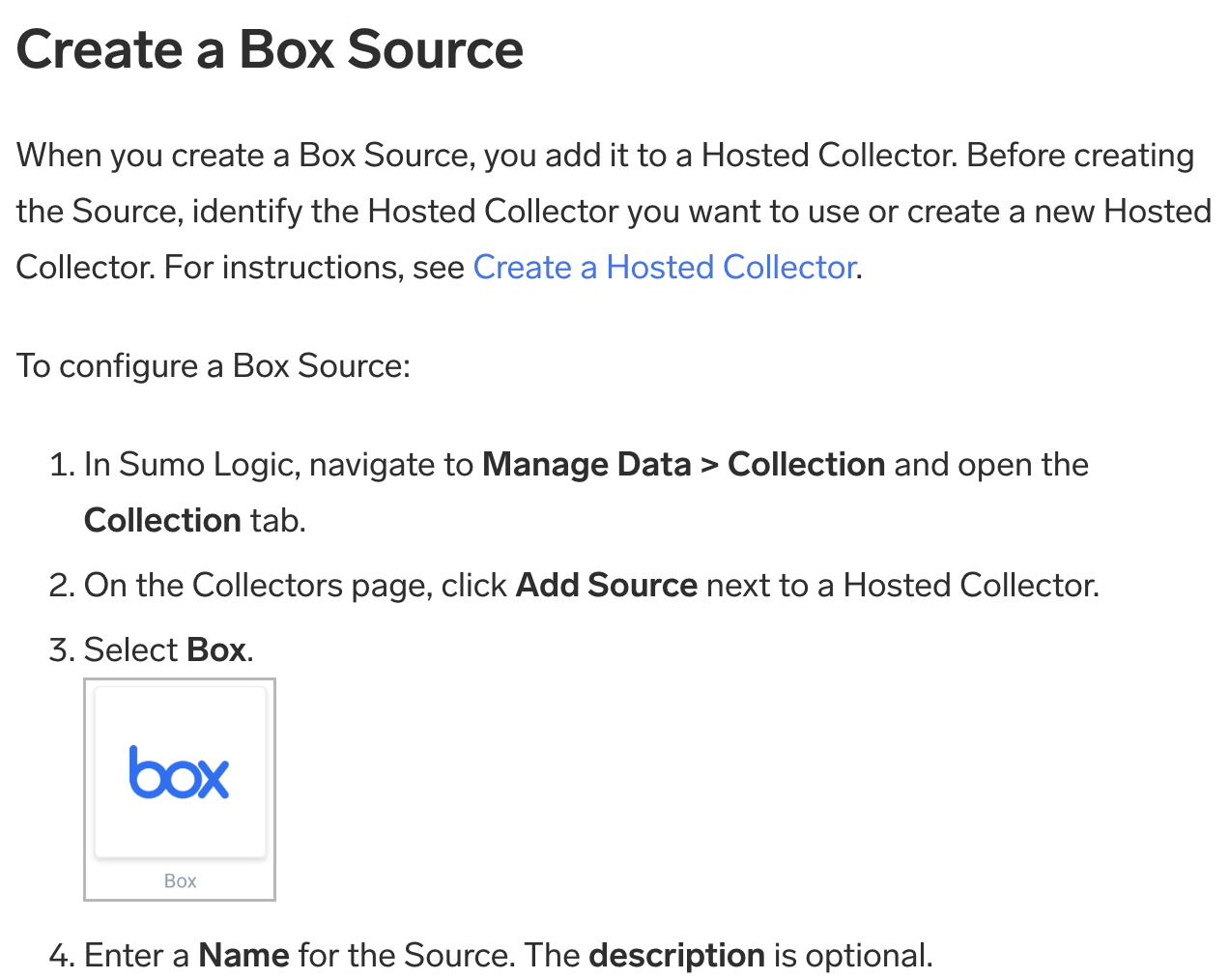 | 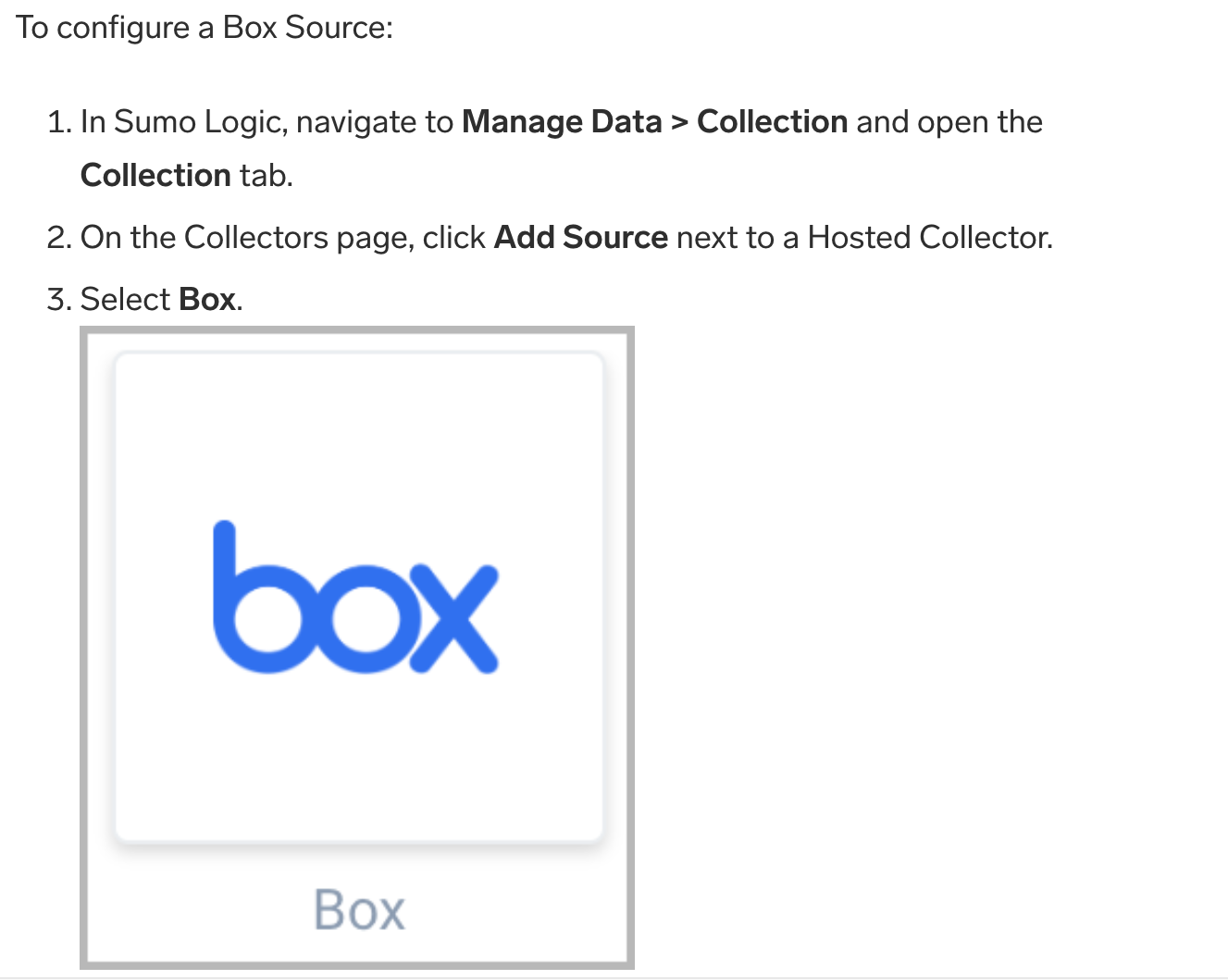 |
Masking sensitive information
We mask sensitive information like usernames, email addresses, and IP addresses. In Snagit or a similar program, use the shape tool to mask the text using solid gray, (RGB 212, 212, 212).
Callouts
Create callouts using the shape tool in SnagIt. Callouts should be red, 100% opacity, no drop shadow effect, 2 pts wide.
Lists
You can mix ordered (or numbered) and unordered (or bulleted) lists together. Use extra lines and tabs (or 2 spaces) to move content under these bullets, including other bullets, paragraphs, images, and more. Be careful of indenting too much; three tab indents will automatically render as code.
In a list item made up of an introductory word or phrase and an explanatory sentence or paragraph, separate the introductory text and the explanation with a period (.) rather than a dash (-). It's preferred to place the period outside the bold. For example:
- Markdown
- Result
1. **Entity**. Select the Entity field in the Record that the resulting Signal should be associated with.
1. **Description (optional)**. Define the description for the Signal.
- Entity. Select the Entity field in the Record that the resulting Signal should be associated with.
- Description (optional). Define the description for the Signal.
Numbered lists
Use numbered lists when providing a set of instructions or steps.
Always start with 1.. Markdown automatically numbers sequentially when building the site. This can be helpful when you need to add or change the order of instructions (no need to edit every number).
- Markdown
- Result
1. First ordered list item.
1. Another item.
   - Unordered sub-list.
1. Actual numbers do not matter, just that it is a number.
   1. Ordered sub-list.
1. And another item.

  More content for this entry. And a screenshot:<br/><img src={useBaseUrl('img/apm/span-hover-view.png')} alt="Span hover" style={{border: '1px solid gray'}} width="400" />
- First ordered list item.
- Another item.
- Unordered sub-list.
- Actual numbers do not matter, just that it is a number.
- Ordered sub-list.
- And another item.
- More content for this entry. And a screenshot:
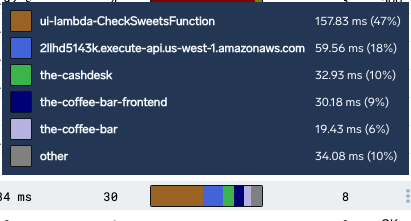
- More content for this entry. And a screenshot:
Bulleted lists
Use bulleted lists when the items do not need to be presented in sequential order. Use asterisks * or hyphens -, and end each bullet in a terminal period.
- Markdown
- Result
* Unordered list line 1.
* Line 2.
   <br/>Content to show under 2.
* Another set of bullets.
* Here we go, another.
- Unordered list line 1.
- Line 2.
Content to show under 2. - Another set of bullets.
- Here we go, another.
You can configure your editor to always use this format for lists. For Visual Studio Code, configure the following settings:
- Ordered List: Marker set to one.
- Unordered List: Marker set to *.
Ensure parallel grammatical structure - that is, start each bullet with the same part of speech.
Links
When linking to Sumo Logic docs, use relative file paths. For external links, use absolute URL paths.
Whenever possible, use link text that’s relevant - such as the page title - rather than just "click here". If the link title is too long, you can either edit the title or summarize the content in a few words.
When linking to other Sumo Logic documentation, use the phrase "Learn more" on its own or after the end of a sentence.
| ✅ Do | ❌ Don't |
|---|---|
| Add a processing rule to filter messages. Learn more. | Find out how to add a processing rule to filter messages. |
Linking to other headers in the same file
Here's how to make a [table](#tables).
Linking to files in the same folder
* Check out our [glossary](glossary.md); or
* Check out our [glossary](./glossary.md); or
* Check out our [glossary](/docs/contributing/glossary).
Linking to files in other parent folders
* Learn how to [sign up with Sumo](../get-started/sign-up.md); or
* Learn how to [sign up with Sumo Logic](/docs/get-started/sign-up).
Linking to external URLs
For more information, see [Export Logs to Sumo Logic](https://auth0.com/docs/extensions/sumologic).
Markdown
Markdown is a simple, text-based format you can write using text editors, IDEs, or the GitHub website to write content. We use Docusaurus to manage, style, and build our site. We use GitHub-flavored Markdown, with some additional options. You can find more info at:
File naming convention
A Markdown file has a filename and extension of .md. We recommend keeping the filename short. It does not affect the canonical link.
MDX
MDX can make your documentation more interactive and allows using any React components inside Markdown:
export const Highlight = ({children, color}) => (
  <span
    style={{
      backgroundColor: color,
      borderRadius: '20px',
      color: '#fff',
      padding: '10px',
      cursor: 'pointer',
    }}
    onClick={() => {
      alert(`You clicked the color ${color} with label ${children}`)
    }}>
    {children}
  </span>
);

This is <Highlight color="#25c2a0">Docusaurus green</Highlight> !

This is <Highlight color="#1877F2">Facebook blue</Highlight> !
This is Docusaurus green !
This is Facebook blue !
Measurements
For storage and memory sizes (MB, GB), the unit of measurement should be uppercase. For dimensions and weights, the unit of measurement should be lowercase (cm, lb). Do not separate the number and the unit with a space.
Metadata (frontmatter)
Markdown documents contain a YAML block of metadata at the top called frontmatter. This block includes elements such as the title, description, and search keywords. Every page should have an id for sidebar navigation.
Here is an example of a frontmatter block with sample text:
---
id: page
title: Page title
sidebar_label: Sidebar navigation title
description: Description about this feature.
keywords:
    - metrics
    - traces
    - cloud siem
---
| Parameter | Description |
|---|---|
id: | (Required) Unique identifier for the page, used in the sidebar and as the canonical link. Keep it short and only use dashes. |
slug: | (Optional) Overrides the id: for the canonical link. Best used for index pages for sections. |
title: | (Required) For SEO purposes, include main keywords in your title and keep it under 60 characters. This title is used in navigation if a sidebar_label is not included. |
sidebar_label: | (Optional) Label for the sidebar navigation. Keep it title short. It does not affect the canonical link or page title. |
description: | (Optional) 1-2 sentences describing the content in the doc. It appears in search engine results. Keep it 140–160 characters. Use plain text only: no Markdown or backtick formatting. If omitted, search engines will pull the first couple of sentences from the page. See Metadata descriptions. |
keywords: | (Optional) List of keywords to enhance SEO. Use lowercase letters. |
tags: | Deprecated. Do not use. The Docusaurus tag taxonomy was removed sitewide; it generated pages with no reader or search benefit. Use keywords: for search terms instead. |
For a full list of options, see Docusaurus Markdown front matter.
Branding and naming in app/source docs
To ensure consistency between our UI and our documentation, every App and Source doc must begin by clearly identifying it as a Sumo Logic integration. The UI often shows only the vendor name (for example, "Slack", "Amazon S3"), so the documentation must reinforce that Sumo Logic is delivering the integration.
- App docs. The
description:frontmatter and intro paragraph must start with: "The Sumo Logic app for [vendor]..." (see template). - Source docs. The
description:frontmatter and intro paragraph must start with: "The Sumo Logic source for [vendor]..." (see template).
This rule helps:
- Align docs with UI naming ("[vendor] by Sumo Logic”).
- Reinforce Sumo Logic as the provider of the integration.
- Prevent ambiguity that suggests the vendor is the owner of the app/source.
Navigation menus
The top navigation bar is configured in docusaurus.config.js. The left sidebar for the whole site is configured in sidebars.ts, which holds one sidebar per Guide. Read the comments at the top of that file for how our sections map to the top nav and where new content belongs.
- Add a page. Reference it by folder path and frontmatter
id, for examplecontributing/style-guide. Add thatidto theitemsarray of the right category. - Add a section. Nest a
type: 'category'object inside a category'sitems. See Docusaurus sidebar syntax for the category,link, and dedicated-sidebar options. - Add a section index page. Create an
index.mdin the folder withslug: <name>, then point the category at it withlink: {type: 'doc', id: '<folder>/index'}.
Numbers
- Spell out zero through nine in ordinary prose; use numerals for 10 and greater. This matches AP, Microsoft, and Google.
- Always use numerals for measurements and units, version numbers, percentages, code, dates, times, UI text that shows a numeral, and any range where either value is 10 or greater.
- Use commas for numbers that are 4 or 5 digits in length, for example, 1,000 or 99,999.
- For numbers 100,000 and higher, use “K”, “M”, and “B” to indicate thousands, millions, or billions.
- Use an en-dash without a space on either side for number ranges.
Trademarks
Protecting our trademarks is important. Failing to mark a trademarked term can put the company at risk of losing that trademark.
Use the trademark (™) or registered (®) symbol on the first reference to a trademarked term on a page, then drop it. The following terms must use the symbol shown.
Currently, LogReduce® is the only trademarked term that is used in Sumo Logic docs. For the full list, see Trademarks.
Use trademarked terms as adjectives, not as nouns or verbs. Never use them in the plural or possessive form.
| ✅ Do | ❌ Don't |
|---|---|
| Use the LogReduce® feature to reduce log volume. | Use LogReduce® to reduce log volume. |
Always write "Sumo Logic" in full, not "Sumo". To be more conversational, "we" is also fine. Never use a Sumo Logic product or feature name in the plural or possessive form, whether trademarked or not. For example, write "the Sumo Logic OpenTelemetry Collector", not "Sumo Logic's OpenTelemetry Collector".
| ✅ Do | ❌ Don't |
|---|---|
| the LogReduce values-details operator | LogReduce's values-details operator |
Generic possessives referring to the company are acceptable ("Sumo Logic's platform" is fine).
Preview releases
Following are the instructions for formatting docs at each release stage. For release type definitions, see Preview Releases.
Private Preview and Extended Preview release features are invite-only, while Public Preview features are by request only to participating customers. Preview docs are published, but excluded from the nav and must not be referenced or appear anywhere in the docs. Sumo Logic representatives provide the documentation links only to the involved customers.
For Preview docs, under the frontmatter, add the robots meta tag, then the corresponding badge and preview notice. The Preview badges contain a link to the Preview landing page, and the robots meta tag prevents search crawlers from picking it up.
Private Preview
- Markdown
- Result
---
<frontmatter>
---

<head>
<meta name="robots" content="noindex" />
</head>

<p><a href={useBaseUrl('docs/preview')}><span className="preview-private">Private Preview</span></a></p>

:::info
This feature is in Private Preview. For more information, contact your Sumo Logic account representative.
:::

<first paragraph>
This feature is in Private Preview. For more information, contact your Sumo Logic account representative.
Extended Preview
- Markdown
- Result
---
<frontmatter>
---

<head>
<meta name="robots" content="noindex" />
</head>

<p><a href={useBaseUrl('docs/preview')}><span className="preview-extended">Extended Preview</span></a></p>

:::info
This feature is in Extended Preview. For more information, contact your Sumo Logic account representative.
:::

<first paragraph>
This feature is in Extended Preview. For more information, contact your Sumo Logic account representative.
Public Preview
- Markdown
- Result
---
<frontmatter>
---

<head>
<meta name="robots" content="noindex" />
</head>

<p><a href={useBaseUrl('docs/preview')}><span className="preview-public">Public Preview</span></a></p>

:::info
This feature is in Public Preview. To participate, contact your Sumo Logic account representative.
:::

<first paragraph>
This feature is in Public Preview. To participate, contact your Sumo Logic account representative.
Generally Available (GA)
When a feature becomes Generally Available (GA), remove all Preview-related labels, badges, notes, and the robots meta tag. Then follow the standard Create a Doc instructions.
Punctuation
Ampersands
Do not use the ampersand symbol (&). Spell out as "and".
Colons
Colons are used to introduce lists or to separate titles from subtitles. Only include the colon if the introduction isn’t a complete sentence.
Commas
We use the Oxford (serial) comma. For example, use "I had eggs, toast, and orange juice", not "I had eggs, toast and orange juice".
Dashes
Try not to use em dashes (the long dash) as they read as generic AI output. Rewrite instead: use a period or semicolon to split two independent clauses, a colon to introduce something, or commas or parentheses for a brief aside.
Use the en dash (–) only for numeric, date, and time ranges, with no space on either side: 9–17, 2023–2024. See Numbers, Dates, and Time.
Use the hyphen (-) for compound modifiers, such as read-only field or built-in support.
Exclamation points
Use exclamation points to express excitement or encourage the user. Do not use them for errors, warnings, or confirmation of basic actions as they are usually unnecessary and can distract from important details.
Ellipses and truncation
Use ellipses for truncation. Don’t use ellipses for placeholders or trailing off a sentence unless it is getting cut off. When truncating, think about which part of the string is most essential for the user. This may require truncating in the beginning, middle, or end of a string.
Periods
In the UI, avoid periods for single sentences on their own. Whenever there are two or more sentences, use periods at the end of each sentence. Separate sentences by one space, not two.
Quotation marks
Punctuation is placed outside of quotation marks, U.K.-style English (for example, "Hello",, not "Hello,"). This keeps a quoted command, field value, or error string accurate, so that trailing punctuation is not mistaken for part of it. For everything else (dates, times, spelling), we use American-style English.
Release notes
Release notes are our changelog. They publish to the docs site and to an RSS feed, and readers scan them to see what changed and whether it affects them. Keep every note short and link out for detail.
Each product area has its own blog folder: blog-service, blog-collector, blog-cse, blog-csoar, and blog-developer. Add your note to the matching folder and copy a recent post in that folder as your model for filename, frontmatter, and structure. Conventions that differ by folder are in Per-folder conventions.
Every post filename must start with YYYY-MM-DD-. The Docusaurus blog plugin takes the publish date and sort order from that prefix, not from frontmatter or the title.
Writing style
These rules apply to every release note, in every folder.
- Open with a direct statement of what changed. Do not use excitement or announcement phrases. Announcement framing ("We're excited to...") delays the information and adds nothing the reader can act on. This is the Professional description principle applied to the changelog: state the change and let it speak for itself. This applies to the opening framing, not to warmth elsewhere in the note.
✅ Do ❌ Don't "Multi-child-org search results now include an _orgNamefield alongside_orgId, so MSSP users can identify which child org a result came from.""We're excited to announce that multi-child-org search results now include an _orgNamefield alongside_orgId, so MSSP users can identify which child org a result came from.""A native Sumo Logic HTTP Source webhook integration for LiteLLM is now available, enabling you to collect LiteLLM usage and proxy log data." "We are excited to announce the addition of a native Sumo Logic HTTP Source webhook integration for LiteLLM, enabling you to collect LiteLLM usage and proxy log data." "This release includes security and stability fixes." "We've enhanced the security and stability of the Collector." - Lead with the benefit. Say what the reader can now do and why it matters, not how it was built.
- Be concise. Two to three sentences for a feature. One sentence per list item.
- End the opening paragraph with a "Learn more" link to the relevant doc, using a relative path that starts with
/docs/. - Mark breaking changes and prerequisites with an admonition.
- Add screenshots with
useBaseUrl(learn more). - Write title dates as
Month D, YYYY. Full month name, no ordinal, no leading zero -March 9, 2026, notMarch 9th, 2026orMarch 09, 2026(learn more).
Structure and frontmatter
When a note runs long, write a one to two paragraph introduction, add a truncate line (<!--truncate-->), then the full set of notes. List views on the site and in the RSS feed show only the text above that line.
Copy the frontmatter from a recent post in the same folder. Two fields matter for every release note:
hide_table_of_contents: true. Renders the note clean and full-width.image. Used by the RSS feed and the social card. Use a screenshot from the note if it has one, otherwise the Sumo Logic logo:https://assets-www.sumologic.com/company-logos/_800x418_crop_center-center_82_none/SumoLogic_Preview_600x600.jpg.
Add keywords when they aid discoverability.
Per-folder conventions
Choosing between Service and Developer. Use Developer when the primary audience is someone writing code to connect to Sumo Logic API endpoints, auth flows, and the MCP server. Use Service when the audience is a Sumo Logic user, even if the feature has an API.
Service and Collector titles are specific enough to stand alone without a date. CSE and CSOAR titles ("Content Release", "Application Update") are generic, so they include the date to be meaningful in an RSS feed. Developer follows the same pattern for the same reason.
Everything above is shared. These are the differences by folder. When in doubt, match a recent post in the same folder.
| Folder | Filename | Title | Date in title? | Feature heading | Notes |
|---|---|---|---|---|---|
blog-service | YYYY-MM-DD-<category-or-feature> | Feature description in title case, then the category in parentheses: (Apps), (Collection), (Manage), (Search), (New UI). | No | n/a | One feature per note. |
blog-collector | YYYY-MM-DD-installed or YYYY-MM-DD-otel | Installed Collector: Installed Collector Version X.Y.Z-N. OpenTelemetry: feature name in title case, no category. | No | H4: Security fix, Bug fix, Feature | Order sections security, then bug fixes, then features. Cite CVE or GHSA IDs. |
blog-cse | YYYY-MM-DD-content or YYYY-MM-DD-application | Month D, YYYY - Content Release or Month D, YYYY - Application Update | Yes | H3 per feature | Content releases: tag entries [New] or [Updated] and group them under Rules, Log Mappers, and Parsers. |
blog-csoar | YYYY-MM-DD-content-release or YYYY-MM-DD-application-update | Month D, YYYY - Content Release or Month D, YYYY - Application Update | Yes | Content: H3. Application: H3 with H4 sub-sections. | Content releases are simple lists. Application updates carry descriptions and a Bug Fixes section. |
blog-developer | YYYY-MM-DD-<slug> | Month D, YYYY - Topic | Yes | H4 sub-sections | Note the impact: breaking change, deprecation, new feature, or minor change. |
Reusing content
When the same passage appears in more than one doc, put it once in the /docs/reuse folder and import it where you need it. Add the import at the top of the file, then place the component where the content should appear:
import ApiRoles from '../reuse/api-roles.md';

<ApiRoles/>
For example, reuse/api-roles.md is one sentence about required role capabilities. Around 50 API reference docs import it under their own ## Required role capabilities heading, then follow it with the capabilities specific to that API.
Headings inside a reuse file do not show up in the right-side nav of the docs that import it. So keep any H2 or H3 heading in the importing doc, and put only the body (and any H4 or lower headings) in the reuse file.
Tables
Use standard Markdown tables. Columns left-align by default; put :--: in a column's divider cell to center it, --: to right-align. Cells take inline Markdown, links, images, and <br/> for line breaks. The site theme adds zebra striping automatically. Fall back to a raw HTML table only for layouts Markdown cannot express, such as row or column spans.
Tabs
Use Docusaurus tabs for mutually exclusive paths: environment (Kubernetes vs. non-Kubernetes), operating system, or collection method. Add the imports once near the top of the file:
import Tabs from '@theme/Tabs';
import TabItem from '@theme/TabItem';
Sumo Logic conventions:
- Use
groupIdwhen the same choice appears more than once on a page, or across pages, so the reader's selection syncs and sticks (for example,groupId="k8s-nonk8s"). - Make each tab self-contained. A reader who picks one tab and ignores the rest should still get every step for that path. Do not split a procedure so that step 3 is under one tab and step 4 under another.
className="unique-tabs"appears in many existing docs but has no effect, since no stylesheet targets it. Leave it off new tab sets.
SEO
For clarity and search engine discoverability:
- Doc titles are very important for SEO. Use primary target keywords, try to mention "Sumo Logic", and keep length under 60 characters.
- Example:
Monitoring with the Observability Solution→ Monitoring with Sumo Logic Observability
- Example:
- Use H2 sections to break up content and try to use primary keywords here as well.
- Example: AWS Observability Solution.
- H3 and H4 headers do not impact SEO as much. Use short, meaningful titles for readability and search.
- Example: System architecture and monitoring.
For internal contributors- If you change a URL, set up a redirect so that users don’t get a 404 page.
- Use Google Analytics to make data-driven decisions.
Metadata descriptions
The description frontmatter field controls the snippet shown in search engine results. Follow these rules:
- Length: 140–160 characters. Google truncates descriptions at approximately 160 characters. Descriptions under 100 characters are too short to be useful; search engines may generate their own snippet instead.
- Plain text only. Do not use Markdown syntax in the
descriptionfield. Backticks, bold (**), and other Markdown formatting render as literal characters in HTML<meta>tags and appear as symbols in search results. - Lead with an action verb or the product/feature name. Do not start with "This page", "This doc", or "This article."
- Write for humans. Describe what the reader will learn or accomplish, not just what the page contains.
Example:
| Description | |
|---|---|
| Too long | Use the accum operator to calculate the cumulative sum of a numeric field in your search results. Track running totals by time interval or across all data points, ideal for monitoring incremental growth in request counts, error rates, or resource consumption. (366 chars) |
| Too short | Learn about the accum operator. (32 chars) |
| Correct | Use the accum operator to calculate the cumulative sum of a numeric field. Track running totals by time interval or across all data points. (140 chars) |
AEO (Answer Engine Optimization)
Answer Engine Optimization improves the chances of your content appearing as a direct answer in search results, including Google featured snippets and "People also ask" boxes.
- Answer the question in the first 1–2 sentences. The opening paragraph should directly state what the subject is or what the reader will accomplish. Do not bury the answer after several sentences of context. In a tutorial, also say which step or stage the page is.
- Use question-format H2 headings where natural. Headings like "What is X?" or "How do I configure Y?" help search engines match content to user queries.
- Example:
Overview→ What is the Outlier operator?
- Example:
- Use structured lists and tables. Search engines extract lists and tables preferentially for featured snippets. Use them wherever content is enumerable or comparative.
- Define key terms explicitly. Write "X is..." or "X means..." on first use so search engines can extract accurate definitions.
GEO (Generative Engine Optimization)
Generative Engine Optimization improves the likelihood that AI-powered search tools (such as ChatGPT, Perplexity, and Google AI Overviews) cite your content accurately in generated responses.
- Make the opening paragraph self-contained. LLMs pull from the first few sentences to decide whether to cite a page. The opening should be understandable without reading anything else on the page.
- State facts as explicit standalone sentences. Avoid burying key information in subordinate clauses. A fact stated in its own sentence is more likely to be cited verbatim.
- Example:
The operator, which supports up to 10,000 events per second depending on instance size, works with both collector types.→ The operator supports up to 10,000 events per second on large instances. It works with both Hosted and Installed Collectors.
- Example:
- Use specific version numbers and dates. Avoid "latest", "current", or "recent" without a specific value. AI tools reproduce whatever is on the page. Vague references become stale citations.
- Add an "At a glance" section for long pages. For pages over 800 words, add a brief summary section near the top with key facts as short bullet points. This is the most citation-friendly portion of a page for generative AI tools.
- Phrase FAQ questions in first person. Use "Can I...?", "How do I...?", "Do I need...?" for all FAQ questions. This mirrors how readers actually form the question in their head. Answers respond in second person ("you") as usual.
Time
- Use the 12-hour clock unless specified otherwise, followed by am or pm in lowercase letters without a space (for example, you'd write
1:00pm, not13:00). - When including a time zone, append the time zone’s abbreviation after the “am” or “pm”, separated by a space (for example,
1:00pm EST). - To show a time range, use an en dash and include the “am” or “pm” after both times (for example,
1:00pm–3:00pm).
The notation used in the UI time range editor is an exception to some of these rules.
UI elements
For how to format and capitalize a UI element's name (bold the label, match on-screen capitalization, and lowercase it when you mean the concept rather than the control), see Bold and Capitalization.
Not all UI elements have an intuitive name. It's the very nature of working with a constantly evolving product. Here are some examples:
| Icon | Tab Name | Definition |
|---|---|---|
 | Recent | Access content you’ve recently accessed and recently shared with you. |
 | Favorites | Content you’ve marked as favorite. |
 | Library | List of all accessible content, including your creations and the content shared with you. |
 | More Actions / Three-Dot Kebab | Click to reveal a menu with additional options. |
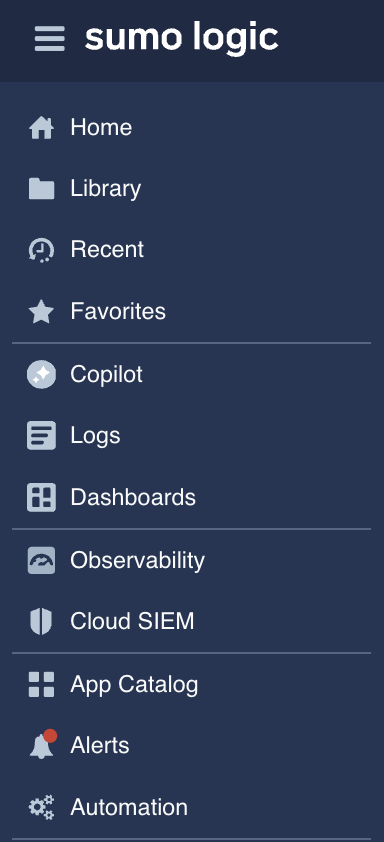 | Left Nav | Access all Sumo Logic features, such as Log Search, Metrics, Infrastructure Monitoring, Application Monitoring, and Cloud SIEM, as well as your dashboards library. |
| Icon | Tab Name | Definition |
|---|---|---|
 | Recents | Access content you’ve recently accessed and recently shared with you. |
 | Favorites | Content you’ve marked as favorite. |
 | Personal | Content you manage. |
 | Library | List of all accessible content, including your creations and the content shared with you. |
| More Actions / Three-Dot Kebab | Click to reveal a menu with additional options. |
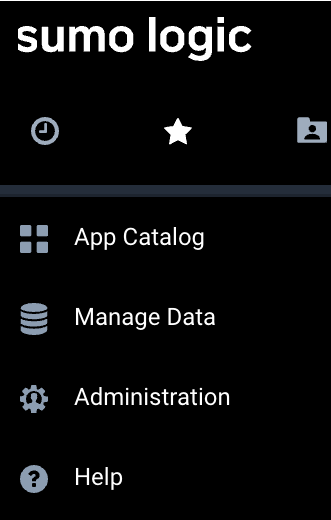 | Navigation Menu | Main Sumo Logic menu containing your collectors, sources, library, help, and more. |
Cascading instructions
When providing instructions that involve multiple UI elements, list them sequentially and in cascading order. For example: Click More Actions > Delete.
Referring to locations in the UI
Avoid "below", "above", "next to", and so on, when referring to UI elements on a page, as locations may change or appear differently for different users.
Mouse actions
Try to avoid these if possible. Instead, use "Select".
If you need to use mouse actions to be specific, use:
- "Click" (not "Click on" or "Left-click")
- "Right-click"
- "Hover" (not "Mouse over")
- "Drag"
When to use “select”, “choose”, and “enter”
- Select. Use to tell users to pick something from a limited number of options, such as from a list or a dropdown menu, or when you are referring to checking or toggling a UI element.
- Choose. Use to encourage the user to make a decision that is more subjective or open-ended.
- Enter. Use enter when the user is explicitly inputting something from scratch, rather than from a pre-built set of options.
Videos
Throughout the docs, we embed tutorial videos on pages where they're relevant to the topic. The Training Team produces these videos. When you embed one they've provided (usually inside a :::training admonition), add the import once near the top of the file:
import Iframe from 'react-iframe';
Most Sumo Logic videos are hosted on Wistia. Do not make watching a video required to complete a task; the written steps must stand on their own.
Paste the matching snippet into the body:
- Wistia
- YouTube
Use the fast.wistia.net/embed/iframe/ URL with ?web_component=true&seo=true&videoFoam=false.
<Iframe url="https://fast.wistia.net/embed/iframe/VIDEO_ID?web_component=true&seo=true&videoFoam=false"
  width="854px"
  height="480px"
  className="video-container"
  display="initial"
  position="relative"
  allow="autoplay; fullscreen"
  allowfullscreen
/>
Append ?rel=0 to the embed URL so only same-channel videos are suggested after the video finishes.
<Iframe url="https://www.youtube.com/embed/VIDEO_ID?rel=0"
  width="854px"
  height="480px"
  className="video-container"
  display="initial"
  position="relative"
  allow="accelerometer; clipboard-write; encrypted-media; gyroscope; picture-in-picture"
  allowfullscreen
/>