Filter and Search Cloud SIEM List Pages
Use the Cloud SIEM search bar to find insights, signals, and entities from one place. You can search by keyword or regular expression, narrow results with filters, and sort results by relevance or by time.
Search in Cloud SIEM
- New UI. In the main Sumo Logic menu, select Cloud SIEM > Search Cloud SIEM. You can also click the Go To... menu at the top of the screen and select Search Cloud SIEM.
Classic UI. In the main Sumo Logic menu, select Cloud SIEM. - Click in the Find Insights, Signals, Entities and more... search bar at the top of the page.

- Enter a keyword, such as an IP address, hostname, username, or rule name, and press Enter. To clear the search, click the X at the right side of the search bar.

Keyword search results
Cloud SIEM searches across insights, signals, and entities and displays matching items in a single list. It highlights matching text in each result, so you can see why an item was returned. For example, a search for 1.1.1 highlights 1.1.1 in the value of each matching entity.
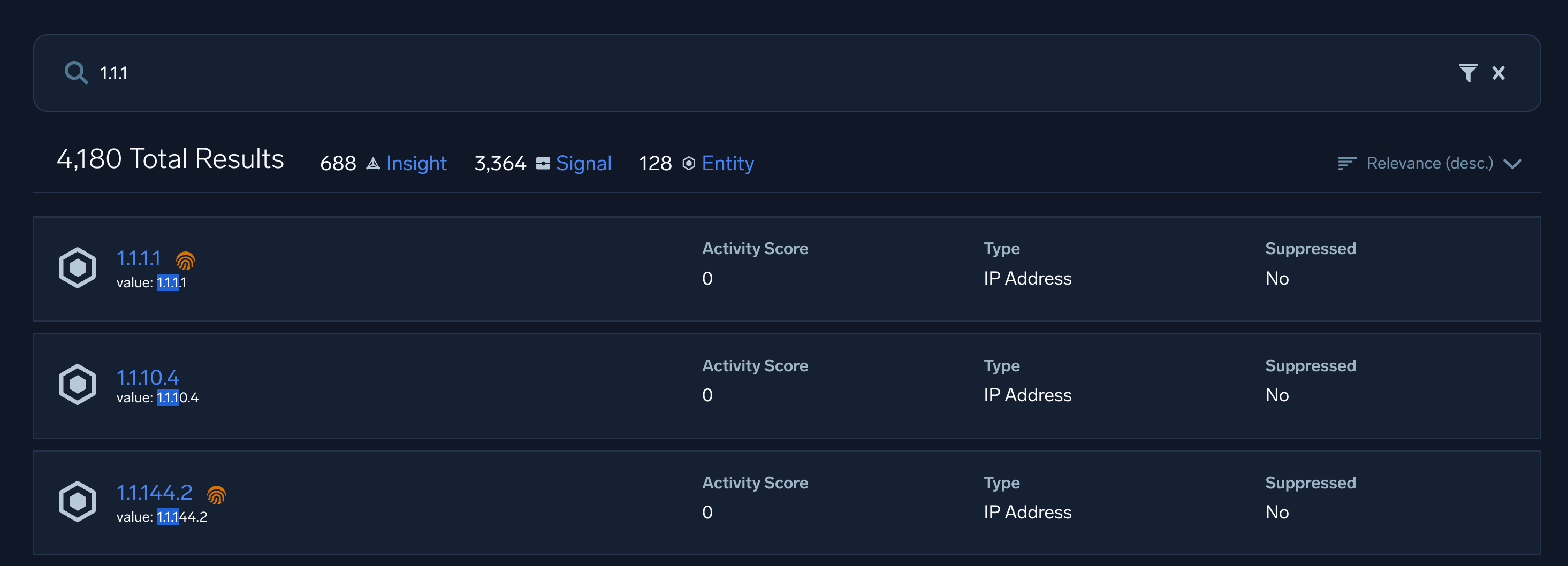
The results header shows:
- Total Results. The total number of items that match your search.
- Counts by type. The number of matching insights, signals, and entities. Select a type to view only those results.
- Sort. The menu on the right side of the header, which sets the order of the results. See Sort search results.
Each result shows a summary of the item. For example, an entity result shows its name, Activity Score, Type, and whether it is Suppressed. Click a result to open its details page.
Keyword search matches the text you enter. To match a pattern instead, use a regular expression.
Sort search results
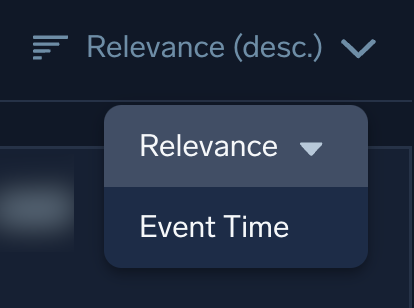
Use the sort menu in the results header to change the order of your search results. By default, results are sorted by Relevance (desc.), which lists the best text matches first. Relevance sorting can list older items before newer ones, so switch to a time-based sort by clicking the Event Time option in the menu when you want to see the most recent activity first.
The sort options depend on the type of result:
| Tab | Sort options | Default |
|---|---|---|
| Total Results | Relevance, Event Time | Relevance |
| Insight | Relevance, Event Time | Relevance |
| Signal | Relevance, Event Time | Relevance |
| Entity | Relevance, Last Seen | Relevance |
- Relevance. Lists the closest matches to your search first.
- Event Time. Sorts insights and signals by the time of the event.
- Last Seen. Sorts entities by the time of the entity's last signal. Entities do not have an event time, so they use Last Seen instead.
To sort results:
- Run a search.
- Click Relevance (desc.) on the right side of the results header.
- Select a sort option:
- To reverse the sort order by relevance, select Relevance from the dropdown and switch to ascending order.
- To reverse the sort order by time, select Event Time from the dropdown. Time-based sorts list the newest results first (descending) by default.
How sorting behaves:
- Pagination resets. Changing the sort returns you to the first page of results. Moving between pages keeps your selected sort.
- Tabs reset the sort. Switching tabs resets the sort to Relevancebecause the available options differ by tab.
- The sort is saved in the URL. Your selection is stored in the
sortparameter of the page URL, so it is preserved when you reload the page or share the link. Relevance (desc.) is the default and is not included in the URL. - The Total Results tab lists entities last. Insights and signals have an Event Time, which marks when something happened, such as when a rule fired or when the detected activity occurred. Each insight or signal is a single occurrence, so its time never changes. Entities don't have an event time. Instead, an entity has a Last Seen time, which is the time of its last signal. Because these times mean different things, when you sort the Total Results tab by Event Time, it sorts insights and signals by event time and lists them first. Entities are listed after them, sorted by Last Seen. This order applies in either sort direction. To sort entities on their own by time, open the Entity tab and sort by Last Seen.
Filter search results
You can narrow your results with filters, alone or together with a keyword search.
- Click the filter icon
 at the right side of the search bar.
- Select a source to filter on.
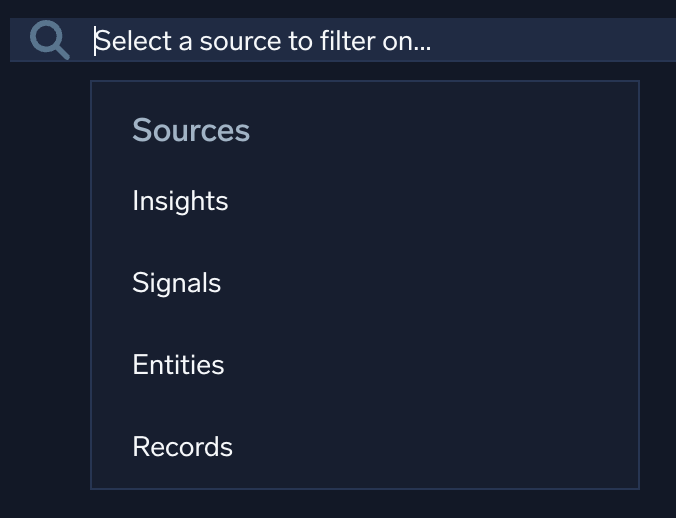
- A dropdown list of filters appears for that source. Select a field to filter on, or pick a suggestion.
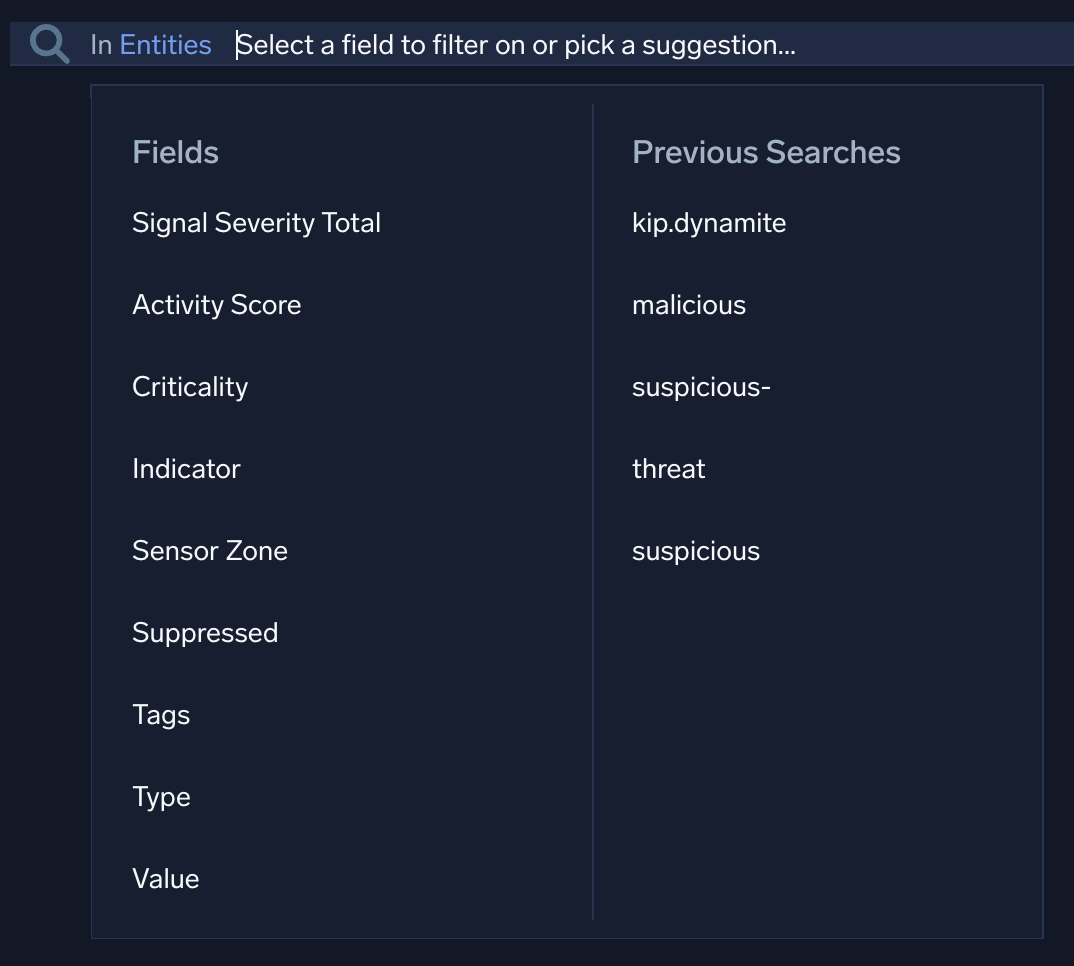
- Continue to select options to filter on from the options presented.
Filters and sort work together. Changing a filter or search term updates the results, and the current sort stays applied unless you switch tabs.
Search using regular expressions
You can also enter a regular expression (regex) in the search bar and press Enter to run the search. Cloud SIEM's regular expression engine returns items that contain text matching the complete string. The engine implicitly adds anchors (^ and $) to the beginning and end of your regex.
Cloud SIEM search uses Elasticsearch. For the regular expressions allowed in Cloud SIEM search, see Regular expression syntax in the Elastic documentation.
To search for items that do not contain a particular keyword, use not. For example, not:Initial Access.