 Meet the new
 SOC Analyst Agent

The SOC Analyst Agent automatically investigates Cloud SIEM insights and delivers an evidence-backed verdict on each one, so your analysts start every investigation with the groundwork already laid. Your team can continue any investigation conversationally with Mobot, Dojo AI's chat interface.
By cutting manual triage and reducing mean time to resolution, the agent lets SOC teams focus on real threats instead of repetitive work. It shows the data it collected, the reasoning it applied, and the conclusion it reached, so you can interrogate any part of its analysis rather than take a black-box result on faith.
The SOC Analyst Agent performs three distinct jobs that mirror an analyst's daily responsibilities:
- Auto-investigation. Automatically delivers a verdict on each insight as it arrives, without requiring analyst action. The agent determines whether the insight is malicious, suspicious, or benign, summarizes the threat incident based on triggered signals, and presents key findings from the signals that fired. Auto-investigation reasoning is currently limited to normalized security data within the platform (for example, security records and signals). It does not yet integrate with external MCP connectors or automation services.
- Investigation (user-led). Supports analysts in Mobot with a hypothesis-driven approach to assess the scope, context, and likely impact of an event. Mobot isn't limited to normalized security data: you can ask it about other data in your account that is relevant to the insight, such as raw cloud logs (for example, AWS CloudTrail), metrics, lookup tables, and collector health.
- Incident report generation (via Mobot). Generates structured reports documenting investigation findings, evidence, and actions taken to ensure consistent documentation across analysts and teams.
You work with the agent in two places:
Sumo Logic Academy offers free training courses covering these concepts that allow you to practice in a lab environment and level up your knowledge. Check out self-paced and free live instructor-led offerings today! (To access our self-paced courses, first sign in to our learning portal.)
- Self-paced:
- Instructor-led virtual classes:
Watch this micro lesson to learn how the SOC Analyst Agent triages and investigates Cloud SIEM insights.
Availability
The SOC Analyst Agent requires a Cloud SIEM subscription and is opt-in. See How does investigation rate limiting work? for information about your organization's investigation capacity.
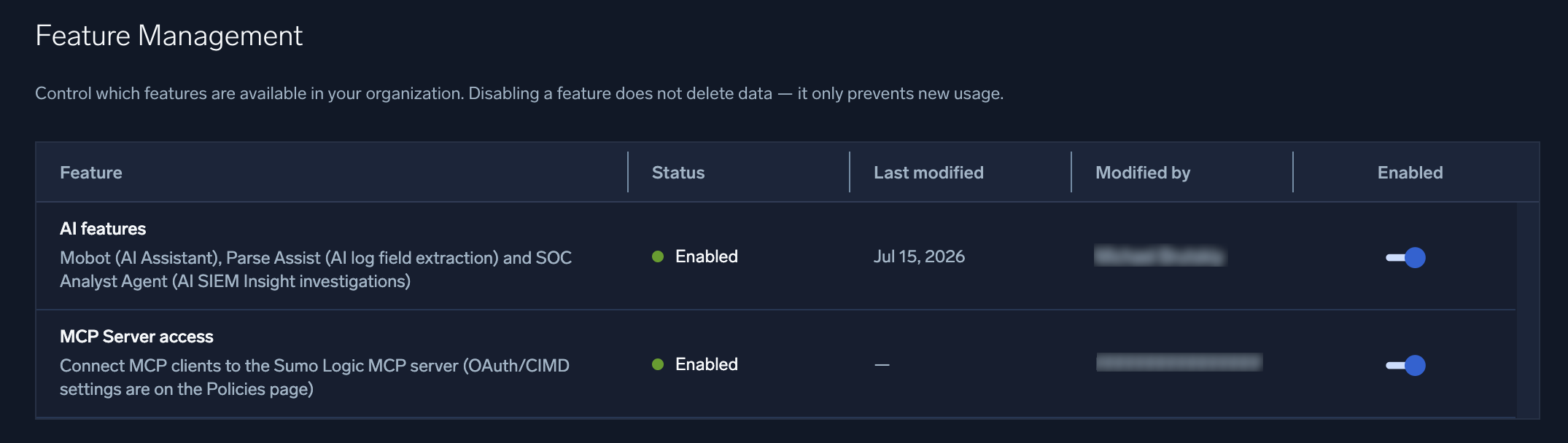
Feature Management
To disable the SOC Analyst Agent for your entire organization, an administrator can turn it off on the Feature Management page (Administration > Feature Management). This page is available to any user with the Administrator role or the Manage Organization Settings permission. The SOC Analyst Agent has its own SOC Analyst Agent toggle, independent of the AI features toggle that governs Mobot and Parse Assist, and the MCP Server access toggle.
Parent and child orgs have the SOC Analyst Agent enabled by default. A parent org administrator can toggle it for the parent org and for its child orgs. Child org administrators cannot toggle it for their own org or for other child orgs.
MSSP parent orgs don't see these settings on their own Feature Management page. Manage them per child org instead. See Manage features for details.
View AI verdicts on insights
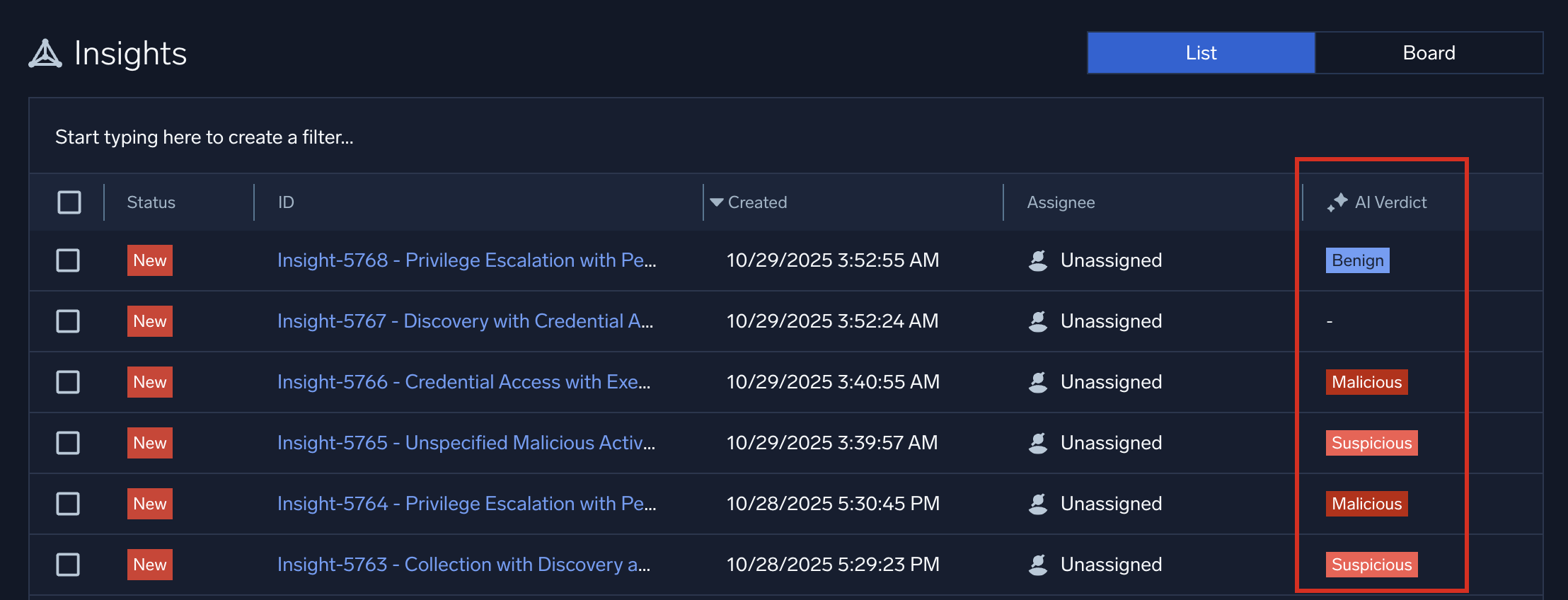
The SOC Analyst Agent runs in the background against all insights that flow into Cloud SIEM. After analysis, it renders a verdict about whether the insight requires investigation.
- New UI. In the main Sumo Logic menu, select Cloud SIEM > Insights. You can also click Go To... at the top of the screen and select Insights.
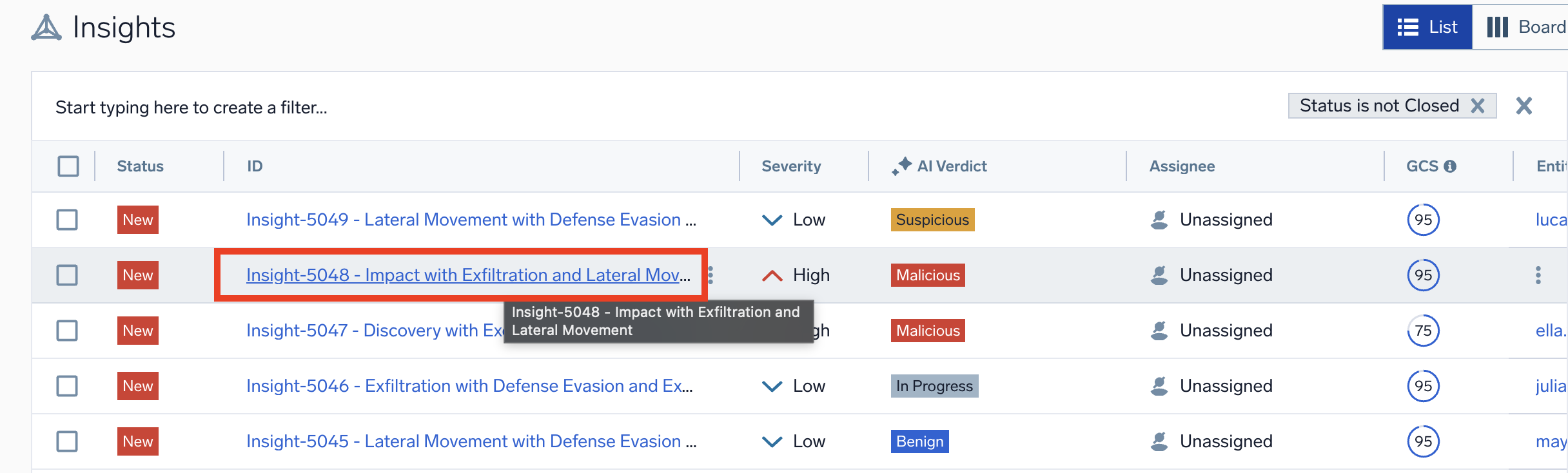
Classic UI. In the main menu, select Cloud SIEM and then click Insights at the top of the screen. - In the Insights page, note that the AI Verdict column shows the results of the AI analysis:
- Click Start typing here to create a filter near the top of the insights page and select AI Verdict to search for insights based on the verdict they are assigned:
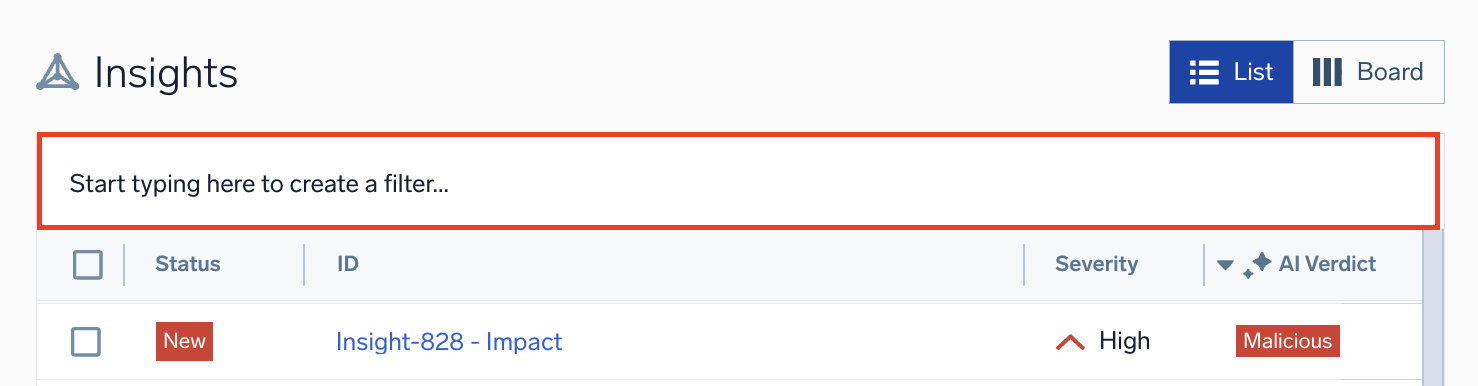
- Malicious. AI analysis determined that the insight is malicious and warrants immediate investigation by your SOC team.
- Suspicious. AI analysis determined that the insight is suspicious and warrants investigation by your SOC team.
- Benign. AI analysis determined that the insight is harmless and not a candidate for elevation to the SOC team for investigation.
- In Progress. AI analysis is in progress.
- Inconclusive. AI analysis could not determine whether the insight requires investigation.
- Not Investigated. No AI analysis was performed on the insight due to rate limiting. Click the Investigate button at the top of the insight's details page to manually initiate an AI investigation. See How does investigation rate limiting work? for details.
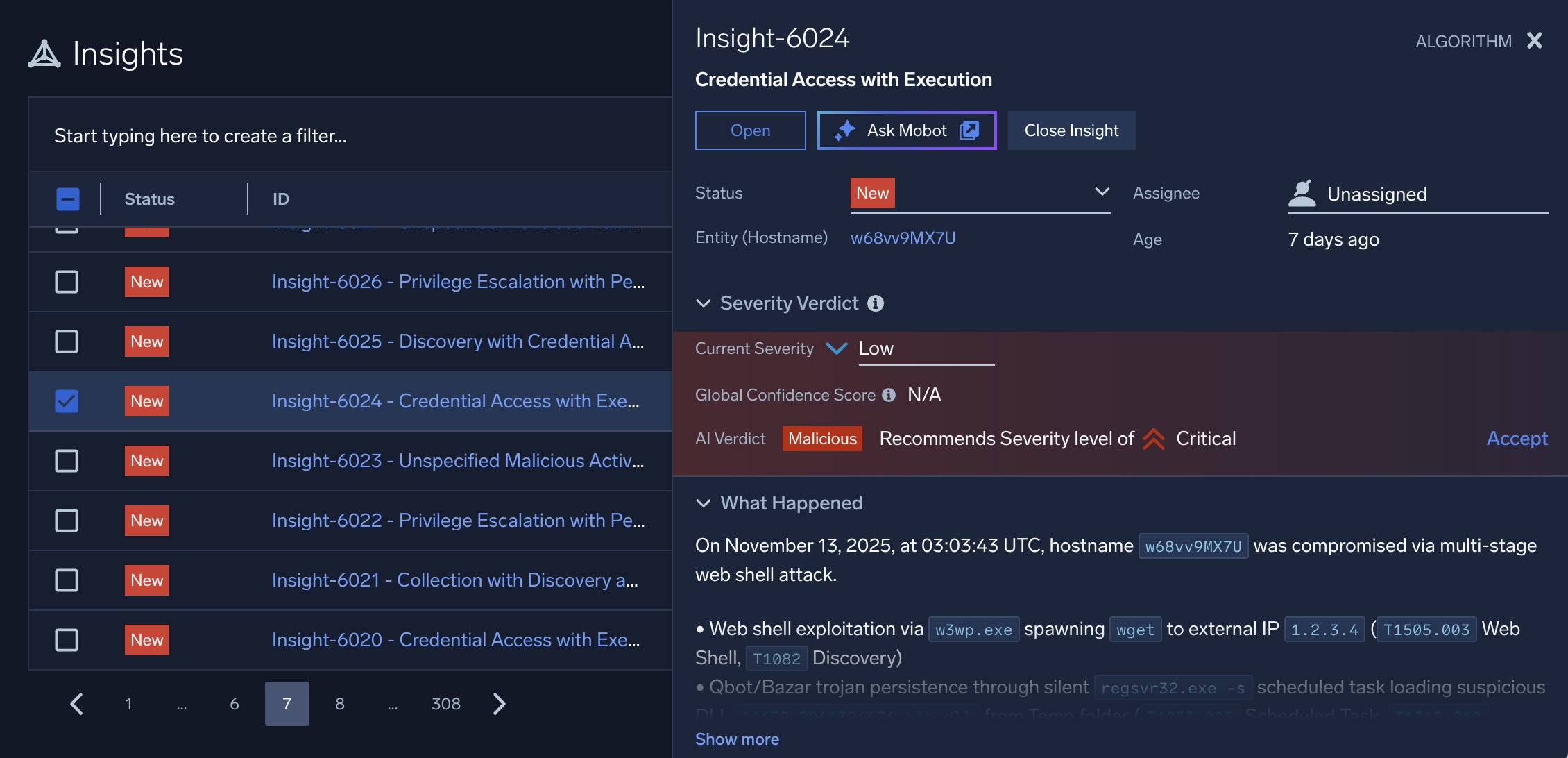
- Clicking anywhere on the row of an insight that has an AI verdict opens a side panel with results of the verdict. It's collapsible, allowing you to browse quickly for insights needing more investigation while staying in your insights list:
- To investigate an insight further, click the insight's ID (blue link):
Insights with an AI verdict display an AI Investigation tab on the insight's details page. Use the information on this tab to dive deeper into the insight.
AI Investigation tab
The AI Investigation tab in the details page of a Cloud SIEM insight is an artificial intelligence-generated analysis of the insight. Use the information on this tab to guide your investigation.
- New UI. In the main Sumo Logic menu, select Cloud SIEM > Insights. You can also click Go To... at the top of the screen and select Insights.
Classic UI. In the main menu, select Cloud SIEM and then click Insights at the top of the screen. - On the insights list page, click an insight's ID.
- The AI Investigation tab shows results of AI analysis:
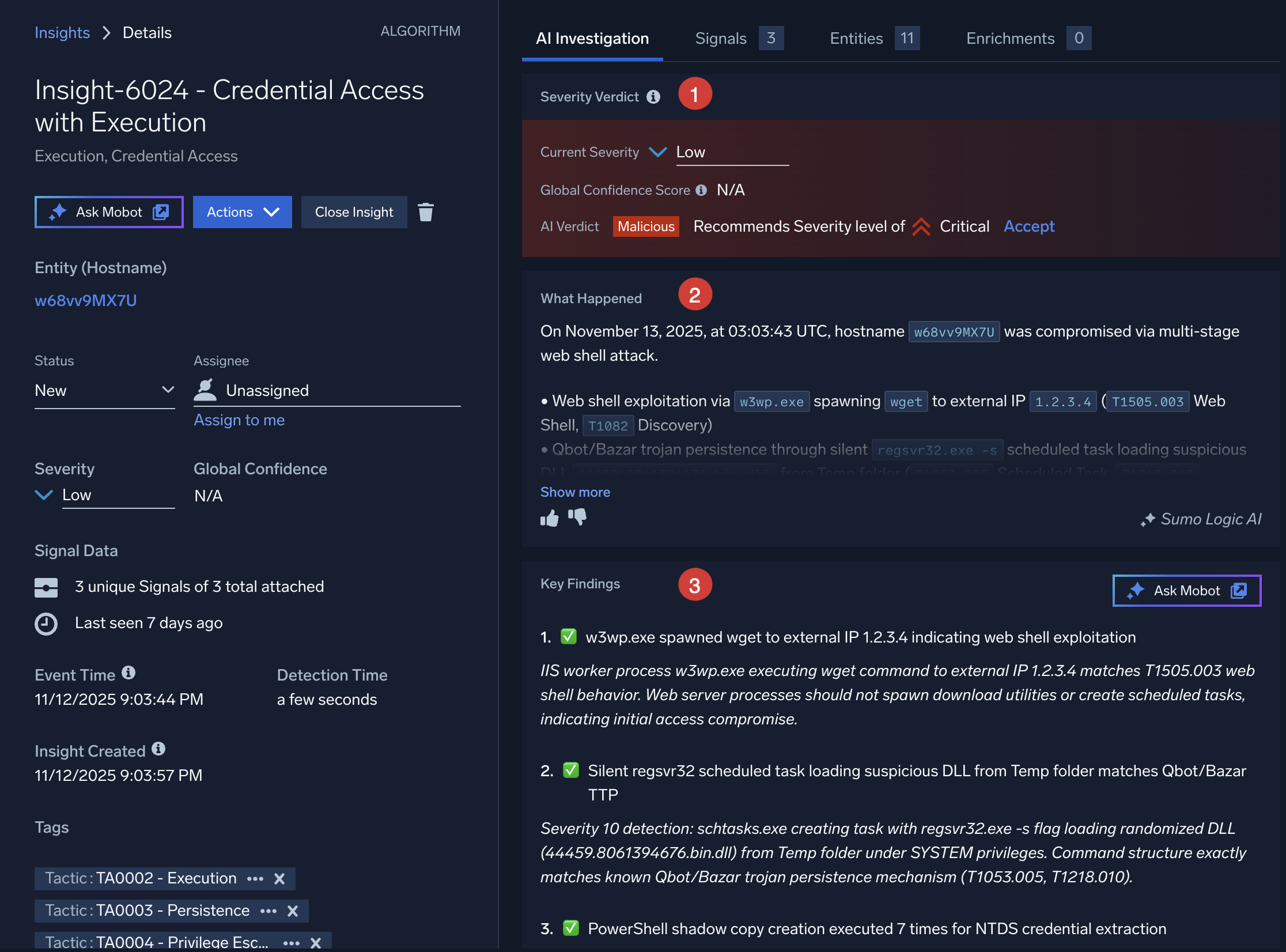
- AI Verdict. The AI system's qualitative assessment of the insight (Malicious, Suspicious, or Benign), followed by a brief explanation of the reasoning behind the verdict.
- Current Severity. The severity of the insight is set by the insight's cumulative activity score. For more information, see About insight severity.
- Global Confidence Score. A level of confidence that the insight is actionable, predicted by Sumo Logic's Global Intelligence machine learning model. See What is a Global Confidence score?.
- Recommends severity level of ___. AI analysis recommends assigning a new severity level to this insight. If you agree with the assessment, click Accept. The Current Severity field changes to the new value.
- What Happened. A concise summary of threat incidents based on triggered signals in the insight, generated by the SOC Analyst Agent. The summary consolidates key details to facilitate quick understanding and response by security teams. The summary is generated when an insight is created and regenerated whenever the insight is modified, keeping it current with any added or removed signals. Summaries are generated for insights created by the system and for custom insights you create manually.
tip
Help us refine the tool by using the thumbs-up or thumbs-down buttons to rate the effectiveness of the summary. Clicking the thumbs-down button allows you to provide additional feedback.
- Key Findings. The main points uncovered by AI analysis. Details about these findings can be found in the signals that fired for the insight.
- AI Verdict. The AI system's qualitative assessment of the insight (Malicious, Suspicious, or Benign), followed by a brief explanation of the reasoning behind the verdict.
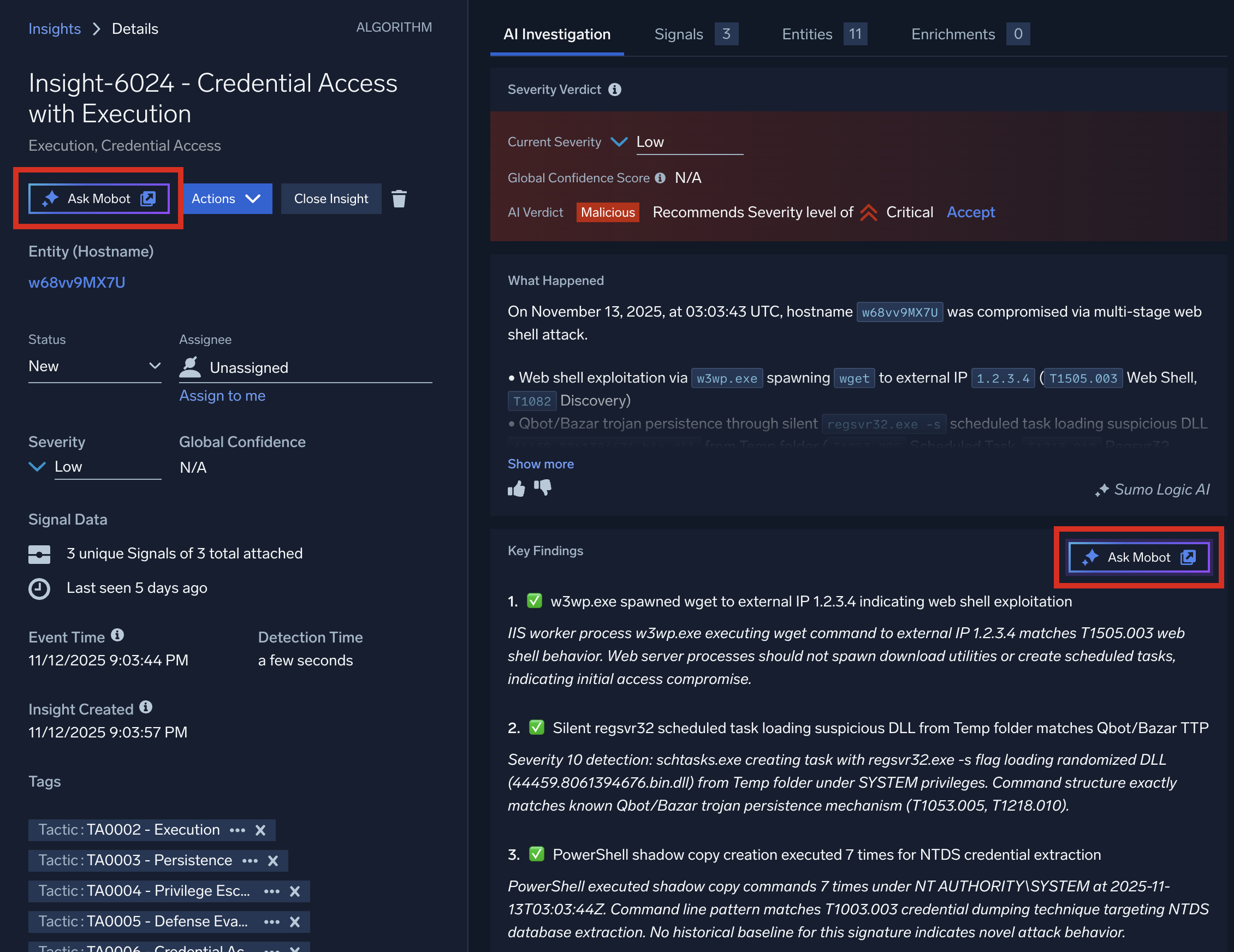
- Click Ask Mobot to continue the investigation conversationally in Mobot, with the full context of the AI analysis already loaded.
Investigate the insight in Mobot
Follow these steps once you're in Mobot:
- From the insight's Details page, click Ask Mobot to open the investigation in Mobot, Dojo AI's chat interface.
- The full AI investigation appears in Mobot. For example, under each step in Key Findings, you can click the provided links to see more details.
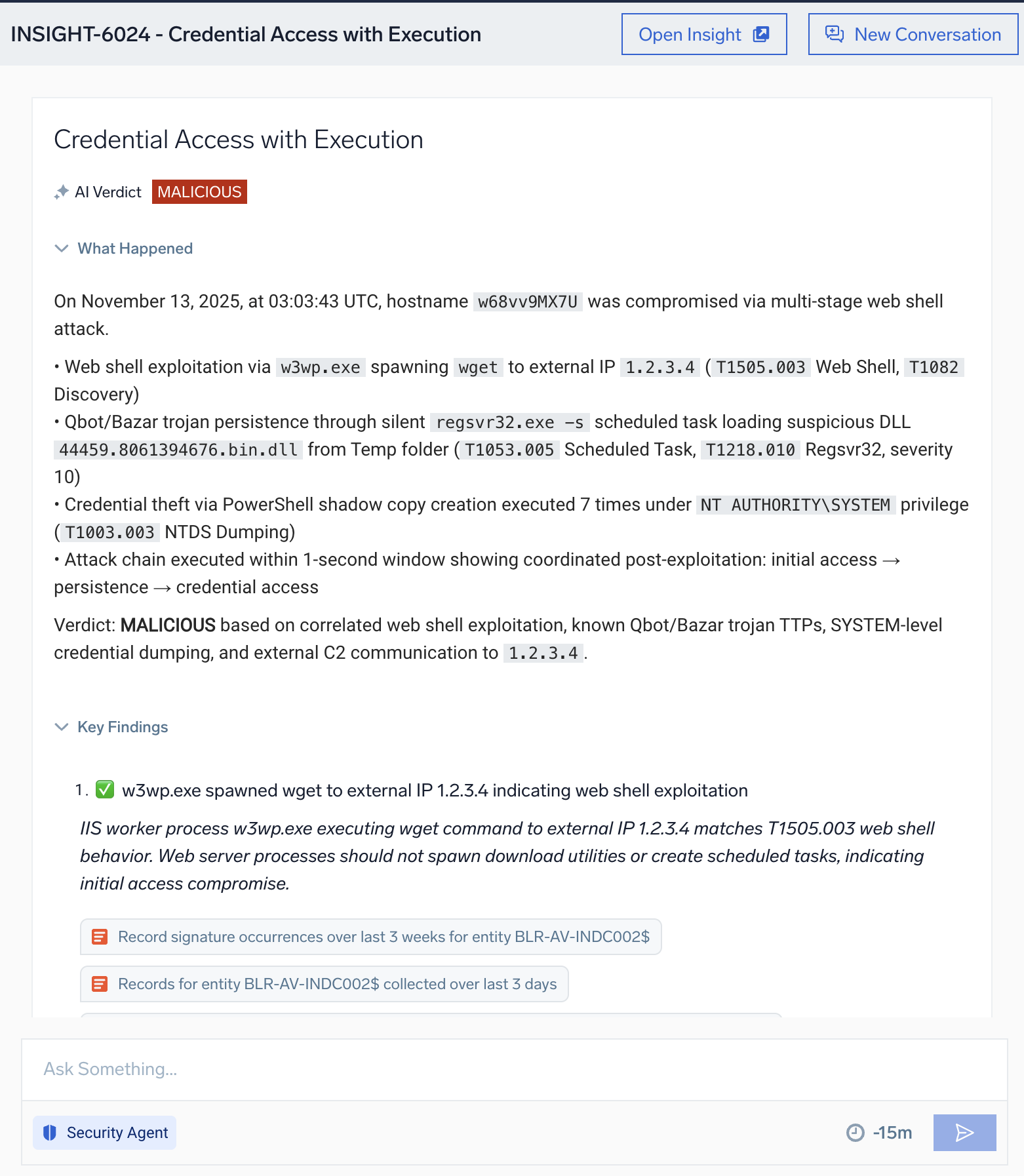
- In Ask Something..., type a question about the insight using details provided in the What Happened or Key Findings sections above. For example, you could ask to see logs about the entities mentioned in the text (i.e., hosts, users, IP addresses, file hashes, and so on). You could even ask more general questions, like
Help me investigate this insight. Mobot isn't limited to Cloud SIEM's normalized security records (sec_record*partitions); it can also query other data in your account, such as raw cloud logs, metrics, lookup tables, and collector health. When Mobot returns information from outside the Cloud SIEM index, it indicates the source.
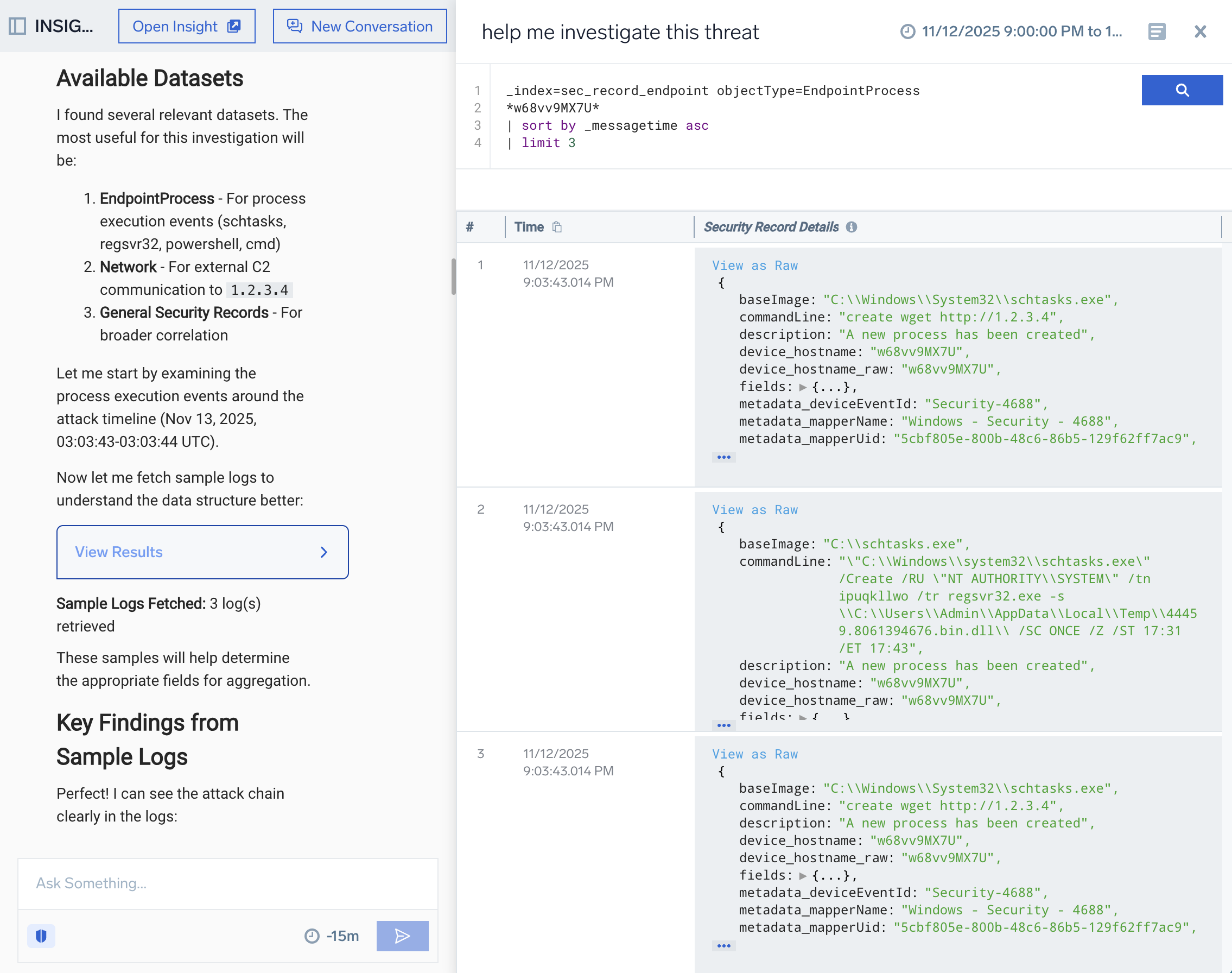
- After executing a prompt like the one above, Mobot analyzes your request and fashions a log search query based on it.
- Click the log search results card to see the results of your request in the Log Search UI. You can also click the suggestions provided to drill down further. As you ask questions, Mobot retains the context of your conversation about the insight, making it easier to obtain details.
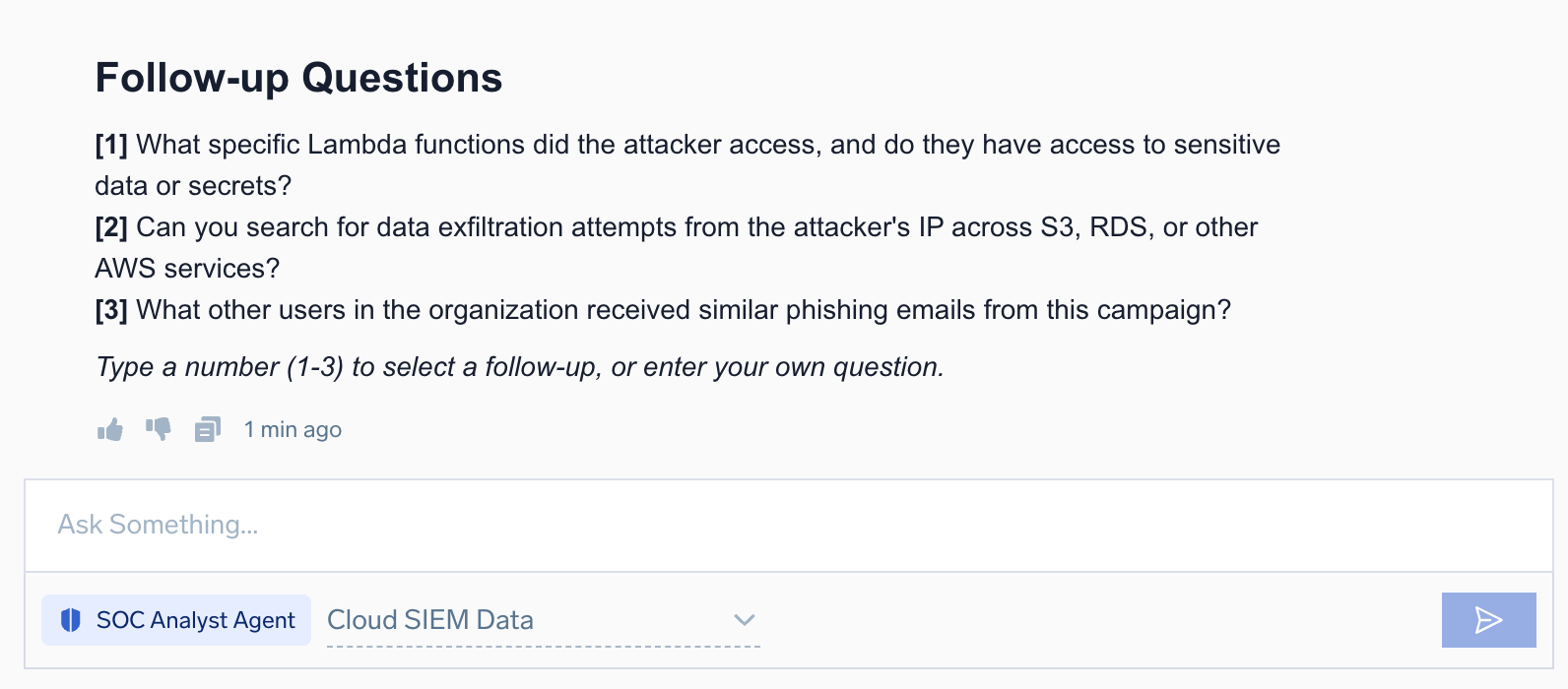
- As you work with the investigation agent, after each step, you will be presented with follow-up questions. Type a number corresponding to a follow-up question, or enter your own question.
At any point during the investigation, click Open Insight to return to the insight's Details page in Cloud SIEM.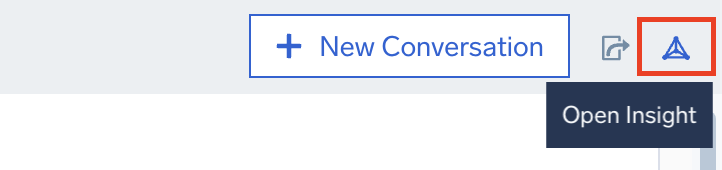
Search for related insights
During a Mobot investigation, you can search for other insights related to the current one. Mobot offers several dimensions to search by, helping you surface lateral context without leaving the investigation.
Click Search related insights? when it appears as a suggested action in Mobot, or ask Mobot directly (for example, Search for related insights). Mobot will ask which dimension to explore: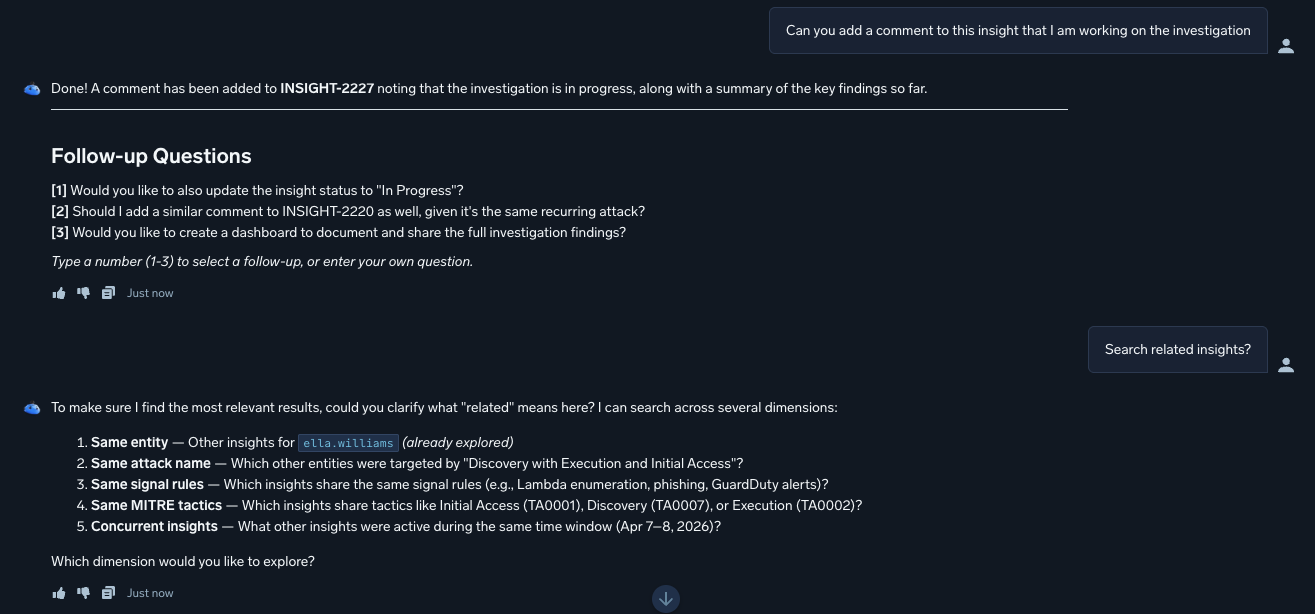
- Same entity. Other insights involving the same user, IP address, or host.
- Same attack name. Other insights with the same attack name.
- Same signal rules. Insights that share one or more of the same signal rules.
- Same MITRE tactics. Insights that share MITRE ATT&CK tactics.
- Concurrent insights. Insights that were active during the same time window.
Select a dimension to proceed, or enter your own search criteria.
Check indicators against threat intelligence
Auto-investigation and Mobot-led investigations automatically check indicators in an insight, such as IP addresses, domains, and file hashes, against Sumo Logic's global threat intelligence feeds, any custom threat intel feeds you've added, and your connected inventory sources. When a match is found, the verdict includes match context so you can see why an indicator was flagged rather than take the result on faith.
This is on by default. If you already have threat intel feeds or inventory sources connected, the agent uses them automatically. If you don't, you can add a feed any time.
To check a specific indicator, ask Mobot directly. For example:
Does this IP address match any threat intelligence feeds?Check this file hash against threat intelIs this domain a known indicator of compromise?
Example questions
The following are example questions you could try in the Ask Something... field. Although these are general questions, they give you an idea of the wide variety of questions you can ask the agent. However, rather than asking general questions, we recommend asking questions specific to the insight you're investigating to get the most useful responses.
Give me an executive summary of the insightWhat actions do you recommend for remediationTell me how to create a monitor that will fire if any changes occur on this insight
For more example prompts, see Security investigations in the Mobot Example Prompts documentation.
Generate dashboards
To generate dashboards tailored to your investigation, simply ask Mobot. For example, in the Ask Something... field, you could type Create a dashboard with the results of this investigation. The agent will build the dashboard: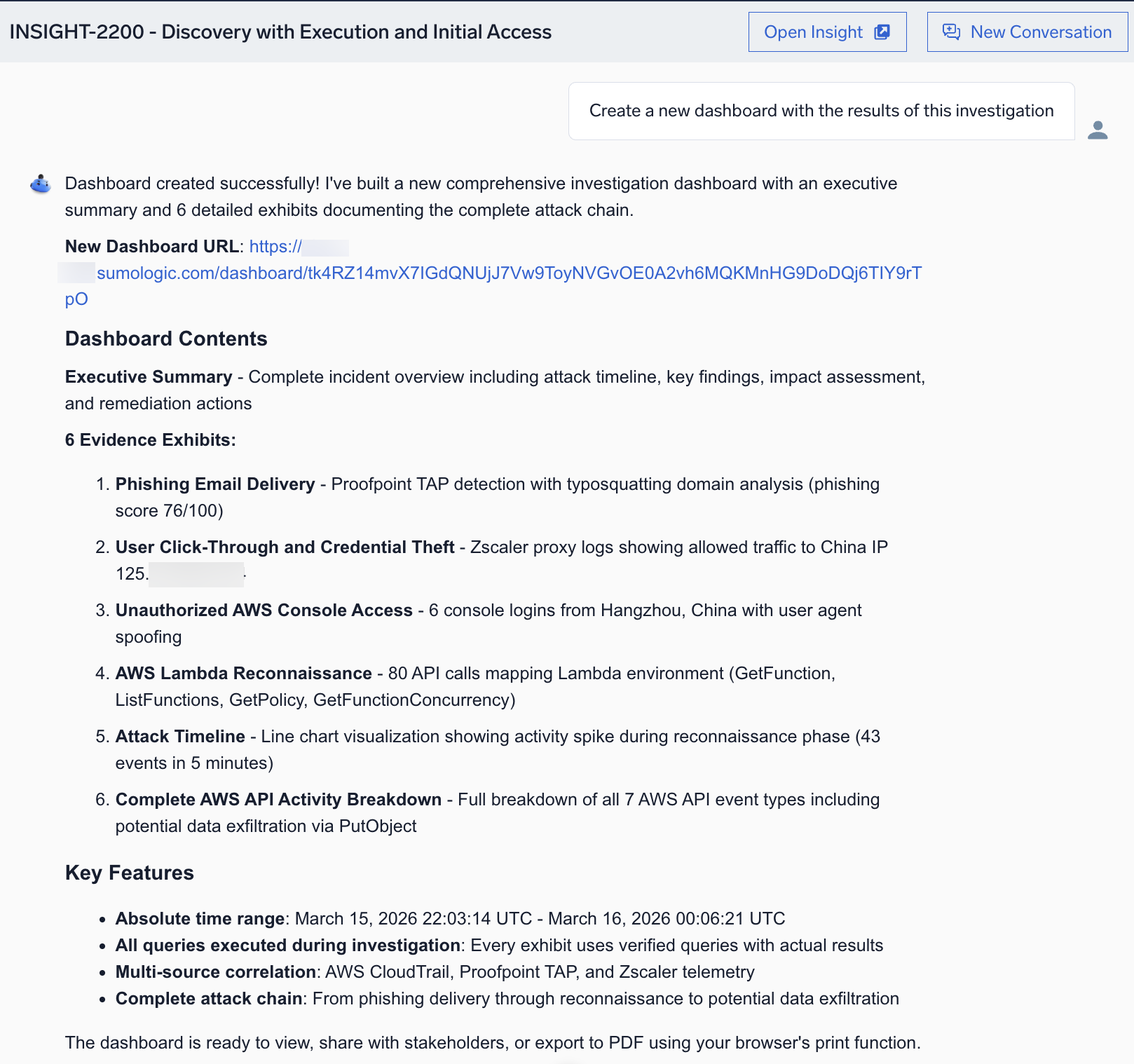
Click the provided link to view the dashboard: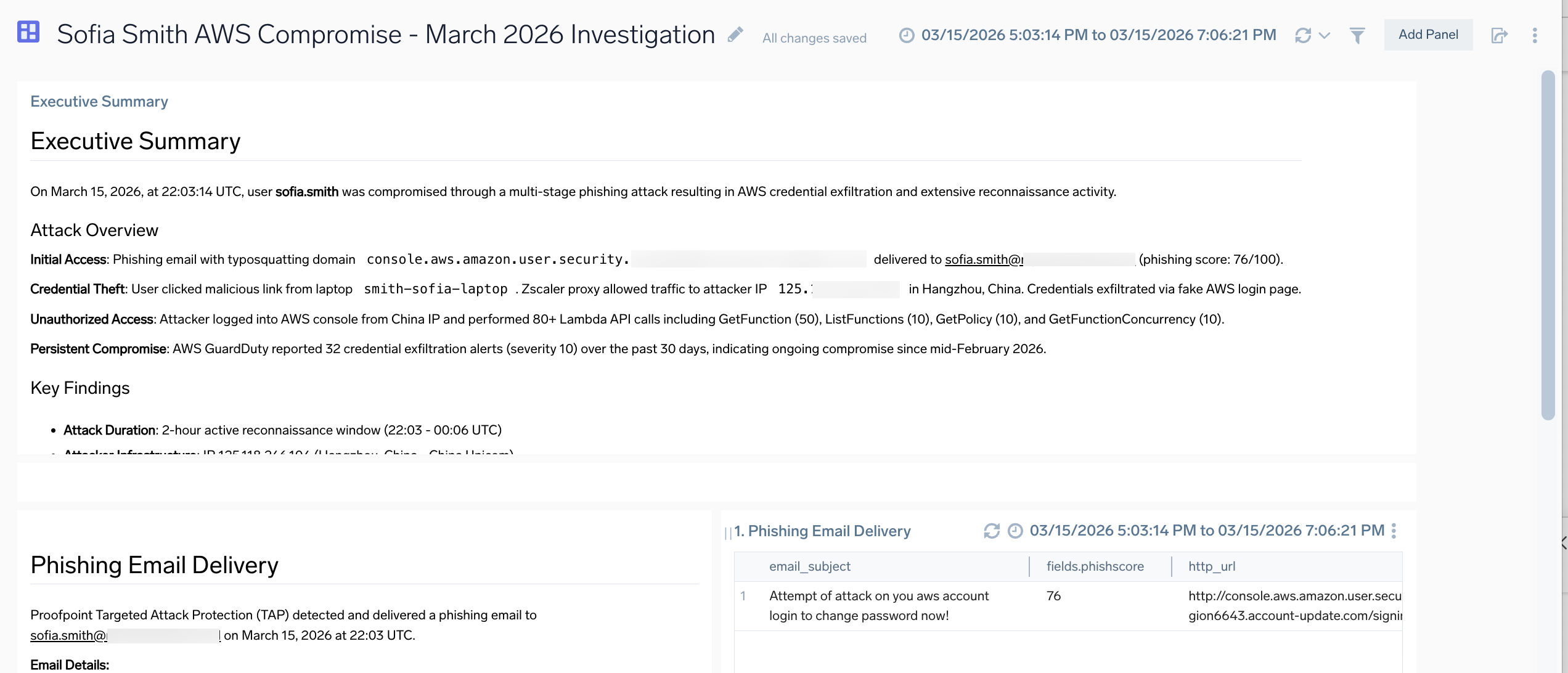
Start a new investigation
To start a new investigation, navigate back to Cloud SIEM, select another insight, and click Ask Mobot. To clear your current session instead, see New conversation.
Share the conversation
To share the current investigation with other users, see Share conversation.
Configure SOC Analyst Agent settings
The SOC Analyst Agent automatically investigates every insight that flows into Cloud SIEM, in order of priority, up to your organization's committed daily investigation volume. The SOC Analyst Settings tab on the Cloud SIEM Workflow Configuration page lets you control which insights the agent auto-investigates and what happens when you reach your committed volume.
By default, only administrators can view or manage SOC Analyst Settings, and federated tenants do not have access. An administrator can grant analysts the View SOC Analyst Settings permission to view the settings; with view-only access, the controls are visible but disabled. Changing settings always requires the Manage SOC Analyst Settings permission, limited to administrators. Manually triggering an investigation (clicking Investigate on a Not Investigated insight) requires the separate Trigger Manual Investigation permission.
To open the settings, select Cloud SIEM > Cloud SIEM Workflow Configuration > SOC Analyst Settings.
Auto-Investigation Filter
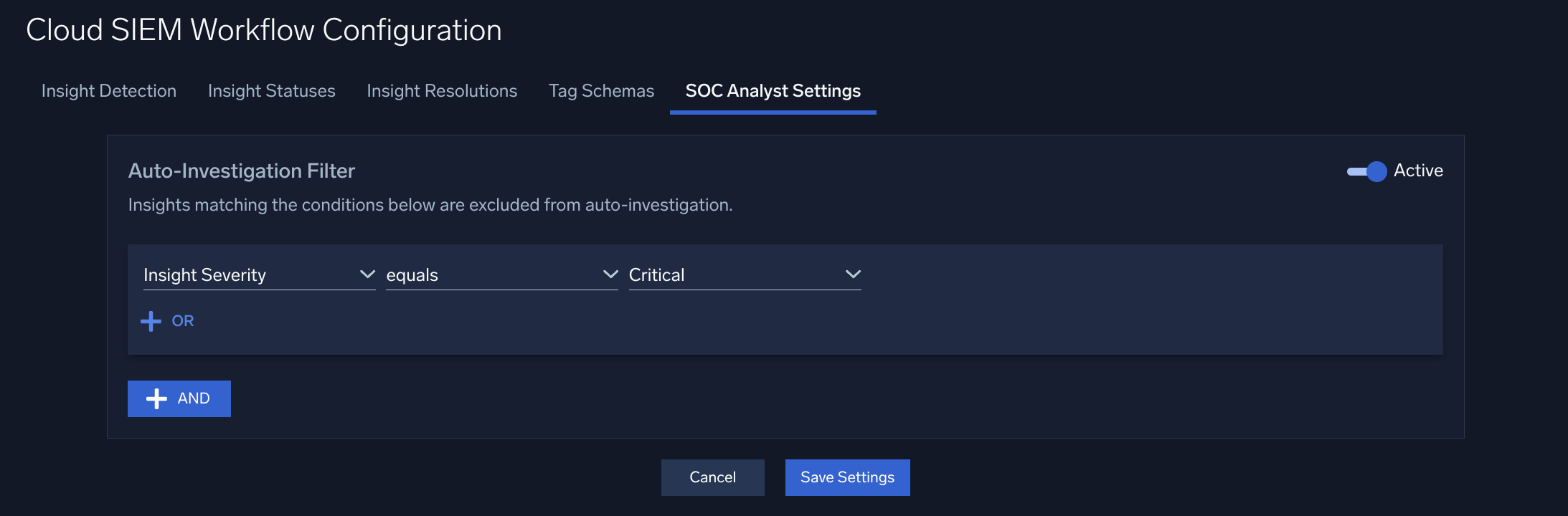
Insights that match the conditions you define are excluded from auto-investigation, keeping investigation capacity focused on higher-priority signals. Excluded insights receive a Not Investigated verdict and do not consume investigation capacity. Analysts can still investigate them manually because manual investigation ignores the filter. If you do not define any conditions, all insights are eligible for auto-investigation up to your committed volume.
At GA, you can define a single filter (with any combination of AND/OR condition groups) per org. Support for multiple, separately prioritized filter rules is planned for a future release.
The filter has an Active / Disabled toggle in the top right of the section. When it is set to Disabled, no insights are excluded, and the conditions are hidden ("Filter is currently disabled. Enable the toggle to configure filter criteria."). Set it to Active to define conditions.
To build the conditions:
- In a condition row, select a type, an operator, and a value. The types are:
- Insight Severity. Select Critical, High, Medium, or Low.
- Entity Type. Select the entity type from the Select type... dropdown. Options include IP Address, MAC Address, Username, Hostname, Process, Command, Hash, Domain, User Agent, Email, URL, File, Deployment, Pod, ReplicaSet, and Resource.
- Signal Name. The name of a signal in the insight. Enter the value as text.
- Signal Rule ID. The rule ID of a signal in the insight. Enter the value as text.
- For the operator, select equals or does not equal.
- Combine conditions with OR and AND:
- Click + OR to add a condition to a group. An insight matches the group if any of its conditions are true.
- Click + AND to add another group. An insight matches the filter only when every group is true.
To remove a condition, click the X next to it. To remove an entire group, click the X in the top-right corner of the group.
After changing this setting, click Save Settings to apply your changes, or Cancel to discard them.
Volume & Overage Settings
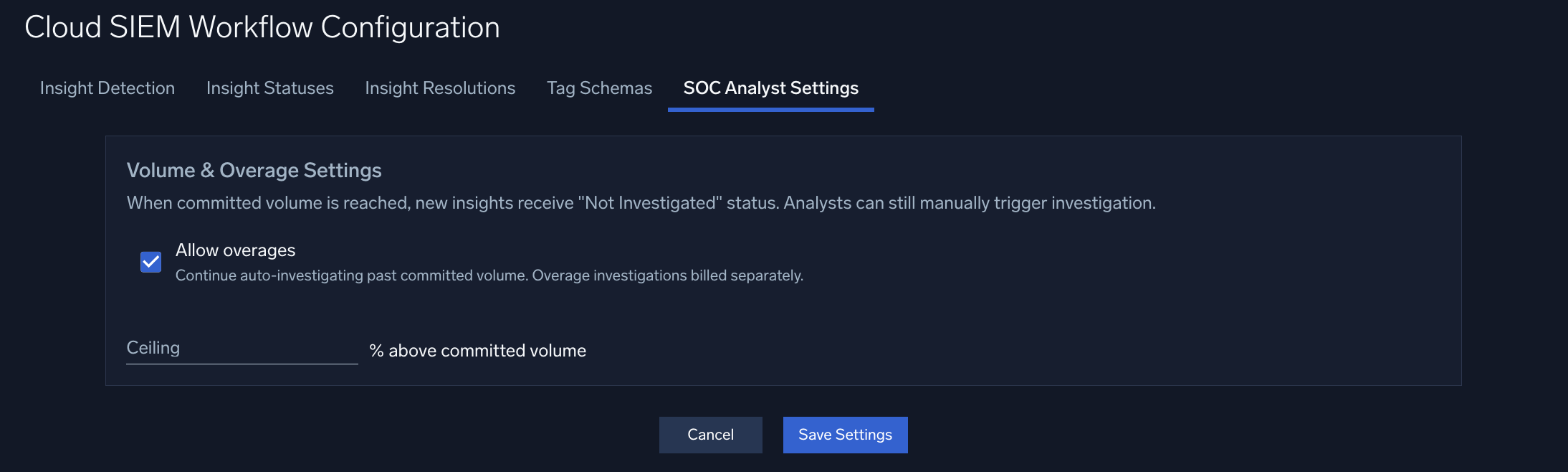
When your committed daily investigation volume is reached, new insights are marked as Not Investigated, and analysts can still manually trigger an investigation.
The section has an Active / Disabled toggle in the top right, similar to the Auto-Investigation Filter's toggle.
- Allow overages. This checkbox is cleared by default. Select it to continue auto-investigating past your committed volume. Overage investigations are billed separately.
- Ceiling. When Allow overages is selected, a Ceiling field appears, defaulted to 20%. Enter the maximum percentage above your committed volume that auto-investigation can consume.
After changing this setting, click Save Settings to apply your changes, or Cancel to discard them.
FAQ
What is the Sumo Logic SOC Analyst Agent?
The SOC Analyst Agent is part of the Sumo Logic Dojo AI. The SOC Analyst Agent is an assistant that applies agentic AI reasoning to triage and investigation tasks. It correlates alerts, weighs patterns against frameworks such as MITRE ATT&CK, and renders evidence-backed verdicts, providing analysts with an immediate sense of threat impact. When deeper analysis is required, you continue the same investigation conversationally in Mobot, Dojo AI's chat interface, to map relationships, connect entities, and summarize findings.
Will the agent increase scanning or data-processing costs?
No. The agent analyzes existing data already ingested into Cloud SIEM. It performs reasoning on metadata and contextual signals rather than initiating new scans.
How does the agent differ from Cloud SIEM correlation or automation rules?
Unlike traditional static correlation logic, the SOC Analyst Agent applies agentic reasoning. It adapts based on insight context, recent analyst actions, and environmental signals, producing contextual, explainable decisions rather than fixed pattern matches.
What data does the agent rely on to render verdicts?
The agent draws from normalized security data (sec_record* indexes and signals), correlated entities, Sumo Logic and customer-provided threat intelligence feeds, and enrichment data (for example, IP geolocation, user behavior, and asset details). Auto-investigation verdicts are based only on this data. When you continue an investigation in Mobot, the agent can also query data outside the Cloud SIEM index, such as raw cloud logs, metrics, lookup tables, and collector health.
Can analysts provide feedback or correct AI verdicts?
Yes. Analysts can override verdicts and flag feedback within the UI. These actions are logged and may inform future improvements, but they do not immediately retrain or alter the model's behavior.
Does the agent learn from past investigations?
No. The SOC Analyst Agent does not have persistent learning.
How does investigation rate limiting work?
The SOC Analyst Agent automatically investigates insights in priority order, up to your organization's committed daily investigation volume, which resets daily per Sumo Logic Org ID. When that volume is reached, additional insights receive a Not Investigated verdict, and analysts can manually trigger an investigation on any of them by clicking the Investigate button. A banner also appears on the Insights page when your investigation capacity is reached.
To control how that capacity is used, including whether investigation continues past your committed volume, see Configure SOC Analyst Agent settings. Parent org administrators can also set a child org's investigation volume when creating or editing a child org.
If you have questions about your organization's investigation volume, ask your Sumo Logic representative.
Does continuing an investigation in Mobot count against Mobot's usage limits?
No. Continuing an investigation in Mobot from an insight (via Ask Mobot) is metered under SOC Analyst Agent licensing, not standard Mobot limits — up to 30 prompts per user per day, separate from your organization's standard Mobot limit.
Does the agent automatically investigate things that are not entities in Cloud SIEM?
Traditional Cloud SIEM entities include users, IP addresses, hosts, and the like. In addition to these, the agent automatically investigates things that are not usually identified as entities in Cloud SIEM, such as related cloud resources, API endpoints, or service accounts relevant to the insight. This intelligent entity prioritization results in faster investigation and reduces time spent manually determining which entities to investigate.
Can I converse with the agent in the same way I am used to doing with other AI-enabled tools?
Yes, you can. In your investigation, you are not limited in how you proceed. You can engage the agent in a conversational flow to direct the investigation any way you want. However, the agent has many tools that can help should you need guidance. For example, the agent presents follow-up questions after each step, offering you multiple paths for investigation.
Is the agent's work quality checked?
Yes. A sample of agent verdicts is regularly reviewed by senior analysts to catch drift or reasoning errors and inform future improvements.
Can I audit what the agent did during an investigation?
Yes. Every tool call the agent makes is logged to Cloud SIEM, so you can review exactly what data it queried and how it reached a verdict. You can also review agent activity in the Audit Event Index:
=sumologic_audit_events =dojo
| where eventName = "AgentRun"
| where invocationDetails.agentName == "soc_analyst_agent"
Can I access the agent's verdict and findings through the API?
Yes. An insight's AI Verdict, Key Findings, and What Happened summary are available programmatically through the GetInsightTriage operation in the Cloud SIEM API. The What Happened summary is also included in the output of the standard insight API. Use the API endpoint for your deployment; see Cloud SIEM APIs to find the correct base URL.
Can the agent take containment actions on its own?
No. The agent renders verdicts and findings to guide your investigation; it does not take remediation or containment actions itself.
Additional resources
- Sumo Logic | Dojo AI. Learn about Dojo AI, Sumo Logic's multi-agent AI platform, and the other specialized agents alongside the SOC Analyst Agent.
- AI and Machine Learning with Sumo Logic. See how the SOC Analyst Agent fits alongside Mobot, the Sumo Logic MCP server, and Sumo Logic's classical machine learning capabilities.
- The SOC Analyst Agent: Bring an agentic approach to work with your SOC team
- The AI SOC explained: Intelligent security for modern threats
- AWS Case Studies | Accelerating security analytics using Amazon Nova with Sumo Logic. Learn how security solutions provider Sumo Logic built an AI assistant by using Amazon Nova 2 Lite and Amazon Bedrock.