About Cloud SIEM Rules
A Cloud SIEM rule is logic that fires based on information in incoming records. When a rule fires, it creates a signal.
For a complete list of out-of-the-box rules, see Rules in the Cloud SIEM Content Catalog.
Watch this micro lesson to learn more about rules.
Rules list view
New UI. To view rules, in the main Sumo Logic menu select Cloud SIEM > Rules. You can also click the Go To... menu at the top of the screen and select Rules.
Classic UI. To view rules, in the top menu select Content > Rules.
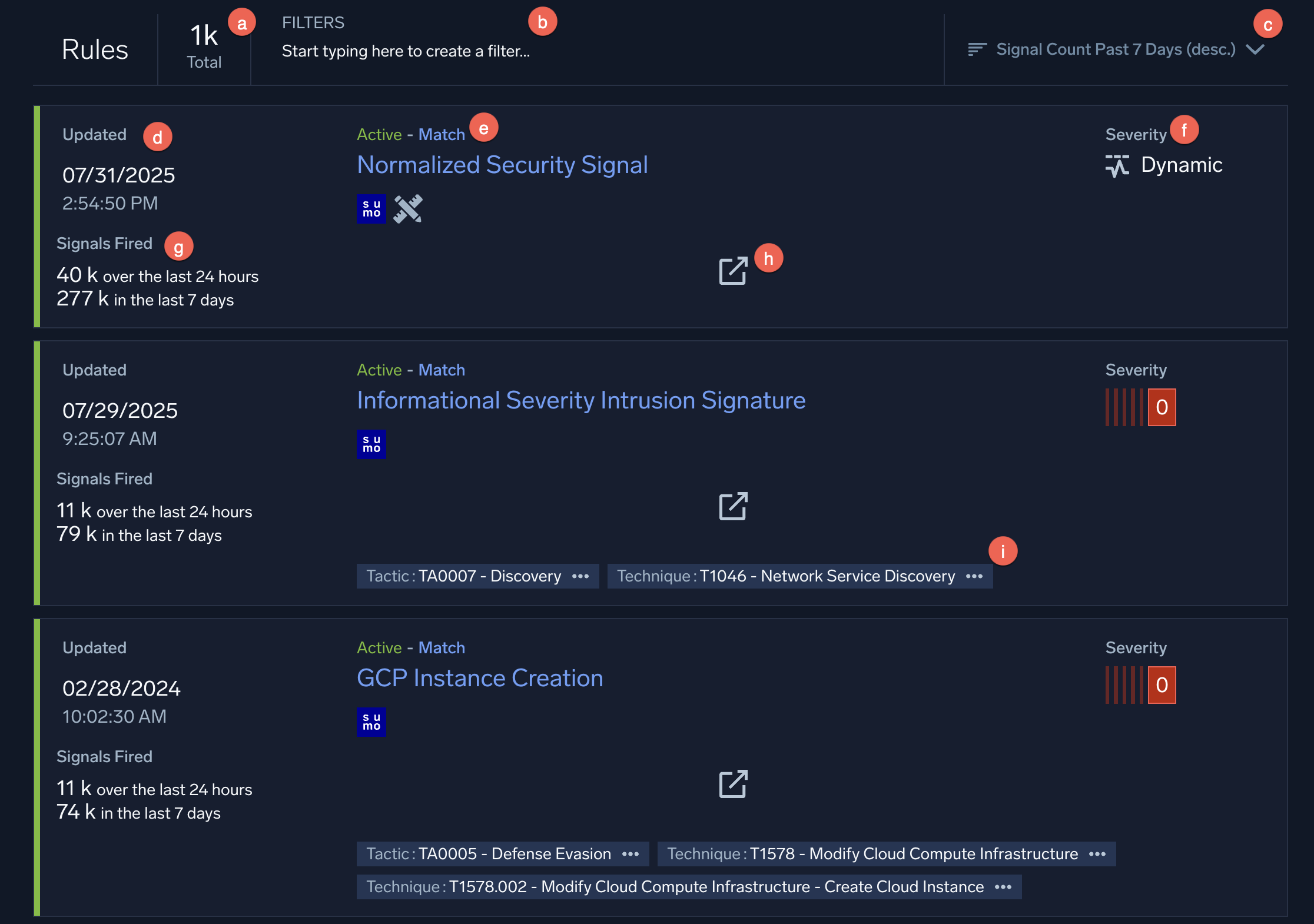
- Filter. Filter the list of rules by different parameters, such as name, type, severity, and so on.
- Ask Mobot. Opens the Mobot chat box for you to create and edit Cloud SIEM rules using natural language. Learn more.
- Browse Available Community/Sigma Rules. Opens the Available Community/Sigma Rules page, where you can browse and import ready-made rules.
- + Add Rule. Select the rule type to add.
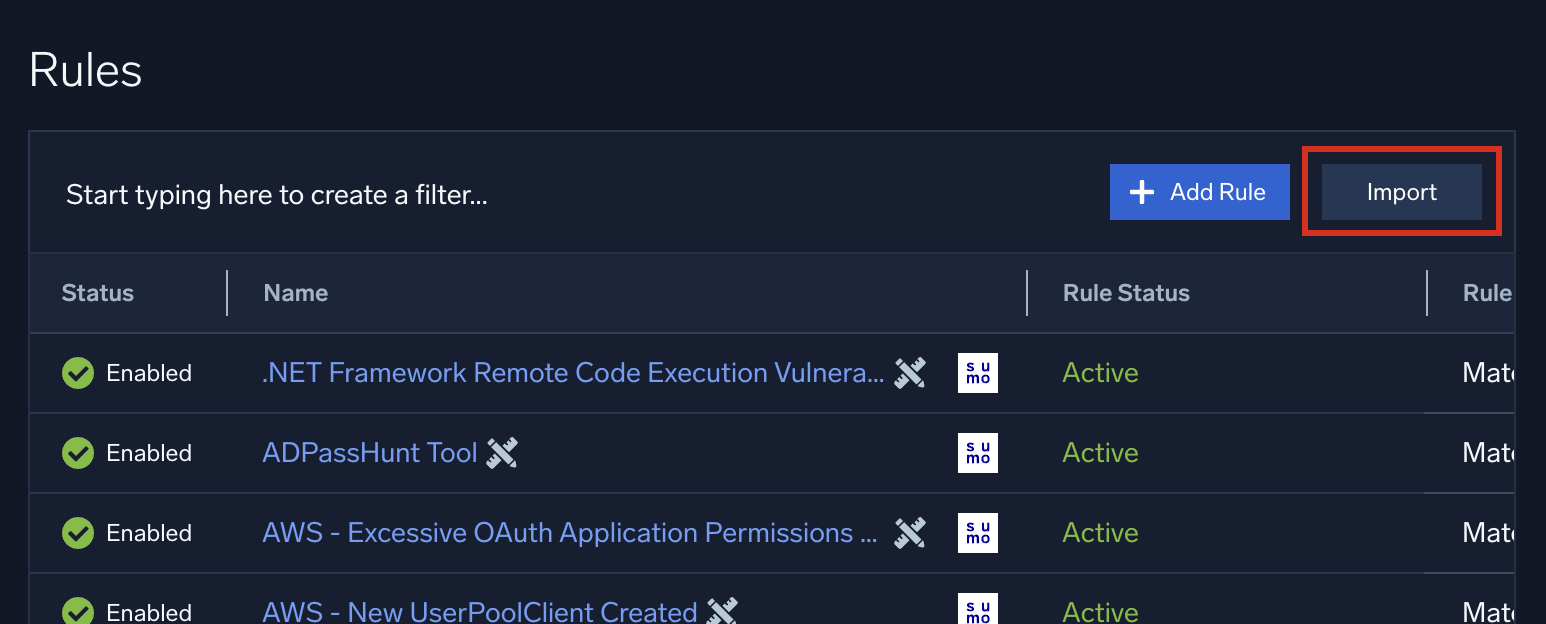
- Import. Import a rule.
- Status. Whether the rule is enabled.
- Name. The rule's name.
- Rule Status. The rule status.
- Rule Type. The rule type.
- Severity. The rule's severity, an estimate of the criticality of the detected activity, from 1 (lowest) to 10 (highest).
- Signals Fired (24 h). The number of signals that the rule fired in the last 24 hours.
- Signals Fired (7 d). The number of signals that the rule fired in the last 7 days.
To list only rules that came from the community library, filter by Source. For example, the filter Source is Sigma shows only rules you imported from the Sigma library. See Find imported community rules.
Rules details view
When you click a rule on the Rules page, a details page for the rule appears.
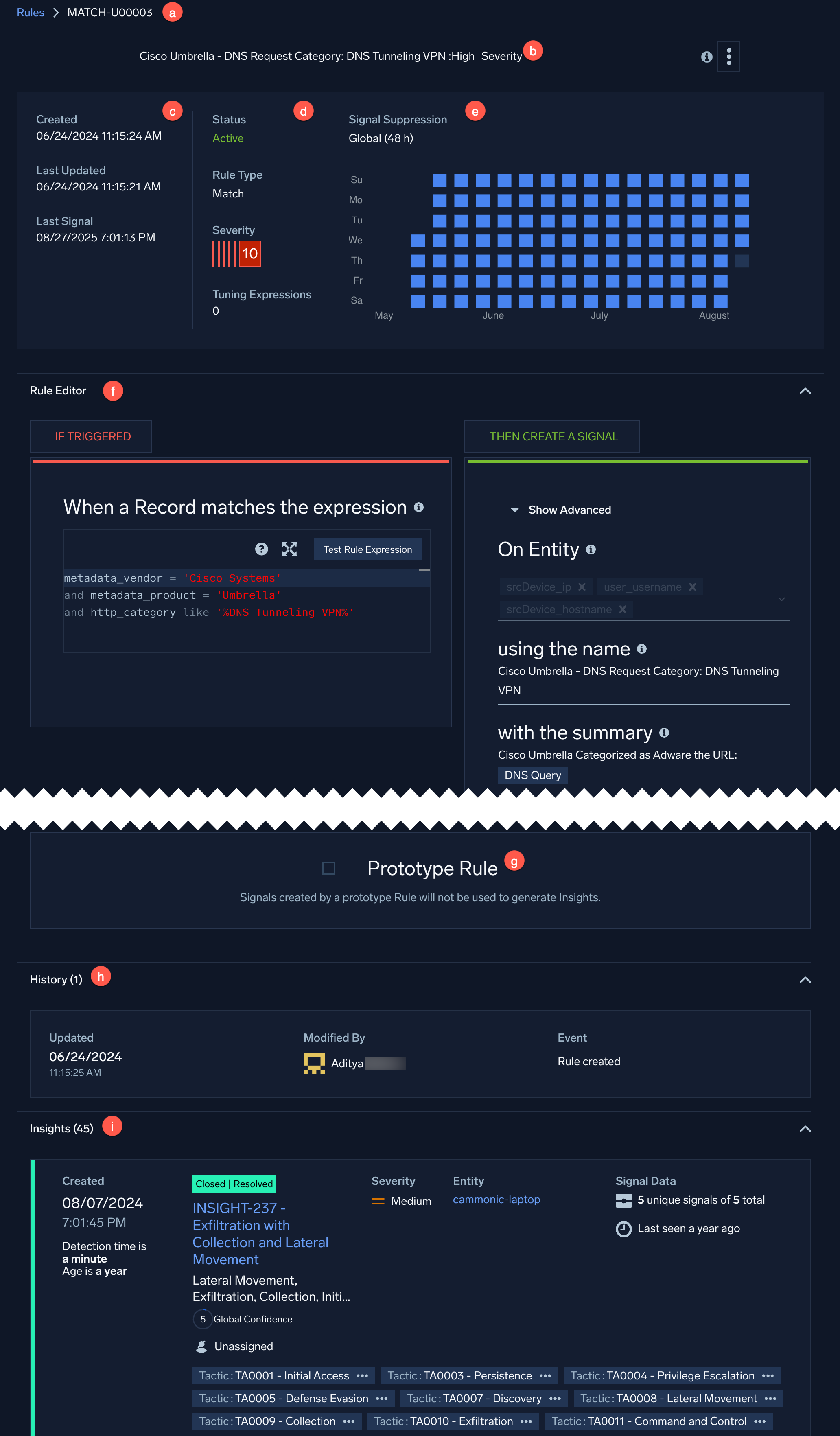
| Letter | Description |
|---|---|
| a | Rule ID. The ID for the rule. |
| b | Rule name. The name of the rule. |
| c | Dates. When the rule was created, updated, and fired its most recent signal. |
| d | Status, Rule Type, Severity, and number of Tuning Expressions. |
| e | Signal Suppression. When signal suppression occurred. Click a square on the calendar to see the number of signals suppressed on that day. |
| f | Rule Editor. Click in fields to edit the rule. For information about the fields, see articles for the rule types. |
| g | Prototype Rule. Select the check box to save the rule a prototype. |
| h | History. Change events for the rule, including who made the change and the type of change event. |
| i | Insights. The insights that resulted from the rule's firing. |
About rule expressions
The key element of a Cloud SIEM rule is a rule expression. A rule expression defines what conditions the rule will look for. A rule expression includes one or more equality statements, each of which evaluates a field value in incoming records, typically comparing it to a constant value, for example description = 'CMS Domain Match'. A simple rule expression might be a single equality expression, or multiple expressions combined with logical operators. A rule expression evaluates to a boolean value. When a rule’s conditions are met, it creates a signal.
The following rule expression, which looks for any event that stops AWS CloudTrail logging, is an example of a rule expression that contains only equality statements.
metadata_vendor = 'AWS' and metadata_product = 'CloudTrail' and fields.eventName = "DeleteTrail" or fields.eventName = "StopLogging" or fields.eventName = "UpdateTrail"
Rule expressions can also use regular expressions and Cloud SIEM rules language functions, which include SQL-like and domain-specific functions. For more information, see Cloud SIEM Rules Syntax.
The Before You Write a Custom Rule topic has useful information about how to prototype a rule expression in Sumo Logic core platform.
About tuning expressions
Like a rule expression, a tuning expression is matched against incoming records. As an example, consider the following rule expression, which detects that an attempt was made to clear the Windows Security Event Log.
metadata_vendor = 'Microsoft' and metadata_product = 'Windows' and metadata_deviceEventId = 'Security-1102' and fields['Provider.Name'] = 'Microsoft-Windows-Eventlog'
If you don’t want the rule to generate a signal if the person performing the action is “jdoe”, you can add a tuning expression like this to the rule:
user_userId = !jdoe
The tuning expression is AND’d with the rule expression—the rule will only generate a signal if a record matches both expressions.
Rule tuning expressions allow you to tailor the logic of a built-in rule without replicating and modifying the rule. The benefit of using a tuning expression, over the copy and edit method, is that when Cloud SIEM updates built-in rules, your tuning expressions are preserved. This division of logic means that you don’t need to create as many custom rules. If you use tuning expressions in combination with multi-entity rules you’ll further reduce the need for custom rules.
You create tuning expressions on the Rule Tuning page. When you create a tuning expression, you have the option of applying to all of your rules, or to selected rules. Or, you can apply tuning expressions when you create a rule. You can also create a tuning expression without immediately assigning it to any rules. For more information, see Rule Tuning Expressions.
"On Entity" configuration
In Cloud SIEM, the term entity refers to an IP address, hostname, username, or MAC address. When you create a Cloud SIEM rule, you select one or more On Entity attributes in the Then Create a Signal part of the UI. An On Entity attribute is a Cloud SIEM schema attribute that hold an IP address, hostname, username, or MAC address.
The screenshot below shows a rule whose "On Entity" attributes are srcDevice_ip and dstDevice_ip.
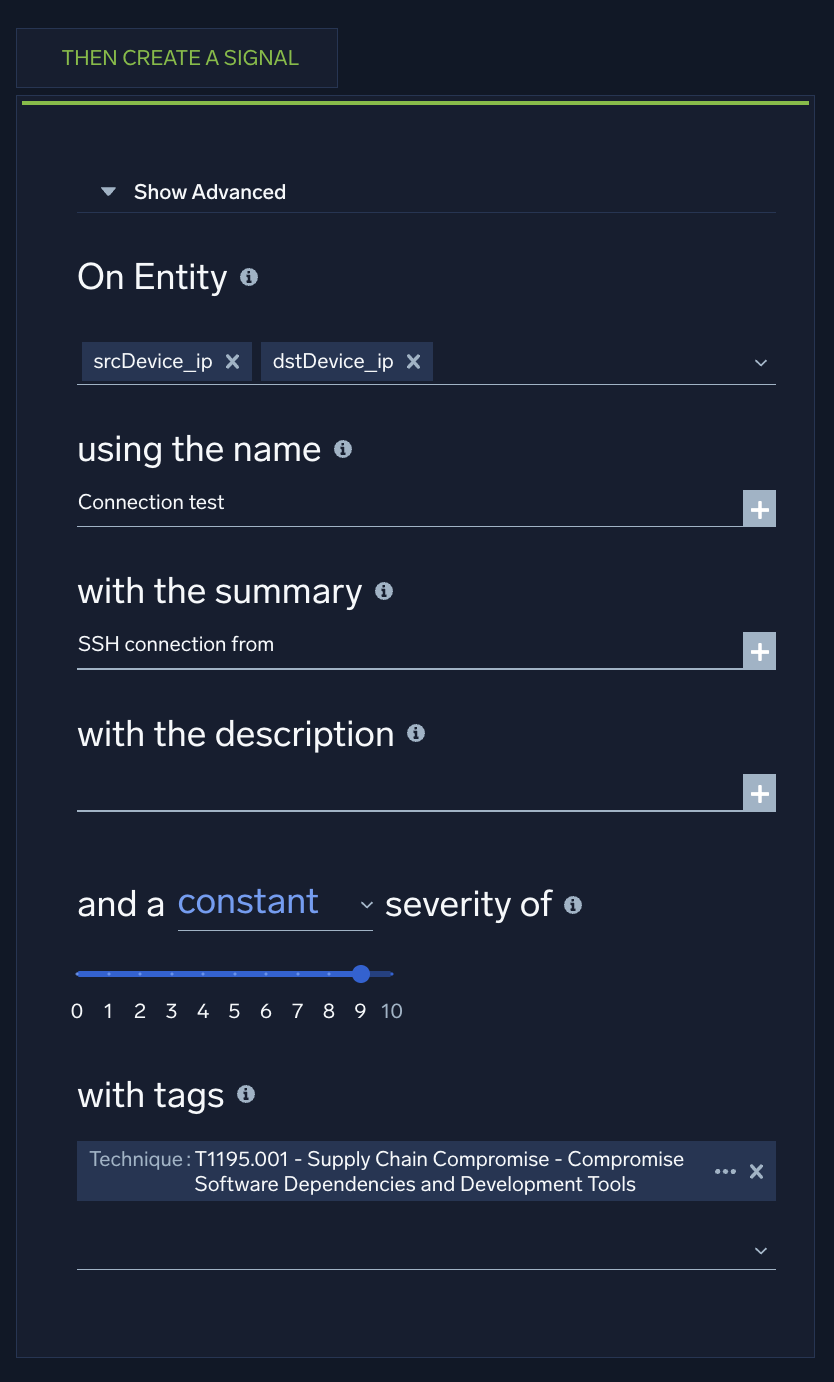
When an incoming record meets a rule's conditions, a signal is generated for each of the rule's On Entity attributes found in the record. When the example rule above fires, it generates two signals: one on the IP address held in the srcDevice_ip attribute, and another on the IP address held in the dstDevice_ip attribute.
Rule types
There are several kinds of rules. Each supports a different sort of firing behavior. (For a complete list of out-of-the-box rules, see Rules in the Cloud SIEM Content Catalog.)
- Match rule. Fires a signal when an incoming record matches the rule expression. A match rule is stateless: it looks at a single record, and it either fires or it doesn’t. The expression in the previous section is an example of a match rule expression. For more information about match rules, see Write a Match Rule.
- Chain rule. You can use a chain rule to look for two or more types of events, and to fire a signal based on the frequency of each over a time window. For example, you can configure it to fire when a user has more than 10 failed login attempts and one successful login attempt in a one hour window. Like a threshold rule, a chain rule is stateful and counts multiple records. The difference is that a chain rule applies multiple expressions to a record. For more information about chain rules, see Write a Chain Rule.
- Aggregation rule. Fires a signal when up to three aggregation conditions are met within a specified period of time. For example, you can configure it to fire when a large variety of different AWS CloudTrail event IDs from the same
device_ipare observed within a 30 minute period. For more information about aggregation rules, see Write an Aggregation Rule. - Threshold rule. Fires a signal when the rule expression is matched at least a certain number times during a specified length of time. For example, you can configure it to fire if there are five or more failed login attempts for the same IP address within one hour. A threshold rule is stateful. A condition must be satisfied by multiple records over a period of time. For more information about threshold rules, see Write a Threshold Rule.
- First seen rule. Fires a signal when behavior by an entity is encountered that has not been seen before. For example, you can configure it to fire the first time when a user logs in from a new location, or when a new admin account is created. For more information about first seen rules, see Write a First Seen Rule.
- Outlier rule. Fires when behavior by an entity is encountered that deviates from its baseline activity. For each outlier rule, Cloud SIEM automatically creates a baseline model of normal behavior. After the baseline learning period is completed, activity that deviates from the mean (normal baseline behavior) creates a signal. For more information about outlier rules, see Write an Outlier Rule.
Product identification metadata fields
During the record parsing process, Cloud SIEM adds metadata that identifies the product or service that generated the record. You use this metadata in a rule to specify what records the rule should be applied to. For example, the rule fragment below will match records generated by Trend Micro Deep Security devices with IDs in a specified range:
metadata_vendor = 'Trend Micro' and metadata_product = 'Deep Security' and metadata_deviceEventId between '2000000' and '2999999'
Some of the key metadata fields are defined below.
| Metadata field | Type | Description |
|---|---|---|
metadata_vendor | string | The name of the company responsible for the data source. Note the name of the product is in the "product" field. |
metadata_product | string | The specific product name of the data source. Note the name of the company who created the product is the "vendor" field. |
metadata_deviceEventId | string | Event type given by the vendor for the log. |
Export and import a rule
Sometimes you may need to export a rule from one instance of Cloud SIEM and import it to another. You can export and import it as a JSON file.
If you maintain a multi-org implementation of Sumo Logic and you need to push Cloud SIEM rules from a parent organization to child organization to ensure rule consistency across the orgs, use the Manage Content tab. See Manage Orgs for MSSPs.
Export a rule
- Access the rules list view.
- Select a rule.
- Click the three-dot kebab icon to the right of the rule name and select Export from the menu.
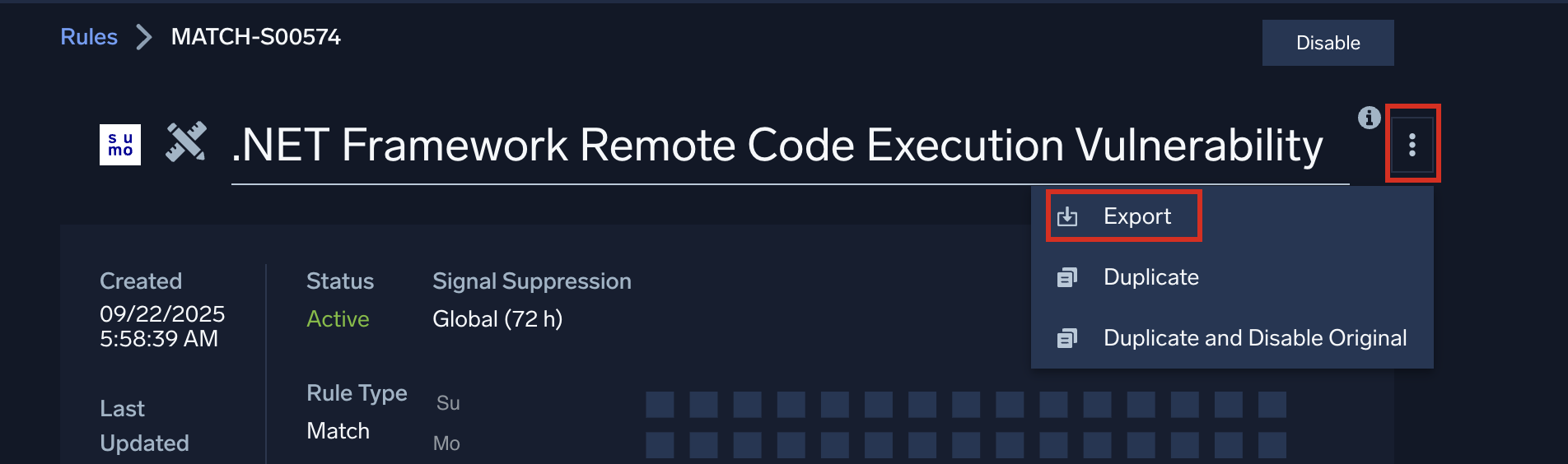
- The rule is downloaded as a JSON file. Copy the file and move it to a directory where it can be imported.
Import a rule
- Export a Cloud SIEM rule as described in the preceding section.
- Access the rules list view.
- Click the Import button.
- Select the JSON file of the previously exported rule.
Import rules from Sigma
Sigma is an open format for detection rules. You can bring Sigma rules into Cloud SIEM in two ways:
- Browse and import from the Cloud SIEM UI. Cloud SIEM includes a library of community rules, including Sigma rules, that have already been converted to Cloud SIEM rules. You can browse the library, review each rule, and import the ones you want with a few clicks. No conversion step is needed. See Browse community and Sigma rules.
- Convert your own Sigma rules. You can convert Sigma rules to Cloud SIEM rule JSON using the Sumo Logic pySigma backend, and then import the JSON file as described in Import a rule. Sigma correlation rules and keyword-based detections (the
keywordsfield) are not supported, and rules whose field mappings fall below the confidence threshold are blocked. For more information, see Convert Sigma Rules.
Browse community and Sigma rules
Cloud SIEM provides a library of community rules that you can browse and add to your environment. The library includes rules from the Sigma project, and the Source column shows where each rule came from. Cloud SIEM has already translated these rules into Cloud SIEM rule format, so you can import them as-is.
Use this feature when you want to expand your detection coverage quickly without writing rules from scratch or running the Sigma conversion tools yourself.
Browse available rules
- New UI. To view rules, in the main Sumo Logic menu select Cloud SIEM > Rules. You can also click the Go To... menu at the top of the screen and select Rules.
Classic UI. To view rules, in the top menu select Content > Rules. - Click Browse Available Community/Sigma Rules at the top right of the page. The Available Community/Sigma Rules page opens.
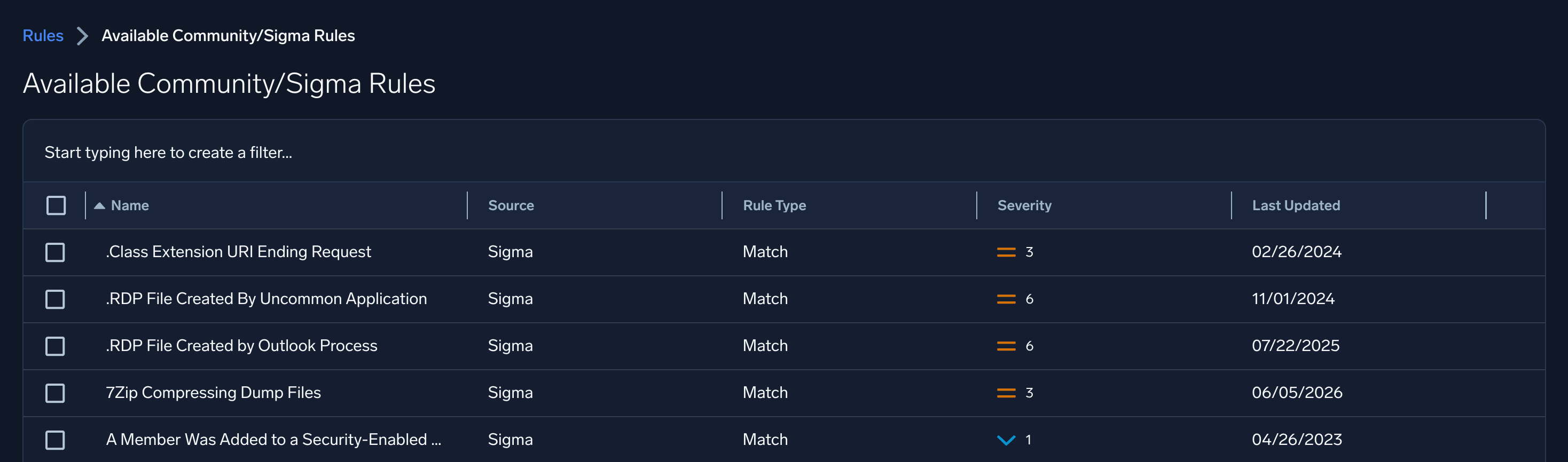
The page lists every rule in the library, 20 rules per page, sorted by name. Select one or more rules to import using the checkboxes, or select the checkbox in the header row to select all rules on the current page.
The table has the following attributes:
| Attributes | Description |
|---|---|
| Name | The name of the rule. Click a name to open the rule details. |
| Source | Where the rule came from. For example, Sigma. |
| Rule Type | The Cloud SIEM rule type. Imported community rules are match rules. |
| Severity | The rule's severity, from 1 (lowest) to 10 (highest). |
| Last Updated | The date the rule was last updated in the library. |
To find rules:
- Filter. Click Start typing here to create a filter... and filter the list by the table's fields, such as name, source, rule type, and severity.
- Sort. Click a column heading to sort the table by that column. The default sort is by Name.
- Page. Use the page controls at the bottom of the table to move between pages. The total number of rules in the library appears at the bottom right.
View a community rule
Click a rule name on the Available Community/Sigma Rules page to open its details page. Each rule has its own page, and the page URL includes the rule ID, so you can bookmark or share a link to a specific rule.
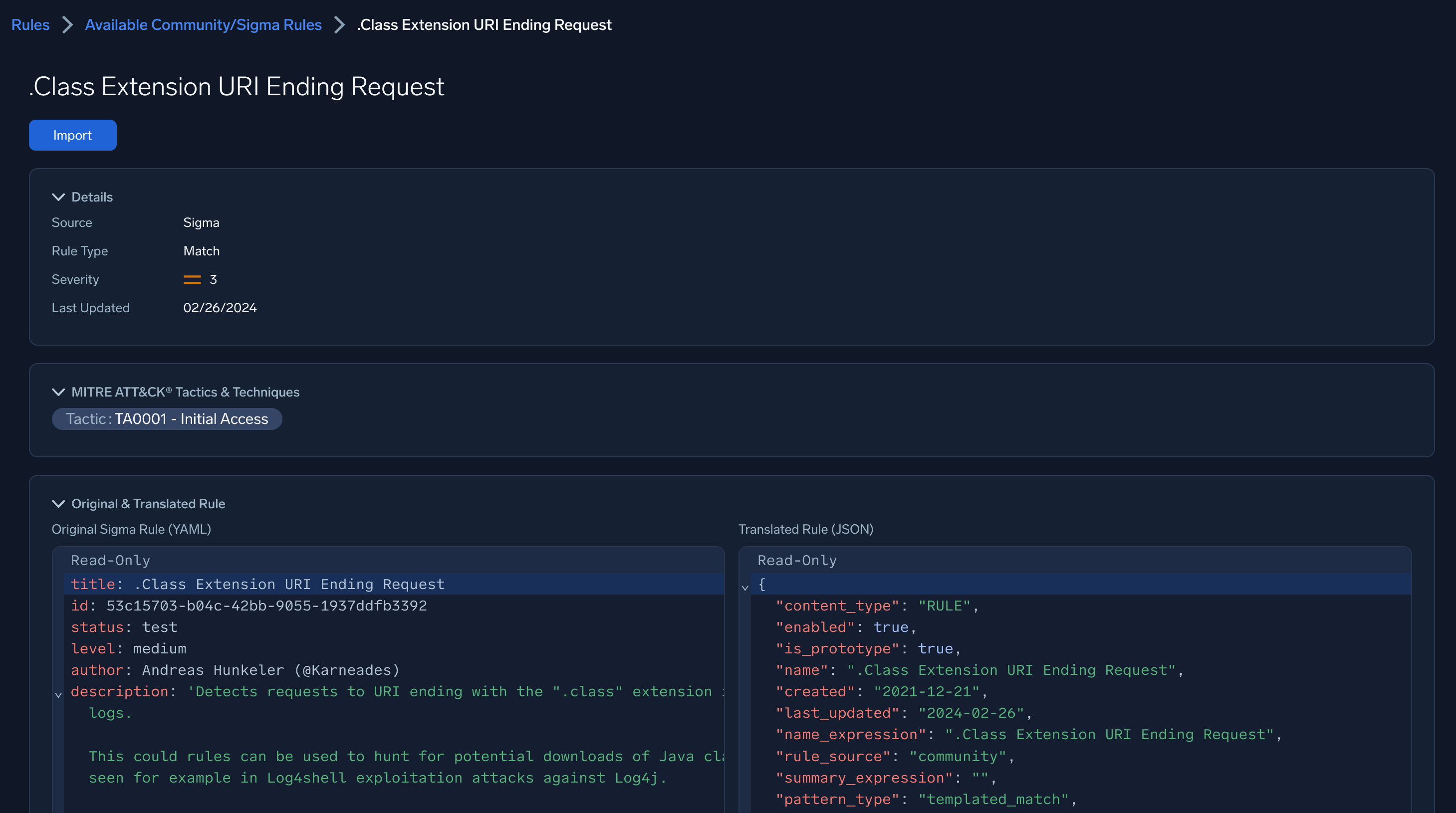
The details page contains:
- Import. Imports this rule. See Import a single rule.
- Details. The rule's Source, Rule Type, Severity, and Last Updated date.
- MITRE ATT&CK® Tactics & Techniques. The MITRE ATT&CK tactics and techniques that the rule maps to. For example, a rule might map to tactic TA0008 (Lateral Movement) and techniques T1021.007 and T1550.001.
- Original & Translated Rule. Two read-only panes that let you compare the source rule with what Cloud SIEM will create. Click Copy in either pane to copy its contents to your clipboard.
- Original Sigma Rule (YAML). The rule as published by the Sigma project, including its title, ID, status, level, author, description, references, known false positives, and tags.
- Translated Rule (JSON). The Cloud SIEM rule that is created if you import the rule, including its name, expression, entity selectors, and
rule_source. For details, see About imported community rules.
Review both panes before you import, especially the rule expression and the known false positives listed in the original rule, so you can decide whether the rule fits your environment.
Import a single rule
- On the Available Community/Sigma Rules page, click a rule name to open its details page.
- Review the rule.
- Click Import.
Cloud SIEM adds the rule to your Rules list.
Import multiple rules
To import several rules at once:
- On the Available Community/Sigma Rules page, select the check box next to each rule you want to import. To select every rule on the current page, select the check box in the header row.
- Click Import N Selected Rules at the top right of the table, where N is the number of rules you selected.
- The Import in Progress dialog appears and shows the percentage completed and the number of rules processed. The import can take some time. You can close the dialog and continue working, and track progress in the banner at the top of the page.
- When the import finishes, the Import Complete dialog lists each rule and whether it Succeeded or failed. Click a rule name to open its details page.
- Click View All Imported Rules to go to the Rules list, filtered to show only rules imported from Sigma.
If you closed the dialog, a banner at the top of the page shows the result. For example, Import complete: 4 succeeded, 0 failed. Click View Status in the banner to reopen the results.
Find imported community rules
After an import, imported rules appear in the Rules list alongside your other rules.
To show only imported community rules:
- Go to the Rules list.
- In the filter bar, filter by Source. For example, select Source is Sigma to show only rules imported from the Sigma library. Click the X on the filter to clear it.
You can also click View All Imported Rules in the Import Complete dialog, which opens the Rules list with this filter already applied.
About imported community rules
Rules you import from the community library arrive as templated match rules. Keep the following in mind:
- They are match rules. Each rule fires a signal when a single incoming record matches the rule expression. See Match rule.
- They are templated. The rule is generated from a template based on the original Sigma rule and is identified in the translated JSON by
pattern_type:templated_match. The rule includes a name, description, severity, MITRE ATT&CK tags, and entity selectors (the On Entity attributes that signals are created on) already filled in. - They record where they came from. The
rule_sourcefield shows the origin of a rule. Rules from the community library carryrule_source:community. In the UI, the Source column and filter show the specific library, such as Sigma. - They behave like any other rule after import. Once imported, you can open the rule from the Rules list and manage it like other rules, for example by disabling it.
- Updates to the original Sigma rule are not applied automatically. Once imported, changes to the original Sigma rule are not automatically reflected in the imported rule. To get the latest changes, import the rule again. This creates a new match rule.
- Check coverage before relying on a rule. Community rules are written to be broadly applicable. Review the rule expression, and the false positives noted in the original rule, and tune the rule for your environment.
Rules and other content
This section describes two key Cloud SIEM features that enable you to write richer rules that can look up information about the entities that are actors in a record. For example, you could compare a domain in a record to a list of allowed listed domains. Or you could compare an IP address to a list of IP addresses known to be indicators of compromise.
Match lists
The subsections below explain how match lists work, and how to leverage them in Cloud SIEM rules. For more information about match lists, see Match Lists and Suppressed Lists.
Match lists are used to enrich record data
This section describes what match lists are, and how Cloud SIEM uses them to enrich record data. The short story is that when a record is ingested, Cloud SIEM uses match lists to add information to the record. So, your rule doesn’t directly refer to a match list, it checks the record for data that Cloud SIEM may have added to the record at the time of ingestion.
Match lists are lists of important indicators and identifiers, typically configured by a Cloud SIEM analyst. Match lists are often used to define allowlists of entities, like IP addresses, URLs, and hostnames, and so on, that you want to exempt from ordinary rule processing. For example, you might want to prevent a rule from firing for records that contain one of a certain set of IP addresses.
Here are some match lists in Cloud SIEM.
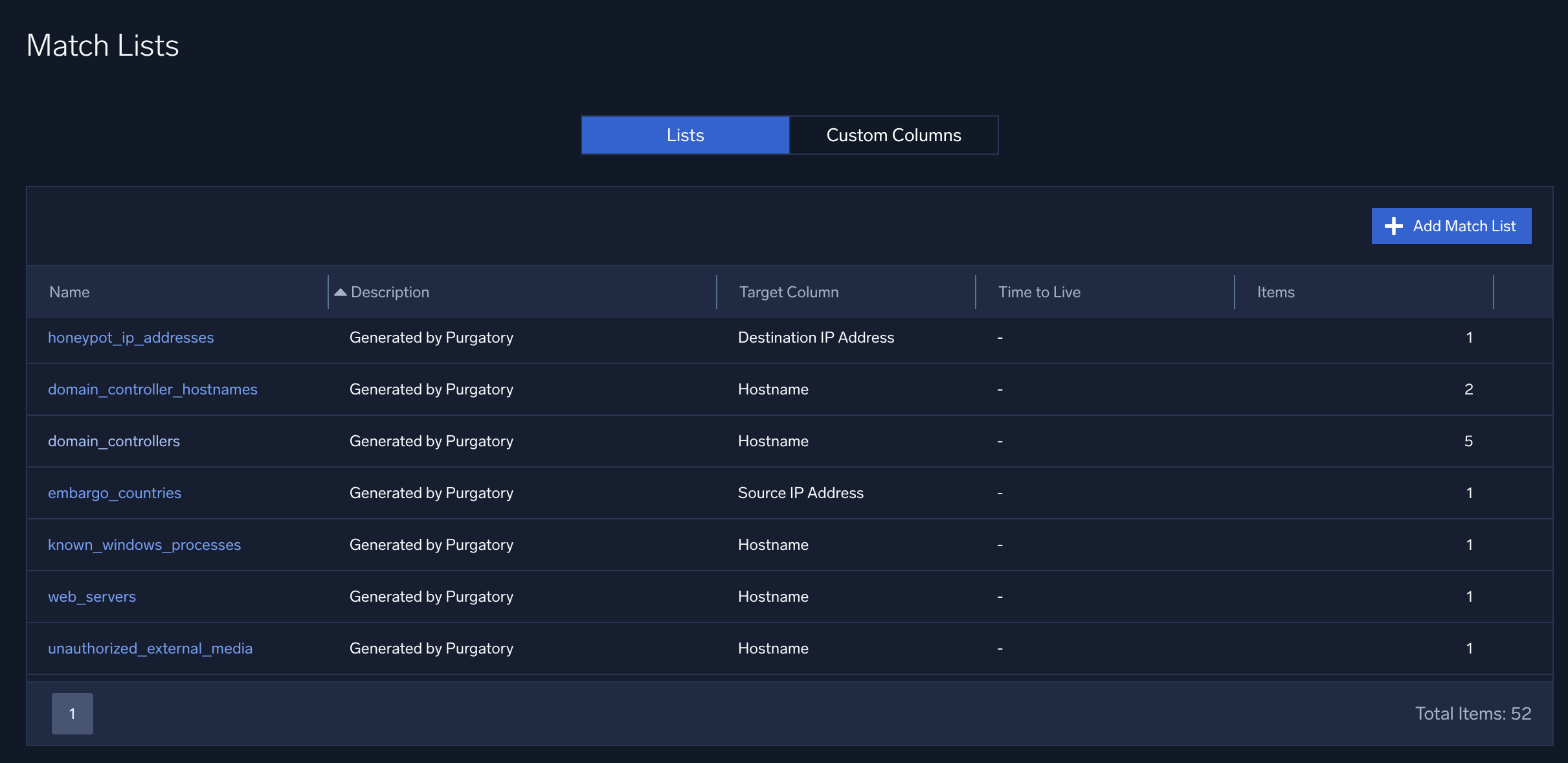
You can take advantage of match lists in rules, but match lists actually come into play when records are ingested. Here’s how it works: When a record is ingested, Cloud SIEM compares the entries in all match lists to fields in the record. Of course, Cloud SIEM doesn’t compare the entries in a given match list to all fields in a record; it wouldn’t make sense to compare a domain name to an IP address. You could say that Cloud SIEM understands the difference between apples and oranges: Cloud SIEM distinguishes which record fields contain IP addresses, which contain domain name and so on. So, Cloud SIEM compares a match list of IP addresses to record fields that contain IP addresses. Similarly, Cloud SIEMs compares a match list of usernames to record fields that contain usernames. For more information about how that works, see Match Fields Reference.
When a record contains a value that exactly matches one or more match lists (partial matches are not supported), two fields in the record get populated:
listMatches.Cloud SIEM adds the names of the match lists that the record matched, and the column values of those lists. For example, if an IP address in a record matches theSourceIPaddress in the “vuln_scanners” match list, thelistMatchesfield would look like this:listMatches: ['vuln_scanners', 'column:SourceIp']matchedItems. Cloud SIEM adds the actual key-value pairs that were matched. For example, continuing the example above, if “vuln_scanners” match list contained an entry “5.6.7.8”, and the record’sSourceIpis also “5.6.7.8”, the assuming theSourceIPaddress in the “vuln_scanners” match list, thematchedItemsfield would like like this:matchedItems: [ { value: '5.6.7.8', …other metadata about list item } ]
Because the information about list matches gets persisted within records, you can reference it downstream in both rules and search.
Rules look for match data in records
When you’re writing a rule that needs to take advantage of the results of the list matching process described above, you extend your rule expression with the array_contains function.
The syntax is:
array_contains(listMatches, "match-list-name")
where
match-list-nameis the name of the match list.
If the name of the list you are referencing with array_contains contains any spaces, replace the spaces with underscores. For example, if the list name is my list, refer to it as my_list.
Depending on your goal, you precede the array_contains function with either AND or AND NOT.
For example, the fragment below looks at a record for a field named listMatches that contains the value “vuln_scanners”. If not encountered, that indicates that the IP address is not a vulnerable scanner, so, given that the rest of the rule expression is matched, a signal will be fired for that record.
... AND NOT array_contains(listMatches, "vuln_scanners")
This example below checks a record for a field named listMatches that contains either “vul_scanners” or “business_ips”. Notice that the two array_contains statements are combined with an OR and enclosed in parentheses:
...AND NOT (array_contains(listMatches, 'vuln_scanners') OR array_contains(listMatches, 'business_ips'))
Threat intelligence
Threat intelligence sources contain values that, when encountered in a record, are clear indicators of compromise. To create a new source of threat intelligence, see Ingest threat intelligence indicators.
Threat intelligence sources are used at the time of record ingestion. When a record is ingested, Cloud SIEM determines whether any of the fields in the record exist in any of your threat intelligence sources. When a record contains a value that matches an entry in one or more threat intelligence sources, the hasThreatMatch Cloud SIEM rules function searches incoming records in Cloud SIEM for matches to threat intelligence indicators. For more information, see Find Threats with Cloud SIEM.