 Meet the new
 Create Rules with Mobot
Mobot enables you to create and edit Cloud SIEM rules using natural language. Instead of writing a rule expression and configuring each field manually, you describe the detection you want in plain language, and Mobot proposes a rule, asks clarifying questions, and builds it for you.
Supported rule types
Mobot can create and edit all Cloud SIEM rule types, including:
Limitations
Mobot has the following limitations when working with Cloud SIEM rules:
- Mobot can't create Legacy rules.
- Mobot can't interact with the following features that support rules:
Prerequisites
- A Cloud SIEM license.
- A role with the capability to create and edit rules.
Create a rule with Mobot
- New UI. In the main Sumo Logic menu, select Cloud SIEM > Rules.
Classic UI. In the main Sumo Logic menu, click Cloud SIEM in the left menu, then select Rules. - Click the Ask Mobot on the Rules page.
- In the chat box, describe the rule you want in plain language. For example,
Create a threshold rule that fires when a single IP address has 10 failed logins within 5 minutes.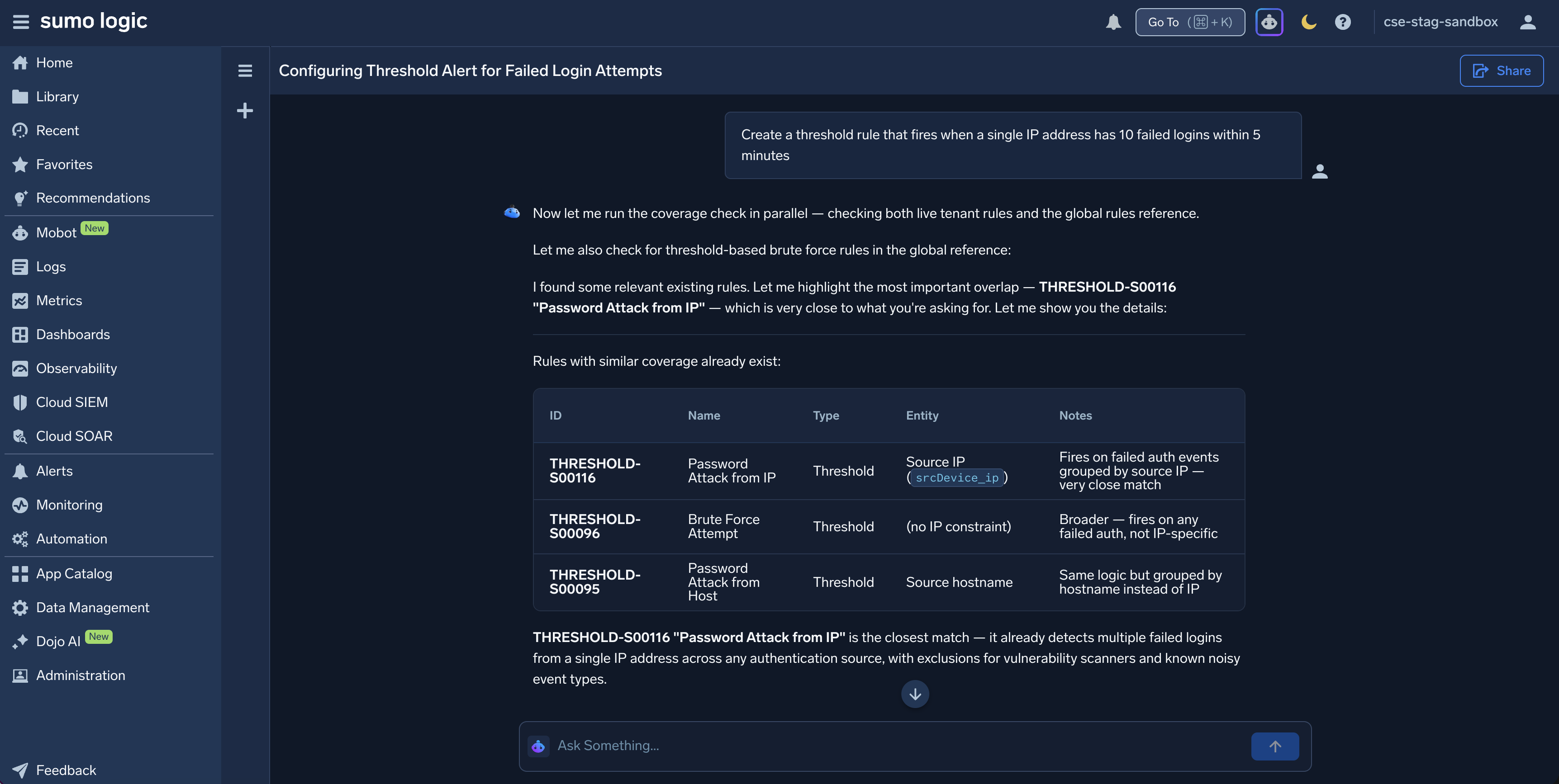
- Answer Mobot's clarifying questions. For example, rule type, record fields, thresholds, time windows, severity, and MITRE ATT&CK tags.
- Review the rule Mobot proposes. For example, name, description, rule type, expression, severity, and tags.
- Describe the confirmation step. For example, reply
Yesto approve, or send a follow-up request to change the proposal. - Describe the result. For example, Mobot saves the rule as a draft or creates it enabled, and posts a summary. Confirm whether the rule is enabled by default.
- Review the rule on the Rules page to verify the details Mobot filled in. Confirm where to find the new rule and how to enable it if it isn't enabled by default.
note
Review every rule before enabling it in production. Test it against your data to confirm that it detects what you expect and doesn't generate excessive signals.
Edit a rule with Mobot
- Open Mobot and reference the rule by name.
- Describe the change in plain language. For example,
Change the severity of this rule from Medium to High. - Describe the confirmation step before Mobot applies the change.
- Describe how to verify the change, for example by checking the rule's version or expression.
Tips for writing effective prompts
- Name the rule type you want, for example
match ruleorthreshold rule. Otherwise, Mobot may ask you to choose one. - Specify the data source or record type, such as AWS CloudTrail, Okta, or Windows event logs.
- Include thresholds and time windows, such as
10 failed logins in 5 minutes. - Include a severity if you have one in mind, such as
High. - Refine the result with follow-up prompts instead of starting over.
For more examples, see Mobot Example Prompts.