 Meet the new
 About Dashboard

Dashboard allows you to analyze metric and log data on the same dashboard, in a streamlined user experience. This is exactly what you need to effectively monitor and manage a Kubernetes environment.
Dashboards are a critical tool for monitoring and troubleshooting modern applications, allowing you to quickly navigate through your data without having to learn a query language. Graphs and data mappings provide visual representations of data that enable you to quickly identify and resolve key issues.
What's great about Dashboard
Dashboard provides the unique ability to display metrics metadata and logs data on the same dashboard in an integrated seamless view. This gives you control over the visual display of metric data as well as log data. Dashboard streamlines dashboard configuration and on-the-fly analytic visualizations with its new templating features.
Template variables allow you to filter dashboard data dynamically to generate new visualizations for intuitive chart creation and data scoping.
Features
- Dashboard template variables provide full replacement control over what is inserted, and the variables work across both log and metric panels.
- Dashboard provides a dashboard-first view to build, maintain, and interact with dashboards. With Dashboard you can build panels inside the dashboard rather than adding panels from the Search or Metrics pages.
- Dashboard utilizes the Metrics Search with full text auto-complete capabilities, so you can quickly find the metrics you are looking for.
The following table shows the availability of features for Dashboard.
| Feature | Dashboard |
|---|---|
| Filtering a Dashboard | Template Variable Based Filters with greater control on filter values, data type, and acceptable input. |
| Adding Queries to Dashboards | Add a panel from Search or Metrics Ability to add panels inline through Add a Panel button |
| Log Visualizations | Area Bar Box Plot Bubble Cluster Map Column Combo Connection Map Funnel Geo Heat Map Heat Map Honeycomb Line Pie Sankey Diagram Scatter Single Value Table |
| Metric Visualizations | Area Bar Box Plot Bubble Cluster Map Column Combo Connection Map Funnel Geo Heat Map Heat Map Honeycomb Line Pie Sankey Diagram Scatter Single Value Table |
| Text Panel | Supported |
| Real Time Dashboarding | Auto Refresh |
| Dashboards as Wall Monitors | Public Dashboards Whitelisting |
| Dashboard Sharing with Variables and Time Range preserved | Supported |
| Dashboard Content Item Sharing | Supported |
| Run As Creator / Data Access Level Control | Supported |
| Dark Theme | Supported |
| Configured Dashboard Linking | Supported |
| Recommended Dashboards & Logs Drilldowns | Supported by clicking on data points or slices/sections of pie charts, bar charts, column charts, area charts, and line charts. Learn more. Cluster Map and Heatmap panels support Shift+click on a data point to drill down to the search. Missile map panels support Shift+click on the line to drill down to the search. Learn more. |
| Combined Metrics & Logs Panel | Supported. See how to overlay logs and metrics in a panel. |
| Styling Queries and Series | Ability to style through display overrides inside the panel settings. Ability to set the color per query/series. Multiple layers of expressiveness for display overrides. For details, see how to modify a chart. |
| Colors by Value Range | Supported |
| Export to PDF/PNG/JSON File | Supported, with a selectable theme and resolution for PDF and PNG exports. |
| Scheduled Dashboard Report | Supported |
| Link Dashboard to Your Stack | Supported |
| Locate Deviations in a Time Series | Supported |
| Longer Time Range Queries | Supported |
Restricted Operators in Dashboard
The following operators cannot be used with Dashboard:
- Details
- LogReduce
- LogCompare
- Save
- Transaction
Live mode restrictions do not apply to Dashboard.
Limitations
- A panel can have up to 6 logs and 6 metrics queries.
- Joining log queries in a separate query is not supported. See how to join metric queries for details on how this works.
- A Dashboard can have up to 100 queries.
- Dashboard chart properties are not retained when viewed from the Search page.
- Chart properties are not retained when a chart is added to a Dashboard from the Search page.
- Dashboard queries cannot return more than 1440 data points.
Rules
- Auto Refresh applies to the whole dashboard, you cannot configure it by panel.
- If there are two or more queries in a panel, the refresh interval for the panel is set to the maximum supported interval.
- If the requested refresh interval is not possible, you'll get an error message indicating the actual refresh rate is slower than requested. This can be due to one of the following reasons:
- The time range is too long to refresh at this rate. Reduce the time range to allow a faster refresh interval.
- An operator is not supported at this refresh interval.
- The number of grouped elements is too large for the requested interval.
Dark Theme
Dashboards have two themes available: Light mode (which is the default) and Dark mode. You can toggle between the two themes within the dashboard by clicking the three-dot kebab icon. The following image shows the option to Switch to Dark Theme.
You can also select a Light or Dark theme when you export a dashboard or create a scheduled report.
Clickable Legend
If you want to focus on one item in your chart you can simply click on the item in the legend. If you want to toggle just one legend item, just hold the shift key and then click the item.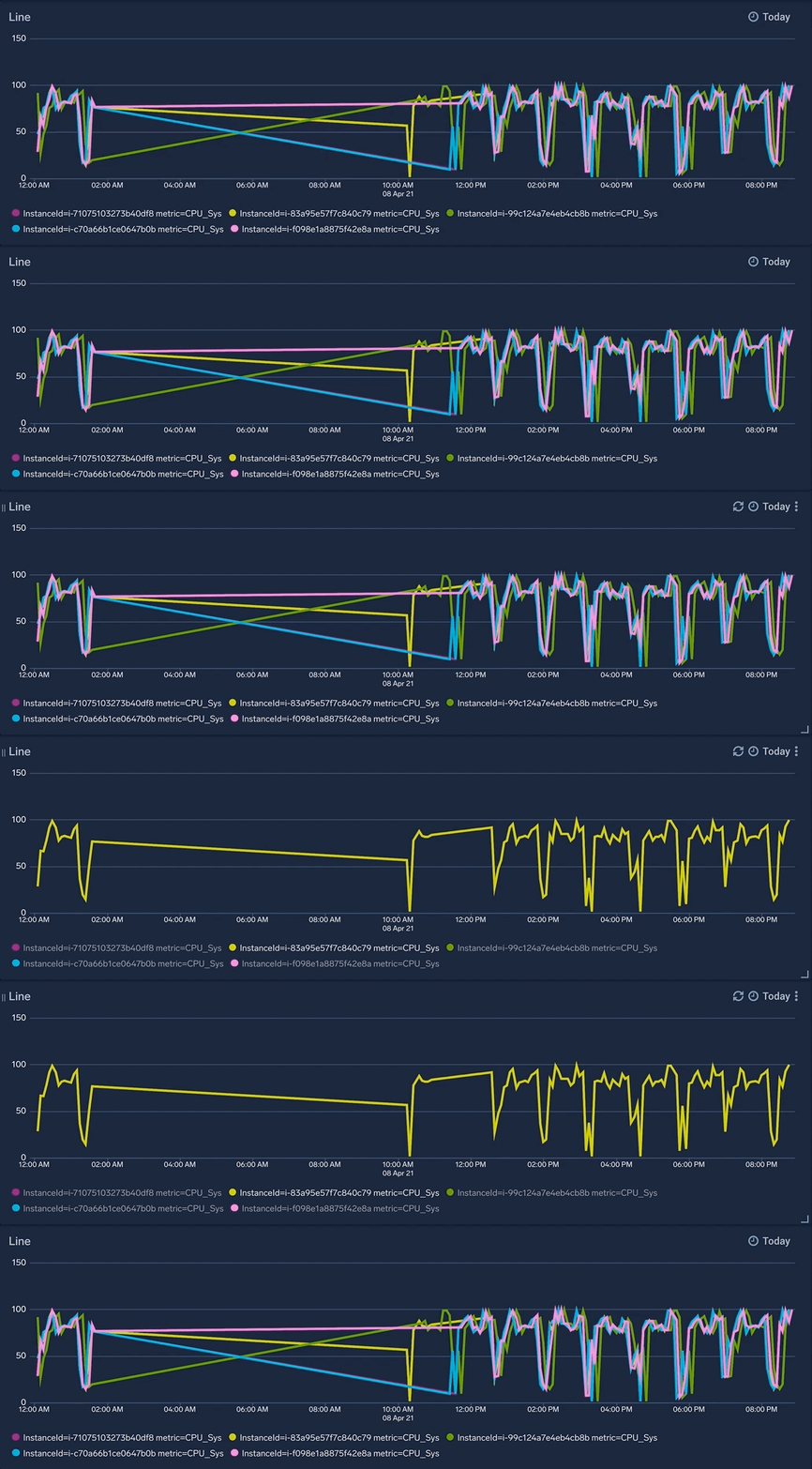
Dashboard Information
The dashboard information popup provides insights into the scan costs associated with log-based queries that run within dashboards.
To view the dashboard information, follow the steps below:
- Open the dashboard for which you need to view the information.
- Click the three-dot kebab menu icon in the top right corner of the dashboard and select Info from the dropdown menu.
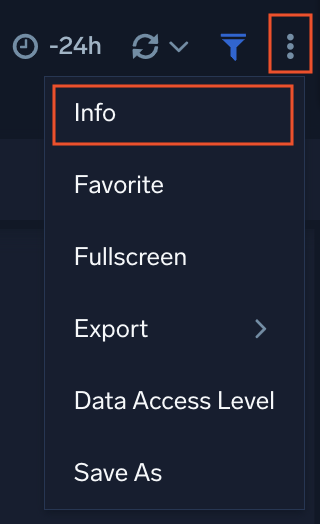
- A popup pane will appear, displaying the following dashboard information:
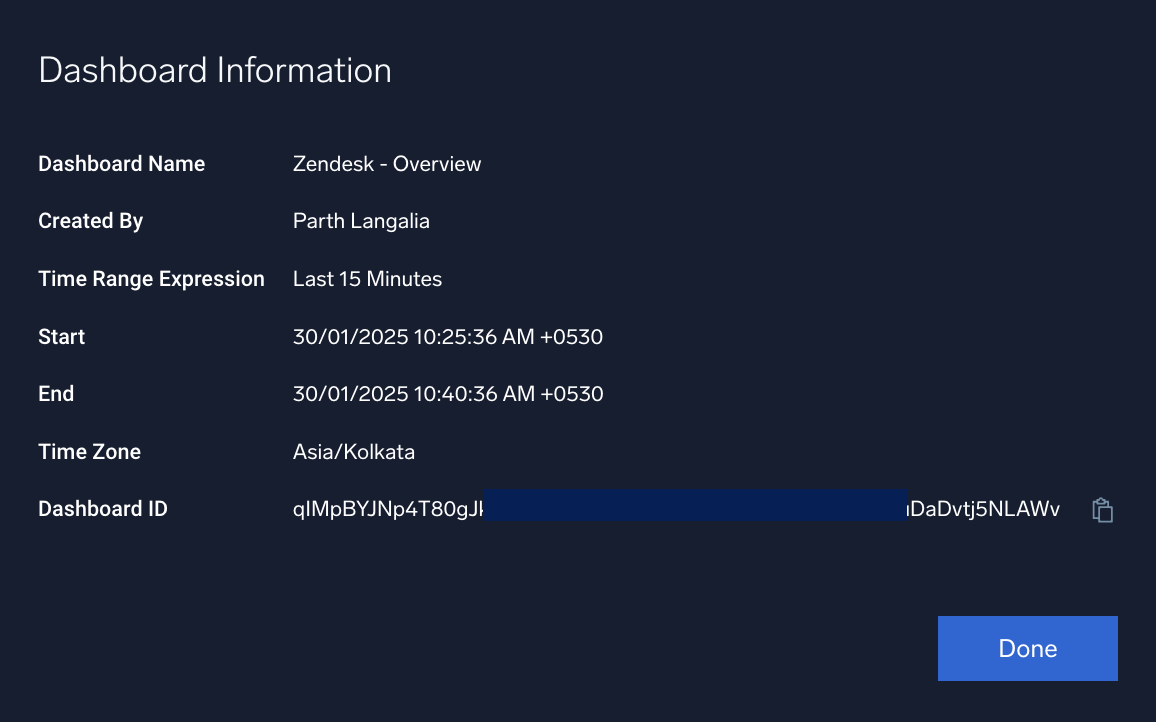
- Dashboard Name. Name of the dashboard.
- Created By. The user who created the dashboard.
- Time Range Expression. The time range selected for the dashboard.
- Start. The current start time based on the selected time range.
- End. The current end time based on the selected time range.
- Time Zone. The time zone for the set time range.
- Scanned Bytes. The total amount of data scanned in bytes.
- Dashboard ID. A unique identification ID for the dashboard. Copy and use the dashboard ID within the APIs to identify the dashboard when making requests.
Auto Refresh
Auto Refresh automatically updates dashboard panels with the latest data at a configured interval. Consider disabling it or increasing the minimum refresh interval when frequent updates are not required. For Flex customers, this helps reduce avoidable scan costs from unnecessary refreshes. For Tiered customers, it minimizes unnecessary panel reloads and helps improve dashboard performance.
To enable or disable this feature, you must be an Administrator or a role with the Manage Dashboard Execution Controls capability.
Enable the Sumo Logic policy
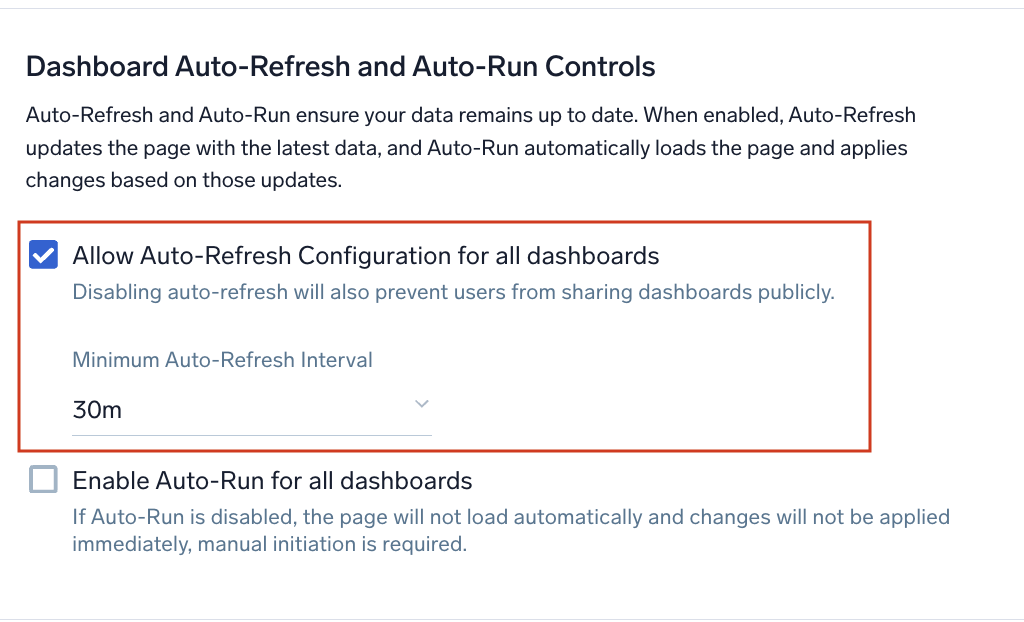
In this section, you will enable the ability to disable your dashboard auto refresh. By default, auto refresh will be enabled with 30 seconds minimum time interval. Follow the below steps to change this configuration:
- New UI. In the main Sumo Logic menu select Administration, and then under Account Security Settings select Policies. You can also click the Go To... menu at the top of the screen and select Policies.
Classic UI. In the main Sumo Logic menu, select Administration > Security > Policies. - Uncheck the Allow Auto-Refresh Configuration for all dashboards checkbox to disable the auto-refresh.
- If checked, select the minimum auto-refresh interval from the dropdown based on your requirement. You can select from 30 seconds to 1 day.
Using auto refresh
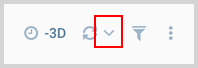
Once you have enabled the Auto-Refresh, you can now see the panels getting refreshed as per the selected auto-refresh interval. If required, you can configure the refresh interval rate by clicking the dropdown arrow next to the Run button. Select the refresh interval of your choice from the list.
There are some restrictions when using operators with dashboards. To learn more, see Restricted Operators in Dashboards.
The dropdown only displays the time-interval which is greater than or equal to the set minimum auto-refresh interval in the Policies page.
Auto-refresh guardrails
Auto-refresh helps dashboards stay up to date by automatically rerunning panel queries at the interval you configure. However, continuously refreshing a dashboard that no one is viewing, or repeatedly retrying a query that keeps failing, consumes unnecessary compute resources without adding value.
Sumo Logic's auto-refresh guardrails solve this by automatically pausing refresh activity when it is unlikely to help, while keeping dashboards quick to resume when needed.
Two guardrails apply to both private and public dashboards:
Hidden tab pause
When you switch away from a dashboard tab (browser tab or Bento tab) for longer than 10 minutes, auto-refresh pauses automatically. Panels retain their last loaded state, so no data is lost. When you return to the tab, auto-refresh resumes automatically and no action is required.
Panel failure exclusion
If a panel's query fails 5 consecutive times during auto-refresh cycles, that panel is excluded from future auto-refresh cycles. Other healthy panels continue refreshing normally.
When a panel is excluded, you see:
- An error overlay on the affected panel with the original error message.
- A toast notification when the panel is first excluded.
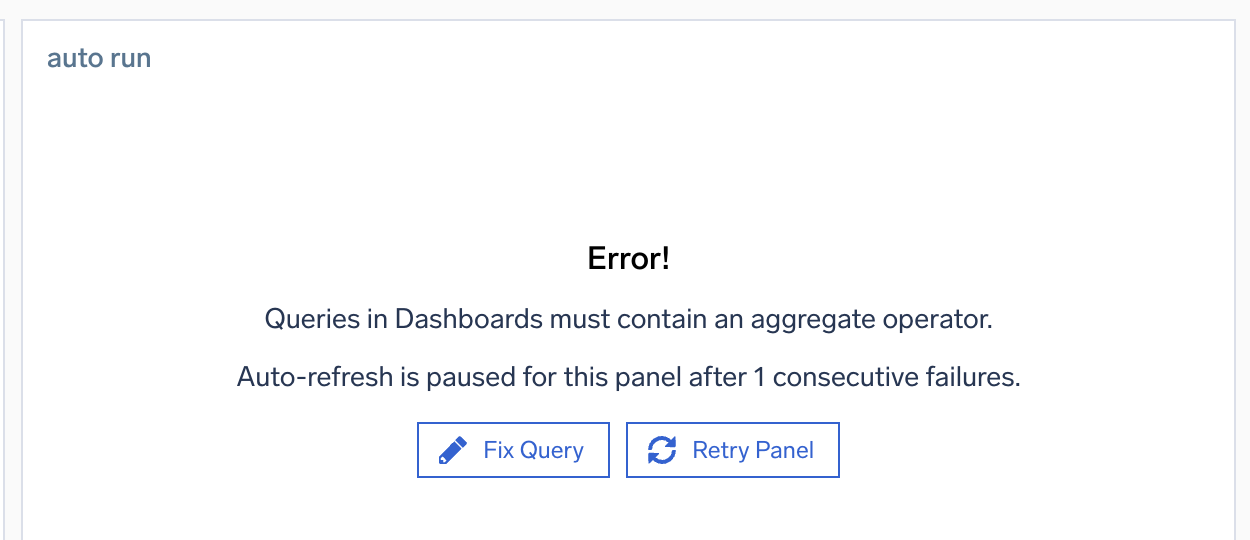
To resume the panel:
- Click Retry Panel on the affected panel to resume that panel only.
- Click the dashboard Run button to resume all excluded panels.
Auto Run
Auto Run lets you control whether dashboard panels run automatically or require manual execution. Use this when you want explicit control over dashboard execution. For example, you may want to open a dashboard with a fixed absolute time range or make several dashboard variable changes before loading data. Disabling auto run prevents unnecessary panel reloads after each change and helps Flex customers reduce avoidable scan costs.
To enable or disable this feature, you must be an Administrator or a role with the Manage Dashboard Execution Controls capability.
Enable the Sumo Logic policy
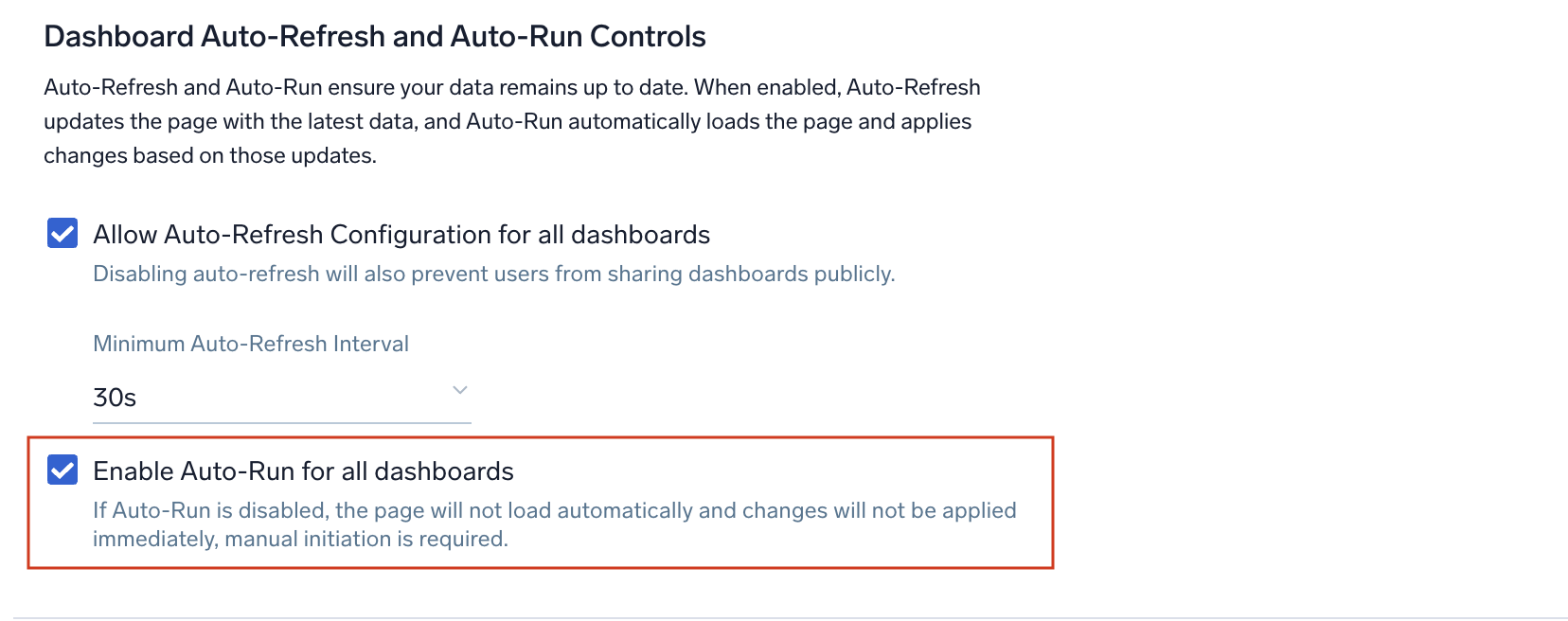
In this section, you will enable the ability to auto run your dashboard panels. By default, auto run will be enabled, to disable it follow the below steps:
- New UI. In the main Sumo Logic menu select Administration, and then under Account Security Settings select Policies. You can also click the Go To... menu at the top of the screen and select Policies.
Classic UI. In the main Sumo Logic menu, select Administration > Security > Policies. - Uncheck the Enable Auto-Run for all dashboards checkbox.
Using auto run
When Auto Run is disabled you cannot see any data in the panels until you click the Run button. Clicking the Run button will run all the panels in the dashboard. If you want to run only the selected panel, click  button on top-right of each panel.
Panels do not rerun after actions such as adding, editing, deleting, changing the time range, or changing the template variable until you click the Run button after your changes. You will always see the below warning message near to your search box once any of the above updates are made to the dashboard:
Auto-Run is disabled. Hit Run to apply the changes.