Steps to Migrate
This page walks you through the entire process of migrating classic dashboards to Sumo Logic dashboards.
warning
We do not guarantee a 100% conversion from classic dashboards to Sumo Logic dashboards, although we provide an exhaustive list of incompatibilities that you need to resolve. You can still keep your old dashboard after migration.
Migration steps
This section explains how to migrate your dashboards, step by step.
- Navigate to any of your classic dashboards or create a new one. Click Migrate to dashboards.
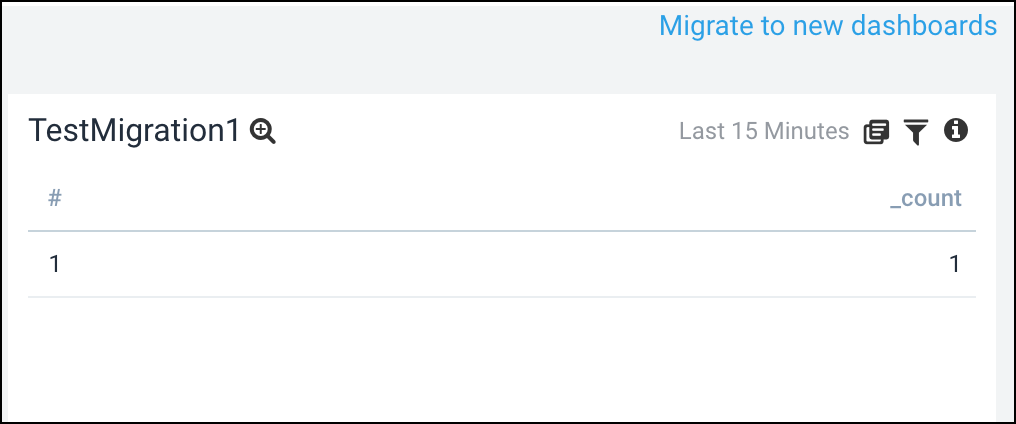
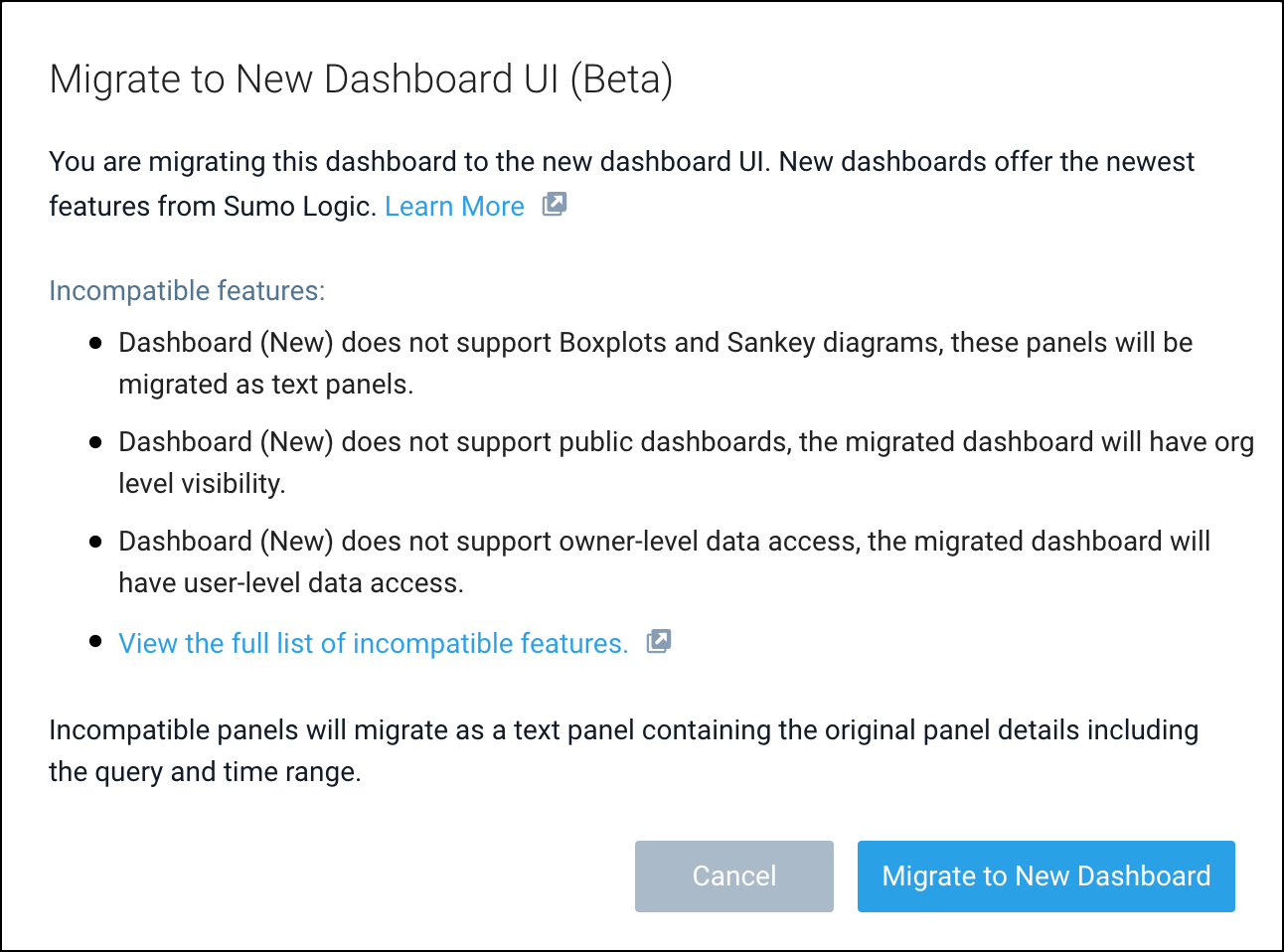
- A dialog box appears. Click Migrate to Dashboard as shown below.
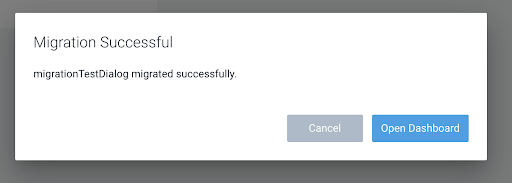
- If the migration succeeds, click Open Dashboard to view the migrated dashboard.
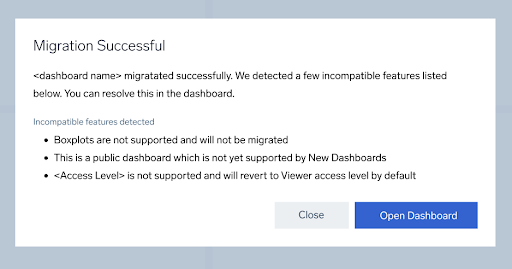
The dialog can also show two other states:- Warning State. The dialog shows any warnings from the migration. Warnings do not fail the migration process, but they may point to something you need to fix yourself or to a feature that dashboards do not yet support.
- Error State. The process can sometimes run into an error state. An error fails the migration, and the dashboard is not created.
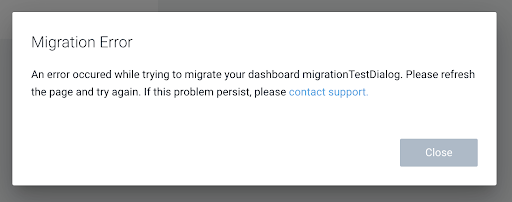
- Warning State. The dialog shows any warnings from the migration. Warnings do not fail the migration process, but they may point to something you need to fix yourself or to a feature that dashboards do not yet support.
Bulk migration
Bulk migration extends the dashboard migration feature so you can migrate multiple classic dashboards at once:
- Go to Library, and select two or more Dashboards. Click Migrate Dashboards.

info
If you select more than 50 dashboards, the Migrate Dashboards button is disabled.
- A dialog box appears. Click Migrate to Dashboard as shown.

- The bottom right corner shows real-time information on the migration process.
- When the migration is complete, the following information appears.
- Summary of the process.
- Hover over an error, if any, to see its details in a tooltip.
- Click a dashboard name to open that dashboard.
