 Meet the new
 Exporting Dashboards
Dashboards provide insights for monitoring key performance indicators (KPIs) across your organization. There may be times when key stakeholders require access to a static snapshot of dashboard KPIs without having to log in to Sumo Logic. In these instances, you can export a snapshot of a dashboard to share. This capability allows you to extend monitoring analytics to a broader base both within and outside your organization.
You can generate and download your dashboards in PDF, PNG, and JSON format.
To export a dashboard follow these steps:
- Open the dashboard you need to export.
- Click the three-dot kebab menu icon on the top right of the dashboard.
- Hover over Export.
- Click the format you want to export the dashboard as, either JSON, PDF, or PNG.
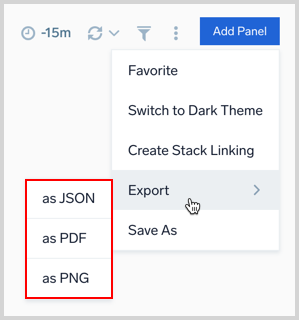
- For PDF and PNG exports, set the following options:
- Theme. Select Light or Dark for the exported file. By default, the selected theme matches the dashboard's current theme.
- Report Download Width. Set the width of the exported file, in pixels, anywhere from 1,500 to 6,000. The default is 1,500. Increase the resolution for a sharper image on large displays, such as wall monitors or TV screens.
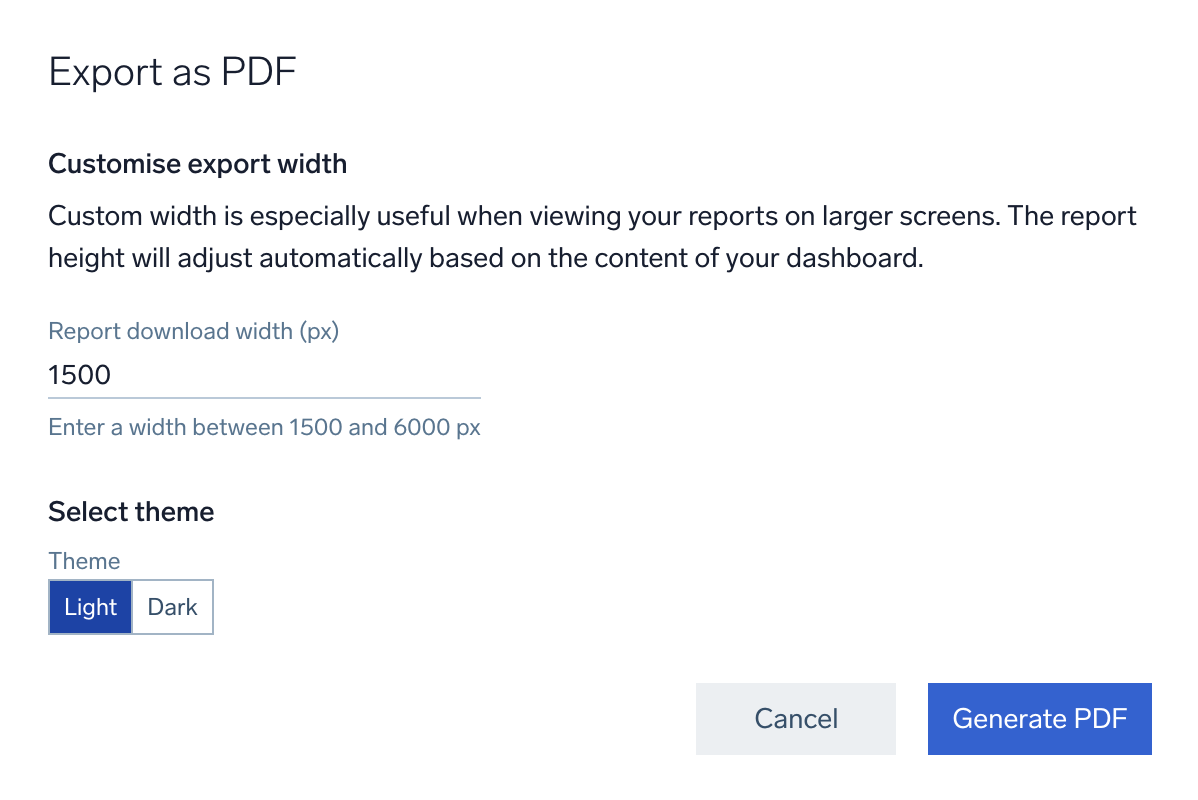
noteThe theme and resolution options apply to PDF and PNG exports only. JSON exports are not affected, because a JSON export reflects the dashboard definition.
- A popup pane is displayed at the top and center of the web page with the text Preparing Download.

- If you attempt to export a dashboard while panels are still fetchingdata, it will not produce the file until the dashboard has completed loading all panels.
- Once the file is prepared, it is downloaded by your browser, stored in your browser's default downloads folder. The file is given the name of the dashboard.
Time range in exported dashboards
When you export a dashboard, each panel is exported using the dashboard time range. If you have overridden the time range for an individual panel, that panel is exported using its own time range instead of the dashboard time range.
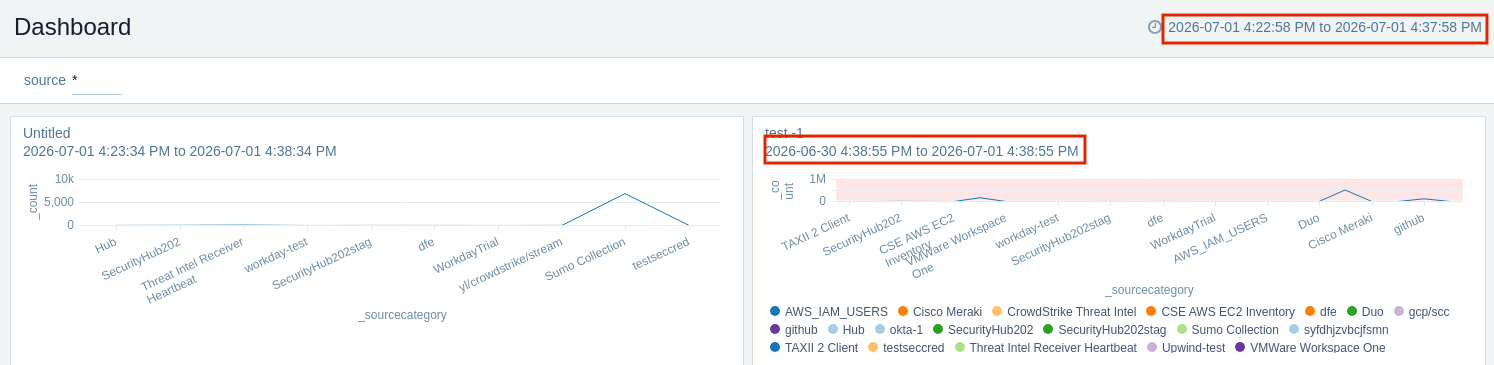
Panel-level time range overrides apply to exported PDF and PNG files only. Scheduled reports do not support panel-level time range overrides, so every panel in a scheduled report uses the dashboard time range.
Limitations
- Panels are exported the way they are displayed prior to export. For table panels that require scrolling, only the rows in view will show in the exported file. We recommend building your panels where all rows are visible without the need to scroll.
- Chart panels with more legend labels than can be displayed are not visible in the exported file.
- PDF export will timeout after 5 minutes. So, make sure that all panels load in less than 5 minutes when viewing a dashboard.