 Meet the new
 Group Dashboard Panels into Sections
Grouping panels into sections helps you to better organize complex dashboards by grouping related panels into logical sections. Each section can be expanded or collapsed, allowing you to focus on specific insights while keeping dashboards clean, structured, and easier to navigate. Sections can help improve dashboard performance by loading and refreshing only the panels in expanded sections. By reducing the number of active panel queries, sections can also help reduce unnecessary query scans and associated costs.
How to add a section
To add a section to your dashboard, follow the below steps:
- Create or open a Dashboard, then click Add Panel > Section.
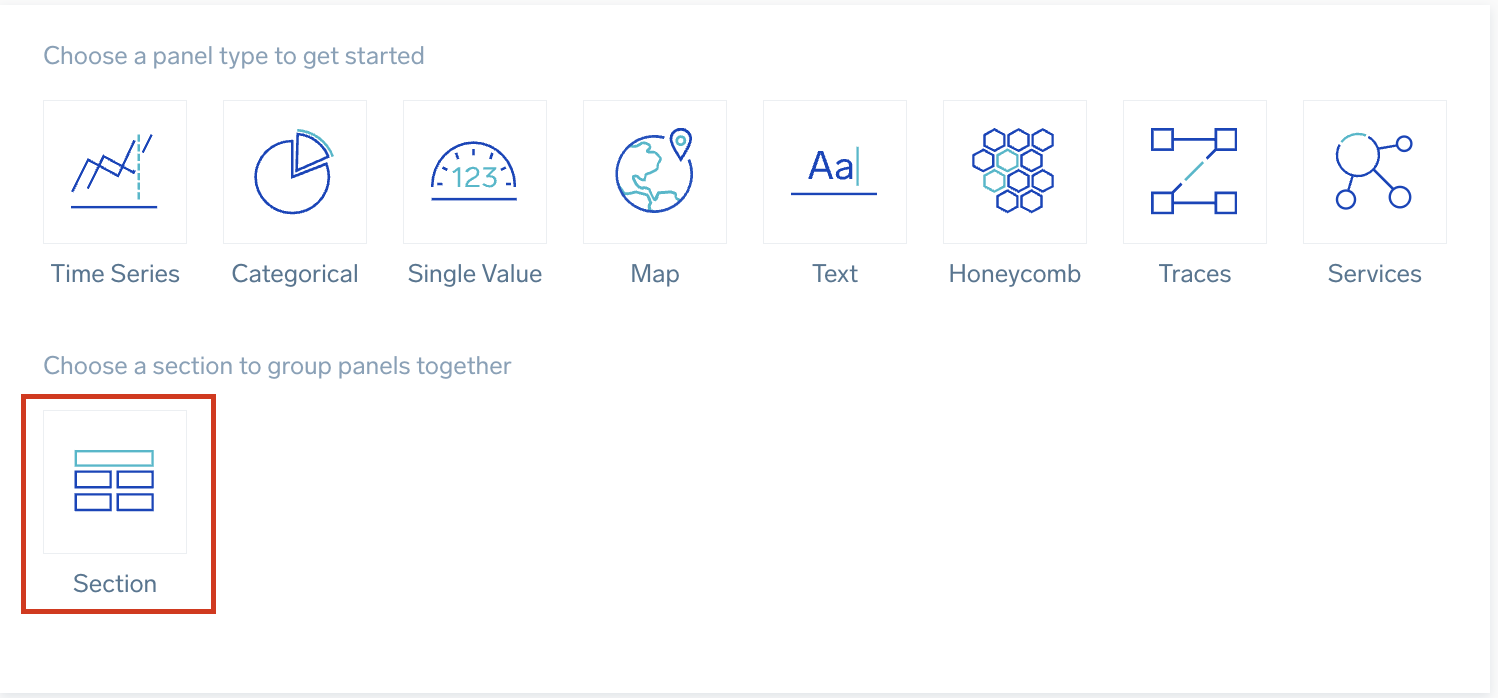
- Drag and drop panels into the newly added section as needed.
- To modify the section, click the three-dot kebab menu icon in the upper-right corner and select Edit.
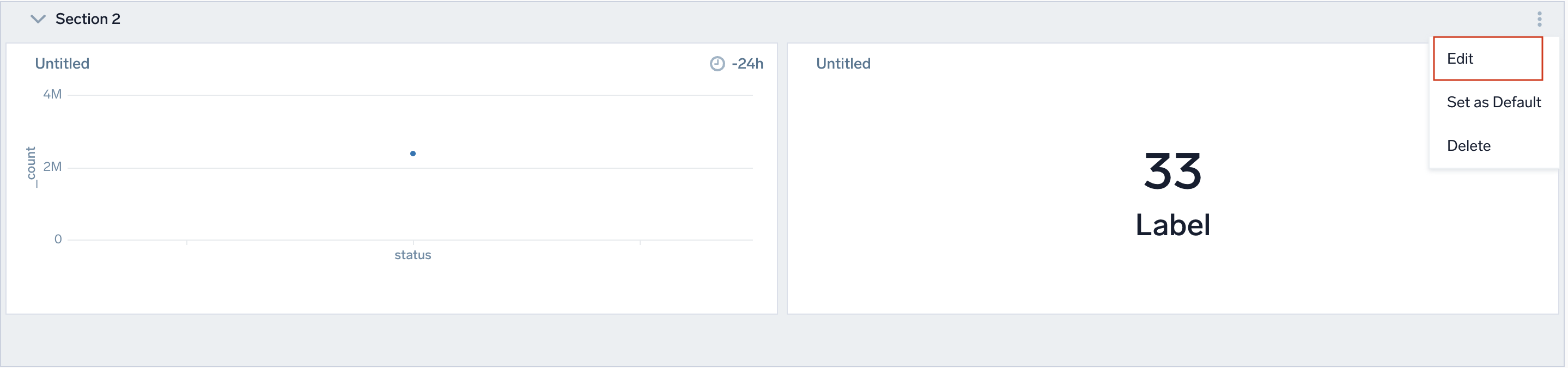
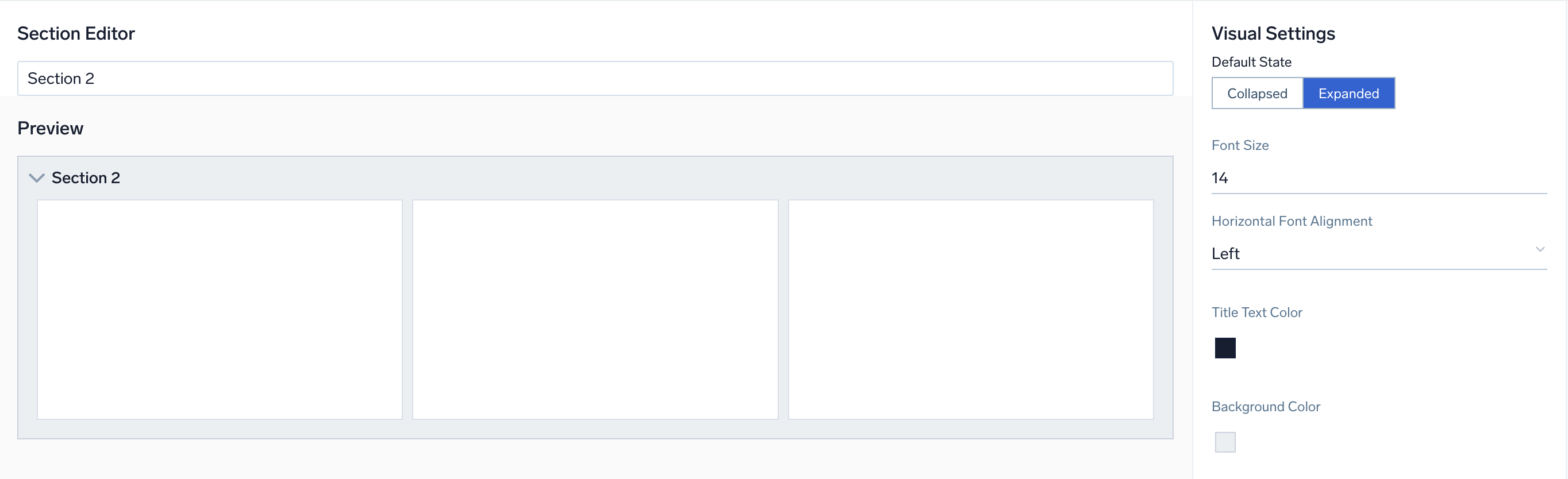
- Enter a section name.
- Set the default state to Expanded or Collapsed.
- Choose the preferred font size.
- Set the horizontal font alignment to Left, Center, or Right.
- Choose the title text color.
- Choose the background color.
How to set a section as default
To save the current state of a section as its default, click the three-dot kebab menu icon in the upper-right corner of the section and select Set as Default. This sets the section's default state to match how it is currently displayed.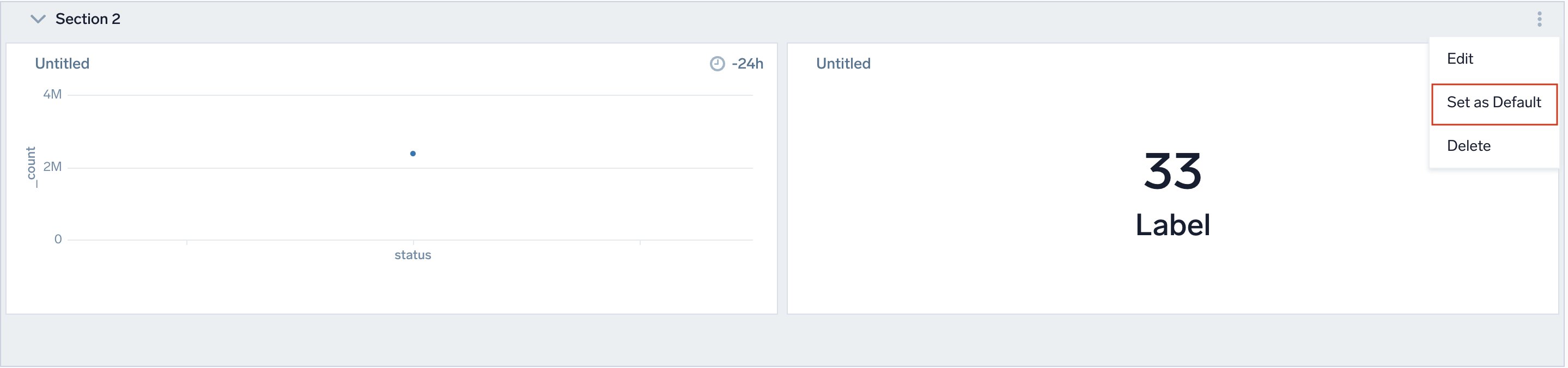
The Set as Default option is greyed out when the section is in a collapsed state and its default state is already set to Collapsed in the edit window. Expand the section first to make the option clickable.
How to delete a section
To delete a section in your dashboard, follow the below steps:
- Open the dashboard where you want to delete the section.
- Click the three-dot kebab menu icon in the upper-right corner and select Delete.
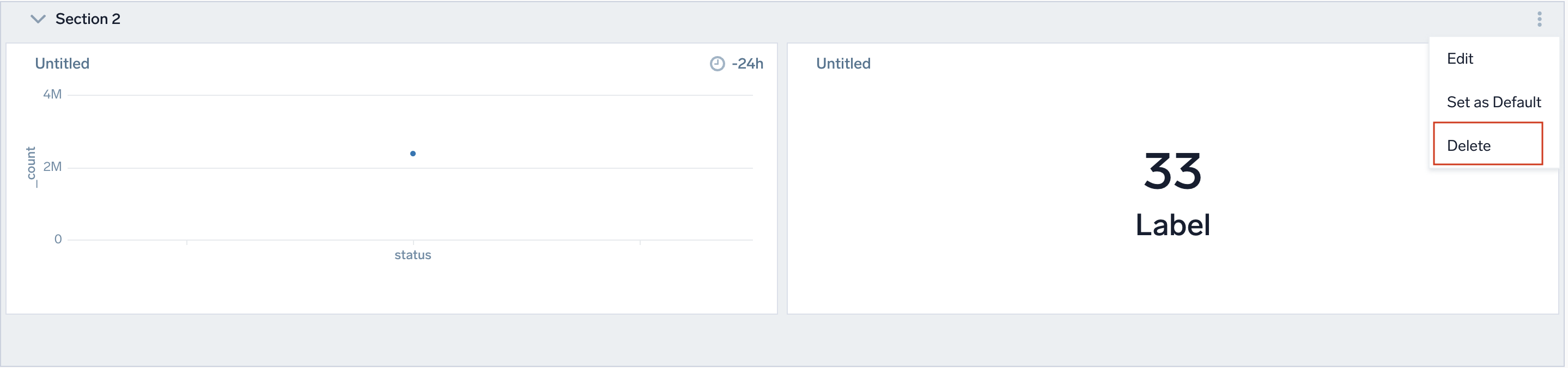
- In the delete section pop-up, choose one of the following options:
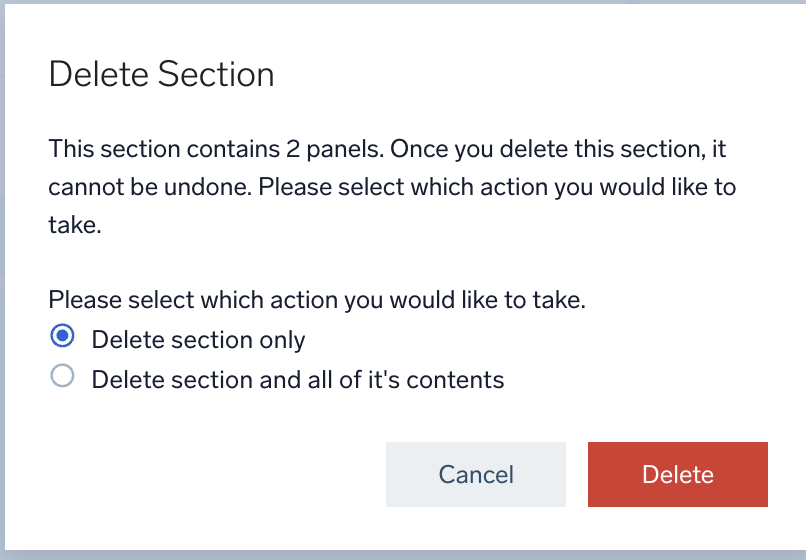
- Delete section only. Removes the section but keeps the panels in the dashboard.
- Delete section and all its content. Removes the section and all panels within it.
How to view the scan estimate
To view the scan estimate for a section, click the  adjacent to the three-dot kebab menu icon on the section header. The scan estimate displays the projected data scan in GB for all panels within that section.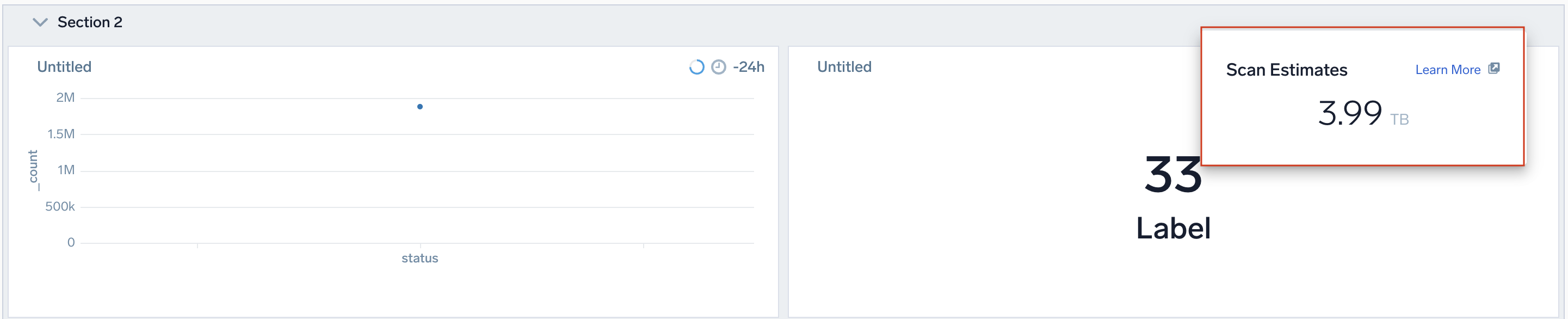
To view the scan estimate for the entire dashboard broken down by active and collapsed sections, see Dashboard-level scan estimates.
How to share a dashboard with sections
To share a dashboard with coworkers within your organization, refer to Share a Dashboard. When you open a shared dashboard, queries are executed only for panels in expanded sections. Panels within collapsed sections do not execute queries or consume scan resources until the section is expanded.
If Autorefresh is enabled for the dashboard, only panels within expanded sections are refreshed. Panels in collapsed sections remain unchanged and are refreshed only after their section is expanded.
When exporting a dashboard as a report, any collapsed panels remain collapsed in the report, reflecting the exact state of the dashboard at the time of export.
FAQs
What happens to panels when a section is deleted?
When deleting a section, you can choose to either remove the section only (your panels remain on the dashboard) or remove the section along with all its panels. See How to delete a section.
Do collapsed sections affect dashboard performance?
No. Queries run only for panels in expanded sections. Panels in collapsed sections do not execute queries or incur scan costs until you expand them.
Can sections be nested within other sections?
No. Sections cannot be nested. Each section sits at the top level of your dashboard layout.
What happens to collapsed sections when exporting or sharing a dashboard?
Collapsed sections remain collapsed in exported reports and shared dashboards, reflecting the exact state of the dashboard at the time of export or sharing.
When do panels inside a section refresh?
Panels refresh only when their section is expanded. If Autorefresh is enabled, only panels in expanded sections are automatically refreshed. Panels in collapsed sections refresh when you expand them.