 Meet the new
Share a Dashboard
After you have created a custom Sumo Logic dashboard, you may want to share it with coworkers within your organization. This page walks you through the process.
Currently, you can only share a dashboard within your organization.
Share a dashboard inside your organization.
Sharing a dashboard within your organization
Sharing dashboards lets you extend the insights you gain from Sumo Logic to others within your organization. You can specify permissions for each user with whom you share the dashboard, and you can control the data that appears in the dashboard.
When you share a dashboard, you specify the dashboard access rights for the users—View, Edit, or Manage. Dashboard access rights are described in Available Permission Levels.
You can grant the same access right to everyone with whom you share the dashboard. Or, you can give some users View access, other users Edit access, and other users Manage access. If you are going to grant different access rights to different users, be prepared with lists of users and the access level you want to grant to each.
Dashboard sharing options
The Share Dashboard dialog has the following options for specifying who can access the dashboard and with what permissions:
- Share with specific users and roles. Select the users or roles you want to share the dashboard with.
- See who has access. Lists the users and roles with whom the dashboard is already shared.
- Shareable URL. Shows the URL for the shared dashboard, with options to include the current time range and variable values.
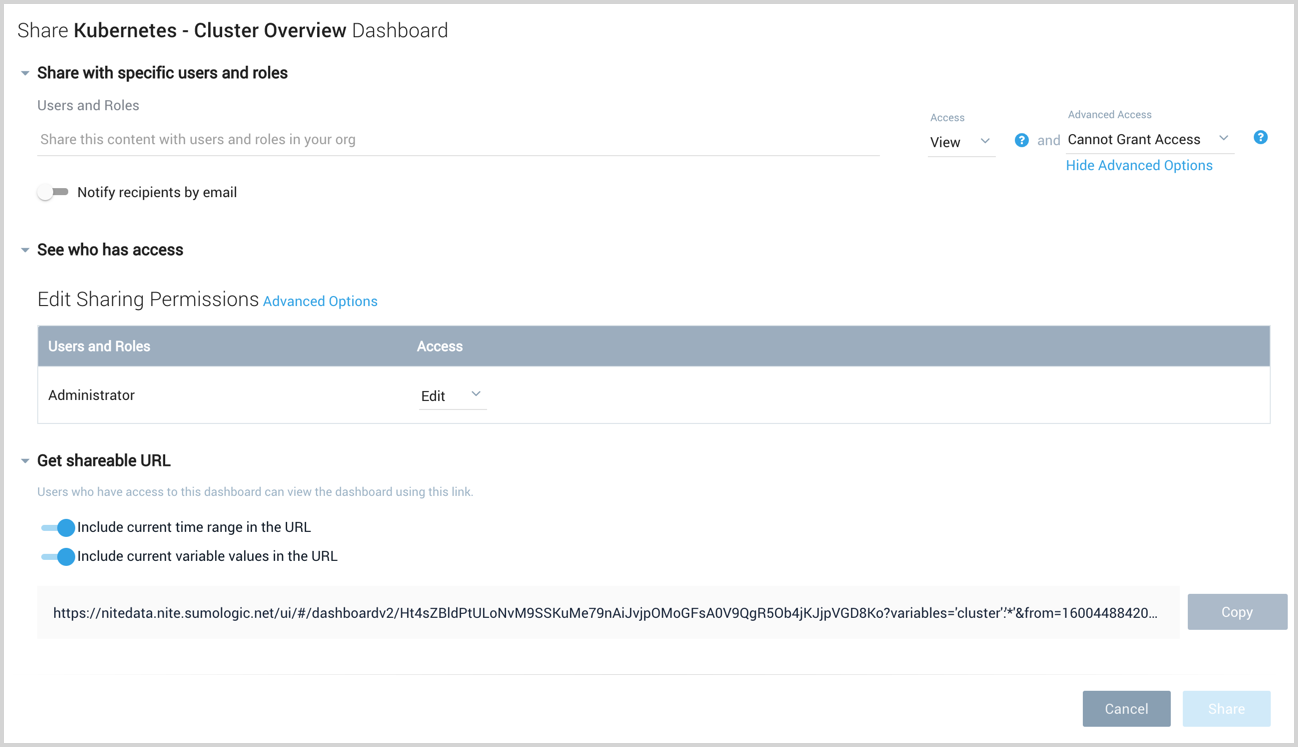
How to share a dashboard
This section walks you through the process of sharing a dashboard with other people within your organization.
To share a dashboard within your organization, do the following:
- Click the share icon on the dashboard or share it from the Library.

- Click in the Share with specific users and roles text box and select the users or roles to share the dashboard with from the dropdown list. If you choose Your Entire Organization, all users in your organization will be granted the access permissions you specify in the next step.
- In the Access area, select the user permissions you want to grant from the dropdown list: Edit, View, or Manage.
note
If a user with Edit or Manage access deletes a panel from a shared dashboard, a confirmation dialog warns them that the change may impact other users. Learn more in Delete a Panel.
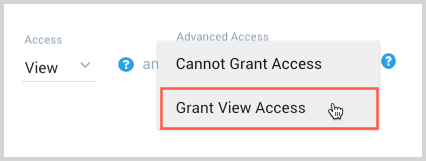
- Optionally, select the Advanced Access option to allow users to grant view access to others. For more information, see the Available Permission Levels section of the Share Content page.
- To share the dashboard with another set of users, but with different access permissions, click Add users with another access level and repeat steps 2 and 3.
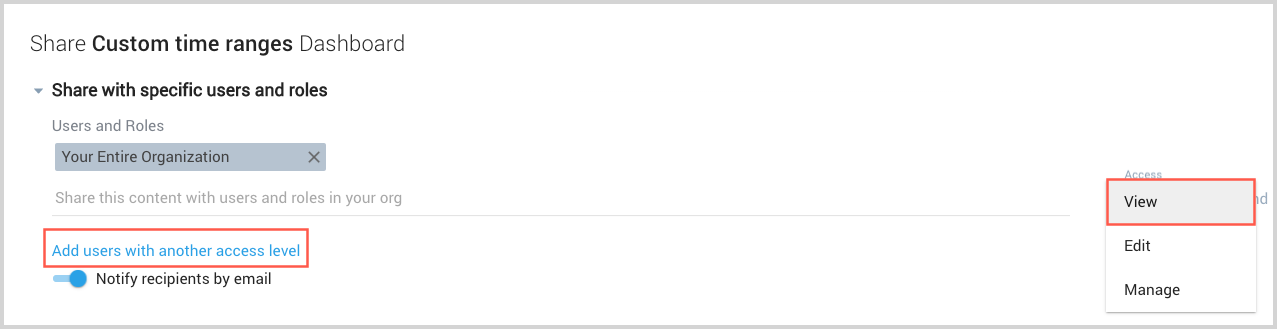
- To send an email to the recipients of the shared dashboard, toggle Notify recipients by email to ON, and enter a note in the text box.

- Click Share.
Shareable URL
The Shareable URL section shows a URL to your dashboard. You can include the current time range or variable values in the URL.