Share a Dashboard Outside Your Organization
This page has information about sharing dashboards with users who do not have a Sumo Logic account. For information about sharing dashboards with other Sumo Logic users, see Share a Dashboard.
Dashboards often contain sensitive information, so you usually share them only with people within your organization. But sometimes you may want to allow people outside your organization to view a dashboard without logging in. For example, you might display a dashboard on a monitor in your operations center, or send someone outside your organization a link to a dashboard that reveals a critical problem.
Sharing outside an organization is always view-only.
You can share a dashboard with all external users (“the world”), or with a selected set of external users that you specify in the service allowlist.
Before you share a dashboard with users external to your organization, you need to enable a security policy, make sure that you have the right role capabilities, and, if you are sharing with a selected set of users, enable the service allowlist.
Enable the Sumo Logic policy
In this step, you'll enable sharing dashboards outside your organization. You need admin privileges to enable the policy.
- Classic UI. In the main Sumo Logic menu, select Administration > Security > Policies
New UI. In the main Sumo Logic menu select Administration, and then under Account Security Settings select Policies. You can also click the Go To... menu at the top of the screen and select Policies. - Select the Enable checkbox for Share Dashboards Outside of the Organization.
- The policy change can take up to 5 minutes to take effect.
Verify your role allows external sharing
You need specific role capabilities to share a dashboard with external users.
- Share Dashboards with the Allowlist. Share dashboards with users only on the allowlist.
- Share Dashboards with the World. Share dashboards with all external users.
If you do not already have a role that grants you the required capability, an admin user can assign you one. See the Assign Roles to Users documentation. You can also create a new role. See the Create a New Role.
Add external users to service allowlist
If you want to share dashboards with specific external users, rather than the world, you need to enable the service allowlist and provide the list of IPs or CIDRs that can view dashboards without logging in. For instructions, see Enable Dashboard Allowlist.
Administrator privileges are required to enable the service allowlist.
Share the dashboard
- Go to your Library and search for the dashboard you want to share.
- Right-click the dashboard name in the resulting list.
- Click Share in the context menu.
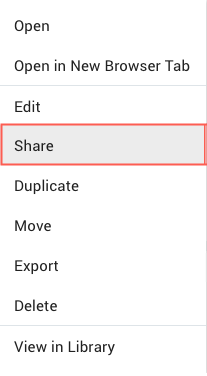
Or, click the share icon next to the dashboard title.
- The Share Dashboard dialog appears.
- Click Get shareable URL to expand the section.
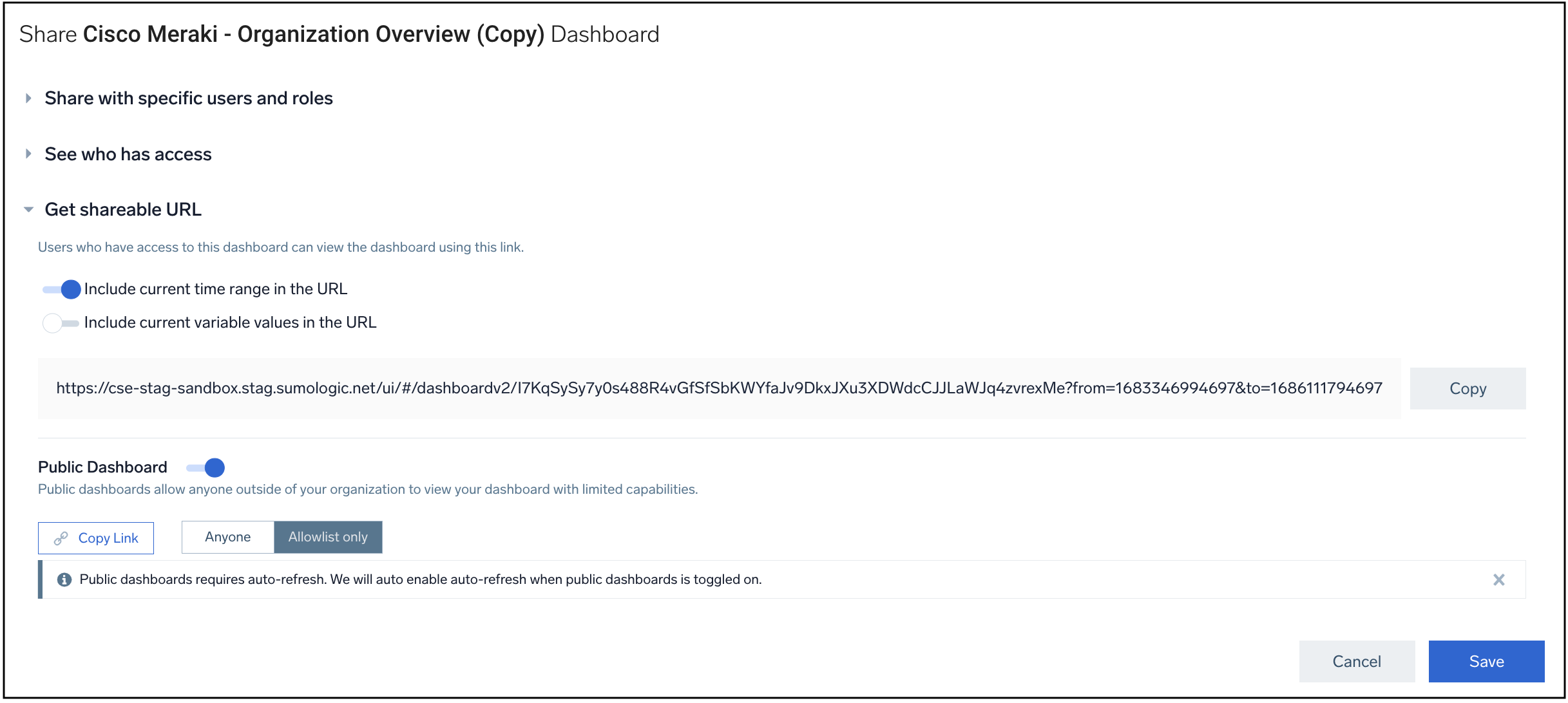
- If you want viewers to see the current time range in the URL, toggle the Include current time range in the URL option.
- If you want viewers to see the current variable values in the URL, toggle the Include current variable values in the URL option.
- Toggle Public Dashboard on.
- Select Anyone or Allowlist only for visibility, and then click Save.
The URL that external users use to access the dashboard appears under the Shareable URL section of the page.
Restrictions and limitations for external sharing
- Sharing outside an organization is always view-only.
- Panels that are incompatible with auto-refresh show data only to viewers who are logged in.
- Panels need to use relative time ranges (such as Last 15 Minutes, Last 24 Hours). Absolute time ranges are not supported.
- Unauthenticated viewers see dashboards with the default time range and default template variable values applied. To share a dashboard with a different set of template variable values, create a copy of the dashboard and set the time range and variable values you want.
- If User's data access level is enabled for a dashboard, you cannot share it outside your organization.
- Spans, Traces, and Service maps panels are not supported in public dashboards.
Logging for externally shared dashboards
If you have the Audit Index enabled, Sumo Logic logs the key-sharing events.
When a user shares a dashboard outside of the organization, Sumo Logic logs the following information:
- Dashboard name
- Dashboard URL
- Owner name
- Owner email
- Visibility (Anyone or Allowlist only)
When someone views a dashboard without signing in, Sumo Logic logs the following information:
- Dashboard name
- Dashboard URL
- Owner name
- Owner email
- Visibility (Anyone or Allowlist only)
- Viewer’s IP address
Alerts and reports for externally-shared dashboards
You can use Scheduled Searches to create alerts and reports about dashboards that are shared outside your organization.
=sumologic_audit and =REPORT "Viewed Report"
| parse "Name=*, Id=Some(*)," as dashboardName,dashboardId
| parse "URL=*, ViewerIP=*" as url,viewerip
| count
=sumologic_audit and =REPORT "Viewed Report"
| parse "Name=*, Id=Some(*)," as dashboardName,dashboardId
| parse "URL=*, ViewerIP=*" as url,viewerip
| lookup latitude, longitude from geo://location on ip=viewerip
| count by latitude, longitude
| sort _count