 Meet the new
 Account Preferences and Credentials

You can review and update your personal account settings and login credentials at any time from your user menu's three settings tabs: Preferences, Personal Access Keys, and Personal Authorized Apps. Settings on all three tabs apply only to your account and do not affect other users in your organization.
Accessing your account settings
- New UI. In the top menu, select the person silhouette icon
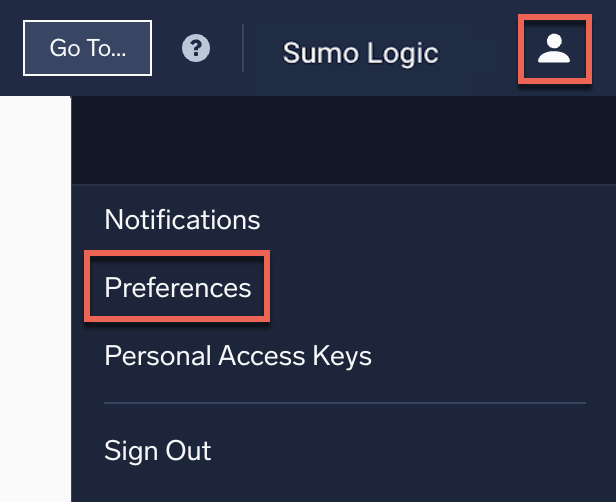 .
. - Classic UI. In the main Sumo Logic menu, select your username at the bottom.
From here, select one of the following tabs:
- Preferences. Your profile, security settings, and personal preferences. Covered below.
- Personal Access Keys. Create and manage access keys for your own use. See Access Keys.
- Personal Authorized Apps. View and revoke third-party apps you've authorized to access Sumo Logic on your behalf. See Personal Authorized Apps below.
Preferences
The Preferences tab has three sections: My Profile (your account info and login credentials), My Security Settings (2-step verification), and My Preferences (personal settings for timezone, navigation, search, and alerts).
My Profile
Under My Profile, the following information is displayed:
- First Name. Your first name as it appears on your account and in the UI.
- Last Name. Your last name as it appears on your account and in the UI.
- Email. The Sumo Logic account email address (you can change this).
- Password. Your Sumo Logic account password (you can change this).
- Organization ID. Your organization's unique identifier in Sumo Logic.
- Roles. The Sumo Logic roles assigned to your user account. If you're an Administrator, you can manage users, assign roles, and more.
Change email address
- Access your account settings and select the Preferences tab.
- Under My Profile, click Change Email.
- In the dialog that appears, enter your new email address and follow the verification steps.
Change password
- Access your account settings and select the Preferences tab.
- Under My Profile, click Change Password.
- Enter your current password, and then enter the new password twice to verify it.
- Click OK to finalize the change.
You can also reset your password from your login screen by clicking Forgot your password?.
If you're an Administrator, you can reset passwords for users in your org.
My Security Settings
The My Security Settings section is visible only if an administrator has made 2-Step Verification mandatory for your organization. For more details, see 2-Step Verification for Administrators.
Set up 2-Step Verification using a TOTP (Time-Based One-Time Password) app, view or regenerate your backup codes, change your verification device, or disable 2-Step Verification if it's optional for your org. See 2-Step Verification for Users for the full walkthrough.
My Preferences
These settings apply only to your personal account and do not affect other users in your organization. Changes take effect the next time you sign in.
Timezone and Date Format
- Default Timezone. Change this setting if you want the Sumo Logic user interface to use your local time zone, or one different from the time zone in your log message timestamps. This is a personal setting; it does not change the time zone for anyone else in your organization. This option overrides the timezone set in your web browser, and affects all hours and minutes displayed in the user interface, including time ranges on the Search page, the Time column in the Messages pane, and in Dashboards. It does not affect the configurations of previously created Scheduled Searches. For more information, see Timestamps, Time Zones, Time Ranges, and Date Formats.
- Always show the timezone offset in displayed timestamps. This setting is enabled by default. Deselect this checkbox to hide the timezone offset in displayed timestamps.
- Date format. Select from the following international date format options:
- Use the browser's default date format.
- MM/DD/YYYY (04/22/2026)
- DD/MM/YYYY (22/04/2026)
- YYYY/MM/DD (2026/04/22)
dangerChanging the date format option will affect your saved searches in your Library. Any saved searches that use absolute dates for their time range must be updated to reflect the new format. Scheduled Searches will continue to run as expected, but you will need to modify the date format if you reschedule a search.
General Settings
- Receive email notifications whenever content is shared with you. Receive an email when content is shared with you in Sumo Logic, such as log searches, metric searches, dashboards, and folders.
- Enable keyboard shortcuts. Keyboard shortcuts are enabled by default. Press ? to see the list of shortcuts. To disable keyboard shortcuts, for example, if they conflict with an international keyboard, deselect the checkbox.
note
Keyboard shortcuts are disabled when typing in the search text box.
- Web Session Timeout. Choose how long your Sumo Logic session remains active before timing out. Options range from 5 minutes to 7 days. For details on web session timeouts and multi-account access, see Multi-Account Access.
In-App Tabs
- Enable in-app tabs. Select this checkbox to enable in-app tabs in the New UI, letting you run and manage multiple Log Search, Dashboard, and Metrics tabs within a single browser window instead of separate browser tabs. Keep long-running or reference searches open while you switch between other queries, and compare results across searches without losing context. To open a new tab, click the + button next to your tabs and select Log Search, Dashboard, or Metrics, or use the keyboard shortcuts Option + S, Option + D, or Option + M (Alt on Windows). Switch between tabs at any time, reorder them by dragging, and scroll horizontally when you have more tabs open than fit on screen.

- If you switch from the Classic UI to the New UI, your open tabs, including Dashboard and Metrics tabs, are carried over up to a maximum number of tabs.
- Show confirmation dialog when closing a tab. Enable this option if you want to be prompted with a confirmation dialog before you can close an in-app tab.
Navigation
- Open all navigation menu items in new browser tabs by default. This preference is disabled by default, so selecting a menu link in the left navigation pane opens it in the same tab. To open a specific link in a new tab instead, hover over it and click the Open in New Tab button that appears next to it.
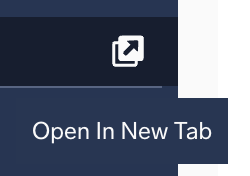
Enabling this preference makes every menu link open in a new tab automatically, and hides the Open in New Tab button since it's no longer needed. However, even when this preference is enabled, the Open in New Tab button remains visible for menu items with subfolders, allowing you to click the menu item to view its subfolders and open them in a new tab.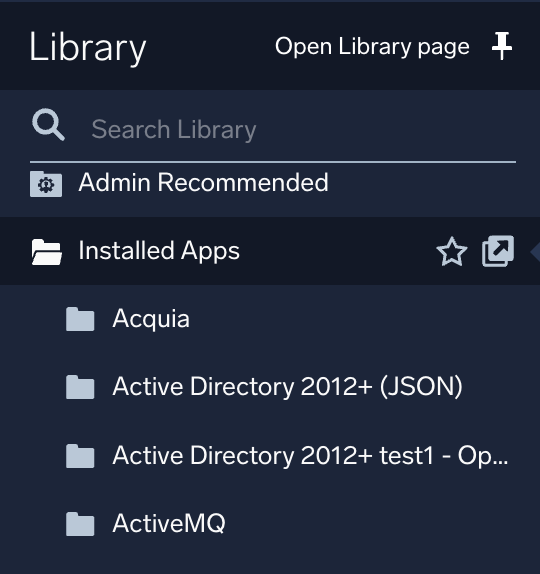
Default Starting Page
Select the default page to appear when you log in to Sumo Logic. This preference applies only to users of the New UI.
Theme
Choose whether the user interface displays in Dark theme or Light theme.
New UI. Dark and Light theme support is available across the Sumo Logic Log Analytics Platform. You can select your preferred theme in Account Preferences, or use the global theme button in the top toolbar, located adjacent to the Go to... button, to switch themes instantly from anywhere in the platform.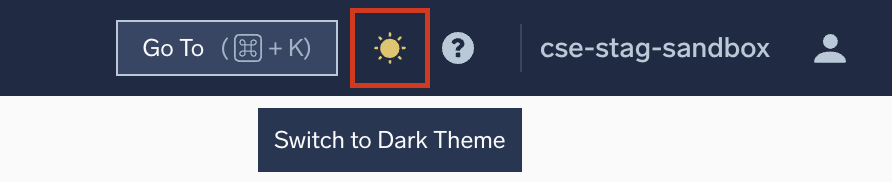
Classic UI. Select between Light or Dark mode in the Account Preferences page. This setting applies only to the user interface in the Automation Service, Cloud SIEM, and Cloud SOAR. A global setting is not supported at this time. You can also apply a dark theme specifically for dashboards.
Query Editing
Select how you want to execute and format queries:
- Return to run the query, Shift + Return to create a new line. Suggestions appear automatically. Use Tab or Enter to select a suggestion.
- Command + Return to run the query, Return to create a new line. Suggestions appear as you type. Use Tab to select a suggestion.
After making any changes, click Save.
Log Search
- Show search autocomplete suggestions while typing. Keep this option selected to automatically open the search autocomplete dialog when editing a query.
- To manually open the dialog, use
<Esc>or<Alt><Space>. - Deselect this option to disable search autocomplete.
- To manually open the dialog, use
- Automatically run the search after selecting it from a list of saved searches. By default, saved searches run automatically when selected. Deselect this option if you prefer to start searches manually.
Alerts
Click any of the following checkboxes to enable your desired preferences:
- Enable ingestion throttling notifications. Only users with Administrator access can enable this option. Select this to be notified when your organization's logs, metrics, or traces ingestion is throttled. See Ingestion - Throttling Limits for details on baseline and throttling limits.
- Display alert badge when my subscribed monitors are triggered. Select this option to display a badge icon in the UI when you receive an alert for a monitor you're subscribed to.
- Notify about only subscribed monitors. Select this option to receive notifications only for monitors you're subscribed to.
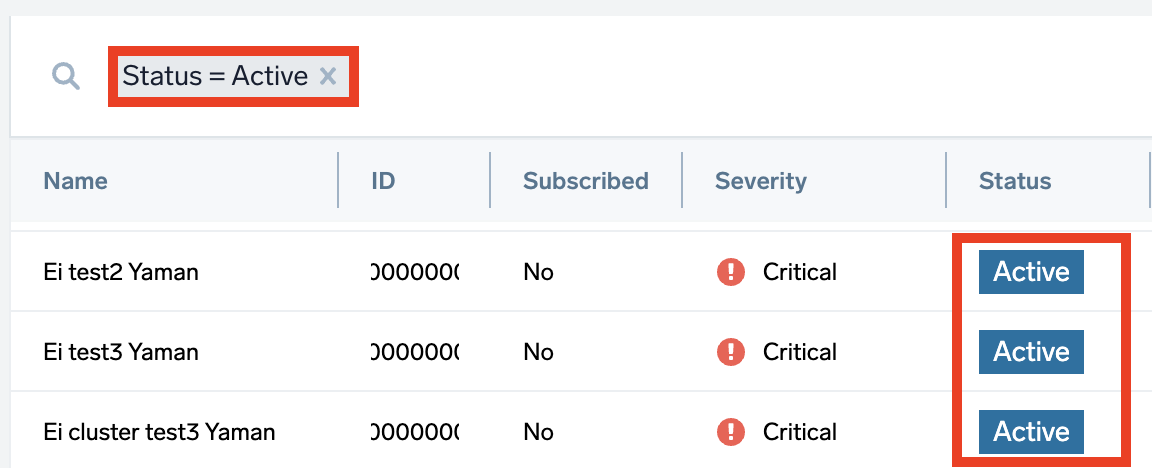
- Enable "Active alerts only" as default filter. By default, your alerts list only displays alerts with an active status. Alerts with a resolved status are excluded.
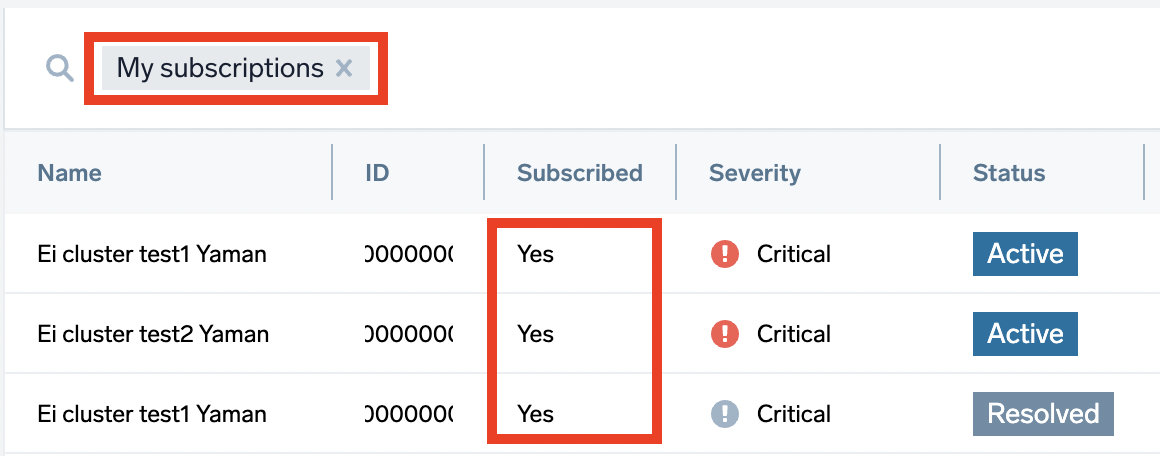
- Enable "My subscriptions" as default filter. By default, alerts you are subscribed to will appear in your alerts list.
Personal Access Keys
The Personal Access Keys tab lets you create and manage access keys for your own use: to register Collectors, authenticate API requests, or authorize scripts and automation. Keys you create here use your own permissions, and are visible only to you; an administrator (or a user with the Manage Access Keys role capability) can see keys created by everyone in your org from the separate, org-wide Access Keys tab under Administration.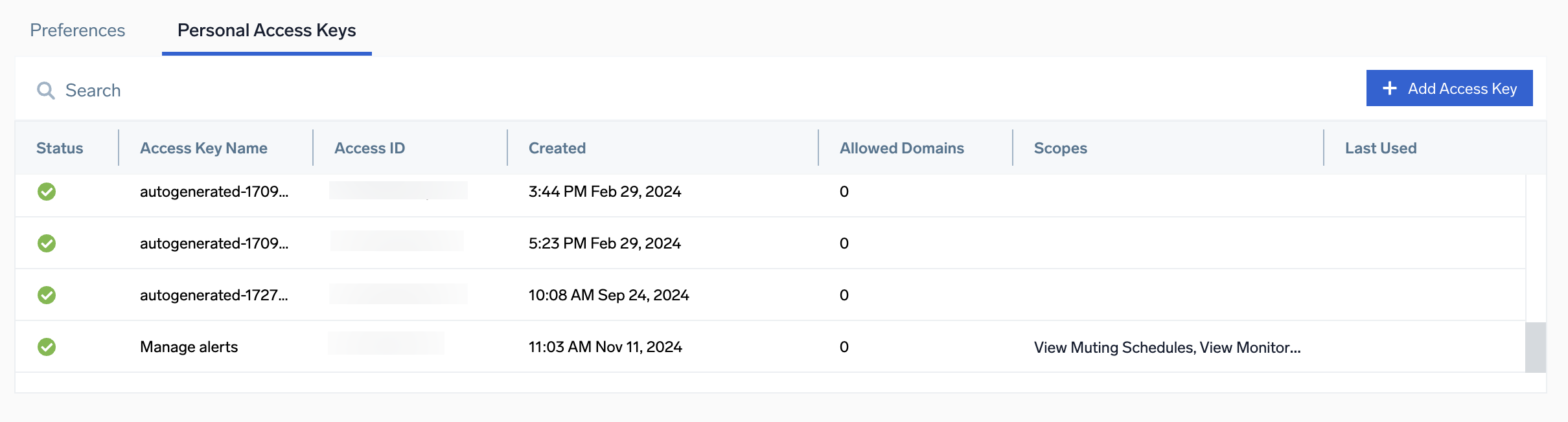
For the full walkthrough, including CORS domain restrictions, scopes, and how to edit, rotate, or delete a key, see Access Keys.
Personal Authorized Apps
The Personal Authorized Apps tab lists third-party apps and OAuth clients you've personally authorized to access Sumo Logic on your behalf, such as AI clients connecting through OAuth 2.0. Revoking an app here does not affect other users who have separately authorized it.
The list shows each app's name, when you authorized it, and when it was last used. Click an app to see its details:
- Scopes. The permissions granted to the app, grouped by category (for example, Alerting, Dashboards, Log Search), with a count of permissions in each category. Expand a category to see its individual scopes.
- Last Used. The most recent time the app used its authorization to access Sumo Logic.
- Authorized By and Authorized At. Who authorized the app, and when.
To revoke an app's access, select it from the list and click Revoke. This immediately invalidates the app's ability to act on your behalf; you can re-authorize it later if needed.