 Meet the new
Tour the Sumo Logic UI
You open Sumo Logic to get answers, not to hunt for where things moved. This guide tours the Sumo Logic UI, the default experience for all users, so you can find your way around from the start.
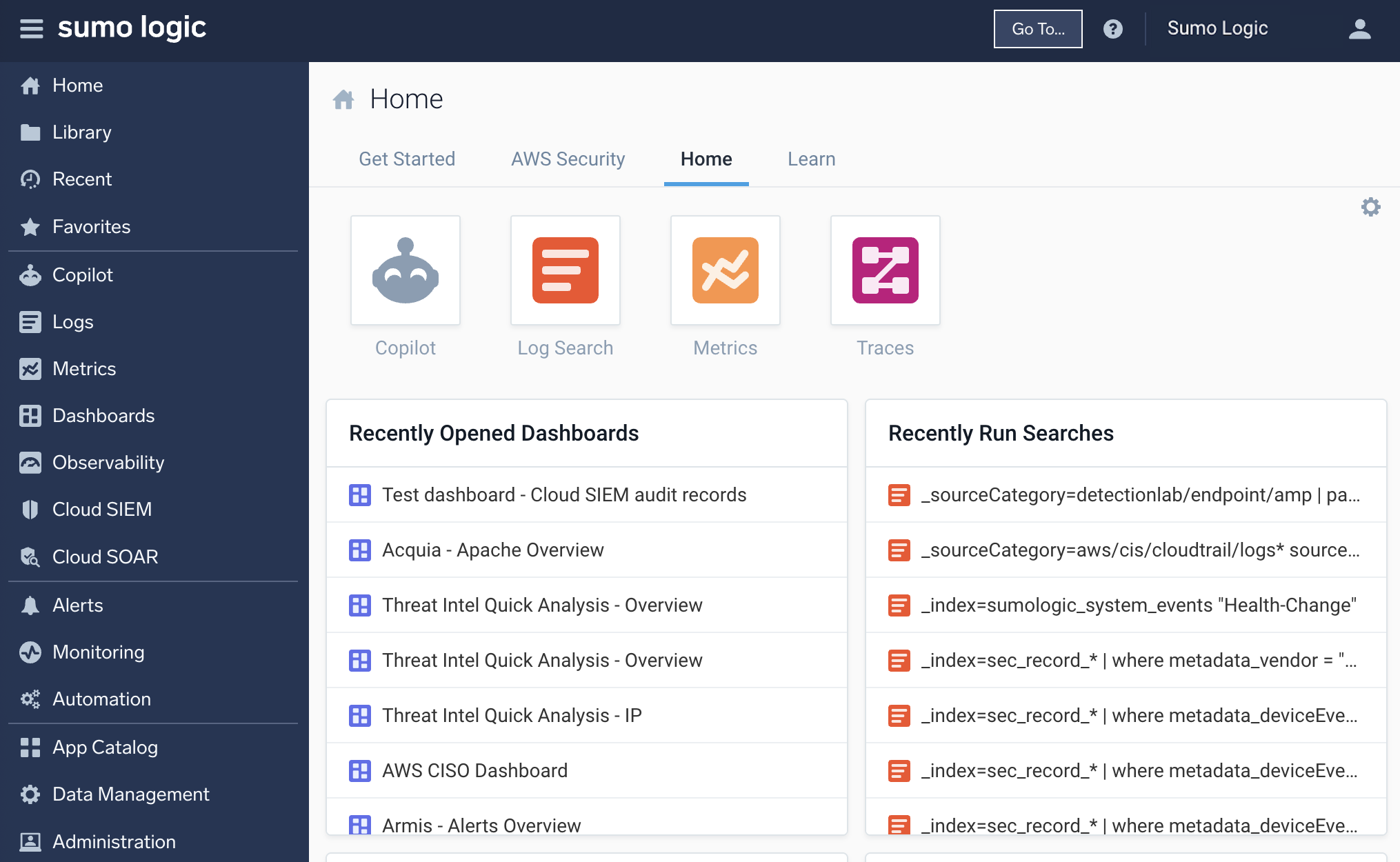
The current Sumo Logic UI offers:
- Everything in one place. Unified experience across operational and security analytics products, so you do not have to switch between different interfaces.
- Accelerate your work. Faster load times and improved caching mean less waiting and more doing.
- Pick up where you left off. Stateful URLs automatically save your session, making it easy to resume work after logging in.
- Find what you need instantly. Use-case-driven navigation helps you locate key features without digging through menus.
Watch this quick overview video to explore the key features of our UI.
Starting October 29, 2026, newly created standalone Sumo Logic accounts default to the New UI and do not have the option to switch to the Classic UI. Parent organizations, their child organizations, and existing accounts keep their current settings for now, and the Classic UI will eventually be retired for everyone. We will communicate the exact retirement date closer to the transition. Switching requires no data migration; everything carries over automatically. For the best experience, switch to the New UI now. Need to reference the old interface in the meantime? See the Classic UI documentation.
Home
You'll land on the Sumo Logic Home page, which provides an at-a-glance view of the following:
- Recently Opened Dashboards
- Recently Run Searches
- Recommended Dashboards
- Pinned Searches

Left navigation panel
The left nav panel lets you access all Sumo Logic features, such as Logs, Observability, Cloud SIEM, and more.
Dashboards and searches
Access your dashboard libraries, searches, folders, and your personal collection of dashboards. Click the icons at the top of the left-side nav panel to view:
- Your Library, which contains:
- Your own Installed Apps from the App Catalog.
- Your Personal dashboards and searches.
- Dashboards and searches shared within your organization.

Click Open library page to use the Library search bar to find items quickly. View as mode should be set to Me.
If you're an admin, you can view the Library in Content Administrator mode. The Content Administrator library is available to Administrator roles only. To browse this content, go to Library > click Open Library page > click the View as dropdown > click Content Administrator.
- Recent dashboards and searches.

- Your Favorites list of favorited dashboards and searches.

Enlarge your working area by hiding the left-side nav panel. Just click the hamburger menu icon. To unhide it, click the hamburger menu icon again.
Top navigation bar
The global toolbar (top nav bar) provides access to critical functions and settings, in the following order: Go To..., Help, and your user profile options (Notifications and Preferences).

Go To... menu options
Use the Go To... menu for quick access to settings, features, library content, monitors, and SLOs. 
Preferences
You can manage your personal account settings from the Preferences page. These settings apply only to your account. Changes you make to your preferences take effect the next time you sign in, not during the current session.
To manage your personal Sumo Logic account preferences:
- From the top nav bar, click the person icon
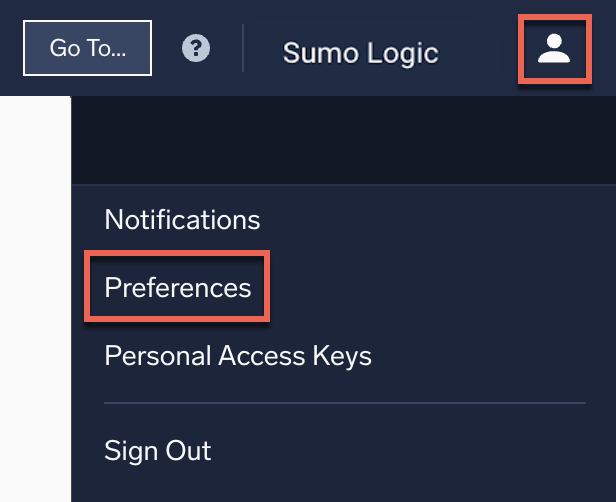 , and then from the dropdown, select Preferences.
- In the Preferences page, you can modify the following settings:
- My Profile. Username and password.
- My Preferences. Your account session settings.
For more information, see Account Preferences and Credentials.
Customize your environment with tabs
To enhance multitasking, you can now keep multiple tab open simultaneously (for example: log search, dashboards, App Catalog, and Preferences) using your web browser's tab grouping functionality. By adding Sumo Logic tabs to a tab group, any new tabs opened within the Sumo Logic platform will automatically open in the same tab group.

This also allows you to collapse the tab group to reclaim valuable real estate in your browser's tab bar.
FAQ
This FAQ answers common questions about the Sumo Logic UI.
What is the Sumo Logic Unified Experience?
The Sumo Logic Unified Experience, known internally as Project Kanso, takes its name from the Japanese principle of simplicity and clutter elimination. It brings Log Analytics, Cloud SIEM, and Cloud SOAR together under one navigation system, with interface enhancements that make every Sumo Logic feature more accessible and easier to use.
How does navigation work across products?
Log Analytics, Cloud SIEM, and Cloud SOAR share one navigation system, so you do not have to learn different interface patterns for different tools.
The left nav panel organizes features around use cases, such as infrastructure monitoring, application monitoring, log analysis, and security monitoring and analytics, so you can find what you need without digging through a list of tool names.
Each page you open runs in its own browser tab, so you can use your browser's native navigation features, like the back button and tab grouping, to organize your work.
What are the key features of the UI?
- Unified navigation. One consistent navigation system across Log Analytics, Cloud SIEM, and Cloud SOAR, for a single experience across observability and security use cases.
- Use-case-based organization. The left nav panel organizes features around use cases like infrastructure monitoring, application monitoring, log analysis, and security monitoring.
- Native browser tabs. Each page opens in its own browser tab, so pages load quickly and you can organize tabs the way you already do in other applications.
- Stateful URLs. Most page URLs reflect your current view, so you can copy and share a URL with a teammate, or navigate back to a previous view using your browser's back button.
How can I avoid ending up with too many open browser tabs?
Sumo Logic tabs use your browser's native tab capability, including tab grouping and coloring, so you can manage them the same way you manage any other browser tabs. If you prefer to keep Sumo Logic content inside a single tab, enable the Enable in-app tabs preference for Log Search, Dashboards, and Metrics, or use tab grouping functionality to keep your workspace organized.
Why do my browser tabs reload when I log back in?
If you leave browser tabs open across sessions, Sumo Logic automatically reloads them when you log back in. Tab usage data showed that only a small portion of previously opened tabs are actively used, so leaving them open tends to clutter your browser instead of helping you.

The Recents feature in the navigation bar gives you quick access to recently opened content instead. We're working to extend it to more content types over time.
Can I still use the Classic UI?
Starting October 29, 2026, newly created standalone Sumo Logic accounts no longer have the option to switch to the Classic UI. Parent organizations and their child organizations keep their current settings for now. If your account still has access to the Classic UI, you can select Switch to classic UI from the left navigation menu to use it temporarily. See the Classic UI documentation if you need it in the meantime. The Classic UI will eventually be retired for all accounts; we will communicate the exact date closer to the transition.

Get support
For questions or issues, contact Support or join our Sumo Logic Slack channel.
Have feedback? Send it to our UX Team.