Amazon SageMaker

The Sumo Logic Amazon SageMaker app dashboards offer insights into CloudTrail, CloudWatch Logs, and performance metrics for your Amazon SageMaker service. These preconfigured dashboards enable you to monitor logs and the runtime performance metrics of your Amazon SageMaker.
Amazon SageMaker Service AI is a fully managed machine learning (ML) service. With SageMaker AI, data scientists and developers can quickly and confidently build, train, and deploy ML models into a production-ready hosted environment. It provides a UI experience for running ML workflows that makes SageMaker AI ML tools available across multiple integrated development environments (IDEs).
Log and metrics types
The Amazon SageMaker app uses the following logs and metrics:
- Monitor Amazon SageMaker API calls using CloudTrail.
- Monitor Endpoint invocation using CloudWatch Logs.
- Amazon SageMaker runtime metrics.
Sample CloudTrail log message
Click to expand
{
  "eventVersion": "1.11",
  "userIdentity": {
    "type": "AssumedRole",
    "principalId": "AROA55SVHNHFJXEP65NAE:ConfigResourceCompositionSession",
    "arn": "arn:aws:sts::956882708938:assumed-role/AWSServiceRoleForConfig/ConfigResourceCompositionSession",
    "accountId": "956882708938",
    "accessKeyId": "ASIA55SVHNHFHBULIL7Q",
    "sessionContext": {
      "sessionIssuer": {
        "type": "Role",
        "principalId": "AROA55SVHNHFJXEP65NAE",
        "arn": "arn:aws:iam::956882708938:role/aws-service-role/config.amazonaws.com/AWSServiceRoleForConfig",
        "accountId": "956882708938",
        "userName": "AWSServiceRoleForConfig"
      },
      "attributes": {
        "creationDate": "2026-01-02T09:18:23Z",
        "mfaAuthenticated": "false"
      }
    },
    "invokedBy": "config.amazonaws.com"
  },
  "eventTime": "2026-01-02T09:18:24Z",
  "eventSource": "sagemaker.amazonaws.com",
  "eventName": "ListTags",
  "awsRegion": "us-east-1",
  "sourceIPAddress": "config.amazonaws.com",
  "userAgent": "config.amazonaws.com",
  "requestParameters": {
    "resourceArn": "arn:aws:sagemaker:us-east-1:956882708938:notebook-instance/anemaNoteBook"
  },
  "responseElements": null,
  "requestID": "ac2791d9-aa6d-4352-9756-26b47faa5bd9",
  "eventID": "78478c6d-6742-4c0c-a3c7-d7a14d19402e",
  "readOnly": true,
  "eventType": "AwsApiCall",
  "managementEvent": true,
  "recipientAccountId": "956882708938",
  "eventCategory": "Management"
}
Sample CloudWatch logs
Click to expand
{
  "timestamp": 1767086196619,
  "message": "2025-12-30 14:46:36,619 [ERROR ] pool-1-thread-5 ACCESS_LOG - /45.129.199.204:49506 \"GET /ping HTTP/1.1\" 200 0",
  "logStream": "AllTraffic/i-0207927cfb9d6b24f",
  "logGroup": "/aws/sagemaker/Endpoints/prophet-energy-forecast-v1"
}
{
"timestamp": 1766083575493,
"message": "See the caveats in the documentation: https://pandas.pydata.org/pandas-docs/stable/user_guide/indexing.html#returning-a-view-versus-a-copy\n  df_clean['year'] = pd.to_datetime(df_clean['transaction_date']).dt.year",
"logStream": "data-processing-gpu-2025-12-18-18-41-24-007/algo-1-1766083346",
"logGroup": "/aws/sagemaker/ProcessingJobs"
}
{
  "timestamp": 1766084347473,
  "message": "[76]#011train-logloss:0.35695#011validation-logloss:0.41460",
  "logStream": "pipelines-j8zf1khfah4m-ChurnModelTraining-fzH3ZV39u6/algo-1-1766084266",
  "logGroup": "/aws/sagemaker/TrainingJobs"
}
{
  "timestamp": 1766083923454,
  "message": "2025-12-18T18:52:02,763 [INFO ] W-9000-model_1.0 TS_METRICS - WorkerThreadTime.Milliseconds:3.0|#Level:Host|#hostname:50f648117cbc,timestamp:1766083922",
  "logStream": "cpu-metrics-20251219-001300/i-09b3ca1de4dd5d2ff-1766083581",
  "logGroup": "/aws/sagemaker/TransformJobs"
}
Sample queries
account=* region=* namespace=aws/sagemaker "\"eventSource\":\"sagemaker.amazonaws.com\"" !errorCode
| json "eventSource", "eventName", "eventType", "sourceIPAddress", "errorCode", "errorMessage" nodrop
| json "userIdentity.type", "userIdentity.userName", "userIdentity.arn", "recipientAccountId", "awsRegion" as user_type, user_name, arn, accountid, region nodrop
| parse field=arn "arn:*:sts::*:*/*" as arn_part, f1, user_type, user_name nodrop
| where eventSource matches "sagemaker.amazonaws.com"
| count as eventCount by sourceIPAddress
| lookup latitude, longitude from geo://location on ip = sourceIPAddress
| sum(eventCount) by latitude, longitude
| where !isnull(latitude)
account=* region=* namespace=aws/sagemaker "\"eventSource\":\"sagemaker.amazonaws.com\"" errorCode
| json "eventSource", "eventName", "eventType", "sourceIPAddress", "errorCode", "errorMessage" nodrop
| json "userIdentity.type", "userIdentity.userName", "userIdentity.arn", "recipientAccountId", "awsRegion" as user_type, user_name, arn, accountid, region nodrop
| parse field=arn "arn:*:sts::*:*/*" as arn_part, f1, user_type, user_name nodrop
| where eventSource matches "sagemaker.amazonaws.com"
| count as eventCount by sourceIPAddress
| lookup latitude, longitude from geo://location on ip=sourceIPAddress
| sum(eventCount) by latitude, longitude
| where !isnull(latitude)
account=* region=* namespace=aws/sagemaker "\"eventSource\":\"sagemaker.amazonaws.com\""
| json "eventSource", "eventName", "eventType", "sourceIPAddress", "errorCode", "errorMessage" nodrop
| json "userIdentity.type", "userIdentity.userName", "userIdentity.arn", "recipientAccountId", "awsRegion" as user_type, user_name, arn, accountid, region nodrop
| parse field=arn "arn:*:sts::*:*/*" as arn_part, f1, user_type, user_name nodrop
| where eventSource matches "sagemaker.amazonaws.com"
| where !(eventName matches "Get*") and !(eventName matches "List*")
| count as freq by eventName
| sort by freq, eventName asc
| limit 20
account=* region=* namespace=/aws/sagemaker/endpoints ACCESS_LOG
| json field=_raw "message","logGroup" as message, logGroup nodrop
| if (isBlank(message), _raw, message) as line
| parse field=line "* [*] * ACCESS_LOG - /*:* \"* * *\" * *"
    as ts, level, thread, client_ip, client_port, method, path, protocol, status, bytes nodrop
| where !isBlank(status)
| toint(status) as status
| toint(bytes)  as bytes
| fields ts, level, thread, client_ip, client_port, method, path, protocol, status, bytes, endpointname
| where !isBlank(endpointname) and endpointname matches "*"
| count by endpointname, status
| sort by _count, endpointname, status asc
account=* region=* namespace=/aws/sagemaker/processingjobs
| json field=_raw "message" as message nodrop
| if (isBlank(message), _raw, message) as message
| parse field=logstream "*/*" as processingjobname, algo_name
| where processingjobname matches "*" and algo_name matches "*"
| formatDate(_messageTime, "MM/dd/yyyy HH:mm:ss") as time
| count as Count by time, account, region, processingjobname, algo_name, message
| sort by time
account=* region=* namespace=aws/sagemaker featuregroupname=* operationname=* metric=Invocations statistic=sum | quantize using sum | sum
account=* region=* namespace=/aws/sagemaker/endpoints endpointname=* metric=CPUUtilization statistic=average | avg by endpointname
Collecting logs and metrics for the Amazon SageMaker app
Collecting CloudWatch metrics
Sumo Logic supports collecting metrics using two source types:
- Configure an AWS Kinesis Firehose for Metrics Source (recommended); or
- Configure an Amazon CloudWatch Source for Metrics
The namespaces for the Amazon SageMaker Service are:
AWS/Sagemaker/aws/sagemaker/endpointsaws/sagemaker/modelbuildingpipeline/aws/sagemaker/processingjobs/aws/sagemaker/trainingjobs/aws/sagemaker/TransformJobs
For Metadata add an account field to the source and assign it a value that is a friendly name/alias to your AWS account from which you are collecting metrics. Metrics can be queried via the “account field”.
Collecting Amazon SageMaker CloudTrail logs
- Add an AWS CloudTrail Source to your Hosted Collector.
- Name. Enter a name to display the new Source.
- Description. Enter an optional description.
- S3 Region. Select the Amazon Region for your Amazon SageMaker S3 bucket.
- Bucket Name. Enter the exact name of your Amazon SageMaker S3 bucket.
- Path Expression. Enter the string that matches the S3 objects you'd like to collect. You can use a wildcard (*) in this string. (DO NOT use a leading forward slash. See Amazon Path Expressions). The S3 bucket name is not part of the path. Don’t include the bucket name when you are setting the Path Expression.
- Source Category. Enter
aws/observability/cloudtrail/logs. - Fields. Add an account field and assign it a value that is a friendly name/alias to your AWS account from which you are collecting logs. Logs can be queried via the “account field”.
- Access Key ID and Secret Access Key. Enter your Amazon Access Key ID and Secret Access Key. Learn how to use Role-based access to AWS here.
- Log File Discovery > Scan Interval. Use the default of 5 minutes. Alternatively, enter the frequency. Sumo Logic will scan your S3 bucket for new data. Learn how to configure Log File Discovery here.
- Enable Timestamp Parsing. Select the Extract timestamp information from log file entries check box.
- Time Zone. Select Ignore time zone from the log file and instead use, and select UTC from the dropdown.
- Timestamp Format. Select Automatically detect the format.
- Enable Multiline Processing. Select the Detect messages spanning multiple lines check box, and select Infer Boundaries.
- Click Save.
Collecting Amazon SageMaker CloudWatch logs
To enable Amazon SageMaker CloudWatch Logs, follow the steps in AWS documentation.
Ensure that when configuring CloudWatch Logs, the log group name follows the pattern /aws/sagemaker/*.
Sumo Logic supports several methods for collecting logs from Amazon CloudWatch. You can choose either of them to collect logs:
-
AWS Kinesis Firehose for Logs. Configure an AWS Kinesis Firehose for Logs (recommended); or
-
Lambda Log Forwarder. Configure a collection of Amazon CloudWatch Logs using our AWS Lambda function using a Sumo Logic provided CloudFormation template, as described in Amazon CloudWatch Logs, or to configure collection without using CloudFormation, see Collect Amazon CloudWatch Logs using a Lambda Function.
-
While configuring the CloudWatch log source, the following fields can be added to the source:
- Add an account field and assign it a value which is a friendly name/alias to your AWS account from which you are collecting logs. Logs can be queried via the account field.
- Add a region field and assign it the value of the respective AWS region where the SageMaker exists.
- Add an accountId field and assign it the value of the respective AWS account ID that is being used.
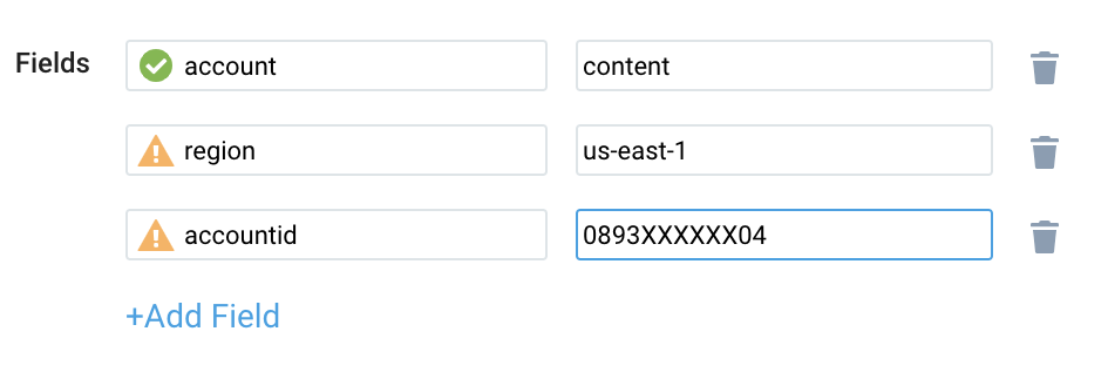
Configure field in field schema
- New UI. In the main Sumo Logic menu, select Data Management, and then under Logs select Fields. You can also click the Go To... menu at the top of the screen and select Fields.
Classic UI. In the main Sumo Logic menu, select Manage Data > Logs > Fields. - Search for the following fields:
regionaccountidnamespaceendpointname
Configure Field Extraction Rule(s)
Create a Field Extraction Rule for CloudTrail Logs. Learn how to create a Field Extraction Rule here.
Rule Name: AwsObservabilitySagemakerCloudTrailLogsFER
Applied at: Ingest Time
Scope (Specific Data): account=* eventname eventsource "sagemaker.amazonaws.com"
json "eventSource", "awsRegion", "recipientAccountId" as event_source, region, accountid nodrop
| where event_source matches "sagemaker.amazonaws.com"
| "aws/sagemaker" as namespace
| json "requestParameters.endpointname", "requestParameters.endpointconfigname" as endpointname, endpointconfigname nodrop
| if (!isBlank(endpointname), endpointname, endpointconfigname) as endpoint
| fields accountid, region, namespace, endpoint
Create/Update Field Extraction Rule(s) for SageMaker CloudWatch logs
Rule Name: AwsObservabilitySagemakerCloudWatchLogsFER
Applied at: Ingest Time
Scope (Specific Data):
account=* region=* _sourceHost=/aws/sagemaker/*
extract field=_sourceHost "/aws/sagemaker/(?<ns>[^/]*)" nodrop
| extract field=_sourceHost "/aws/sagemaker/[^/]+/(?<variant>[^/]*)" nodrop
| concat("/aws/sagemaker/", ns) as fullns
| if (_sourceHost matches "/aws/sagemaker/*", fullns, namespace) as namespace
| if (_sourceHost matches "/aws/sagemaker", "aws/sagemaker", namespace) as namespace
| if (_sourceHost matches "/aws/sagemaker/groundtruth/WorkerActivity", "aws/sagemaker/groundtruth/WorkerActivity", namespace) as namespace
| tolowercase(namespace) as namespace
| parse field=_sourceHost "/aws/sagemaker/Endpoints/*"         as endpointname        nodrop
| tolowercase(endpointname)      as endpointname
| fields namespace, endpointname
Collecting centralized AWS CloudTrail logs
In case you have a centralized collection of CloudTrail logs and are ingesting them from all accounts into a single Sumo Logic CloudTrail log source, create the following Field Extraction Rule to map a proper AWS account(s) friendly name/alias. Create it if not already present and update it as required.
Rule Name: AWS Accounts
Applied at: Ingest Time
Scope (Specific Data): _sourceCategory=aws/observability/cloudtrail/logs
Parse expression:
Enter a parse expression to create an “account” field that maps to the alias you set for each sub-account. For example, if you used the “dev” alias for an AWS account with ID "956882123456" and the “prod” alias for an AWS account with ID "567680881046", your parse expression would look like:
| json "recipientAccountId"
// Manually map your AWS account id with the AWS account alias you set up earlier for the individual child account
| "" as account
| if (recipientAccountId = "956882123456",  "dev", account) as account
| if (recipientAccountId = "567680881046",  "prod", account) as account
| fields account
Installing the SageMaker app
Now that you have set up a collection for Amazon SageMaker, install the Sumo Logic app to use the pre-configured dashboards that provide visibility into your environment for real-time analysis of overall usage.
To install the app, do the following:
Next-Gen App: To install or update the app, you must be an account administrator or a user with Manage Apps, Manage Monitors, Manage Fields, Manage Metric Rules, and Manage Collectors capabilities depending upon the different content types part of the app.
- Select App Catalog.
- In the 🔎 Search Apps field, run a search for your desired app, then select it.
- Click Install App.
note
Sometimes this button says Add Integration.
- Click Next in the Setup Data section.
- In the Configure section of your respective app, complete the following fields.
- Field Name. If you already have collectors and sources set up, select the configured metadata field name (eg _sourcecategory) or specify other custom metadata (eg: _collector) along with its metadata Field Value.
- Click Next. You will be redirected to the Preview & Done section.
Post-installation
Once your app is installed, it will appear in your Installed Apps folder, and dashboard panels will start to fill automatically.
Each panel slowly fills with data matching the time range query received since the panel was created. Results will not immediately be available but will be updated with full graphs and charts over time.
As part of the app installation process, the following fields will be created by default:
account: The friendly name or alias assigned to the AWS account.region: The geographical region where the AWS resource is located (for example, us-east-1 or eu-west-2).accountid: The unique 12-digit identifier for the AWS account where the resource is present.namespace: The AWS service namespace that the resource or metric belongs to (for example, AWS/EC2 or AWS/S3).endpointname: A specific identifier for the endpoints within an AWS SageMaker.
Viewing the SageMaker dashboards
We highly recommend you view these dashboards in the AWS Observability view of the AWS Observability solution.
Overview
The Amazon SageMaker - Overview dashboard provides a high-level view of SageMaker usage and health across endpoints, jobs, and Feature Store. It tracks endpoint invocations, model errors, loaded models, CPU/GPU utilization for endpoints and training/transform/processing jobs, Feature Store latency and throttled requests, pipeline executions, and trends by endpoint/job, filterable by account and region.
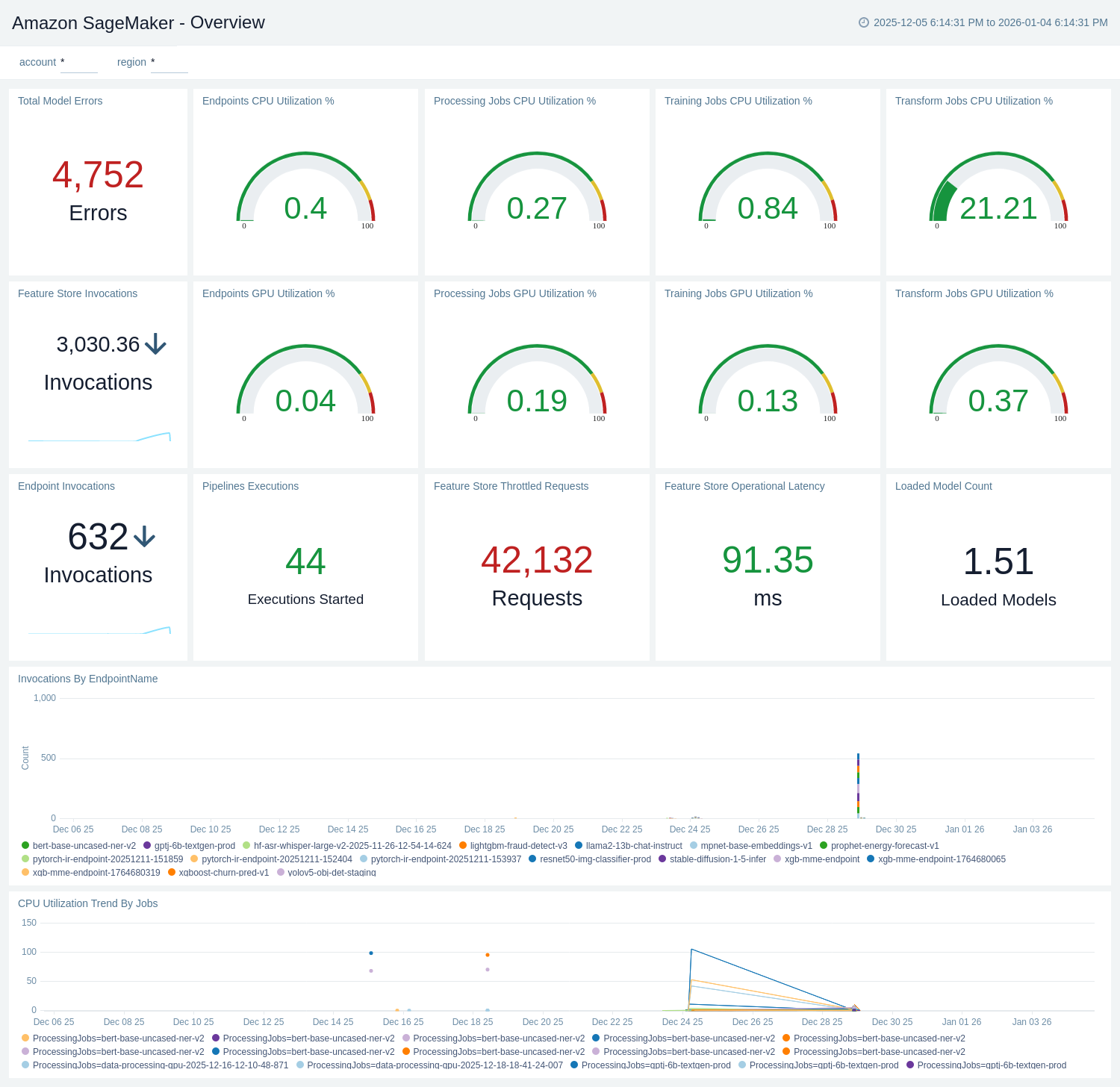
CloudTrail Audit
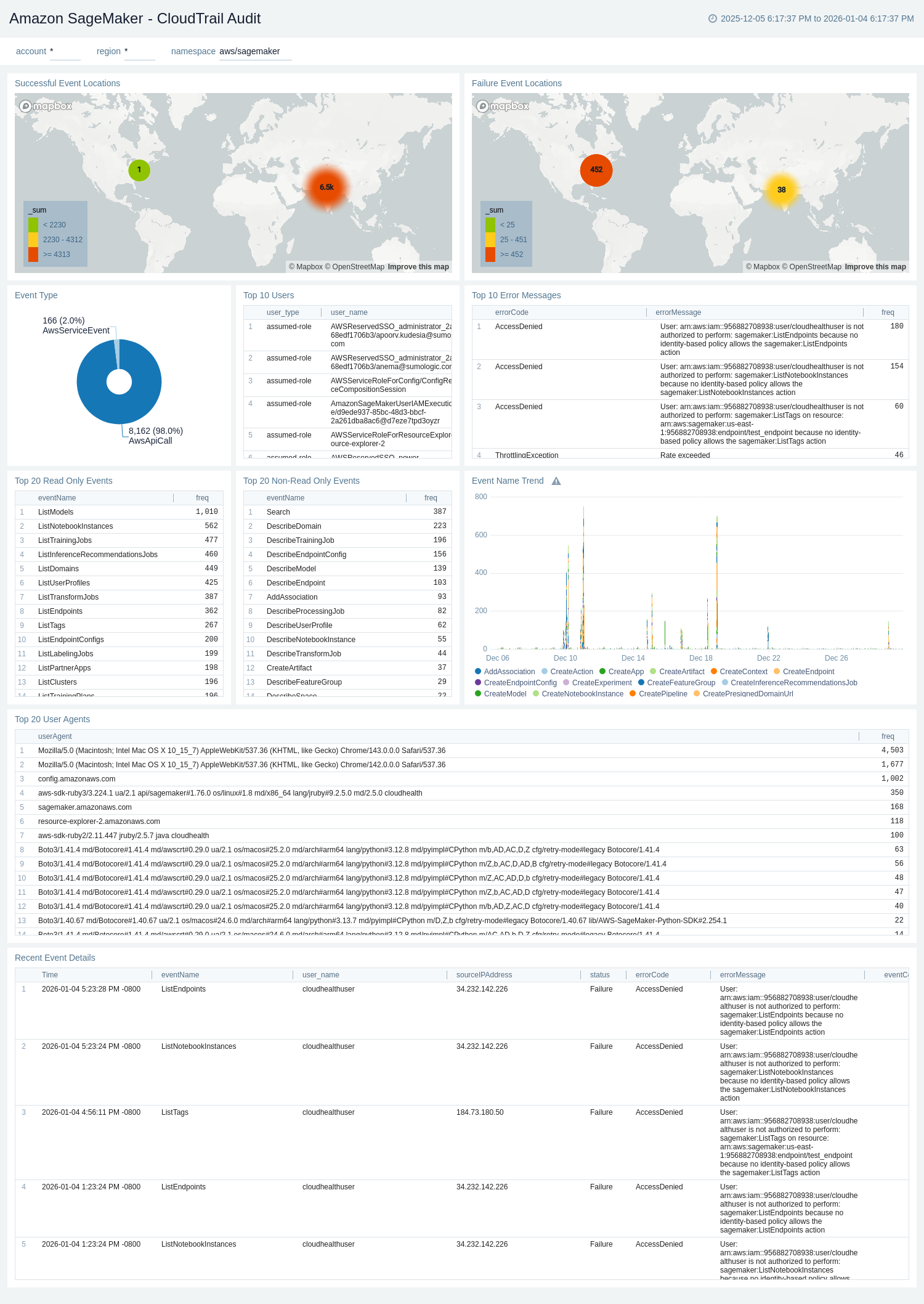
The Amazon SageMaker - CloudTrail Audit dashboard provides a record of actions taken by a user, role, or an AWS service in Amazon SageMaker. CloudTrail captures all console actions and API/CLI calls for Amazon SageMaker as events.
Use this dashboard to:
- Monitor Amazon SageMaker-related audit logs using CloudTrail Events.
- Monitor locations of successful and failed Amazon SageMaker user activity events.
- Monitor all read-only and non-read-only events.
- Monitor the most active users working on the SageMaker infrastructure and various events invoked on the SageMaker service.
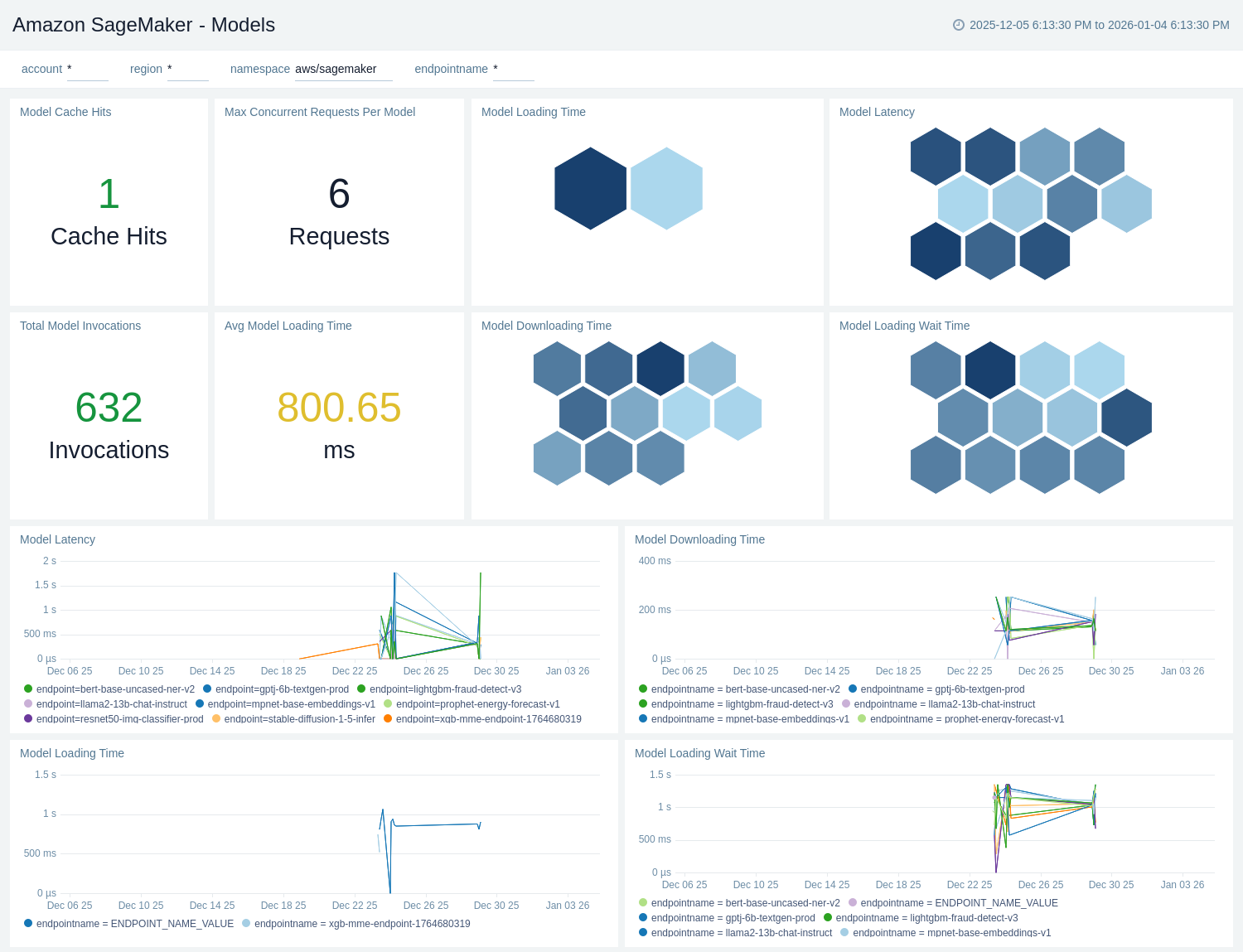
Models
The Amazon SageMaker - Models dashboard provides visibility into model inference performance and readiness, tracking total invocations, model latency, cache hits, and maximum concurrent requests per model. It highlights model loading, downloading, and wait times with per-endpoint breakdowns, filterable by account, region, and endpoint to assess capacity and warm-up behavior.
Endpoints
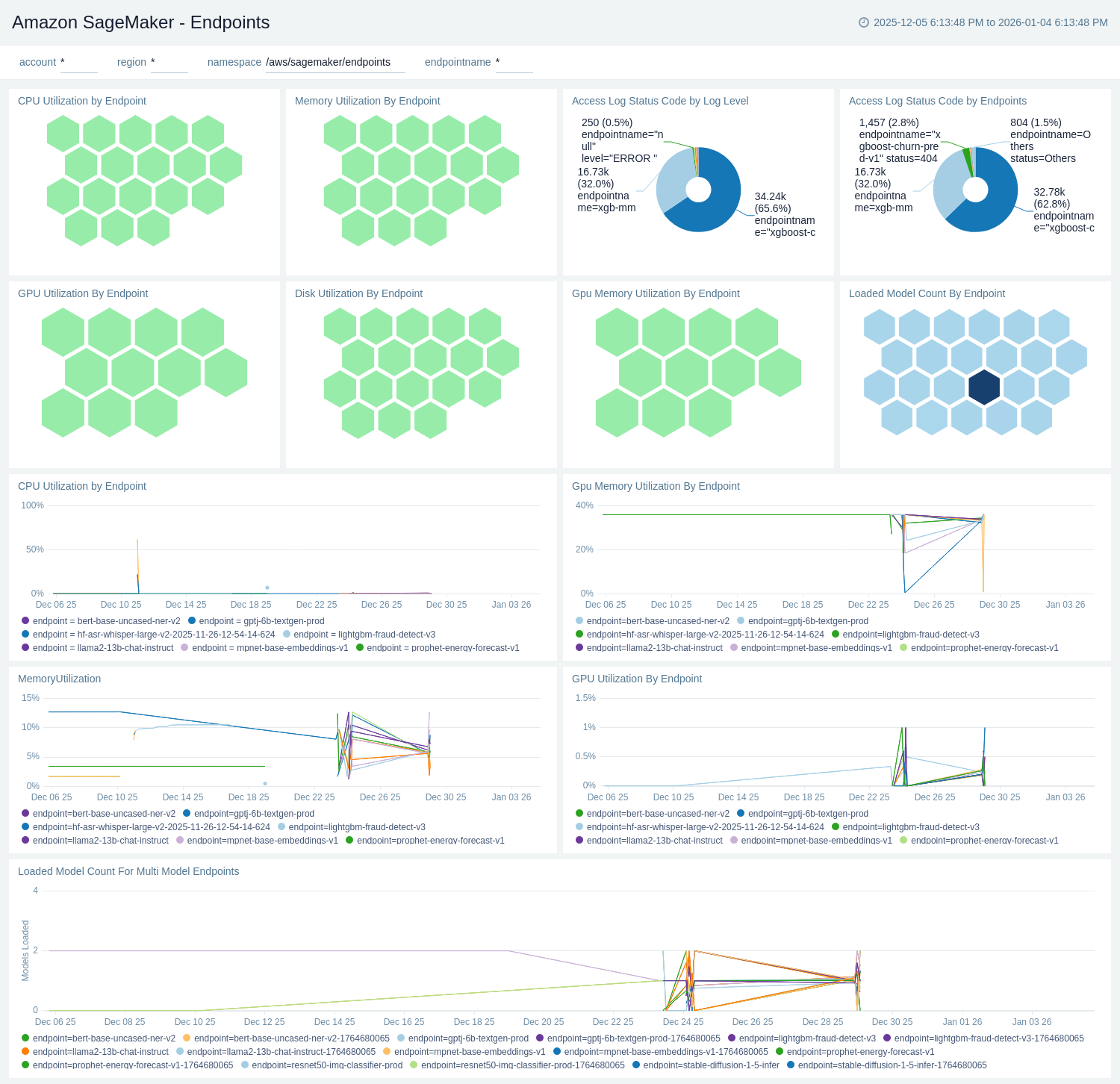
The Amazon SageMaker - Endpoints dashboard provides operational visibility into your inference endpoints, tracking CPU, GPU, GPU memory, memory, and disk utilization, along with loaded model counts (including multi-model endpoints). It also summarizes access logs by HTTP status and log level to highlight errors, with filters for account, region, and endpoint for targeted troubleshooting.
Endpoints Invocations
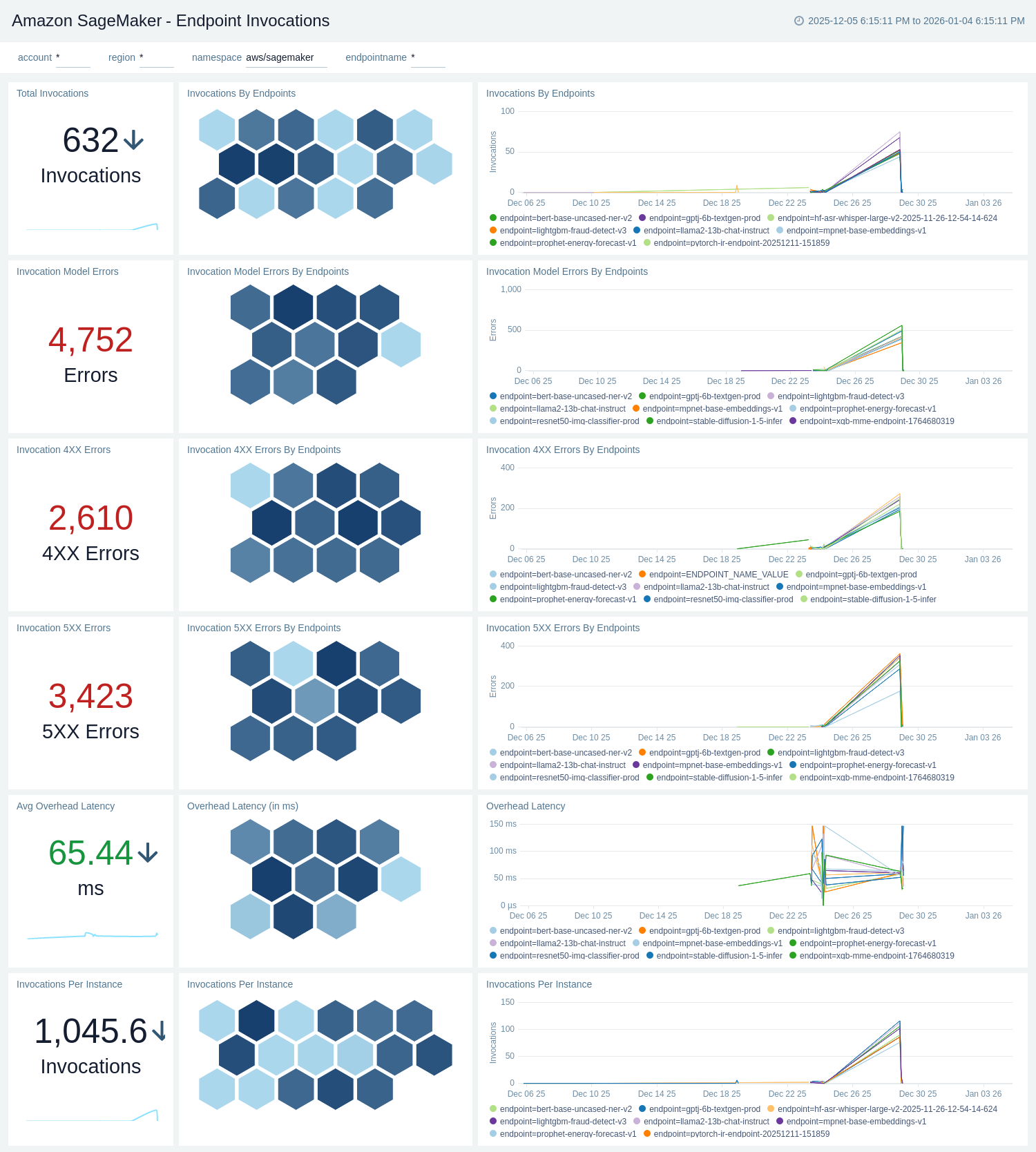
The Amazon SageMaker - Endpoints Invocations dashboard provides visibility into inference activity across your SageMaker endpoints. It tracks total invocations and invocations per instance, highlights 4XX/5XX and model errors, and measures overhead latency. Panels include per-endpoint breakdowns and time-series trends, filterable by account, region, and endpoint, to help monitor reliability and performance.
Feature Store
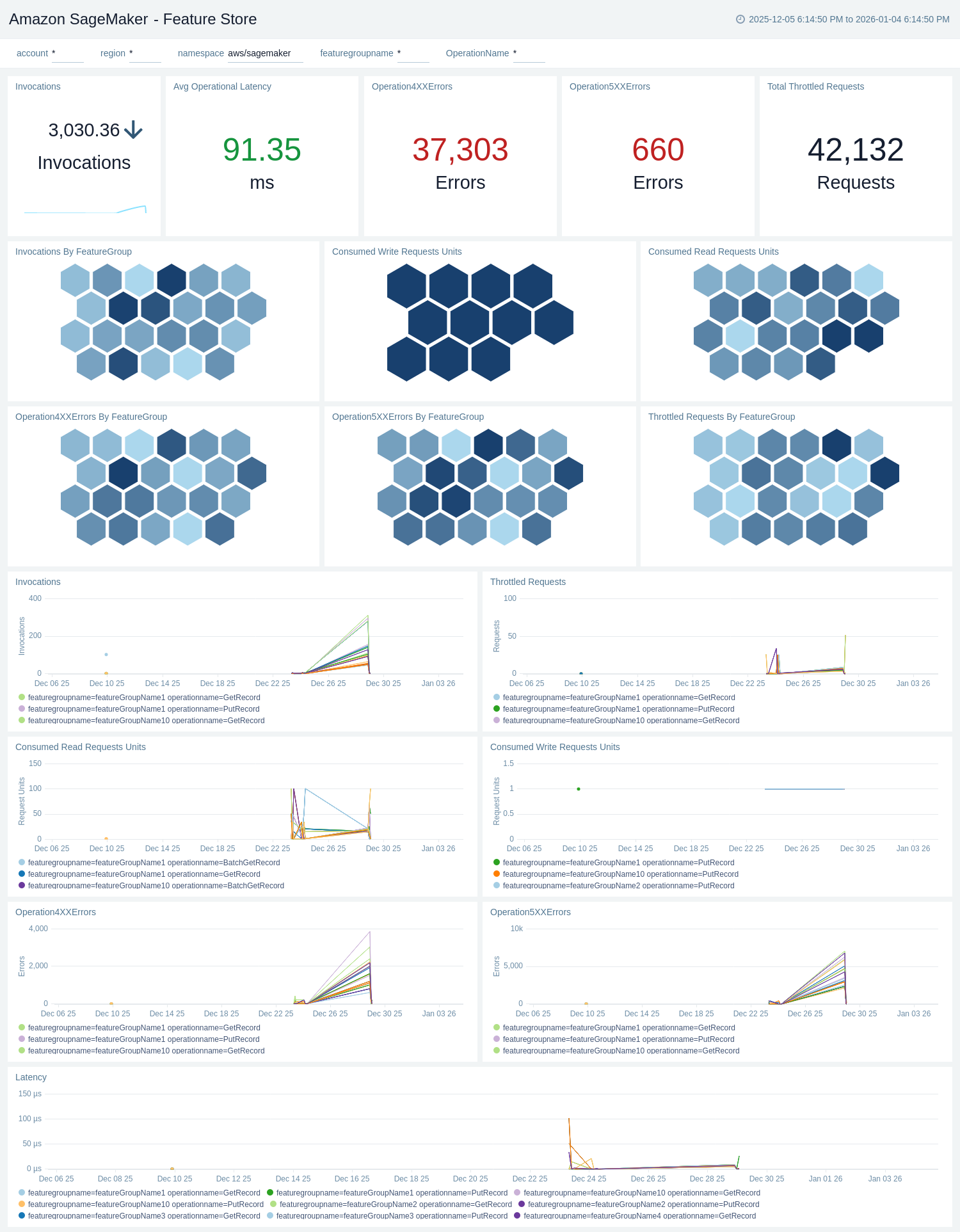
The Amazon SageMaker - Feature Store dashboard provides visibility into Feature Store usage and reliability, tracking consumed read/write request units, invocations, throttled requests, and 4XX/5XX errors across feature groups and operations. It also surfaces operational latency with time-series and honeycomb breakdowns, filterable by account, region, feature group, and operation for targeted analysis.
Pipeline
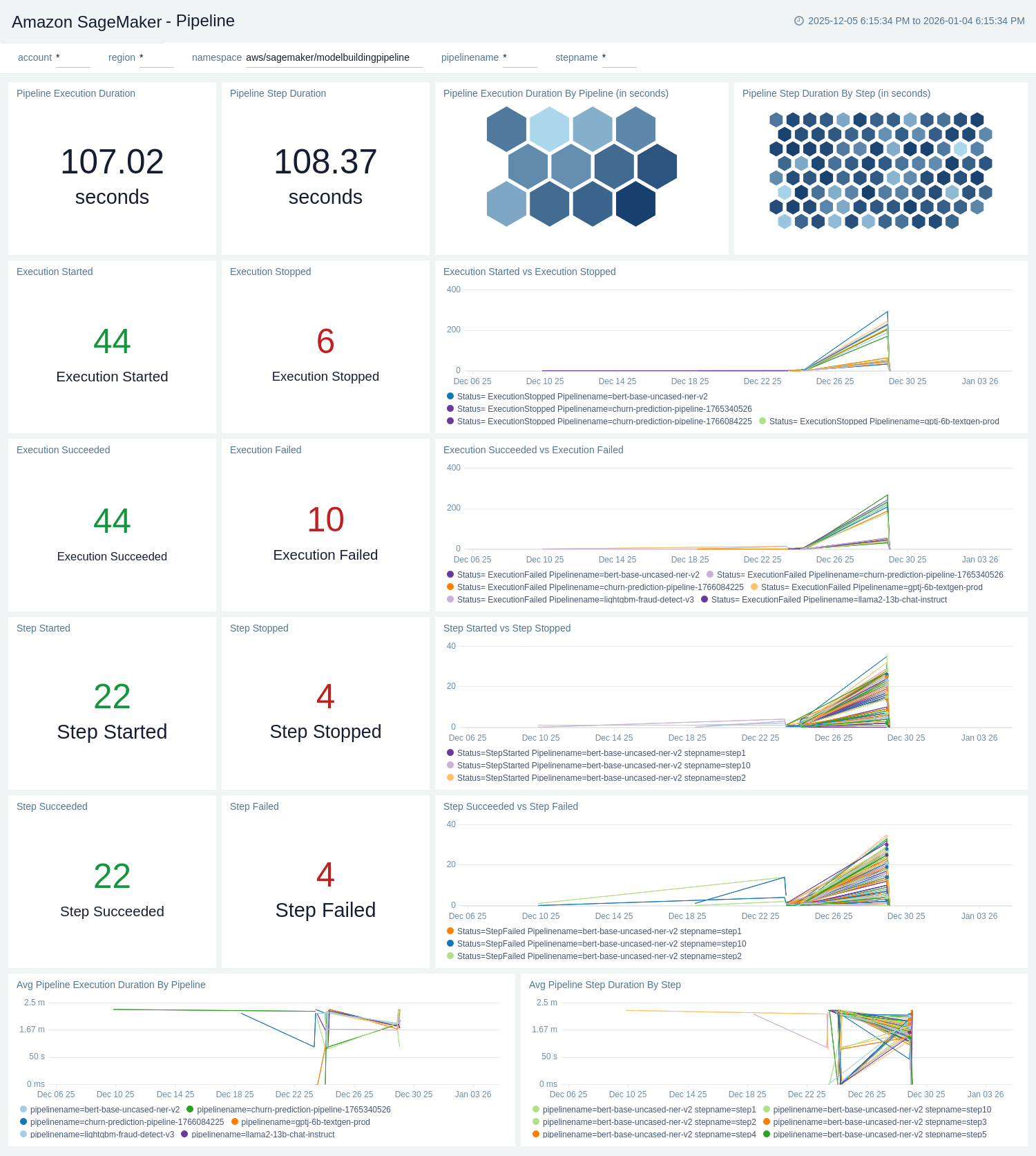
The Amazon SageMaker - Pipeline dashboard provides visibility into Model Building Pipelines execution health and performance. It tracks pipeline and step statuses (started, succeeded, failed, stopped), measures execution and step durations, and charts trends by pipeline and step, filterable by account, region, pipeline, and step.
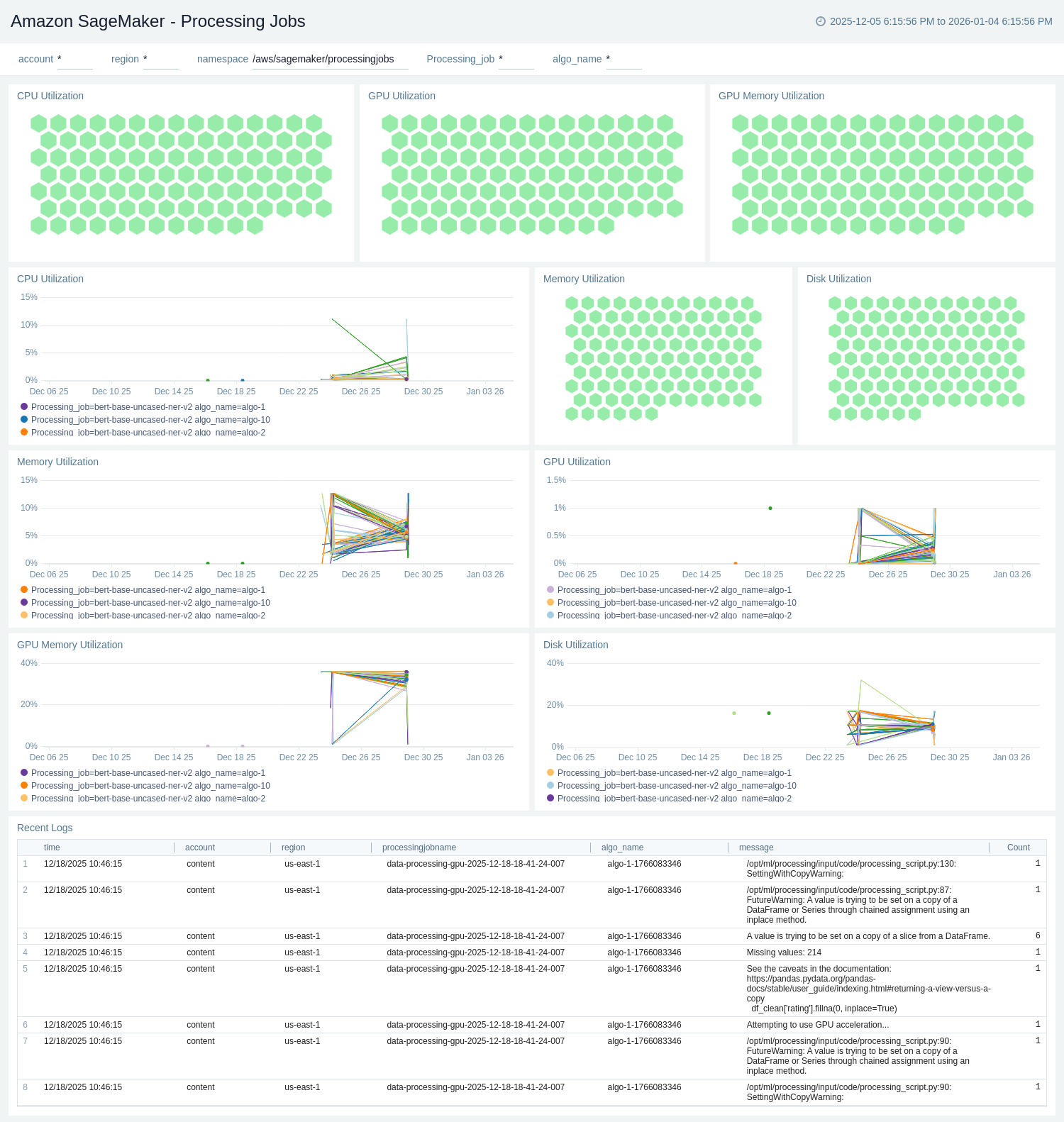
Processing Jobs
The Amazon SageMaker - Processing Jobs dashboard provides operational visibility into processing jobs, tracking CPU, GPU, GPU memory, memory, and disk utilization by job and algorithm in time-series and honeycomb views. It also surfaces recent logs for selected jobs to aid troubleshooting, with filters for account, region, processing job, and algorithm.
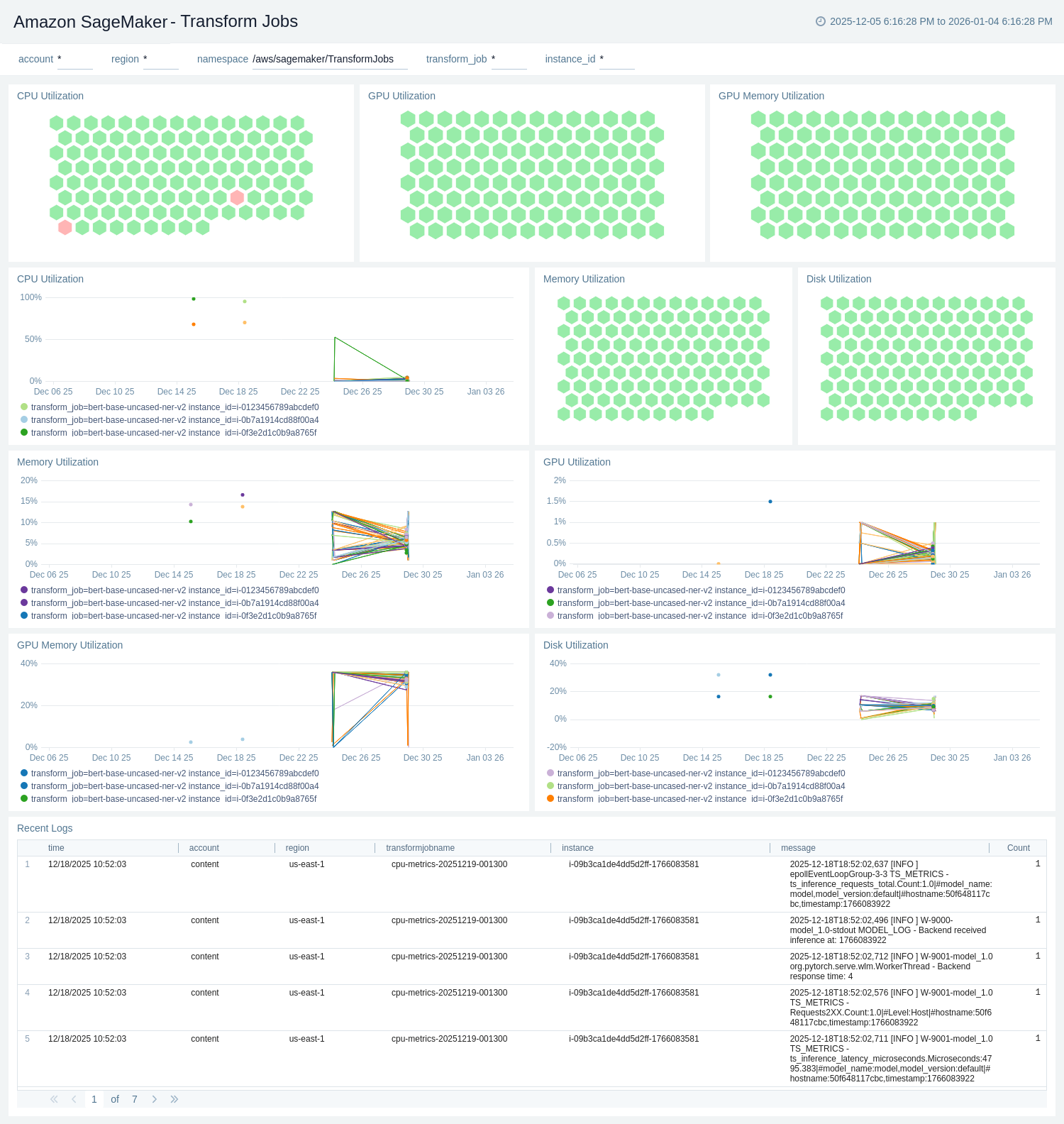
Transform Jobs
The Amazon SageMaker - Transform Jobs dashboard provides operational visibility into batch transform workloads, tracking CPU, GPU, GPU memory, memory, and disk utilization by job and instance in time-series and honeycomb views. It also surfaces recent logs for selected jobs to aid troubleshooting, with filters for account, region, transform job, and instance.
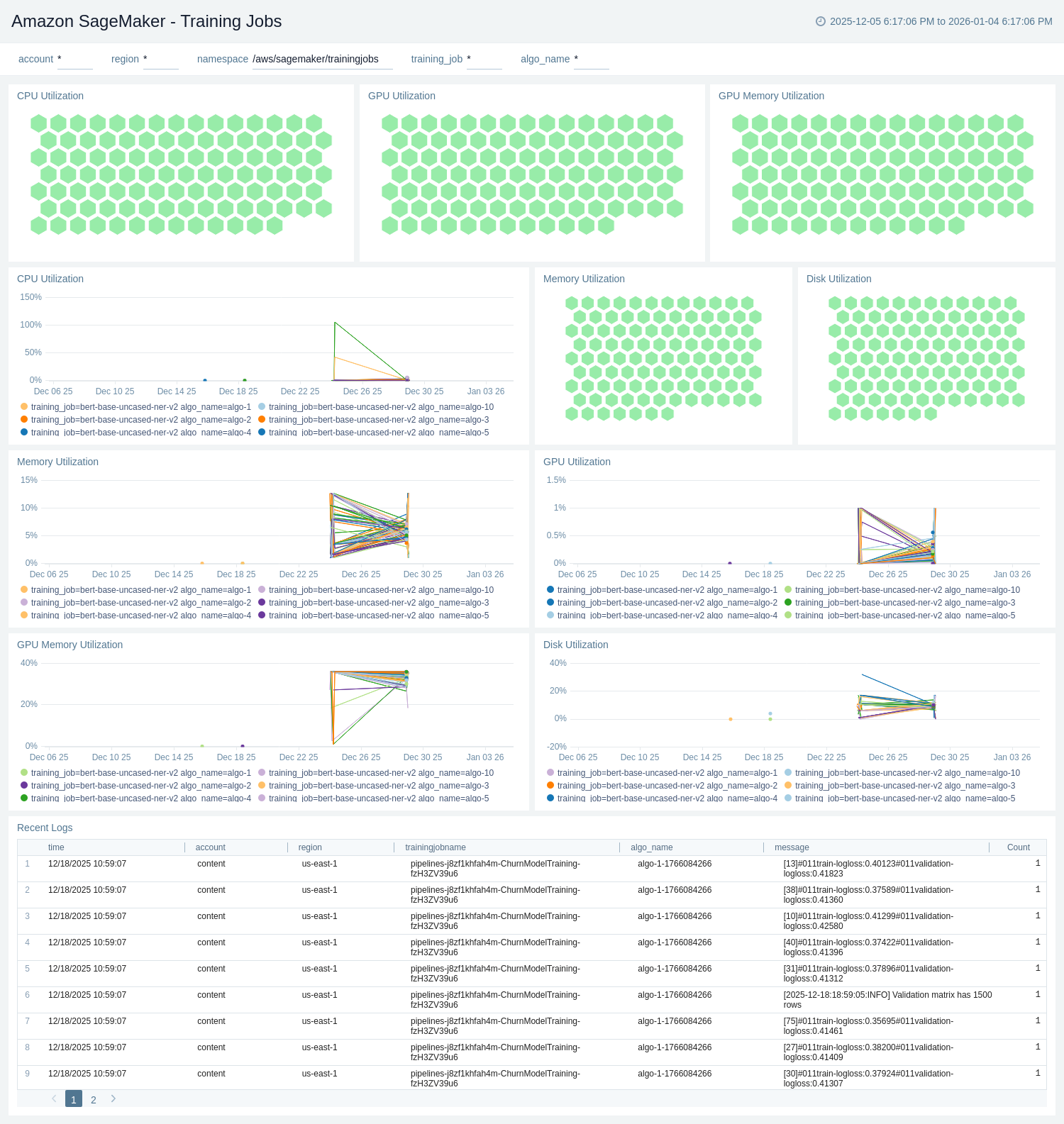
Training Jobs
The Amazon SageMaker - Training Jobs dashboard provides operational visibility into training workloads, tracking CPU, GPU, GPU memory, memory, and disk utilization by job and algorithm. It offers time-series and honeycomb breakdowns plus a recent logs table for selected jobs, filterable by account, region, training job, and algorithm.
Create monitors for Amazon SageMaker app
From your App Catalog:
- From the Sumo Logic navigation, select App Catalog.
- In the Search Apps field, search for and then select your app.
- Make sure the app is installed.
- Navigate to What's Included tab and scroll down to the Monitors section.
- Click Create next to the pre-configured monitors. In the create monitors window, adjust the trigger conditions and notifications settings based on your requirements.
- Scroll down to Monitor Details.
- Under Location click on New Folder.
note
By default, monitor will be saved in the root folder. So to make the maintenance easier, create a new folder in the location of your choice.
- Enter Folder Name. Folder Description is optional.
tip
Using app version in the folder name will be helpful to determine the versioning for future updates.
- Click Create. Once the folder is created, click on Save.
Amazon SageMaker alerts
| Name | Description | Alert Condition | Recover Condition |
|---|---|---|---|
Amazon Sagemaker - Pipeline Duration | This alert is triggered when a high pipeline duration is detected in Amazon SageMaker. | Count > 300000 | Count < = 300000 |
Amazon Sagemaker - Processing Jobs CPU Utilization | This alert is triggered when high CPU Utilization is detected for Processing Jobs in Amazon SageMaker. | Count > 80 | Count < = 80 |
Amazon Sagemaker - Processing Jobs GPU Utilization | This alert is triggered when high GPU Utilization is detected for Processing Jobs in Amazon SageMaker. | Count > 80 | Count < = 80 |
Amazon Sagemaker - Training Jobs CPU Utilization | This alert is triggered when high CPU Utilization is detected for Training Jobs in Amazon SageMaker. | Count > 80 | Count < = 80 |
Amazon Sagemaker - Training Jobs GPU Utilization | This alert is triggered when high GPU Utilization is detected for Training Jobs in Amazon SageMaker. | Count > 80 | Count < = 80 |
Amazon Sagemaker - Transform Jobs CPU Utilization | This alert is triggered when high CPU Utilization is detected for Transform Jobs in Amazon SageMaker. | Count > 80 | Count < = 80 |
Amazon Sagemaker - Transform Jobs GPU Utilization | This alert is triggered when high GPU Utilization is detected for Transform Jobs in Amazon SageMaker. | Count > 80 | Count < = 80 |
Upgrade/Downgrade the Amazon SageMaker app (Optional)
To update the app, do the following:
Next-Gen App: To install or update the app, you must be an account administrator or a user with Manage Apps, Manage Monitors, Manage Fields, Manage Metric Rules, and Manage Collectors capabilities depending upon the different content types part of the app.
- Select App Catalog.
- In the Search Apps field, search for and then select your app.
Optionally, you can identify apps that can be upgraded in the Upgrade available section. - To upgrade the app, select Upgrade from the Manage dropdown.
- If the upgrade does not have any configuration or property changes, you will be redirected to the Preview & Done section.
- If the upgrade has any configuration or property changes, you will be redirected to the Setup Data page.
- In the Configure section of your respective app, complete the following fields.
- Field Name. If you already have collectors and sources set up, select the configured metadata field name (eg _sourcecategory) or specify other custom metadata (eg: _collector) along with its metadata Field Value.
- Click Next. You will be redirected to the Preview & Done section.
Post-update
Your upgraded app will be installed in the Installed Apps folder and dashboard panels will start to fill automatically.
See our Release Notes changelog for new updates in the app.
To revert the app to a previous version, do the following:
- Select App Catalog.
- In the Search Apps field, search for and then select your app.
- To version down the app, select Revert to < previous version of your app > from the Manage dropdown.
Uninstalling the Amazon SageMaker app (Optional)
To uninstall the app, do the following:
- Select App Catalog.
- In the 🔎 Search Apps field, run a search for your desired app, then select it.
- Click Uninstall.