 Meet the new
 Amazon SNS

Amazon Simple Notification Service (SNS) is a pub/sub messaging and mobile notifications service for coordinating the delivery of messages to subscribing endpoints and clients.
The Sumo Logic app for Amazon SNS collects CloudTrail logs and CloudWatch metrics provides a unified logs and metrics app that provides insights into the operations and utilization of your SNS service. The preconfigured dashboards help you monitor the key metrics by application, platform, region, and topic name, view the SNS events for activities, and help you plan the capacity of your SNS service.
Log and metric types
The Sumo Logic app for Amazon SNS uses the following logs and metrics:
Sample log messages
Sample CloudTrail Log Message
{
  eventVersion:"1.08",
  userIdentity:
  {...},
  eventTime:"2022-07-14T23:06:43Z",
  eventSource:"sns.amazonaws.com",
  eventName:"ListTagsForResource",
  awsRegion:"us-east-1",
  sourceIPAddress:"config.amazonaws.com",
  userAgent:"config.amazonaws.com",
  requestParameters:
  {
  resourceArn:"arn:aws:sns:us-east-1:956882708938:testnull-SumoCWEmailSNSTopic-1NV3GQ8XZ4DFY"
  },
  responseElements:null,
  requestID:"d8eee5b8-a894-5db4-994c-bef20b57fc0b",
  eventID:"2156cf7f-f18d-47f4-b7ba-7b8a6907390a",
  readOnly:true,
  eventType:"AwsApiCall",
  managementEvent:true,
  recipientAccountId:"956882708938",
  eventCategory:"Management"
}
Sample queries
account={{account}} region={{region}} namespace={{namespace}} "\"eventsource\":\"sns.amazonaws.com\""
| json "userIdentity", "eventSource", "eventName", "awsRegion", "sourceIPAddress", "userAgent", "eventType", "recipientAccountId", "requestParameters", "responseElements", "requestID", "errorCode", "errorMessage" as userIdentity, event_source, event_name, region, src_ip, user_agent, event_type, recipient_account_id, requestParameters, responseElements, request_id, error_code, error_message nodrop
| where event_source = "sns.amazonaws.com"
| json field=userIdentity "accountId", "type", "arn", "userName"  as accountid, type, arn, username nodrop
| parse field=arn ":assumed-role/*" as user nodrop
| parse field=arn "arn:aws:iam::*:*" as accountid, user nodrop
| json field=requestParameters "topicArn", "name", "resourceArn", "subscriptionArn" as req_topic_arn, req_topic_name, resource_arn, subscription_arn  nodrop | json field=responseElements "topicArn" as res_topic_arn nodrop
| if (isBlank(req_topic_arn), res_topic_arn, req_topic_arn) as topic_arn
| if (isBlank(topic_arn), resource_arn, topic_arn) as topic_arn
| parse field=topic_arn "arn:aws:sns:*:*:*" as region_temp, accountid_temp, topic_arn_name_temp nodrop
| parse field=subscription_arn "arn:aws:sns:*:*:*:*" as region_temp, accountid_temp, topic_arn_name_temp, arn_value_temp nodrop
| if (isBlank(req_topic_name), topic_arn_name_temp, req_topic_name) as topicname
| if (isBlank(accountid), recipient_account_id, accountid) as accountid
| where (tolowercase(topicname) matches tolowercase("{{topicname}}")) or isBlank(topicname)
| if (isEmpty(error_code), "Success", "Failure") as event_status
| if (isEmpty(username), user, username) as user
| count by event_status
| sort by _count, event_status asc
account={{account}} region={{region}} namespace={{namespace}} TopicName={{topicname}} metric=NumberOfMessagesPublished Statistic=Sum | sum
Collecting logs and metrics for Amazon SNS
Configure Hosted Collector
When you create an AWS Source, you'll need to identify the Hosted Collector you want to use or create a new Hosted Collector. Once you create an AWS Source, associate it with a Hosted Collector. For instructions, see Configure a Hosted Collector and Source.
Collect Amazon SNS CloudWatch metrics
Sumo Logic supports collecting metrics using one of the following source types:
-
Configure an AWS Kinesis Firehose for Metrics Source (recommended)
-
Configure an Amazon CloudWatch Source for Metrics
noteNamespace for Amazon SNS service is AWS/SNS.
Follow the steps below to add custom metadata fields with your metrics:
- Click +Add Field under Metadata. Each field consists of a name (key) and a corresponding value.
- Create a field named
accountand assign it a value that represents a friendly name or alias to your AWS account from which metrics are collected. This value will appear in the AWS Observability view, and metrics can be queried using theaccountfield.
- After adding fields, check their status indicators:
 A green check mark indicates the field exists and is enabled in the Fields table schema.
 An orange exclamation icon indicates the field does not exist or is disabled in the schema.
- You will have the option to automatically add or enable the field.
- If a field is sent but not present or enabled in the schema, it is ignored and marked as Dropped.
Collect Amazon SNS CloudTrail logs
Prerequisites
- Grant Sumo Logic access to an Amazon S3 bucket.
- Create a trail for your AWS account.
- Confirm that logs are being delivered to the Amazon S3 bucket.
Namespace for Amazon SNS service is AWS/SNS.
Follow the steps below to collect logs for Amazon SNS:
- Configure a CloudTrail Logs Source.
- Add custom metadata fields with your logs:
- Click +Add Field under Metadata. Each field consists of a name (key) and a corresponding value.
- Create a field named
accountand assign it a value that represents a friendly name or alias to your AWS account from which logs are collected. This value will appear in the AWS Observability view, and logs can be queried using theaccountfield. - After adding fields, check their status indicators:
- A green check mark indicates the field exists and is enabled in the Fields table schema.
- An orange exclamation icon indicates the field does not exist or is disabled in the schema.
- You will have the option to automatically add or enable the field.
- If a field is sent but not present or enabled in the schema, it is ignored and marked as Dropped.
Centralized AWS CloudTrail log collection
In case, you have a centralized collection of CloudTrail logs and are ingesting them from all accounts into a single Sumo Logic CloudTrail log source, create the following Field Extraction Rule to map a proper AWS account(s) friendly name/alias. Create it if not already present or update it as required.
- Rule Name: AWS Accounts
- Applied at: Ingest Time
- Scope (Specific Data):
_sourceCategory=aws/observability/cloudtrail/logs
Parse Expression
Enter a parse expression to create an “account” field that maps to the alias you set for each sub account. For example, if you used the “dev” alias for an AWS account with ID "528560886094" and the “prod” alias for an AWS account with ID "567680881046", your parse expression would look like:
| json "recipientAccountId"
// Manually map your aws account id with the AWS account alias you setup earlier for individual child account
| "" as account
| if (recipientAccountId = "528560886094",  "dev", account) as account
| if (recipientAccountId = "567680881046",  "prod", account) as account
| fields account
Installing the Amazon SNS app
Now that you have set up collection for Amazon SNS, install the Sumo Logic app to use the pre-configured searches and dashboards that provide visibility into your environment for real-time analysis of overall usage.
To install the app, do the following:
Next-Gen App: To install or update the app, you must be an account administrator or a user with Manage Apps, Manage Monitors, Manage Fields, Manage Metric Rules, and Manage Collectors capabilities depending upon the different content types part of the app.
- Select App Catalog.
- In the 🔎 Search Apps field, run a search for your desired app, then select it.
- Click Install App.
note
Sometimes this button says Add Integration.
- Click Next in the Setup Data section.
- In the Configure section of your respective app, complete the following fields.
- Field Name. If you already have collectors and sources set up, select the configured metadata field name (eg _sourcecategory) or specify other custom metadata (eg: _collector) along with its metadata Field Value.
- Click Next. You will be redirected to the Preview & Done section.
Post-installation
Once your app is installed, it will appear in your Installed Apps folder, and dashboard panels will start to fill automatically.
Each panel slowly fills with data matching the time range query received since the panel was created. Results will not immediately be available but will be updated with full graphs and charts over time.
As part of the app installation process, the following content will be created by default along with dashboards and monitor template:
Fields
accountName / alias to the AWS account.accountidAWS account id.regionThe region to which the resource name belongs to.namespaceNamespace for Amazon SNS service is aws/sns.topicnameAmazon SNS a Topic Name.
Field Extraction Rule(s)
The FER AwsObservabilitySNSCloudTrailLogsFER to extract fields region, namespace, accountid, and topicname will be created as a part of app installation.
As a best practice, do not delete or modify any fields, Field Extraction Rules (FERs), or Metric Rules created during the app installation. If you need to make updates, contact the Sumo Logic Support team.
Viewing Amazon SNS dashboards
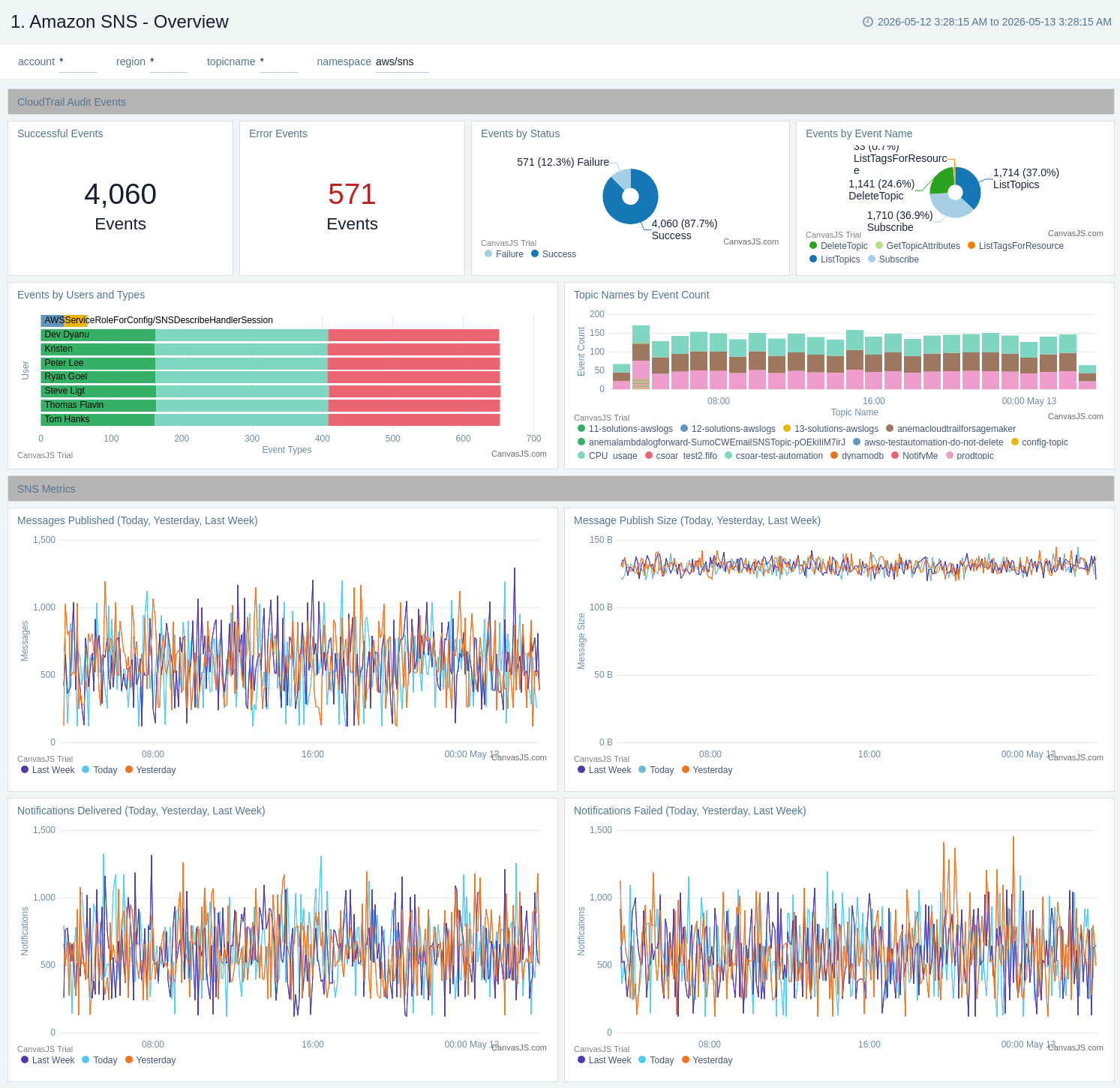
Overview
The Amazon SNS - Overview dashboard provides insights across CloudTrail events and metrics.
Use this dashboard to:
- Monitor events by status, type, topic names and users.
- Monitor number of messages and messages by publish size.
- Monitor delivered and failed notifications.
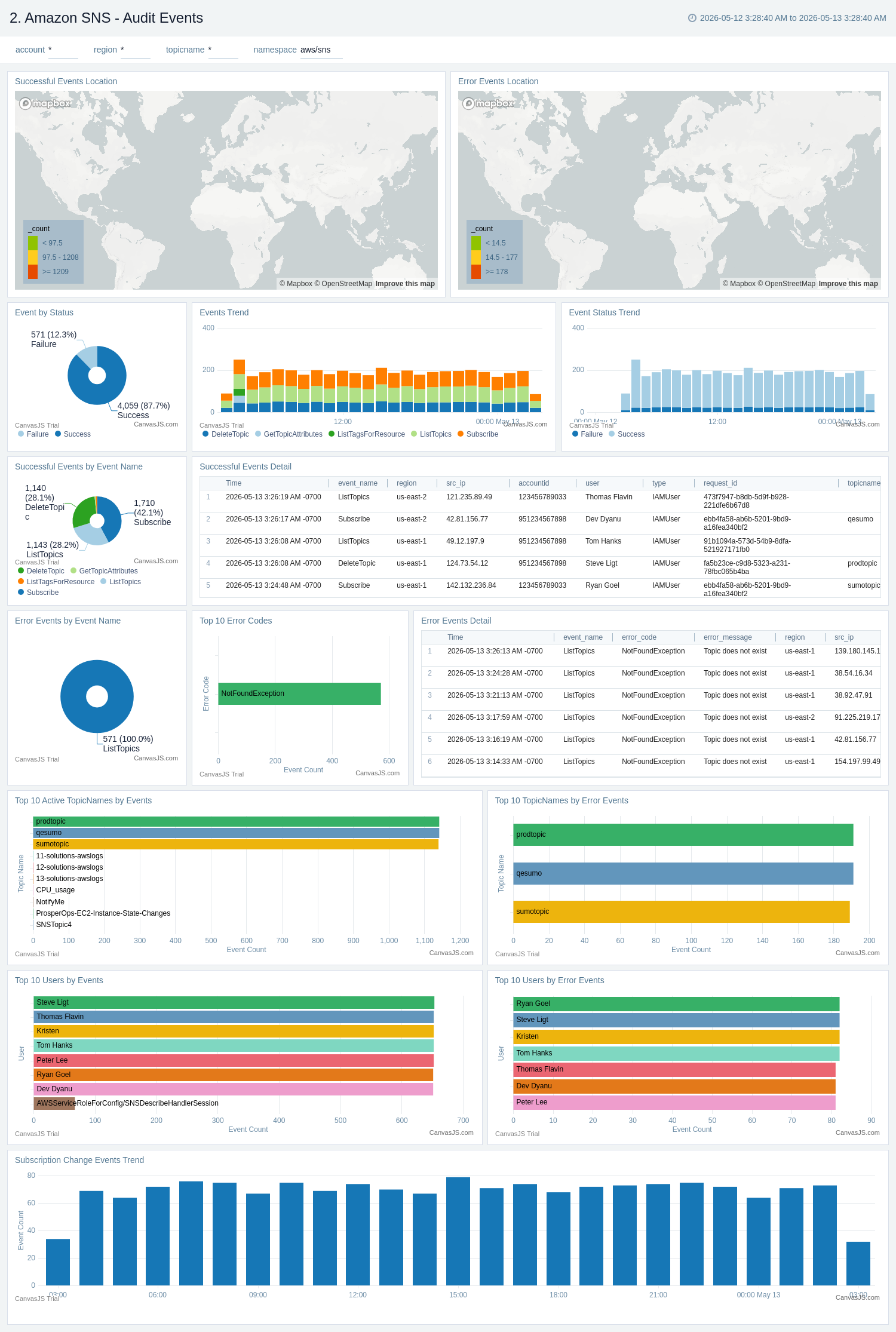
Amazon SNS - Audit Events
The Amazon SNS - Audit Events dashboard provides insights across CloudTrail events across location, status, and topic names.
Use this dashboard to:
- Monitor successful and failed events by location.
- Get trends of events by status, type.
- Monitor successful and error events with error code in detail.
- Get details of active topic names and users of both successful and error events.
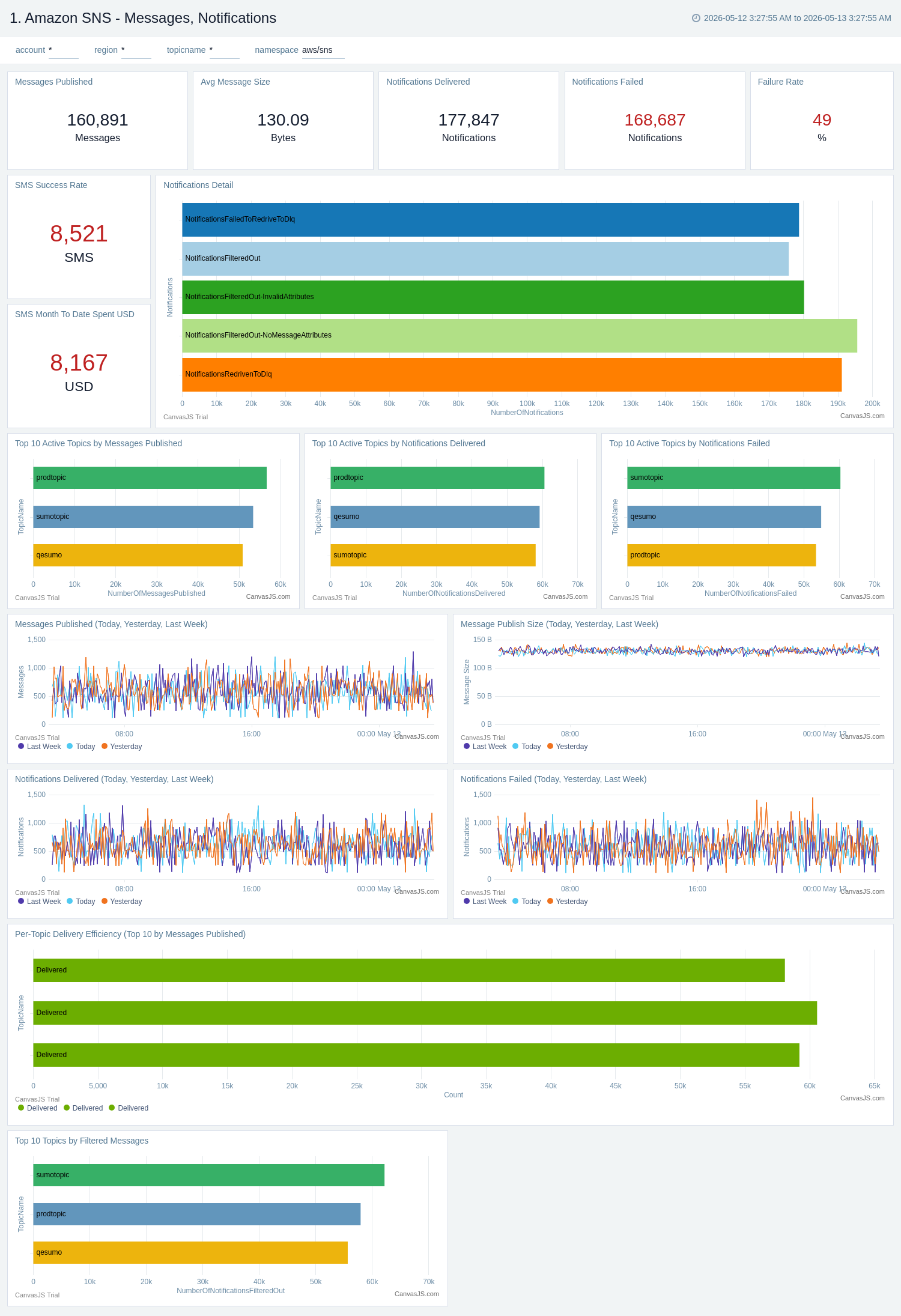
Amazon SNS - Messages, Notifications
The Amazon SNS - Messages, Notifications dashboard provides insights across metrics by messages, notifications, SMS rates.
Use this dashboard to:
- Monitor details of messages published and message size .
- Monitor details of notifications delivered, failed , filtered out, redriven to dlq and failed to redriven to dlq.
- Get details of SMS success rate and spends.
- Get the details of top topic names by messages published, notifications delivered and notifications failed.
- Compare messages published and message size by today, yesterday, last week.
- Compare notifications delivered and failed by today, yesterday, last week.
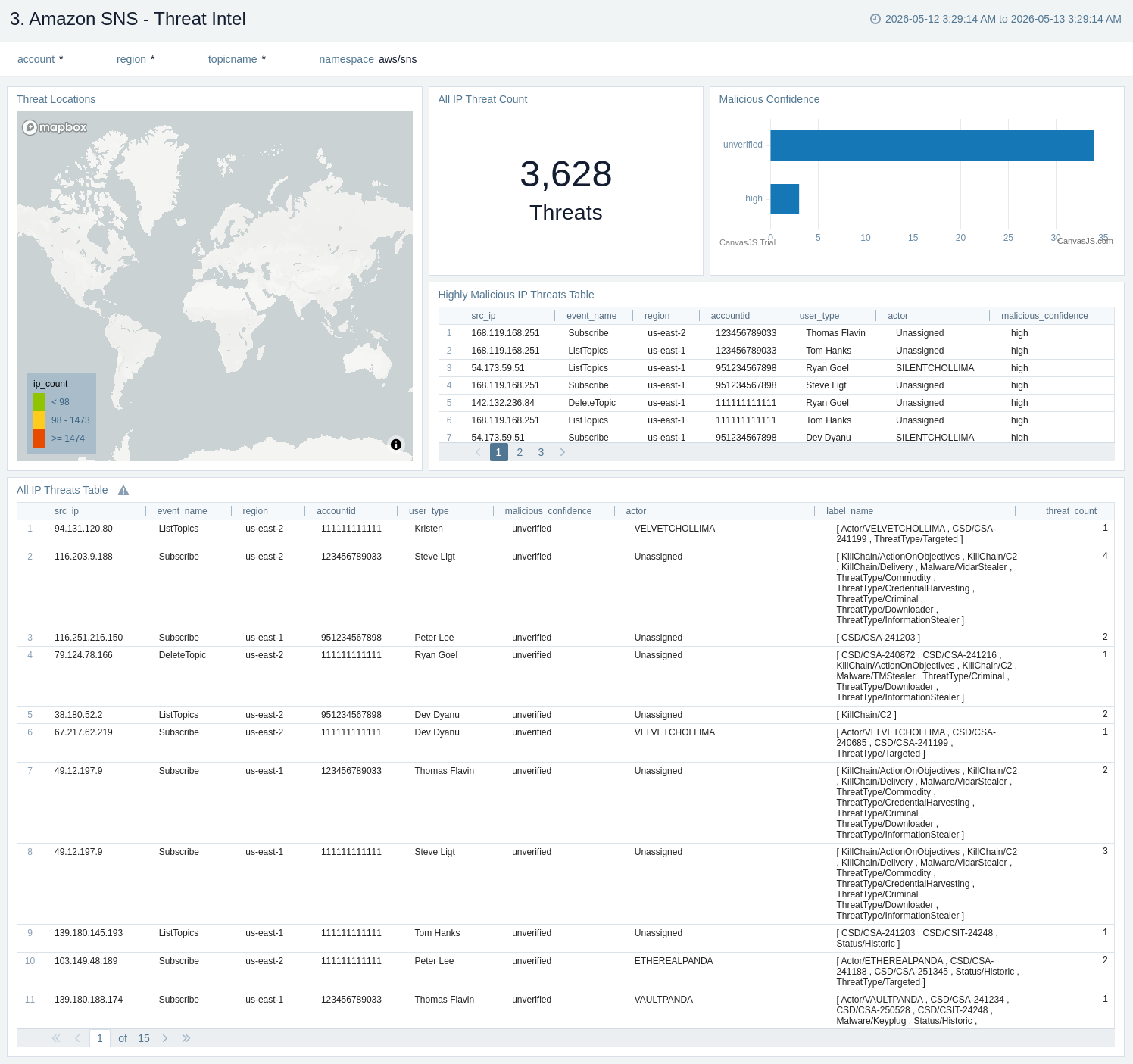
Amazon SNS - Threat Intel
The Amazon SNS - Threat Intel dashboard provides insights across threat locations, count, malicious confidence and details.
Use this dashboard to:
- Monitor details of threat locations and count.
- Get details of threats by malicious confidence and malicious IPs.
- Get details of all threats by IPs.
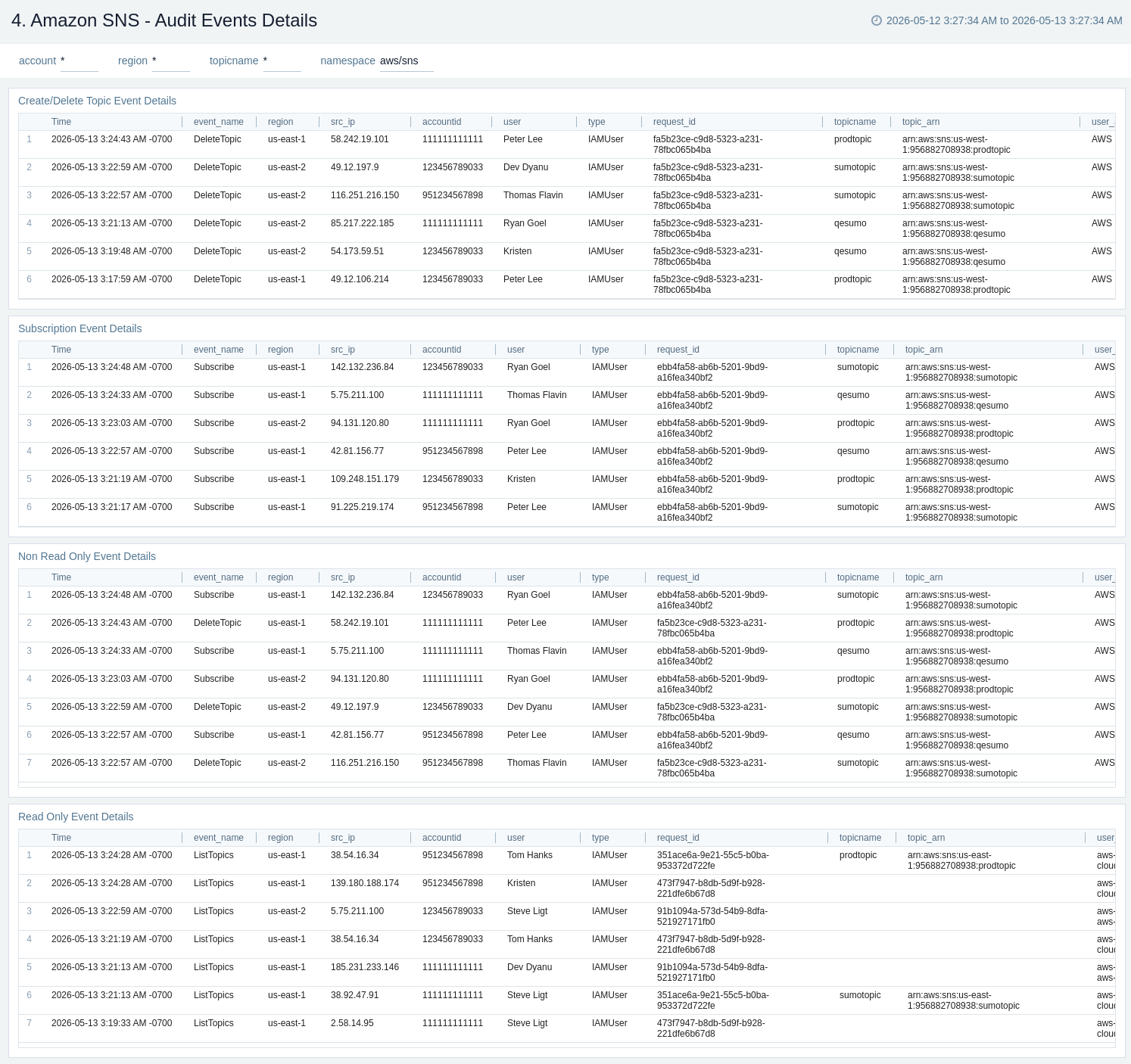
Amazon SNS - Audit Events Details
The Amazon SNS - Audit Events Details dashboard provides insights across topics, subscriptions, read only and non read only events.
Use this dashboard to:
- Monitor details of topics created and deleted.
- Get all details of all subscription events.
- Get details of all read only and non read only events.
Create monitors for AWS SNS app
From your App Catalog:
- From the Sumo Logic navigation, select App Catalog.
- In the Search Apps field, search for and then select your app.
- Make sure the app is installed.
- Navigate to What's Included tab and scroll down to the Monitors section.
- Click Create next to the pre-configured monitors. In the create monitors window, adjust the trigger conditions and notifications settings based on your requirements.
- Scroll down to Monitor Details.
- Under Location click on New Folder.
note
By default, monitor will be saved in the root folder. So to make the maintenance easier, create a new folder in the location of your choice.
- Enter Folder Name. Folder Description is optional.
tip
Using app version in the folder name will be helpful to determine the versioning for future updates.
- Click Create. Once the folder is created, click on Save.
AWS SNS alerts
These alerts are available for the AWS SNS app.
| Alert Name | Alert Description and Conditions | Alert Condition | Recover Condition |
|---|---|---|---|
AWS SNS - Access from Highly Malicious Sources | This alert fires when an Application AWS - SNS is accessed from highly malicious IP addresses within last 5 minutes. | Count > 0 | Count <= 0 |
AWS SNS - Failed Events | This alert fires when an SNS app has high number of failed events (>5) within last 5 minutes. | Count > 5 | Count <= 5 |
AWS SNS - Failed Notifications | This alert fires where there are many failed notifications (>=5) within an interval of 5 minutes. | Count > 2 | Count <= 2 |
AWS SNS - Notification to DLQ | This alert fires when an SNS topic messages are moved to a dead-letter queue. | Count > 0 | Count <= 0 |
AWS SNS - Notification to DLQ Failure | This alert fires when an SNS topic messages that couldn't be moved to a dead-letter queue. | Count > 0 | Count <= 0 |
Upgrade/Downgrade the Amazon SNS app (Optional)
To update the app, do the following:
Next-Gen App: To install or update the app, you must be an account administrator or a user with Manage Apps, Manage Monitors, Manage Fields, Manage Metric Rules, and Manage Collectors capabilities depending upon the different content types part of the app.
- Select App Catalog.
- In the Search Apps field, search for and then select your app.
Optionally, you can identify apps that can be upgraded in the Upgrade available section. - To upgrade the app, select Upgrade from the Manage dropdown.
- If the upgrade does not have any configuration or property changes, you will be redirected to the Preview & Done section.
- If the upgrade has any configuration or property changes, you will be redirected to the Setup Data page.
- In the Configure section of your respective app, complete the following fields.
- Field Name. If you already have collectors and sources set up, select the configured metadata field name (eg _sourcecategory) or specify other custom metadata (eg: _collector) along with its metadata Field Value.
- Click Next. You will be redirected to the Preview & Done section.
Post-update
Your upgraded app will be installed in the Installed Apps folder and dashboard panels will start to fill automatically.
See our Release Notes changelog for new updates in the app.
To revert the app to a previous version, do the following:
- Select App Catalog.
- In the Search Apps field, search for and then select your app.
- To version down the app, select Revert to < previous version of your app > from the Manage dropdown.
Uninstalling the Amazon SNS app (Optional)
To uninstall the app, do the following:
- Select App Catalog.
- In the 🔎 Search Apps field, run a search for your desired app, then select it.
- Click Uninstall.