 Meet the new
 AWS WAF

AWS Web Application Firewall (WAF) is a web application firewall that helps protect your web applications from common web exploits that could affect application availability, compromise security, or consume excessive resources.
The Sumo Logic app for AWS WAF analyzes traffic flowing through AWS WAF and automatically detects threats using Sumo Logic Threat Intel. The app provides pre-configured dashboards and searches that allow you to monitor threat and traffic details by client IP, allowed and blocked traffic, malicious IPs, threat actors, location, rules configured, trends and more.
Sample log messages
{
  "webaclId": "360cb717-5a9f-4f2f-ac64-09ab912af591",
  "terminatingRuleId": "1809ecc9-81fd-4dff-99e7-a27421213155",
  "terminatingRuleType": "REGULAR",
  "action": "BLOCK",
  "httpSourceName": "CF",
  "httpSourceId": "i-123",
  "ruleGroupList": [],
  "rateBasedRuleList": [],
  "matchingNonTerminatingRules": [],
  "httpRequest": {
    "clientIp": "125.5.11.56",
    "country": "US",
    "headers": [
      {
        "name": "Host",
        "value": "127.0.0.1:1989"
      },
      {
        "name": "User-Agent",
        "value": "curl/7.53.1"
      },
      {
        "name": "Accept",
        "value": "*/*"
      }
    ],
    "uri": "/Lists/b/ref=sva_videos_2?ie=UTF   ",
    "args": "name=10; DROP TABLE members",
    "httpVersion": "HTTP/1.1",
    "httpMethod": "GET",
    "requestId": "distribution_id"
  },
  "formatVersion": 1,
  "timestamp": 1535493873231
}
Sample queries
=AWS/WAF {{client_ip}}
| parse "\"httpMethod\":\"*\"," as httpMethod,"\"httpVersion\":\"*\"," as httpVersion,"\"uri\":\"*\"," as uri, "{\"clientIp\":\"*\",\"country\":\"*\"" as clientIp,country, "\"action\":\"*\"" as action, "\"matchingNonTerminatingRules\":[*]" as matchingNonTerminatingRules, "\"rateBasedRuleList\":[*]" as rateBasedRuleList, "\"ruleGroupList\":[*]" as ruleGroupList, "\"httpSourceId\":\"*\"" as httpSourceId, "\"httpSourceName\":\"*\"" as httpSourceName, "\"terminatingRuleType\":\"*\"" as terminatingRuleType, "\"terminatingRuleId\":\"*\"" as terminatingRuleId, "\"webaclId\":\"*\"" as webaclId nodrop
| lookup type, actor, raw, threatlevel as malicious_confidence from sumo://threat/cs on threat=clientip
Collecting logs for the AWS WAF app
Follow the "Before you begin" section in the "Collect Logs" help page and then use the in-product instructions in Sumo Logic to set up the app.
Prerequisites
In this step you set up AWS WAF to send log data to an S3 bucket using an Kinesis Data Firehose. In the next step, you'll configure Sumo Logic to collect logs from the bucket.
- Enable WAF logging to a Kinesis Stream, as described in AWS help.
- Configure an Amazon S3 bucket as the destination of the Kinesis Stream, as described in Amazon Kinesis Data Firehose Data Delivery in AWS help.
- Confirm that logs are being delivered to the S3 bucket.
- Grant Sumo Logic Access to the Amazon S3 Bucket.
Configure a Sumo Logic collector and source to receive AWS WAF logs
- Configure a Hosted Collector.
- To your Hosted Collector, add an Amazon S3 Source.
- Name. Enter a name to display for the new Source.
- Description. Enter an optional description.
- S3 Region. Select the Amazon Region for your S3 bucket.
- Bucket Name. Enter the exact name of your S3 bucket.
- Path Expression. Enter the string that matches the S3 objects you'd like to collect. You can use a wildcard (*) in this string. (DO NOT use a leading forward slash. See Amazon Path Expressions.) The S3 bucket name is not part of the path. Don’t include the bucket name when you are setting the Path Expression.
- Source Category. Enter a source category. For example, AWS/WAF.
- Access Method. Select the appropriate AWS access control mechanism.
- Scan Interval. Use the default of Automatic, or select a scan interval from the pulldown.
- Enable Timestamp Parsing. Select the Extract timestamp information from log file entries check box.
- Time Zone. Select Ignore time zone from the log file and instead use, and select UTC from the dropdown.
- Timestamp Format. Select Automatically detect the format.
- Enable Multiline Processing. Select the Detect messages spanning multiple lines check box, and select Infer Boundaries.
- Click Save.
Installing the AWS WAF app
Now that you have set up collection for AWS WAF, install the Sumo Logic app for AWS AWS to use the pre-configured searches and dashboards.
To install the app, do the following:
Next-Gen App: To install or update the app, you must be an account administrator or a user with Manage Apps, Manage Monitors, Manage Fields, Manage Metric Rules, and Manage Collectors capabilities depending upon the different content types part of the app.
- Select App Catalog.
- In the 🔎 Search Apps field, run a search for your desired app, then select it.
- Click Install App.
note
Sometimes this button says Add Integration.
- Click Next in the Setup Data section.
- In the Configure section of your respective app, complete the following fields.
- Field Name. If you already have collectors and sources set up, select the configured metadata field name (eg _sourcecategory) or specify other custom metadata (eg: _collector) along with its metadata Field Value.
- Click Next. You will be redirected to the Preview & Done section.
Post-installation
Once your app is installed, it will appear in your Installed Apps folder, and dashboard panels will start to fill automatically.
Each panel slowly fills with data matching the time range query received since the panel was created. Results will not immediately be available but will be updated with full graphs and charts over time.
Viewing AWS WAF dashboards
All dashboards have a set of filters that you can apply to the entire dashboard. Use these filters to drill down and examine the data to a granular level.
- You can change the time range for a dashboard or panel by selecting a predefined interval from a drop-down list, choosing a recently used time range, or specifying custom dates and times. Learn more.
- You can use template variables to drill down and examine the data on a granular level. For more information, see Filtering Dashboards with Template Variables.
- Most Next-Gen apps allow you to provide the scope at the installation time and are comprised of a key (
_sourceCategoryby default) and a default value for this key. Based on your input, the app dashboards will be parameterized with a dashboard variable, allowing you to change the dataset queried by all panels. This eliminates the need to create multiple copies of the same dashboard with different queries.
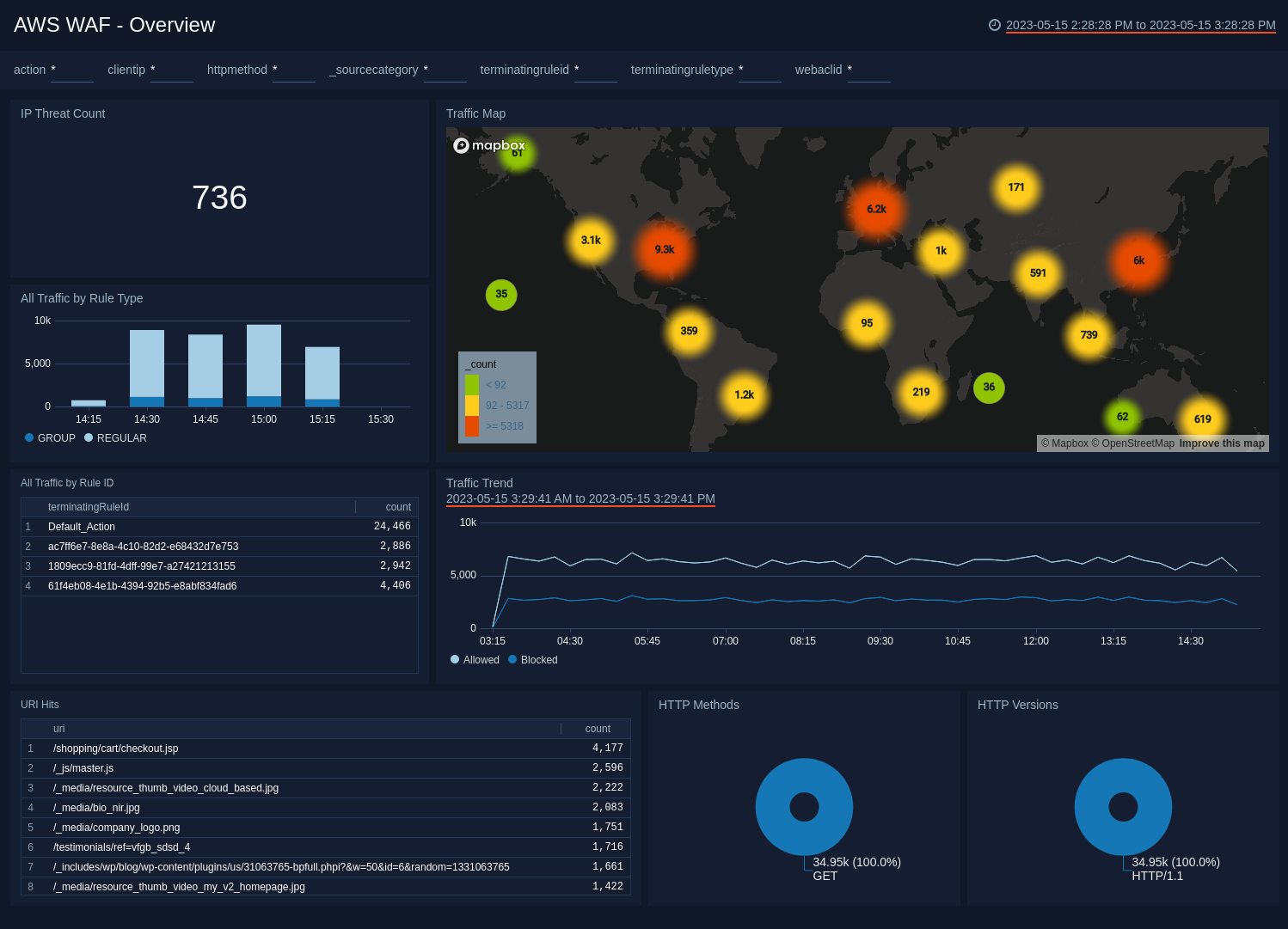
AWS WAF Overview
See an overview of threats detected and traffic passing through AWS WAF.
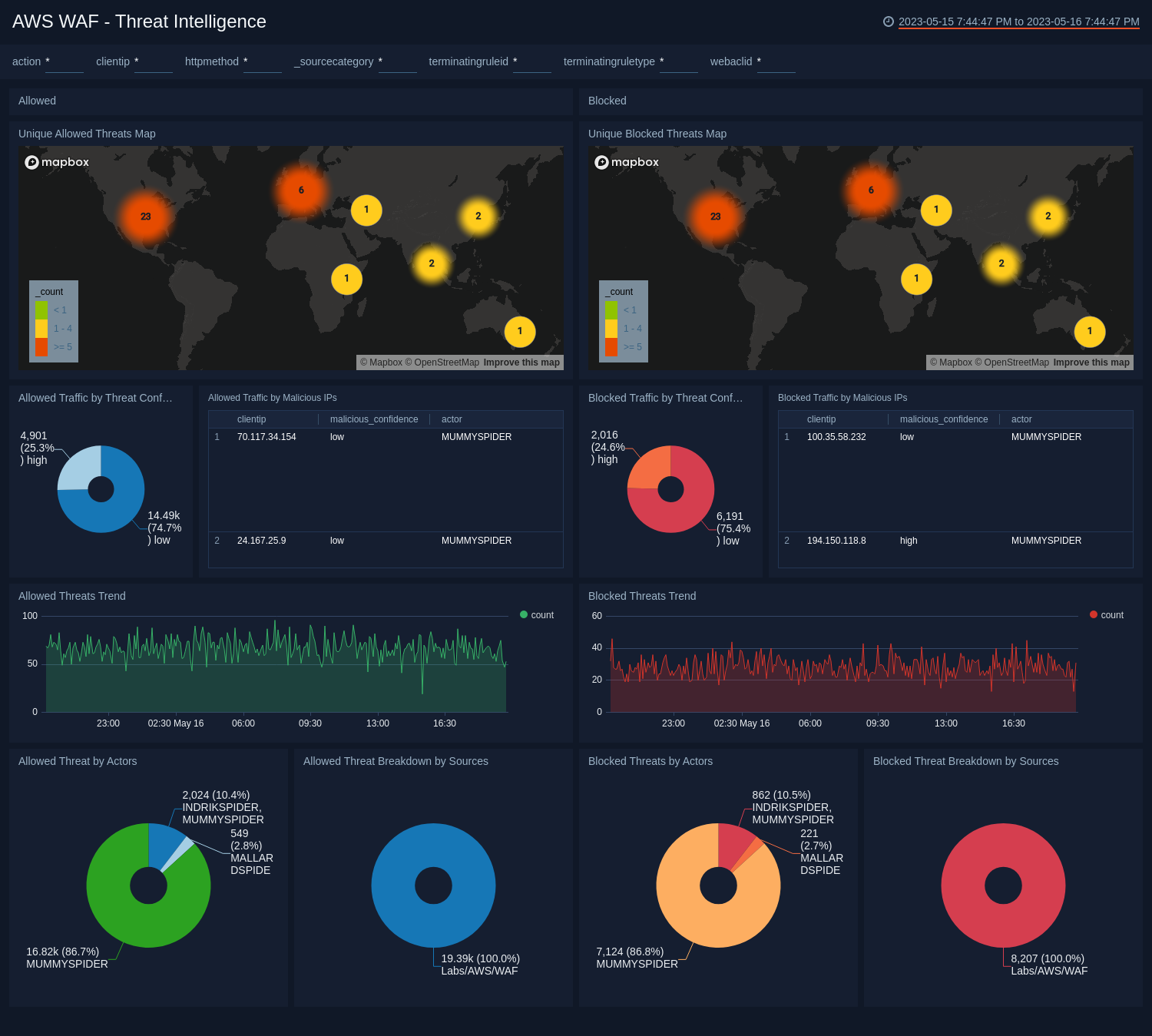
AWS WAF Threat Intelligence
See details of threats allowed and blocked by AWS WAF.
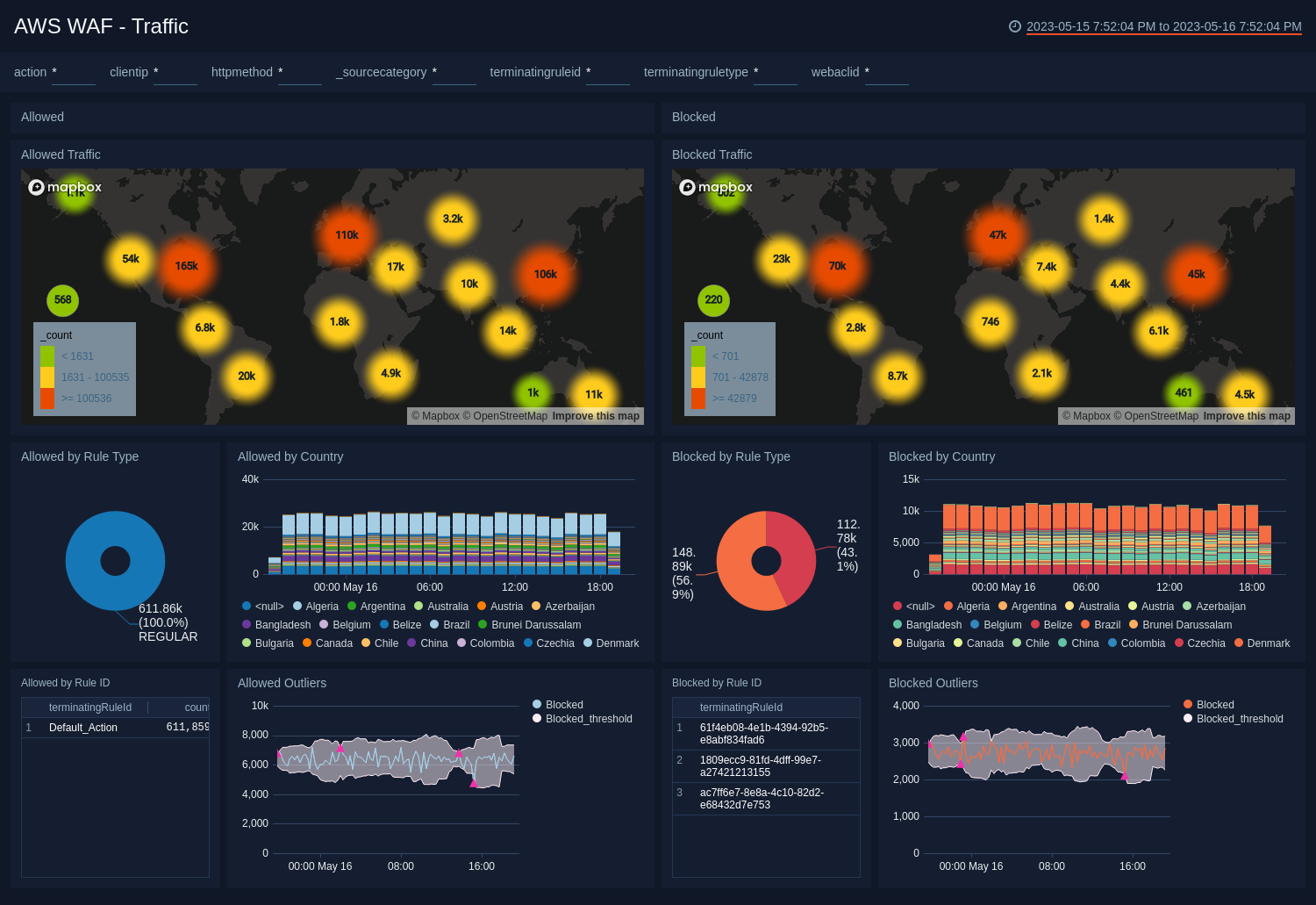
AWS WAF Traffic
See details of allowed and blocked AWS WAF traffic by location, rules and outliers.
Create monitors for AWS WAF app
From your App Catalog:
- From the Sumo Logic navigation, select App Catalog.
- In the Search Apps field, search for and then select your app.
- Make sure the app is installed.
- Navigate to What's Included tab and scroll down to the Monitors section.
- Click Create next to the pre-configured monitors. In the create monitors window, adjust the trigger conditions and notifications settings based on your requirements.
- Scroll down to Monitor Details.
- Under Location click on New Folder.
note
By default, monitor will be saved in the root folder. So to make the maintenance easier, create a new folder in the location of your choice.
- Enter Folder Name. Folder Description is optional.
tip
Using app version in the folder name will be helpful to determine the versioning for future updates.
- Click Create. Once the folder is created, click on Save.
AWS WAF alerts
| Name | Description | Alert Condition | Recover Condition |
|---|---|---|---|
AWS WAF - Known Malicious IP Allowed | This alert is triggered when AWS WAF allows a request from a known malicious IP address detected via threat intelligence. Note: Please configure the scope filter to match your AWS WAF log source. | Count > 0 | Count < = 0 |
AWS WAF - Block Burst from Single IP | This alert is triggered when a single IP address is blocked by AWS WAF more than 5 times within 5 minutes, indicating active scanning, brute-force, or exploit probing. Note: Please configure the scope filter to match your AWS WAF log source. | Count > 0 | Count < = 0 |
AWS WAF - Known Malicious IP Blocked | This alert is triggered when AWS WAF blocks a request from a known malicious IP address detected via threat intelligence. Note: Please configure the scope filter to match your AWS WAF log source. | Count > 0 | Count < = 0 |
AWS WAF - URI Scanning Burst from Single IP | This alert is triggered when a single IP address accesses more than 5 distinct URIs within 5 minutes, indicating web scanning or directory enumeration activity. Note: Please configure the scope filter to match your AWS WAF log source. | Count > 0 | Count < = 0 |
Upgrade/Downgrade the AWS WAF app (Optional)
To update the app, do the following:
Next-Gen App: To install or update the app, you must be an account administrator or a user with Manage Apps, Manage Monitors, Manage Fields, Manage Metric Rules, and Manage Collectors capabilities depending upon the different content types part of the app.
- Select App Catalog.
- In the Search Apps field, search for and then select your app.
Optionally, you can identify apps that can be upgraded in the Upgrade available section. - To upgrade the app, select Upgrade from the Manage dropdown.
- If the upgrade does not have any configuration or property changes, you will be redirected to the Preview & Done section.
- If the upgrade has any configuration or property changes, you will be redirected to the Setup Data page.
- In the Configure section of your respective app, complete the following fields.
- Field Name. If you already have collectors and sources set up, select the configured metadata field name (eg _sourcecategory) or specify other custom metadata (eg: _collector) along with its metadata Field Value.
- Click Next. You will be redirected to the Preview & Done section.
Post-update
Your upgraded app will be installed in the Installed Apps folder and dashboard panels will start to fill automatically.
See our Release Notes changelog for new updates in the app.
To revert the app to a previous version, do the following:
- Select App Catalog.
- In the Search Apps field, search for and then select your app.
- To version down the app, select Revert to < previous version of your app > from the Manage dropdown.
Uninstalling the AWS WAF app (Optional)
To uninstall the app, do the following:
- Select App Catalog.
- In the 🔎 Search Apps field, run a search for your desired app, then select it.
- Click Uninstall.