Apache Hadoop - OpenTelemetry Collector


The Sumo Logic app for Apache Hadoop provides logs and metrics to help you monitor the health, performance, availability, and resource utilization of Hadoop clusters. It provides preconfigured dashboards and searches that offer deep visibility into HDFS and YARN components for real-time and historical analysis. The app delivers end-to-end observability across NameNode, DataNode, and ResourceManager services, enabling faster troubleshooting, capacity planning, and operational stability.
Hadoop logs are sent to Sumo Logic through the OpenTelemetry filelog receiver and metrics are sent through the JMX receiver with the target_system set as Hadoop.
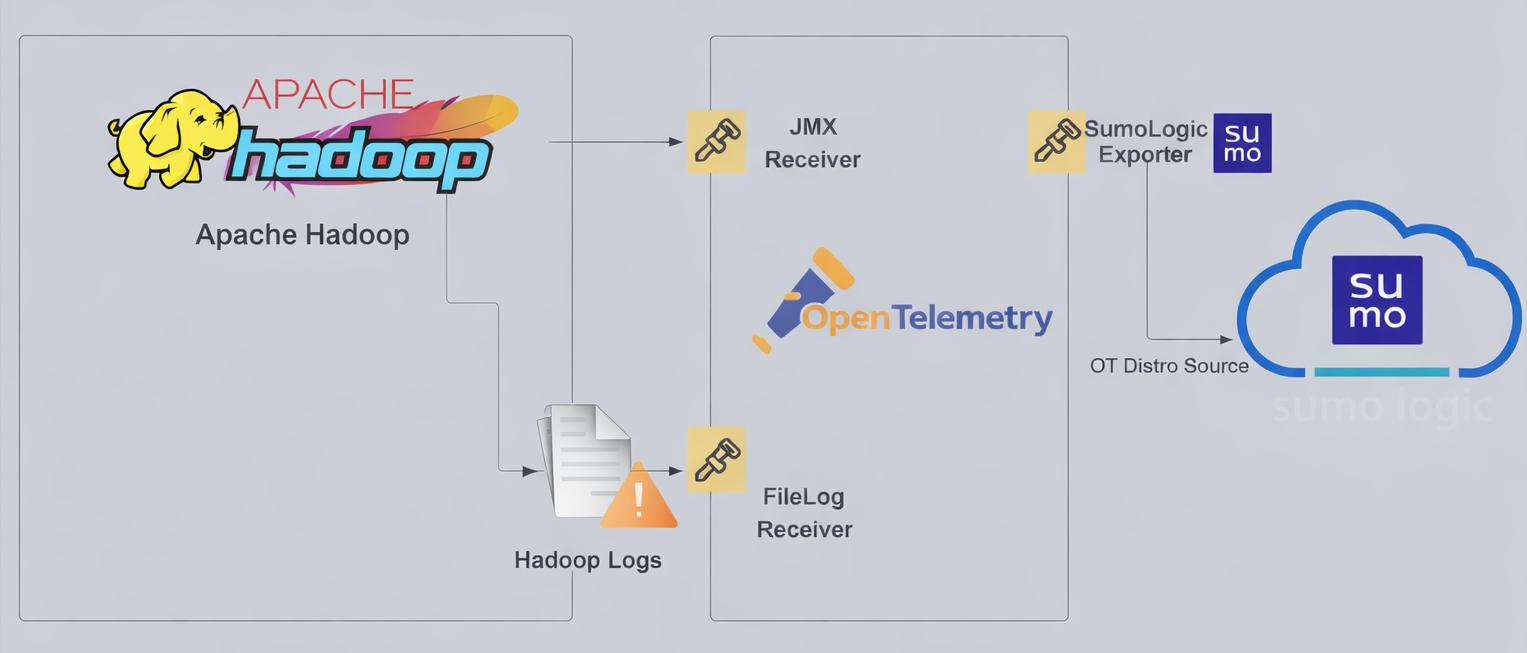
Hadoop log types
The app supports logs from the open source version of Hadoop. This app is tested on the 3.3.6 version of Hadoop.
The Hadoop logs are generated in files as configured in the configuration file $HADOOP_HOME/etc/hadoop/log4j.properties (learn more).
This app includes built-in monitors. For details on creating custom monitors, refer to the Create monitors for Hadoop app.
Fields created in Sumo Logic for Hadoop
Following are the Fields which will be created as part of Hadoop app installation if not already present.
sumo.datasource. Has fixed value of hadoop.bigdata.cluster.name. User configured. Enter a name to identify the Hadoop cluster. This cluster name will be shown in the Sumo Logic dashboards.bigdata.node.name. Has the value of the host name of the machine which is being monitored.deployment.environment. User configured. This is the deployment environment where the Memcache cluster resides. For example, dev, prod, or qa.
Prerequisites
For metric collection
JMX receiver collects Hadoop metrics (NameNode metrics) from Hadoop cluster as part of the OpenTelemetry Collector (OTC).
-
Follow the instructions in JMX - OpenTelemetry's prerequisites section to download the JMX Metric Gatherer. This gatherer is used by the JMX Receiver.
-
Set the JMX port by setting it as part of
HDFS_NAMENODE_OPTSfor Hadoop startup. Usually it is set in the$HADOOP_HOME/etc/hadoop/hadoop-env.shfile.export HDFS_NAMENODE_OPTS="$HDFS_NAMENODE_OPTS \
-Dcom.sun.management.jmxremote \
-Dcom.sun.management.jmxremote.port=8004 \
-Dcom.sun.management.jmxremote.rmi.port=8004 \
-Dcom.sun.management.jmxremote.authenticate=false \
-Dcom.sun.management.jmxremote.ssl=false \
-Djava.rmi.server.hostname=localhost"
For log collection
The Sumo Logic app for Apache Hadoop uses two primary types of logs:
-
Hadoop HDFS logs
- These logs include output from the NameNode, DataNode, and Secondary NameNode services.
- Log format description: Plain-text logs generated by HDFS daemons, typically found in the Hadoop logs directory.
-
Hadoop YARN logs
- These logs include entries from the ResourceManager and NodeManager components.
- Log format description: Plain-text logs that record cluster resource management and scheduling activities.
By default, Hadoop logs are stored in $HADOOP_HOME/logs or /usr/local/hadoop/logs The default directory for log files is listed in the $HADOOP_HOME/etc/hadoop/log4j.properties file.
For Linux systems with ACL Support, the otelcol install process should have created the ACL grants necessary for the otelcol system user to access default log locations. You can verify the active ACL grants using the getfacl command. Install the ACL in your Linux environment, if not installed.
The required ACL may not be supported for some rare cases, for example, Linux OS Distro, which is officially not supported by Sumo Logic. In this case, you can run the following command to explicitly grant the permissions.
sudo setfacl -R -m d:u:otelcol-sumo:r-x,d:g:otelcol-sumo:r-x,u:otelcol-sumo:r-x,g:otelcol-sumo:r-x <PATH_TO_LOG_FILE>
Run the above command for all the log files in the directory that need to be ingested, which are not residing in the default location.
If Linux ACL Support is not available, traditional Unix-styled user and group permission must be modified. It should be sufficient to add the otelcol system user to the specific group that has access to the log files.
For Windows systems, log files which are collected should be accessible by the SYSTEM group. Use the following set of PowerShell commands if the SYSTEM group does not have access.
$NewAcl = Get-Acl -Path "<PATH_TO_LOG_FILE>"
# Set properties
$identity = "NT AUTHORITY\SYSTEM"
$fileSystemRights = "ReadAndExecute"
$type = "Allow"
# Create new rule
$fileSystemAccessRuleArgumentList = $identity, $fileSystemRights, $type
$fileSystemAccessRule = New-Object -TypeName System.Security.AccessControl.FileSystemAccessRule -ArgumentList $fileSystemAccessRuleArgumentList
# Apply new rule
$NewAcl.SetAccessRule($fileSystemAccessRule)
Set-Acl -Path "<PATH_TO_LOG_FILE>" -AclObject $NewAcl
Collection configuration and app installation
As part of data collection setup and app installation, you can select the App from App Catalog and click on Install App. Follow the steps below.
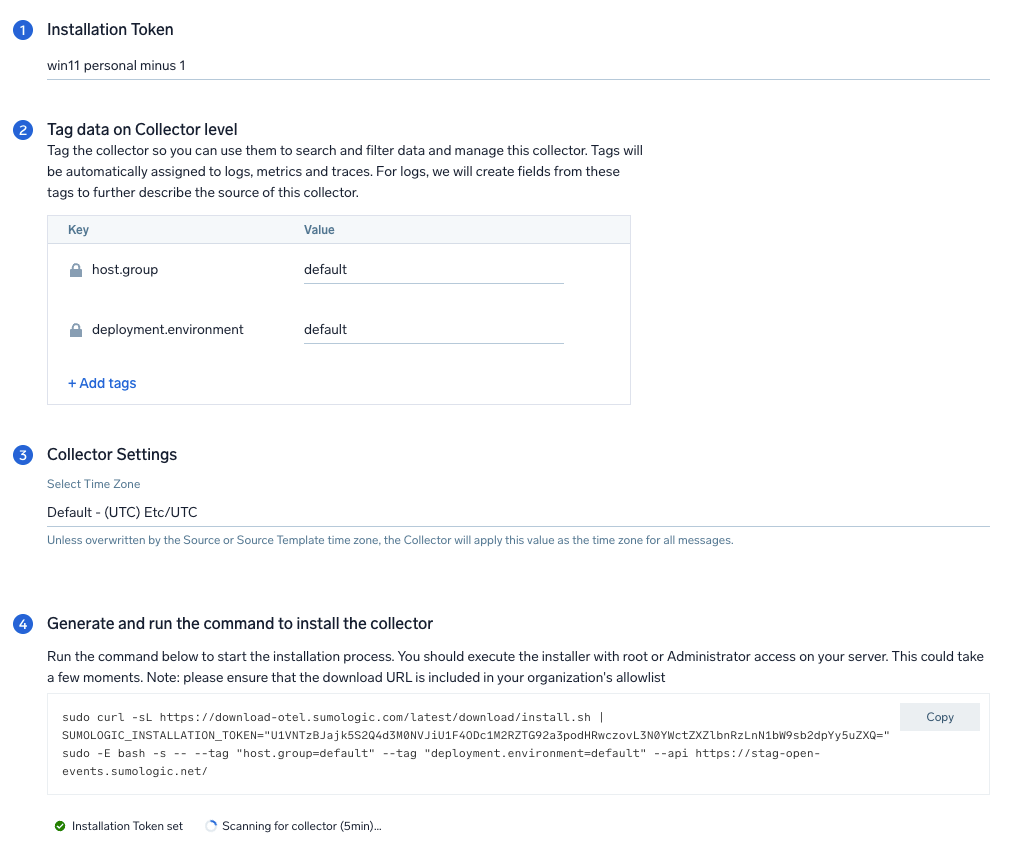
Step 1: Set up Collector
If you want to use an existing OpenTelemetry Collector, you can skip this step by selecting the Use an existing Collector option.
To create a new Collector:
- Select the Add a new Collector option.
- Select the platform where you want to install the Sumo Logic OpenTelemetry Collector.
This will generate a command that you can execute in the machine environment you need to monitor. Once executed, it will install the Sumo Logic OpenTelemetry Collector.
Step 2: Configure integration
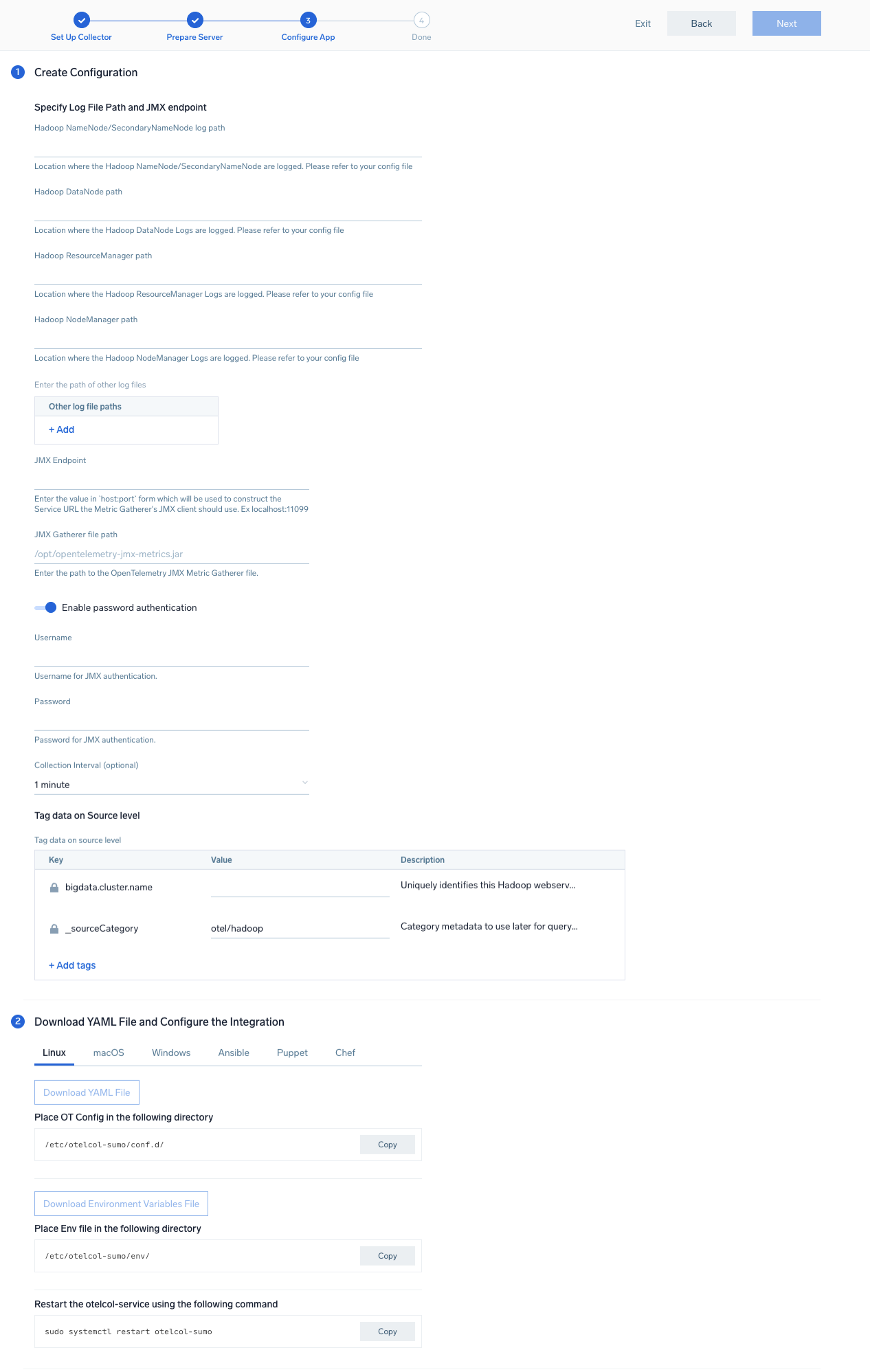
In this step, you will configure the YAML required for Hadoop collection.
Below are the inputs required for configuration:
- The path of the log file configured to capture Hadoop logs is needed to be given here.
- The files are typically located in
/usr/local/hadoop/logs/*. If you're using a customized path, check the conf file for this information. - For metrics, you're required to provide the JMX endpoint along with the
collection_interval(default is 1 minute).
You can add any custom fields which you want to tag along with the data ingested in Sumo Logic. Click the Download YAML File button to get the YAML file.
For OpenTelemetry Collector version ≥ 0.104, we recommend using the downloaded config with an environment variable, for example: ${environment_variable}.
On Linux, click Download Environment Variables File to get a file that includes the password, which should be set as an environment variable (if you're using one).
Step 3: Send logs and metrics to Sumo Logic
Once you have downloaded the YAML file as described in the previous step, follow the below steps based on your platform.
- Linux
- Windows
- macOS
- Chef
- Ansible
- Puppet
- Copy the YAML file to
/etc/otelcol-sumo/conf.d/folder in the Hadoop nodes which needs to be monitored. - Restart the collector using:
sudo systemctl restart otelcol-sumo
- Copy the YAML file to
C:\ProgramData\Sumo Logic\OpenTelemetry Collector\config\conf.dfolder in the machine which needs to be monitored. - Restart the collector using:
Restart-Service -Name OtelcolSumo
- Copy the YAML file to
/etc/otelcol-sumo/conf.d/folder in the Hadoop nodes which needs to be monitored. - Restart the otelcol-sumo process using the below command:
otelcol-sumo --config /etc/otelcol-sumo/sumologic.yaml --config "glob:/etc/otelcol-sumo/conf.d/*.yaml"
- Copy the yaml file into your Chef cookbook files directory
files/<downloaded_yaml_file>. - Use a Chef file resource in a recipe to manage it.
cookbook_file '/etc/otelcol-sumo/conf.d/<downloaded_yaml_file>' do mode 0644 notifies :restart, 'service[otelcol-sumo]', :delayed end - Add the recipe to your collector setup to start collecting the data. Every team typically has their established way of applying the Chef recipe. The resulting Chef recipe should look something like:
cookbook_file '/etc/otelcol-sumo/conf.d/<downloaded_yaml_file>' do
mode 0644
notifies :restart, 'service[otelcol-sumo]', :delayed
end
- Place the file into your Ansible playbook files directory.
- Run the Ansible playbook.
ansible-playbook -i inventory install_sumologic_otel_collector.yaml
-e '{"installation_token": "<YOUR_TOKEN>", "collector_tags": {<YOUR_TAGS>}, "src_config_path": "files/conf.d"}'
- Place the file into your Puppet module files directory
modules/install_otel_collector/files/<downloaded_yaml>. - Use a Puppet file resource to manage it.
file { '/etc/otelcol-sumo/conf.d/<downloaded_yaml_file>':
    ensure => present,
    source => 'puppet:///modules/install_otel_collector/<downloaded_yaml_file>',
    mode => '0644',
    notify => Service[otelcol-sumo],
} - Apply the Puppet manifest. Every team typically has their established way of applying the Puppet manifest. The resulting Puppet manifest should look something like:
node 'default' {
    class { 'install_otel_collector'
      installation_token => '<YOUR_TOKEN>',
      collector_tags => { <YOUR_TAGS> },
    }

    service { 'otelcol-sumo':
      provider => 'systemd',
      ensure => running,
      enable => true,
      require => Class['install_otel_collector'],
    }

    file { '/etc/otelcol-sumo/conf.d/<downloaded_yaml_file>':
      ensure => present,
      source => 'puppet:///modules/install_otel_collector/<downloaded_yaml_file>',
      mode => '0644',
      notify => Service[otelcol-sumo],
    }
  }
After successfully executing the above command, Sumo Logic will start receiving data from your host machine.
Click Next. This will install the app (dashboards and monitors) to your Sumo Logic Org.
Dashboard panels will start to fill automatically. It's important to note that each panel fills with data matching the time range query and received since the panel was created. Results won't immediately be available, but within 20 minutes, you'll see full graphs and maps.
Sample log messages
2026-01-27 01:37:04,603 INFO org.apache.hadoop.yarn.server.resourcemanager.scheduler.capacity.CapacityScheduler: Added node localhost:60271 clusterResource: <memory:8192, vCores:8>
Sample log queries
_source="hadoop/filelog"
| json "message" nodrop
| if (_raw matches "{*", message, _raw) as message
| where contains(message, "Added node")
| parse regex field=message "Added node (?<node>[^ ]+).*memory:(?<memory_mb>\d+), vCores:(?<vcores>\d+)"
| timeslice 1m
| sum(memory_mb) as memory_mb, sum(vcores) as vcores by _timeslice, node
| sort by _timeslice
| limit 100
Sample metrics
{
  "Query": "A",
  "metric": "hadoop.name_node.block.missing",
  "_collector": "sumo.host-mac-mac",
  "_collectorId": "00005AF3122798EB",
  "_contentType": "OpenTelemetry",
  "_metricId": "UPGPWtf3xWkqN-P5A1ovjA",
  "_source": "hadoop/jmx",
  "_sourceCategory": "OTC Metric Input",
  "_sourceHost": "sumo.host-mac-mac",
  "_sourceId": "0000000000000000",
  "_sourceName": "hadoop",
  "bigdata.cluster.name": "test-hadoop",
  "bigdata.node.name": "sumo.host-mac-mac",
  "bigdata.system": "hadoop",
  "deployment.environment": "default",
  "host.group": "default",
  "host.name": "sumo.host-mac-mac",
  "node_name": "sumo.host-mac-mac",
  "os.type": "darwin",
  "service.name": "unknown_service:java",
  "sumo.datasource": "hadoop",
  "telemetry.sdk.language": "java",
  "telemetry.sdk.name": "opentelemetry",
  "telemetry.sdk.version": "1.56.0",
  "unit": "{block}",
  "min": 0,
  "max": 0,
  "latest": 0,
  "avg": 0,
  "sum": 0,
  "count": 169
}
Sample metrics query
sumo.datasource=hadoop metric=hadoop.name_node.block.missing deployment.environment=* bigdata.cluster.name=* bigdata.node.name=* | avg by deployment.environment, bigdata.cluster.name, bigdata.node.name
Viewing the Apache Hadoop dashboards
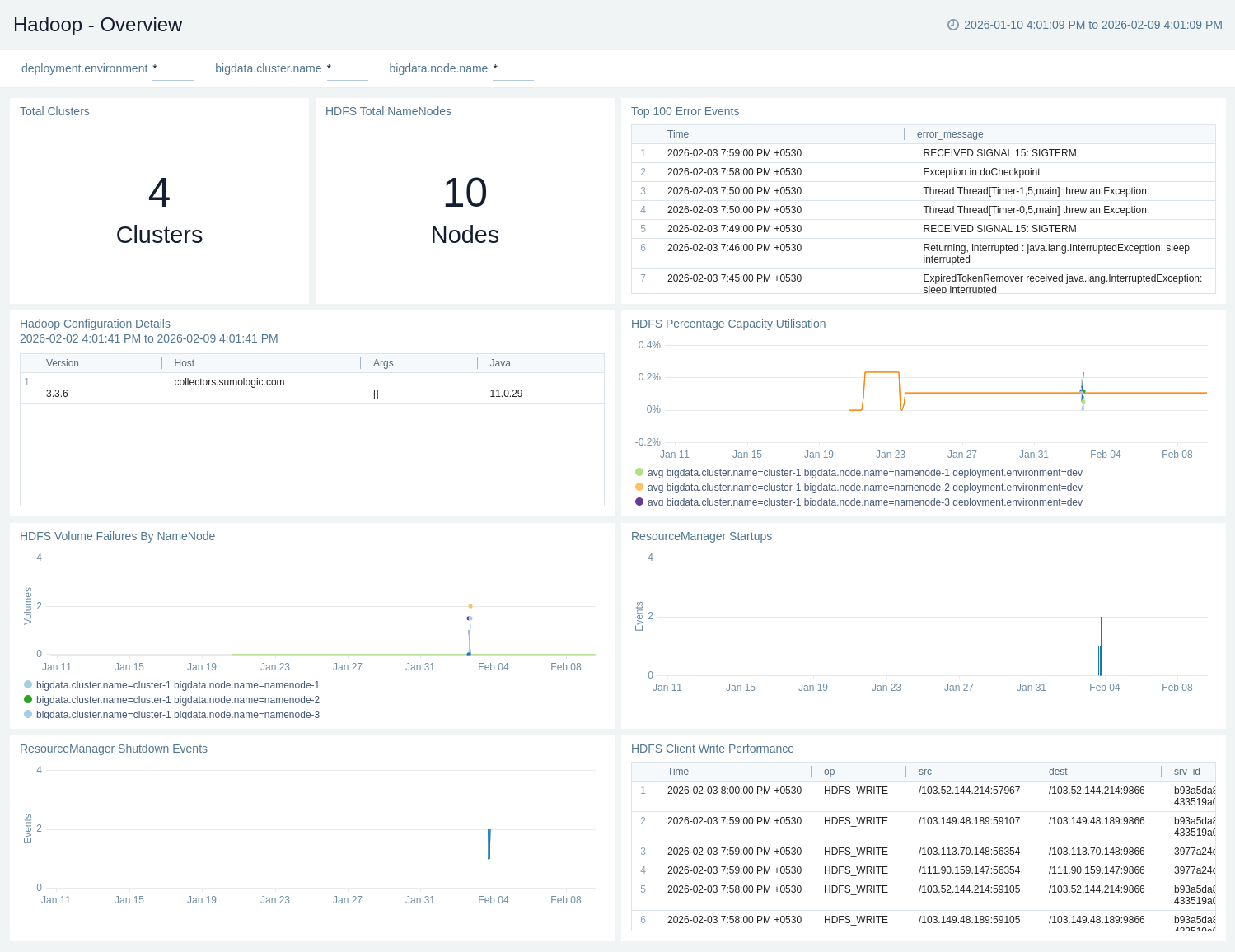
Apache Hadoop - Overview
The Apache Hadoop – Overview dashboard gives a quick snapshot of cluster health, capacity utilisation, and NameNode availability. It highlights volume failures, client write performance, top error events, and ResourceManager start/shutdown activity.
Use this dashboard to:
- Gain a high-level view of Hadoop environments, including total clusters, NameNodes, and overall HDFS capacity utilisation.
- Monitor HDFS health and reliability, tracking volume failures, client write performance, and critical error events.
- Track ResourceManager lifecycle events and review configuration details to quickly identify stability issues and operational risks.
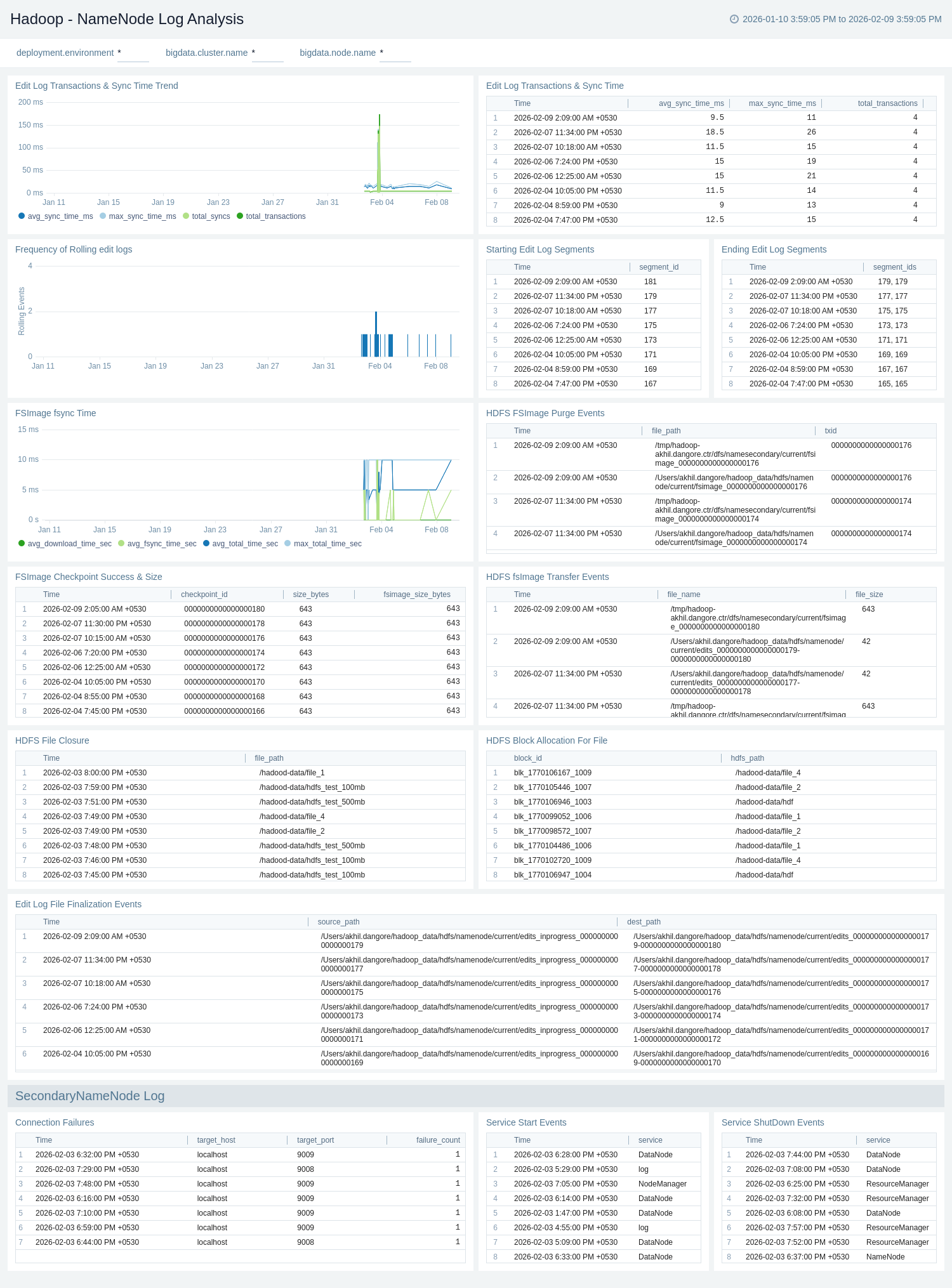
Apache Hadoop - NameNode Log Analysis
The Apache Hadoop – NameNode Log Analysis dashboard provides visibility into NameNode metadata operations and stability, including edit log transactions, sync times, and edit log segment lifecycle events.
Use this dashboard to:
- Monitor NameNode metadata operations, including edit log transactions, sync times, and edit log segment lifecycle events.
- Track FSImage activity and health, such as checkpoints, transfers, purge events, and fsync performance.
- Identify operational and stability issues by monitoring block allocation, file operations, connection failures, and NameNode service startup and shutdown events.
Apache Hadoop - DataNode Log Analysis
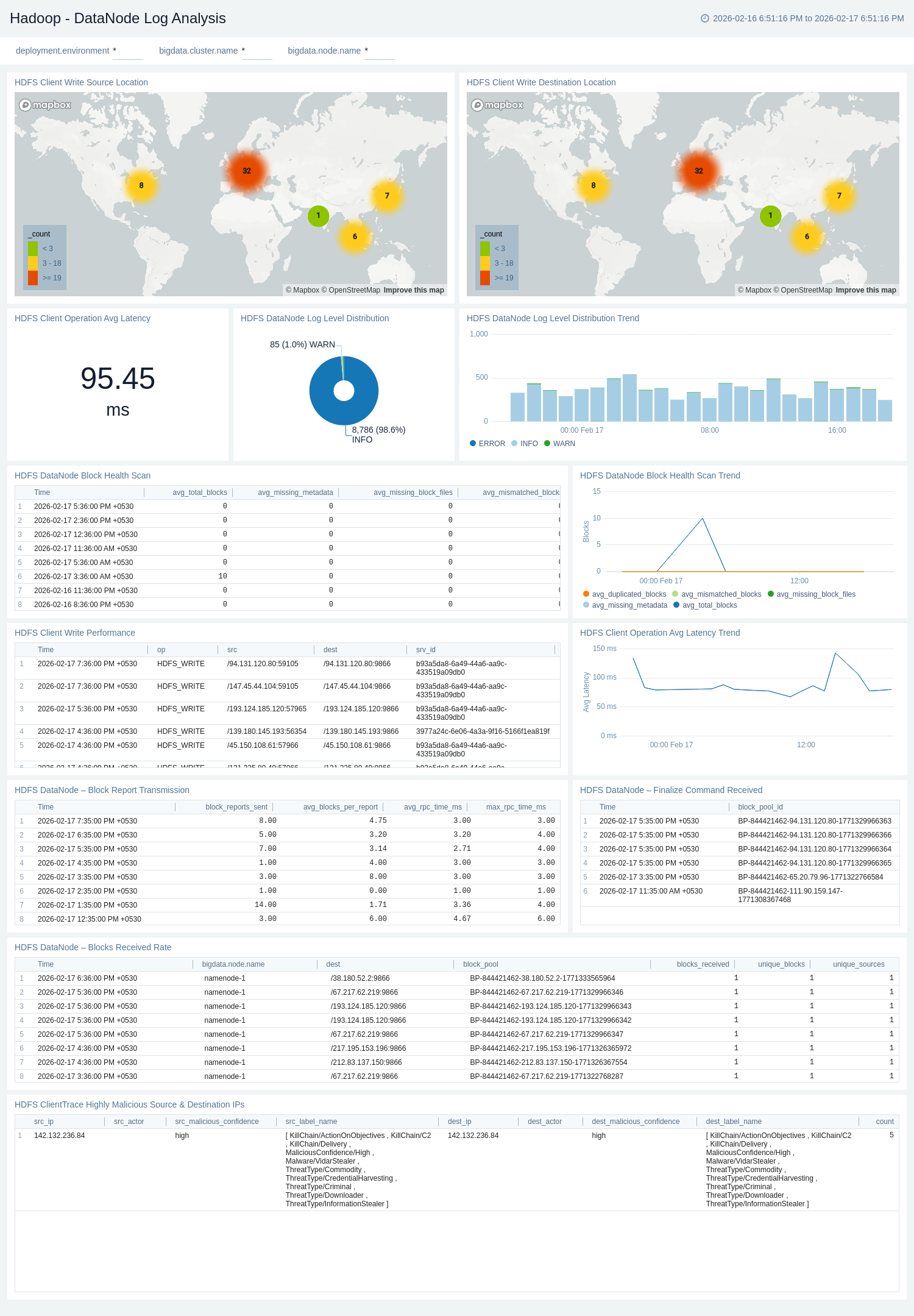
The Apache Hadoop – DataNode Log Analysis dashboard provides visibility into HDFS DataNode health, performance, and client activity. It monitors block health scans, write performance, operational latency trends, and log-level distribution. The dashboard also includes source/destination analysis and threat intelligence insights to help detect anomalies and potential security risks.
Use this dashboard to:
- Monitor DataNode block health and integrity, including block health scan trends, scan results, and block-level inconsistencies.
- Track DataNode operational events, such as block report transmissions, finalize commands, blocks received rate, and log level distribution trends for proactive health monitoring.
- Analyze HDFS client performance, including write performance metrics, average operation latency (current and trend), and client activity patterns.
- Visualize client write source and destination locations to understand traffic flow across DataNodes.
- Detect potential security risks by identifying highly malicious source and destination IPs from HDFS client trace logs.
Apache Hadoop - ResourceManager Errors or Failures Log Analysis
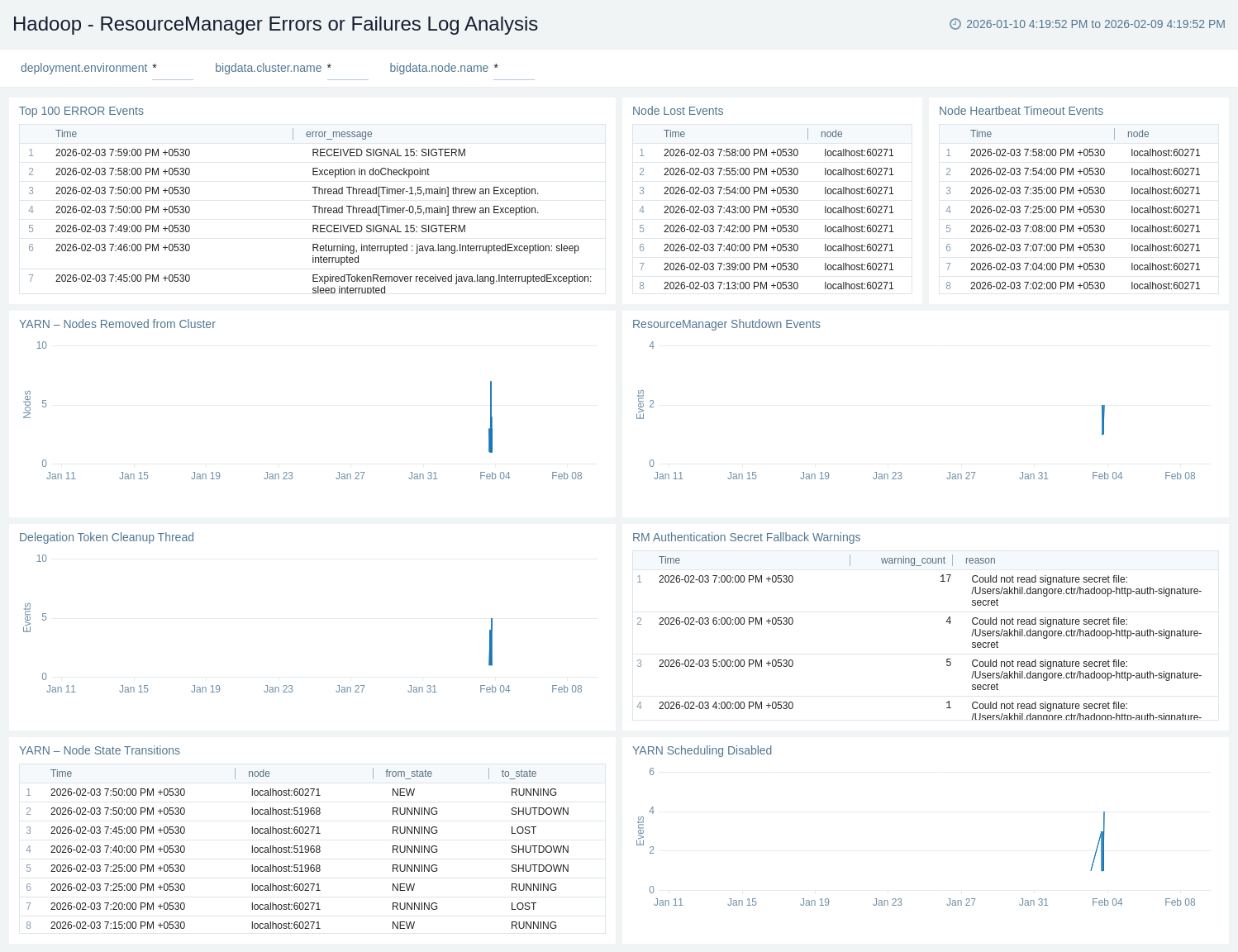
The Apache Hadoop – ResourceManager Errors or Failures Log Analysis provides quick visibility into critical YARN failures and instability, including node loss, heartbeat timeouts, scheduling disablement, and ResourceManager shutdowns.
Use this dashboard to:
- Detect critical YARN failures and cluster instability, including node loss, heartbeat timeouts, node removals, and scheduling disablement.
- Monitor ResourceManager shutdowns, security-related warnings, and high-severity error events to quickly identify issues impacting YARN availability and reliability.
Apache Hadoop - ResourceManager Log Analysis
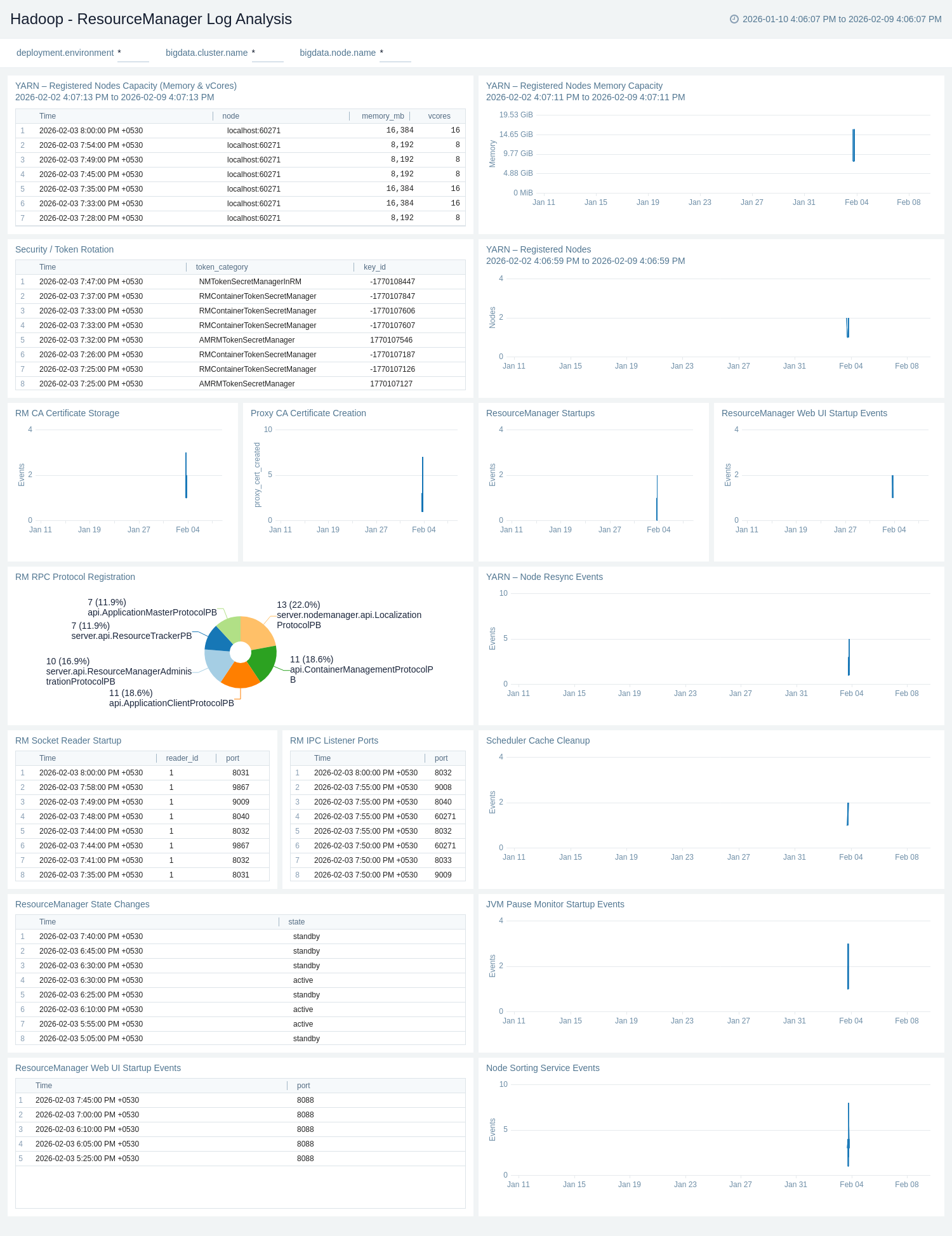
The Apache Hadoop – ResourceManager Log Analysis provides visibility into ResourceManager startup, configuration, and internal service readiness.
Use this dashboard to:
- Monitor YARN ResourceManager operational health, including startups, state changes, and internal service readiness events.
- Track registered NodeManagers and cluster capacity (memory and vCores), along with node resync and scheduling-related activities.
- Gain visibility into security, certificate, JVM, and core ResourceManager services, helping identify configuration issues and operational risks before they impact workloads.
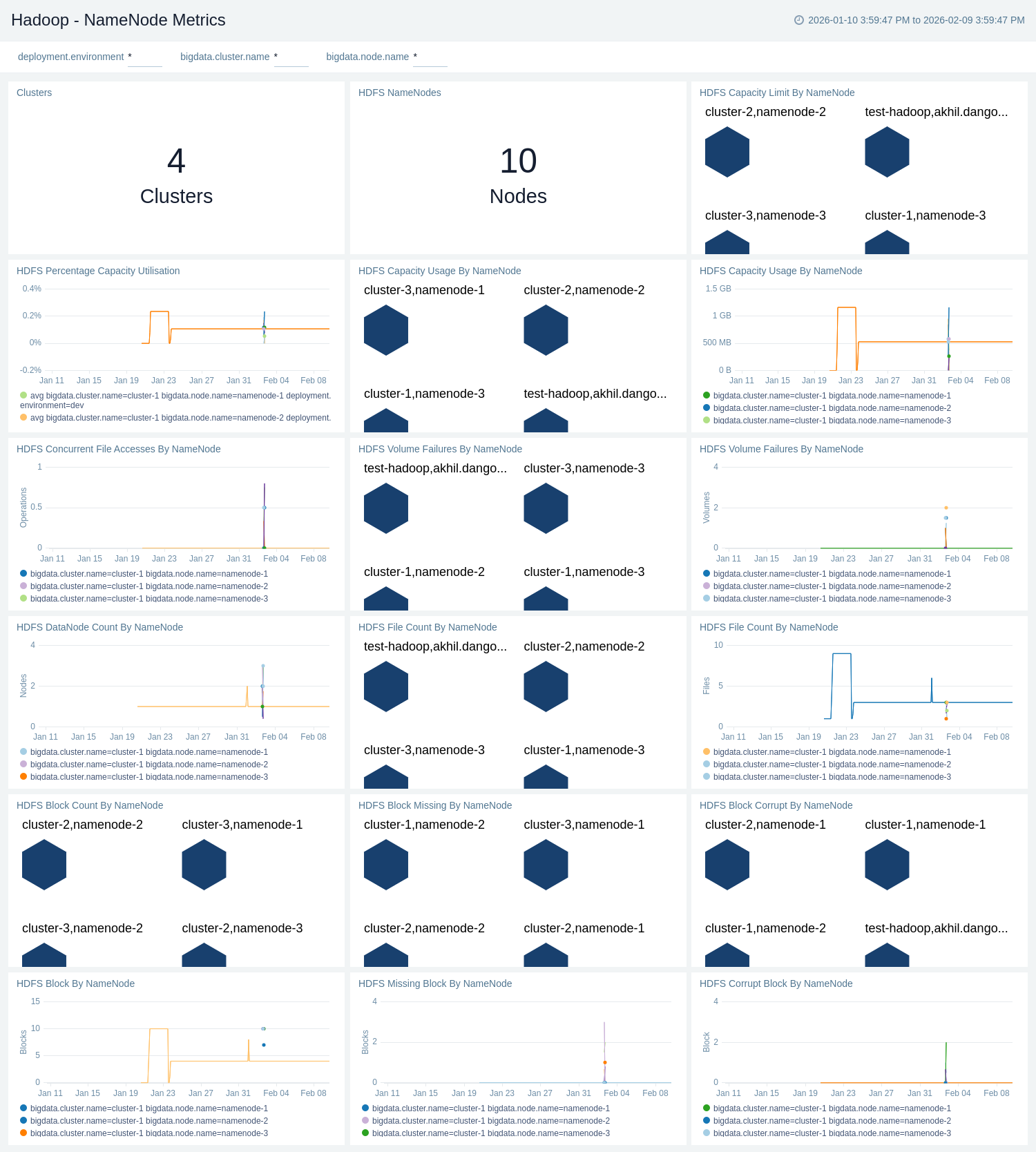
Apache Hadoop - NameNode Metrics
The Apache Hadoop – NameNode Metrics provides a consolidated view of HDFS capacity, usage, and limits across NameNodes and clusters.
Use this dashboard to:
- Monitor HDFS capacity and utilisation across NameNodes and clusters, including total capacity, usage, and percentage utilisation.
- Track HDFS block and file health, such as total, missing, and corrupt blocks, file counts, and concurrent file accesses by NameNode.
- Gain visibility into DataNode availability and volume health, helping identify capacity risks and HDFS reliability issues early.
Create monitors for Apache Hadoop app
From your App Catalog:
- From the Sumo Logic navigation, select App Catalog.
- In the Search Apps field, search for and then select your app.
- Make sure the app is installed.
- Navigate to What's Included tab and scroll down to the Monitors section.
- Click Create next to the pre-configured monitors. In the create monitors window, adjust the trigger conditions and notifications settings based on your requirements.
- Scroll down to Monitor Details.
- Under Location click on New Folder.
note
By default, monitor will be saved in the root folder. So to make the maintenance easier, create a new folder in the location of your choice.
- Enter Folder Name. Folder Description is optional.
tip
Using app version in the folder name will be helpful to determine the versioning for future updates.
- Click Create. Once the folder is created, click on Save.
Apache Hadoop alerts
| Name | Description | Alert Condition | Recover Condition |
|---|---|---|---|
Hadoop - HDFS Capacity Utilisation High | This alert gets triggered when HDFS capacity utilisation exceeds the defined threshold, indicating risk of storage exhaustion. | Count > 95 % | Count < = 95 |
Hadoop - HDFS Corrupt Blocks Detected | This alert gets triggered when one or more HDFS blocks are corrupt. | Count > 0 | Count < = 0 |
Hadoop - HDFS Missing Blocks Detected | This alert gets triggered when HDFS reports missing blocks, indicating potential data loss. | Count > 0 | Count < = 0 |
Hadoop - HDFS Volume Failures Detected | This alert gets triggered when HDFS reports volume failures, indicating disk or filesystem issues on DataNodes. | Count > 0 | Count < = 0 |
Hadoop - HDFS NameNode Down | This alert gets triggered when HDFS does not detect an active NameNode, impacting filesystem availability. | Count < = 0 | Count > 0 |
Hadoop - HDFS DataNodes Down | This alert gets triggered when the number of active HDFS DataNodes drops below the expected threshold. | Count < = 0 | Count > 0 |