PostgreSQL - OpenTelemetry Collector


PostgreSQL is an open source object-relational database that extends the robustness SQL language to safely store and scale extensive data workloads.
The Sumo Logic app for PostgreSQL includes predefined searches and dashboards that allow you to monitor logs and metrics for the database. The logs enable you to monitor database activity, user activity, incoming connections, query execution time, and errors. The metrics allow you to monitor database resource utilization and throughput performance.
This app supports PostgreSQL version 13+.
We use the OpenTelemetry collector for PostgreSQL metric collection and for collecting PostgreSQL logs.
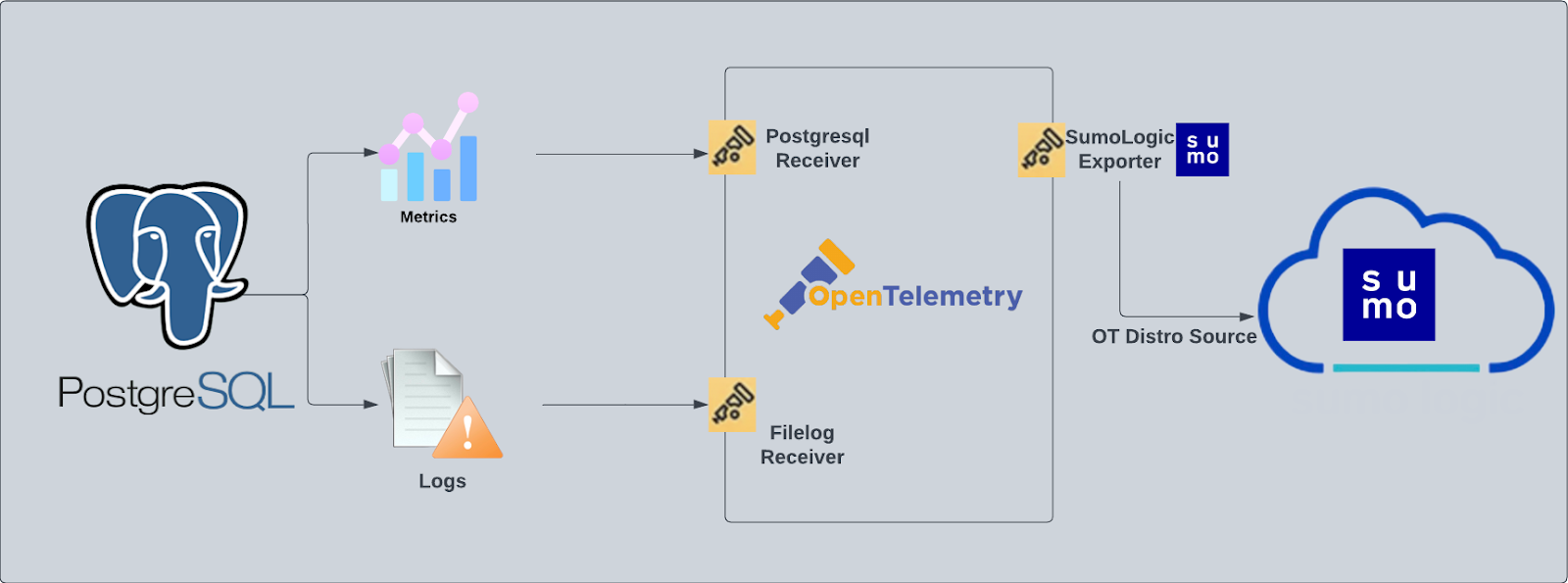
The diagram below illustrates the components of the PostgreSQL collection for each database server. OpenTelemetry collector runs on the same host as PostgreSQL, and uses the PostgreSQL receiver to obtain PostgreSQL metrics, and the Sumo Logic OpenTelemetry Exporter to send the metrics to Sumo Logic. PostgreSQL logs are sent to Sumo Logic through a filelog receiver.
This app includes built-in monitors. For details on creating custom monitors, refer to Create monitors for PostgreSQL app.
Fields creation in Sumo Logic for PostgreSQL
Following are the tags that will be created as part of PostgreSQL app installation, if not already present:
- db.cluster.name. User configured. Enter a name to identify this PostgreSQL cluster. This cluster name will be shown in the Sumo Logic dashboards.
- db.system. Has a fixed value of postgresql.
- sumo.datasource. Has a fixed value of postgresql.
- db.node.name. Has a value of the host name of the machine which is being monitored.
Prerequisites
For metrics collection
- This collection queries the PostgreSQL statistics collector.
- This receiver supports PostgreSQL version 13+.
- The monitoring user must be granted SELECT on the
pg_stat_database.
For logs collection
Configure logging in PostgreSQL:
- Locate your local PostgreSQL postgresql.conf configuration file in the database data_directory. For more information, see the PostgreSQL File Locations documentation. By default it's located in
/var/lib/pgsql/<version>/data/postgresql.conf. You can run SHOW config_file command inside your server's psql shell to get the location. After determining the location of conf file, modify the PostgreSQL postgresql.conf configuration file logging parameters - Connect to the database server (using SSH) in a terminal window.
- Open
postgresql.confconfiguration file. - Under the ERROR REPORTING AND LOGGING section of the file, use the following config parameters. For more information on the following parameters, click here.
  log_destination = 'stderr'
  logging_collector = on
  log_filename = 'postgresql-%Y-%m-%d_%H%M%S.log'
  log_truncate_on_rotation = off
  log_rotation_age = 1d
  log_min_duration_statement = 250
  log_connections = on
  log_duration = on
  log_hostname = on
  log_timezone = 'UTC'
  log_min_messages = 'WARNING'
  log_line_prefix = '%m [%p] %q%u@%d '
- Save the
postgresql.conffile and restart the postgresql server:
sudo service postgresql restart
For Linux systems with ACL Support, the otelcol install process should have created the ACL grants necessary for the otelcol system user to access default log locations. You can verify the active ACL grants using the getfacl command. Install the ACL in your Linux environment, if not installed.
The required ACL may not be supported for some rare cases, for example, Linux OS Distro, which is officially not supported by Sumo Logic. In this case, you can run the following command to explicitly grant the permissions.
sudo setfacl -R -m d:u:otelcol-sumo:r-x,d:g:otelcol-sumo:r-x,u:otelcol-sumo:r-x,g:otelcol-sumo:r-x <PATH_TO_LOG_FILE>
Run the above command for all the log files in the directory that need to be ingested, which are not residing in the default location.
If Linux ACL Support is not available, traditional Unix-styled user and group permission must be modified. It should be sufficient to add the otelcol system user to the specific group that has access to the log files.
For Windows systems, log files which are collected should be accessible by the SYSTEM group. Use the following set of PowerShell commands if the SYSTEM group does not have access.
$NewAcl = Get-Acl -Path "<PATH_TO_LOG_FILE>"
# Set properties
$identity = "NT AUTHORITY\SYSTEM"
$fileSystemRights = "ReadAndExecute"
$type = "Allow"
# Create new rule
$fileSystemAccessRuleArgumentList = $identity, $fileSystemRights, $type
$fileSystemAccessRule = New-Object -TypeName System.Security.AccessControl.FileSystemAccessRule -ArgumentList $fileSystemAccessRuleArgumentList
# Apply new rule
$NewAcl.SetAccessRule($fileSystemAccessRule)
Set-Acl -Path "<PATH_TO_LOG_FILE>" -AclObject $NewAcl
Collection configuration and app installation
Follow these steps to set up and deploy the source template to collect data in Sumo Logic from a remotely managed OpenTelemetry collector.
Step 1: Set up remotely managed OpenTelemetry collector
If you want to configure your source locally, you can do so by downloading the YAML file. For details, see Configure OpenTelemetry collectors locally.
In this step, we'll install remotely managed OpenTelemetry collector and add a uniquely identifiable tag to these collectors.
- Classic UI. In the main Sumo Logic menu, Select App Catalog.
New UI. In the Sumo Logic main menu select App Catalog. - In the 🔎 Search Apps field, run a search for your desired OpenTelemetry app, then select it. For example, Apache - OpenTelemetry.
- Click the Manage dropdown and then select Add Collection.
- On the Set Up Collector page, select Add a New Collector and then click Next.
If you want to use an existing OpenTelemetry Collector, you can skip this step by selecting the Use an existing Collector option.
- Select the platform where you want to install the Sumo Logic OpenTelemetry Collector. For example, Linux.
This will generate a command that you can execute in the machine environment you need to monitor. Once executed, it will install the Sumo Logic OpenTelemetry Collector.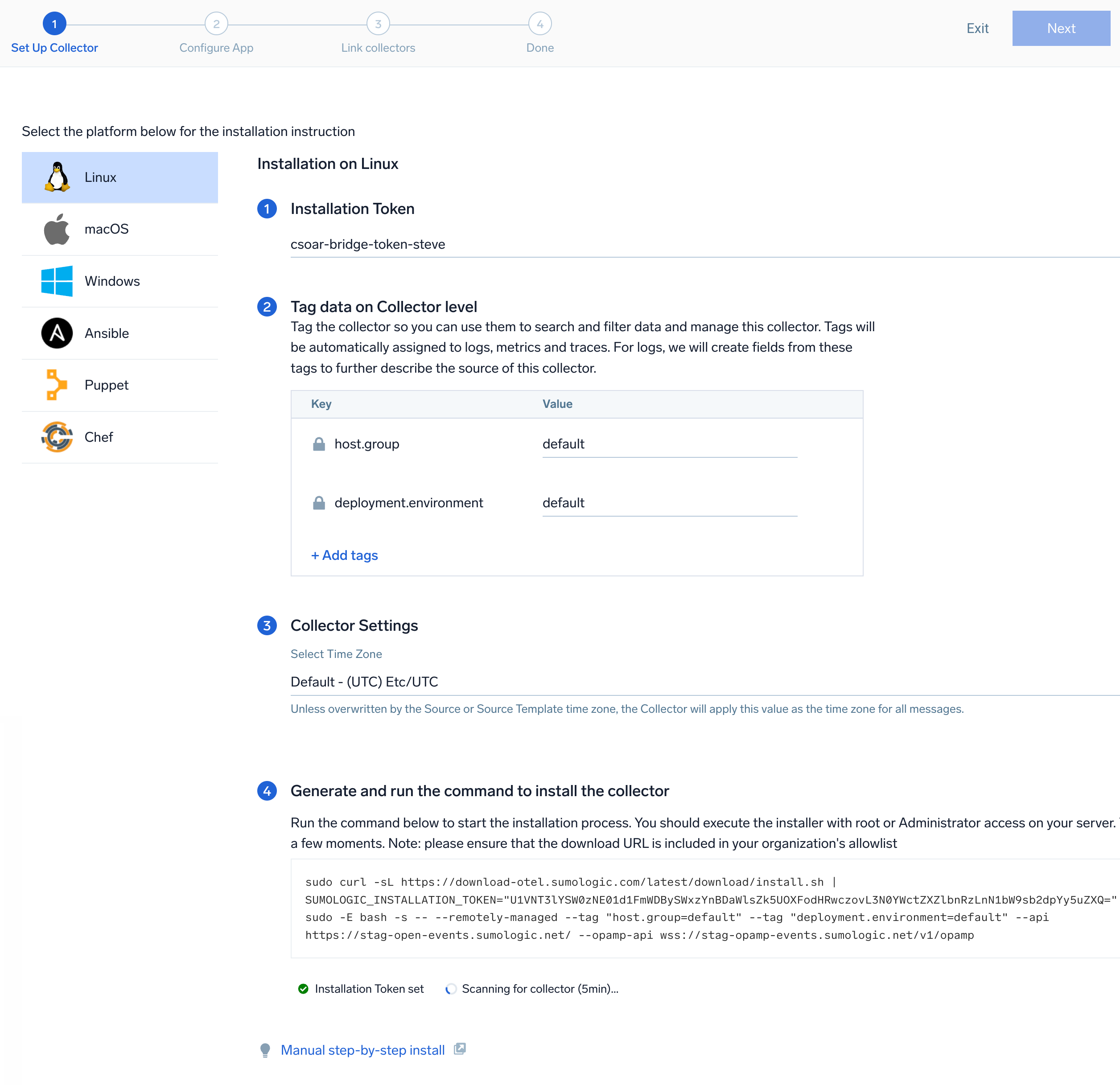 The installation commands now include a
 --remotely-managedflag. When this flag is used, a remotely managed collector is installed automatically instead of a locally managed one. If you prefer to use a locally managed collector, simply remove the flag from the installation command.
Step 2: Configure the source template
In this step, you will configure the YAML required for PostgreSQL collection. Below are the inputs required for configuration:
- Name. Name of the source template.
- Description. Description for the source template.
- Error Log Path. Enter the path of the error log file for your PostgreSQL instance.
- Endpoint. The endpoint of the PostgreSQL server. This value should be host:port. Default endpoint is
localhost:5432.noteThere should not be any http prefixed to this value. For example,
http://localhost:port. - UserName. Enter the PostgreSQL username.
- Password Environment Variable Name. Enter the PostgreSQL password environment variable name.
- Fields/Metadata. You can provide any customer fields to be tagged with the data collected. By default, Sumo Logic tags
_sourceCategorywith the value otel/postgresql user needs to provide the value fordb.cluster.name.
Timestamp Parsing. You can configure timestamp parsing for logs ingested using this source template. For more information, see Timestamps, Time Zones, Time Ranges, and Date Formats for the OpenTelemetry Collector.
Processing Rules. You can add processing rules for logs/metrics collected. To learn more, refer to Processing Rules.
Step 3: Push the source template to the desired remotely managed collectors
A new source template will always be created with the latest version of the source template.
Follow the below steps to create a data collection configuration to gather the required logs and link them to all the collectors with the help of collector tags.
- Complete the source template form with the name and file path for your logs (for example, error logs or access logs), then click Next.
- Under Link Collectors, you will have the option to link the collectors using the collector name or by adding tags to find the group of collectors (for example,
application = Apache).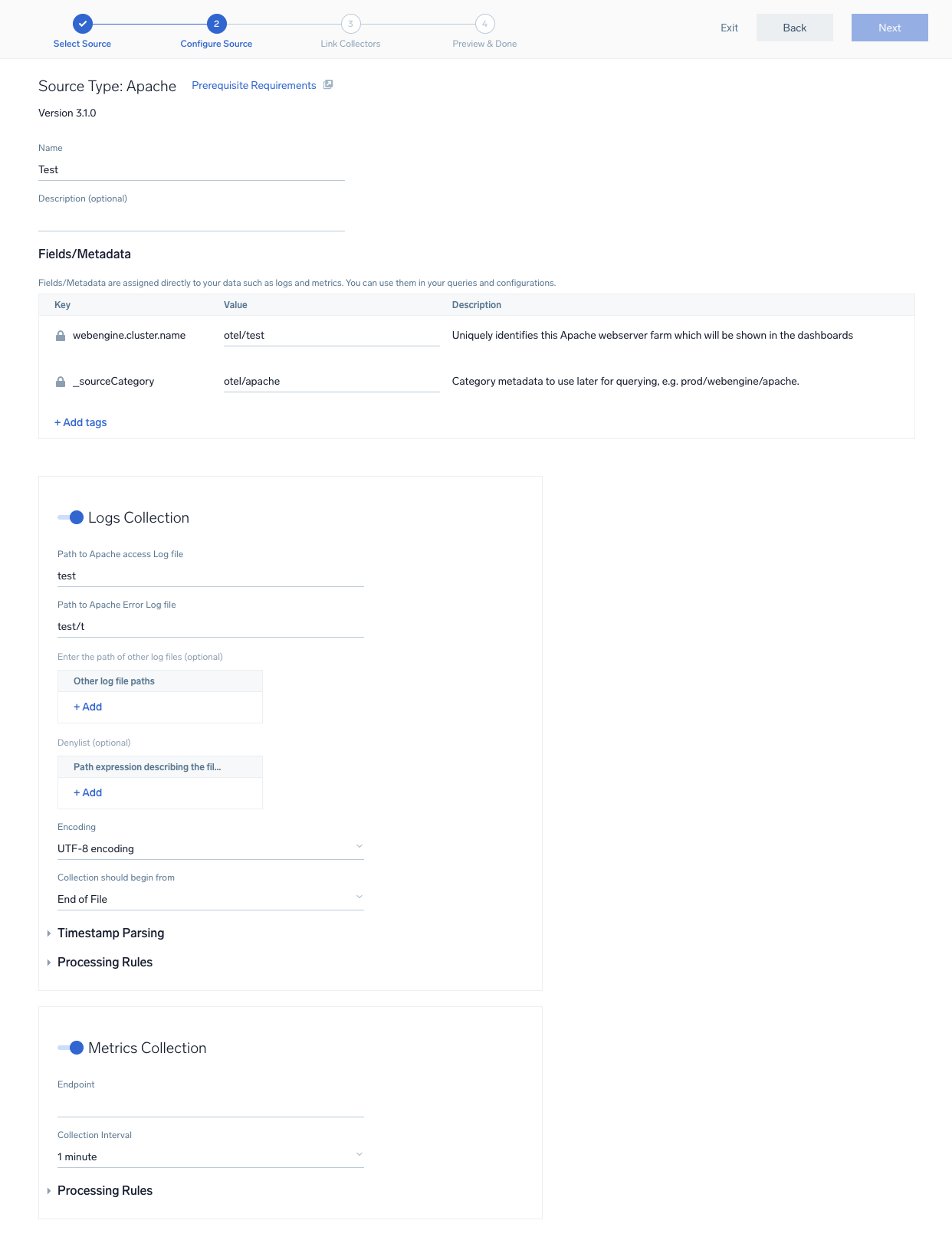
- Preview and confirm the collectors that will be linked (fetched automatically) to the newly created source template.
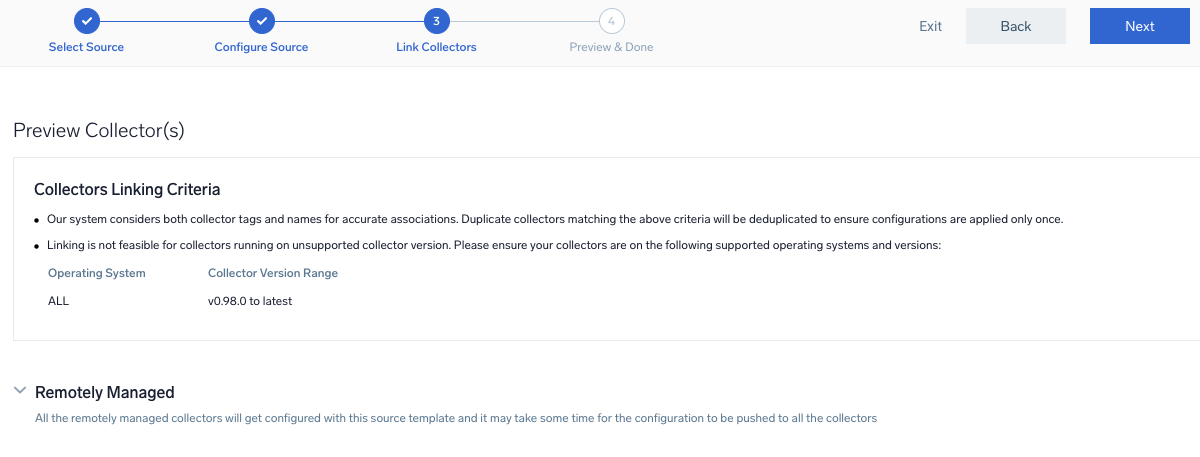
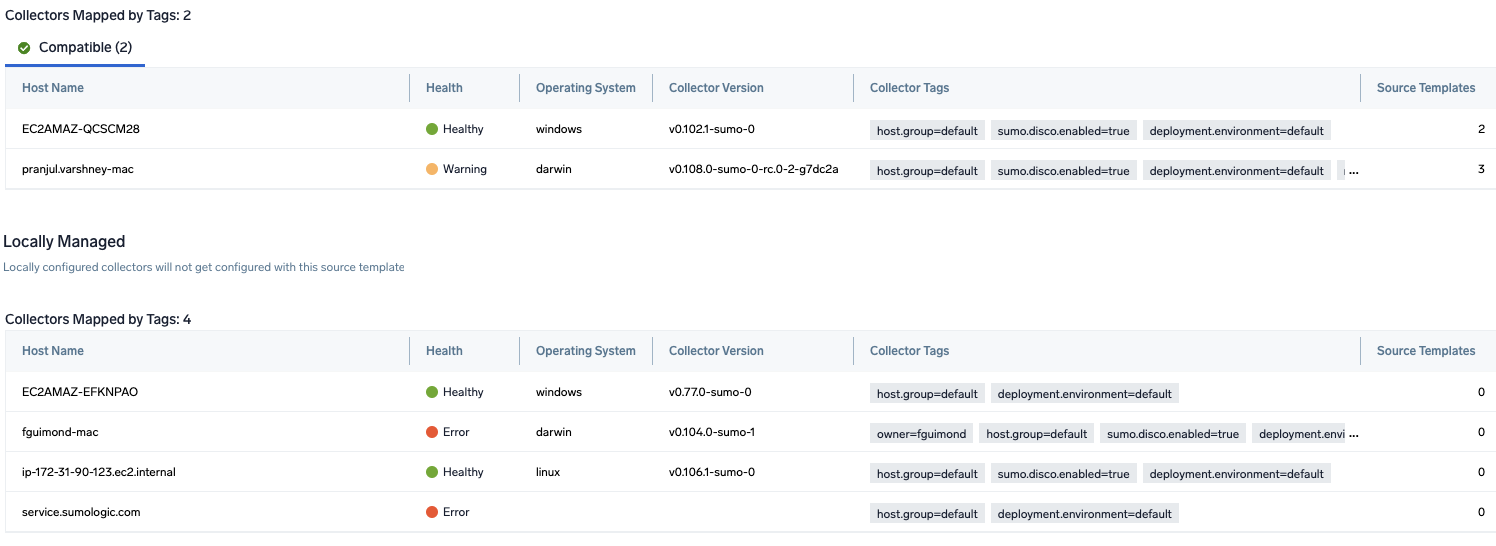
- Click Next to complete the source template creation. In the background, the system will apply the configuration to all the linked collectors and will start collecting the respective telemetry data from the remote host (in the example, it would start collecting Apache error logs).
- Click the Log Search or Metrics Search icons to search for and analyze your data collected for this source template.
Sample metrics
{"queryId":"A","_source":"postgresql-metric-otel","source":"idx_read","db.table":"company","_sourceName":"Http Input","host":"ip-172-31-91-203.ec2.internal","os.type":"linux","sumo.datasource":"postgresql","db.system":"postgresql","postgresql.database.name":"postgres","_sourceCategory":"Labs/postgresql-otel/metric","deployment.environment":"postgresqlEnvanema","_contentType":"Carbon2","metric":"postgresql.blocks_read","_collectorId":"000000000CD05E30","db.schema":"public","_sourceId":"000000004453F6D9","unit":"1","db.cluster.name":"postgresqlOtelClusteranema","postgresql.table.name":"public.company","_collector":"Labs - postgresql-otel","max":5,"min":0,"avg":1.92,"sum":115,"latest":0,"count":60}
Sample queries
This sample query is from the PostgreSQL - Overview dashboard, Fatal Errors panel.
sumo.datasource=postgresql db.cluster.name=*
| json auto maxdepth 1 nodrop
| if (isEmpty(log), _raw, log) as _raw
| parse "* * * [*] *@* *:  *" as date,time,time_zone,thread_id,user,db,severity,msg
| where severity IN ("ERROR", "FATAL")
| count by date, time, severity, db, user, msg
This sample query is from the PostgreSQL - Database Metrics dashboard, Number of Active Databases panel.
sumo.datasource=postgresql deployment.environment=* db.cluster.name=* metric=postgresql.backends postgresql.database.name=* db.node.name=* | count by postgresql.database.name | count
Viewing PostgreSQL dashboards
All dashboards have a set of filters that you can apply to the entire dashboard. Use these filters to drill down and examine the data to a granular level.
- You can change the time range for a dashboard or panel by selecting a predefined interval from a drop-down list, choosing a recently used time range, or specifying custom dates and times. Learn more.
- You can use template variables to drill down and examine the data on a granular level. For more information, see Filtering Dashboards with Template Variables.
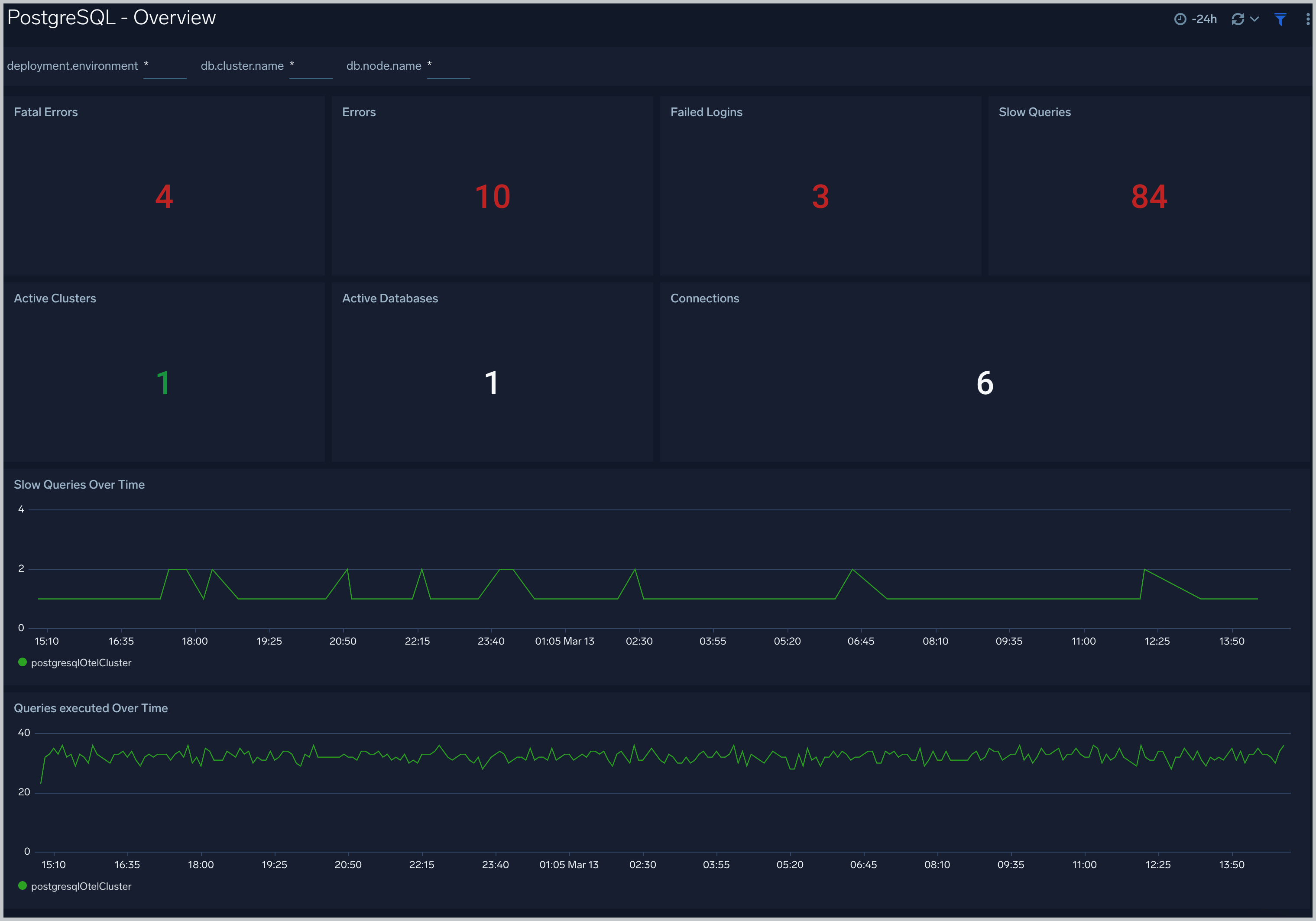
Overview
The PostgreSQL - Overview dashboard gives you an at-a-glance view of the state of your database clusters by monitoring errors, failed logins, slow queries and trends over time.
Use this dashboard to:
- Determine the number of active databases and clusters.
- Drill-down into database errors, failed logins and slow queries.
- Determine if your database or queries need to be tuned based on comparing the number of slow queries.
- Active deadlock value and tuple operations trends.
Query Execution
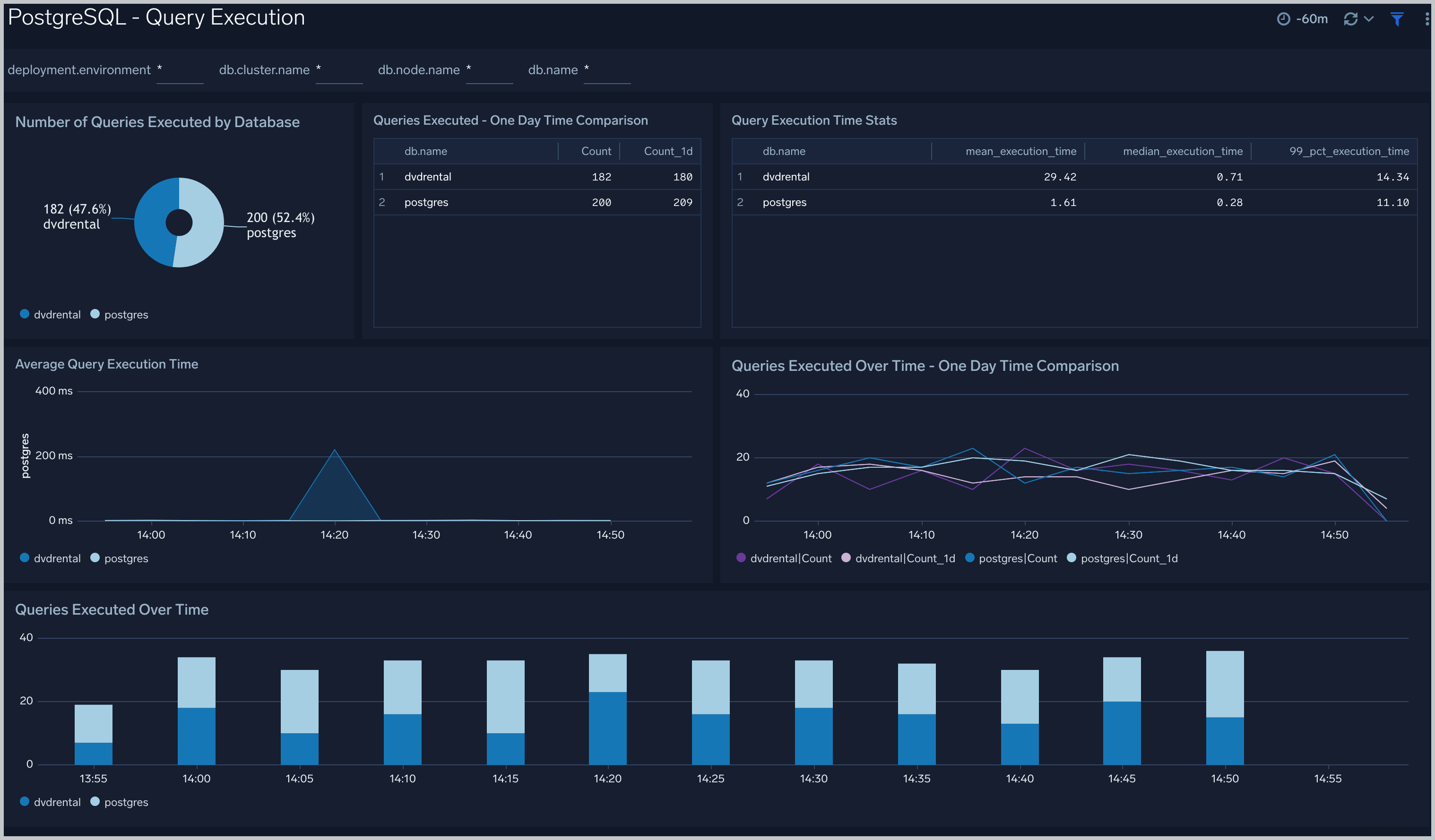
The PostgreSQL - Query Execution dashboard gives you insights into the number and time taken to execute queries:
Use this dashboard to:
- Monitor query performance and identify slow queries.
- Examine query execution trends.
Database Metrics
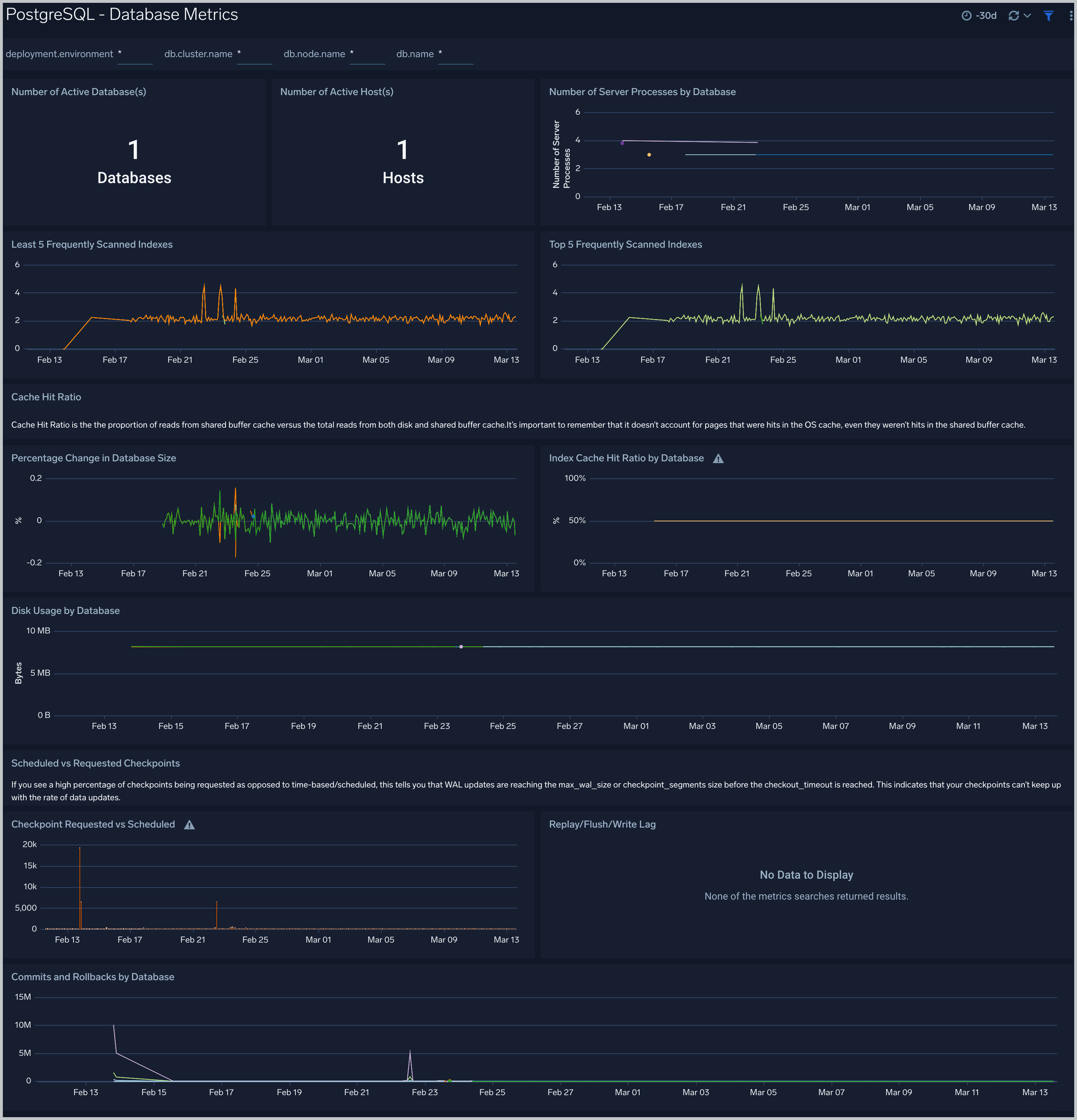
The PostgreSQL - Database Metrics dashboard allows you to monitor the database performance, which includes disk usage, commits, rollbacks, and scans.
Use this dashboard to:
- Understand the behavior and performance of your database clusters.
- Monitor the database size and disk usage.
- Identify top 5 and least 5 frequently scanned indexes.
- Monitor the row return and fetched ratio, block hits by database.
- Identify the number of Locks and Deadlocks.
- Identify the rows Update/Deleted/Inserted count trend.
Schema Metrics
The PostgreSQL - Schema Metrics dashboard allows you to view and analyze the metrics for monitoring the schema in a cluster.
Use this dashboard to view:
- Head Only Tuple updated by schema.
- Disk block reads and Disk usage by schema.
- Buffer hits and rows inserted, updated and deleted by schema.
- Live rows by schema.
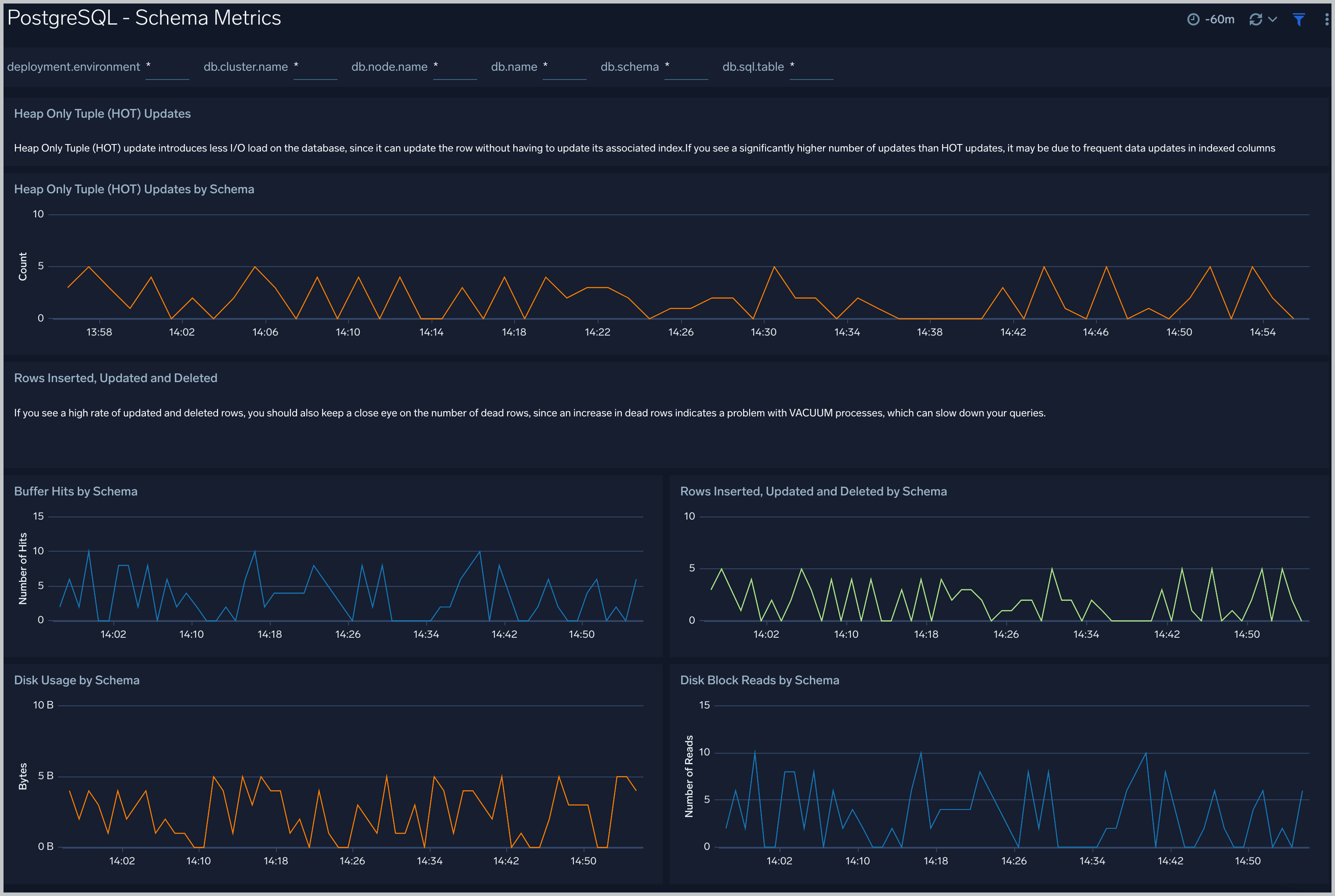
Query performance can degrade with the growth of the size of table, database and/or indexes. This means that you either need to scale up the database instance, partition your data, or redesign your indexes. Unusual growth in disk space can also mean there are problems with VACUUMs .
If your database regularly performs more sequential scans over time, you can improve its performance by creating an index on frequently accessed data.
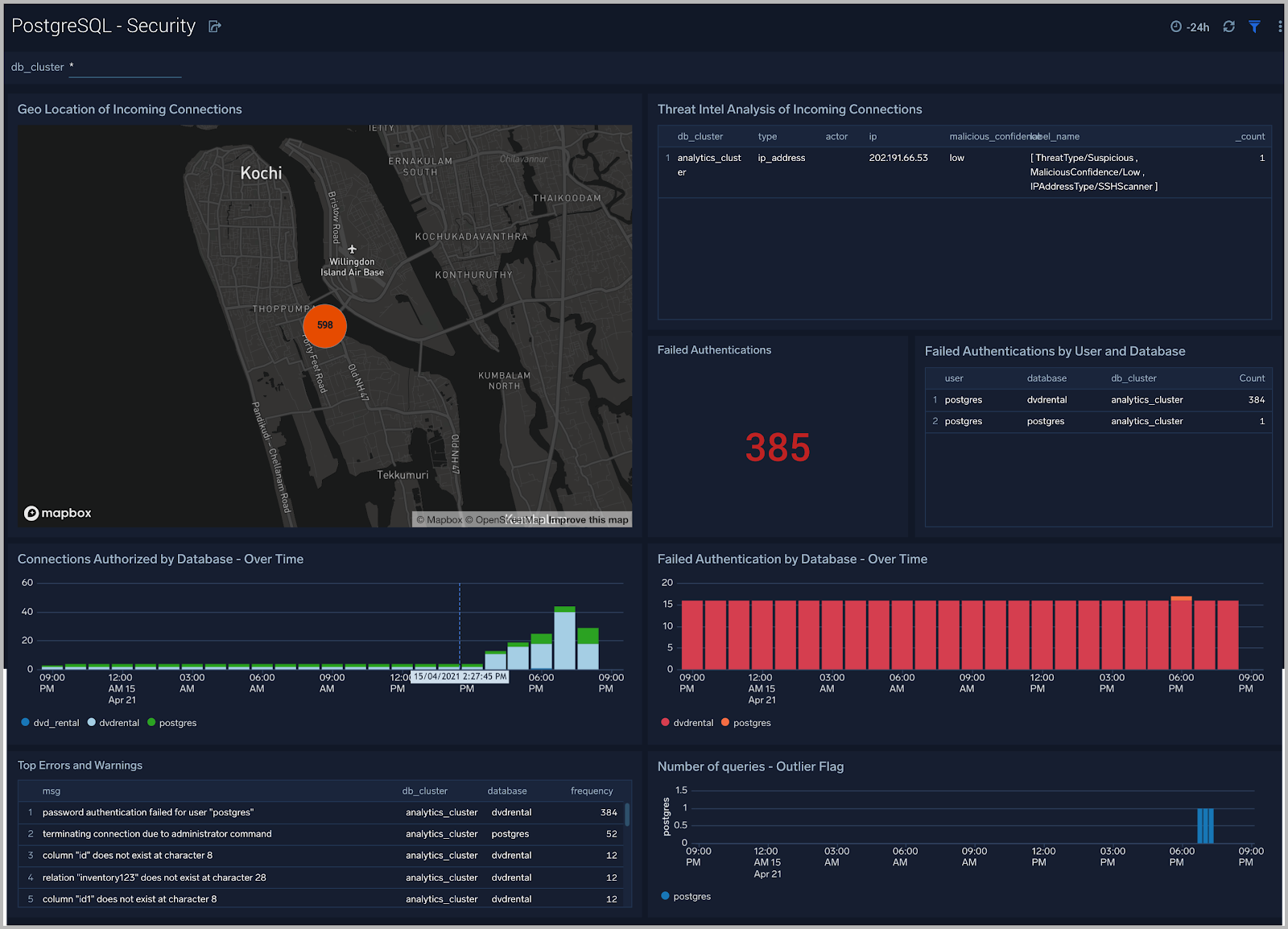
Security
The PostgreSQL - Security dashboard provides insight into locations of incoming connections, failed authentications, and top database errors and warnings.
Use this dashboard to:
- Monitor incoming connections, failed authorization requests, and outliers in the number of queries executed outlier.
- Identify known malicious IPs that are accessing your databases and use firewall access control lists to prevent them from sending you traffic going forward.
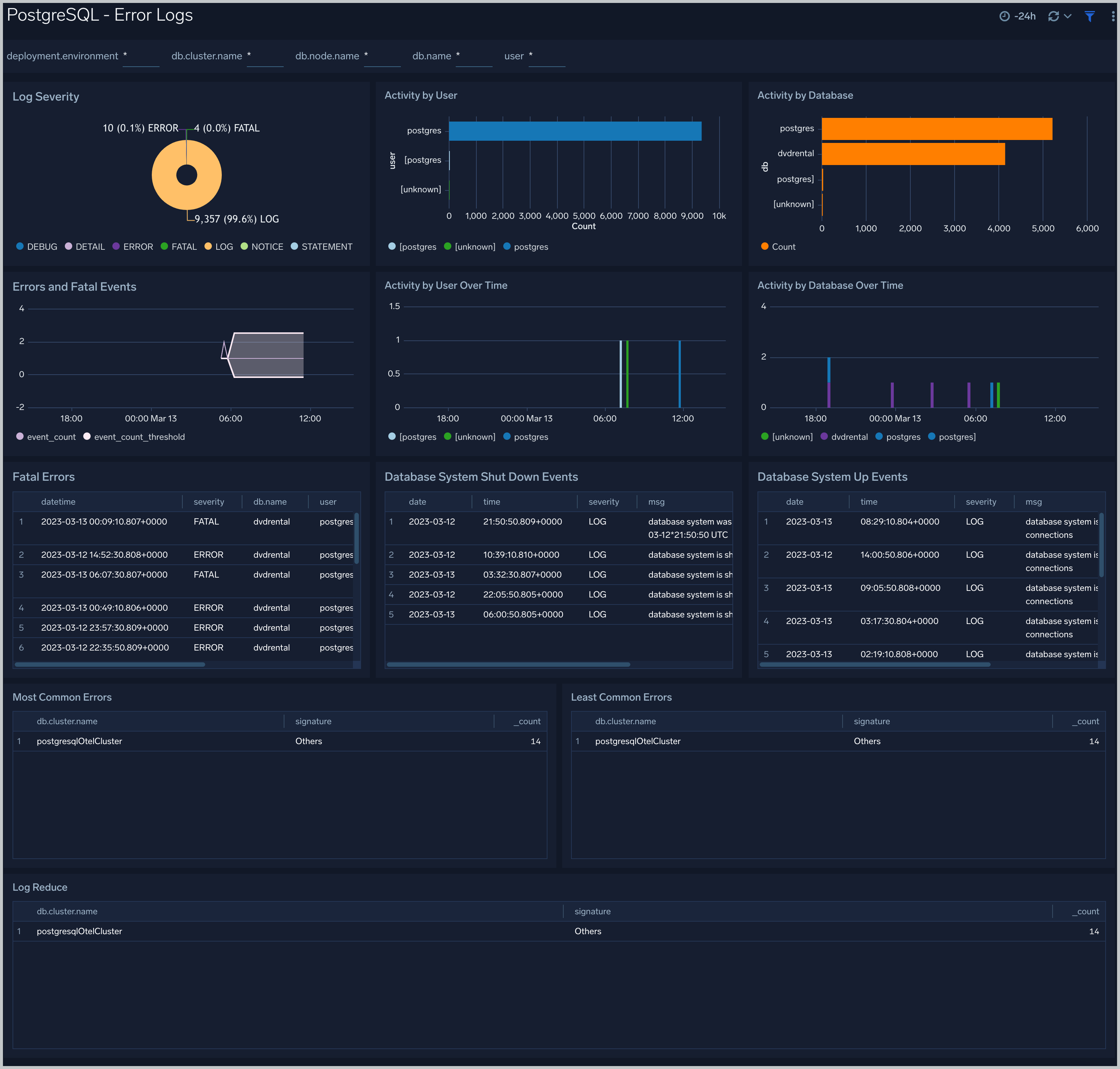
Error Logs
The PostgreSQL - Error Logs dashboard provides insight into database error logs by specifically monitoring errors, user activity, database activity, and database shutdown/start events.
Use this dashboard to:
- Quickly identify errors and patterns in logs for troubleshooting.
- Monitor error trends and quickly identify outliers.
- Identify unexpected database or user activity.
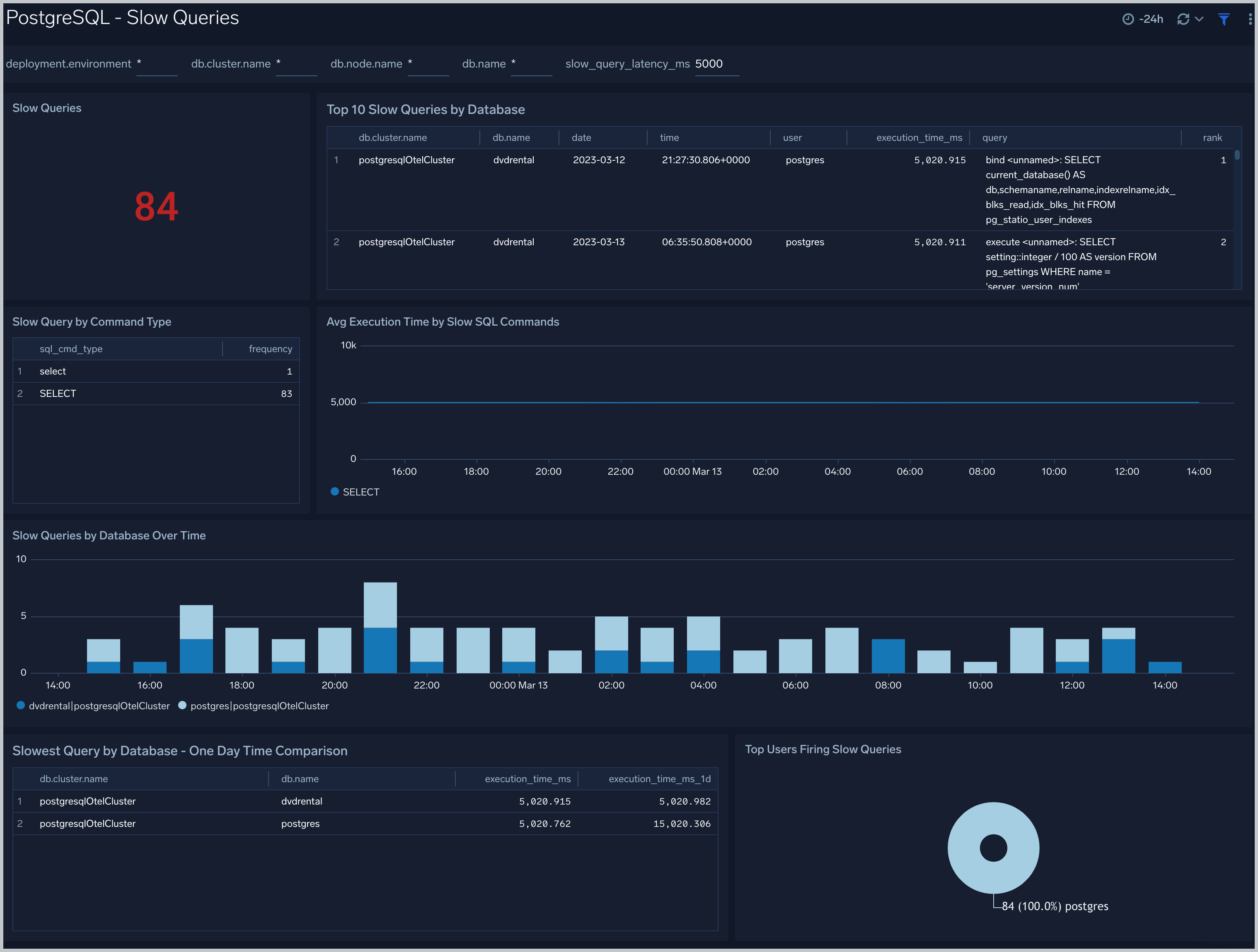
Slow Queries
The PostgreSQL - Slow Queries dashboard provides insights into all slow queries executed on the database.
Use this dashboard to:
- Identify all slow queries.
- Monitor users and databases running slow queries.
- Determine which SQL commands are slower than others.
- Examine slow query trends to determine if there are periodic performance bottlenecks in your database clusters.
Relation Metrics
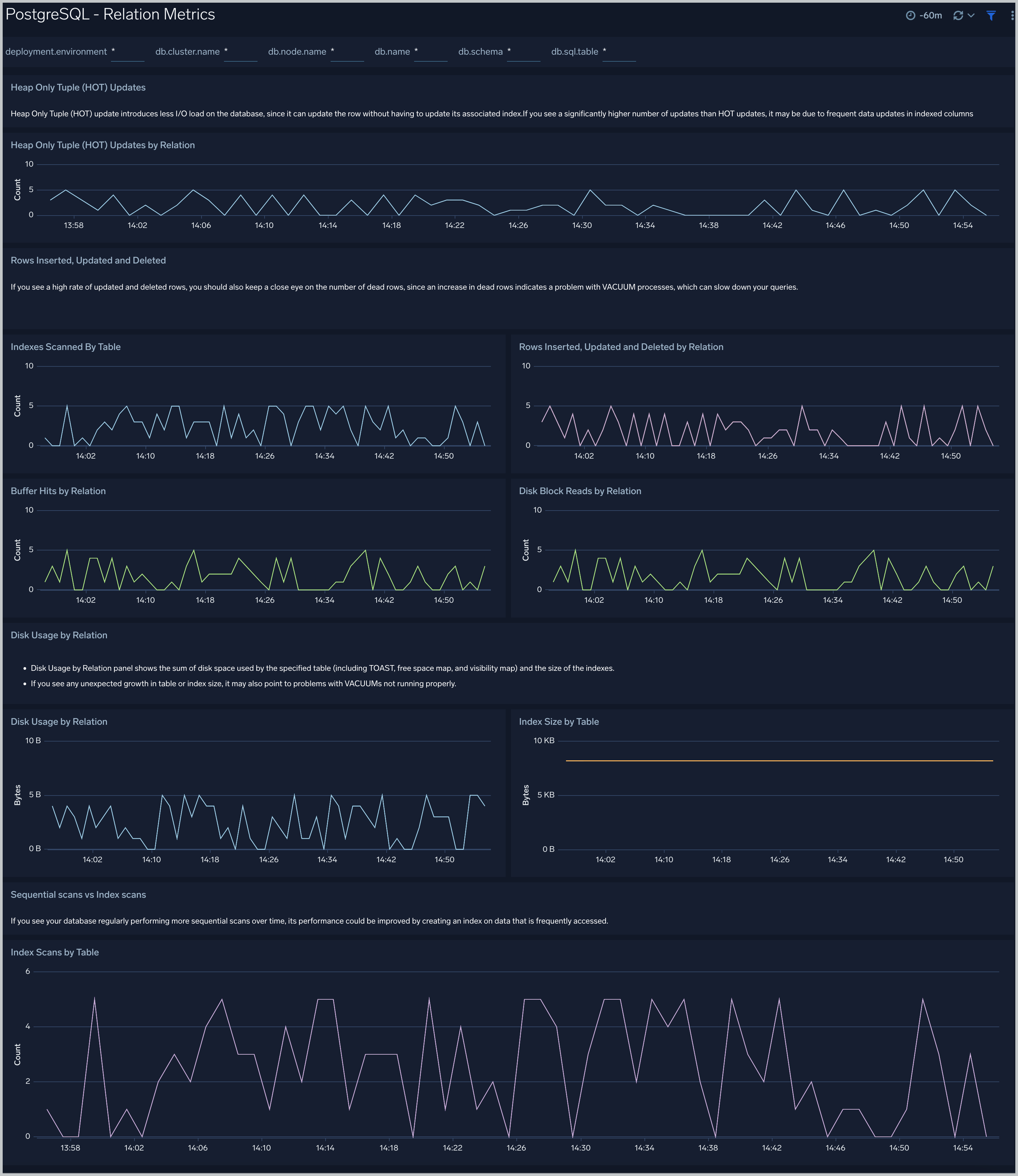
The PostgreSQL - Relation Metrics dashboard allows you to view and analyze the metrics for monitoring the relations in a schema.
Use this dashboard to:
- Monitor PostgreSQL relation metrics (disk blocks, buffer hits, and hot updates) trends over time.
- Monitor index scans and size to determine if executed queries are accessing them for a relation.
- Track index utilization of existing indexes in a relation.
- Monitor the PostgreSQL live and dead rows count trend.
- Monitor the sequential scans and index scans by relation.
Create monitors for PostgreSQL app
From your App Catalog:
- From the Sumo Logic navigation, select App Catalog.
- In the Search Apps field, search for and then select your app.
- Make sure the app is installed.
- Navigate to What's Included tab and scroll down to the Monitors section.
- Click Create next to the pre-configured monitors. In the create monitors window, adjust the trigger conditions and notifications settings based on your requirements.
- Scroll down to Monitor Details.
- Under Location click on New Folder.
note
By default, monitor will be saved in the root folder. So to make the maintenance easier, create a new folder in the location of your choice.
- Enter Folder Name. Folder Description is optional.
tip
Using app version in the folder name will be helpful to determine the versioning for future updates.
- Click Create. Once the folder is created, click on Save.
PostgreSQL alerts
| Alert Name | Alert Description and conditions | Alert Condition | Recover Condition |
|---|---|---|---|
PostgreSQL - Access from Highly Malicious Sources Alert | This alert gets triggered when a Postgres instance is accessed from known malicious IP addresses. | Count > = 1 | Count < 1 |
PostgreSQL - High Rate of Statement Timeout Alert | This alert gets triggered when we detect Postgres transactions show a high rate of statement timeouts. | Count > = 1 | Count < 1 |
PostgreSQL - High Replication Lag Alert | This alert gets triggered when we detect that the Postgres Replication lag (in bytes) is high. | Count > 10 | Count < = 10 |
PostgreSQL - Instance Down Alert | This alert gets triggered when the Postgres instance is down. | Count > = 1 | Count < 1 |
PostgreSQL - SlowQueries Alert | This alert gets triggered when we detect that the PostgreSQL instance is executing slow queries. | Count > 5 | Count < = 5 |
Postgresql- Too Many Connections Alert | PostgreSQL instance has too many connections. | Count > = 100 | Count < 100 |
PostgreSQL - Too Many Locks Acquired Alert | This alert is triggered when there are too many locks acquired on the database. Increase the postgres setting max_locks_per_transaction, if this alert occurs frequently. | Count > = 100 | Count < 100 |
PostgreSQL - High Rate Deadlock | This alert is triggered when deadlocks in a Postgres instance are detected. | Count > = 1 | Count < 1 |