 Meet the new
 Google Workspace Activities

The Sumo Logic app for Google Workspace Activities helps you monitor user and administrator activity across your Google Workspace environment by ingesting audit activity events from the Google Admin SDK Reports API. The app provides a comprehensive set of predefined dashboards that present activity for core productivity services including Gmail, Drive, Calendar, Meet, Chat, Keep, Tasks, Contacts, and Gemini, alongside security, identity, and administration services such as Admin console changes, SAML and OAuth Token sign-ins, LDAP, Context-Aware Access, User Accounts, Rules, Mobile devices, Chrome, Directory Sync, Takeout, and Vault.
This app includes built-in monitors. For details on creating custom monitors, refer to Create monitors for Google Workspace Activities app.
Log type
This app uses the Google Workspace Activities Source to collect audit activity events from the Google Admin SDK Reports API.
Sample log message
Click to expand
{
  "actor": {
    "email": "pablo.loaiza@abcd.com",
    "profileId": "116159349057010206877"
  },
  "etag": "\"nNEc9gal71zAXcZCAEuACF_HaHL-qljl7gkdrnnYaAs/ByvKAj_gE0W_hIlyo6zci0ZIiZo\"",
  "events": [
    {
      "name": "login_verification",
      "parameters": [
        {
          "name": "login_type",
          "value": "saml"
        },
        {
          "multiValue": [
            "saml"
          ],
          "name": "login_challenge_method"
        },
        {
          "name": "login_challenge_status",
          "value": "passed"
        },
        {
          "name": "is_second_factor"
        }
      ],
      "resourceIds": [
        "0haapch2v0v6ma"
      ],
      "type": "login"
    }
  ],
  "id": {
    "applicationName": "login",
    "customerId": "C01ydpbjo",
    "time": "2026-10-12T22:12:30.064Z",
    "uniqueQualifier": "5462944545274950170"
  },
  "ipAddress": "168.119.168.251",
  "kind": "admin#reports#activity",
  "networkInfo": {
    "ipAsn": [
      55256
    ],
    "regionCode": "US",
    "subdivisionCode": "US-FL"
  },
  "resourceDetails": [
    {
      "id": "0haapch2v0v6ma",
      "ownerDetails": {
        "ownerIdentity": [
          {
            "customerIdentity": {
              "id": "01ydpbjo"
            }
          }
        ],
        "ownerType": "CUSTOMER"
      },
      "title": "pablo.loaiza@abcd.com",
      "type": "USER"
    }
  ]
}
Sample queries
={{Logsdatasource}} login login_success
| json "id.applicationName", "id.uniqueQualifier", "actor.email", "events[*].name" as app_name, id, actor_email, event_names nodrop
// global filters
| where app_name = "login"
| parse regex field=event_names "\"(?<event_name>[^\"]+)\"" multi
| parse regex field= "\"name\":\s*\"login_type\",\s*\"value\":\s*\"(?<login_type>[^\"]+)\"" multi nodrop
| where if ("{{actor_email}}" = "*", true, actor_email matches "{{actor_email}}")
| where if ("{{login_type}}" = "*", true, login_type matches "{{login_type}}")
| where event_name = "login_success"
| count by id
| count
={{Logsdatasource}} drive shared_externally
| json "id.applicationName", "id.uniqueQualifier", "actor.email", "events[*].name" as app_name, id, actor_email, event_names nodrop
// global filters
| where app_name = "drive"
| parse regex field=event_names "\"(?<event_name>[^\"]+)\"" multi
| where if ("{{actor_email}}" = "*", true, actor_email matches "{{actor_email}}")
| where if ("{{event_name}}" = "*", true, event_name matches "{{event_name}}")
| parse regex field= "\"name\":\s*\"visibility\",\s*\"value\":\s*\"(?<visibility>[^\"]+)\"" multi
| where visibility = "shared_externally"
| count by id
| count
Collection configuration and app installation
Depending on the set up collection method, you can configure and install the app in three ways:
- Create a new collector and install the app. Create a new Sumo Logic Cloud-to-Cloud (C2C) source under a new Sumo Logic Collector and later install the app, or
- Use an existing collector and install the app. Create a new Sumo Logic Cloud-to-Cloud (C2C) source under an existing Sumo Logic Collector and later install the app, or
- Use existing source and install the app. Use your existing configured Sumo Logic Cloud-to-Cloud (C2C) source and install the app.
Use the Google Workspace Activities Source to create the source and use the same source category while installing the app.
Create a new collector and install the app
To set up collection and install the app, do the following:
Next-Gen App: To install or update the app, you must be an account administrator or a user with Manage Apps, Manage Monitors, Manage Fields, Manage Metric Rules, and Manage Collectors capabilities depending upon the different content types part of the app.
- Select App Catalog.
- In the 🔎 Search Apps field, run a search for your desired app, then select it.
- Click Install App.
note
Sometimes this button says Add Integration.
- In the Set Up Collection section of your respective app, select Create a new Collector.
- Collector Name. Enter a Name to display the Source in the Sumo Logic web application. The description is optional.
- Timezone. Set the default time zone when it is not extracted from the log timestamp. Time zone settings on Sources override a Collector time zone setting.
- (Optional) Metadata. Click the +Add Metadata link to add a custom log Metadata Fields. Define the fields you want to associate, each metadata field needs a name (key) and value.
 A green circle with a checkmark is shown when the field exists and is enabled in the Fields table schema.
 An orange triangle with an exclamation point is shown when the field doesn't exist, or is disabled in the Fields table schema. In this case, you'll see an option to automatically add or enable the nonexistent fields to the Fields table schema. If a field is sent to Sumo Logic but isn’t present or enabled in the schema, it’s ignored and marked as Dropped.
- Click Next.
- Configure the source as specified in the
Infobox above, ensuring all required fields are included. - In the Configure section of your respective app, complete the following fields.
- Field Name. If you already have collectors and sources set up, select the configured metadata field name (eg _sourcecategory) or specify other custom metadata (eg: _collector) along with its metadata Field Value.
- Click Next. You will be redirected to the Preview & Done section.
Post-installation
Once your app is installed, it will appear in your Installed Apps folder, and dashboard panels will start to fill automatically.
Each panel slowly fills with data matching the time range query received since the panel was created. Results will not immediately be available but will be updated with full graphs and charts over time.
Use an existing collector and install the app
To set up the source in the existing collector and install the app, do the following:
Next-Gen App: To install or update the app, you must be an account administrator or a user with Manage Apps, Manage Monitors, Manage Fields, Manage Metric Rules, and Manage Collectors capabilities depending upon the different content types part of the app.
- Select App Catalog.
- In the 🔎 Search Apps field, run a search for your desired app, then select it.
- Click Install App.
note
Sometimes this button says Add Integration.
- In the Set Up Collection section of your respective app, select Use an existing Collector.
- From the Select Collector dropdown, select the collector that you want to set up your source with and click Next.
- Configure the source as specified in the
Infobox above, ensuring all required fields are included. - In the Configure section of your respective app, complete the following fields.
- Field Name. If you already have collectors and sources set up, select the configured metadata field name (eg _sourcecategory) or specify other custom metadata (eg: _collector) along with its metadata Field Value.
- Click Next. You will be redirected to the Preview & Done section.
Post-installation
Once your app is installed, it will appear in your Installed Apps folder, and dashboard panels will start to fill automatically.
Each panel slowly fills with data matching the time range query received since the panel was created. Results will not immediately be available but will be updated with full graphs and charts over time.
Use an existing source and install the app
To skip collection and only install the app, do the following:
Next-Gen App: To install or update the app, you must be an account administrator or a user with Manage Apps, Manage Monitors, Manage Fields, Manage Metric Rules, and Manage Collectors capabilities depending upon the different content types part of the app.
- Select App Catalog.
- In the 🔎 Search Apps field, run a search for your desired app, then select it.
- Click Install App.
note
Sometimes this button says Add Integration.
- In the Set Up Collection section of your respective app, select Skip this step and use existing source and click Next.
- In the Configure section of your respective app, complete the following fields.
- Field Name. If you already have collectors and sources set up, select the configured metadata field name (eg _sourcecategory) or specify other custom metadata (eg: _collector) along with its metadata Field Value.
- Click Next. You will be redirected to the Preview & Done section.
Post-installation
Once your app is installed, it will appear in your Installed Apps folder, and dashboard panels will start to fill automatically.
Each panel slowly fills with data matching the time range query received since the panel was created. Results will not immediately be available but will be updated with full graphs and charts over time.
Viewing Google Workspace Activities dashboards
All dashboards have a set of filters that you can apply to the entire dashboard. Use these filters to drill down and examine the data to a granular level.
- You can change the time range for a dashboard or panel by selecting a predefined interval from a drop-down list, choosing a recently used time range, or specifying custom dates and times. Learn more.
- You can use template variables to drill down and examine the data on a granular level. For more information, see Filtering Dashboards with Template Variables.
- Most Next-Gen apps allow you to provide the scope at the installation time and are comprised of a key (
_sourceCategoryby default) and a default value for this key. Based on your input, the app dashboards will be parameterized with a dashboard variable, allowing you to change the dataset queried by all panels. This eliminates the need to create multiple copies of the same dashboard with different queries.
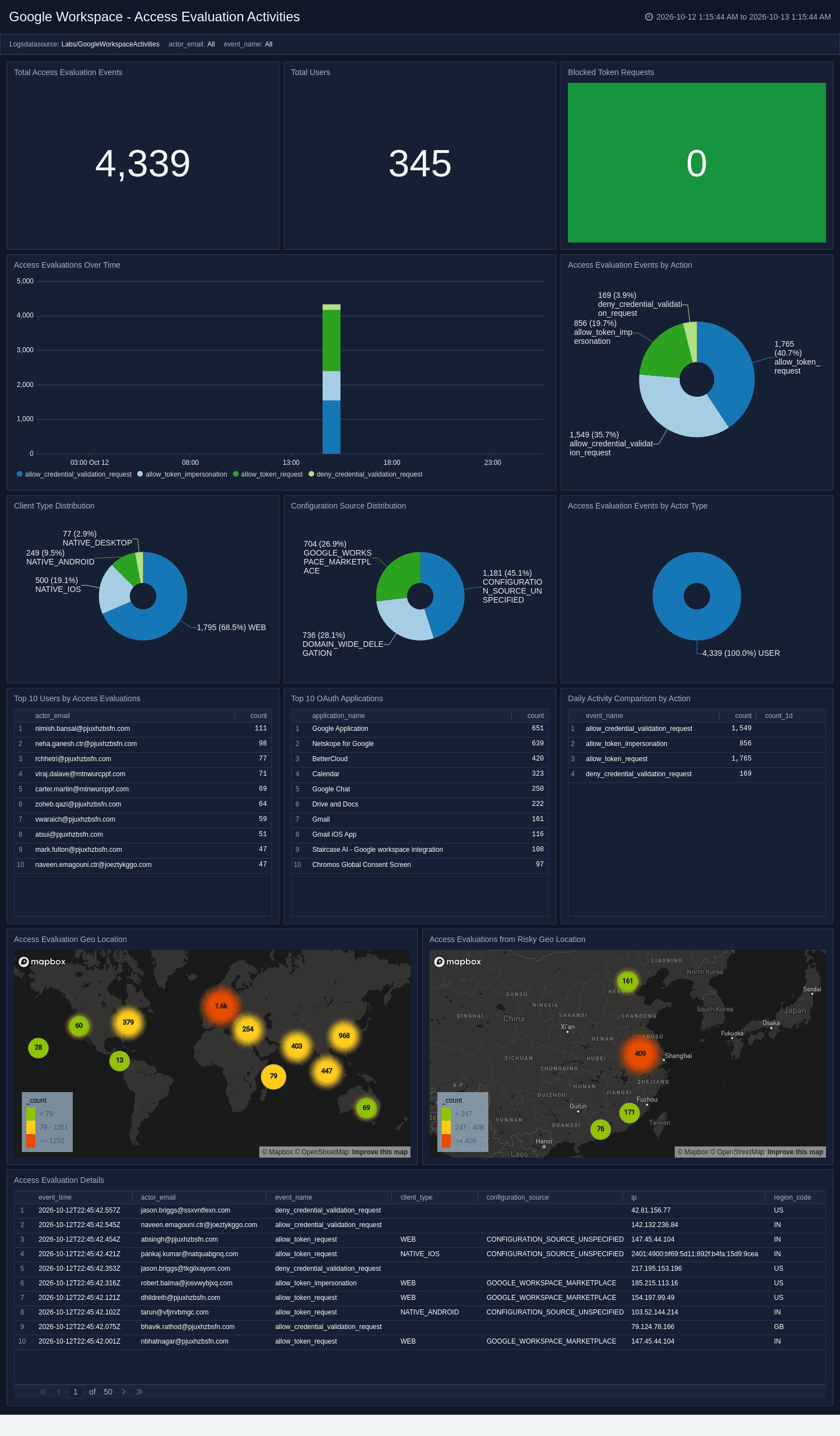
Access Evaluation Activities
The Google Workspace - Access Evaluation Activities dashboard monitors context-aware access token evaluations, including allowed and blocked requests and the OAuth apps requesting access. It breaks down client types, trends evaluation outcomes over time, and maps requests to source geography. Use this dashboard to review which applications are evaluated against access policies, investigate blocked requests, and detect access attempts from risky locations.
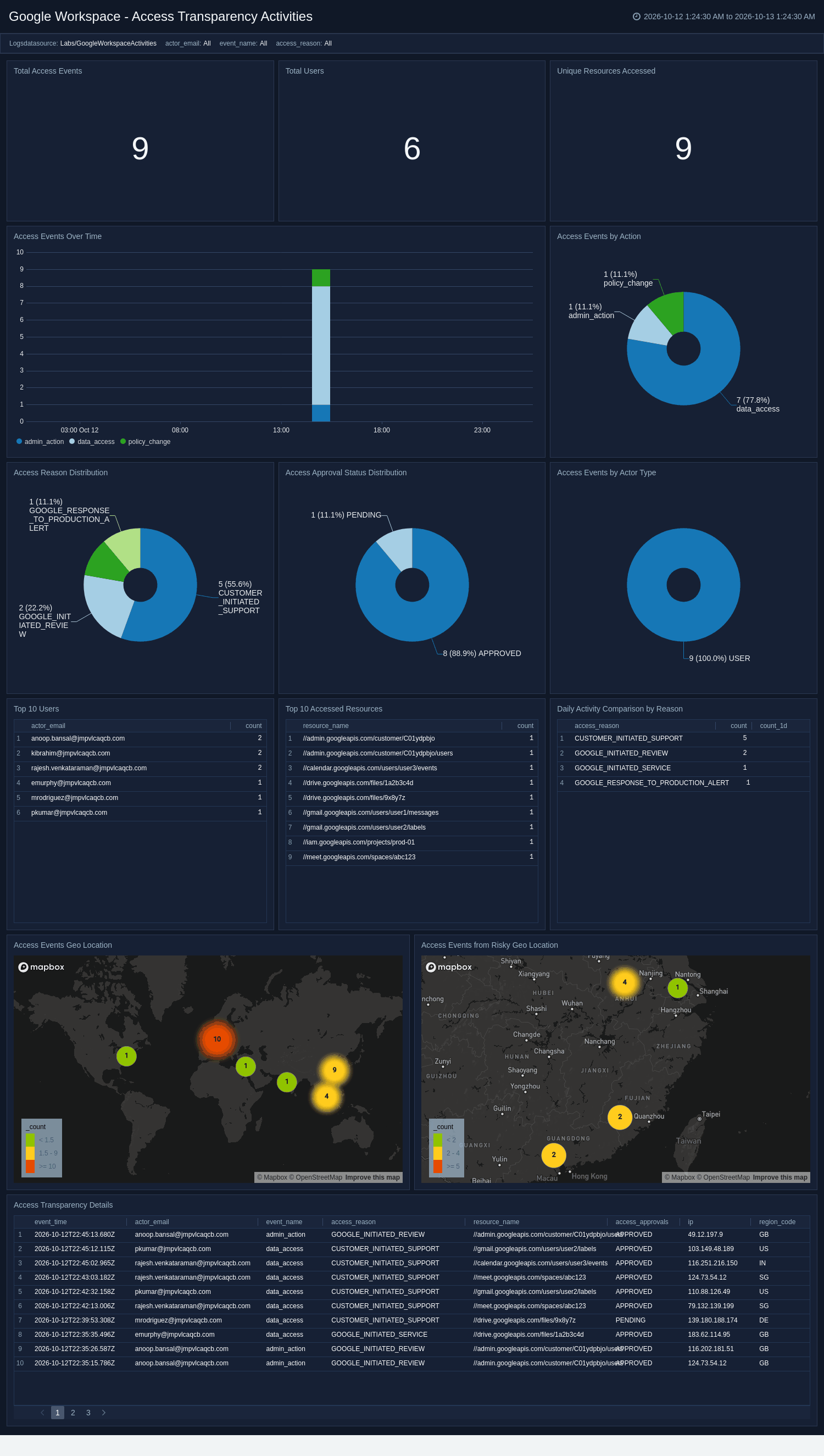
Access Transparency Activities
The Google Workspace - Access Transparency Activities dashboard monitors Google staff access to customer data, including access reasons, approval status, and the resources accessed. It trends access events over time and maps them to source geography for compliance review. Use this dashboard to audit provider access, verify justifications and approvals, and demonstrate transparency controls for security and compliance.
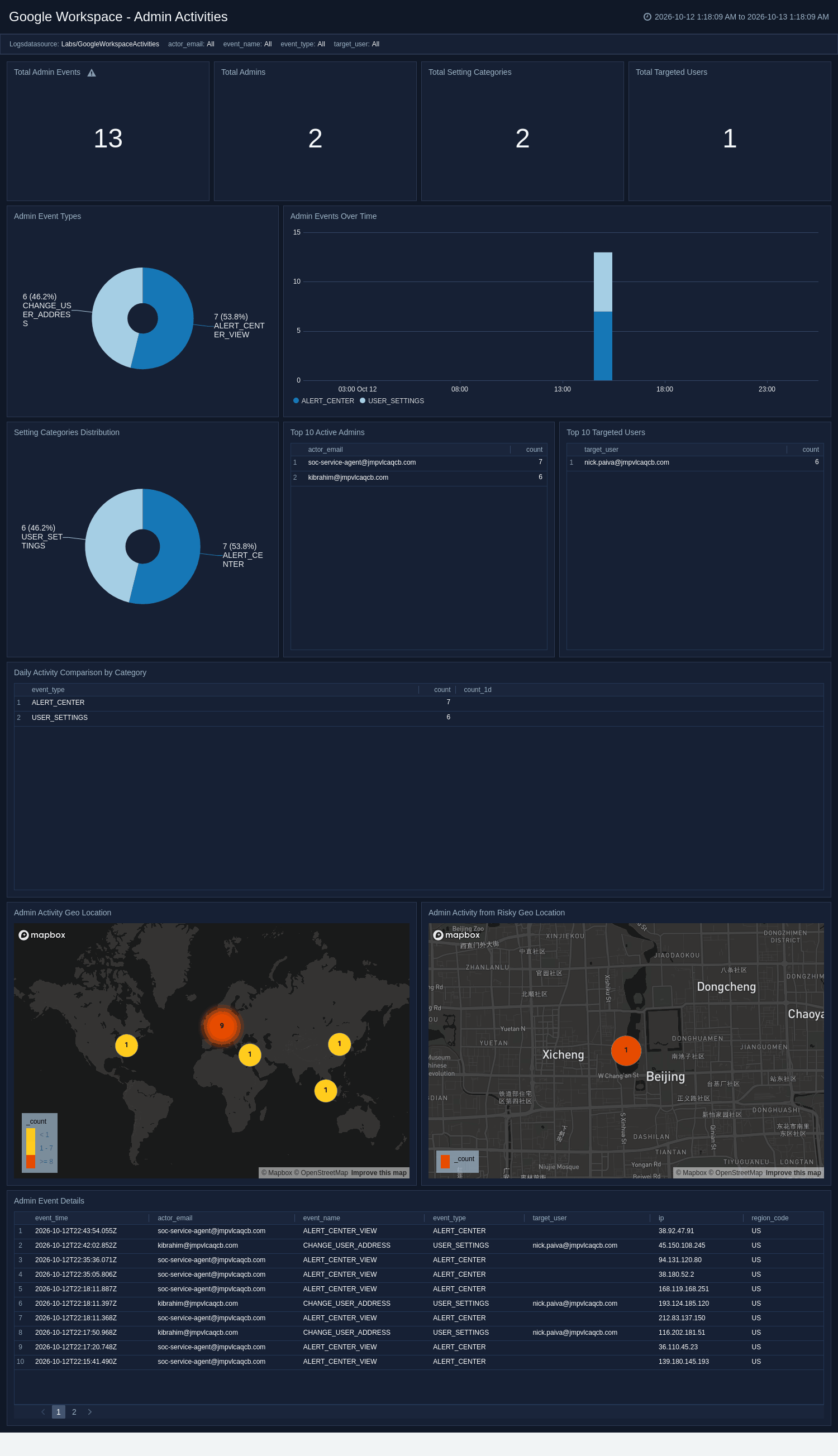
Admin Activities
The Google Workspace - Admin Activities dashboard monitors Google Admin console changes, including overall event volume and the setting categories being modified. It highlights the most active administrators and the users most frequently affected by admin actions, and maps administrative activity to source geography. Use this dashboard to audit sensitive configuration changes, track privileged admin behavior, and detect administrative actions from unexpected locations.
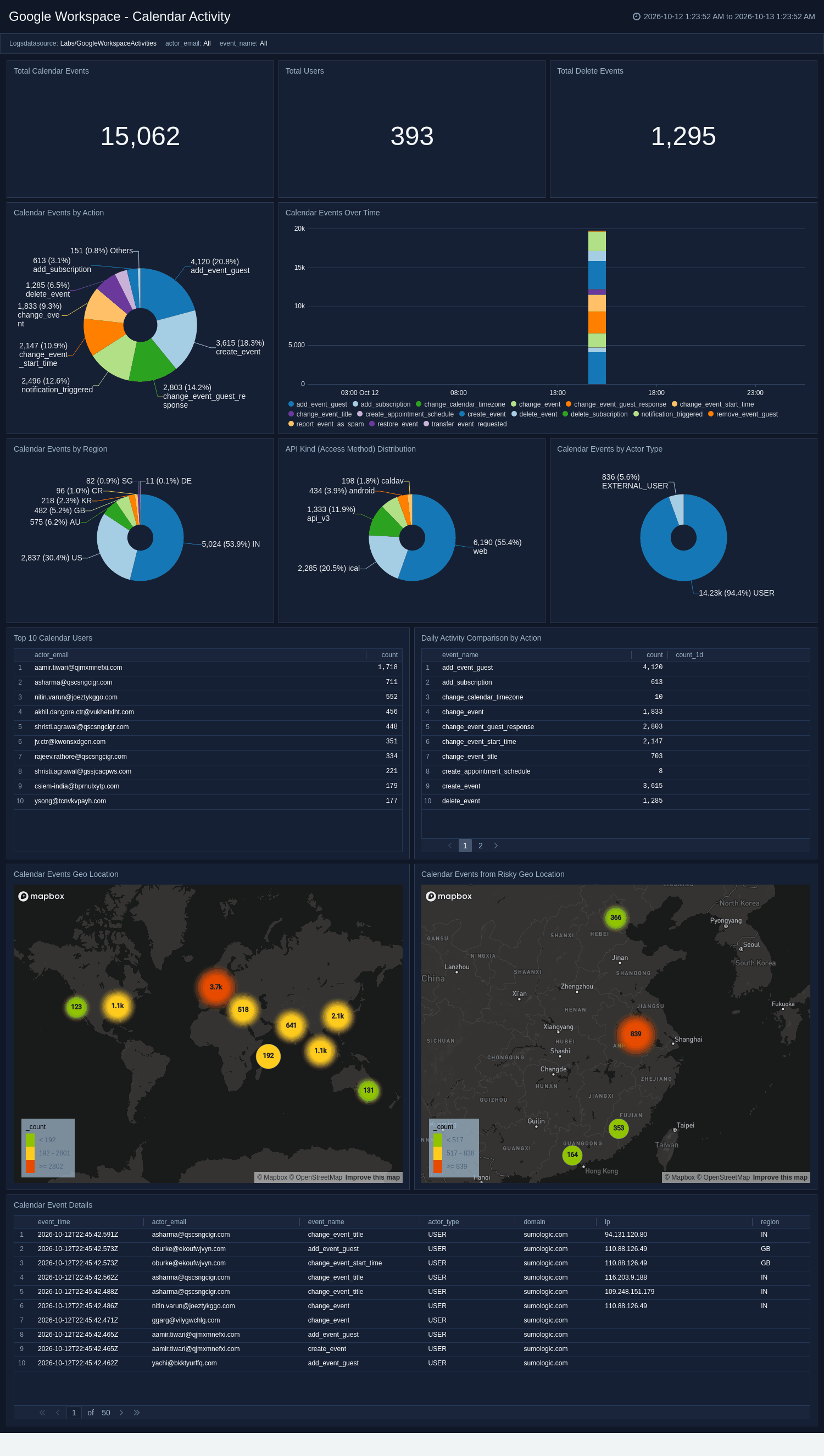
Calendar Activity
The Google Workspace - Calendar Activity dashboard monitors Google Calendar activity, including event creation, deletion, and sharing as well as external attendee interactions. It highlights the most active users, breaks down event actions, and trends calendar activity over time. Use this dashboard to audit calendar changes, surface external sharing of events, and understand scheduling patterns across the organization.
Chat Activity
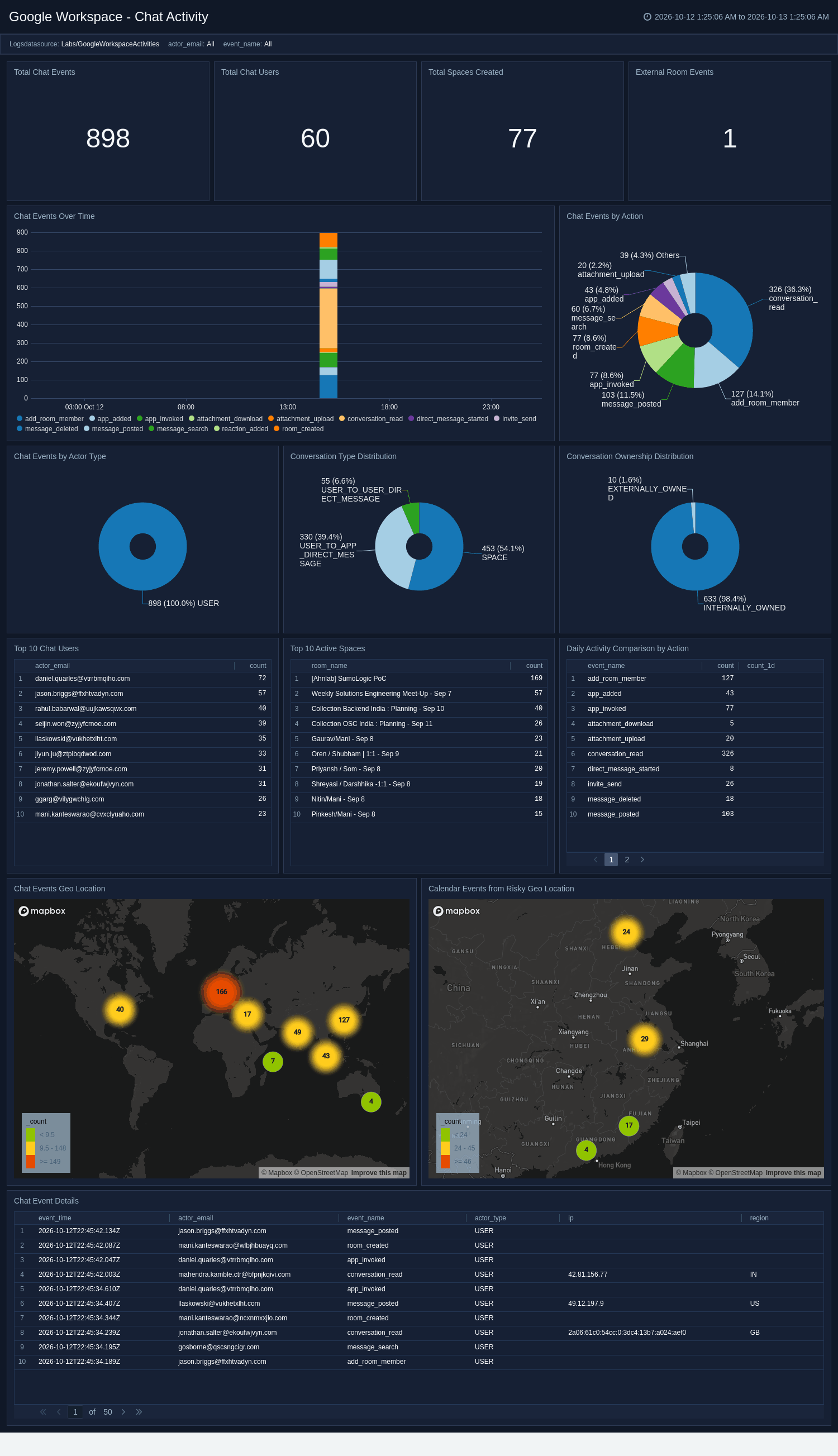
The Google Workspace - Chat Activity dashboard monitors Google Chat activity, including spaces, messages, and membership changes. It highlights external and direct-message conversations, surfaces the most active users and spaces, and trends messaging activity over time. Use this dashboard to gain collaboration visibility, detect external communication, and investigate anomalous chat activity.
Chrome Activity
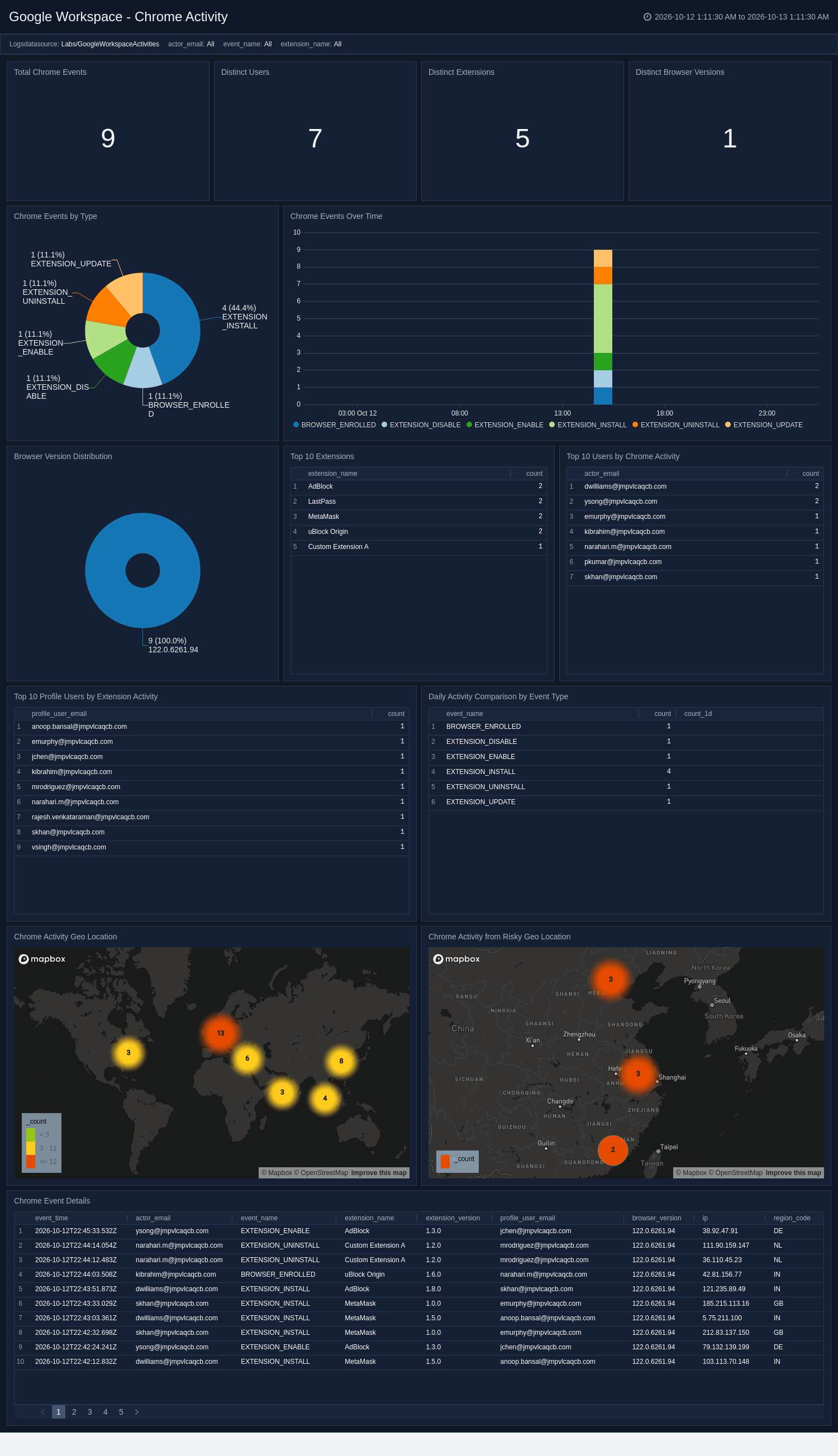
The Google Workspace - Chrome Activity dashboard monitors managed Chrome browser and extension activity across your fleet, including extension install, update, and removal events along with browser version spread. It highlights the top extensions, users, and profile users, breaks activity down by extension version, and maps events to source geography. Use this dashboard to track extension lifecycle changes, surface outdated or risky browsers, and investigate anomalous extension activity.
Classroom Activity
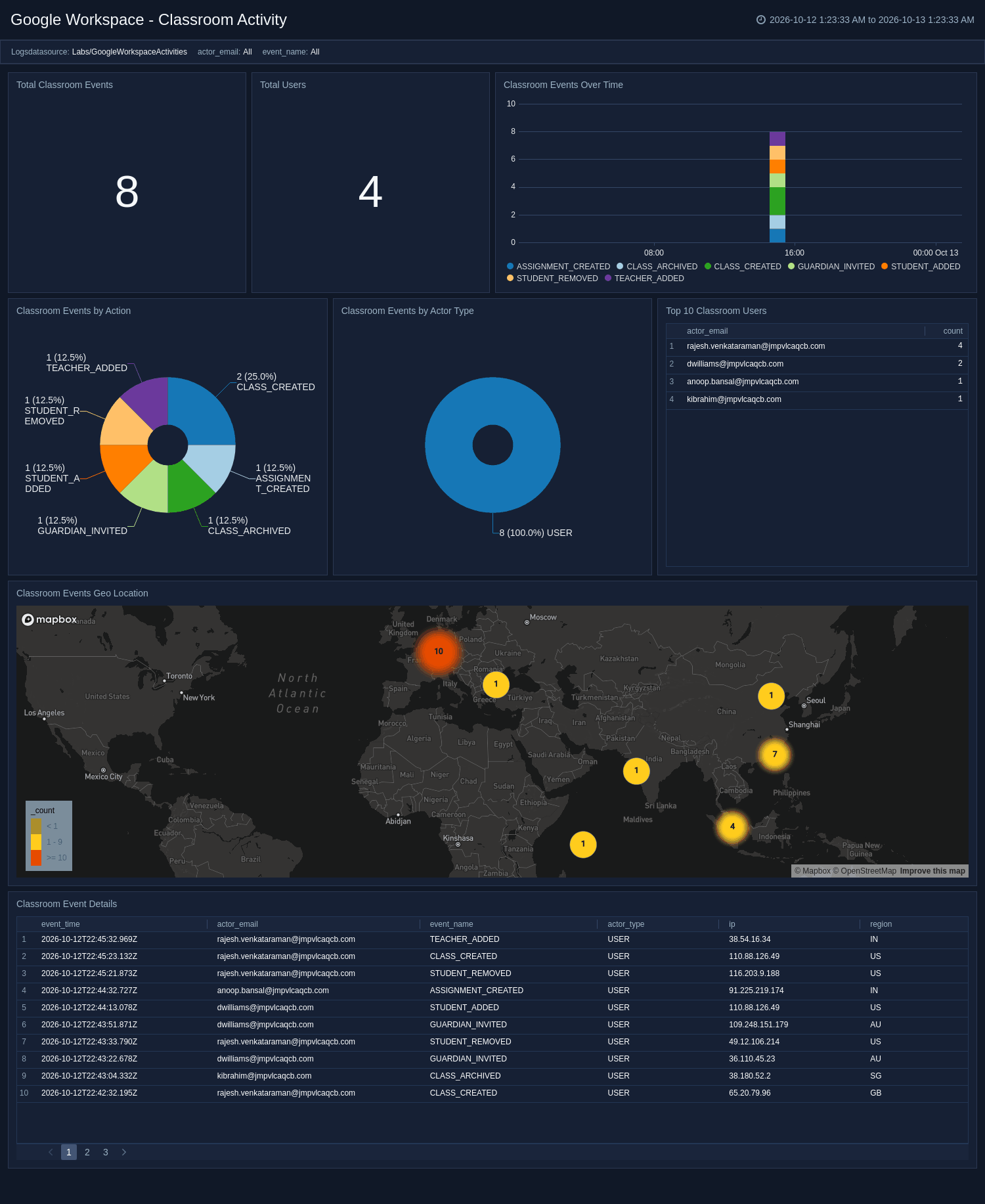
The Google Workspace - Classroom Activity dashboard monitors Google Classroom activity, including course events, roster changes, and assignment operations. It highlights the most active courses and users, trends events over time, and surfaces membership and coursework changes. Use this dashboard to audit classroom administration, track roster and assignment activity, and understand how Classroom is used.
Contacts Activity
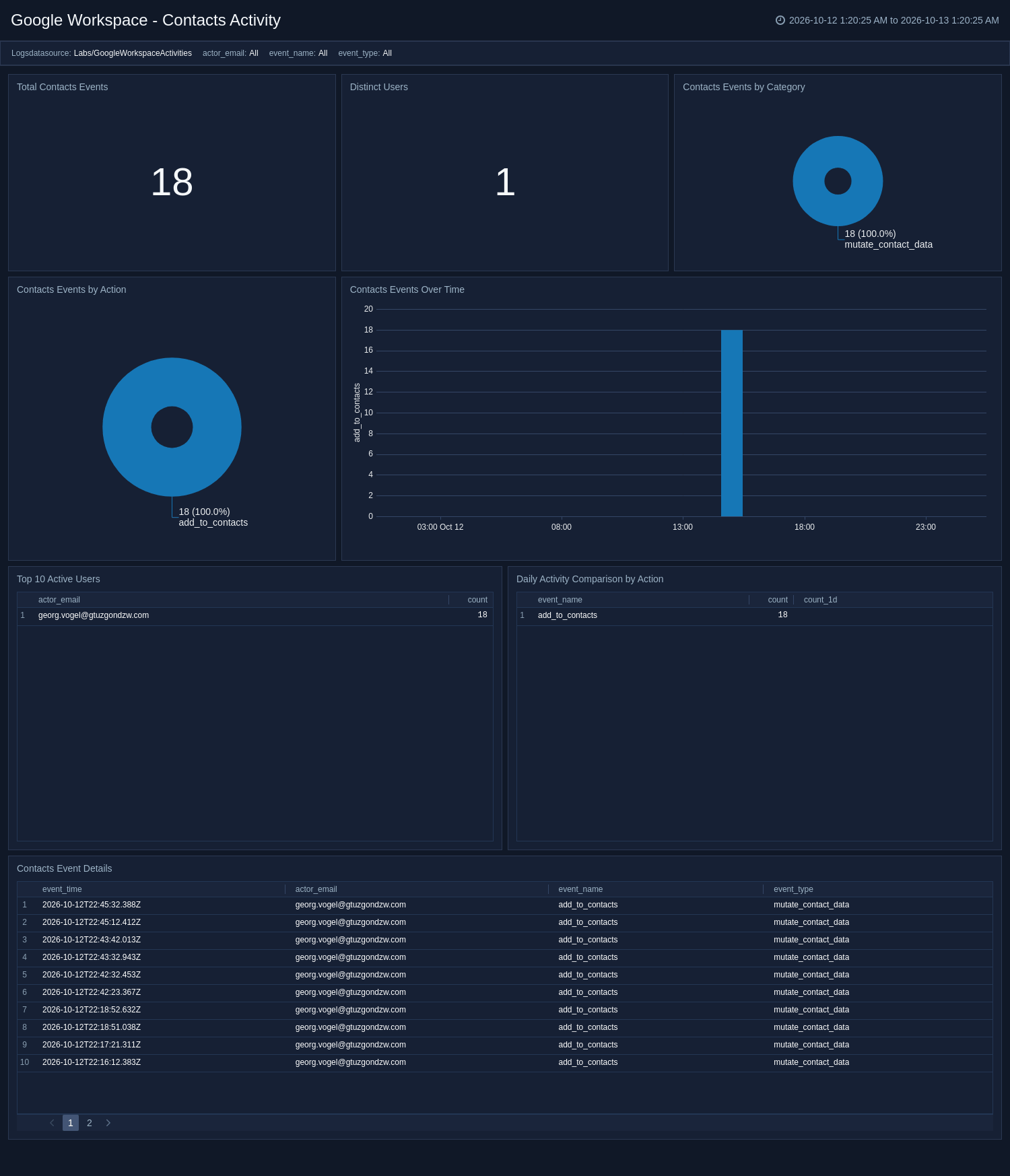
The Google Workspace - Contacts Activity dashboard monitors Google Contacts activity, including contact mutations and the actions and categories behind them. It quantifies the volume of affected contacts, highlights the most active users, and trends events over time. Use this dashboard to audit contact data changes, surface bulk modifications, and understand how contact information is managed.
Context Aware Access Activity
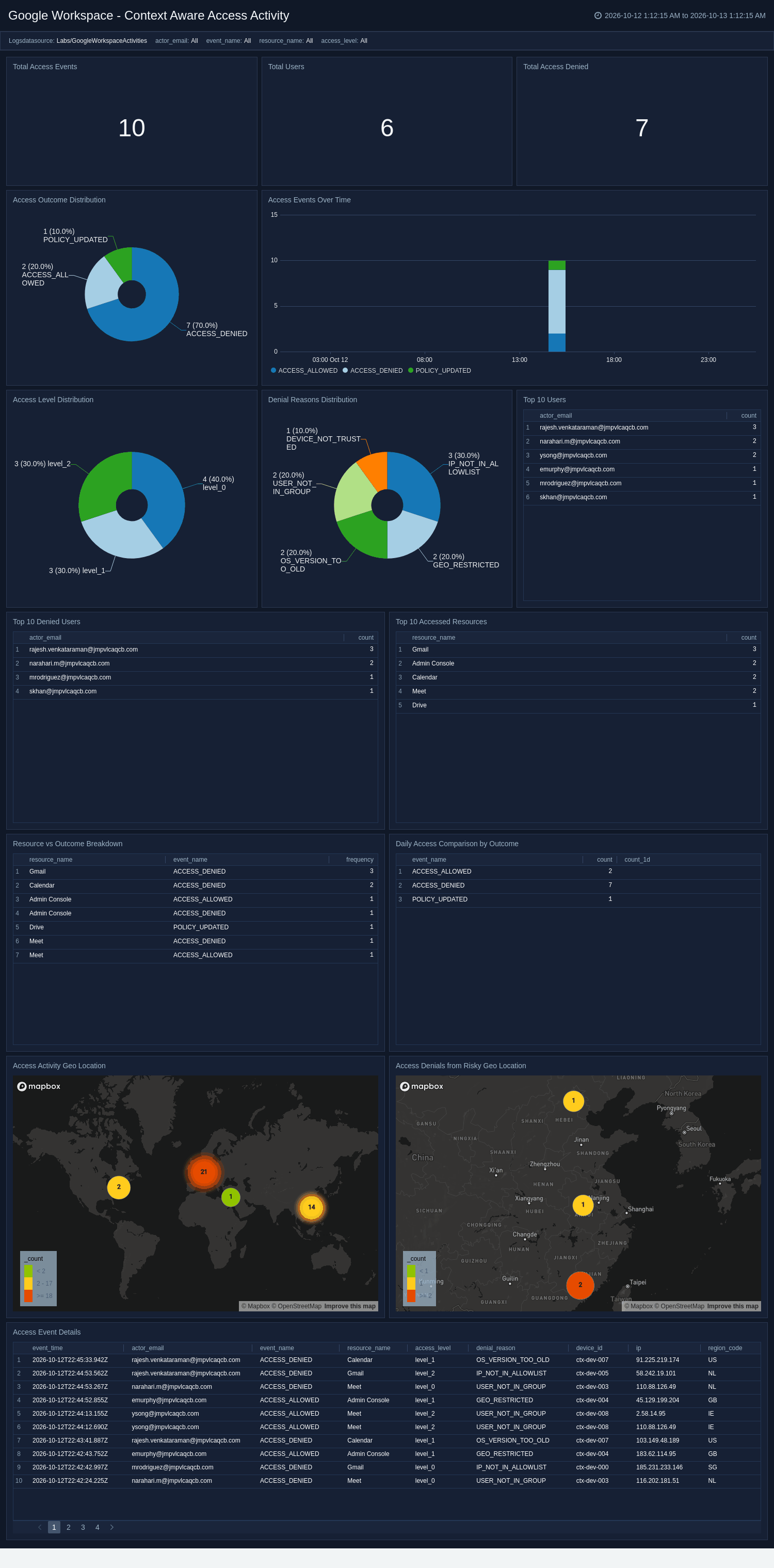
The Google Workspace - Context Aware Access Activity dashboard monitors context-aware access decisions, including granted and denied requests, access levels, and denial reasons. It surfaces the most-accessed resources, the top denied users, and outcome trends over time, and maps access denials to source geography. Use this dashboard to validate access policies, investigate repeated denials, and detect access attempts from risky locations.
Directory Sync Activity
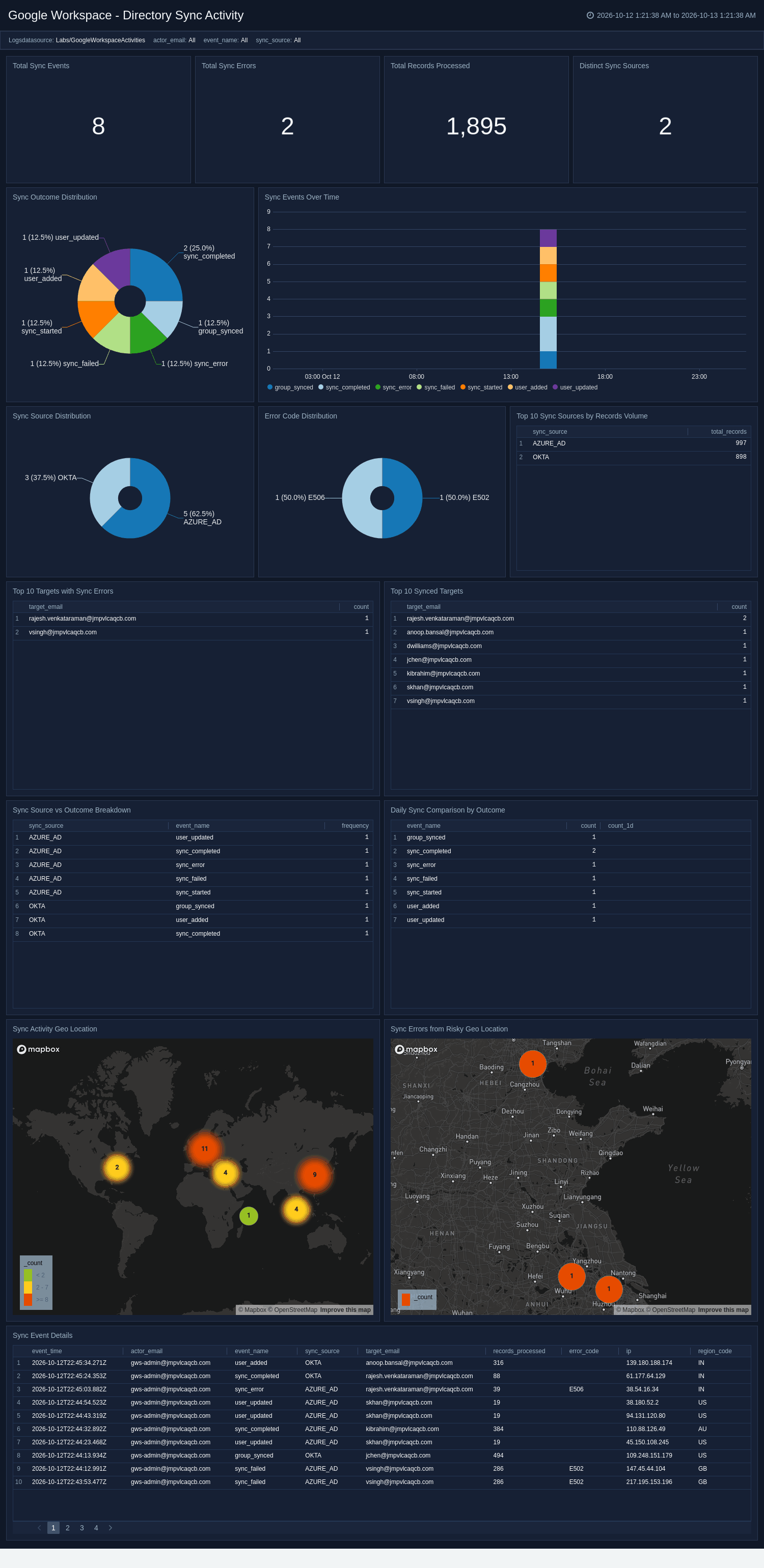
The Google Workspace - Directory Sync Activity dashboard monitors directory synchronization, including sync outcomes, errors, and the number of records processed. It breaks down sync sources and error codes, highlights the targets most affected by failures, and maps sync errors to source geography. Use this dashboard to troubleshoot sync failures, monitor provisioning volume, and ensure identity data stays consistent across systems.
Drive Activity
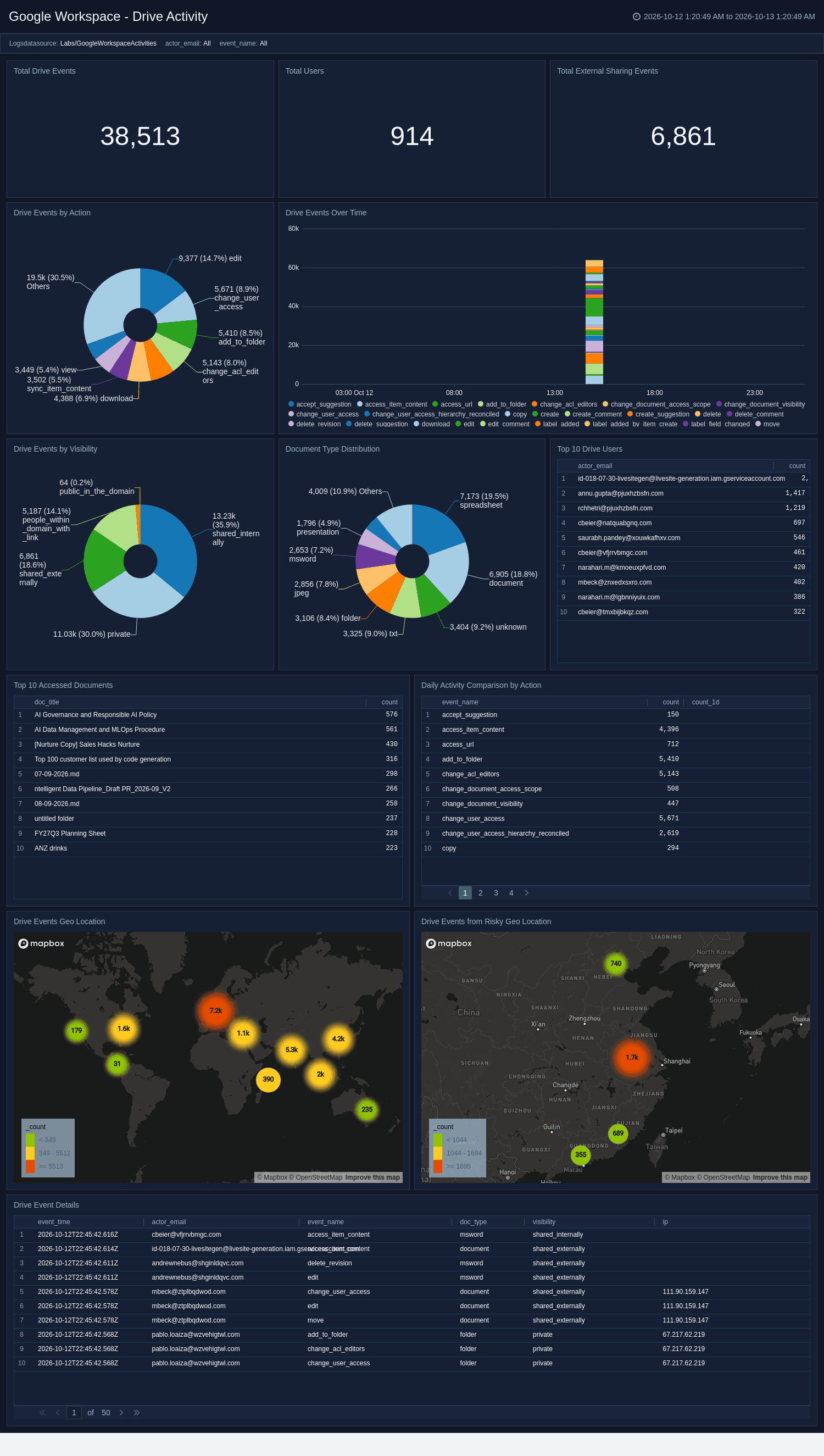
The Google Workspace - Drive Activity dashboard monitors Google Drive file activity, including access, downloads, and external sharing across the organization. It breaks down document types and sharing visibility, highlights the top users and most-active documents, and maps activity to source geography. Use this dashboard to detect external data sharing, investigate downloads of sensitive files, and audit Drive usage from risky locations.
Gemini Feature Adoption
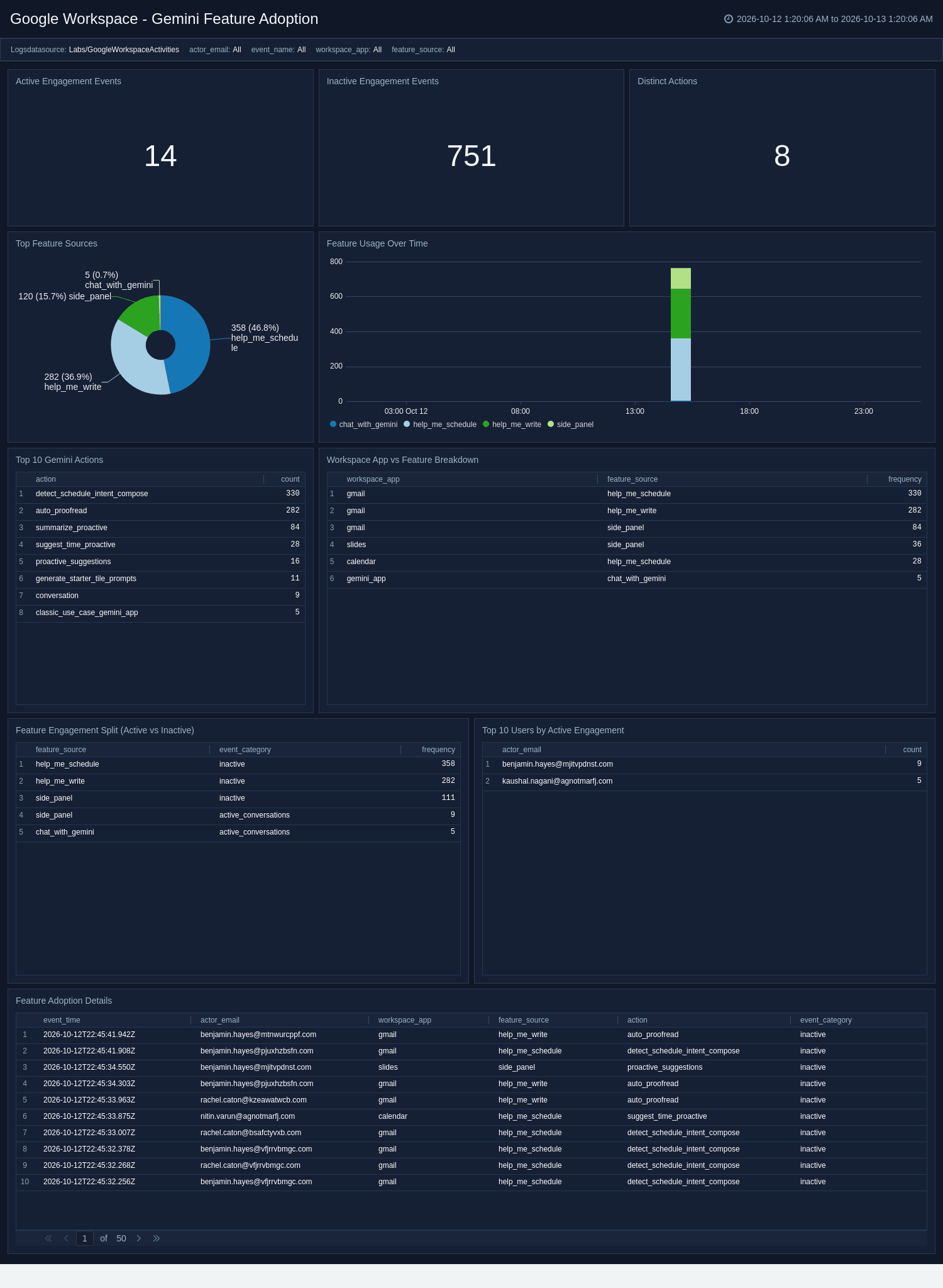
The Google Workspace - Gemini Feature Adoption dashboard analyzes how Gemini features are adopted and engaged with across Workspace apps. It trends feature usage over time, breaks activity down by app and feature, and compares active versus inactive engagement while surfacing abandoned features. Use this dashboard to measure feature-level adoption, identify the most and least used capabilities, and prioritize enablement efforts.
Gemini Usage Overview
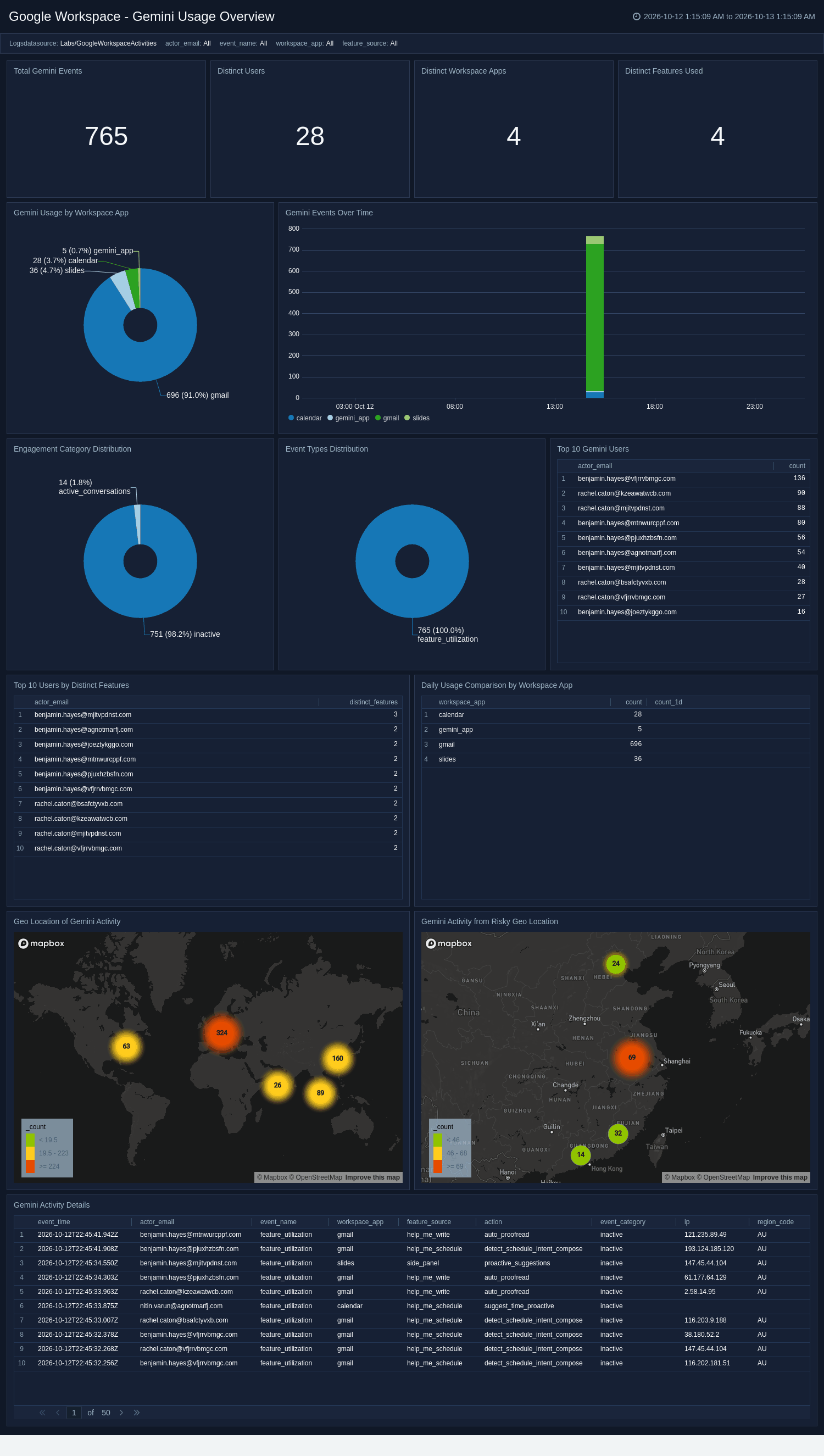
The Google Workspace - Gemini Usage Overview dashboard monitors adoption of Gemini in Workspace apps, including overall event volume, usage by Workspace app, and active users. It breaks down engagement categories, trends usage over time, and maps activity to source geography. Use this dashboard to measure Gemini adoption, identify the most engaged users and apps, and spot unusual usage patterns.
Gmail Activity
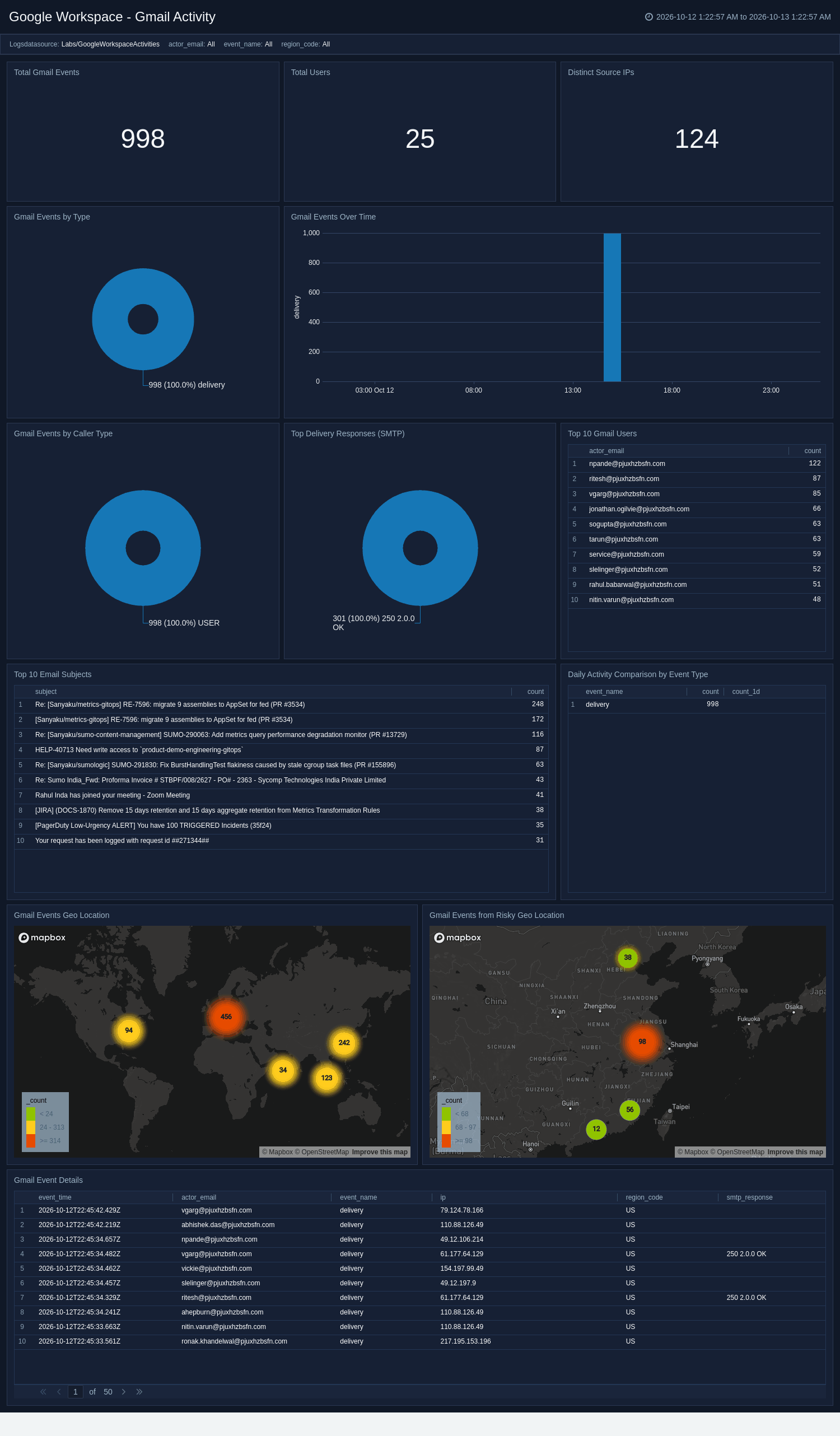
The Google Workspace - Gmail Activity dashboard monitors Gmail message delivery across the organization, including SMTP responses and delivery outcomes. It highlights the top senders and most common subjects, breaks down delivery results, and maps email activity to source geography. Use this dashboard to investigate delivery issues, surface anomalous sending patterns, and review mail activity from risky locations.
Keep Activity
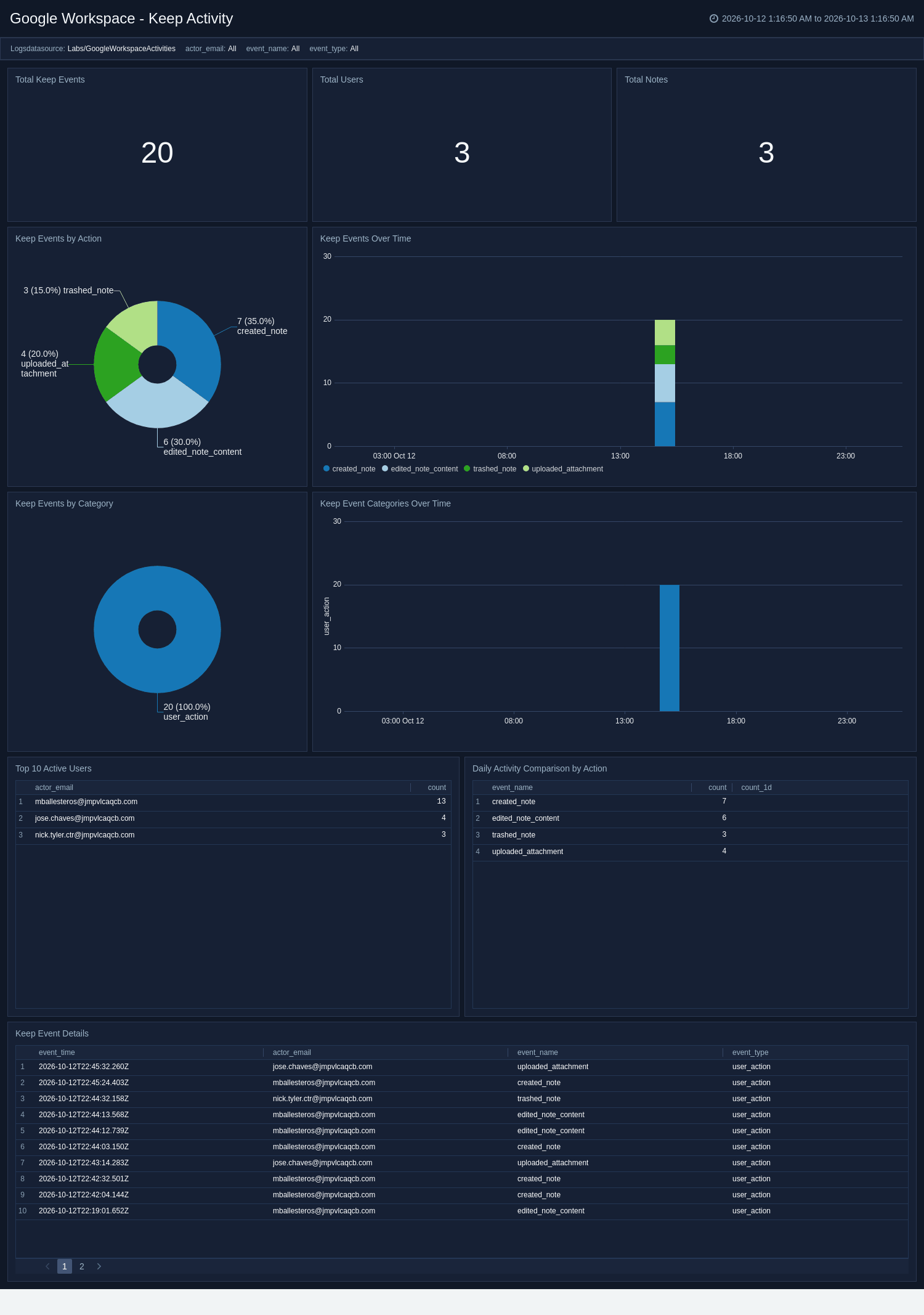
The Google Workspace - Keep Activity dashboard monitors Google Keep note activity, including note actions, trashed or deleted notes, and the client applications used. It highlights the most active users and notes, breaks activity down by category, and trends events over time. Use this dashboard to audit note changes, surface bulk deletions, and understand how Keep is used across the organization.
LDAP Activity
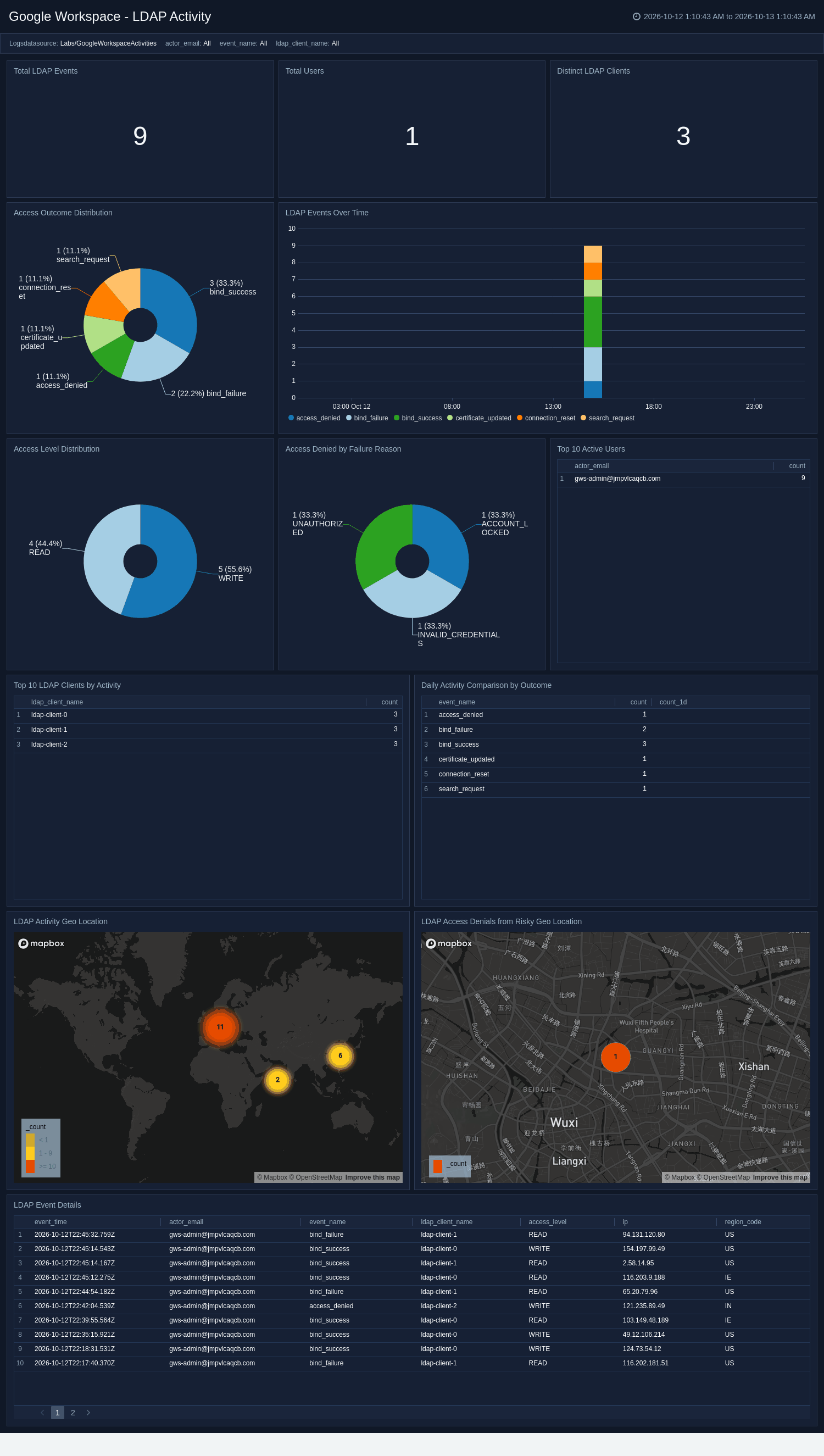
The Google Workspace - LDAP Activity dashboard monitors Secure LDAP access requests across your organization, including granted and denied access, access levels, and failure reasons. It surfaces the top LDAP clients and the most-denied identities, trends access outcomes over time, and maps activity and denials to source geography. Use this dashboard to investigate authentication failures, detect brute-force or credential-stuffing attempts, and audit which clients and identities are accessing directory data.
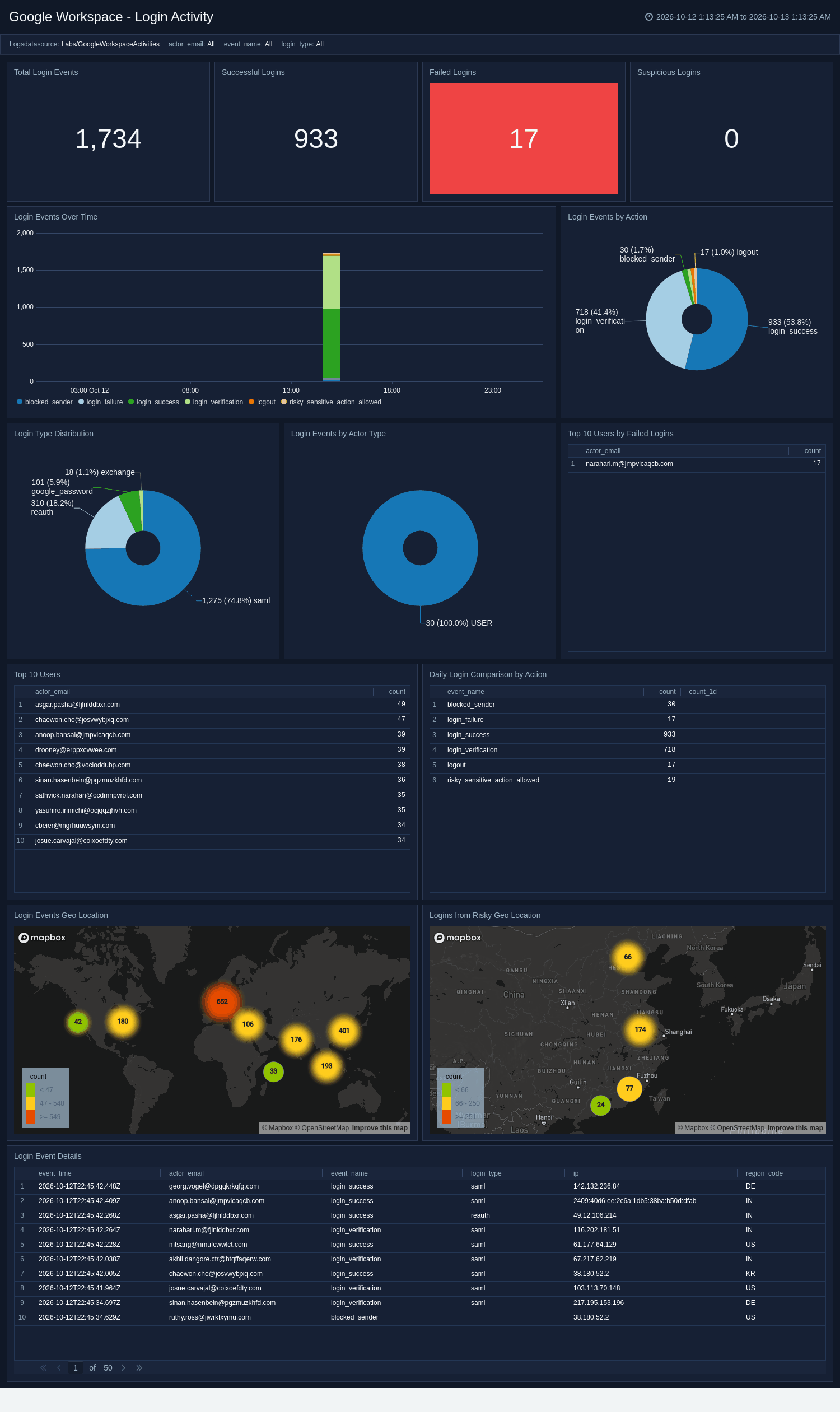
Login Activity
The Google Workspace - Login Activity dashboard monitors user sign-in activity, including successful logins, failures, and suspicious sign-in challenges. It breaks down login types, trends authentication over time, and maps logins to source geography while highlighting brute-force and unusual-location indicators. Use this dashboard to investigate account compromise, detect credential-stuffing attempts, and review sign-in patterns across the organization.
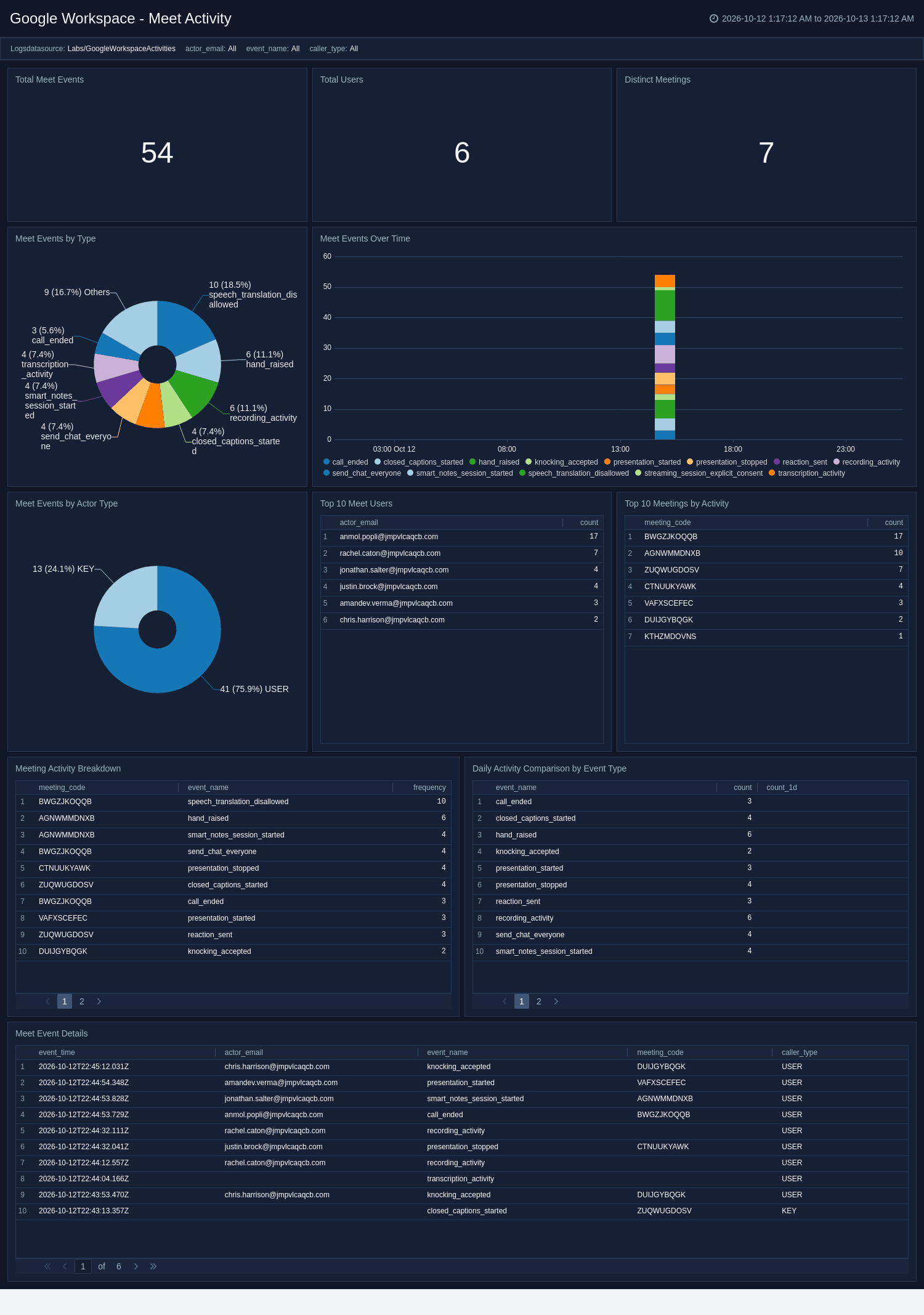
Meet Activity
The Google Workspace - Meet Activity dashboard monitors Google Meet conference activity, including meetings, participants, and presentation events. It breaks down participant identifier types, surfaces the most active meetings and users, and provides per-meeting event breakdowns. Use this dashboard to audit meeting participation, investigate external or anomalous conference activity, and understand collaboration patterns across Meet.
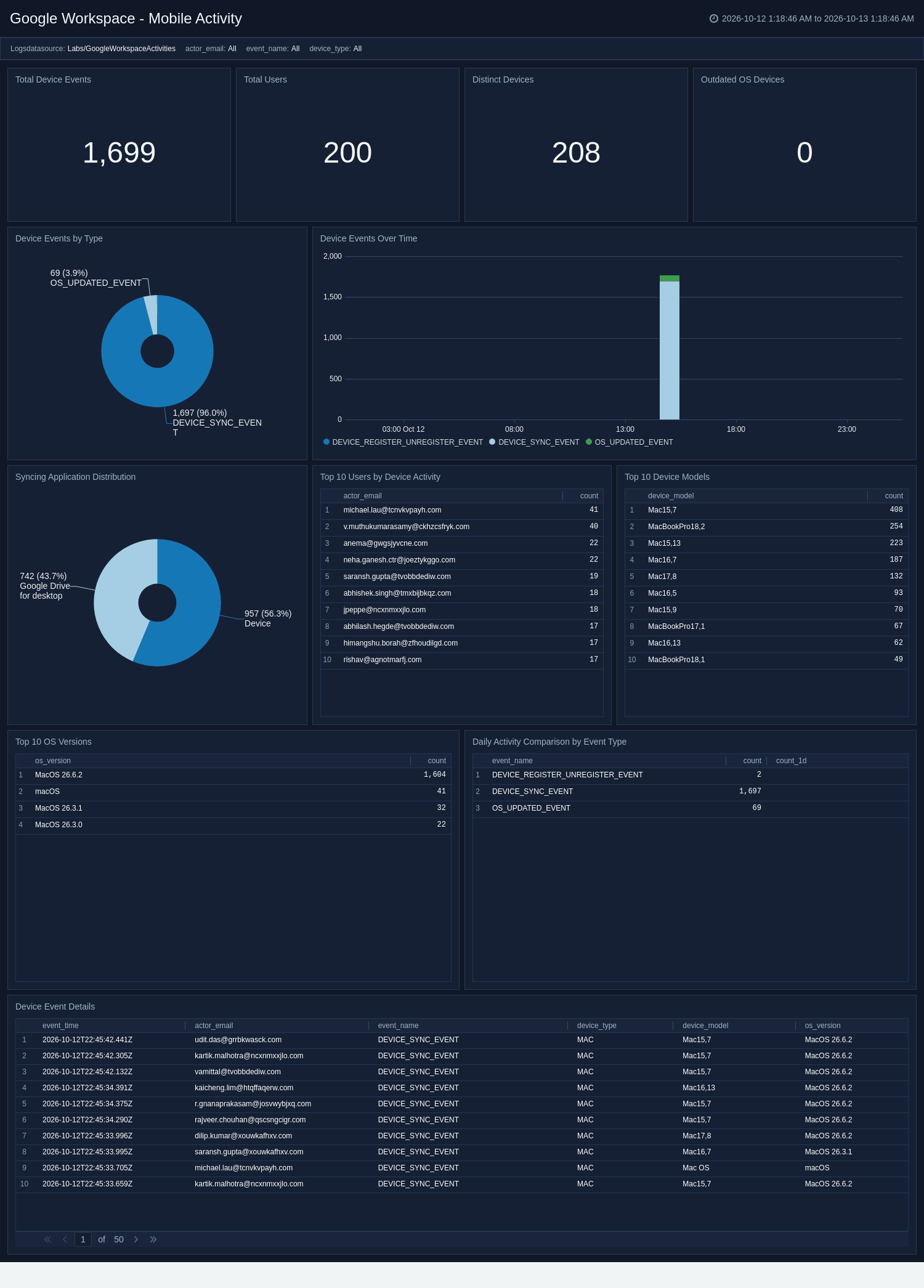
Mobile Activity
The Google Workspace - Mobile Activity dashboard monitors mobile and endpoint device activity, including device events, operating-system versions, and device models. It highlights outdated-OS compliance, the applications syncing corporate data, and device event trends over time. Use this dashboard to assess device compliance, identify out-of-date or non-compliant endpoints, and audit device and sync activity across the fleet.
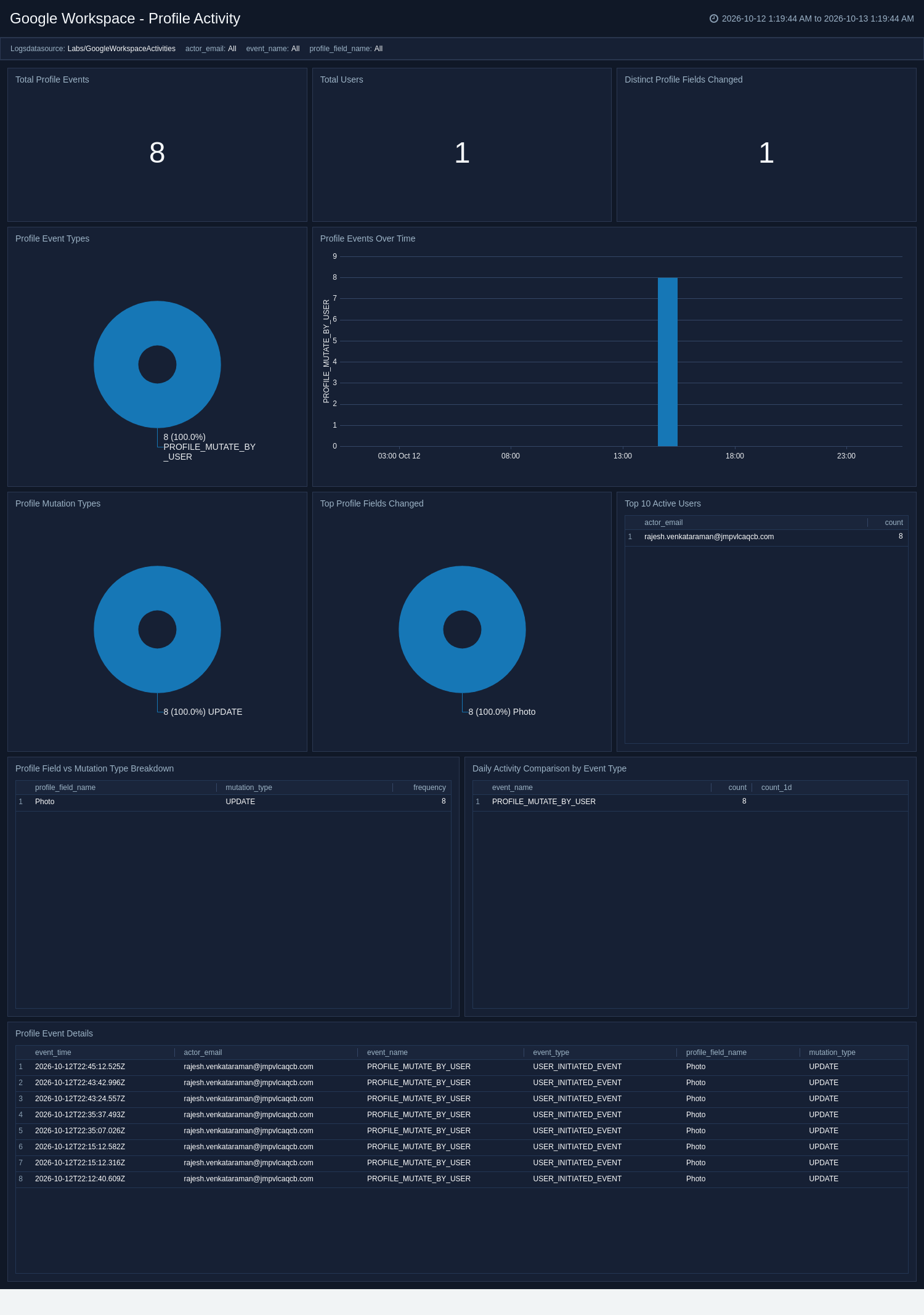
Profile Activity
The Google Workspace - Profile Activity dashboard monitors changes to user profile fields, including the fields modified and the type of mutation. It distinguishes user- and admin-initiated changes, highlights profile deletions and the most active users, and trends activity over time. Use this dashboard to audit profile data changes, detect unexpected deletions, and review who is modifying user profiles.
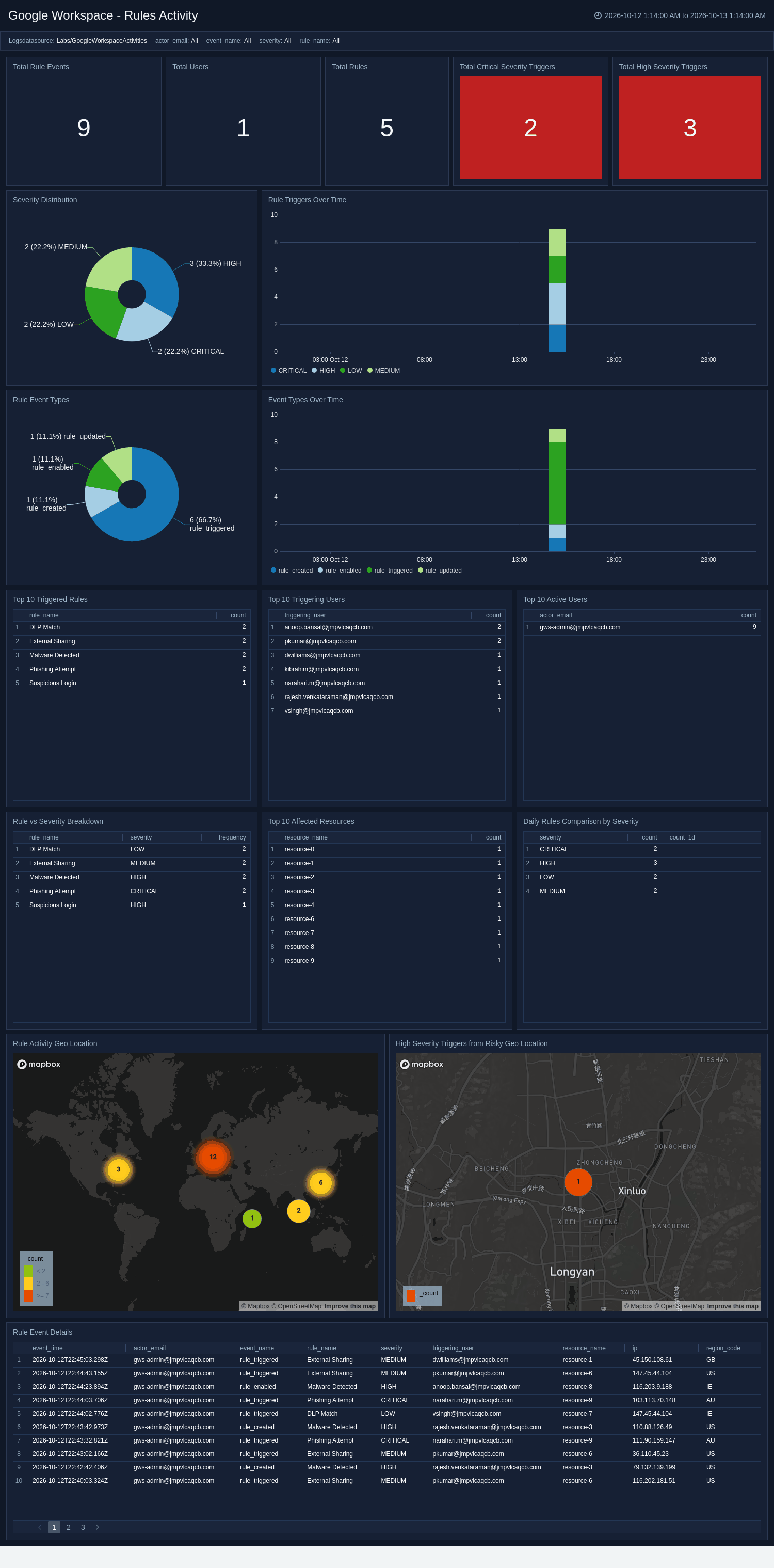
Rules Activity
The Google Workspace - Rules Activity dashboard monitors DLP and security rule triggers across your environment, including severity distribution and the most frequently triggered rules. It surfaces the users and resources driving triggers, trends rule activity over time, and maps high-severity triggers to source geography. Use this dashboard to prioritize incident response by severity, identify noisy or high-risk rules, and detect policy violations originating from risky locations.
SAML Activity
The Google Workspace - SAML Activity dashboard monitors SAML single sign-on authentication to third-party applications, including successful and failed logins and SAML status codes. It highlights per-application failures and the users and apps driving them, and maps login activity to source geography. Use this dashboard to troubleshoot SSO failures, detect authentication anomalies, and review sign-in activity from risky locations.

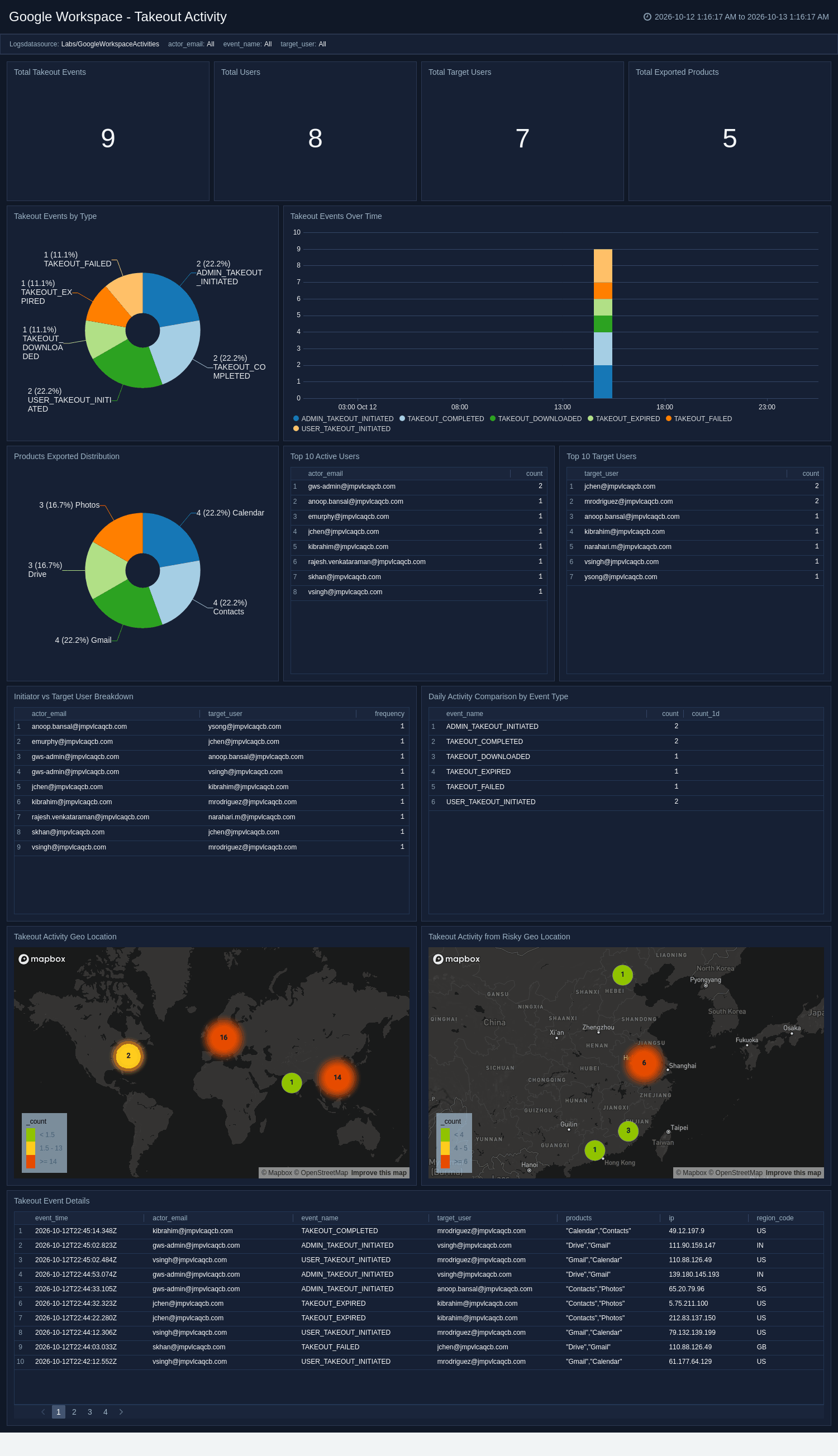
Takeout Activity
The Google Workspace - Takeout Activity dashboard monitors Google Takeout data exports, including takeout events and the products being exported. It correlates initiators with target users to reveal who is exporting whose data, trends exports over time, and maps export activity to source geography. Use this dashboard to gain data-exfiltration visibility, detect exports of other users' data, and flag risky export activity.
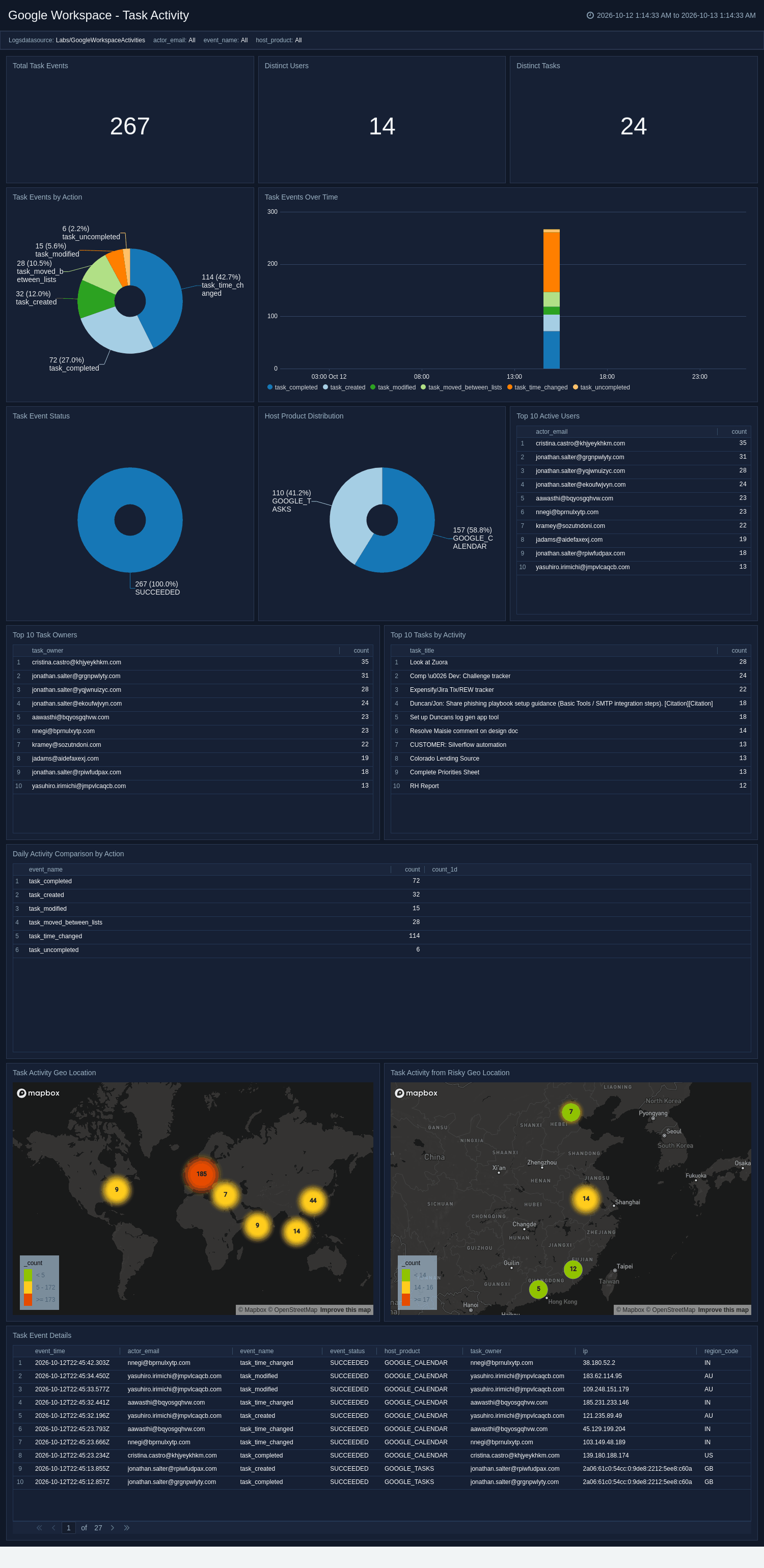
Task Activity
The Google Workspace - Task Activity dashboard monitors Google Tasks activity, including task mutations, event outcomes, and the host products that initiate them. It highlights the top users and task owners, trends events over time, and maps activity to source geography. Use this dashboard to audit task changes, surface failed operations, and understand how tasks are created and modified across connected products.
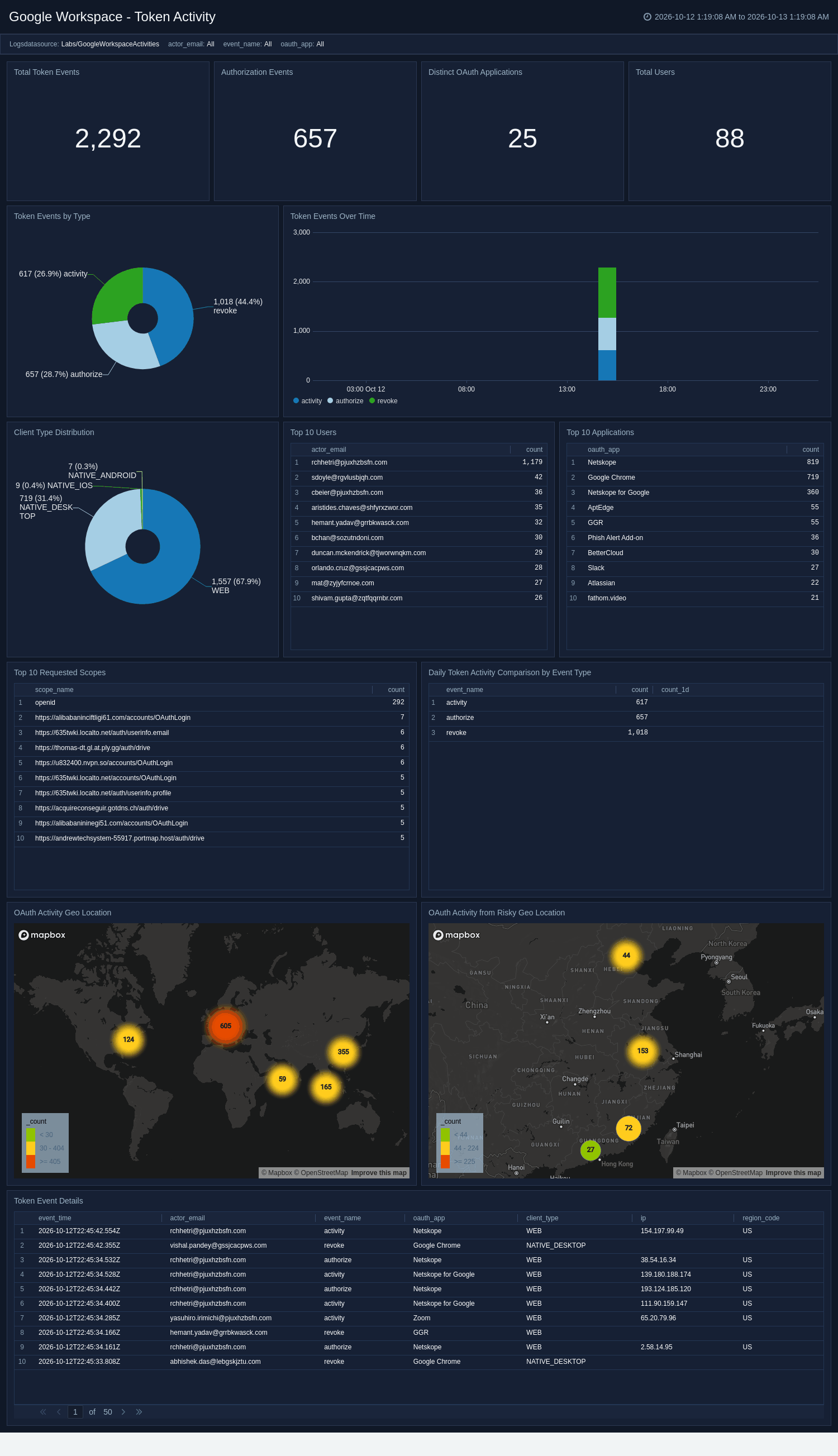
Token Activity
The Google Workspace - Token Activity dashboard monitors OAuth token activity, including third-party application authorizations and revocations and the scopes being requested. It breaks down client types, highlights the most-authorized applications, and maps consent activity to source geography. Use this dashboard to review third-party app access, detect over-privileged or risky scope grants, and investigate consent activity from unusual locations.
User Accounts Activity
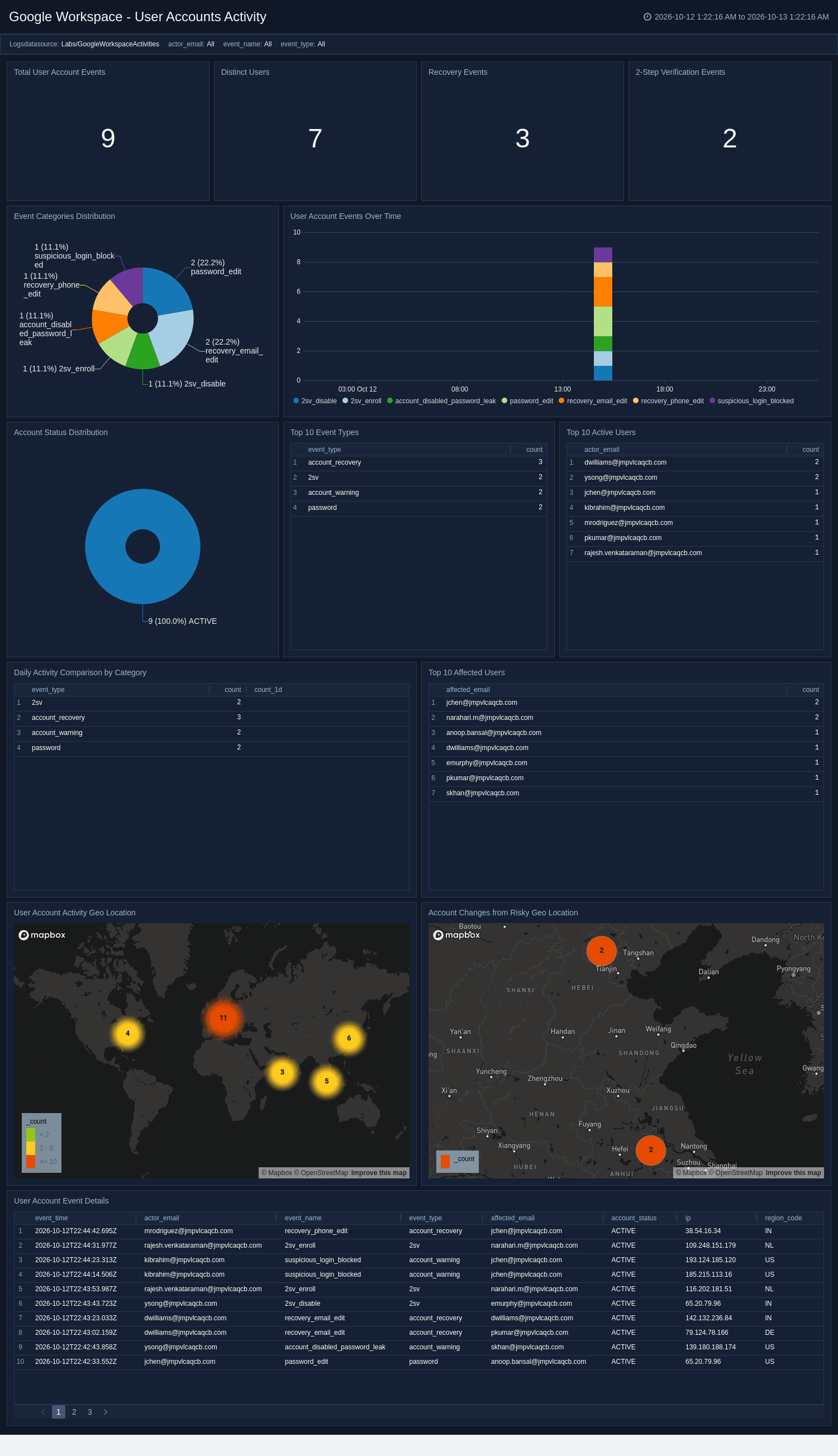
The Google Workspace - User Accounts Activity dashboard monitors account-security activity, including recovery information changes, password resets, and two-step verification changes. It tracks account status, highlights the most affected users, and maps account changes to source geography. Use this dashboard to detect account-takeover indicators, audit recovery and MFA changes, and flag account modifications from risky locations.
Vault Activity
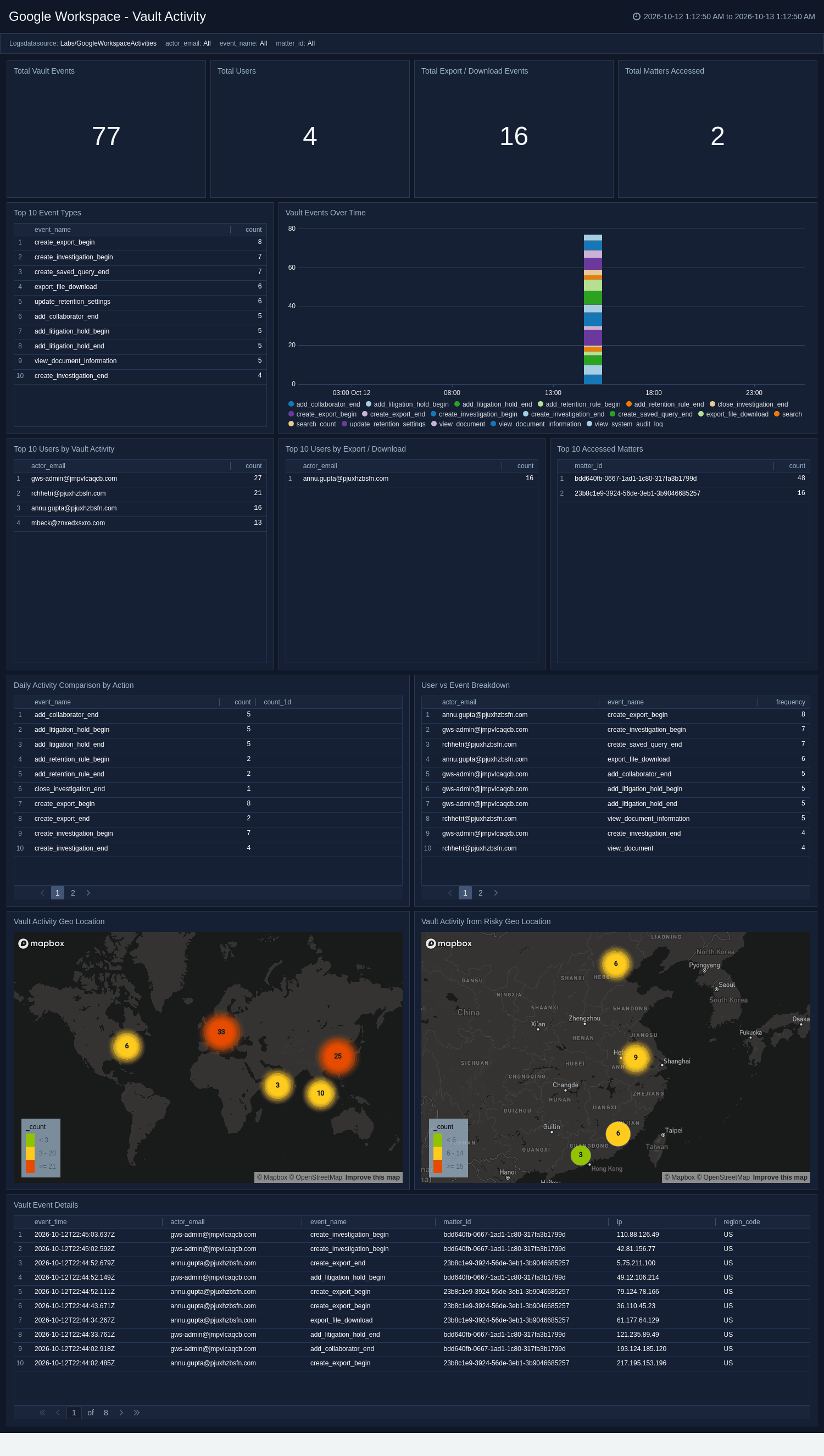
The Google Workspace - Vault Activity dashboard monitors Google Vault eDiscovery activity, including document views, searches, exports, and downloads across legal matters. It highlights the most-accessed matters, the top users, and export or download activity that may indicate data exfiltration, and maps Vault access to source geography. Use this dashboard to audit privileged eDiscovery access, correlate users with matters, and flag risky or unusual Vault activity.
Create monitors for Google Workspace Activities app
From your App Catalog:
- From the Sumo Logic navigation, select App Catalog.
- In the Search Apps field, search for and then select your app.
- Make sure the app is installed.
- Navigate to What's Included tab and scroll down to the Monitors section.
- Click Create next to the pre-configured monitors. In the create monitors window, adjust the trigger conditions and notifications settings based on your requirements.
- Scroll down to Monitor Details.
- Under Location click on New Folder.
note
By default, monitor will be saved in the root folder. So to make the maintenance easier, create a new folder in the location of your choice.
- Enter Folder Name. Folder Description is optional.
tip
Using app version in the folder name will be helpful to determine the versioning for future updates.
- Click Create. Once the folder is created, click on Save.
Google Workspace Activities alerts
| Name | Description | Trigger Type (Critical / Warning / MissingData) | Alert Condition |
|---|---|---|---|
Google Workspace Activities - Activity from Embargoed Geo Locations | This alert is triggered when any activity originates from an embargoed or high-risk country. | Critical | Count > 0 |
Google Workspace Activities - Drive Files Shared Externally | This alert is triggered when Drive documents are shared outside the organization. | Critical | Count > 4 |
Google Workspace Activities - Excessive SAML Login Failures | This alert is triggered when a user accumulates repeated SAML SSO login failures in a short window. | Critical | Count > 4 |
Google Workspace Activities - High or Critical Severity | This alert is triggered when a Google Workspace security rule fires for High or Critical severity. | Critical | Count > 0 |
Google Workspace Activities - Repeated LDAP Access Denials | This alert is triggered on a burst of Secure LDAP access denials from a client or identity. | Critical | Count > 4 |
Google Workspace Activities - Two Step Verification Disabled | This alert is triggered when 2-Step Verification is turned off or disabled for a user. | Critical | Count > 0 |
Upgrading/Downgrading the Google Workspace Activities app (Optional)
To update the app, do the following:
Next-Gen App: To install or update the app, you must be an account administrator or a user with Manage Apps, Manage Monitors, Manage Fields, Manage Metric Rules, and Manage Collectors capabilities depending upon the different content types part of the app.
- Select App Catalog.
- In the Search Apps field, search for and then select your app.
Optionally, you can identify apps that can be upgraded in the Upgrade available section. - To upgrade the app, select Upgrade from the Manage dropdown.
- If the upgrade does not have any configuration or property changes, you will be redirected to the Preview & Done section.
- If the upgrade has any configuration or property changes, you will be redirected to the Setup Data page.
- In the Configure section of your respective app, complete the following fields.
- Field Name. If you already have collectors and sources set up, select the configured metadata field name (eg _sourcecategory) or specify other custom metadata (eg: _collector) along with its metadata Field Value.
- Click Next. You will be redirected to the Preview & Done section.
Post-update
Your upgraded app will be installed in the Installed Apps folder and dashboard panels will start to fill automatically.
See our Release Notes changelog for new updates in the app.
To revert the app to a previous version, do the following:
- Select App Catalog.
- In the Search Apps field, search for and then select your app.
- To version down the app, select Revert to < previous version of your app > from the Manage dropdown.
Uninstalling the Google Workspace Activities app (Optional)
To uninstall the app, do the following:
- Select App Catalog.
- In the 🔎 Search Apps field, run a search for your desired app, then select it.
- Click Uninstall.