Google Workspace app and Dashboards

This page demonstrates how to install the Google Workspace app and enable documents shared outside your organization. This page also provides descriptions, use cases, and examples for each of the Google Workspace app dashboards.
Installing the Google Workspace app
To install the app, do the following:
Next-Gen App: To install or update the app, you must be an account administrator or a user with Manage Apps, Manage Monitors, Manage Fields, Manage Metric Rules, and Manage Collectors capabilities depending upon the different content types part of the app.
- Select App Catalog.
- In the 🔎 Search Apps field, run a search for your desired app, then select it.
- Click Install App.
note
Sometimes this button says Add Integration.
- Click Next in the Setup Data section.
- In the Configure section of your respective app, complete the following fields.
- Field Name. If you already have collectors and sources set up, select the configured metadata field name (eg _sourcecategory) or specify other custom metadata (eg: _collector) along with its metadata Field Value.
- Click Next. You will be redirected to the Preview & Done section.
Post-installation
Once your app is installed, it will appear in your Installed Apps folder, and dashboard panels will start to fill automatically.
Each panel slowly fills with data matching the time range query received since the panel was created. Results will not immediately be available but will be updated with full graphs and charts over time.
Viewing Google Workspace dashboards
All dashboards have a set of filters that you can apply to the entire dashboard. Use these filters to drill down and examine the data to a granular level.
- You can change the time range for a dashboard or panel by selecting a predefined interval from a drop-down list, choosing a recently used time range, or specifying custom dates and times. Learn more.
- You can use template variables to drill down and examine the data on a granular level. For more information, see Filtering Dashboards with Template Variables.
- Most Next-Gen apps allow you to provide the scope at the installation time and are comprised of a key (
_sourceCategoryby default) and a default value for this key. Based on your input, the app dashboards will be parameterized with a dashboard variable, allowing you to change the dataset queried by all panels. This eliminates the need to create multiple copies of the same dashboard with different queries.
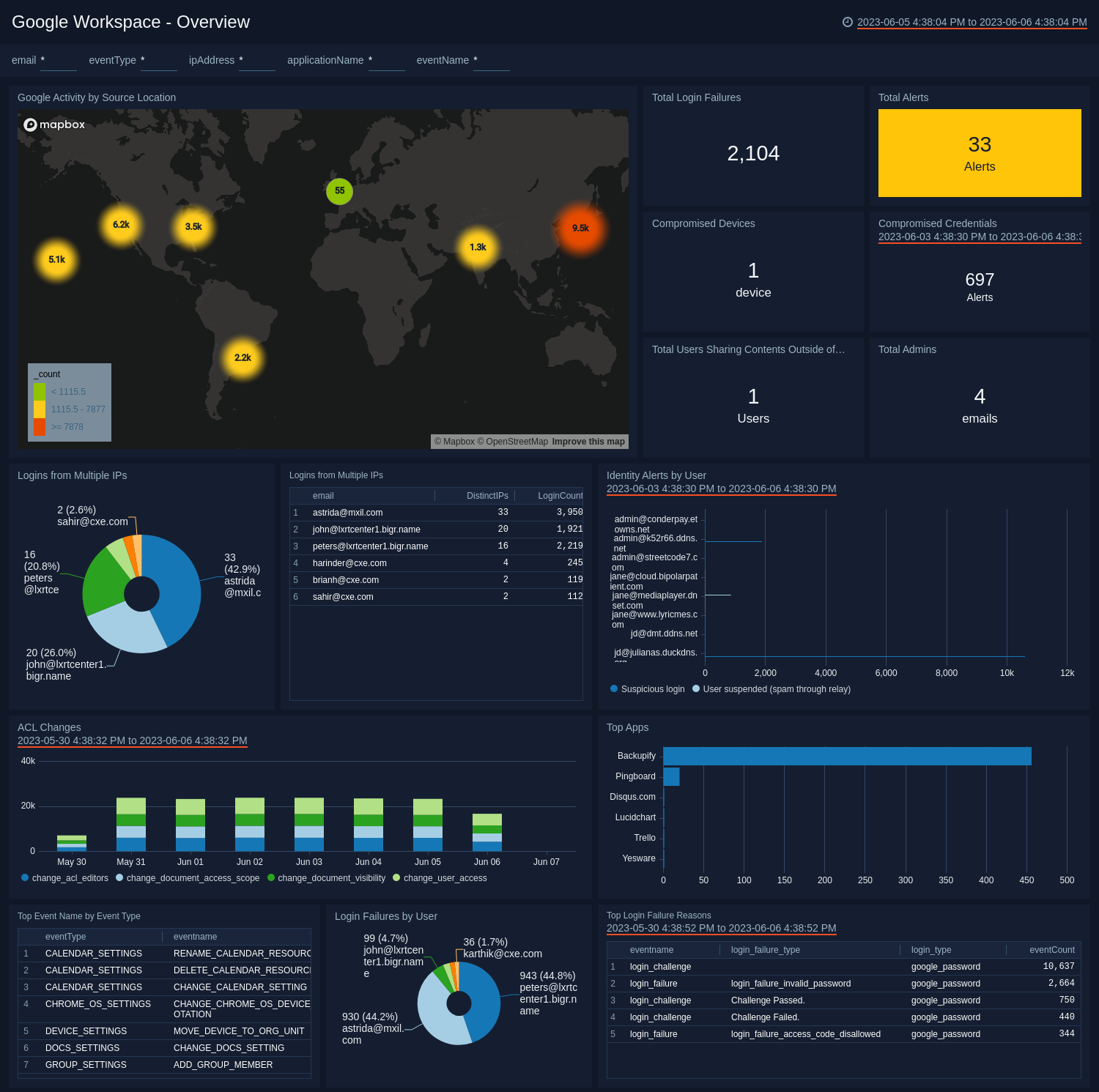
Overview
The Google Workspace - Overview dashboard provides a high-level overview of up-to-date activities throughout Google Workspace, including information on login failures, logins from multiple IPs, changes in ACL, login failures by user, top apps, and top events by event type.
Use this dashboard to:
- Monitor the number of compromised devices and users.
- Use the panels to navigate to alert center detail dashboards.
Admin
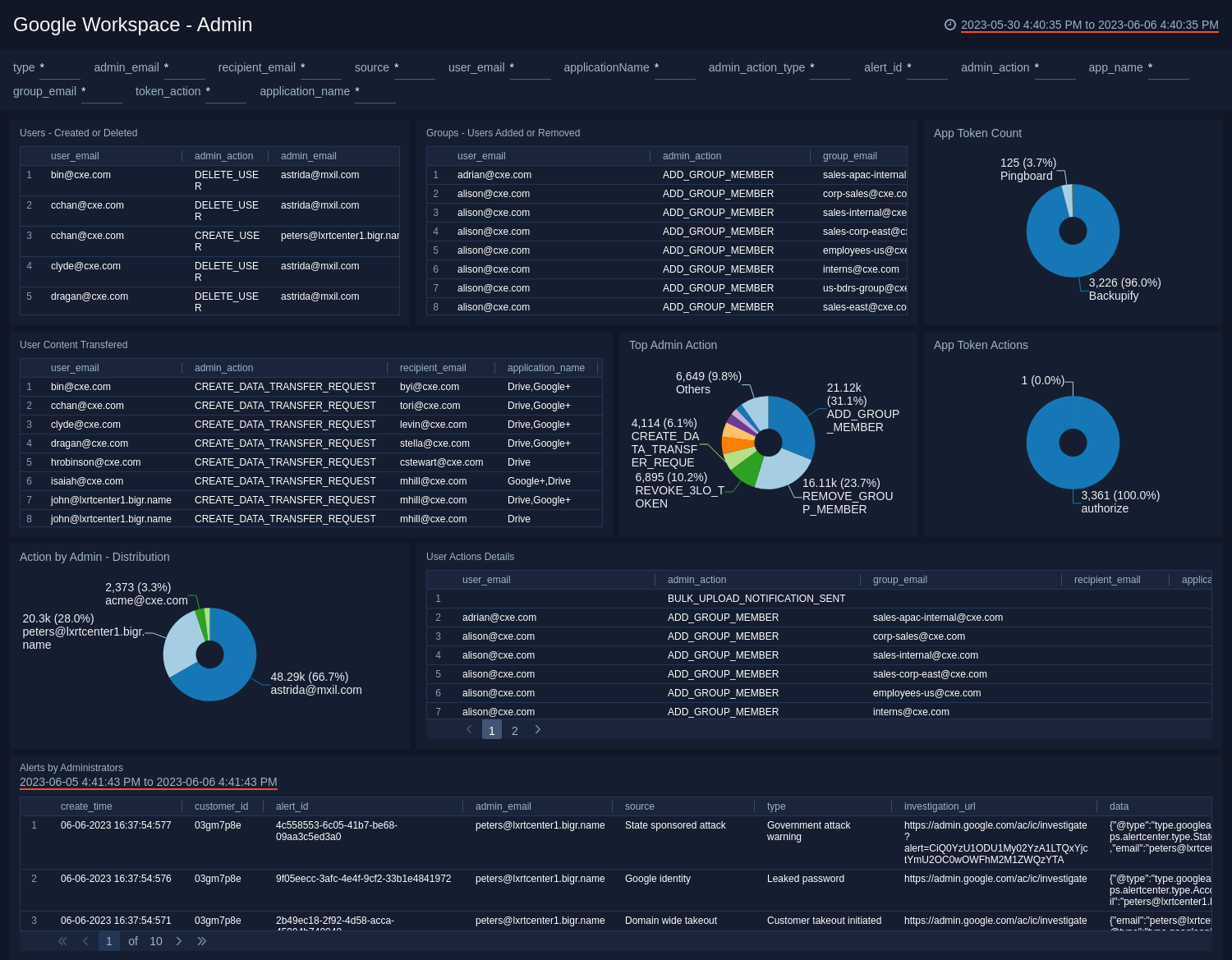
The Google Workspace - Admin dashboard provides at-a-glance graphs paired with detailed analytics to give you a comprehensive view of administrative activities in Google Workspace. This includes information on users and groups that have been created or deleted, app token actions, admin action count, and actions by admins and users.
Use this dashboard to:
- Monitor alerts associated with admin users.
- Track creation and deletion activities by admin users.
- Monitor user content transfer activity.
Drive
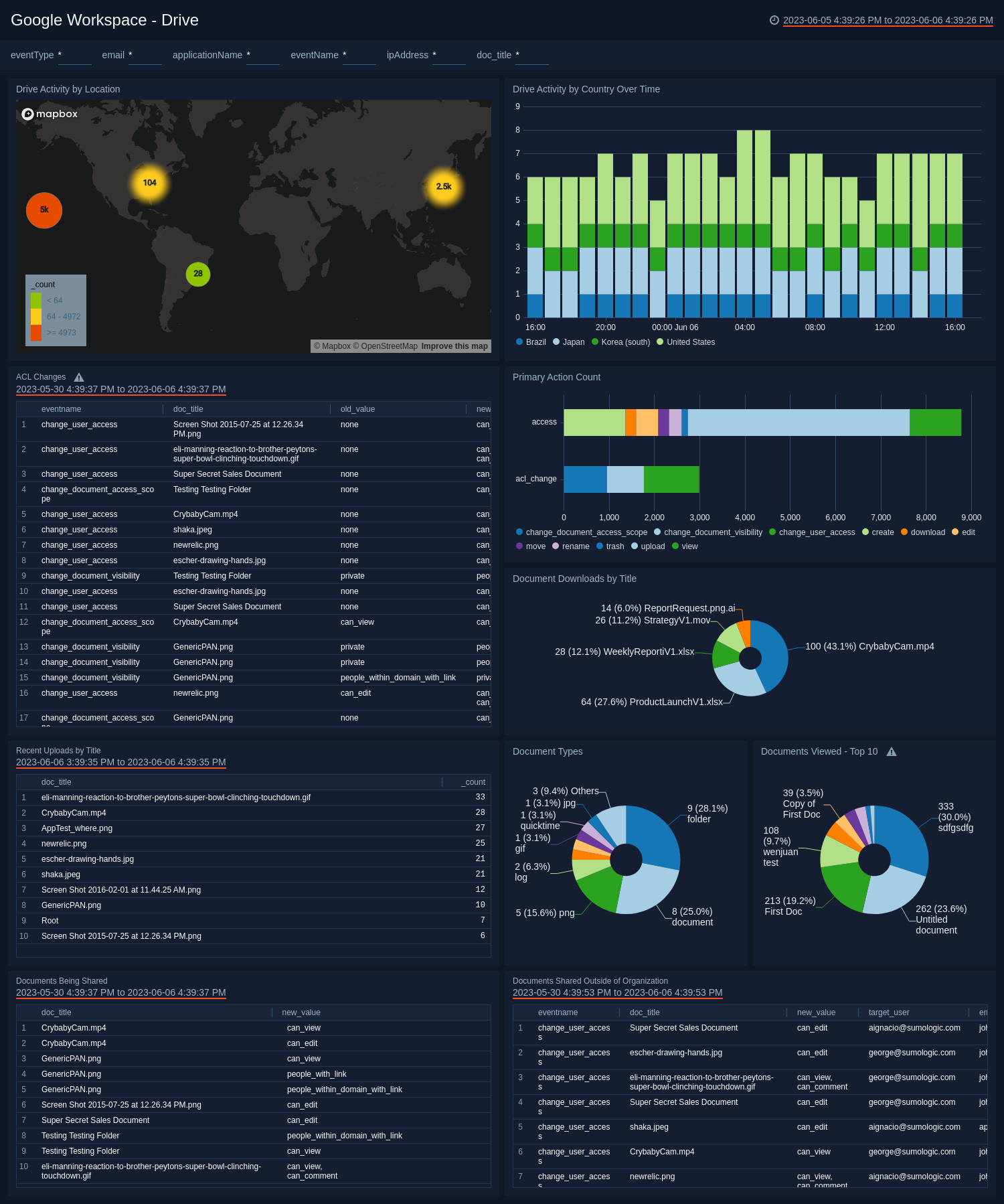
The Google Workspace - Drive dashboard provides at-a-glance graphs and detailed analytics on Google Drive activity. The up-to-date Google Workspace Drive information includes drive activity by location, trends in drive activity by country, ACL changes, counts of primary actions, recent uploads, document types, documents viewed, and documents shared.
Use this dashboard to:
- Monitor documents shared both inside and outside of the organization.
- Track user geographic locations and their drive activities including ACL changes, uploads, and downloads.
Drive - User Activity
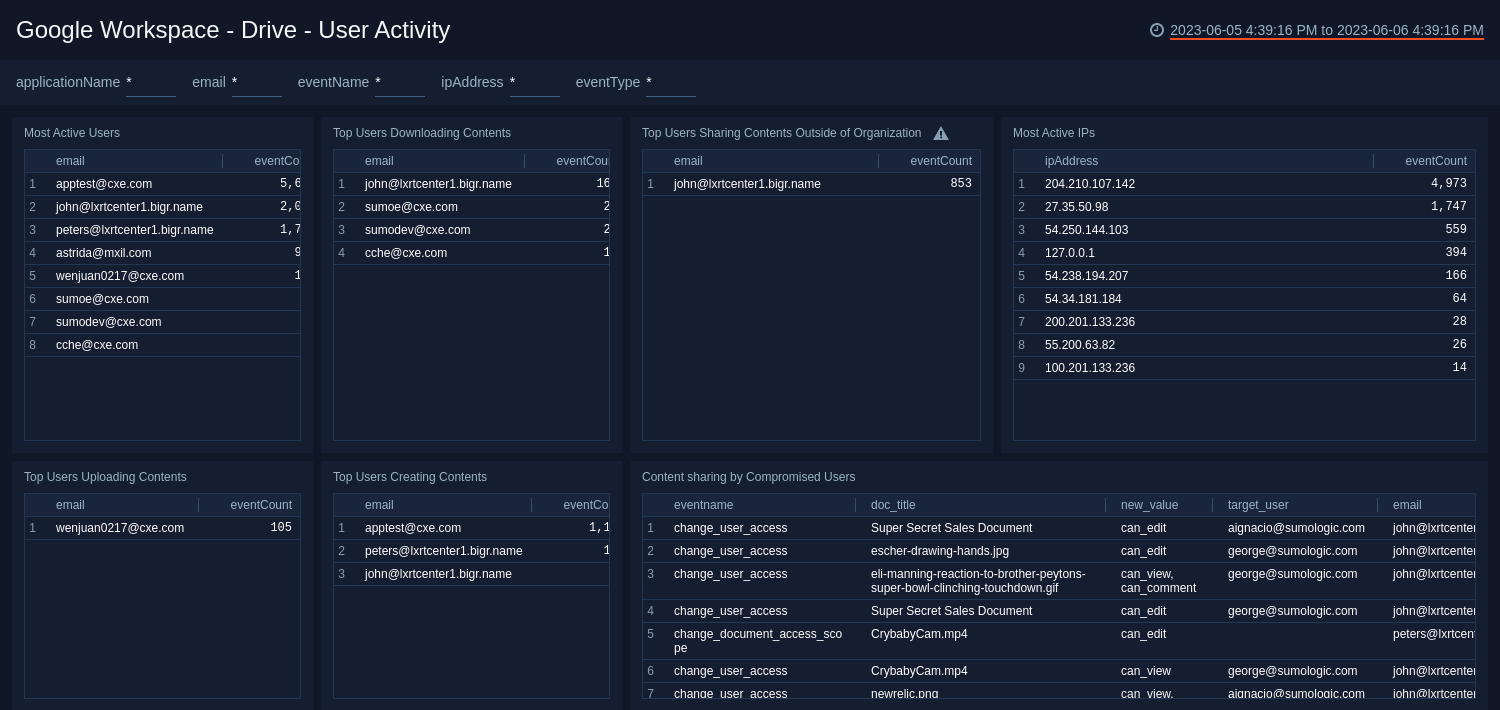
The Google Workspace - Drive - User Activity dashboard provides detailed information on Google Drive activity by users. A breakdown of user activity information includes most active users, most active IP addresses, and top users for downloading, uploading, creating, and sharing content.
Use this dashboard to:
- Monitor content sharing by compromised users to identify potential data leak issues.
- Determine most active users and active IP addresses.
- Track top users by the number of activities on Google Drive.
Login
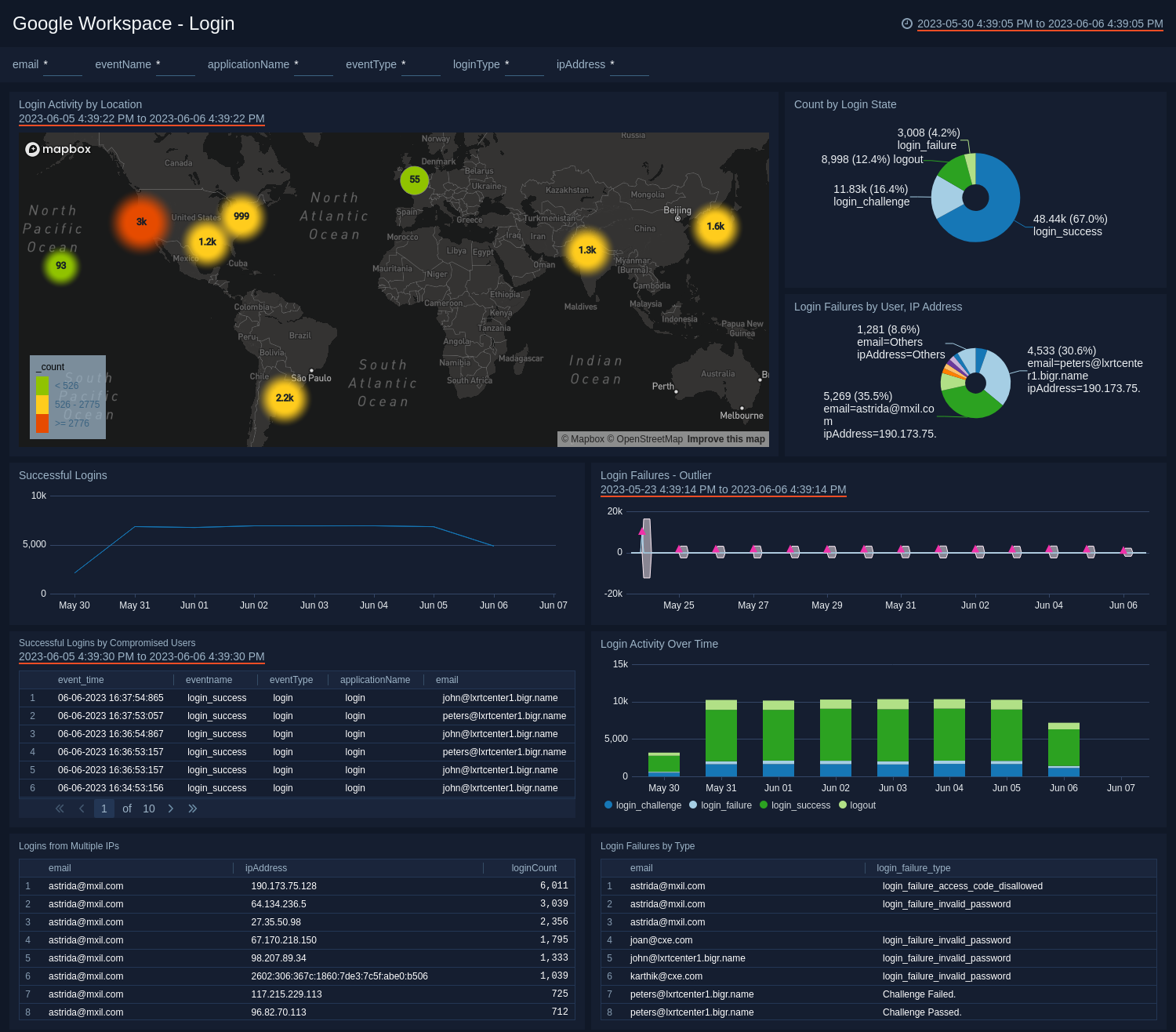
The Google Workspace - Login dashboard provides high-level graphs and detailed information for Google Workspace apps login data. Login information includes geographic locations, logins by state, successful logins, login failures by user, IP address, and type; login failure outliers, login activity trends, and logins from multiple IP addresses.
Use this dashboard to:
- Identify abnormal spikes in login failures.
- Monitor successful logins by compromised users.
- Track user login trends and their geographic locations.
Alert Center - Overview
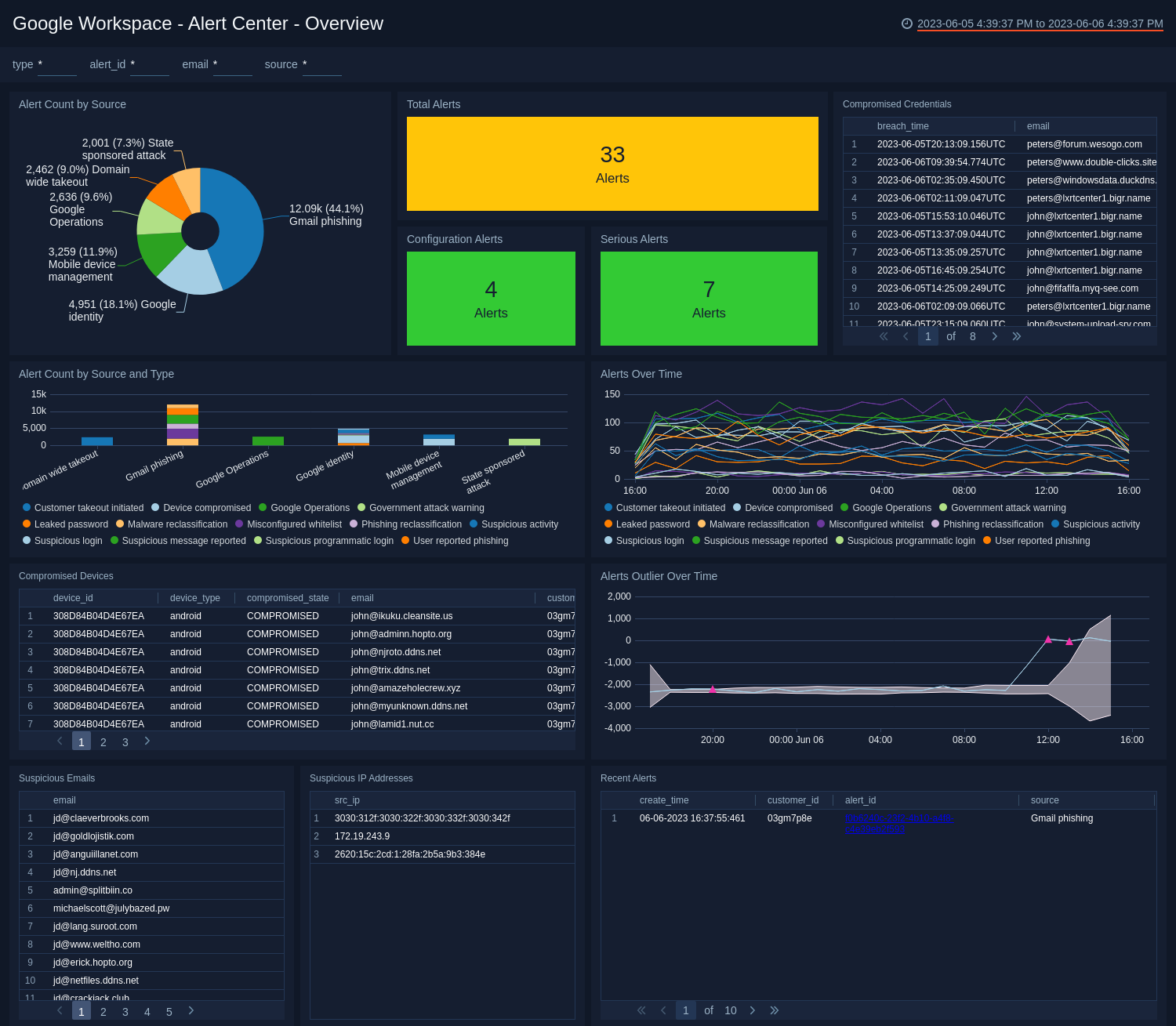
The Google Workspace - Alert Center - Overview dashboard provides a high-level view of Google Workspace alert data by source and type, suspicious IP and email addresses, compromised devices and credentials, recent alerts, and alert trends over time.
Use this dashboard to:
- Determine potential threats.
- Monitor abnormal spikes and recent alerts.
- Monitor credentials breaches and compromised devices
Alert Center - Admin Actions
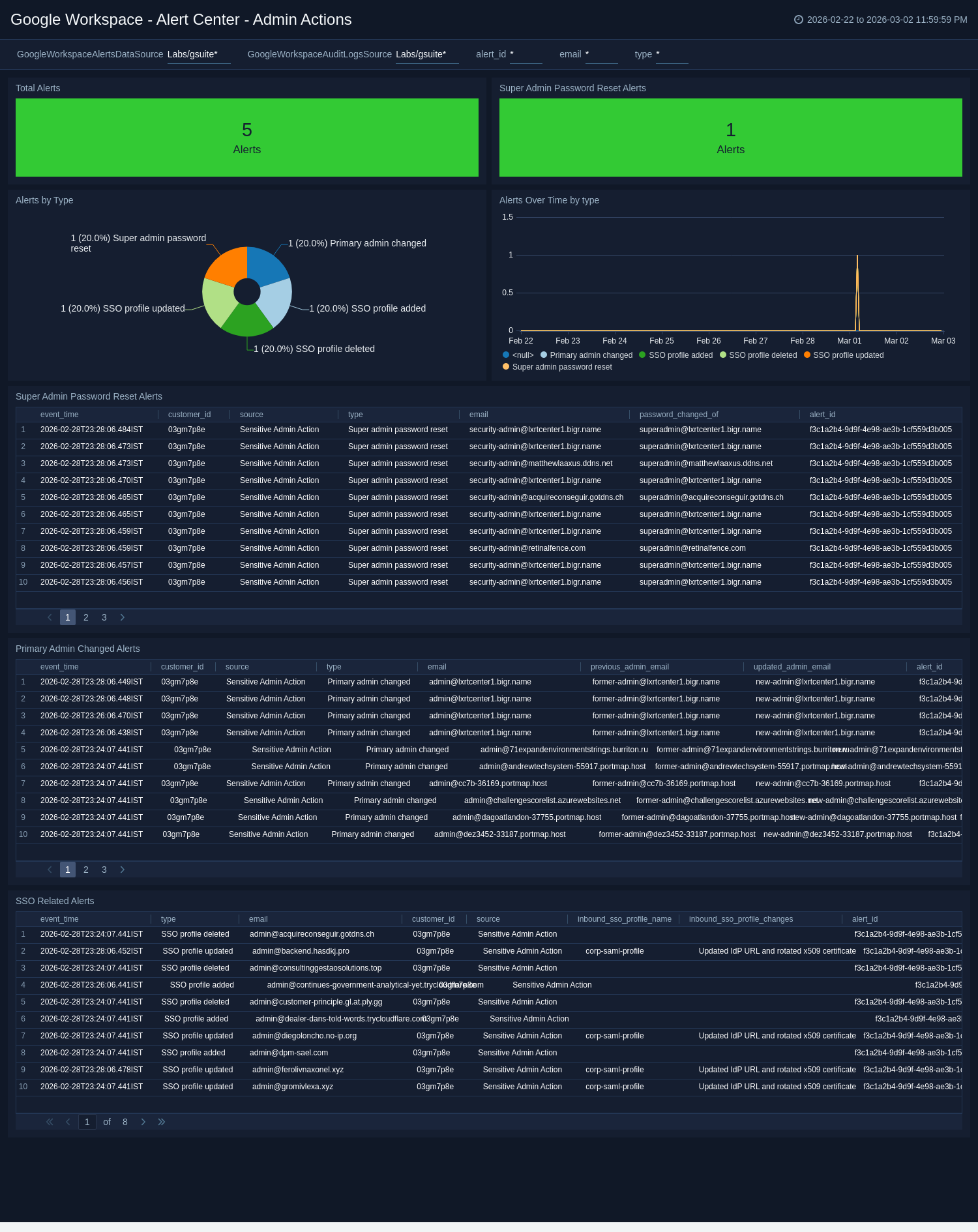
The Google Workspace - Alert Center - Admin Actions dashboard provides detailed insights into sensitive administrative actions in Google Workspace. This includes information on super admin password reset alerts, primary admin changed alerts, SSO-related alerts, total alerts, and alert trends over time by type.
Use this dashboard to:
- Monitor high-risk administrative changes.
- Investigate admin-related alert trends by type.
- Track alerts related to SSO and super admin account changes.
Alert Center - Investigations
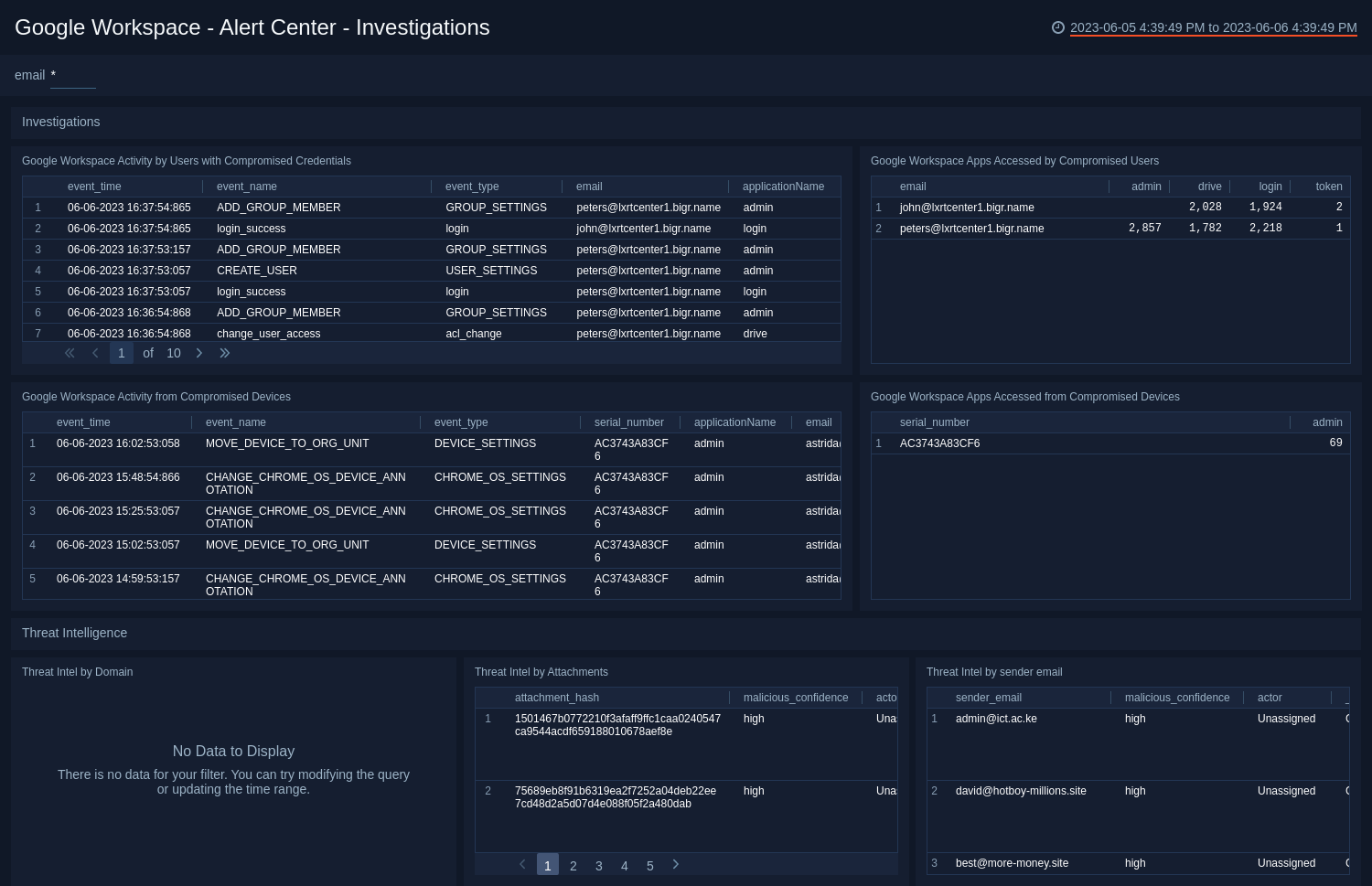
The Google Workspace - Alert Center - Investigations dashboard provides easily accessible analytics on compromised credentials, including Google Workspace activity of users with compromised credentials and Google Workspace applications used. This dashboard also provides data on Google Workspace user activities and Google Workspace applications used from compromised devices.
Use this dashboard to:
- Track credential breaches and compromised devices.
- Monitor user activities after credentials have been breached or after a device has been compromised
- Track potential threats by email, IP address, and domain.
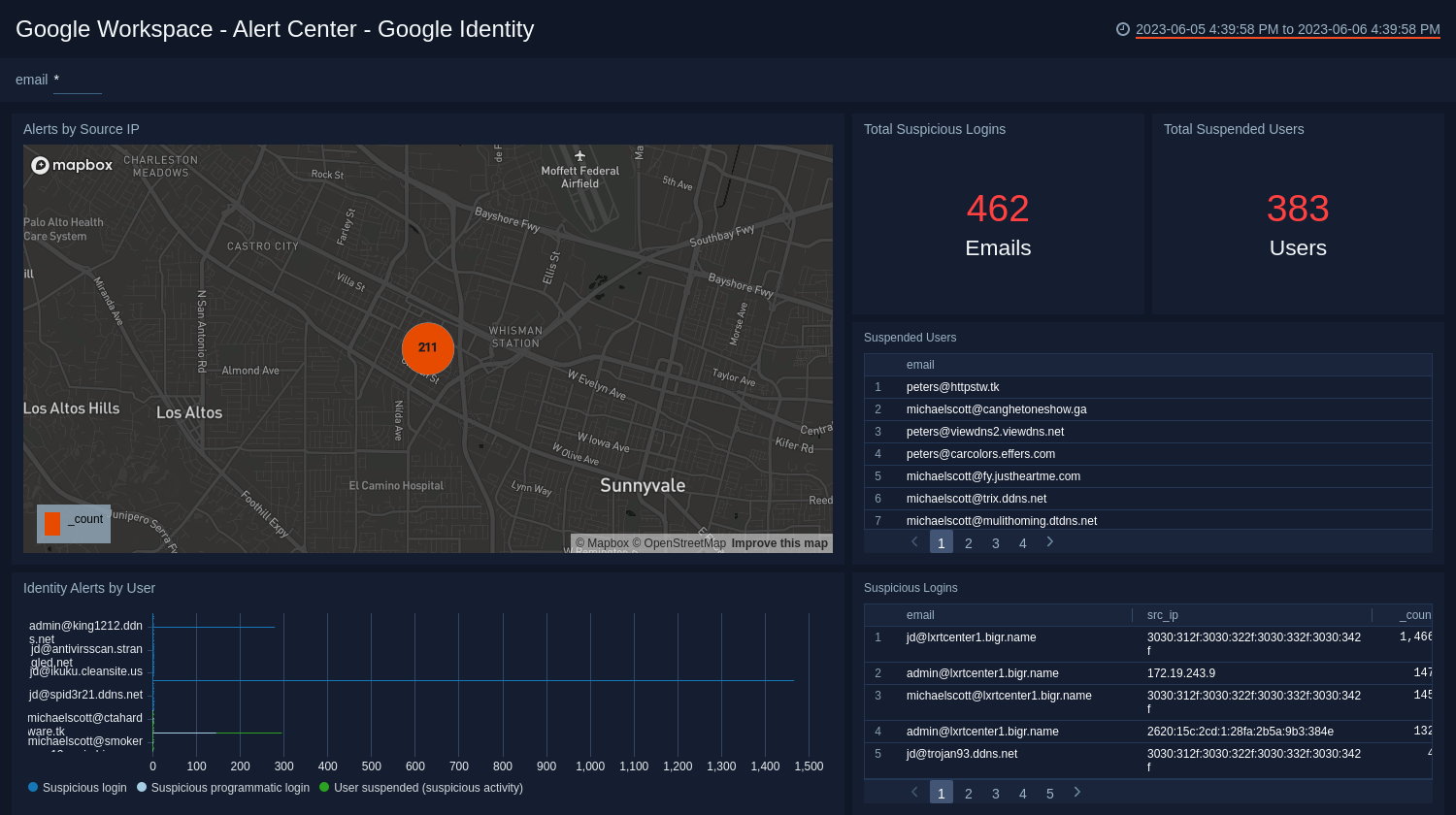
Alert Center - Google Identity
The Google Workspace - Alert Center - Google Identity dashboard provides detailed information on suspicious logins and suspended users. This dashboard also provides information on the number and location of suspicious logins and suspended users.
Use this dashboard to:
- Monitor suspicious activity and its locations.
- Identify suspended users and suspicious logins.
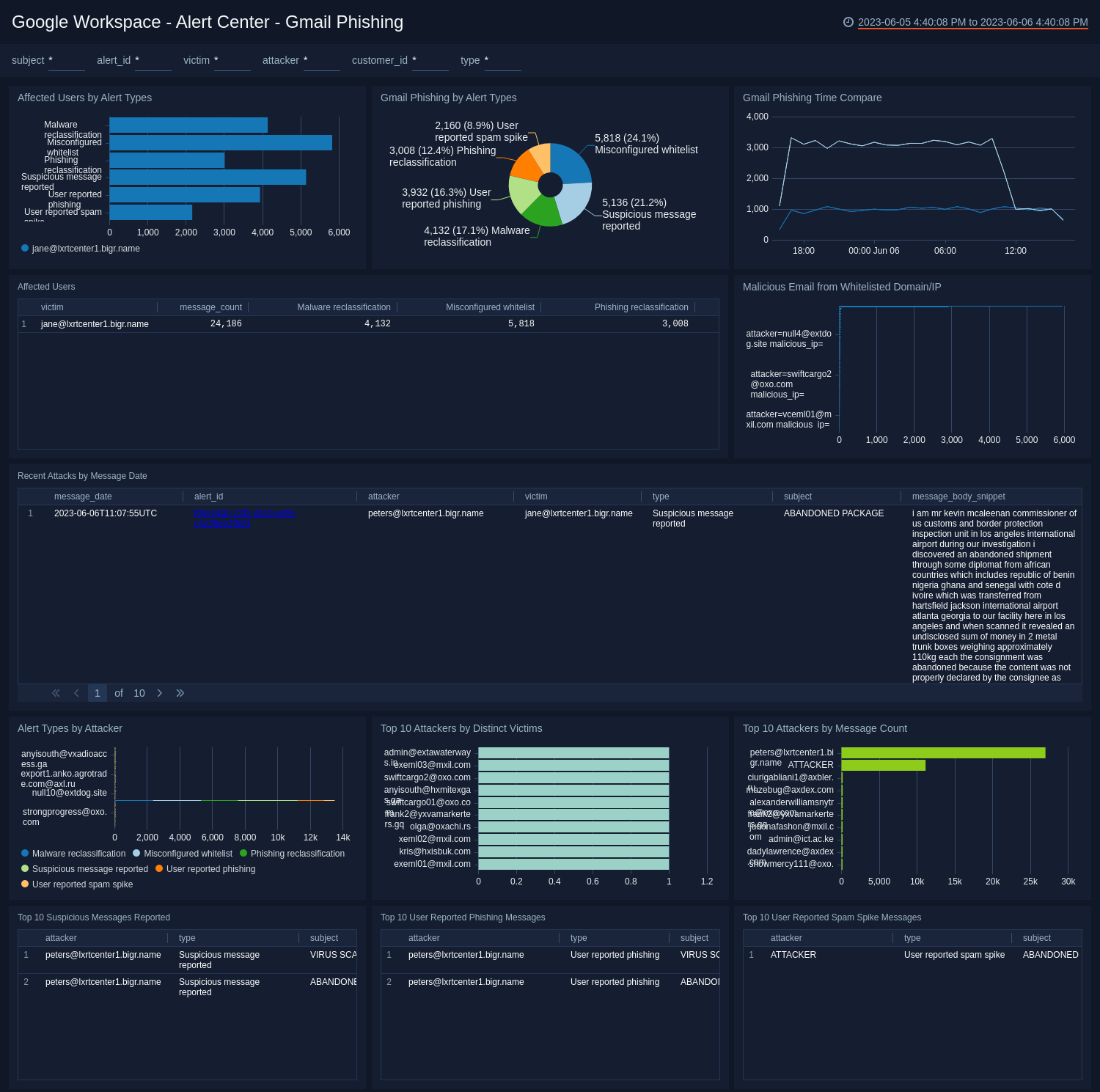
Alert Center - Gmail Phishing
The Google Workspace - Alert Center - Gmail Phishing dashboard provides detailed information on phishing attacks and spam activity on Google Workspace applications. This dashboard also provides information on the affected users and the top attackers responsible for the attacks.
Use this dashboard to:
- Monitor users affected by phishing attacks.
- Identify top attackers by volume and breadth.
- Track recent attacks.
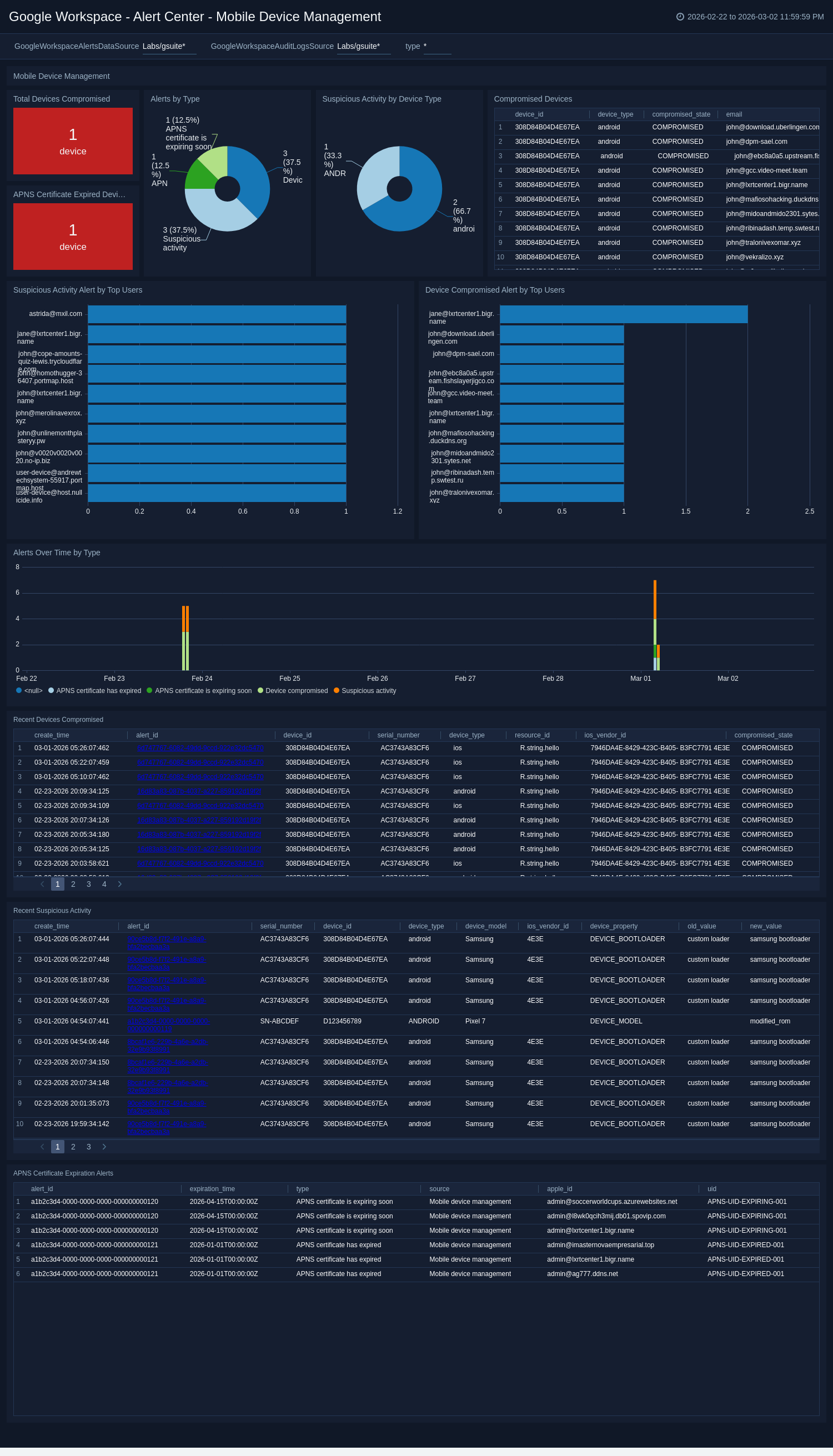
Alert Center - Mobile Device Management
The Google Workspace - Alert Center - Mobile Device Management dashboard provides detailed information on mobile device security alerts in Google Workspace. This includes information on compromised devices, suspicious activity by device type, APNS certificate expiration alerts, device compromised alerts by top users, and recent suspicious activity.
Use this dashboard to:
- Monitor suspicious activity by mobile device type.
- Track compromised device alerts by user.
- Identify APNS certificate expiration alerts.
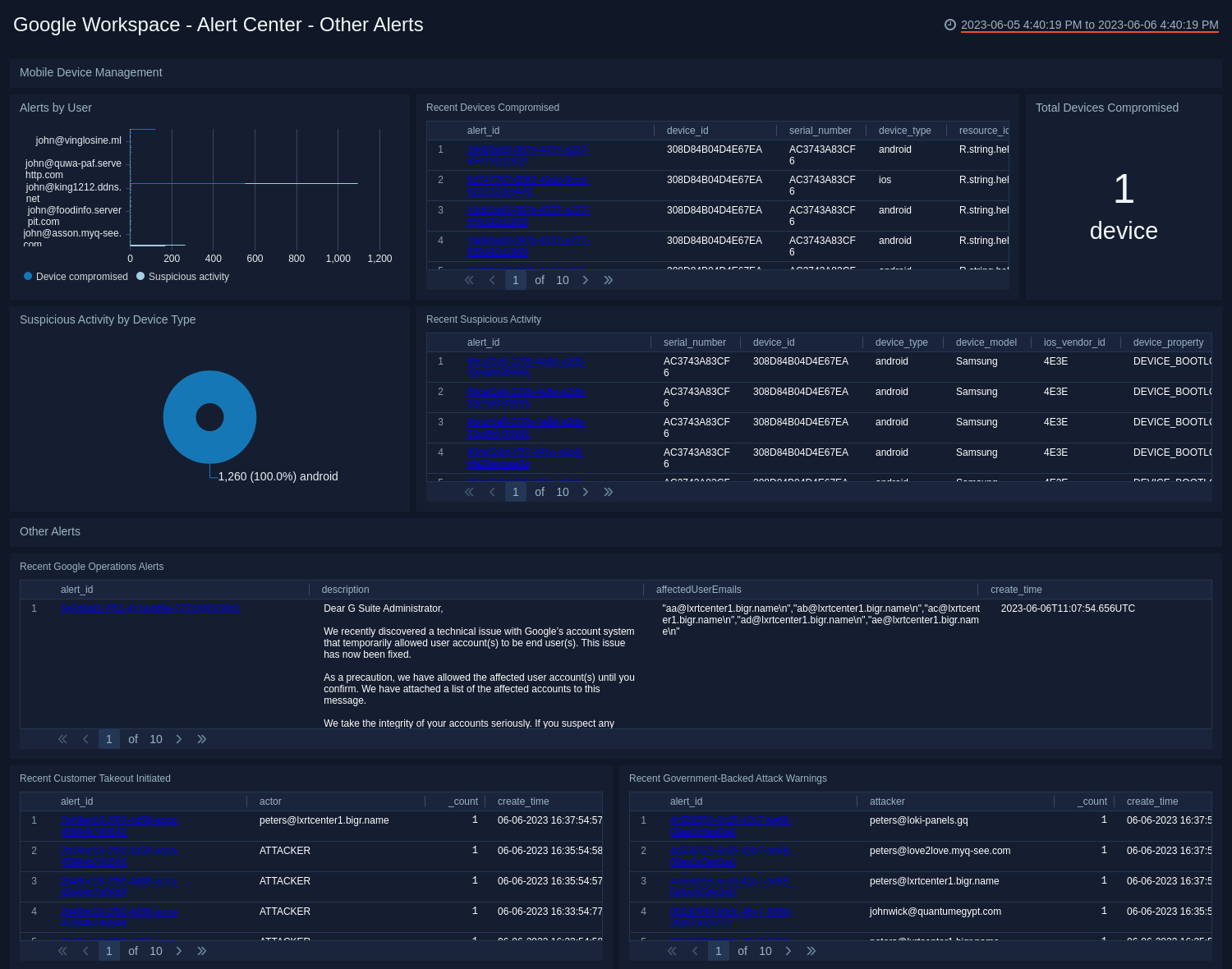
Alert Center - Other Alerts
The Google Workspace - Alert Center - Other Alerts dashboard provides detailed information on miscellaneous Google Workspace alerts. This includes information on Google Mandatory Service Announcements, data loss prevention alerts, customer takeout initiated events, customer abuse alerts, apps outage alerts, Google Operations alerts, and government-backed attack warnings.
Use this dashboard to:
- Monitor service and operations-related alerts.
- Identify data loss prevention and customer takeout events.
- Track customer abuse and government-backed attack warnings.
- Investigate miscellaneous alert activity in one place.
Create monitors for the Google Workspace app
From your App Catalog:
- From the Sumo Logic navigation, select App Catalog.
- In the Search Apps field, search for and then select your app.
- Make sure the app is installed.
- Navigate to What's Included tab and scroll down to the Monitors section.
- Click Create next to the pre-configured monitors. In the create monitors window, adjust the trigger conditions and notifications settings based on your requirements.
- Scroll down to Monitor Details.
- Under Location click on New Folder.
note
By default, monitor will be saved in the root folder. So to make the maintenance easier, create a new folder in the location of your choice.
- Enter Folder Name. Folder Description is optional.
tip
Using app version in the folder name will be helpful to determine the versioning for future updates.
- Click Create. Once the folder is created, click on Save.
Google Workspace app alerts
| Name | Description | Alert Condition | Recover Condition |
|---|---|---|---|
Google Workspace - Alert: Excessive Login Failures by User | This alert is triggered when a user exceeds three login failures within 15 minutes, including failed login attempts and login challenges. This may indicate a brute-force attack or unauthorized access attempt targeting the user's account. | Count > 3 | Count < = 3 |
Google Workspace - Alert: Leaked Password | This alert is triggered when Google detects that a user's credentials have been compromised in a third-party data breach. Immediate action such as a password reset is recommended to prevent unauthorized access to the affected account. | Count > 0 | Count < = 0 |
Google Workspace - Alert: Logins from Multiple IP Addresses | This alert is triggered when a user logs in from more than one distinct IP address within 15 minutes. This may indicate account compromise, credential sharing, or unauthorized access from multiple locations. | Count > 0 | Count < = 0 |
Google Workspace - Alert: Suspicious Activity on Mobile Devices | This alert is triggered when suspicious activity is detected on a managed mobile device, such as unexpected property changes. This may indicate a compromised or tampered device that requires immediate investigation. | Count > 0 | Count < = 0 |
Google Workspace - Alert: Suspicious Login Detected | This alert is triggered when Google identifies a login attempt as suspicious based on anomalous sign-in patterns. This may indicate an unauthorized user attempting to access the account and warrants immediate investigation. | Count > 0 | Count < = 0 |
Google Workspace - Alert: Suspicious Message Reported | This alert is triggered when a user reports a suspicious or phishing email in Gmail. This provides visibility into potential phishing campaigns targeting your organization and helps identify attackers and affected recipients. | Count > 0 | Count < = 0 |
Google Workspace - Alert: User Suspended (Suspicious Activity) | This alert is triggered when Google suspends a user account due to detected suspicious activity. This typically indicates that the account may have been compromised, and immediate review is required to restore access and secure the account. | Count > 0 | Count < = 0 |
Upgrade/Downgrade the Google Workspace app (Optional)
To update the app, do the following:
Next-Gen App: To install or update the app, you must be an account administrator or a user with Manage Apps, Manage Monitors, Manage Fields, Manage Metric Rules, and Manage Collectors capabilities depending upon the different content types part of the app.
- Select App Catalog.
- In the Search Apps field, search for and then select your app.
Optionally, you can identify apps that can be upgraded in the Upgrade available section. - To upgrade the app, select Upgrade from the Manage dropdown.
- If the upgrade does not have any configuration or property changes, you will be redirected to the Preview & Done section.
- If the upgrade has any configuration or property changes, you will be redirected to the Setup Data page.
- In the Configure section of your respective app, complete the following fields.
- Field Name. If you already have collectors and sources set up, select the configured metadata field name (eg _sourcecategory) or specify other custom metadata (eg: _collector) along with its metadata Field Value.
- Click Next. You will be redirected to the Preview & Done section.
Post-update
Your upgraded app will be installed in the Installed Apps folder and dashboard panels will start to fill automatically.
See our Release Notes changelog for new updates in the app.
To revert the app to a previous version, do the following:
- Select App Catalog.
- In the Search Apps field, search for and then select your app.
- To version down the app, select Revert to < previous version of your app > from the Manage dropdown.
Uninstalling the Google Workspace app (Optional)
To uninstall the app, do the following:
- Select App Catalog.
- In the 🔎 Search Apps field, run a search for your desired app, then select it.
- Click Uninstall.