 Meet the new
 Azure Active Directory

Azure Active Directory is a cloud-based directory and identity management service that provides directory services, application access management, and identity protection. The Sumo Logic app for Azure Active Directory helps you monitor activity in Azure AD, including role management, user management, group management, successful and failed sign-in events, directory management, application management, conditional access policies, privileged identity management, and service principal activity.
Log types
The app uses the following log types:
Only global administrators, security administrators, security readers, and report readers can view sign-ins and enable collection for Sign-in Events.
Prerequisites
- An Azure subscription must be associated (attached) to AAD. For more information, see the Azure Active Directory documentation.
- To export Azure Activity logs to reports, be sure you have met the Azure Active Directory requirements.
Collect logs for the Azure Active Directory app
To set up the logs collection in Sumo Logic:
- Follow the directions outlined in Azure Event Hubs Source for Logs to create an Azure event hub with the proper credentials, and to configure the event hub source in Sumo Logic.
- Follow the directions outlined in Microsoft Entra to stream activity logs to an event hub.
- Sign in to the Microsoft Entra admin center as at least a Security Administrator.
- Browse to Identity > Monitoring & health > Diagnostic settings. You can also select Export Settings from either the Audit Logs or Sign-ins page.
- Select + Add diagnostic setting to create a new integration or select Edit setting for an existing integration.
- Enter a Diagnostic setting name. If you're editing an existing integration, you can't change the name.
- Select the log categories that you want to stream (Audit and Sign-in logs).
- Select the Stream to an event hub check box.
- Select the Azure subscription, event hubs namespace, and event hub where you want to route the logs.
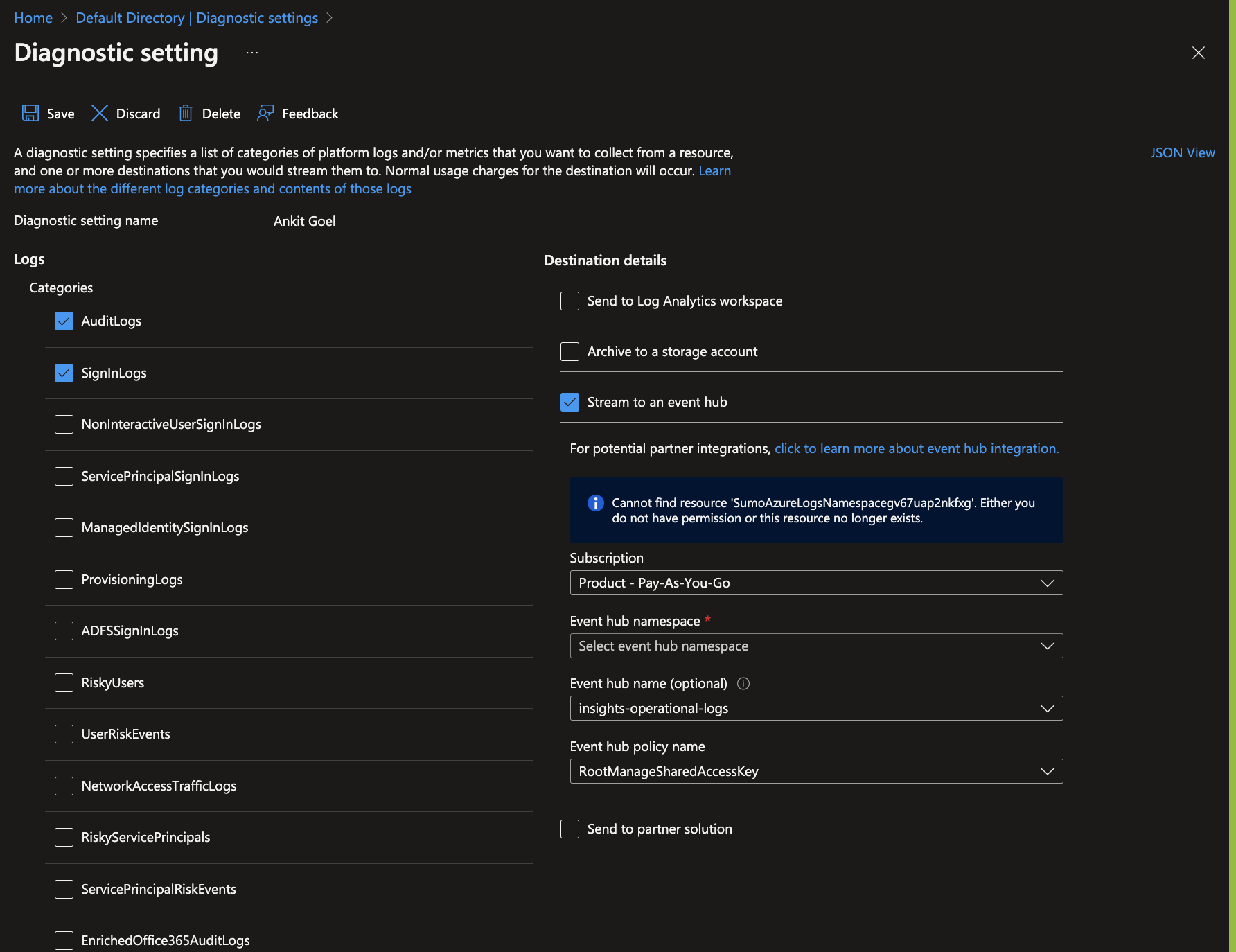
When you configure the event hubs source, define your source category to ease the querying process. A hierarchical approach allows you to make use of wildcards. For example: Azure/AAD/Logs.
Install the Azure Active Directory app
Now that you have set up collection for the Azure Active Directory, install the Sumo Logic app to use the pre-configured searches and dashboards that provide visibility into your environment for real-time analysis of overall usage.
To install the app, do the following:
Next-Gen App: To install or update the app, you must be an account administrator or a user with Manage Apps, Manage Monitors, Manage Fields, Manage Metric Rules, and Manage Collectors capabilities depending upon the different content types part of the app.
- Select App Catalog.
- In the 🔎 Search Apps field, run a search for your desired app, then select it.
- Click Install App.
note
Sometimes this button says Add Integration.
- Click Next in the Setup Data section.
- In the Configure section of your respective app, complete the following fields.
- Field Name. If you already have collectors and sources set up, select the configured metadata field name (eg _sourcecategory) or specify other custom metadata (eg: _collector) along with its metadata Field Value.
- Click Next. You will be redirected to the Preview & Done section.
Post-installation
Once your app is installed, it will appear in your Installed Apps folder, and dashboard panels will start to fill automatically.
Each panel slowly fills with data matching the time range query received since the panel was created. Results will not immediately be available but will be updated with full graphs and charts over time.
Viewing Azure Active Directory dashboards
All dashboards have a set of filters that you can apply to the entire dashboard. Use these filters to drill down and examine the data to a granular level.
- You can change the time range for a dashboard or panel by selecting a predefined interval from a drop-down list, choosing a recently used time range, or specifying custom dates and times. Learn more.
- You can use template variables to drill down and examine the data on a granular level. For more information, see Filtering Dashboards with Template Variables.
- Most Next-Gen apps allow you to provide the scope at the installation time and are comprised of a key (
_sourceCategoryby default) and a default value for this key. Based on your input, the app dashboards will be parameterized with a dashboard variable, allowing you to change the dataset queried by all panels. This eliminates the need to create multiple copies of the same dashboard with different queries.
Overview
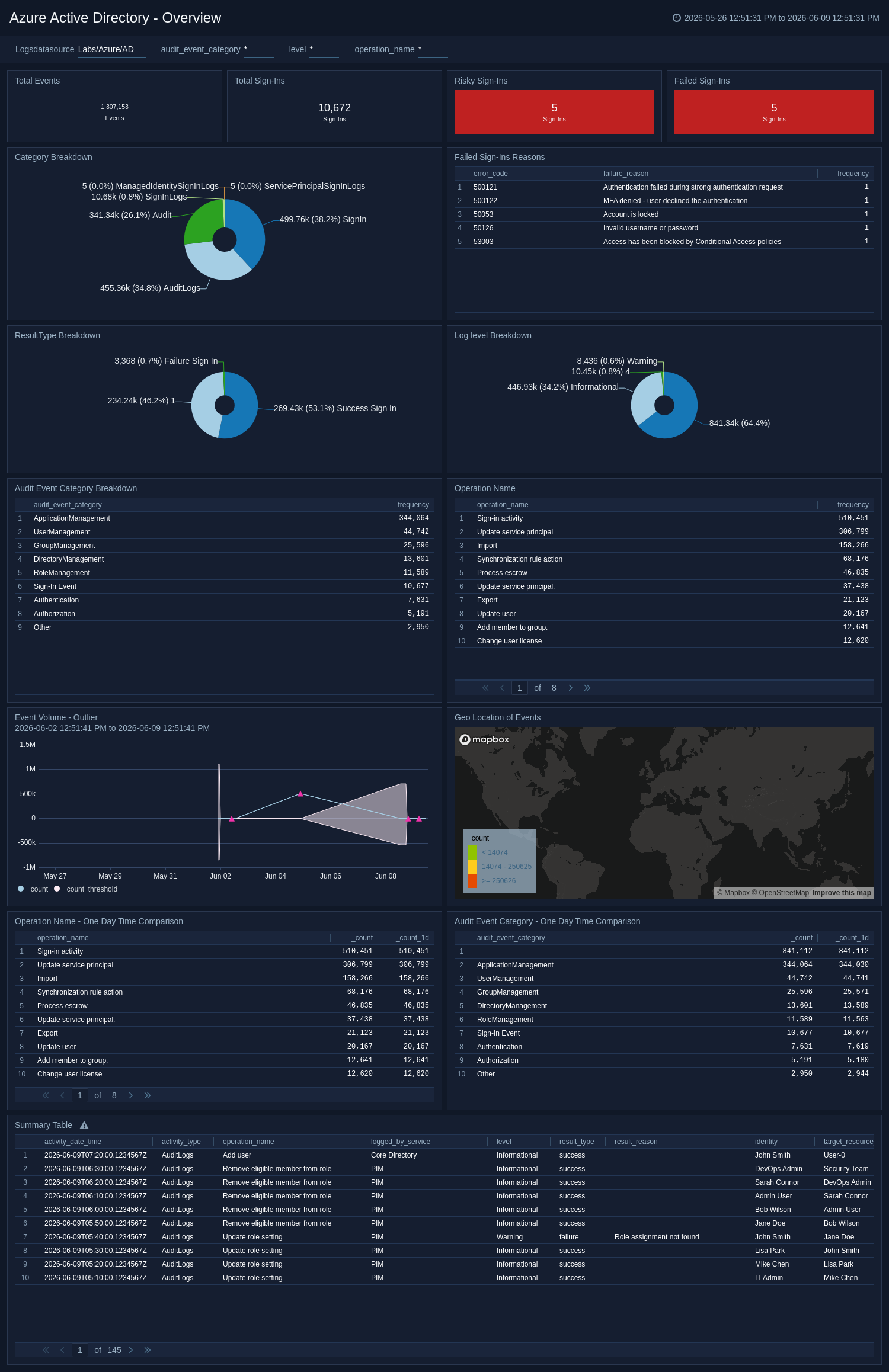
The Azure Active Directory - Overview dashboard provides a high-level view of all AAD activity, including operation names, audit event categories, log levels, result types, geo-location, and event category breakdowns.
Application Management
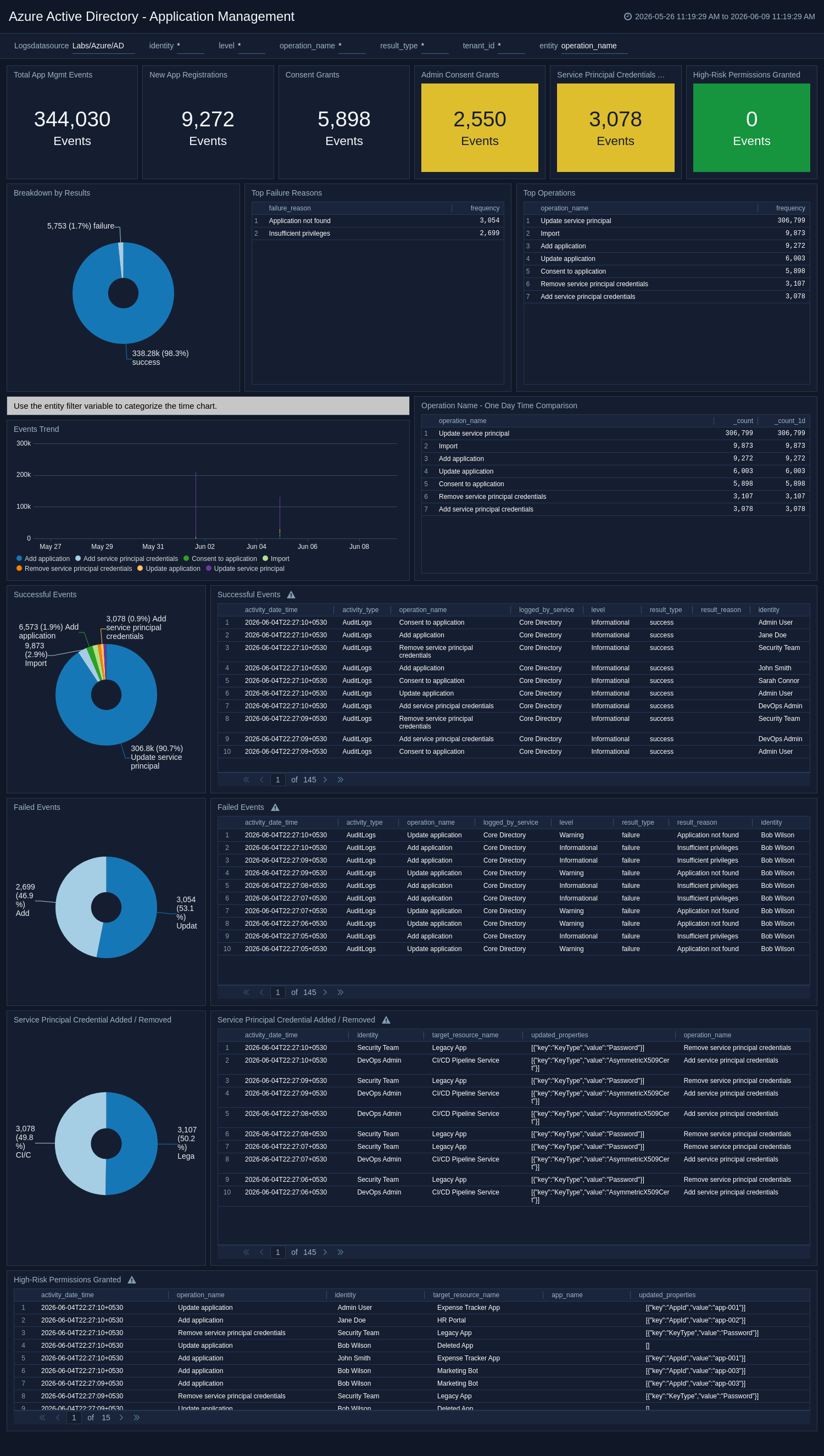
The Azure Active Directory - Application Management dashboard provides visibility into application consent, deleted applications, applications added or updated, service principal credential changes, and high-risk permissions granted.
Authorization, Authentication, and Other
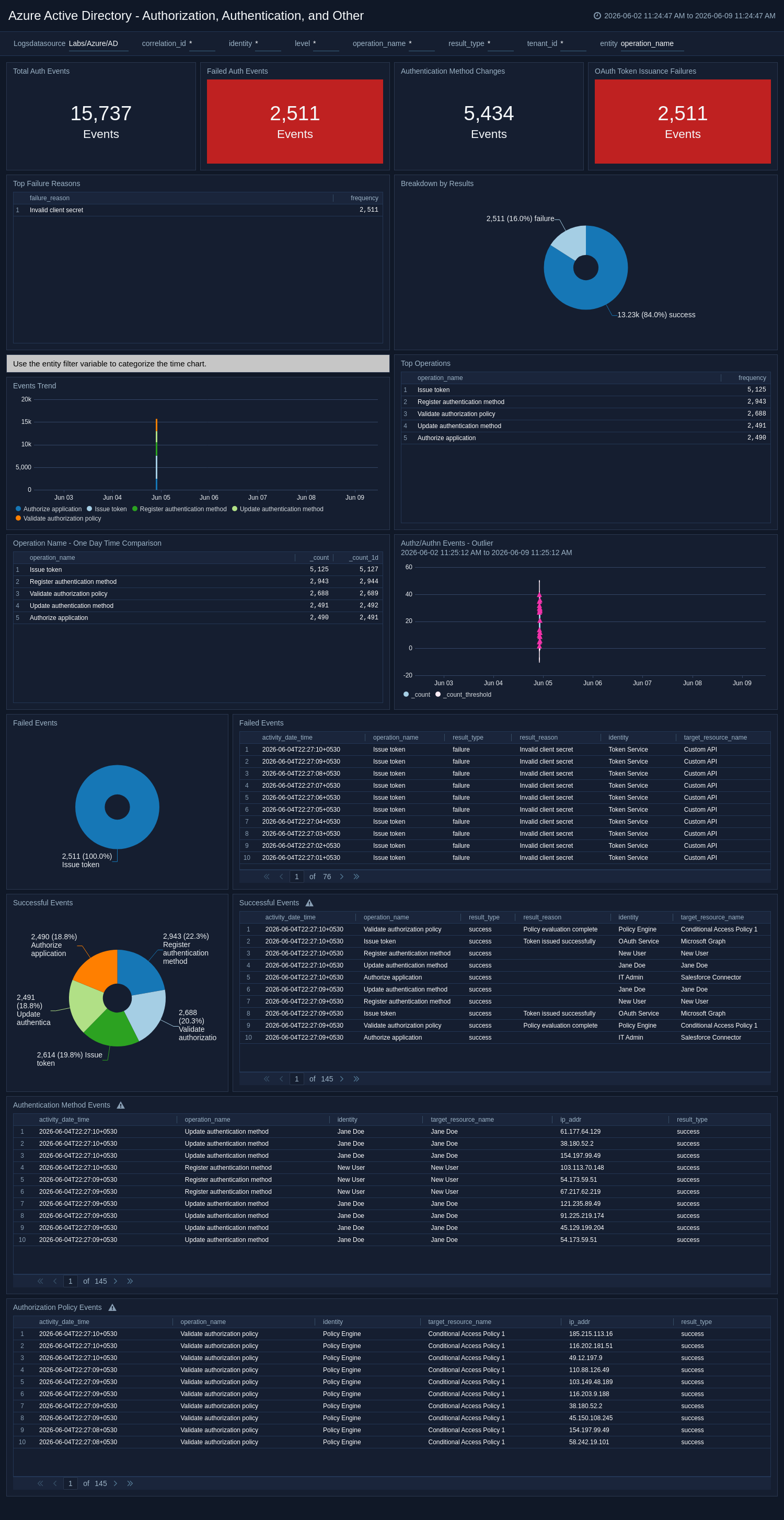
The Azure Active Directory - Authorization, Authentication, and Other dashboard shows authorization policy events, OAuth token issuance failures, authentication method changes, successful and failed events, and result breakdowns.
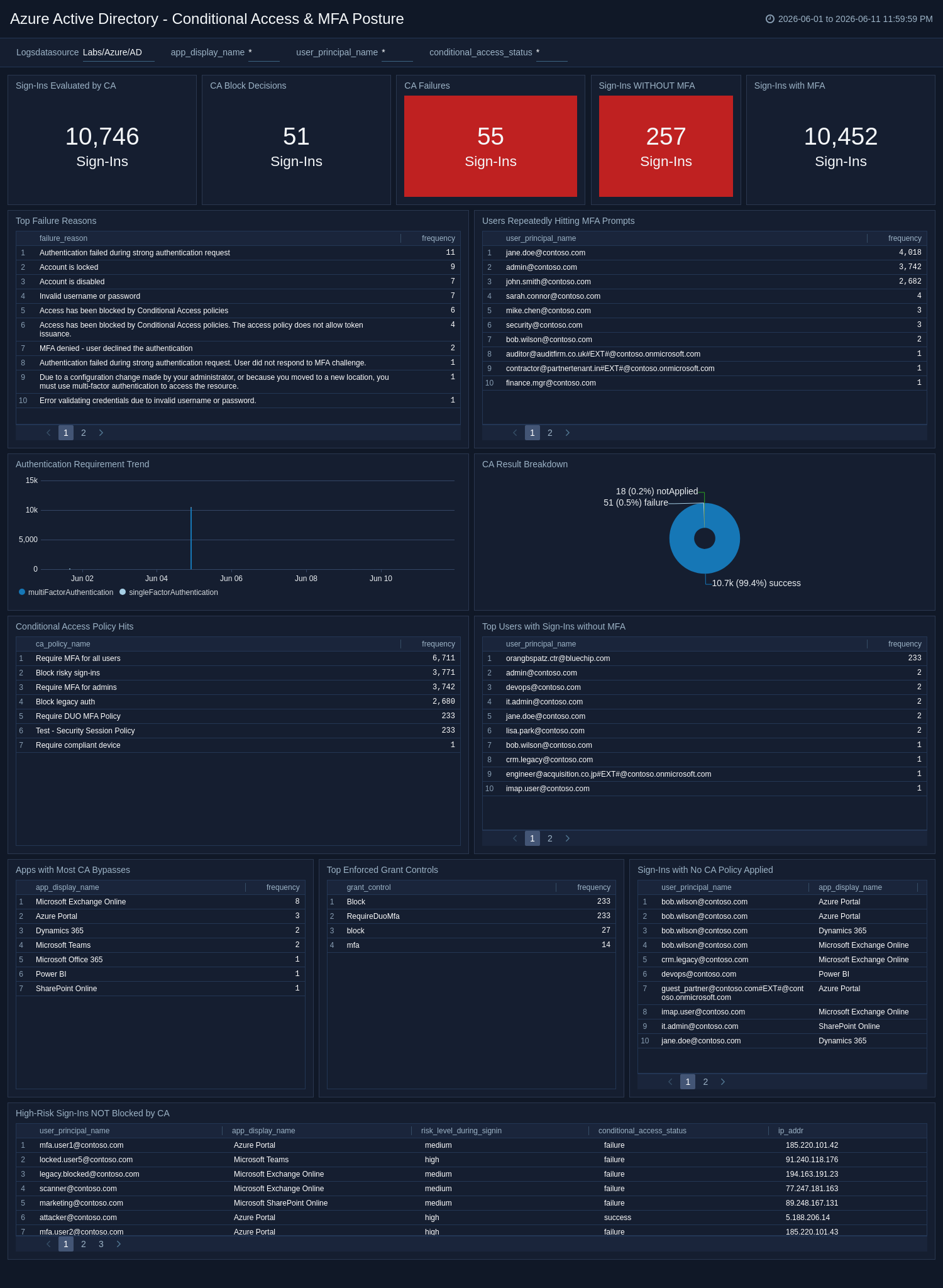
Conditional Access & MFA Posture
The Azure Active Directory - Conditional Access & MFA Posture dashboard measures Conditional Access policy effectiveness, MFA coverage, users signing in without MFA, users repeatedly hitting MFA prompts, and detects bypasses or policy coverage gaps.
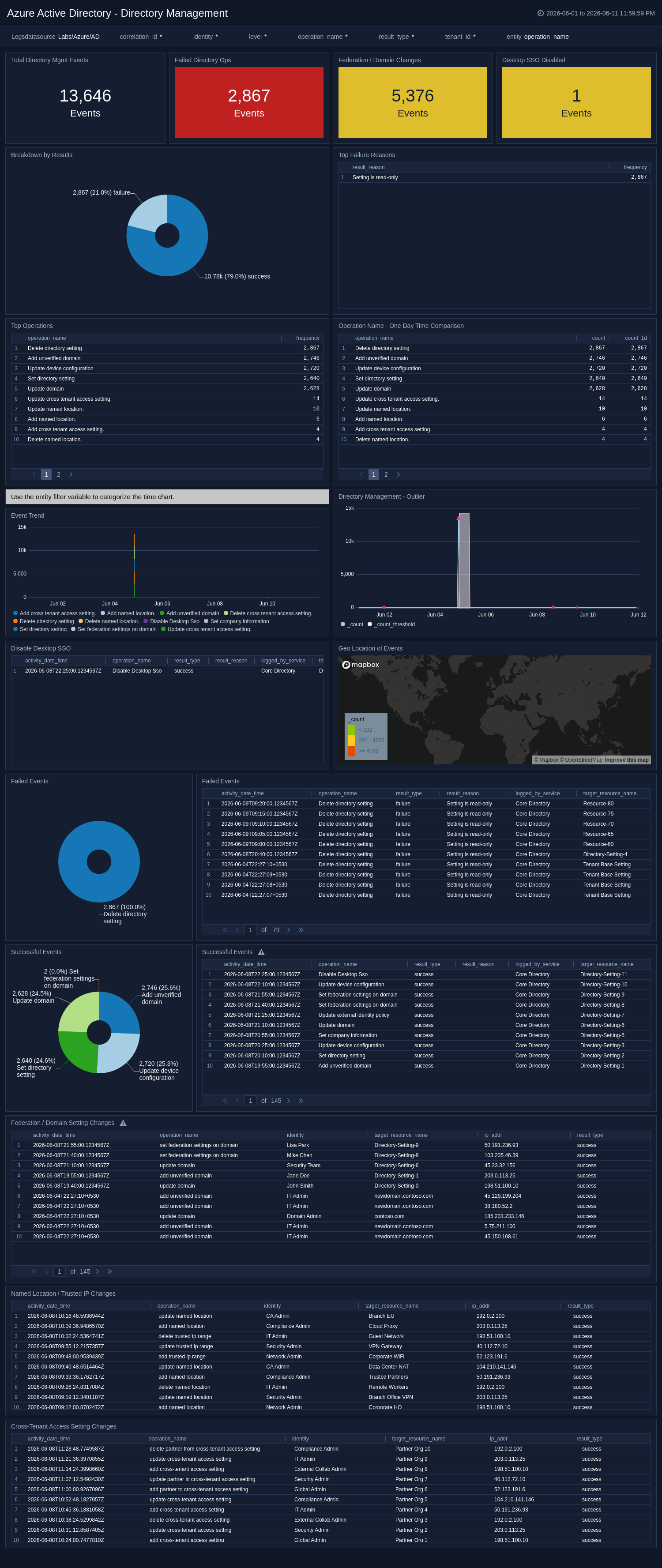
Directory Management
The Azure Active Directory - Directory Management dashboard covers directory management events, failed and successful events, operation trends, and disabled desktop SSOs.
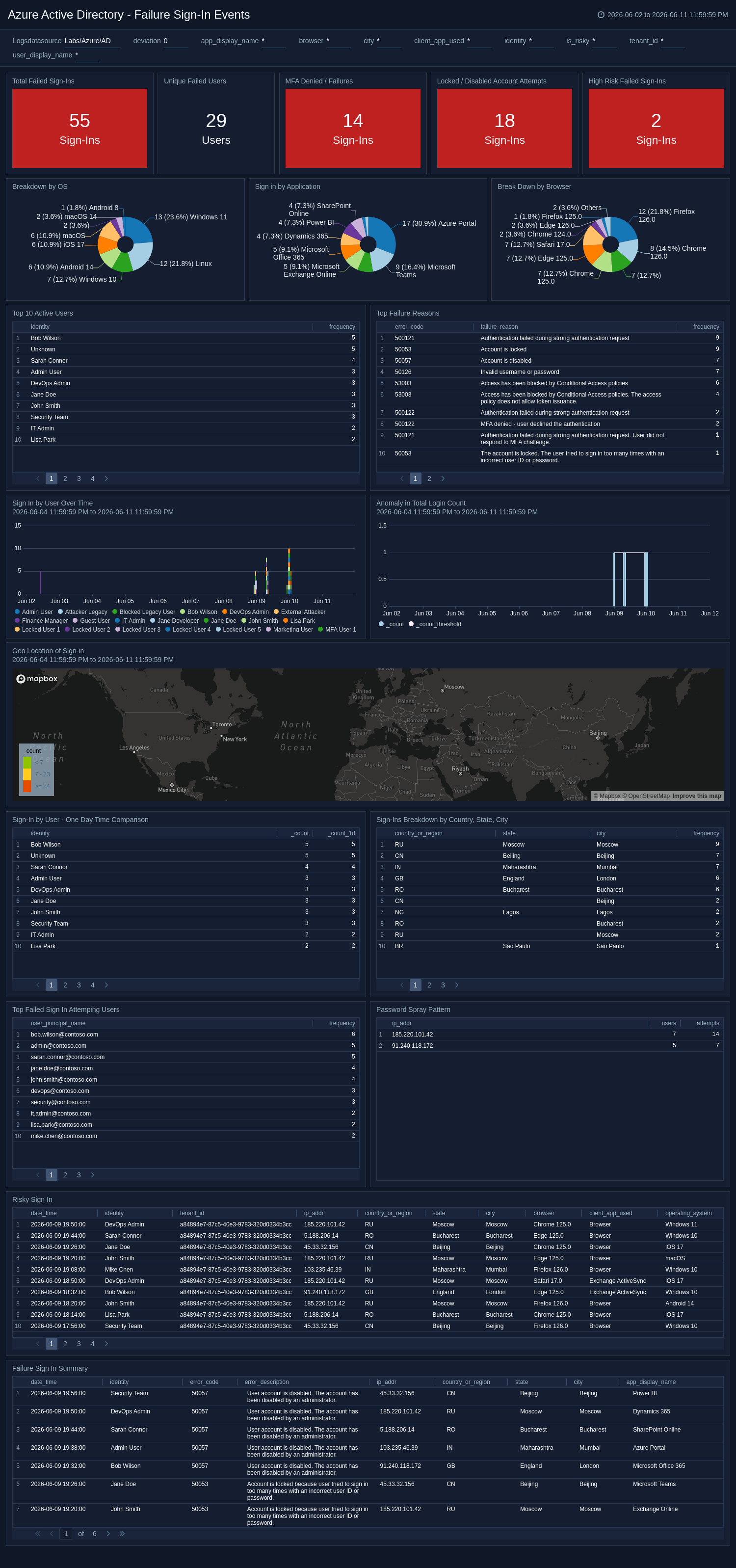
Failure Sign-In Events
The Azure Active Directory - Failure Sign-In Events dashboard provides insight into failed sign-in activity, risky sign-ins, geo-location of sign-in attempts, browser and application breakdowns, and login anomalies.
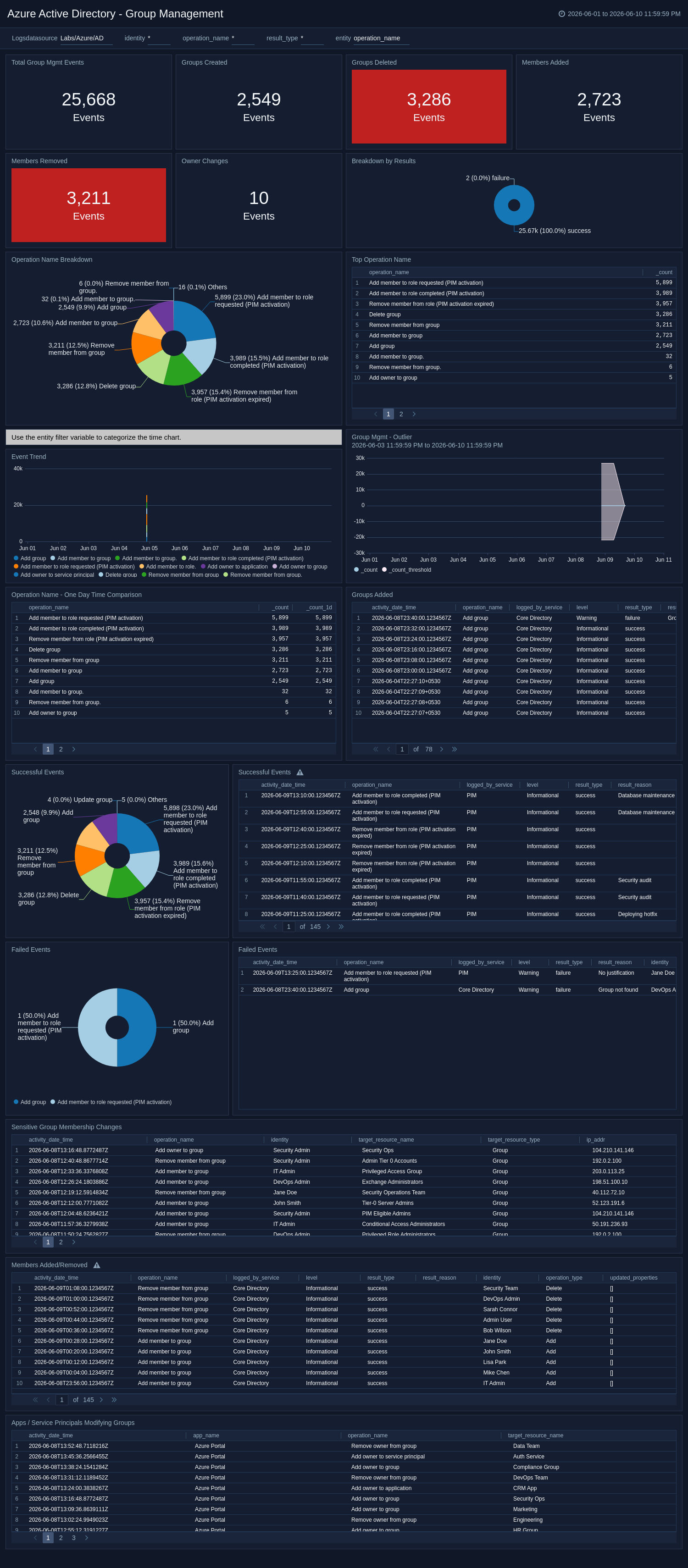
Group Management
The Azure Active Directory - Group Management dashboard tracks group creation, membership changes, members added or removed, and group-related operation trends.
Privileged Identity Management (PIM)
The Azure Active Directory - Privileged Identity Management (PIM) dashboard surfaces just-in-time privileged role activations, justifications, expirations, and detects abuse of the PIM workflow.
.png)
Role Management
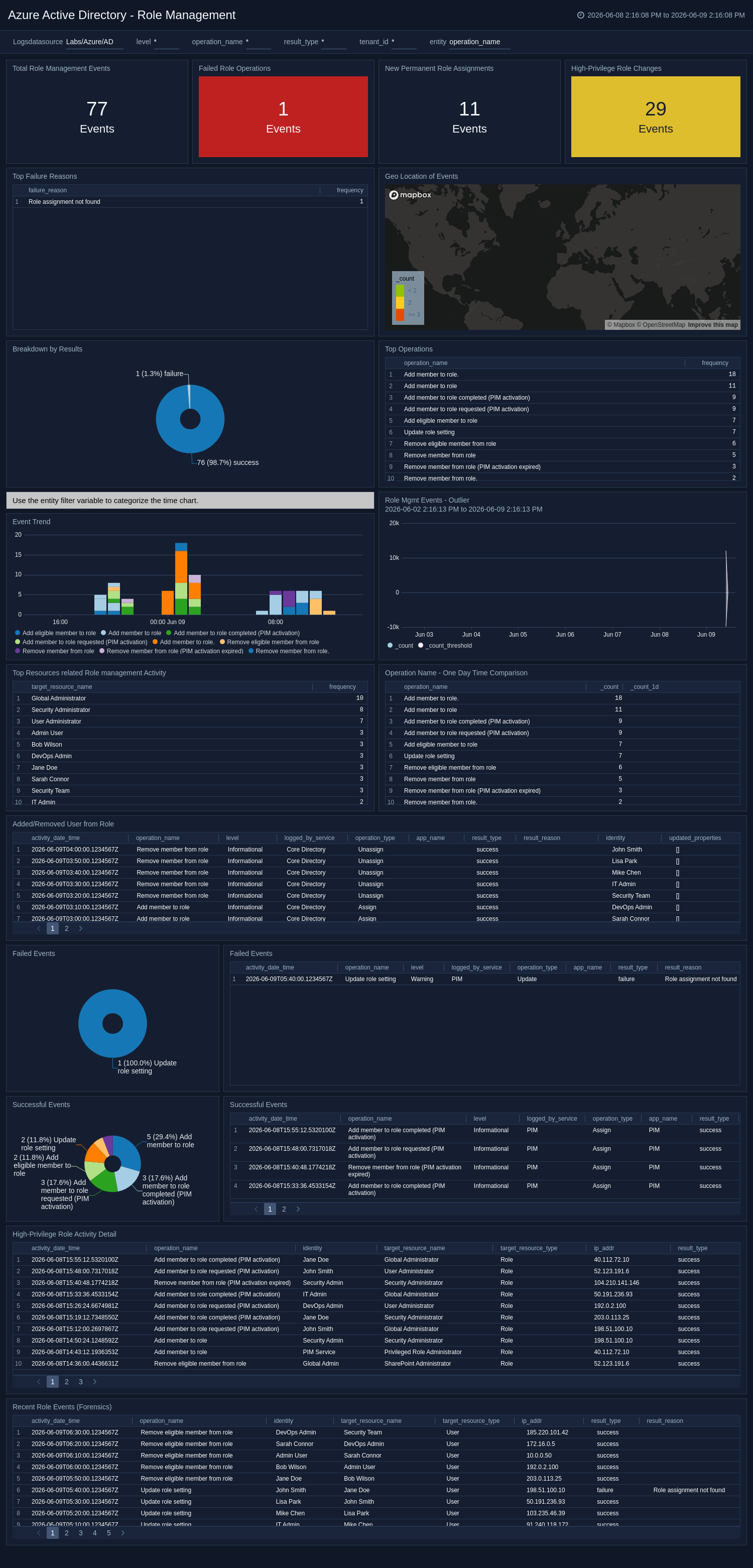
The Azure Active Directory - Role Management dashboard provides details on role updates, successful and failed events, users added or removed from roles, and privileged admin role assignments.
Service Principal & Managed Identity Activity
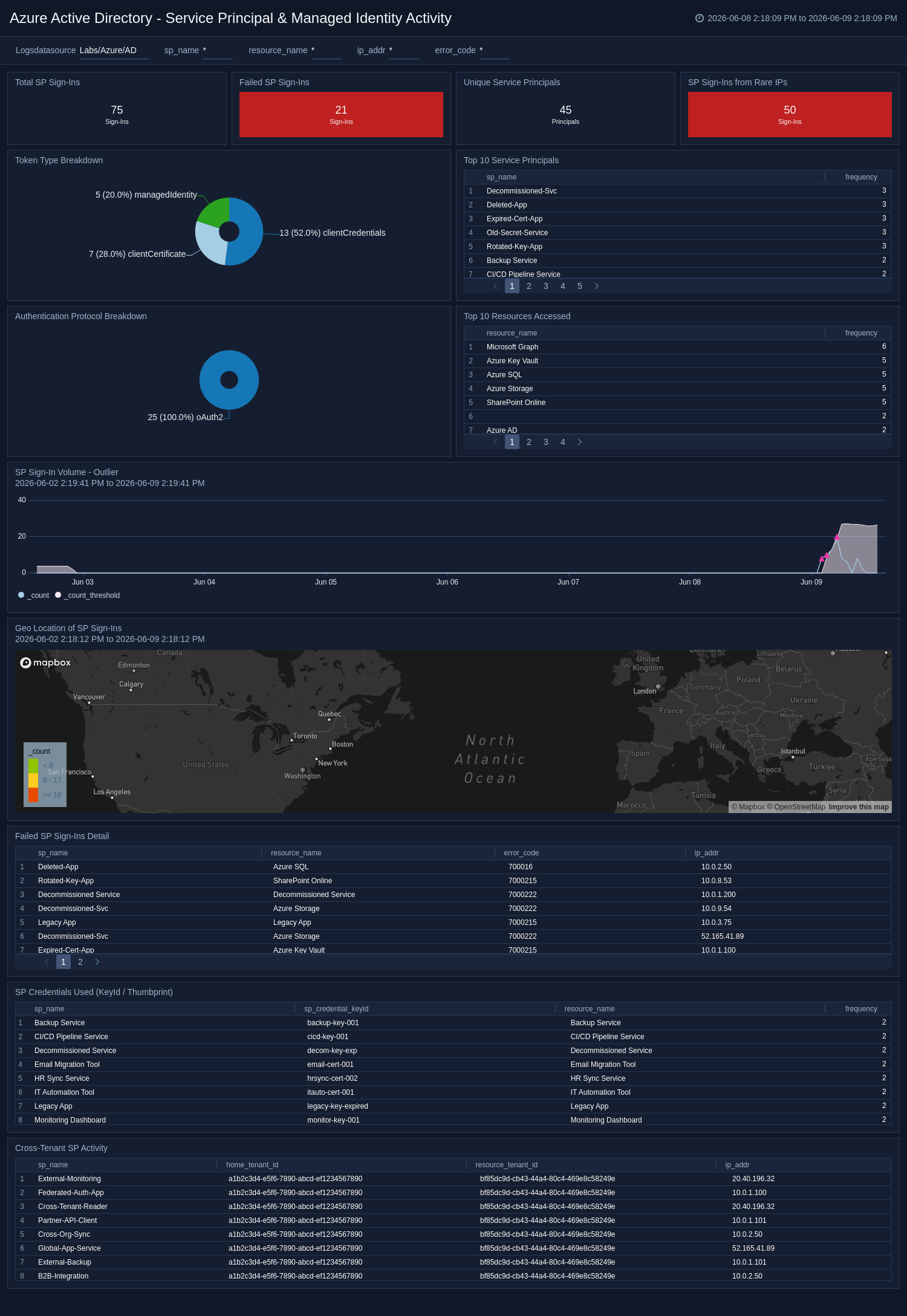
The Azure Active Directory - Service Principal & Managed Identity Activity dashboard monitors non-human identities (service principals, managed identities) accessing Azure resources, credential abuse, and anomalous service principal usage.
Successful Sign-In Events
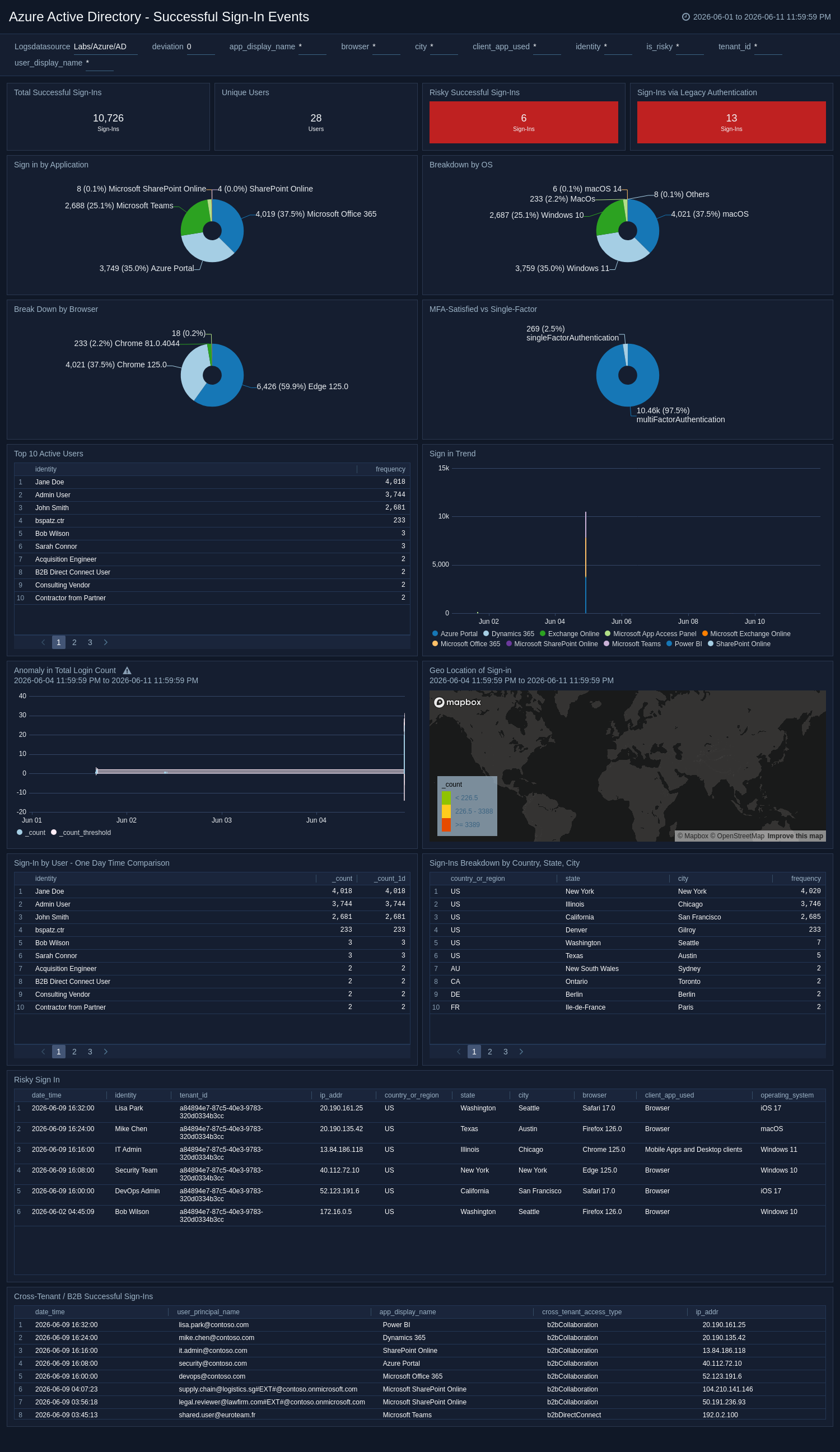
The Azure Active Directory - Successful Sign-In Events dashboard provides insight into successful sign-in activity, geo-location of sign-ins, risky sign-ins, browser and application breakdowns, and login anomalies.
User Management
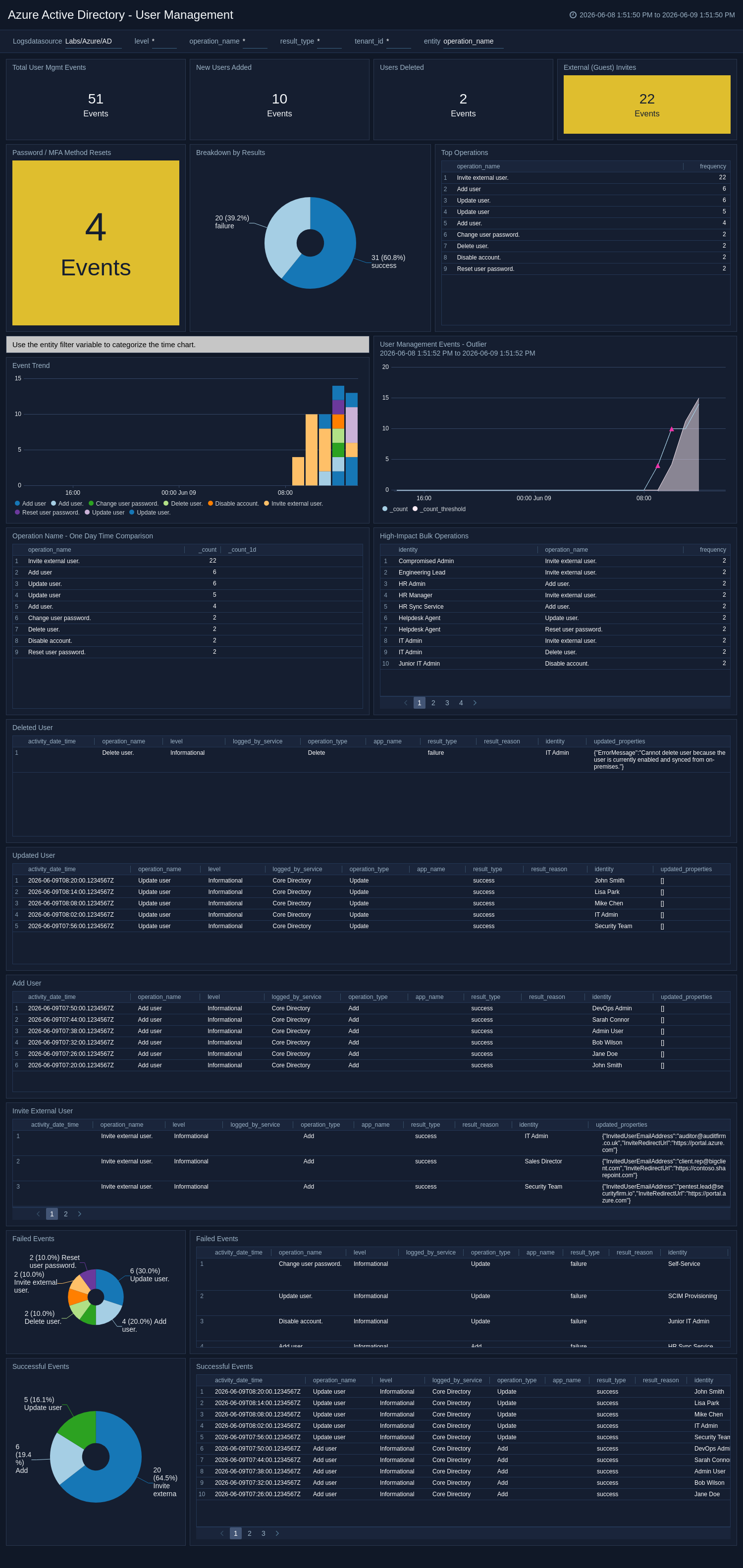
The Azure Active Directory - User Management dashboard covers external user invites, user additions, updates, deletions, and user management event outliers.
Create monitors for the Azure Active Directory app
From your App Catalog:
- From the Sumo Logic navigation, select App Catalog.
- In the Search Apps field, search for and then select your app.
- Make sure the app is installed.
- Navigate to What's Included tab and scroll down to the Monitors section.
- Click Create next to the pre-configured monitors. In the create monitors window, adjust the trigger conditions and notifications settings based on your requirements.
- Scroll down to Monitor Details.
- Under Location click on New Folder.
note
By default, monitor will be saved in the root folder. So to make the maintenance easier, create a new folder in the location of your choice.
- Enter Folder Name. Folder Description is optional.
tip
Using app version in the folder name will be helpful to determine the versioning for future updates.
- Click Create. Once the folder is created, click on Save.
Azure Active Directory app alerts
| Name | Description | Alert Condition | Recover Condition |
|---|---|---|---|
Azure Active Directory - Failed Sign-Ins | Alerts when MFA-related sign-in failures are detected, including authentication failed during strong authentication (500121, 500122, 500123). This may indicate MFA bypass attempts, compromised credentials, or targeted attacks against accounts with MFA enabled. | Count > 0 | Count < = 0 |
Azure Active Directory - High-Risk Permissions Granted to Application | Triggers when high-risk OAuth permissions such as Mail.ReadWrite, Files.ReadWrite, Directory.ReadWrite, or RoleManagement.ReadWrite are granted to an application. This may indicate a malicious OAuth app consent or over-privileged application registration. | Count > 0 | Count < = 0 |
Azure Active Directory - Password Spray Detection | Detects password spray attacks where a single IP address attempts to sign in against multiple user accounts with repeated failures. This may indicate an attacker trying commonly used passwords across many accounts to avoid lockout thresholds. | Count > 0 | Count < = 0 |
Azure Active Directory - PIM Activation Without Justification | Alerts when a Privileged Identity Management (PIM) role activation is performed without a justification. This may indicate unauthorized or automated privilege escalation that violates least-privilege policies. | Count > 0 | Count < = 0 |
Azure Active Directory - Privileged Admin Role Assignment | Triggers when a user is assigned a high-privilege Azure AD role such as Global Administrator, Privileged Role Administrator, or Security Administrator. This may indicate insider threats or a compromised admin account. | Count > 0 | Count < = 0 |
Azure Active Directory - Service Principal Credential Added | Alerts when new credentials such as a client secret or certificate are added to a service principal. This may indicate credential stuffing, persistence by an attacker, or unauthorized changes to application identities. | Count > 0 | Count < = 0 |
Azure Active Directory - Sign-Ins from Risky or Compromised Accounts | Detects sign-in activity from accounts flagged as at risk or confirmed compromised by Azure AD Identity Protection. This may indicate credential theft, account takeover, or ongoing unauthorized access. | Count > 0 | Count < = 0 |
Azure Active Directory - User Account Disabled | Triggers when a user account is disabled in Azure Active Directory. This may indicate insider sabotage, a compromised admin account, or an attacker disrupting access for legitimate users. | Count > 0 | Count < = 0 |
Upgrade/Downgrade the Azure Active Directory app (Optional)
To update the app, do the following:
Next-Gen App: To install or update the app, you must be an account administrator or a user with Manage Apps, Manage Monitors, Manage Fields, Manage Metric Rules, and Manage Collectors capabilities depending upon the different content types part of the app.
- Select App Catalog.
- In the Search Apps field, search for and then select your app.
Optionally, you can identify apps that can be upgraded in the Upgrade available section. - To upgrade the app, select Upgrade from the Manage dropdown.
- If the upgrade does not have any configuration or property changes, you will be redirected to the Preview & Done section.
- If the upgrade has any configuration or property changes, you will be redirected to the Setup Data page.
- In the Configure section of your respective app, complete the following fields.
- Field Name. If you already have collectors and sources set up, select the configured metadata field name (eg _sourcecategory) or specify other custom metadata (eg: _collector) along with its metadata Field Value.
- Click Next. You will be redirected to the Preview & Done section.
Post-update
Your upgraded app will be installed in the Installed Apps folder and dashboard panels will start to fill automatically.
See our Release Notes changelog for new updates in the app.
To revert the app to a previous version, do the following:
- Select App Catalog.
- In the Search Apps field, search for and then select your app.
- To version down the app, select Revert to < previous version of your app > from the Manage dropdown.
Uninstalling the Azure Active Directory app (Optional)
To uninstall the app, do the following:
- Select App Catalog.
- In the 🔎 Search Apps field, run a search for your desired app, then select it.
- Click Uninstall.