Azure Firewall
Azure Firewall is a cloud-native and intelligent network firewall security service that provides threat protection for your cloud workloads running in Azure. It's a fully stateful firewall as a service with built-in high availability and unrestricted cloud scalability. This integration helps in monitoring firewall health, network rules, application rules, threat intelligence, and IDPS (Intrusion Detection and Prevention System) events.
Log and metric types
For Azure Firewall, you can collect the following logs and metrics:
- Azure Firewall Application Rule. Contains all application rule log data. Each match between the data plane and the application rule creates a log entry with the data plane packet and the matched rule's attributes.
- Azure Firewall Network Rule Aggregation (Policy Analytics). Contains aggregated application rule log data for Policy Analytics.
- Azure Firewall DNS Flow Trace Log. Contains all the DNS proxy data between the client, firewall, and DNS server.
- Azure Firewall DNS query. Contains all DNS proxy events log data.
- Azure Firewall Fat Flow Log. This query returns the top flows across Azure Firewall instances. Log contains flow information, date transmission rate (in megabits per second units), and the time period when the flows were recorded. Follow the documentation to enable Top Flow logging and details on how it is recorded.
- Azure Firewall Flow Trace Log. Flow logs across Azure Firewall instances. Log contains flow information, flags, and the time period when the flows were recorded. Please follow the documentation to enable flow trace logging and details on how it is recorded.
- Azure Firewall FQDN Resolution Failure. Contains all internal Firewall FQDN resolution requests that resulted in failure.
- Azure Firewall IDPS Signature. Contains all data plane packets that were matched with one or more IDPS signatures.
- Azure Firewall Nat Rule. Contains all DNAT (Destination Network Address Translation) events log data. Each match between the data plane and the DNAT rule creates a log entry with the data plane packet and the matched rule's attributes.
- Azure Firewall Nat Rule Aggregation (Policy Analytics). Azure Firewall Nat Rule Aggregation (Policy Analytics).
- Azure Firewall Network Rule. Contains all Network Rule log data. Each match between the data plane and network rule creates a log entry with the data plane packet and the matched rule's attributes.
- Azure Firewall Application Rule Aggregation (Policy Analytics). Contains aggregated network rule log data for Policy Analytics.
- Azure Firewall Threat Intelligence. Contains all Threat Intelligence events.
- Azure Firewall Metrics. These metrics are available in Microsoft.Network/azureFirewalls namespace.
For more information on supported metrics and logs schema, refer to Azure documentation.
Setup
Azure service sends monitoring data to Azure Monitor, which can then stream data to Event Hub. Sumo Logic supports:
- Logs collection from Azure Monitor using our Azure Event Hubs source.
- Metrics collection using our Azure Metrics Source.
You must explicitly enable diagnostic settings for each Azure Firewall you want to monitor. You can forward logs to the same event hub, provided they satisfy the limitations and permissions as described here.
When you configure the event hubs source or HTTP source, plan your source category to ease the querying process. A hierarchical approach allows you to make use of wildcards. For example: Azure/Firewall/Logs and Azure/Firewall/Metrics.
Configure collector
Create a hosted collector if not already configured and tag the tenant_name field. You can get the tenant name using the instructions here. Make sure you create the required sources in this collector. 
Configure metrics collection
To set up the Azure Metrics source in Sumo Logic, refer to Azure Metrics Source.
Configure logs collection
Diagnostic logs
In this section, you will configure a pipeline for shipping diagnostic logs from Azure Monitor to an Event Hub.
- To set up the Azure Event Hubs source in Sumo Logic, refer to Azure Event Hubs Source for Logs.
- To create the diagnostic settings in the Azure portal, refer to Azure documentation.
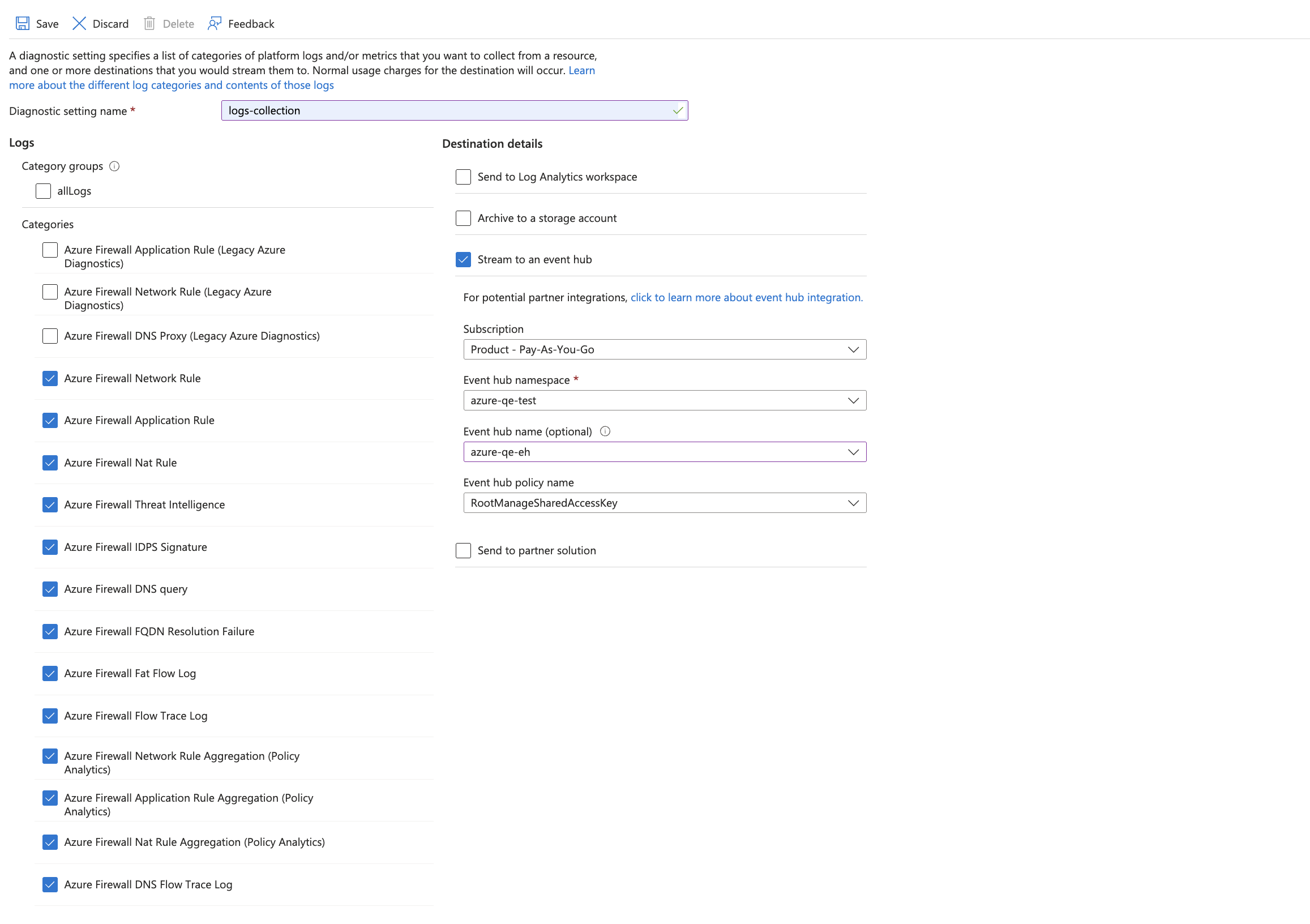
- Follow the steps below for each Azure Firewall that you want to monitor.
- Choose Stream to an event hub as the destination.
- Select the log categories you want to collect
- Use the Event Hub namespace and Event Hub name configured in the previous step in the destination details section. You can use the default policy
RootManageSharedAccessKeyas the policy name.
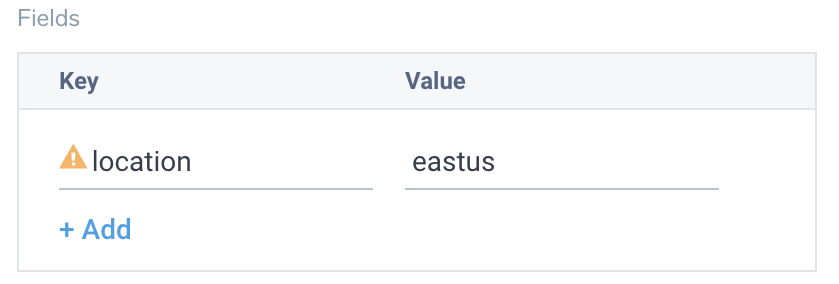
- Tag the location field in the source with the right location value.
Activity logs (optional)
To collect activity logs, follow the instructions here. If you are already collecting activity logs for a subscription, you can skip this step.
Since this source includes logs from multiple regions, do not tag it with the location tag.
Installing the Azure Firewall app
Now that you have set up data collection, install the Azure Firewall Sumo Logic app to use the pre-configured dashboards that provide visibility into your environment for real-time analysis of overall usage.
To install the app, do the following:
Next-Gen App: To install or update the app, you must be an account administrator or a user with Manage Apps, Manage Monitors, Manage Fields, Manage Metric Rules, and Manage Collectors capabilities depending upon the different content types part of the app.
- Select App Catalog.
- In the 🔎 Search Apps field, run a search for your desired app, then select it.
- Click Install App.
note
Sometimes this button says Add Integration.
- Click Next in the Setup Data section.
- In the Configure App section of your respective app, complete the following field.
- Index. Specify value for _index if the collection is configured with custom partition. Learn more. Default value is set to
sumologic_default(default partition)
- Index. Specify value for _index if the collection is configured with custom partition. Learn more. Default value is set to
- Click Next. You will be redirected to the Preview & Done section.
Post-installation
Once your app is installed, it will appear in your Installed Apps folder, and dashboard panels will start to fill automatically.
Each panel slowly fills with data matching the time range query received since the panel was created. Results will not immediately be available but will be updated with full graphs and charts over time.
As part of the app installation process, the following fields will be created by default:
tenant_name. This field is tagged at the collector level. You can get the tenant name using the instructions here.location. The region to which the resource name belongs.subscription_id. ID associated with a subscription where the resource is present.resource_group. The resource group name where the Azure resource is present.provider_name. Azure resource provider name (for example, Microsoft.Network).resource_type. Azure resource type (for example, azureFirewalls).resource_name. The name of the resource (for example, firewall name).service_type. The type of service that can be accessed with an Azure resource.service_name. Services that can be accessed with an Azure resource.
As part of the app installation process, the following FERs will be created by default:
Azure location extraction FER
Rule Name: AzureLocationExtractionFER
Applied at: Ingest Time
Scope (Specific Data): tenant_name=*
json "location", "properties.resourceLocation", "properties.region" as location, resourceLocation, service_region nodrop
| replace(toLowerCase(resourceLocation), " ", "") as resourceLocation
| if (!isBlank(resourceLocation), resourceLocation, location) as location
| if (!isBlank(service_region), service_region, location) as location
| if (isBlank(location), "global", location) as location
| fields location
Resource ID extraction FER
Rule Name: AzureResourceIdExtractionFER
Applied at: Ingest Time
Scope (Specific Data): tenant_name=*
json "resourceId", "ResourceId" as resourceId1, resourceId2 nodrop
| if (isBlank(resourceId1), resourceId2, resourceId1) as resourceId
| toUpperCase(resourceId) as resourceId
| parse regex field=resourceId "/SUBSCRIPTIONS/(?<subscription_id>[^/]+)" nodrop
| parse field=resourceId "/RESOURCEGROUPS/*/" as resource_group nodrop
| parse regex field=resourceId "/PROVIDERS/(?<provider_name>[^/]+)" nodrop
| parse regex field=resourceId "/PROVIDERS/[^/]+(?:/LOCATIONS/[^/]+)?/(?<resource_type>[^/]+)/(?<resource_name>.+)" nodrop
| parse regex field=resource_name "(?<parent_resource_name>[^/]+)(?:/PROVIDERS/[^/]+)?/(?<service_type>[^/]+)/?(?<service_name>.+)" nodrop
| if (isBlank(parent_resource_name), resource_name, parent_resource_name) as resource_name
| fields subscription_id, location, provider_name, resource_group, resource_type, resource_name, service_type, service_name
Viewing the Azure Firewall dashboards
All dashboards have a set of filters that you can apply to the entire dashboard. Use these filters to drill down and examine the data to a granular level.
- You can change the time range for a dashboard or panel by selecting a predefined interval from a drop-down list, choosing a recently used time range, or specifying custom dates and times. Learn more.
- You can use template variables to drill down and examine the data on a granular level. For more information, see Filtering Dashboards with Template Variables.
- Many of the Next-Gen apps allow you to provide the Index at the installation time and a default value for this key (sumologic_default). Based on your input, the app dashboards will be parameterized with a dashboard variable, allowing you to change the data partition queried by all panels. This restricts the query scope of all the dashboard queries to a specific data partition.
Overview
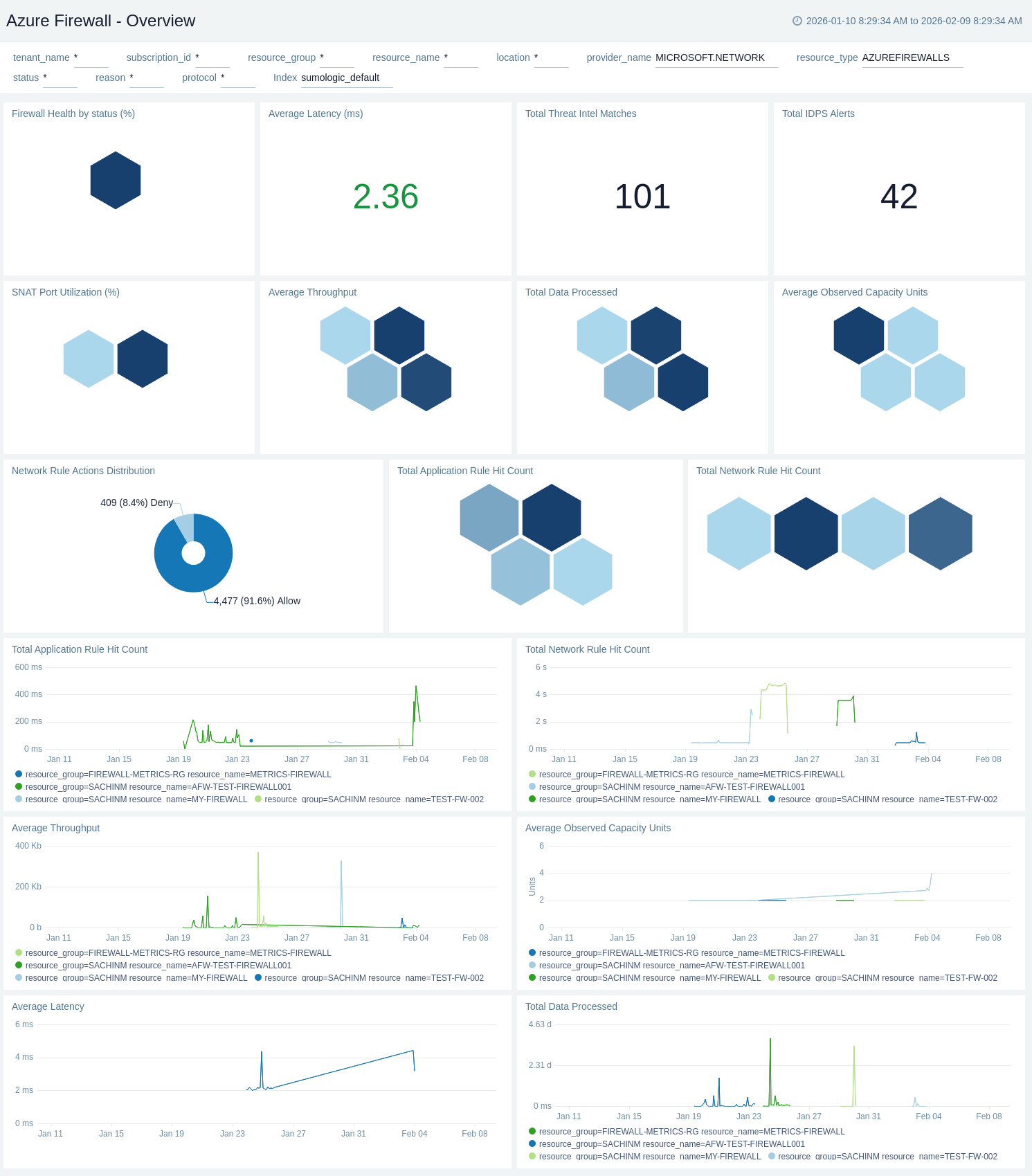
The Azure Firewall - Overview dashboard provides a high-level summary of firewall health, performance, and security posture.
Use this dashboard to:
- Monitor firewall health status, SNAT port utilization, and average latency to ensure optimal performance.
- Track threat intelligence matches, IDPS alerts, and network rule actions for security posture assessment.
- Analyze throughput, capacity units, data processed, and rule hit counts for capacity planning and optimization.
Administrative Operations
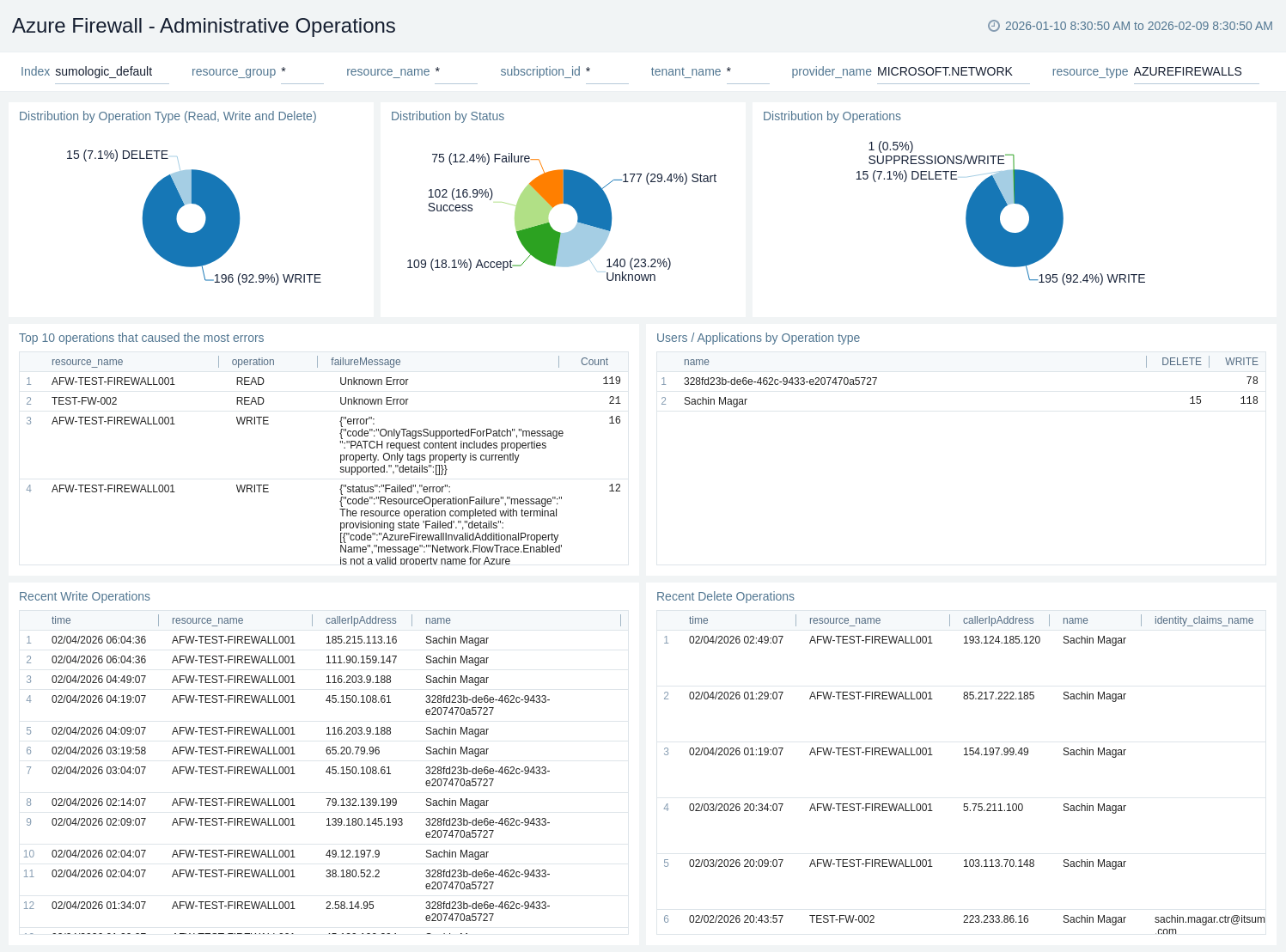
The Azure Firewall - Administrative Operations dashboard provides visibility into Azure Resource Manager operations performed on the firewall resource.
Use this dashboard to:
- Monitor the distribution of operation types (Read, Write, Delete) and their success rates to ensure proper functioning of your firewall.
- Identify potential issues by analysing the top 10 operations causing errors and correlating them with specific users or applications.
- Track recent write and delete operations to maintain an audit trail of configuration changes made to your firewall resource.
Application Rules
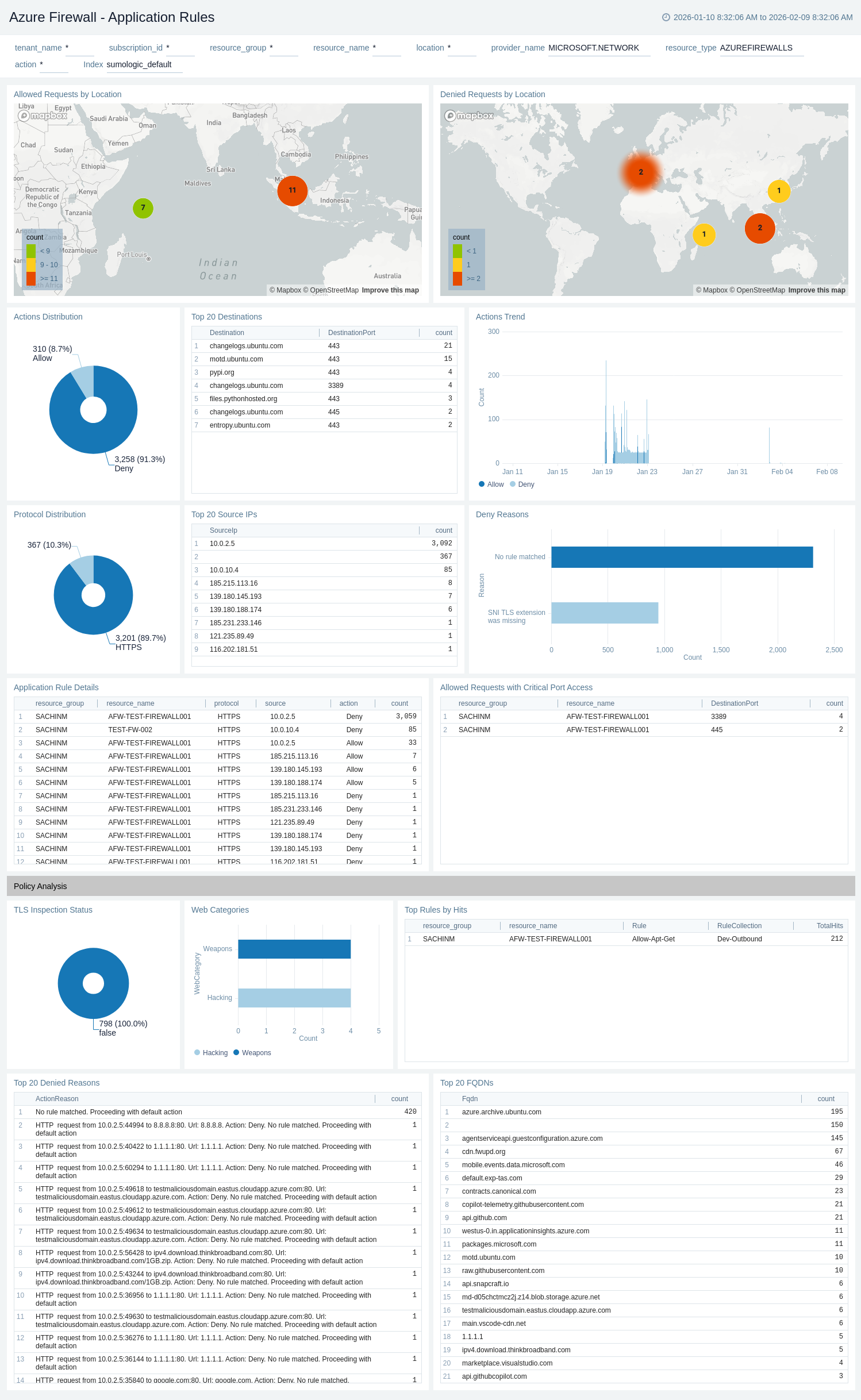
The Azure Firewall - Application Rules dashboard provides visibility into application layer (L7) traffic filtering and web content control.
Use this dashboard to:
- Monitor application rule actions (Allow/Deny) and protocol distribution to understand traffic patterns.
- Identify denied requests by location and analyse reasons for troubleshooting connectivity issues.
- Track top source IPs, TLS inspection status, and web categories for comprehensive FQDN-based traffic analysis.
Network Rules
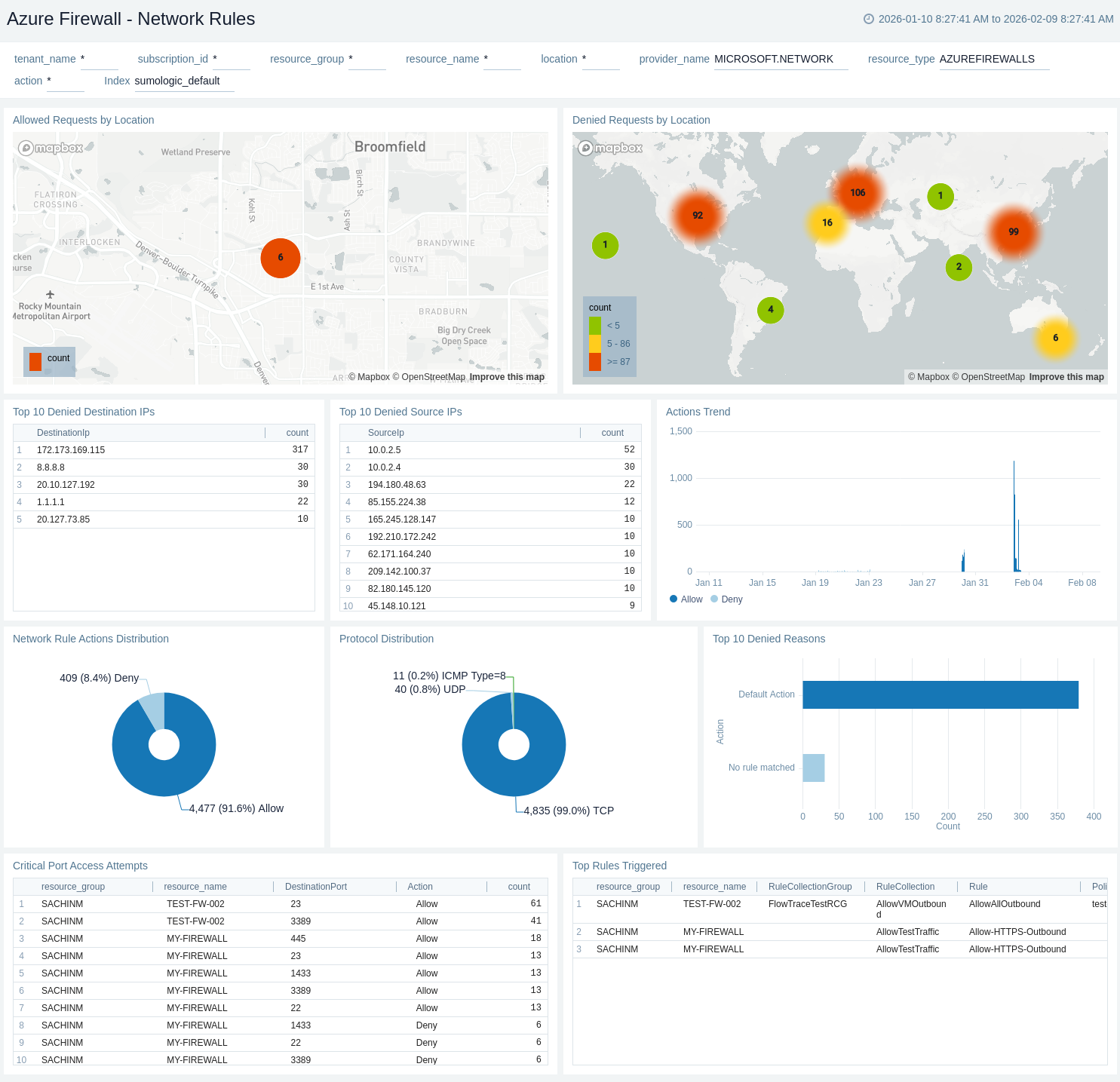
The Azure Firewall - Network Rules dashboard provides detailed insights into network layer (L4) traffic filtering.
Use this dashboard to:
- Monitor network rule actions distribution and protocol distribution to understand traffic patterns.
- Identify top denied source/destination IPs and analyze deny reasons to troubleshoot connectivity issues.
- Track critical port access attempts and top rules triggered for security monitoring and rule optimization.
NAT Rules
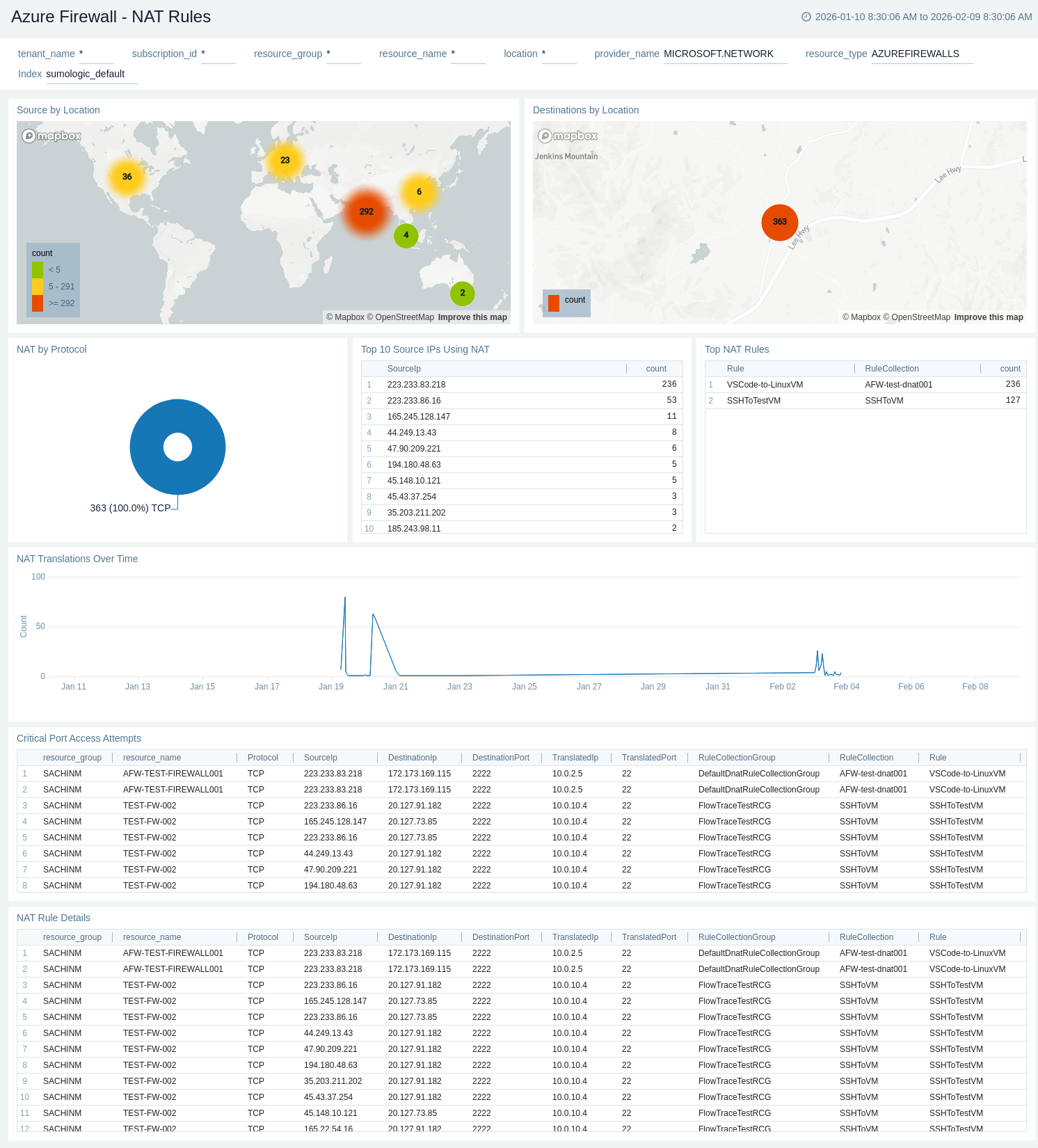
The Azure Firewall - NAT Rules dashboard provides insights into Destination NAT (DNAT) translations for inbound traffic routing.
Use this dashboard to:
- Monitor NAT translations by protocol and track NAT activity over time to understand inbound connectivity patterns.
- Identify top source IPs using NAT and analyze NAT rule details for traffic routing optimisation.
- Track critical port access attempts and visualize source/destination locations for security monitoring.
Threat Intelligence
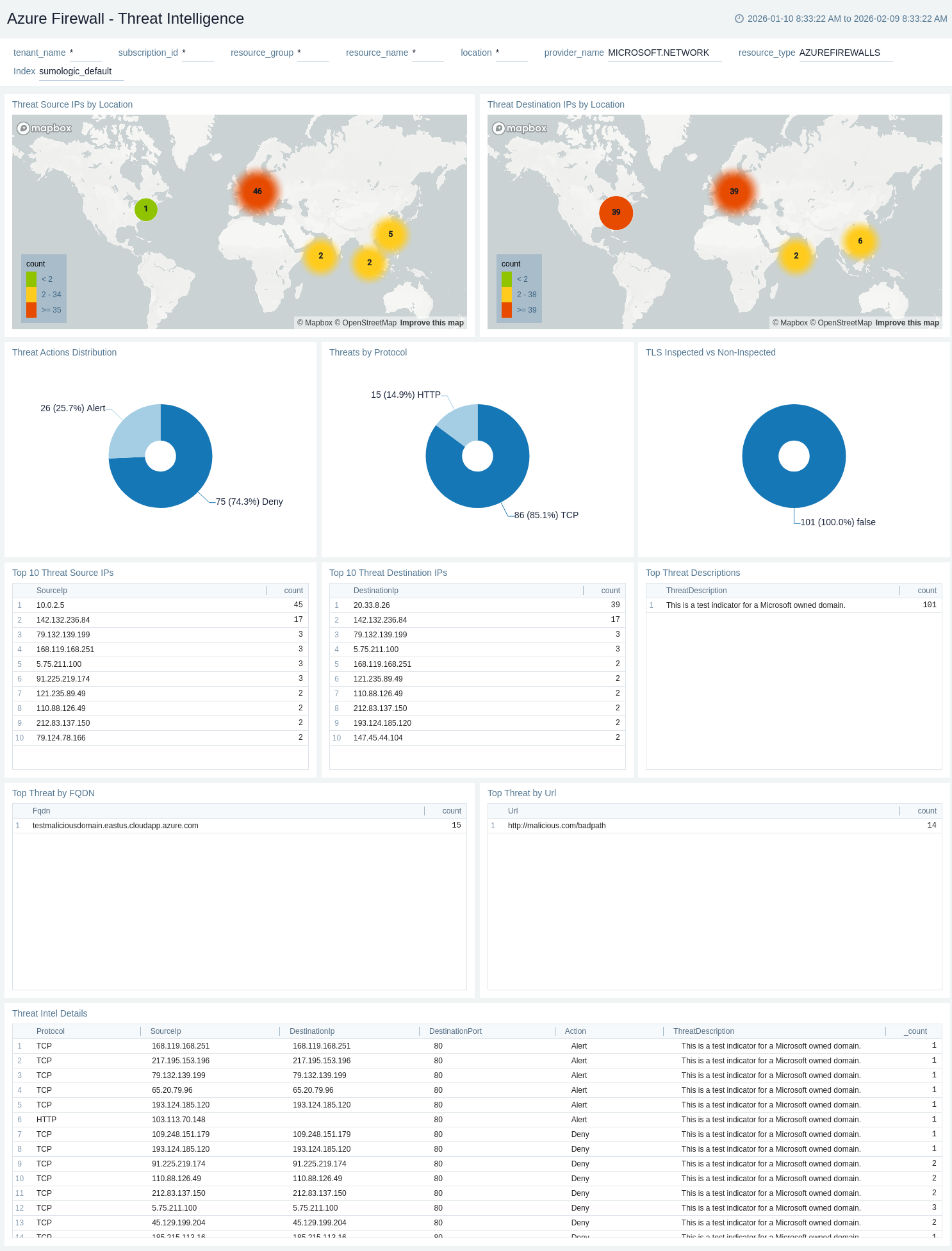
The Azure Firewall - Threat Intelligence dashboard provides visibility into malicious traffic detected by Microsoft's threat intelligence feed.
Use this dashboard to:
- Monitor threat actions distribution and protocol-based threats to assess security posture.
- Identify top threat source/destination IPs and threat FQDNs to investigate security incidents.
- Analyze TLS inspection status and threat descriptions for detailed security analysis and incident response.
IDPS
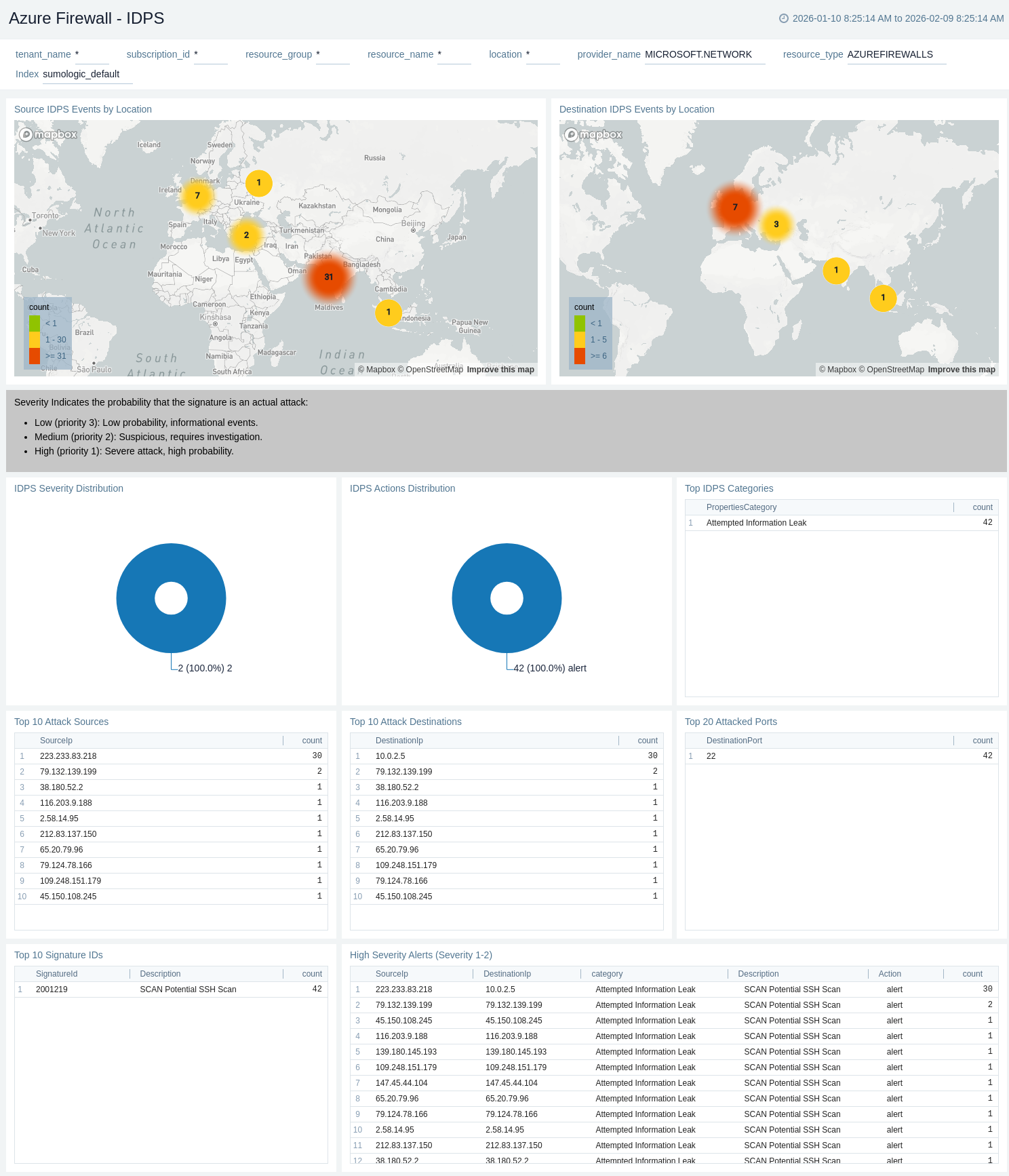
The Azure Firewall - IDPS (Intrusion Detection and Prevention System) dashboard provides comprehensive monitoring of signature-based threat detection.
Use this dashboard to:
- Monitor IDPS events distribution by severity and actions (Alert/Deny) to assess security posture.
- Identify top attack sources, destinations, and signature IDs to investigate security incidents.
- Analyze high-severity alerts (Severity 1-2) and top IDPS categories for critical security monitoring and incident response.
DNS Analysis
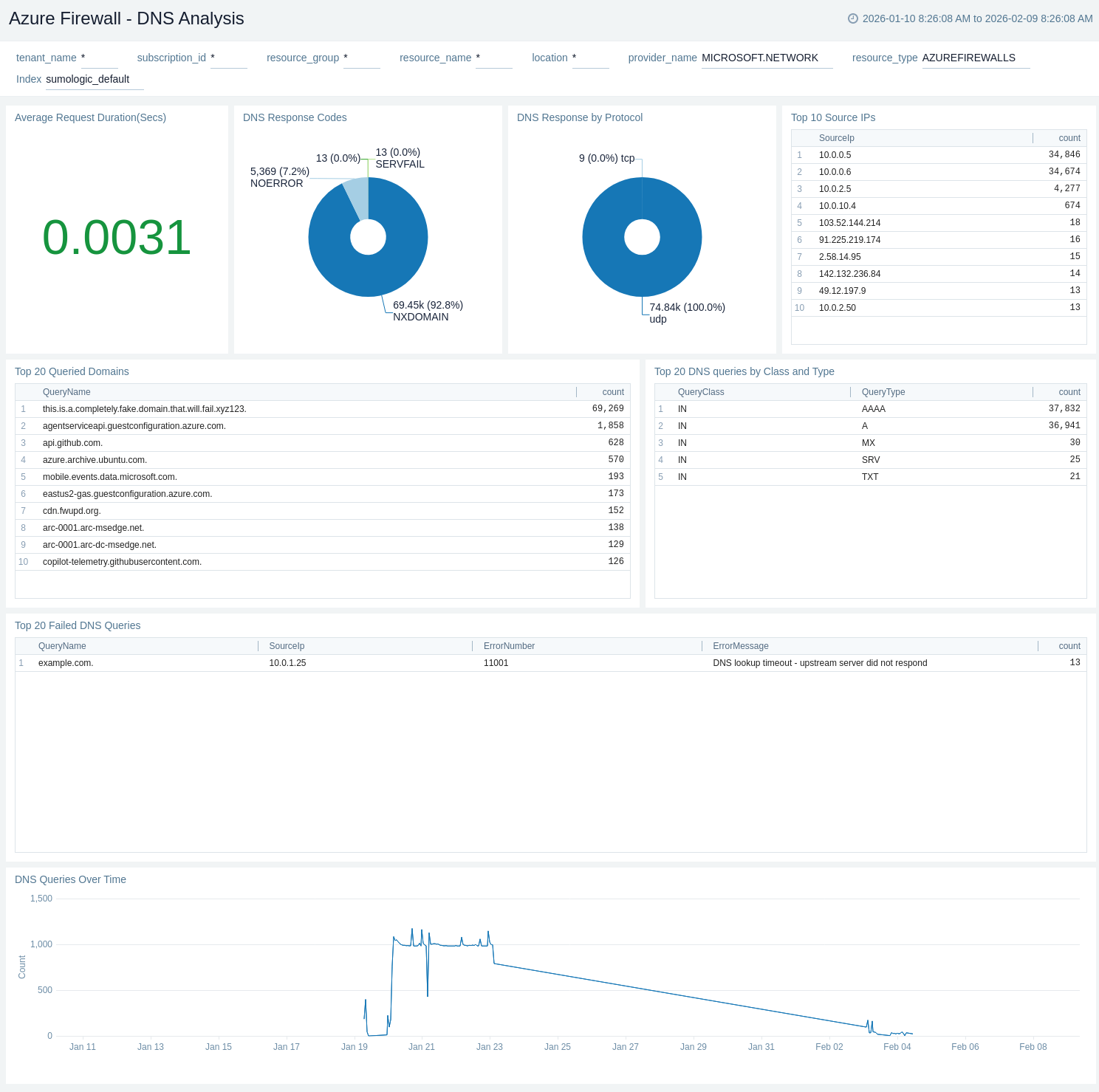
The Azure Firewall - DNS Analysis dashboard provides insights into DNS proxy activity and resolution patterns.
Use this dashboard to:
- Monitor DNS response codes and protocol distribution (TCP/UDP) to ensure proper DNS resolution.
- Identify top queried domains and failed DNS queries to troubleshoot connectivity issues.
- Analyze DNS queries over time and average request duration to detect anomalies and performance issues.
FQDN Failures
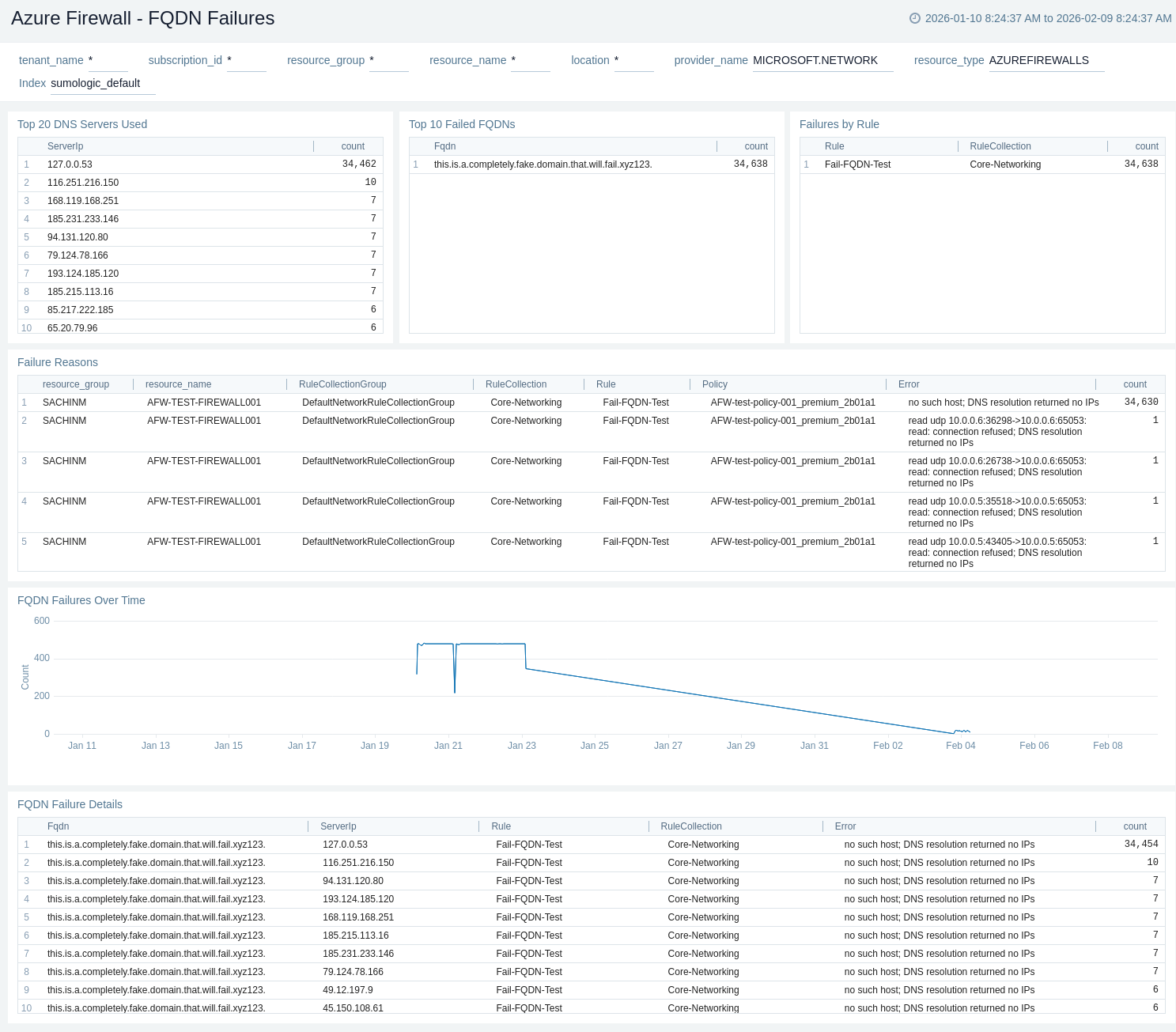
The Azure Firewall - FQDN Failures dashboard provides detailed analysis of FQDN resolution failures affecting application rule processing.
Use this dashboard to:
- Monitor DNS servers used and identify top failed FQDNs to troubleshoot resolution issues.
- Analyze failure reasons and correlate failures by rule to identify misconfigured application rules.
- Track FQDN failures over time to detect patterns and resolve connectivity issues.
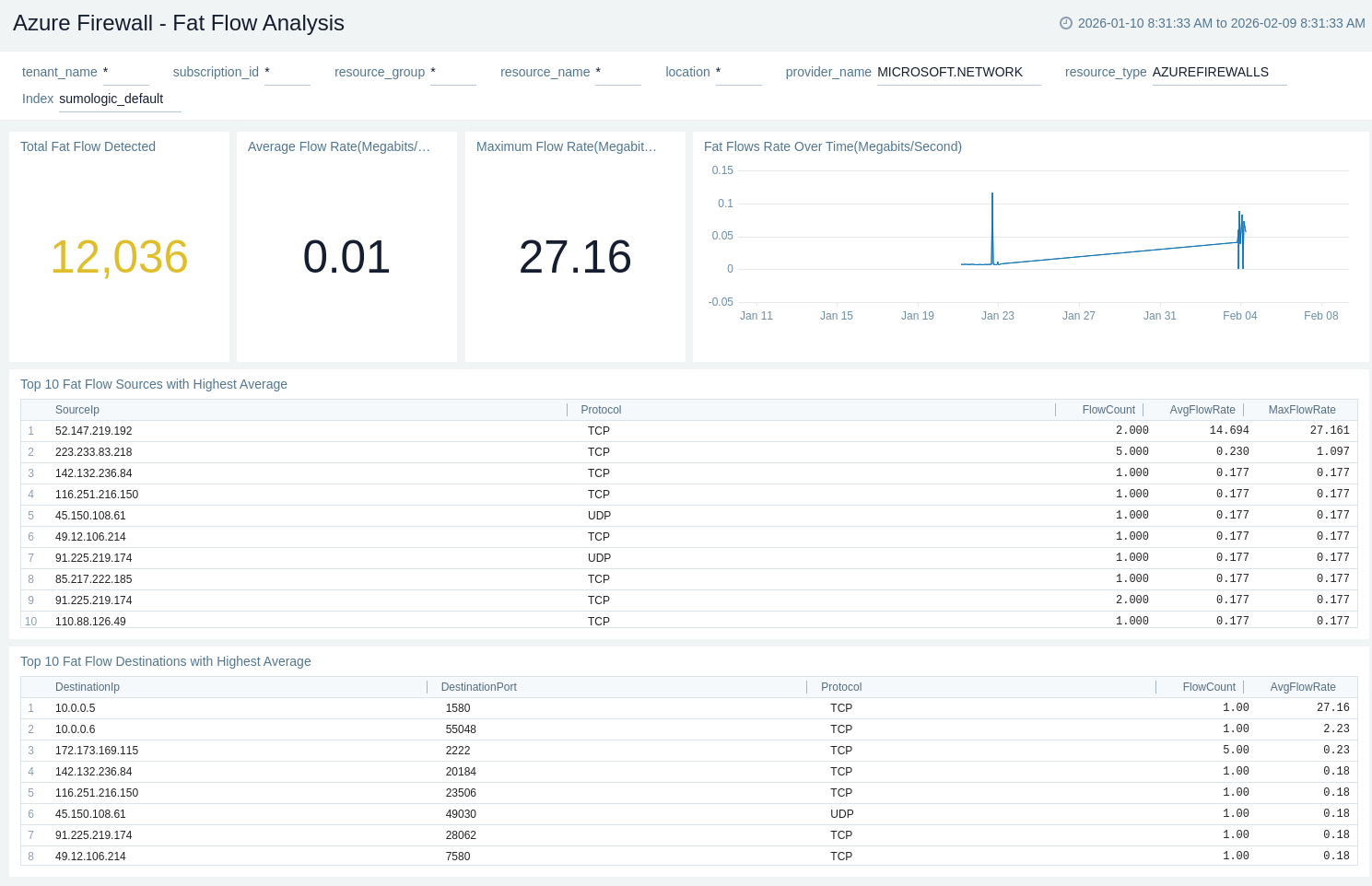
Fat Flow Analysis
The Azure Firewall - Fat Flow Analysis dashboard provides visibility into high-bandwidth connections that may impact firewall performance.
Use this dashboard to:
- Monitor total fat flows detected and track average/maximum flow rates to identify bandwidth-intensive connections.
- Analyze fat flow trends over time and protocol distribution to understand traffic patterns.
- Identify top fat flow sources and destinations with the highest average rates to optimize network performance.
Flow Trace
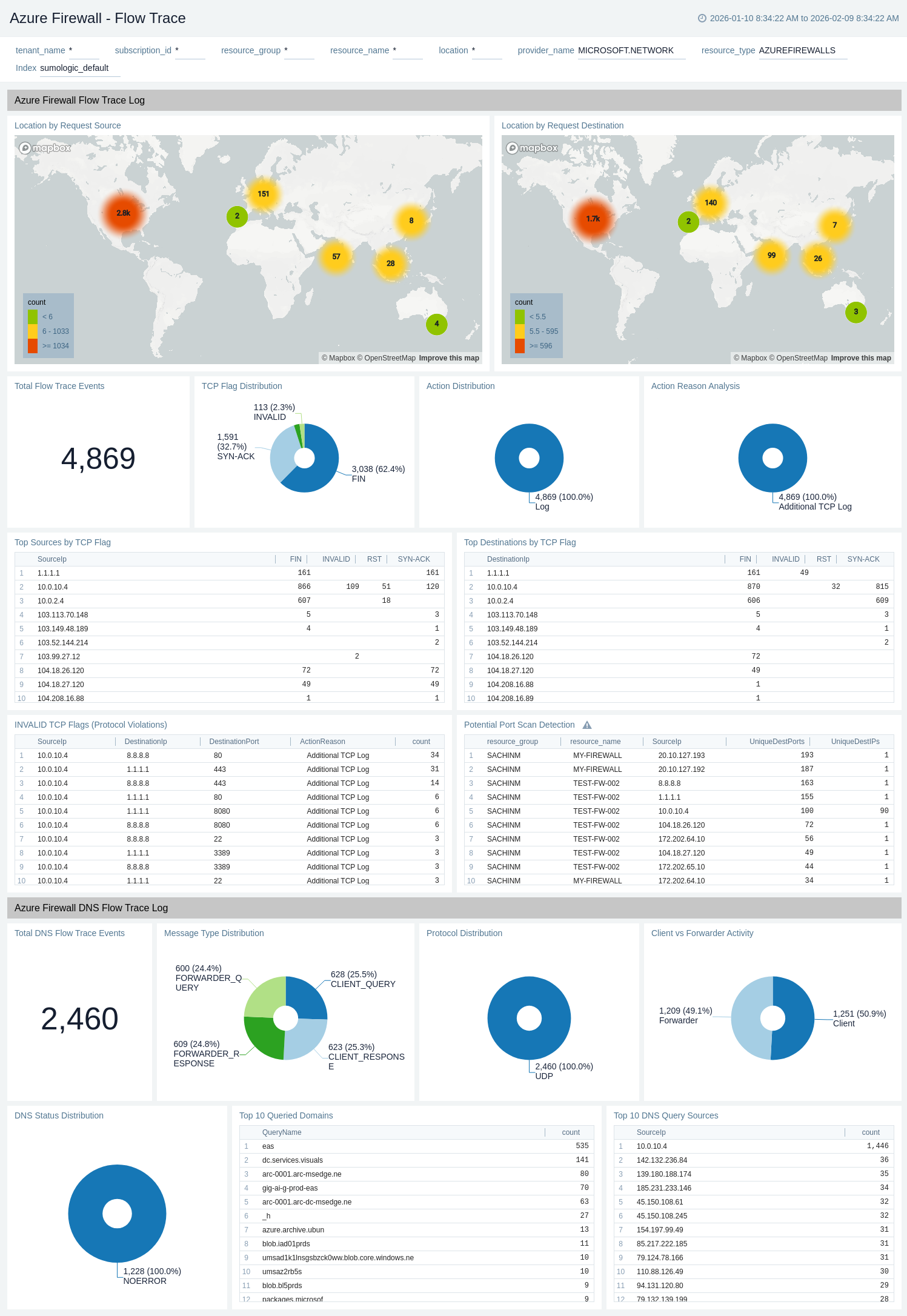
The Azure Firewall - Flow Trace dashboard provides detailed packet-level visibility for advanced troubleshooting and security analysis.
Use this dashboard to:
- Monitor TCP flag distribution and identify protocol violations (invalid TCP flags) for security analysis.
- Analyze action distribution and reasons to understand firewall decisions and troubleshoot issues.
- Detect potential port scans and track DNS flow trace events, including query sources, domains, and status distribution.
Audit Policy
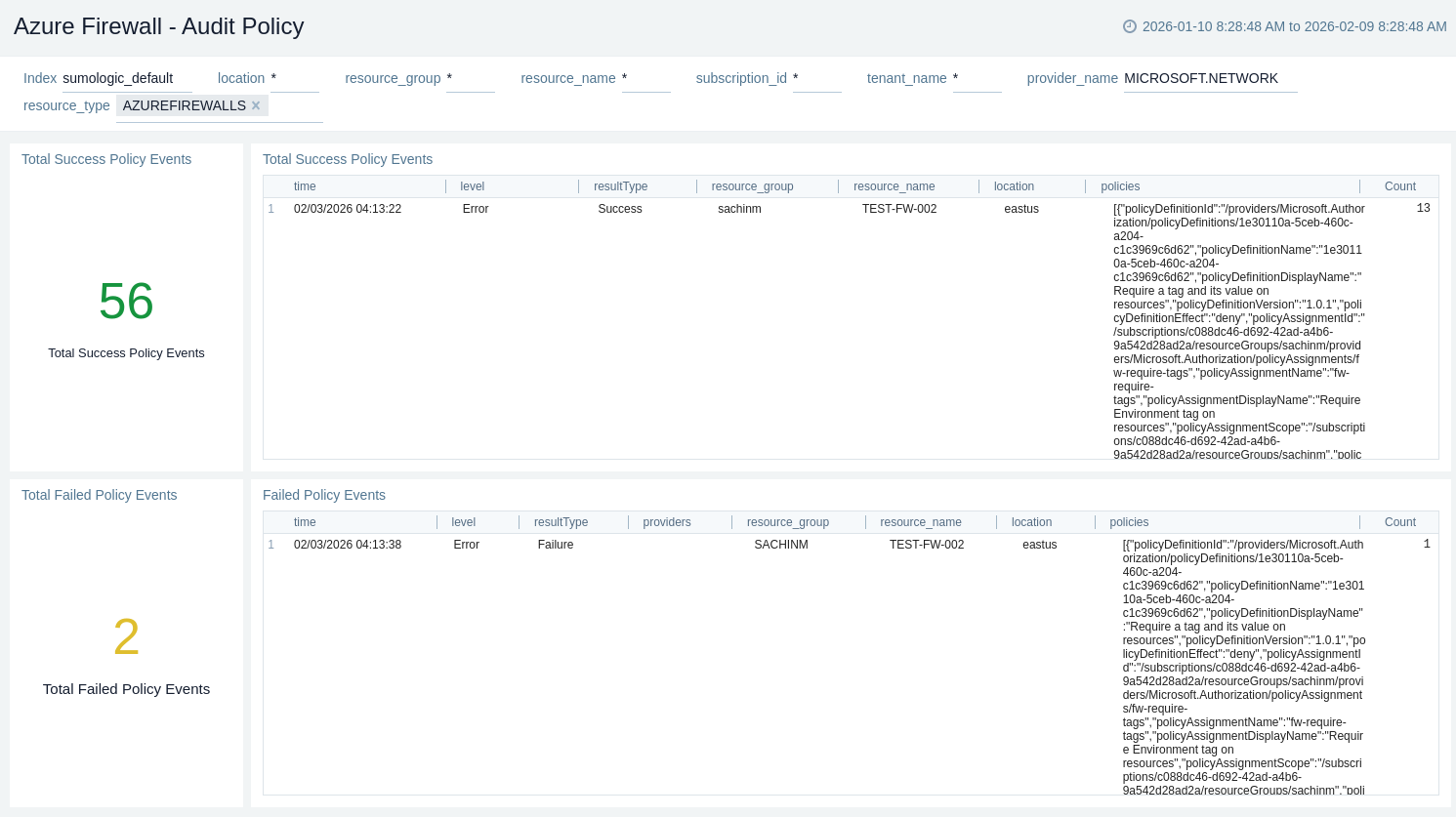
The Azure Firewall - Audit Policy dashboard provides details about Azure Policy compliance status for firewall resources.
Use this dashboard to:
- Monitor total success and failed policy events to ensure governance compliance.
- Analyse failed policy event details to identify and remediate non-compliant configurations.
- Track policy compliance trends for regulatory compliance monitoring and audit reporting.
Create monitors for Azure Firewall
From your App Catalog:
- From the Sumo Logic navigation, select App Catalog.
- In the Search Apps field, search for and then select your app.
- Make sure the app is installed.
- Navigate to What's Included tab and scroll down to the Monitors section.
- Click Create next to the pre-configured monitors. In the create monitors window, adjust the trigger conditions and notifications settings based on your requirements.
- Scroll down to Monitor Details.
- Under Location click on New Folder.
note
By default, monitor will be saved in the root folder. So to make the maintenance easier, create a new folder in the location of your choice.
- Enter Folder Name. Folder Description is optional.
tip
Using app version in the folder name will be helpful to determine the versioning for future updates.
- Click Create. Once the folder is created, click on Save.
Azure Firewall alerts
These alerts are metric-based and will work for all Azure Firewalls.
| Alert Name | Alert Description and Conditions | Alert Condition | Recover Condition |
|---|---|---|---|
Azure Firewall - Health State | This alert is triggered when the average Firewall health state is less than 80% and triggers a warning when the average Firewall health state is less than 90%. | Critical: < 80Warning: < 90 | Critical: >= 80Warning: >= 90 |
Azure Firewall - SNAT Port Utilization (%) | This alert is triggered when the average SNAT port utilization is greater than 80% and triggers a warning if SNAT port utilization is greater than 70%. | Critical: > 80Warning: > 70 | Critical: <= 80Warning: <= 70 |
Azure Firewall - Average Latency Probe (Milliseconds) | This alert is triggered when the average Latency Probe is greater than 10 milliseconds and triggers a warning when the average Latency Probe is greater than 5 milliseconds. | Critical: > 10Warning: > 5 | Critical: <= 10Warning: <= 5 |
Azure Firewall - Network Rule Hit Count | This alert is triggered when the total Network rules hit count is greater than 500, and triggersa warning when the Network rules hit count is greater than 300. | Critical: > 500Warning: > 300 | Critical: <= 500Warning: <= 300 |
Azure Firewall - Average Throughput (bits per second) | This alert is triggered when the average Throughput is greater than 100000 bits/second and triggers a warning when the average Throughput is greater than 50000 bits/second. | Critical: > 100000Warning: > 50000 | Critical: <= 100000Warning: <= 50000 |
Upgrade/Downgrade the Azure Firewall app (Optional)
To update the app, do the following:
Next-Gen App: To install or update the app, you must be an account administrator or a user with Manage Apps, Manage Monitors, Manage Fields, Manage Metric Rules, and Manage Collectors capabilities depending upon the different content types part of the app.
- Select App Catalog.
- In the Search Apps field, search for and then select your app.
Optionally, you can identify apps that can be upgraded in the Upgrade available section. - To upgrade the app, select Upgrade from the Manage dropdown.
- If the upgrade does not have any configuration or property changes, you will be redirected to the Preview & Done section.
- If the upgrade has any configuration or property changes, you will be redirected to the Setup Data page.
- In the Configure section of your respective app, complete the following fields.
- Field Name. If you already have collectors and sources set up, select the configured metadata field name (eg _sourcecategory) or specify other custom metadata (eg: _collector) along with its metadata Field Value.
- Click Next. You will be redirected to the Preview & Done section.
Post-update
Your upgraded app will be installed in the Installed Apps folder and dashboard panels will start to fill automatically.
See our Release Notes changelog for new updates in the app.
To revert the app to a previous version, do the following:
- Select App Catalog.
- In the Search Apps field, search for and then select your app.
- To version down the app, select Revert to < previous version of your app > from the Manage dropdown.
Uninstalling the Azure Firewall app (Optional)
To uninstall the app, do the following:
- Select App Catalog.
- In the 🔎 Search Apps field, run a search for your desired app, then select it.
- Click Uninstall.
Troubleshooting
Metrics collection via Azure Metrics Source
To troubleshoot metrics collection via Azure Metrics Source, follow the instructions in Troubleshooting Azure Metrics Source.
Additional resources
- Blog: Azure monitoring and troubleshooting
- Glossary: Microsoft Azure