 Meet the new
 ChatGPT Compliance

The ChatGPT Compliance App empowers organizations to maintain security, transparency, and accountability in their use of AI-powered conversations across teams and departments. By centralizing compliance and audit data from ChatGPT Workspace environments, the app enables administrators and compliance officers to monitor usage, review conversation activity, and ensure adherence to corporate governance and data protection standards. The app spans ten purpose-built dashboards covering admin and security event governance, app authentication lifecycle tracking, workspace configuration monitoring, authentication and threat detection, Codex development intelligence and security operations, conversation content governance, compliance API data access, and executive-level compliance summaries — providing a complete audit-ready view of your organization's ChatGPT Enterprise posture.
This app includes built-in monitors. For details on creating custom monitors, refer to Create monitors for ChatGPT Compliance app.
Log types
This app uses Sumo Logic's ChatGPT Compliance Source to collect compliance and audit logs from the ChatGPT Enterprise Compliance API. The following log types are supported:
| Log Type | Description |
|---|---|
AUDIT_LOG | Administrative and workspace configuration events including user management, GPT governance, SAML/SSO configuration, and role-based access control changes. |
AUTH_LOG | Authentication events covering login success and failure, password resets, MFA usage, Sentinel challenges and blocks, and suspicious access patterns. |
APP_AUTH_LOG | Application OAuth lifecycle events including link and unlink operations for third-party app and connector integrations. |
APP_LOG | Plugin and connector invocation events capturing request and response data, app type distribution, background versus conversation usage, and failure details. |
CODEX_LOG | ChatGPT Codex API usage metrics including token consumption, prompt activity, cache performance, model distribution, and environment lifecycle events. |
CODEX_SECURITY_LOG | Codex security scanning events including vulnerability findings by criticality and status, patch PR creation, and scan configuration changes. |
CONVERSATION_MESSAGE | Individual conversation message events including author type, model used, file attachments, custom GPT usage, and project context. |
Sample log messages
AUDIT_LOG
{
  "event_id": "c97ee69d-41a6-4587-91ee-a3f2b1c8d9e0",
  "type": "AUDIT_LOG",
  "timestamp": "2024-10-15T14:23:41.123Z",
  "principal": {
    "id": "ws-9a8b7c6d5e4f",
    "type": "CHATGPT_WORKSPACE"
  },
  "actor": {
    "type": "ACCOUNT_USER",
    "user_id": "user-XyZ987654321",
    "user_email": "admin@example.com"
  },
  "action": "WORKSPACE_TOGGLE_FEATURE",
  "action_result": "SUCCESS",
  "action_privilege": "ADMIN",
  "request_metadata": {
    "client_ip": "203.0.113.45",
    "client_user_agent": "Mozilla/5.0 (Macintosh; Intel Mac OS X 10_15_7)",
    "client_ja3": "",
    "client_ja4": "",
    "destination_hostname": null
  },
  "action_data": {
    "feature": "deep_research",
    "value": true
  }
}
AUTH_LOG
{
  "event_id": "a1b2c3d4-1111-4aaa-8888-e5f6a7b8c9d0",
  "type": "AUTH_LOG",
  "timestamp": "2024-10-15T09:14:22.456Z",
  "principal": {
    "id": "ws-9a8b7c6d5e4f",
    "type": "CHATGPT_WORKSPACE"
  },
  "actor": {
    "type": "ACCOUNT_USER",
    "user_id": "user-AbC123456789",
    "user_email": "user@example.com"
  },
  "request_metadata": {
    "client_ip": "198.51.100.72",
    "client_user_agent": "Mozilla/5.0 (Windows NT 10.0; Win64; x64)"
  },
  "action_data": {
    "action": "login_success",
    "auth_provider_name": "saml"
  }
}
APP_AUTH_LOG
{
  "event_id": "7b3e4de1-2219-4d6c-9d6e-f0a1b2c3d4e5",
  "type": "APP_AUTH_LOG",
  "timestamp": "2024-10-15T11:37:08.789Z",
  "principal": {
    "id": "ws-9a8b7c6d5e4f",
    "type": "CHATGPT_WORKSPACE"
  },
  "actor": {
    "type": "ACCOUNT_USER",
    "user_id": "user-DeF456789012",
    "user_email": "dev@example.com"
  },
  "app_id": "conn-8f92d7c1",
  "link_id": "link-52c0e6b7",
  "action": "link"
}
APP_LOG
{
  "event_id": "31c1b9b0-5b2d-4c2a-9e11-a2b3c4d5e6f7",
  "type": "APP_LOG",
  "timestamp": "2024-10-15T16:55:33.012Z",
  "principal": {
    "id": "ws-9a8b7c6d5e4f",
    "type": "CHATGPT_WORKSPACE"
  },
  "actor": {
    "type": "ACCOUNT_USER",
    "user_id": "user-GhI789012345",
    "user_email": "analyst@example.com"
  },
  "app_id": "conn-8f92d7c1",
  "app_name": "gdrive",
  "app_type": "SERVICE",
  "conversation_id": "c-7cda9b2e",
  "log_type": "request",
  "input": {
    "query": "List recent architecture decisions"
  }
}
CODEX_LOG
{
  "event_id": "c97ee69d-41a6-4587-91ee-b4c5d6e7f8a9",
  "type": "CODEX_LOG",
  "timestamp": "2024-10-15T13:08:17.345Z",
  "principal": {
    "id": "ws-9a8b7c6d5e4f",
    "type": "CHATGPT_WORKSPACE"
  },
  "actor": {
    "type": "ACCOUNT_USER",
    "user_id": "user-JkL012345678",
    "user_email": "engineer@example.com"
  },
  "event_type": "PROMPT_RESPONSE_RECEIVED",
  "client_id": "CODEX_CLI",
  "workspace_id": "ws-9a8b7c6d5e4f",
  "event_details": {
    "detail_type": "PROMPT_RESPONSE_RECEIVED",
    "session_id": "session-a1b2c3d4",
    "response_text": "The latest changes include a refactor of the authentication module and addition of rate limiting middleware.",
    "status": "completed",
    "model": "gpt-5.1-codex-max",
    "token_usage": {
      "input_tokens": 1250,
      "output_tokens": 340,
      "cached_input_tokens": 800,
      "reasoning_output_tokens": 120
    },
    "environment_id": "env-x1y2z3w4"
  }
}
CODEX_SECURITY_LOG
{
  "event_id": "c97ee69d-41a6-4587-91ee-c5d6e7f8a9b0",
  "type": "CODEX_SECURITY_LOG",
  "timestamp": "2024-10-15T10:22:55.678Z",
  "principal": {
    "id": "ws-9a8b7c6d5e4f",
    "type": "CHATGPT_WORKSPACE"
  },
  "actor": {
    "type": "ACCOUNT_USER",
    "user_id": "user-MnO345678901",
    "user_email": "security@example.com"
  },
  "event_type": "SCAN_CONFIGURATION_CREATED",
  "client_id": "CODEX_WEB",
  "workspace_id": "ws-9a8b7c6d5e4f",
  "event_details": {
    "detail_type": "SCAN_CONFIGURATION_CREATED",
    "scan_configuration_id": "scanconf-a1b2c3d4",
    "scan_configuration_fields": {
      "scan_type": "secret_detection",
      "owner_id": "user-MnO345678901",
      "workspace_id": "ws-9a8b7c6d5e4f",
      "repo_id": "repo-backend-api",
      "repo_url": "https://github.com/acme/backend-api",
      "environment_id": "env-x1y2z3w4",
      "state": "active",
      "lookback_days": 90
    }
  }
}
CONVERSATION_MESSAGE
{
  "event_id": "9d6bb4e9-3882-4dbe-9d4c-d6e7f8a9b0c1",
  "type": "CONVERSATION_MESSAGE",
  "timestamp": "2024-10-15T15:44:29.901Z",
  "principal": {
    "id": "ws-9a8b7c6d5e4f",
    "type": "CHATGPT_WORKSPACE"
  },
  "actor": {
    "type": "ACCOUNT_USER",
    "user_id": "user-PqR678901234",
    "user_email": "user@example.com"
  },
  "message": {
    "id": "msg-a1b2c3d4e5f6",
    "author": {
      "type": "user"
    },
    "content": {
      "type": "text",
      "value": "Can you summarize the quarterly revenue report?",
      "annotations": []
    },
    "files": [
      {
        "id": "file-Qr7xPmNkVwB3",
        "name": "Q2_Revenue_Report.pdf"
      }
    ]
  },
  "conversation": {
    "id": "convo-78d9e0f1a2b3",
    "title": "Quarterly Review Analysis",
    "gpt_id": null,
    "gpt_name": null,
    "project_id": "proj-finance-001",
    "project_name": "Finance Team",
    "created_at": "2024-10-15T13:55:10Z",
    "is_pinned": false,
    "is_temporary_chat": false
  }
}
Sample queries
="chatgpt/compliance"
| json "type", "actor.user_email", "actor.user_id", "request_metadata.client_ip", "action_data.action", "action_data.auth_provider_name" as log_type, user_email, user_id, client_ip, action, auth_provider nodrop
| where log_type = "AUTH_LOG" and action = "login_failure"
| count by user_email, client_ip, auth_provider
| sort by _count desc
="chatgpt/compliance"
| json "type", "actor.user_email", "action_privilege", "action", "action_result", "action_data.feature" as log_type, user_email, privilege, action, result, feature nodrop
| where log_type = "AUDIT_LOG"
| count by user_email, action, feature, result, privilege
| sort by _count desc
="chatgpt/compliance"
| json "type", "action", "app_id", "actor.user_email" as log_type, action, app_id, user_email nodrop
| where log_type = "APP_AUTH_LOG"
| timeslice 1h
| count by _timeslice, action
| transpose row _timeslice column action
="chatgpt/compliance"
| json "type", "event_details.model", "event_details.token_usage.input_tokens", "event_details.token_usage.output_tokens", "event_details.token_usage.cached_input_tokens" as log_type, model, input_tokens, output_tokens, cached_tokens nodrop
| where log_type = "CODEX_LOG" and !isBlank(model)
| sum(input_tokens) as total_input, sum(output_tokens) as total_output, sum(cached_tokens) as total_cached by model
| sort by total_input desc
="chatgpt/compliance"
| json "type", "actor.user_email", "event_type", "event_details.scan_configuration_fields.scan_type", "event_details.finding.severity", "event_details.finding.status" as log_type, user_email, event_type, scan_type, severity, status nodrop
| where log_type = "CODEX_SECURITY_LOG"
| count by scan_type, severity, status
| sort by _count desc
="chatgpt/compliance"
| json "type", "message.author.type", "message.author.model", "conversation.gpt_id", "conversation.is_temporary_chat", "conversation.project_id" as log_type, author_type, model, gpt_id, is_temp, project_id nodrop
| where log_type = "CONVERSATION_MESSAGE"
| count by author_type, model
| sort by _count desc
Collection configuration and app installation
Depending on the set up collection method, you can configure and install the app in three ways:
- Create a new collector and install the app. Create a new Sumo Logic Cloud-to-Cloud (C2C) source under a new Sumo Logic Collector and later install the app, or
- Use an existing collector and install the app. Create a new Sumo Logic Cloud-to-Cloud (C2C) source under an existing Sumo Logic Collector and later install the app, or
- Use existing source and install the app. Use your existing configured Sumo Logic Cloud-to-Cloud (C2C) source and install the app.
Use the Cloud-to-Cloud Integration for ChatGPT Compliance to create the source and use the same source category while installing the app. By following these steps, you can ensure that your ChatGPT Compliance app is properly integrated and configured to collect and analyze your ChatGPT Compliance data.
Create a new collector and install the app
To set up collection and install the app, do the following:
Next-Gen App: To install or update the app, you must be an account administrator or a user with Manage Apps, Manage Monitors, Manage Fields, Manage Metric Rules, and Manage Collectors capabilities depending upon the different content types part of the app.
- Select App Catalog.
- In the 🔎 Search Apps field, run a search for your desired app, then select it.
- Click Install App.
note
Sometimes this button says Add Integration.
- In the Set Up Collection section of your respective app, select Create a new Collector.
- Collector Name. Enter a Name to display the Source in the Sumo Logic web application. The description is optional.
- Timezone. Set the default time zone when it is not extracted from the log timestamp. Time zone settings on Sources override a Collector time zone setting.
- (Optional) Metadata. Click the +Add Metadata link to add a custom log Metadata Fields. Define the fields you want to associate, each metadata field needs a name (key) and value.
 A green circle with a checkmark is shown when the field exists and is enabled in the Fields table schema.
 An orange triangle with an exclamation point is shown when the field doesn't exist, or is disabled in the Fields table schema. In this case, you'll see an option to automatically add or enable the nonexistent fields to the Fields table schema. If a field is sent to Sumo Logic but isn’t present or enabled in the schema, it’s ignored and marked as Dropped.
- Click Next.
- Configure the source as specified in the
Infobox above, ensuring all required fields are included. - In the Configure section of your respective app, complete the following fields.
- Field Name. If you already have collectors and sources set up, select the configured metadata field name (eg _sourcecategory) or specify other custom metadata (eg: _collector) along with its metadata Field Value.
- Click Next. You will be redirected to the Preview & Done section.
Post-installation
Once your app is installed, it will appear in your Installed Apps folder, and dashboard panels will start to fill automatically.
Each panel slowly fills with data matching the time range query received since the panel was created. Results will not immediately be available but will be updated with full graphs and charts over time.
Use an existing collector and install the app
To set up the source in the existing collector and install the app, do the following:
Next-Gen App: To install or update the app, you must be an account administrator or a user with Manage Apps, Manage Monitors, Manage Fields, Manage Metric Rules, and Manage Collectors capabilities depending upon the different content types part of the app.
- Select App Catalog.
- In the 🔎 Search Apps field, run a search for your desired app, then select it.
- Click Install App.
note
Sometimes this button says Add Integration.
- In the Set Up Collection section of your respective app, select Use an existing Collector.
- From the Select Collector dropdown, select the collector that you want to set up your source with and click Next.
- Configure the source as specified in the
Infobox above, ensuring all required fields are included. - In the Configure section of your respective app, complete the following fields.
- Field Name. If you already have collectors and sources set up, select the configured metadata field name (eg _sourcecategory) or specify other custom metadata (eg: _collector) along with its metadata Field Value.
- Click Next. You will be redirected to the Preview & Done section.
Post-installation
Once your app is installed, it will appear in your Installed Apps folder, and dashboard panels will start to fill automatically.
Each panel slowly fills with data matching the time range query received since the panel was created. Results will not immediately be available but will be updated with full graphs and charts over time.
Use an existing source and install the app
To skip collection and only install the app, do the following:
Next-Gen App: To install or update the app, you must be an account administrator or a user with Manage Apps, Manage Monitors, Manage Fields, Manage Metric Rules, and Manage Collectors capabilities depending upon the different content types part of the app.
- Select App Catalog.
- In the 🔎 Search Apps field, run a search for your desired app, then select it.
- Click Install App.
note
Sometimes this button says Add Integration.
- In the Set Up Collection section of your respective app, select Skip this step and use existing source and click Next.
- In the Configure section of your respective app, complete the following fields.
- Field Name. If you already have collectors and sources set up, select the configured metadata field name (eg _sourcecategory) or specify other custom metadata (eg: _collector) along with its metadata Field Value.
- Click Next. You will be redirected to the Preview & Done section.
Post-installation
Once your app is installed, it will appear in your Installed Apps folder, and dashboard panels will start to fill automatically.
Each panel slowly fills with data matching the time range query received since the panel was created. Results will not immediately be available but will be updated with full graphs and charts over time.
Viewing the ChatGPT Compliance dashboards
All dashboards have a set of filters that you can apply to the entire dashboard. Use these filters to drill down and examine the data to a granular level.
- You can change the time range for a dashboard or panel by selecting a predefined interval from a drop-down list, choosing a recently used time range, or specifying custom dates and times. Learn more.
- You can use template variables to drill down and examine the data on a granular level. For more information, see Filtering Dashboards with Template Variables.
- Most Next-Gen apps allow you to provide the scope at the installation time and are comprised of a key (
_sourceCategoryby default) and a default value for this key. Based on your input, the app dashboards will be parameterized with a dashboard variable, allowing you to change the dataset queried by all panels. This eliminates the need to create multiple copies of the same dashboard with different queries.
Admin and Security
The ChatGPT Compliance – Admin and Security dashboard provides visibility into administrative and security events across the ChatGPT Enterprise workspace. Track workspace configuration changes, user management actions, GPT governance decisions, SAML/SSO configuration updates, and role-based access control activities. Use this dashboard to maintain a complete audit trail of all privileged administrative operations and detect unauthorized or anomalous workspace changes.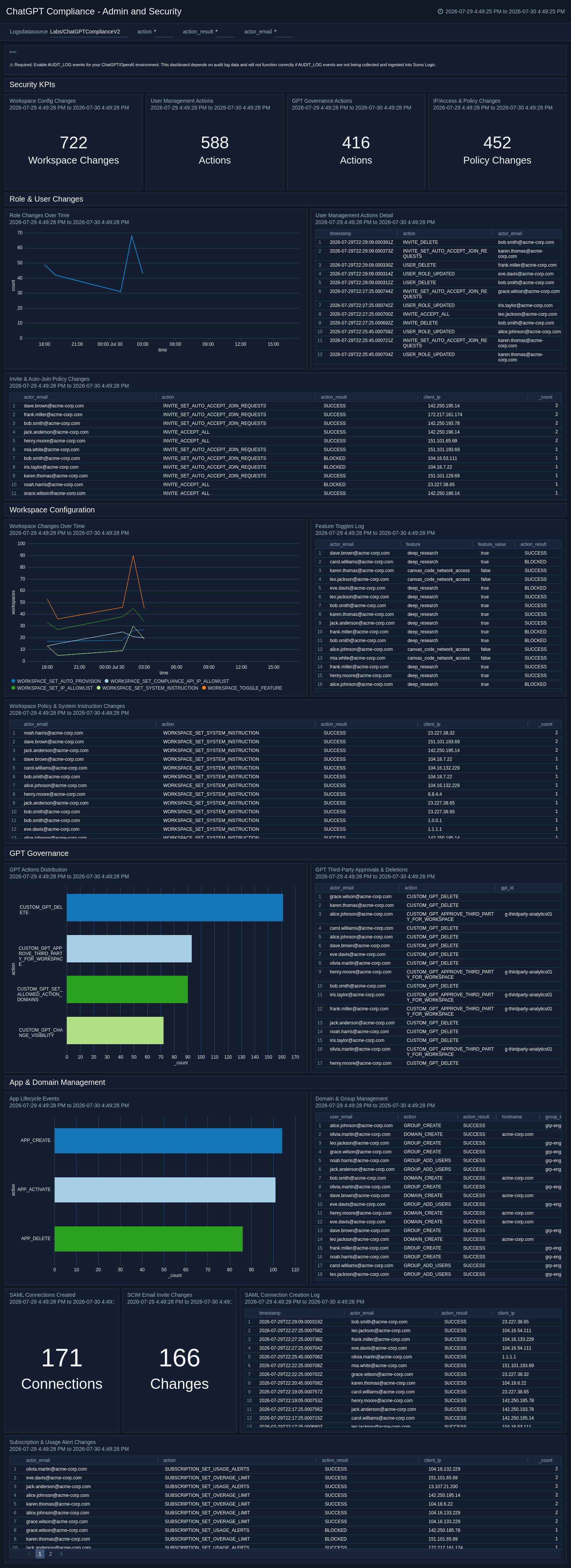
App Authentication Lifecycle
The ChatGPT Compliance – App Authentication Lifecycle dashboard tracks the full lifecycle of application authentication events, including OAuth link and unlink operations for third-party app integrations. Monitor auth event trends over time, detect anomalies such as rapid unlink bursts, and review per-user and per-app authentication activity to ensure your integration posture remains secure and governed.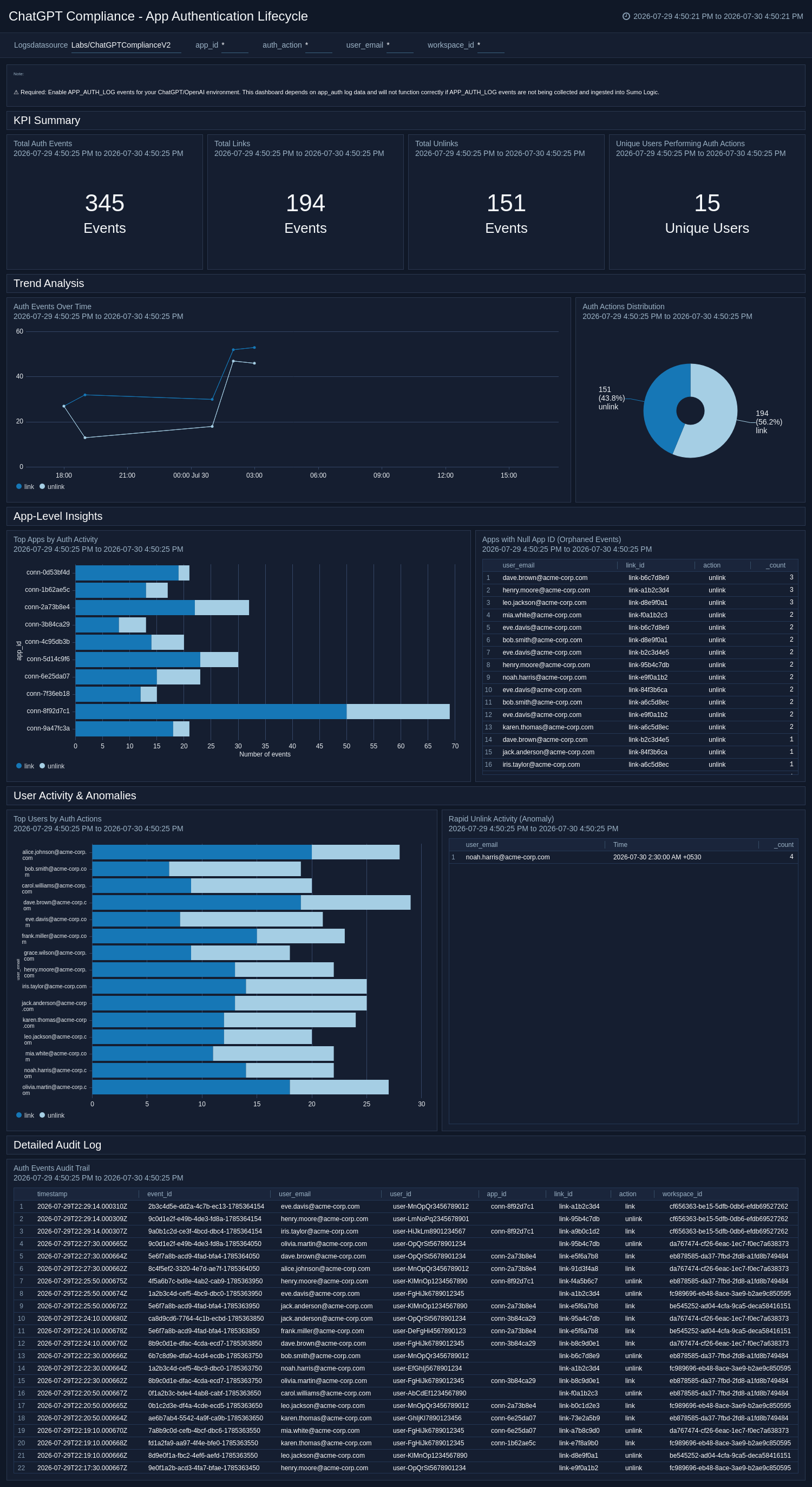
App Monitoring
The ChatGPT Compliance – App Monitoring dashboard monitors ChatGPT plugin and connector invocations, providing detailed visibility into request and response metrics, app type distribution, background versus conversation usage, failure tracking, and complete audit trails for all app events. Use this dashboard to identify high-volume integrations, detect failures, and ensure app usage aligns with organizational policy.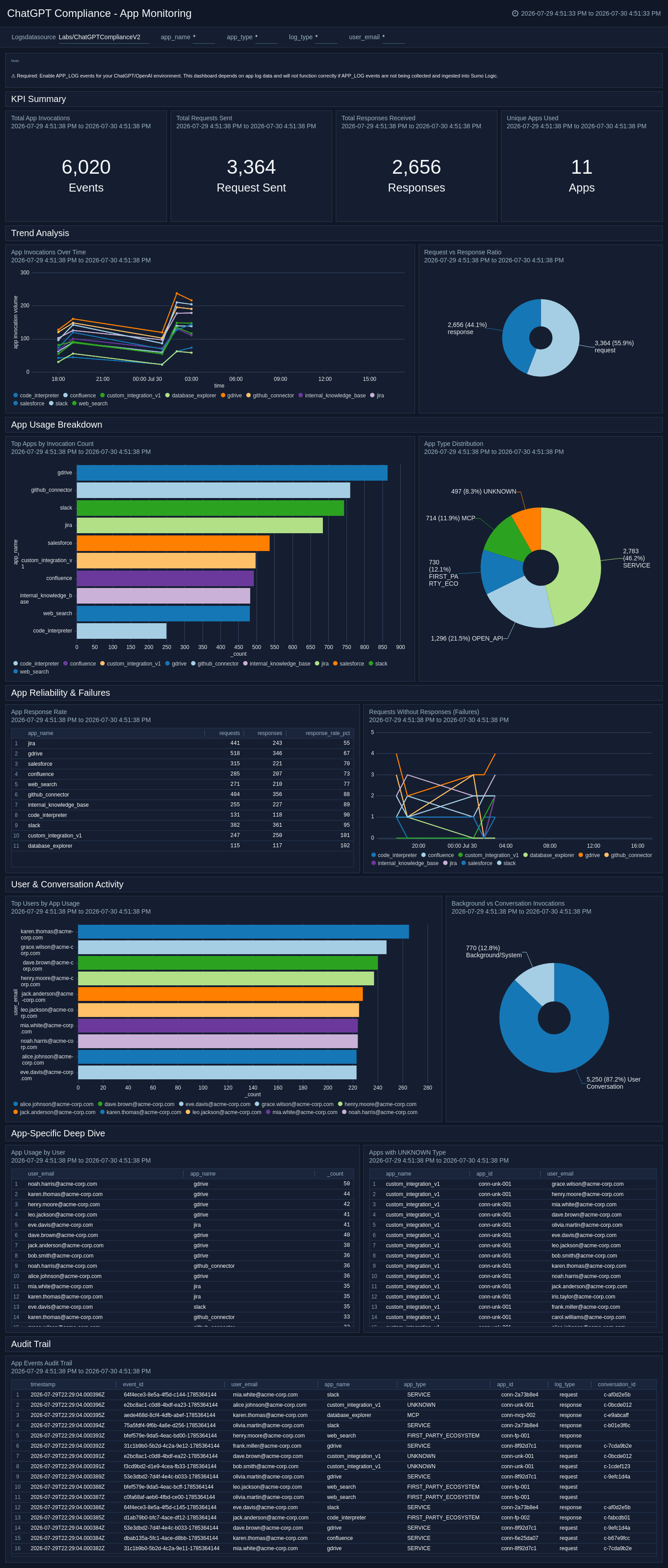
Audit Overview
The ChatGPT Compliance – Audit Overview dashboard delivers a comprehensive view of all ChatGPT audit log events, covering action result distributions, top actors, source IP analysis, API key activity, privilege distribution, and a complete audit trail. Use this dashboard as the primary entry point for compliance investigations, providing a broad summary of who is doing what within your ChatGPT Enterprise workspace.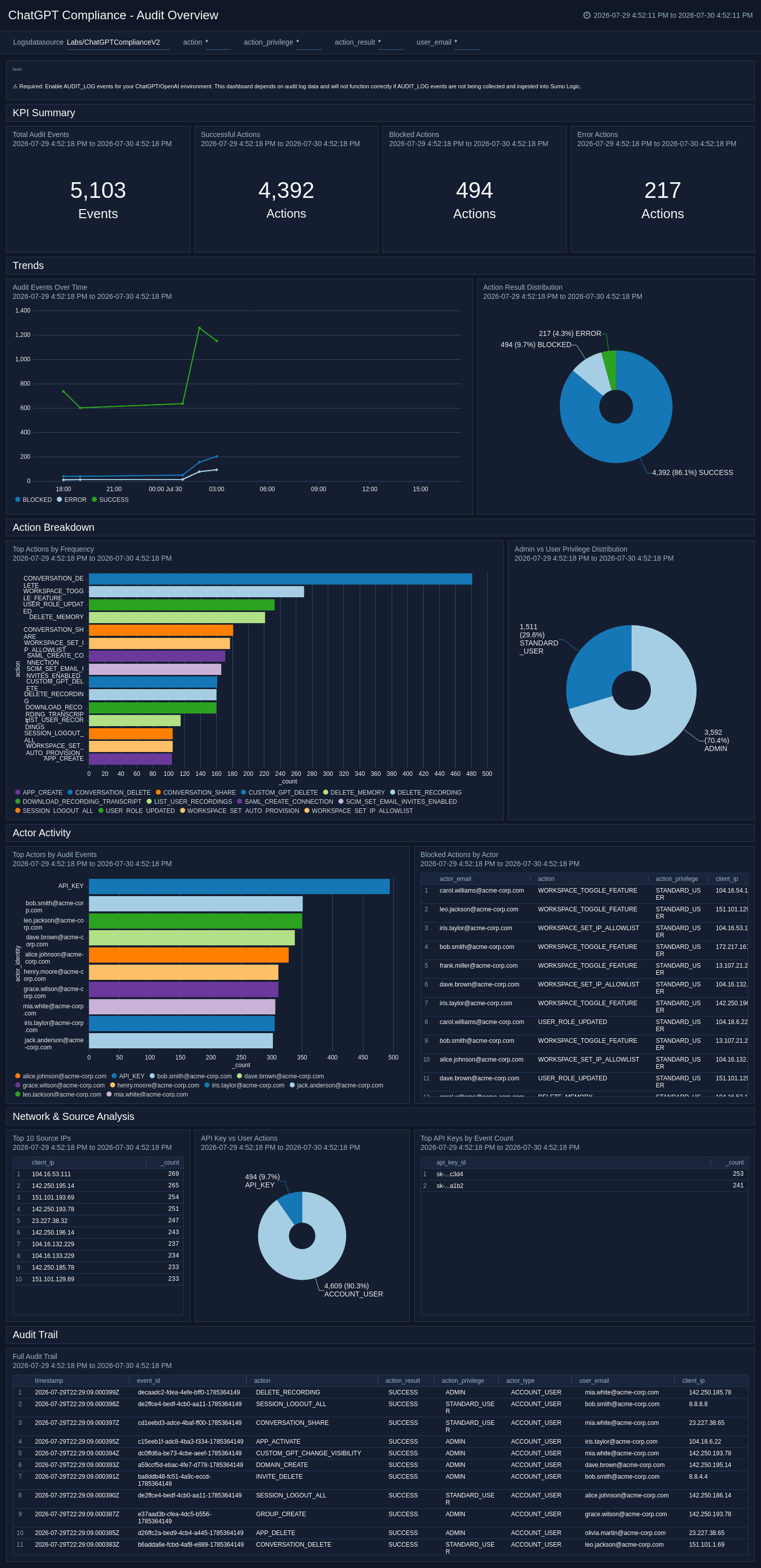
Authentication and Threat Detection
The ChatGPT Compliance – Authentication and Threat Detection dashboard focuses on authentication security and threat detection, tracking login success and failure rates, password reset activity, Sentinel-based blocks and challenges, auth provider usage, and suspicious access patterns. Use this dashboard to identify brute force attempts, account takeovers, and other credential-based threats targeting your ChatGPT Enterprise workspace.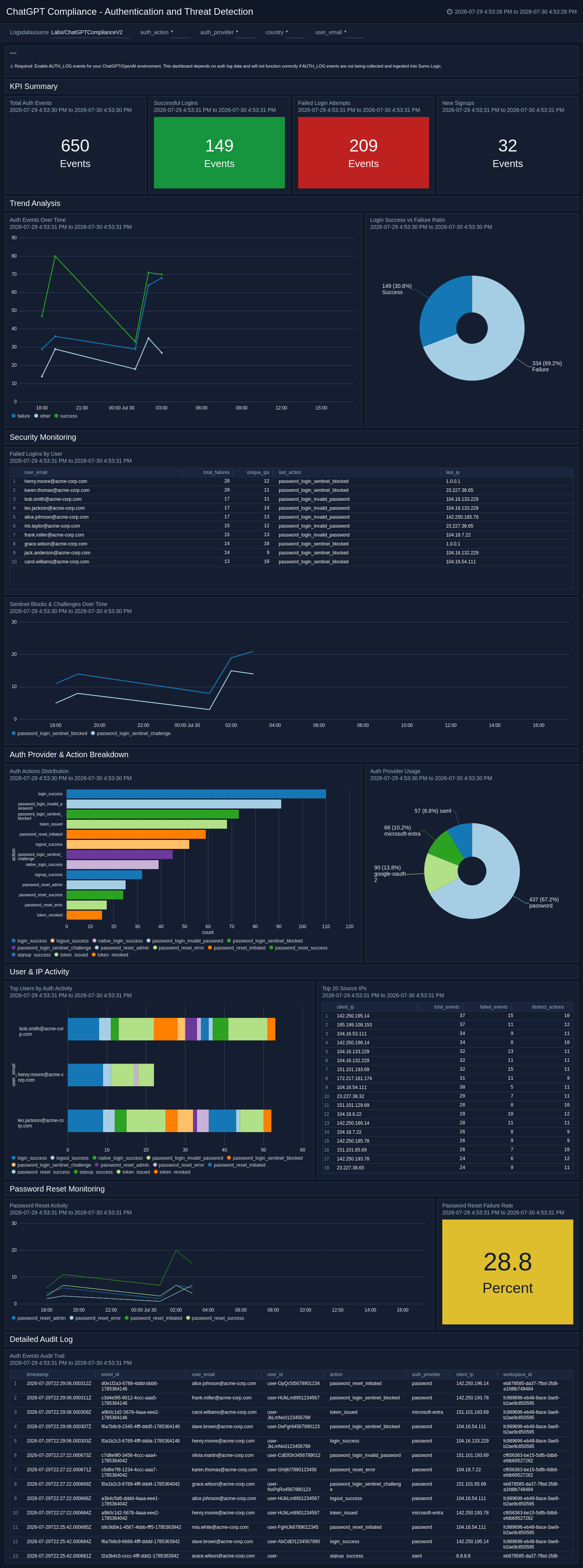
Codex Development Intelligence
The ChatGPT Compliance – Codex Development Intelligence dashboard provides development intelligence for ChatGPT Codex usage, including token consumption metrics, prompt activity, cache hit ratios, model and client usage breakdowns, environment lifecycle events, and response status analysis. Use this dashboard to understand how development teams are leveraging Codex, optimize token spend, and track environment-level activity.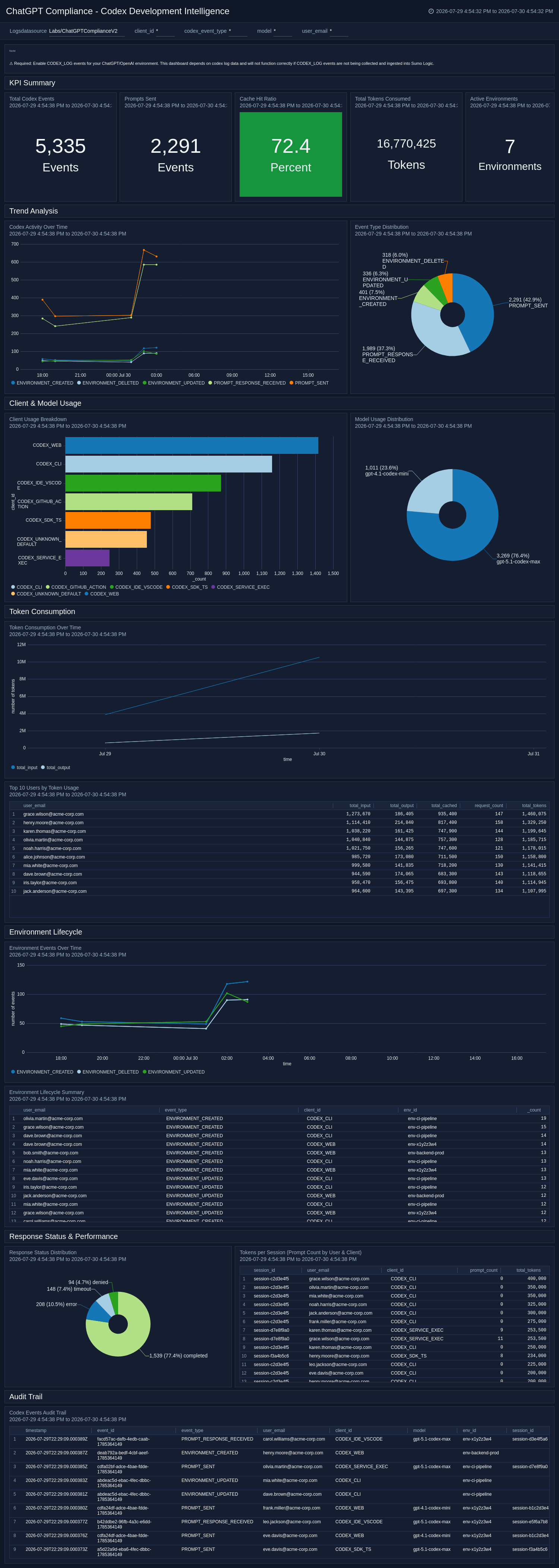
Codex Security Operations
The ChatGPT Compliance – Codex Security Operations dashboard tracks security operations within Codex workflows, including vulnerability findings by criticality and status, scan configuration changes, patch PR creation, finding resolution trends, and top users by security action. Use this dashboard to maintain oversight of code security posture, prioritize remediation efforts, and ensure security scanning is active across all repositories.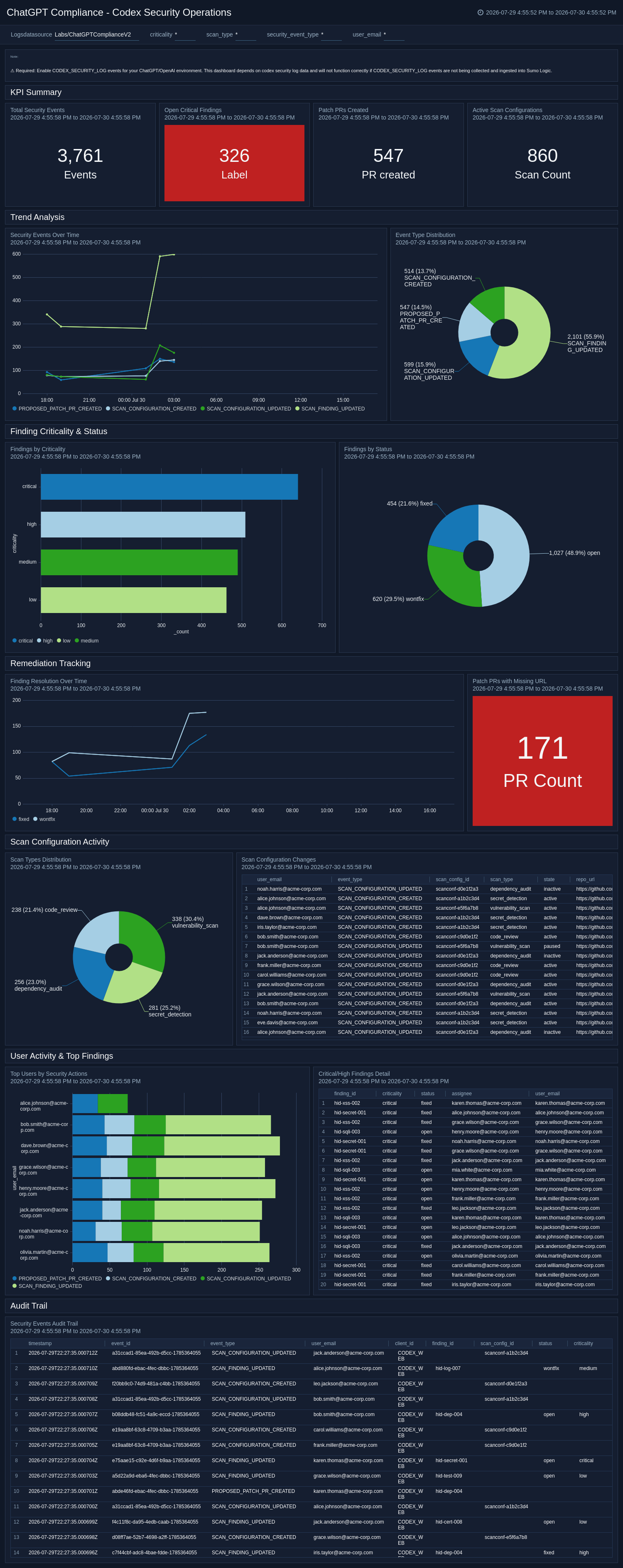
Compliance Executive Summary
The ChatGPT Compliance – Compliance Executive Summary dashboard presents an executive-level summary of compliance posture across all ChatGPT Enterprise event types. Highlights include security incidents, privilege escalations, data governance indicators, Codex token usage versus security findings, and compliance API access trends. Use this dashboard to provide leadership with a concise, audit-ready snapshot of organizational risk and AI governance status.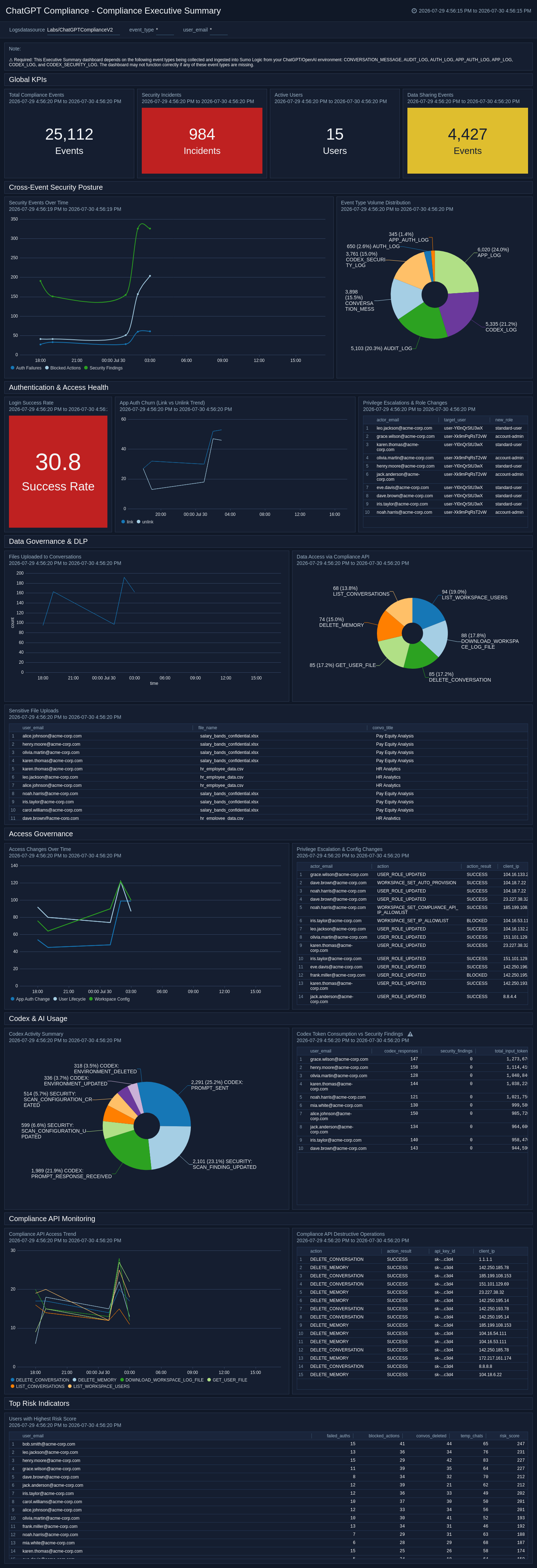
Conversation Intelligence and Content Governance
The ChatGPT Compliance – Conversation Intelligence and Content Governance dashboard monitors conversation activity and content governance across the workspace, covering message volumes by author type, file attachment usage, custom GPT adoption, model distribution, temporary chat usage, and project-level message activity. Use this dashboard to enforce content policies, understand model adoption patterns, and identify conversations involving sensitive file attachments.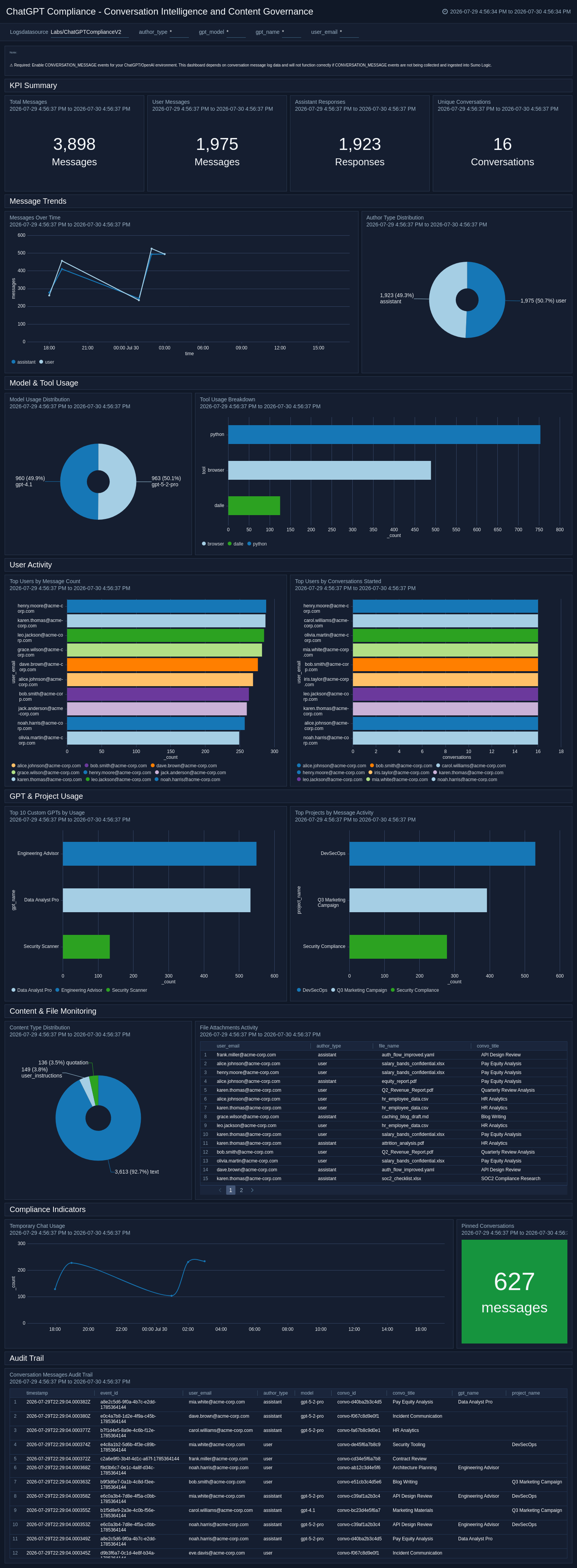
User Activity and Data Access
The ChatGPT Compliance – User Activity and Data Access dashboard tracks user-level data access and management activities, including compliance API operations, conversation deletions and sharing, skill lifecycle events, memory access and deletion, and invitation activity patterns. Use this dashboard to detect data exfiltration risks, enforce data retention policies, and maintain a complete record of user-driven data operations within your ChatGPT Enterprise environment.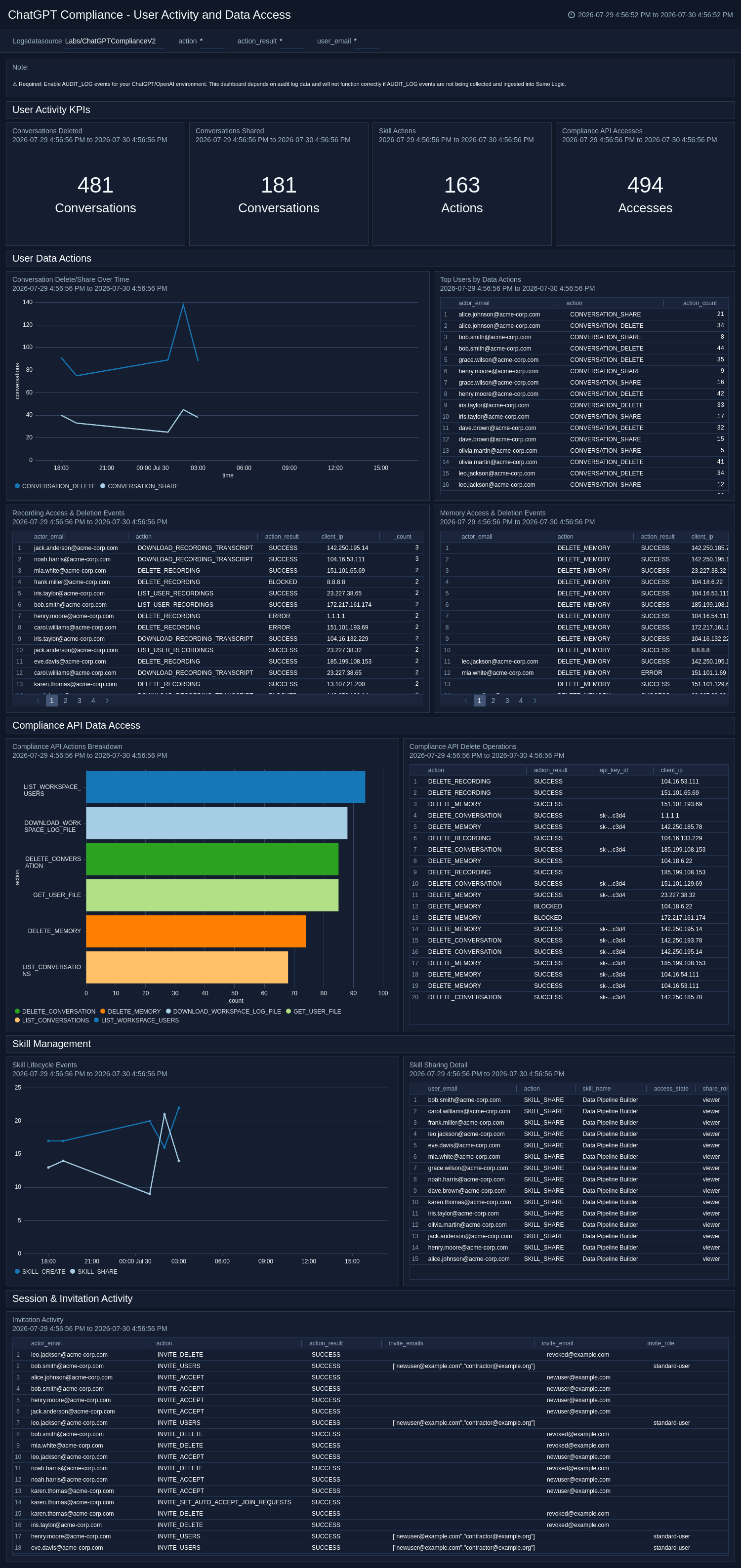
Create monitors for ChatGPT Compliance app
From your App Catalog:
- From the Sumo Logic navigation, select App Catalog.
- In the Search Apps field, search for and then select your app.
- Make sure the app is installed.
- Navigate to What's Included tab and scroll down to the Monitors section.
- Click Create next to the pre-configured monitors. In the create monitors window, adjust the trigger conditions and notifications settings based on your requirements.
- Scroll down to Monitor Details.
- Under Location click on New Folder.
note
By default, monitor will be saved in the root folder. So to make the maintenance easier, create a new folder in the location of your choice.
- Enter Folder Name. Folder Description is optional.
tip
Using app version in the folder name will be helpful to determine the versioning for future updates.
- Click Create. Once the folder is created, click on Save.
ChatGPT Compliance alerts
| Name | Description | Trigger Type (Critical / Warning / MissingData) | Alert Condition |
|---|---|---|---|
ChatGPT Compliance - App Auth Link and Unlink Events | This alert is triggered when a user connects or disconnects an external app. Unlinks in particular may signal account cleanup before a user's departure or credential revocation. | Critical | Count > 0 in 30m |
ChatGPT Compliance - Authentication Failures | This alert is triggered when failed login attempts occur, including invalid passwords, Sentinel-blocked logins, Sentinel challenges, and password reset errors. | Critical | Count > 10 in 15m |
ChatGPT Compliance - Blocked or Errored Admin Actions | This alert is triggered when a privileged operation is denied or fails, which may indicate unauthorized access attempts or misconfigured admin roles. | Critical | Count > 0 in 15m |
ChatGPT Compliance - Brute Force Detection by IP | This alert is triggered when a single IP address generates five or more login failures — a classic credential stuffing or brute force pattern. | Critical | Count > 0 in 10m |
ChatGPT Compliance - Codex Prompt Activity by User | This alert is triggered when Codex prompt volume per user and client exceeds normal thresholds, helping identify unexpected usage from CI pipelines or automation clients. | Critical | Count > 200 in 1h |
ChatGPT Compliance - Codex Security High or Critical Finding | This alert is triggered when a high or critical severity vulnerability is detected or updated in a Codex security scan, requiring immediate remediation attention. | Critical | Count > 0 in 15m |
ChatGPT Compliance - Conversation Message Volume | This alert is triggered when conversation messages spike abnormally across the workspace, useful for identifying data exfiltration attempts or bulk usage anomalies. | Critical | Count > 1000 in 15m |
ChatGPT Compliance - Critical Admin Operations | This alert is triggered when the highest-risk admin actions occur, including IP allowlist changes, workspace feature toggles, user deletion, SAML connection creation, and SCIM configuration changes. | Critical | Count > 0 in 15m |
ChatGPT Compliance - External and MCP App Invocations | This alert is triggered when MCP and OpenAPI-backed app calls routing to external services show volume anomalies or first-time-seen app names. | Critical | Count > 100 in 1h |
ChatGPT Compliance - Temporary Chat Usage Spike | This alert is triggered when temporary chat usage spikes. Because temporary chats bypass normal retention policies, a spike may indicate deliberate policy evasion or users attempting to avoid audit trails. | Critical | Count > 50 in 1h |
ChatGPT Compliance - Token Revocations and Mass Logouts | This alert is triggered when token revocation events or admin-forced logouts occur, which may indicate a security incident response or an account compromise in progress. | Critical | Count > 10 in 15m |
ChatGPT Compliance - User Invitations and Bulk User Changes | This alert is triggered when mass user operations occur, including bulk invites, auto-accept toggles, and external domain access grants that could rapidly expand workspace membership. | Critical | Count > 5 in 30m |
Upgrading/Downgrading the ChatGPT Compliance app (Optional)
To update the app, do the following:
Next-Gen App: To install or update the app, you must be an account administrator or a user with Manage Apps, Manage Monitors, Manage Fields, Manage Metric Rules, and Manage Collectors capabilities depending upon the different content types part of the app.
- Select App Catalog.
- In the Search Apps field, search for and then select your app.
Optionally, you can identify apps that can be upgraded in the Upgrade available section. - To upgrade the app, select Upgrade from the Manage dropdown.
- If the upgrade does not have any configuration or property changes, you will be redirected to the Preview & Done section.
- If the upgrade has any configuration or property changes, you will be redirected to the Setup Data page.
- In the Configure section of your respective app, complete the following fields.
- Field Name. If you already have collectors and sources set up, select the configured metadata field name (eg _sourcecategory) or specify other custom metadata (eg: _collector) along with its metadata Field Value.
- Click Next. You will be redirected to the Preview & Done section.
Post-update
Your upgraded app will be installed in the Installed Apps folder and dashboard panels will start to fill automatically.
See our Release Notes changelog for new updates in the app.
To revert the app to a previous version, do the following:
- Select App Catalog.
- In the Search Apps field, search for and then select your app.
- To version down the app, select Revert to < previous version of your app > from the Manage dropdown.
Uninstalling the ChatGPT Compliance app (Optional)
To uninstall the app, do the following:
- Select App Catalog.
- In the 🔎 Search Apps field, run a search for your desired app, then select it.
- Click Uninstall.