 Meet the new
 Citrix Cloud
Citrix Cloud is a platform that manages and hosts various Citrix cloud services. The Sumo Logic app for Citrix Cloud lets you track any configuration changes or actions that affect your environment and other account administrators. This app is built on the Citrix Cloud source, which ensures effortless integration between Citrix Cloud and Sumo Logic. Through real-time analysis, the App provides dashboards that display critical metrics, enabling you to understand administrator, client administrator, and group administrator activities in your Active Directory or Azure Active Directory (AD).
Log types
This Citrix Cloud App uses SystemLog records from the Citrix Cloud. To learn about the Citrix Cloud API fields, see the Event Data Fields documentation.
Sample log messages
{
           "recordId": "2e0d29c4-ee2b-4553-96d9-6bafce9a91eb-638091150974673571",
           "utcTimestamp": "2023-02-23T10:11:37.4673571Z",
           "customerId": "bmdugyf91l53",
           "eventType": "platform/administrator/invite",
           "targetId": "bmdugyf91l53/kshah.ctr@sumologic.com/citrixsts",
           "targetDisplayName": "parthlangalia.ctr@sumologic.com",
           "targetEmail": "parthlangalia.ctr@sumologic.com",
           "targetUserId": null,
           "targetType": "administrator",
           "beforeChanges": null,
           "afterChanges": {
               "CustomerId": "bmdugyf9xxxx",
               "Principal": "parthlangalia.ctr@sumologic.com",
               "AccessType": "Full",
               "Pending": "True",
               "FromRecovery": "False",
               "Requester": "{\"Firstname\":null,\"Lastname\":null,\"Email\":\"prpatel.ctr@sumologic.com\",\"UCOid\":null}"
           },
           "agentId": "delegatedadministration",
           "serviceProfileName": null,
           "actorId": "OID:/citrix/f8fdca2f-9434-4527-8a70-ae90b9c7f043",
           "actorDisplayName": "Siri Oaklander",
           "actorType": "administrator",
           "message": {
               "en-US": "Administrator invitation sent",
               "de-DE": "Administratoreinladung gesendet",
               "es-ES": "Invitación de administrador enviada",
               "fr-FR": "Invitation d'administrateur envoyée",
               "ja-JP": "管理者への招待状が送信されました"
           }
       }
Sample queries
_sourceCategory="citrixCloudSource"
| json "eventType","targetDisplayName","targetEmail","beforeChanges.AccessType","afterChanges.AccessType","actorType","message.en-US" as event_type,name, email, access_type_before, access_type_after, actor, message nodrop
| where event_type matches("*platform/administrator/create*")
| where actor matches"{{actor}}"
| where event_type matches"{{event_type}}"
| count by _messageTime,name,message,access_type_after
| access_type_after as access_type
| formatDate(toLong(_messageTime), "dd-MM-yyyy HH:mm:ss") as time
| top 50 time,name,message,access_type by time
Installing the Citrix Cloud app
To install the app, do the following:
Next-Gen App: To install or update the app, you must be an account administrator or a user with Manage Apps, Manage Monitors, Manage Fields, Manage Metric Rules, and Manage Collectors capabilities depending upon the different content types part of the app.
- Select App Catalog.
- In the 🔎 Search Apps field, run a search for your desired app, then select it.
- Click Install App.
note
Sometimes this button says Add Integration.
- Click Next in the Setup Data section.
- In the Configure section of your respective app, complete the following fields.
- Field Name. If you already have collectors and sources set up, select the configured metadata field name (eg _sourcecategory) or specify other custom metadata (eg: _collector) along with its metadata Field Value.
- Click Next. You will be redirected to the Preview & Done section.
Post-installation
Once your app is installed, it will appear in your Installed Apps folder, and dashboard panels will start to fill automatically.
Each panel slowly fills with data matching the time range query received since the panel was created. Results will not immediately be available but will be updated with full graphs and charts over time.
Viewing Citrix Cloud dashboards
All dashboards have a set of filters that you can apply to the entire dashboard. Use these filters to drill down and examine the data to a granular level.
- You can change the time range for a dashboard or panel by selecting a predefined interval from a drop-down list, choosing a recently used time range, or specifying custom dates and times. Learn more.
- You can use template variables to drill down and examine the data on a granular level. For more information, see Filtering Dashboards with Template Variables.
- Most Next-Gen apps allow you to provide the scope at the installation time and are comprised of a key (
_sourceCategoryby default) and a default value for this key. Based on your input, the app dashboards will be parameterized with a dashboard variable, allowing you to change the dataset queried by all panels. This eliminates the need to create multiple copies of the same dashboard with different queries.
Administrator Overview
The Citrix Cloud - Administrator Overview dashboard provides detailed information on newly added administrators, pending invitations, and recently deleted administrators in your Citrix Cloud account. Also, it highlights if any roles/permissions are updated for any administrator. The dashboard also visualizes the distribution of event types and actors performing records. Moreover, it gives a summary of all the Administrator events.
In addition to the above, the Dashboard provides a summary of all the Administrator events, allowing you to quickly assess the overall state of your Citrix Cloud account. With this Dashboard, you can easily monitor and analyze administrator activity, ensuring that your Citrix Cloud account remains secure and compliant with your organization's policies and regulations.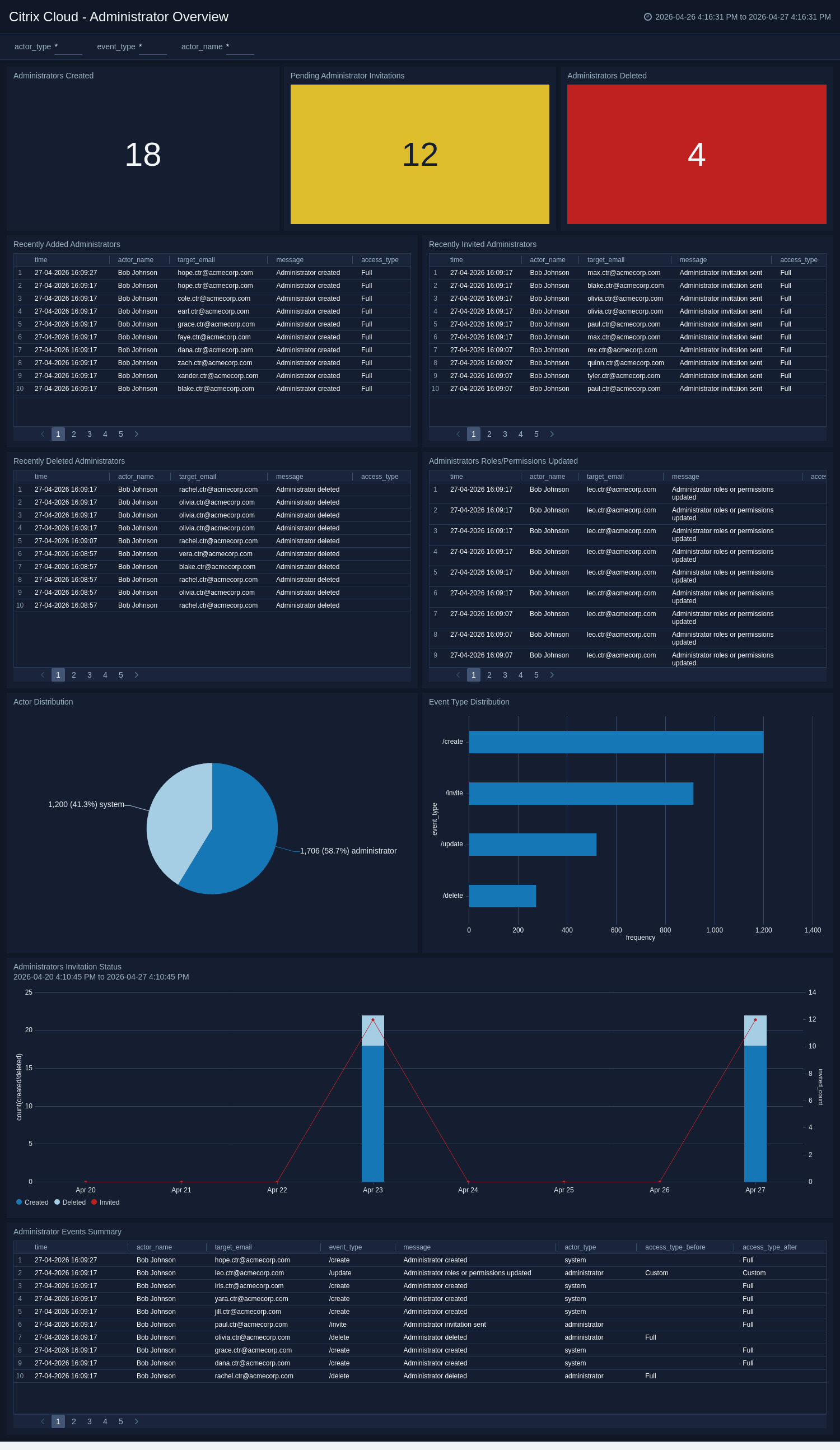
Client and Group Administrator Overview
The ** Citrix Cloud - Client, Group Administrator Overview** dashboard provides detailed information about newly added and recently deleted clients and group administrators in your Citrix Cloud account. Also, it highlights whether any roles/permissions have been updated for any group administrators. Furthermore, it gives a summary of all the Administrator events.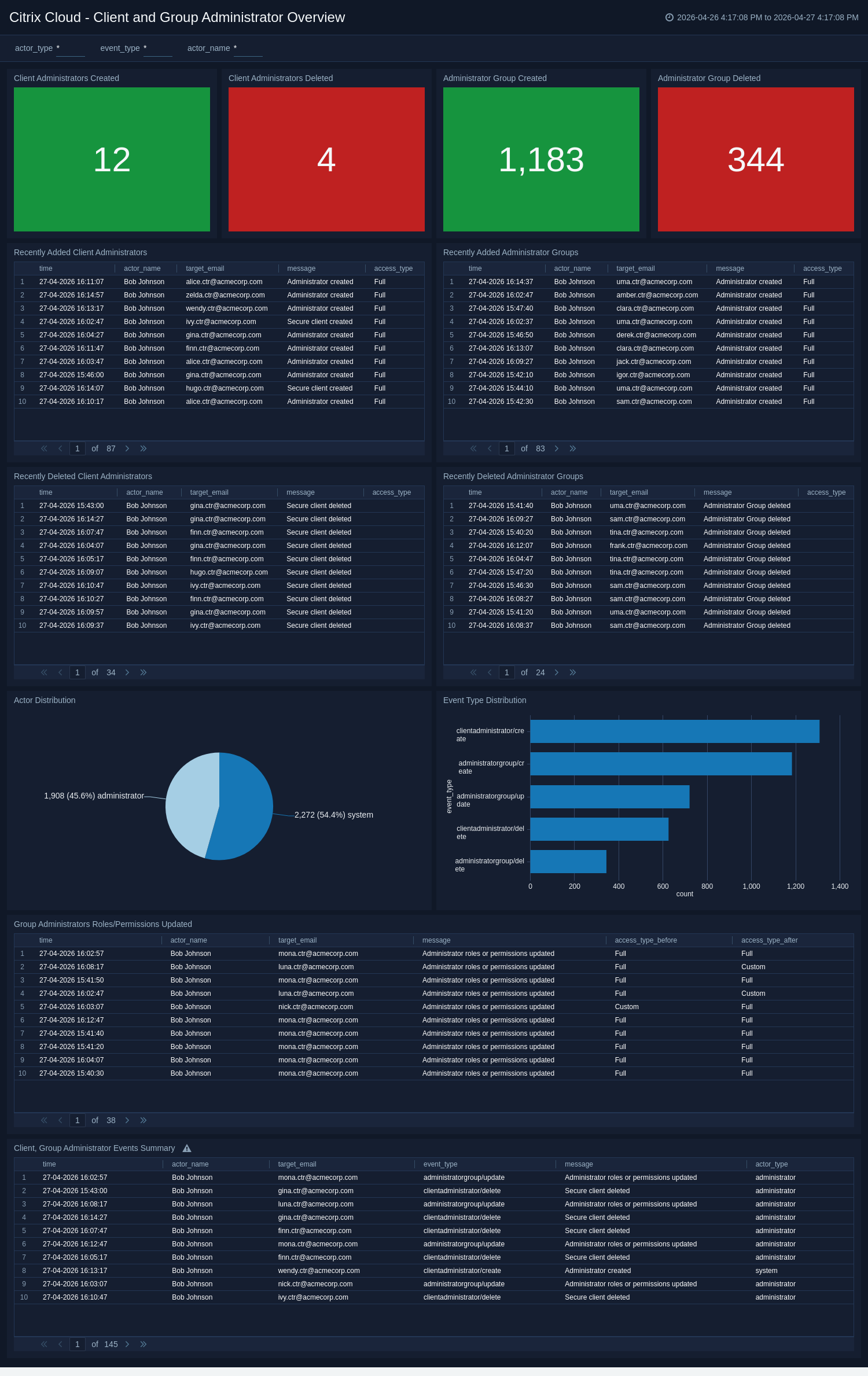
Network and Client Overview
The Citrix Cloud - Network and Client Overview dashboard provides visibility into network performance (ICA RTT latency), client endpoint inventory, client version compliance, connection state distribution, and external vs internal access patterns. It helps identify high-latency sessions, outdated Workspace app clients, and unusual access patterns.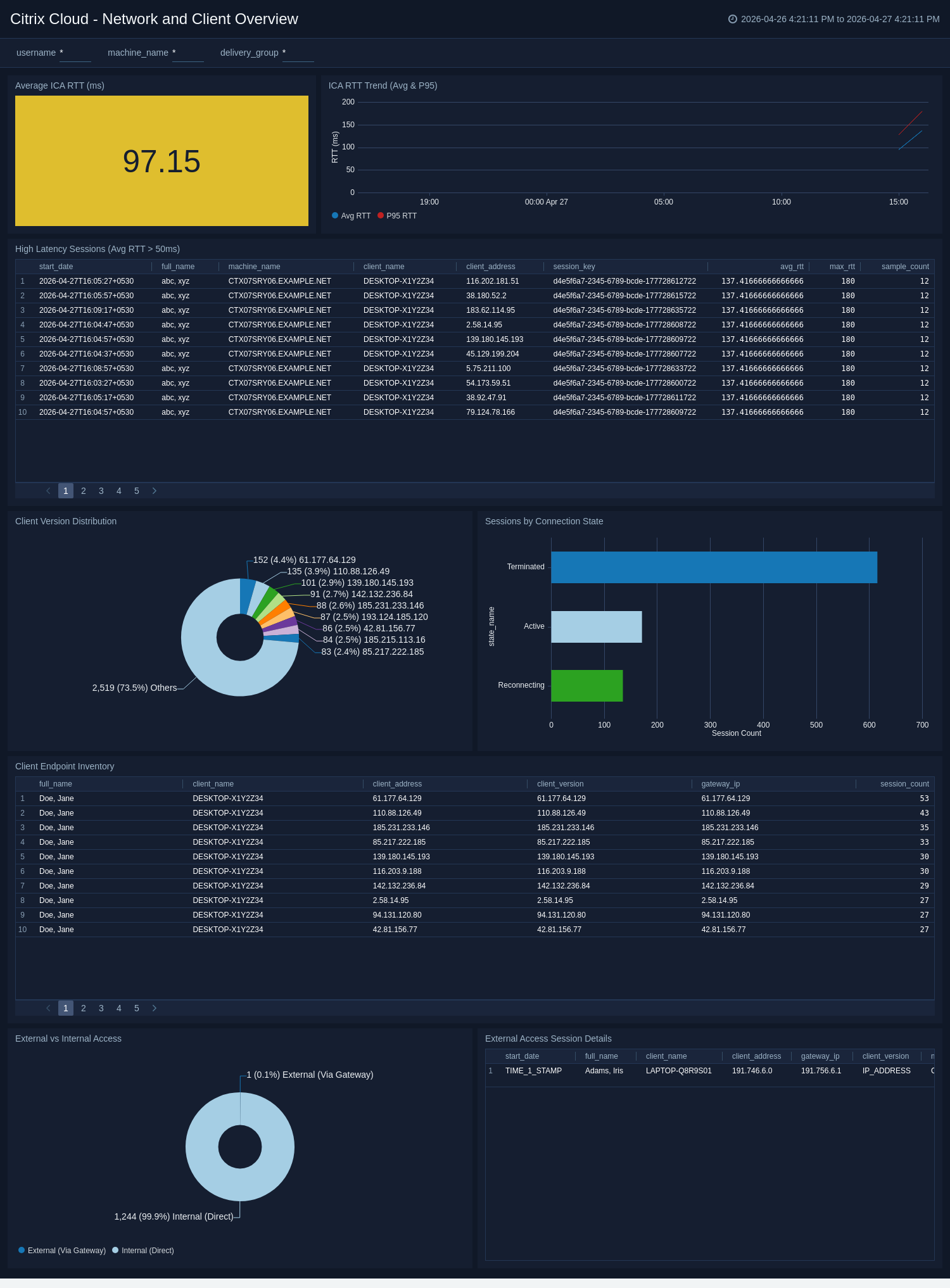
Session Logon Performance
The Citrix Cloud - Session Logon Performance dashboard provides detailed analysis of Citrix session logon performance, including logon duration trends, authentication duration, brokering duration, and a phase-wise breakdown of the logon process. It helps identify slow logons, bottlenecks in authentication or profile loading, and performance trends by user and machine.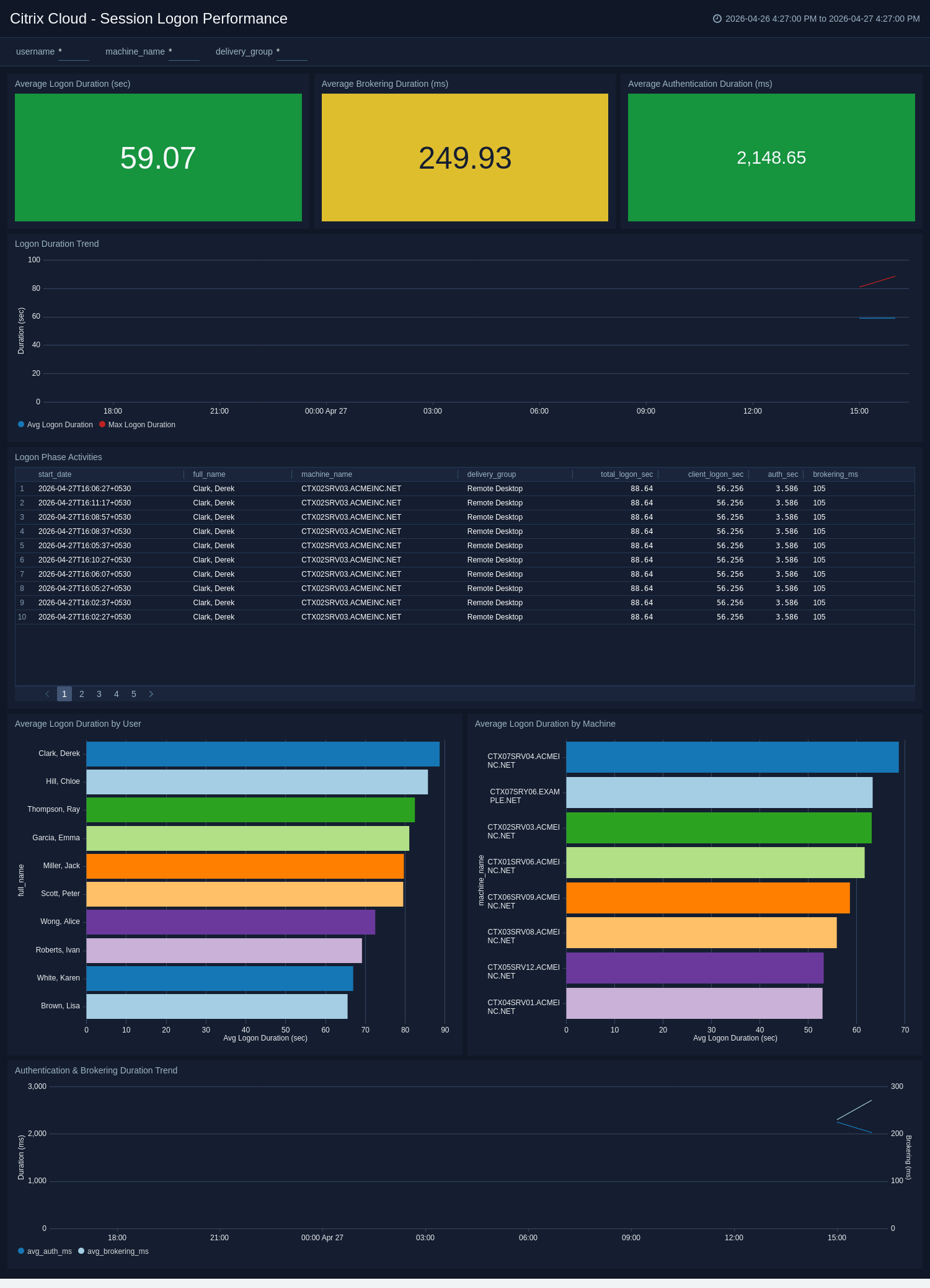
User Experience and Session Health
The Citrix Cloud - User Experience and Session Health dashboard provides a holistic view of Citrix user experience and session health. It tracks total active users, unique sessions, session reconnections, exit code distribution, delivery-type breakdown, top users and machines by session load, and a comprehensive user-session summary. It helps administrators identify heavy users, overloaded machines, abnormal session terminations, and reconnection patterns that indicate poor user experience.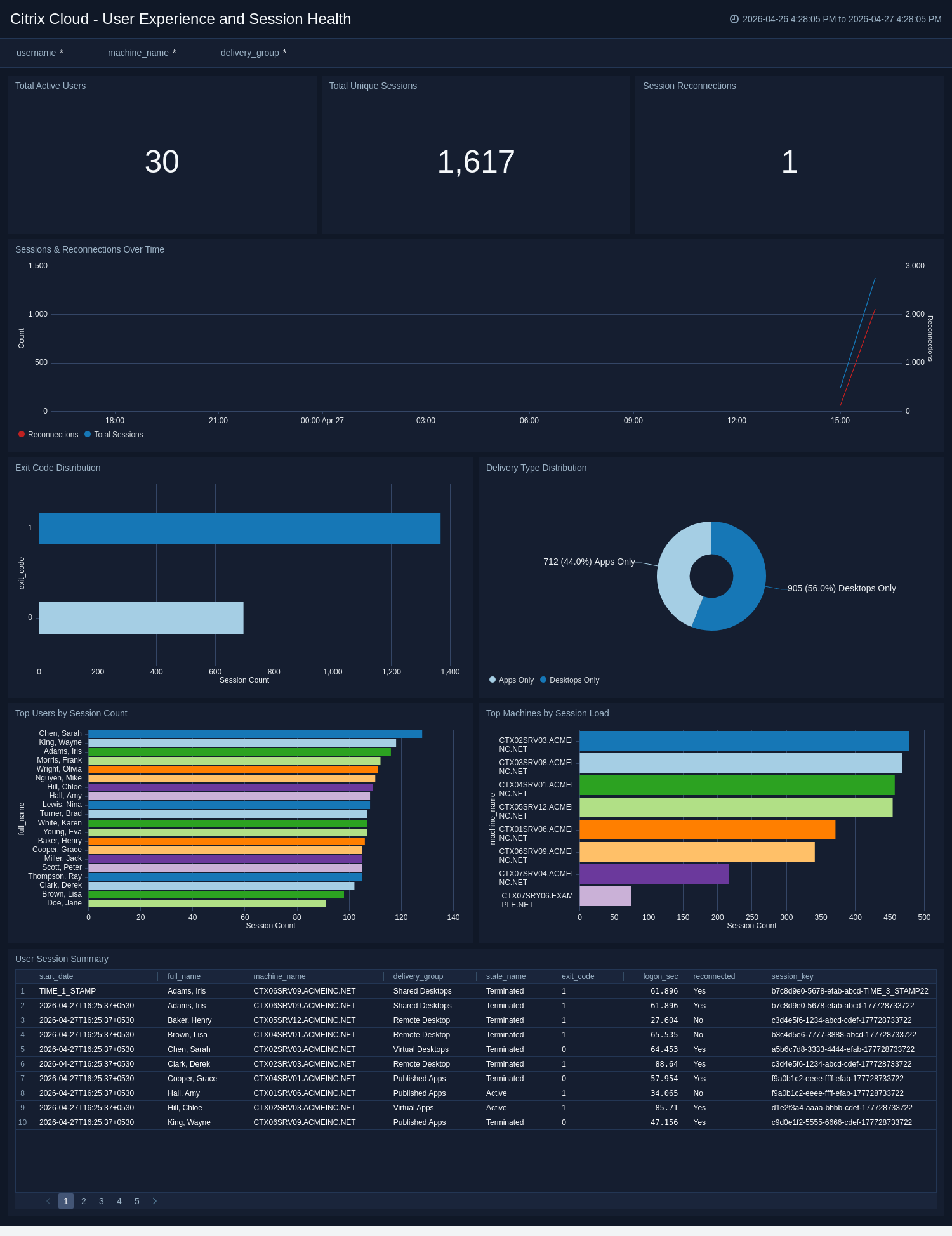
Create monitors for the Citrix Cloud app
From your App Catalog:
- From the Sumo Logic navigation, select App Catalog.
- In the Search Apps field, search for and then select your app.
- Make sure the app is installed.
- Navigate to What's Included tab and scroll down to the Monitors section.
- Click Create next to the pre-configured monitors. In the create monitors window, adjust the trigger conditions and notifications settings based on your requirements.
- Scroll down to Monitor Details.
- Under Location click on New Folder.
note
By default, monitor will be saved in the root folder. So to make the maintenance easier, create a new folder in the location of your choice.
- Enter Folder Name. Folder Description is optional.
tip
Using app version in the folder name will be helpful to determine the versioning for future updates.
- Click Create. Once the folder is created, click on Save.
Citrix Cloud Security Alerts
| Name | Description | Trigger Type (Critical / Warning / MissingData) | Alert Condition |
|---|---|---|---|
Citrix Cloud - Administrator Deleted | This alert is triggered when an administrator account is deleted from the Citrix Cloud environment, enabling audit tracking of privileged account removals. | Critical | Count > 0 |
Citrix Cloud - Administrator Permission or Role Changed | This alert is triggered when an administrator's access type or role is modified, enabling detection of unauthorized privilege escalation or permission changes. | Critical | Count > 0 |
Citrix Cloud - High ICA RTT Latency | This alert is triggered when the P95 ICA round-trip time exceeds 200ms, indicating network latency issues between Citrix clients and virtual desktops. | Critical | p95_rtt_ms > 200 |
Citrix Cloud - High Session Logon Duration | This alert is triggered when the average session logon duration exceeds 120 seconds, indicating slow logon performance that impacts the user experience. | Critical | avg_logon_sec > 120 |
Upgrade/Downgrade the Citrix Cloud app (Optional)
To update the app, do the following:
Next-Gen App: To install or update the app, you must be an account administrator or a user with Manage Apps, Manage Monitors, Manage Fields, Manage Metric Rules, and Manage Collectors capabilities depending upon the different content types part of the app.
- Select App Catalog.
- In the Search Apps field, search for and then select your app.
Optionally, you can identify apps that can be upgraded in the Upgrade available section. - To upgrade the app, select Upgrade from the Manage dropdown.
- If the upgrade does not have any configuration or property changes, you will be redirected to the Preview & Done section.
- If the upgrade has any configuration or property changes, you will be redirected to the Setup Data page.
- In the Configure section of your respective app, complete the following fields.
- Field Name. If you already have collectors and sources set up, select the configured metadata field name (eg _sourcecategory) or specify other custom metadata (eg: _collector) along with its metadata Field Value.
- Click Next. You will be redirected to the Preview & Done section.
Post-update
Your upgraded app will be installed in the Installed Apps folder and dashboard panels will start to fill automatically.
See our Release Notes changelog for new updates in the app.
To revert the app to a previous version, do the following:
- Select App Catalog.
- In the Search Apps field, search for and then select your app.
- To version down the app, select Revert to < previous version of your app > from the Manage dropdown.
Uninstalling the Citrix Cloud app (Optional)
To uninstall the app, do the following:
- Select App Catalog.
- In the 🔎 Search Apps field, run a search for your desired app, then select it.
- Click Uninstall.