Mimecast

The Sumo Logic app for Mimecast enables you to leverage advanced security monitoring and analytics capabilities for Mimecast data. Mimecast is a cloud-based cybersecurity platform that ensures email security, continuity, and archiving. Our app is a powerful tool for monitoring and analyzing Mimecast email data, helping you to identify potential threats and improve your email security posture.
Key features of the Mimecast app include:
- Email Traffic Monitoring: Monitor message traffic for both delivered and received emails with a detailed overview of each stage.
- Threat Detection Monitoring: Monitor logs regarding messages with malicious attachments, user activity, and threat detection within the orgaization users.
- Data Loss Monitoring: Monitor data loss resulting from breaches and malicious attacks.
Log types
The app uses Mimecast Source to collect SIEM and DLP logs from Mimecast platform.
Sample log messages
View Sample Log Message
{
   "processingId": "processingId",
   "aggregateId": "aggregateId",
   "spamProcessingDetail": "Spam Processing Detail",
   "numberAttachments": "1",
   "subject": "siem_recipient - email subject line",
   "tlsVersion": "TLSv1.2",
   "senderEnvelope": "auser@mimecast.com",
   "messageId": "messageId",
   "senderHeader": "auser@mimecast.com",
   "rejectionType": "rejectionType",
   "eventType": "receipt",
   "accountId": "C0A0",
   "recipients": "auser@mimecast.com",
   "tlsCipher": "TLS_ECDHE_RSA_WITH_AES_256_GCM_SHA384",
   "action": "Allow",
   "subType": "Allow",
   "spamInfo": null,
   "senderIp": "123.123.123.123",
   "timestamp": 1689685338597,
   "direction": "Inbound",
   "spamScore": "0",
   "spamDetectionLevel": "0"
}
{
  "senderAddress": "john@google.com",
  "action": "block",
  "eventTime": "2023-04-28T08:30:14+0000",
  "messageId": "13",
  "policy": "data loss outage",
  "route": "outbound",
  "subject": "Change in strategy",
  "recipientAddress": "sam@mimecast.com"
}
{
  "id": "eNoVzt0KgjAYgOF72bGQWyIt6MDU1Kz1p2nSSenMhfqRm",
  "auditType": "Completed Directory Sync",
  "user": "user1@gmail.com",
  "eventTime": "2026-03-19T07:43:54+0000",
  "eventInfo": "Action Performed - Processed 10 domain(s) by unknown user Date: 2026-03-19 Time: 03:43:08 -0400 IP: unknown Application: ADSync",
  "category": "account_logs"
}
{
  "id": "eNpVzskOgjAABNB_6VUPLRrbkngBA0gEN",
  "reason": "Message Hold Applied - Spam Signature policy",
  "reasonId": "MESSAGE_HOLD_APPLIED_SPAM_SIGNATURE_POLICY",
  "reasonCode": "message_hold_applied_spam_signature_policy",
  "from": {
    "emailAddress": "useru70oki54@gmail.com",
    "displayableName": "JAH & CO. IP"
  },
  "fromHeader": {
    "emailAddress": "user5dy2h709@gmail.com",
    "displayableName": "JAH & CO. IP"
  },
  "to": {
    "emailAddress": "userm9obo5nt@gmail.com",
    "displayableName": "Foreigntm"
  },
  "subject": "RE: Temporary Extensions for Submission of Documents",
  "route": "INBOUND",
  "hasAttachments": false,
  "size": 37742,
  "dateReceived": "2026-03-19T09:16:26+0000",
  "policyInfo": "Carey y Cia Spam Scanning"
}
Sample queries
View Sample Queries
_sourceCategory={{Logsdatasource}} auditType id
| json "id", "auditType", "user", "category" as id, audit_type, user, category nodrop

// global filters
| where audit_type matches "{{audit_type}}" and category matches "{{category}}" and user matches "{{user}}"

| count by id
| count
_sourceCategory={{Logsdatasource}} senderAddress
| json "messageId", "action", "policy", "route", "senderAddress", "recipientAddress" as id, action, policy, route, sender, receiver nodrop

// global filters
| where action matches "{{action}}" and policy matches "{{policy}}" and route matches "{{route}}" and sender matches "{{sender}}" and receiver matches "{{receiver}}"

| timeslice 1h
| count by id, _timeslice
| count as count by _timeslice
| fillmissing timeslice
_sourceCategory={{Logsdatasource}} reasonCode policyInfo
| json "id", "reasonCode", "route", "policyInfo", "from.emailAddress", "to.emailAddress" as id, reason_code, route, policy_info, sender_email, receiver_email nodrop

// global filters
| where reason_code matches "{{reason_code}}" and route matches "{{route}}" and policy_info matches "{{policy_info}}" and sender_email matches "{{sender_email}}" and receiver_email matches "{{receiver_email}}"

| count by id, policy_info
| count by policy_info
| sort by _count, policy_info asc
_sourceCategory={{Logsdatasource}} eventType senderIp
| json "aggregateId", "eventType","action","accountId", "route", "senderIp" as id, event_type, action, account_id, route, sender_ip nodrop

// global filters
| where if ("{{event_type}}" = "*", true, event_type matches "{{event_type}}")
| where if ("{{account_id}}" = "*", true, account_id matches "{{account_id}}")

| count by id, sender_ip
| count by sender_ip
| lookup latitude, longitude from geo://location on ip = sender_ip
| where !isNull(latitude)
Set up collection
Follow the instructions for setting up Cloud-to-Cloud Integration for Mimecast source and use the same source category while installing the app.
Installing the Mimecast app
This section has instructions for installing the Mimecast app for Sumo Logic.
Locate and install the app you need from the App Catalog. If you want to see a preview of the dashboards included with the app before installing, click Preview Dashboards.
- From the App Catalog, search for the app and select it.
- Select Add Integration button to install the app.
- Configure Mimecast app using the steps described in the Mimecast Cloud-to-Cloud Source. If you already have set up your data, skip this step by clicking on Next.
- Complete the following fields:
- Data Source. Select either of these options for the data source:
- Choose Source Category and then choose a source category from the list.
- Select Enter a Custom Data Filter and type in a custom source category that starts with an underscore. For Example,
_sourceCategory=MyCategory.
- Folder Name. You can retain the existing name, or enter a name of your choice for the app.
- Select the Location in Library (the default is the Personal folder in the library), or click New Folder to add a new folder.
- Data Source. Select either of these options for the data source:
- Click Next.
Once an app is installed, it will appear in your Personal folder, or other folder that you specified. You can share it with your organization. The panels will begin to fill automatically. It's worth noting that each panel gradually fills with data that matches the time range query and has been received since the panel was created. The results will not be available right away, but with some patience, you will be able to view full graphs and maps.
Viewing Mimecast dashboards
- All dashboards have a set of filters that you can apply to the entire dashboard, as shown in the following example. Click the funnel icon in the top dashboard menu bar to display a scrollable list of filters that are applied across the entire dashboard.
You can use filters to drill down and examine the data on a granular level. Filters include client country, client device type, client IP, client request host, client request URI, client request user agent, edge response status, origin IP, and origin response status.
- Each panel has a set of filters that are applied to the results for that panel only, as shown in the following example. Click the funnel icon in the top panel menu bar to display a list of panel-specific filters.
Mimecast - Audit Events Overview
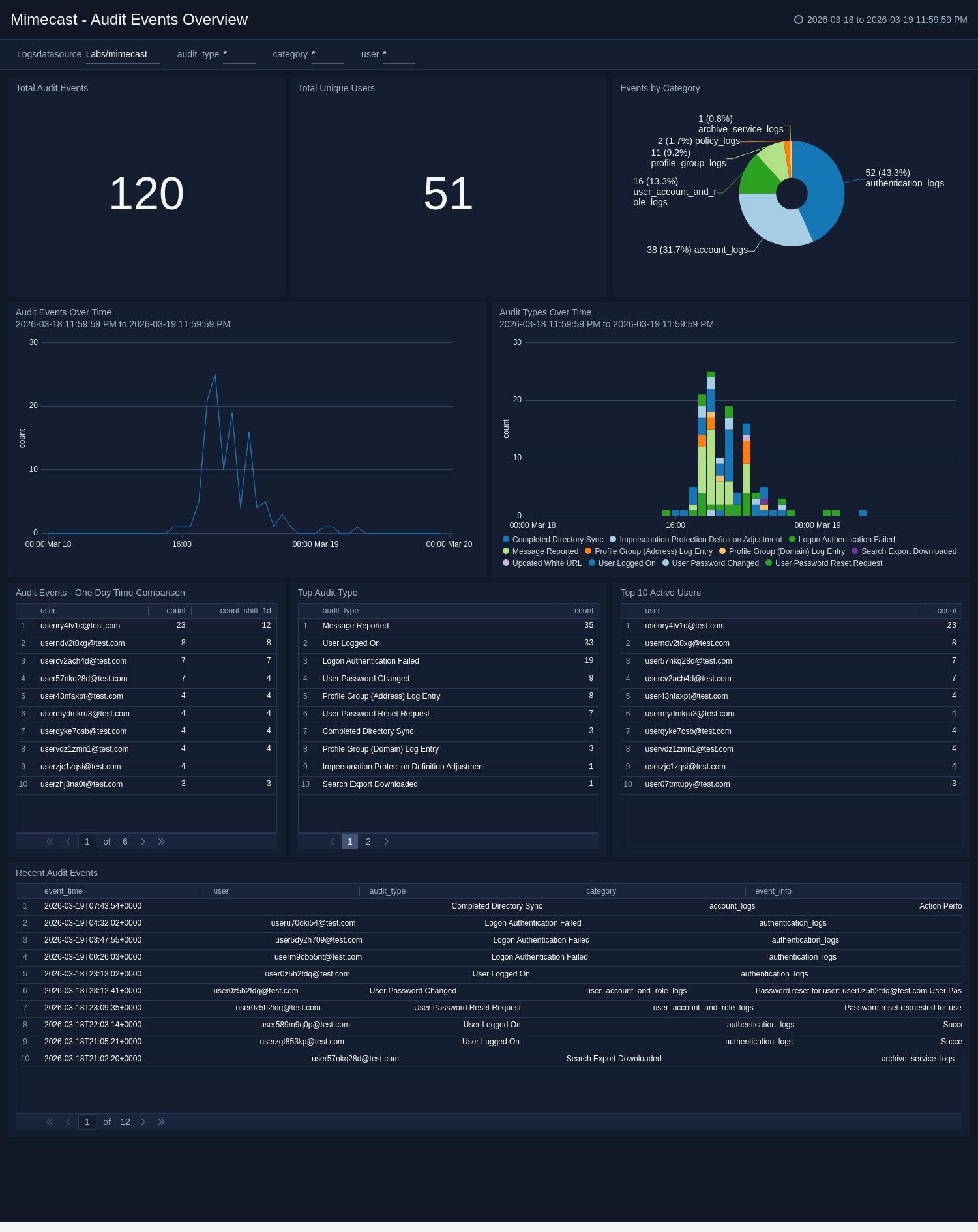
The Mimecast - Audit Events Overview dashboard provides comprehensive monitoring of Mimecast audit events including directory sync operations, user activities, and administrative actions. Use this dashboard to track operational health, detect anomalous activity patterns, and investigate audit trail details.
Mimecast - DLP Policy Monitoring
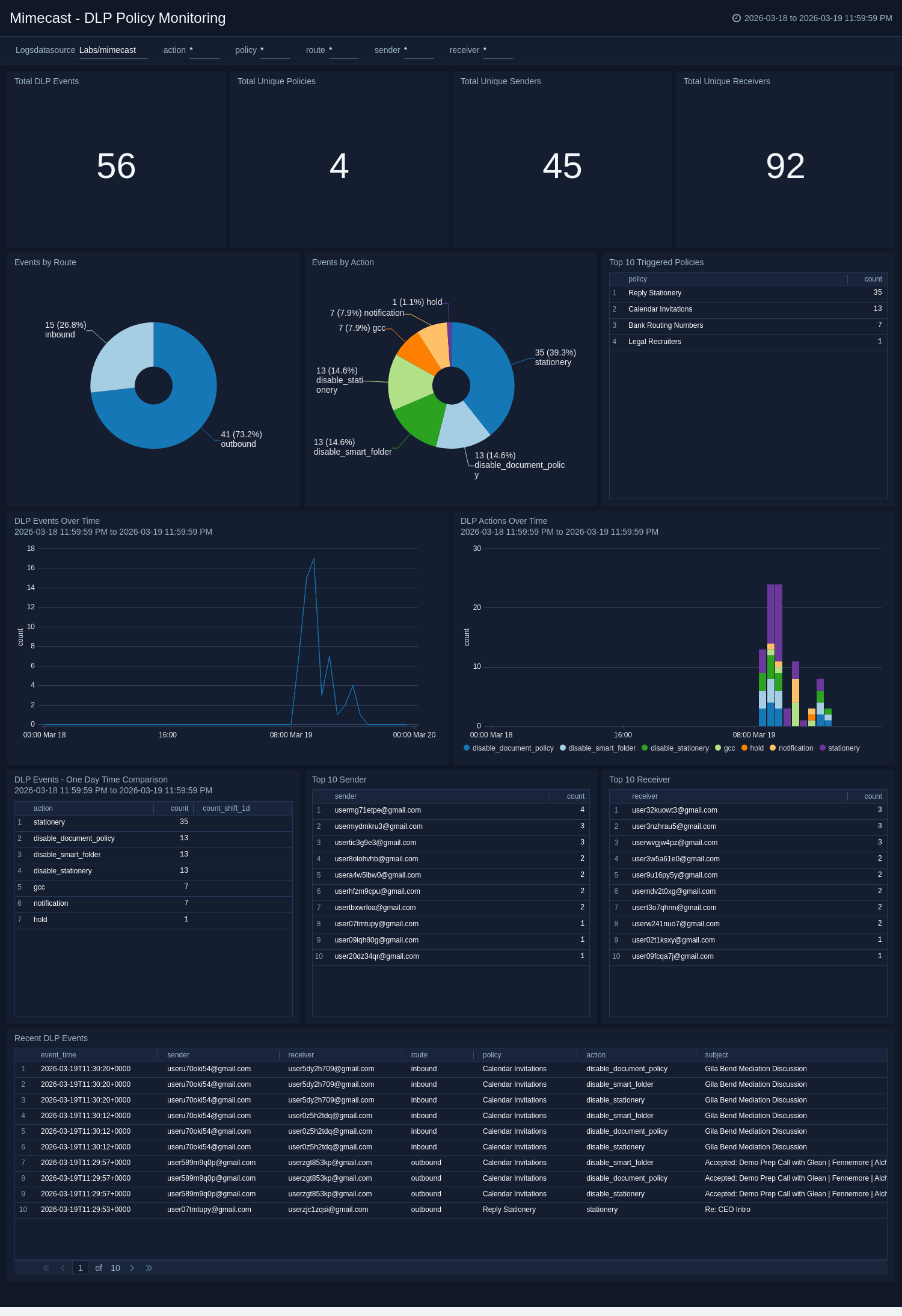
The Mimecast - DLP Policy Monitoring dashboard monitors Mimecast Data Loss Prevention policy triggers across email traffic. Use this dashboard to investigate DLP action patterns, identify top senders and recipients triggering policies, detect anomalous DLP volumes, and review policy enforcement effectiveness.
Mimecast - Hold Message Analysis
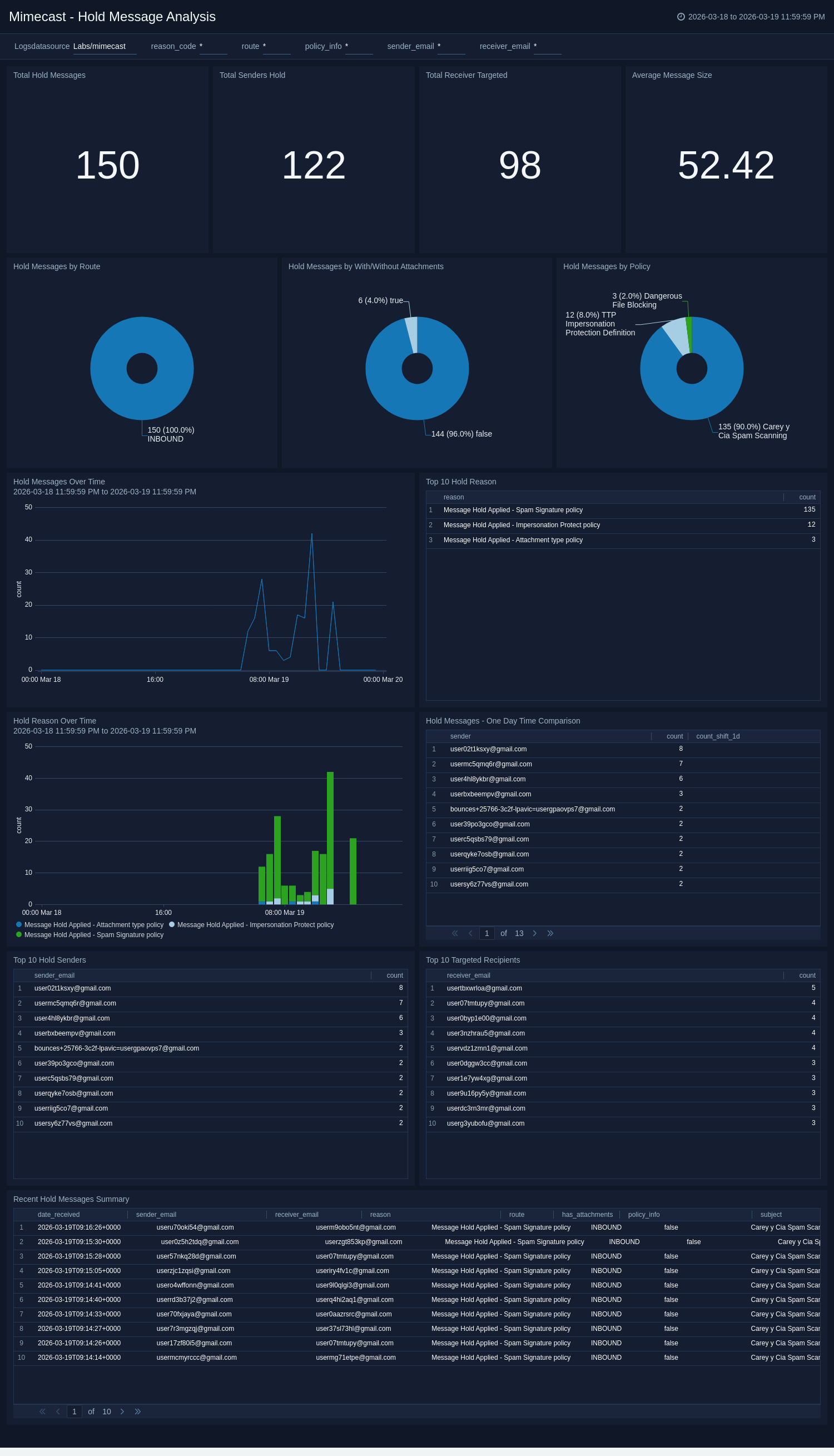
The Mimecast - Hold Message Analysis dashboard monitors quarantined and held email messages across Mimecast policies. Use this dashboard to investigate spam hold patterns, identify top targeted recipients, detect hold volume anomalies, and review policy effectiveness.
Mimecast SIEM Logs - Overview
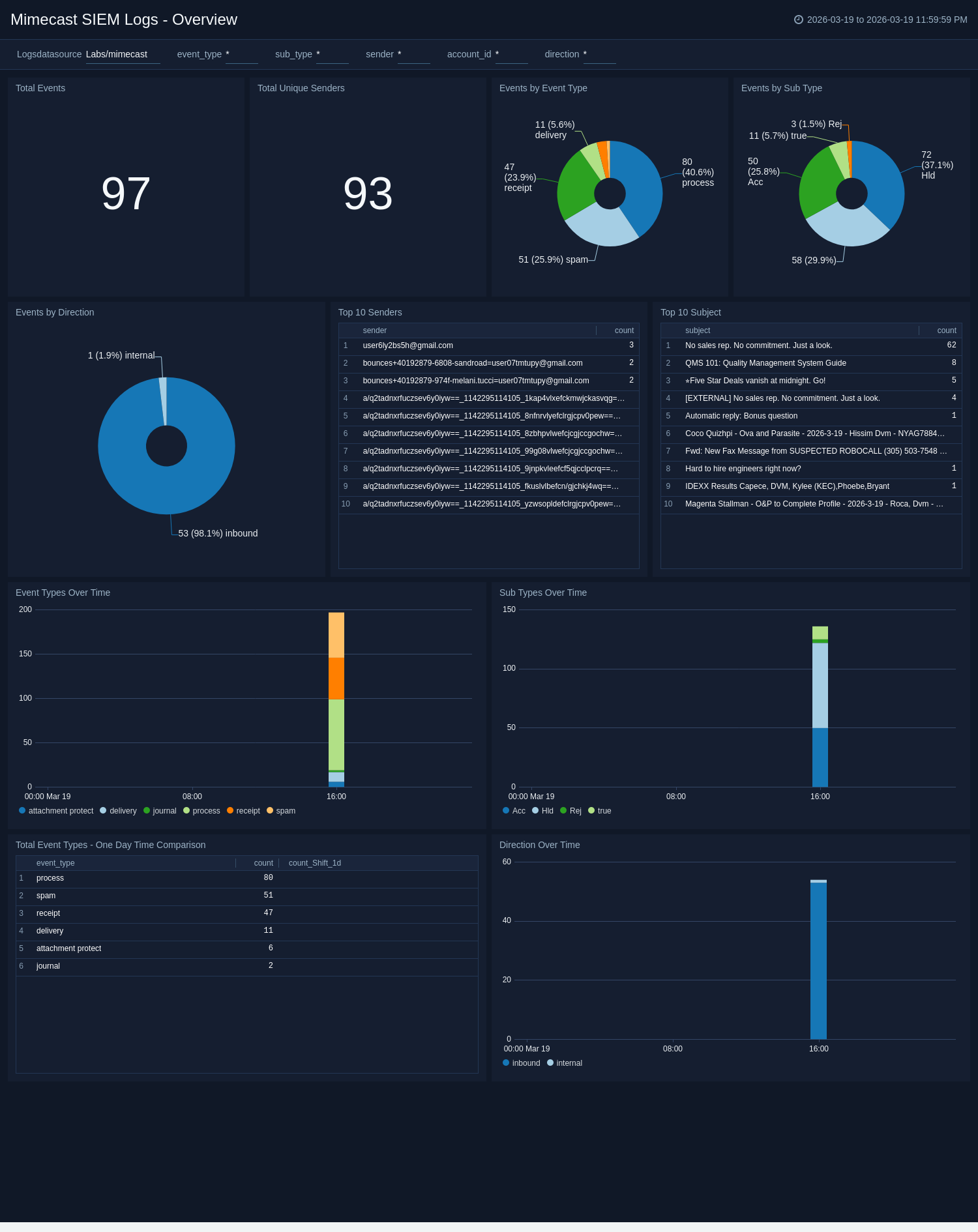
The Mimecast SIEM Logs - Overview dashboard presents a comprehensive view of siem message logs and related data loss prevention policies. It tracks the total number of messages delivered, along with those delivered and received without TLS. Additionally, the dashboard enables monitoring of messages that triggered data loss prevention policies over time.
Mimecast SIEM Logs - Threat Protection
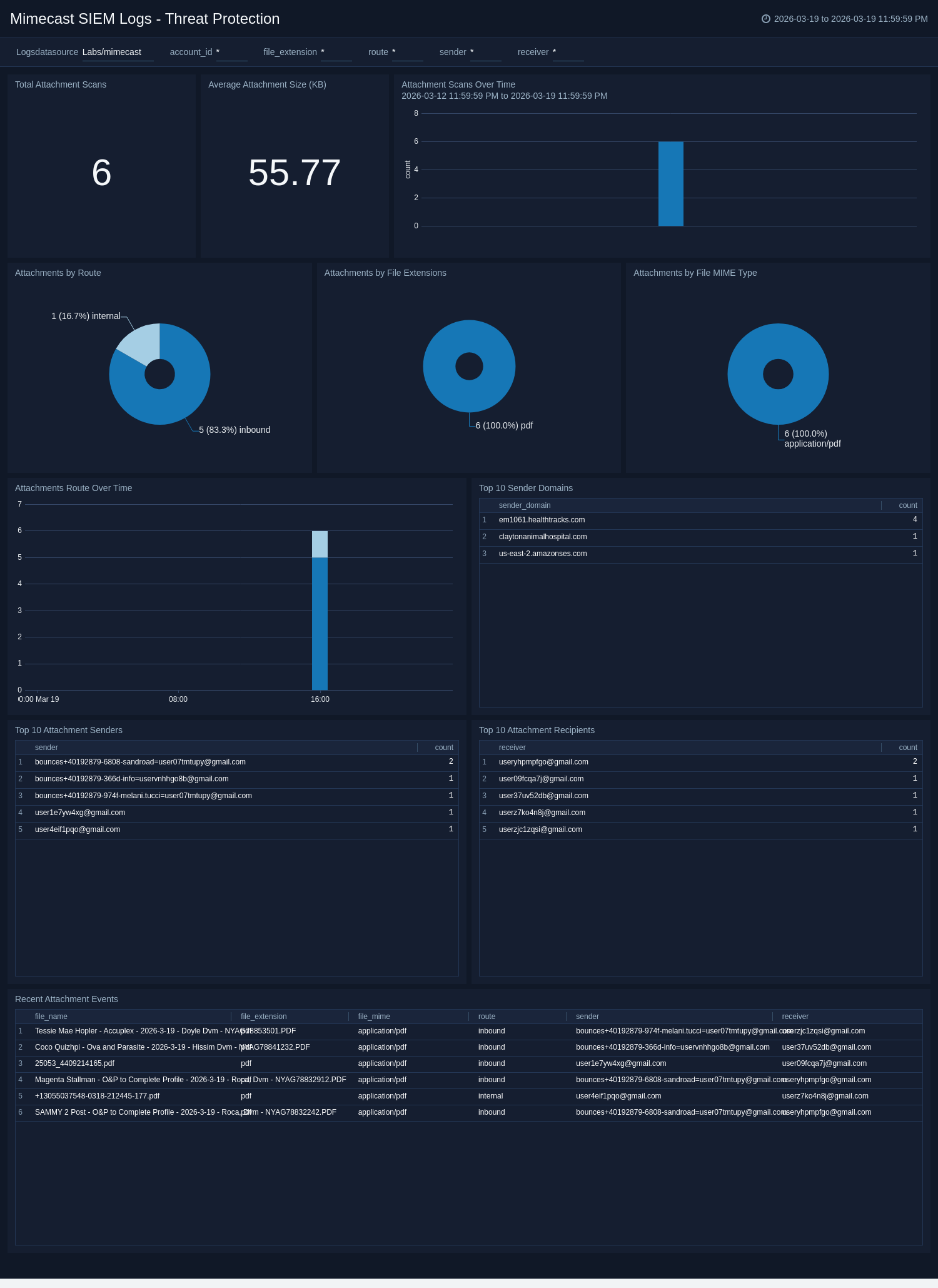
The Mimecast SIEM Logs - Threat Protection dashboard provides valuable insights into protection logs. It features several widgets, such as the top 10 recipients and senders, action types, and the most common attachment types.
Mimecast SIEM Logs - Email Processing and Delivery
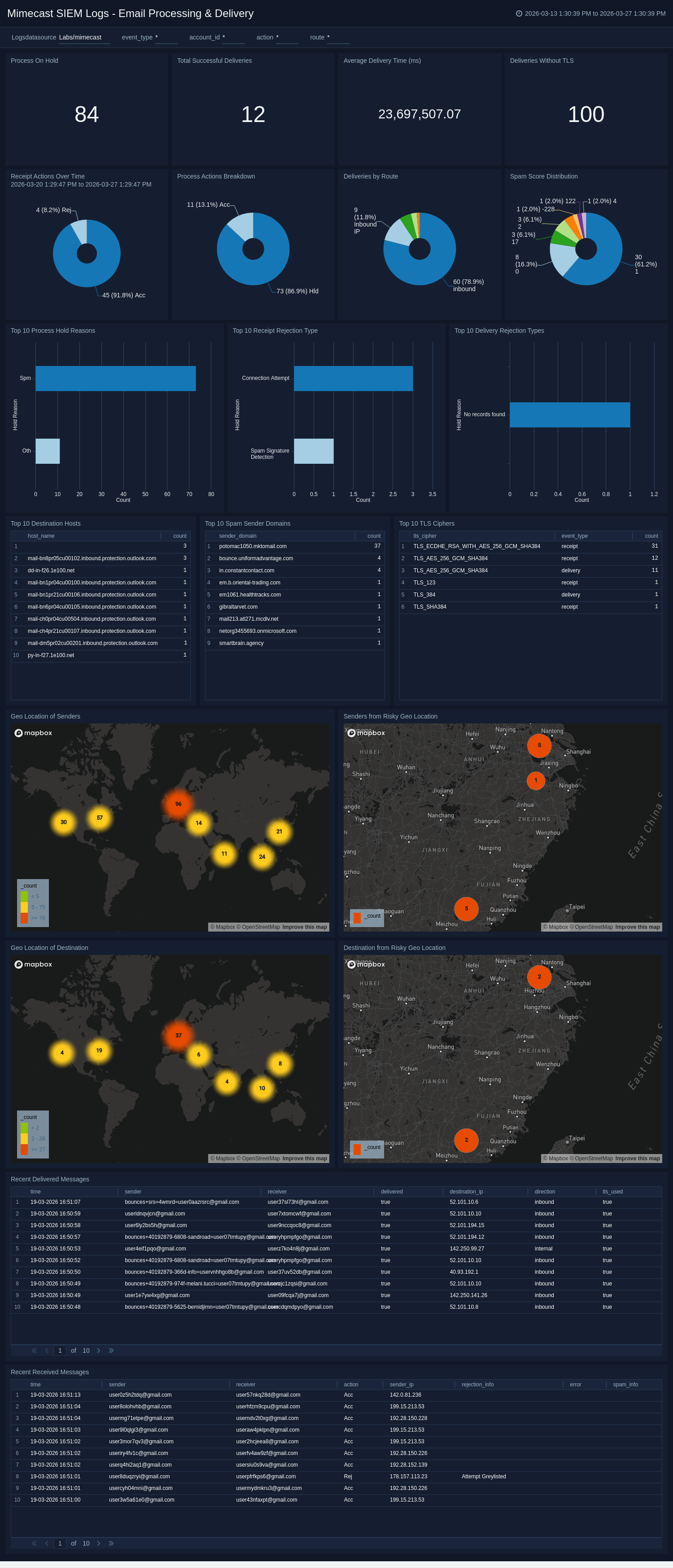
The Mimecast SIEM Logs - Email Processing and Delivery dashboard offers significant insights into message traffic for both incoming and outgoing messages. It provides useful details such as the geographic locations of senders and recipients, rejection types for messages, received message status, delivered message direction, and a brief summary of both message types. Moreover, the dashboard displays information on the most frequently used ciphers, domains that are not using TLS, and reasons for messages being on hold.
Create monitors for Mimecast app
From your App Catalog:
- From the Sumo Logic navigation, select App Catalog.
- In the Search Apps field, search for and then select your app.
- Make sure the app is installed.
- Navigate to What's Included tab and scroll down to the Monitors section.
- Click Create next to the pre-configured monitors. In the create monitors window, adjust the trigger conditions and notifications settings based on your requirements.
- Scroll down to Monitor Details.
- Under Location click on New Folder.
note
By default, monitor will be saved in the root folder. So to make the maintenance easier, create a new folder in the location of your choice.
- Enter Folder Name. Folder Description is optional.
tip
Using app version in the folder name will be helpful to determine the versioning for future updates.
- Click Create. Once the folder is created, click on Save.
Mimecast alerts
| Name | Description | Trigger Type (Critical / Warning / MissingData) | Alert Condition |
|---|---|---|---|
Mimecast - Sender from Embargoed Geo Locations | Monitors and highlights events where sender is located in sanctioned or embargoed regions to maintain adherence to legal and regulatory standards. | Critical | Count > 0 |
Mimecast - Receiver from Embargoed Geo Locations | Monitors and highlights events where receiver is located in sanctioned or embargoed regions to maintain adherence to legal and regulatory standards. | Critical | Count > 10 |
Upgrade/Downgrade the Mimecast app (Optional)
To update the app, do the following:
Next-Gen App: To install or update the app, you must be an account administrator or a user with Manage Apps, Manage Monitors, Manage Fields, Manage Metric Rules, and Manage Collectors capabilities depending upon the different content types part of the app.
- Select App Catalog.
- In the Search Apps field, search for and then select your app.
Optionally, you can identify apps that can be upgraded in the Upgrade available section. - To upgrade the app, select Upgrade from the Manage dropdown.
- If the upgrade does not have any configuration or property changes, you will be redirected to the Preview & Done section.
- If the upgrade has any configuration or property changes, you will be redirected to the Setup Data page.
- In the Configure section of your respective app, complete the following fields.
- Field Name. If you already have collectors and sources set up, select the configured metadata field name (eg _sourcecategory) or specify other custom metadata (eg: _collector) along with its metadata Field Value.
- Click Next. You will be redirected to the Preview & Done section.
Post-update
Your upgraded app will be installed in the Installed Apps folder and dashboard panels will start to fill automatically.
See our Release Notes changelog for new updates in the app.
To revert the app to a previous version, do the following:
- Select App Catalog.
- In the Search Apps field, search for and then select your app.
- To version down the app, select Revert to < previous version of your app > from the Manage dropdown.
Uninstalling the Mimecast app (Optional)
To uninstall the app, do the following:
- Select App Catalog.
- In the 🔎 Search Apps field, run a search for your desired app, then select it.
- Click Uninstall.