 Meet the new
 Netskope WebTx Streaming

The Sumo Logic app for Netskope WebTx Streaming provides real-time visibility into web transaction data streamed from the Netskope platform, helping organizations monitor and secure their cloud and web traffic. The app includes five purpose-built dashboards covering transaction health, security posture, file activity, network insights, and user and application behavior. Security and IT teams can detect policy violations, track data movement, identify risky activity, and manage application governance from a single unified view.
This app includes built-in monitors. For details on creating custom monitors, refer to Create monitors for Netskope WebTx Streaming app.
Sample log message
date,time,time-taken,cs-bytes,sc-bytes,bytes,c-ip,s-ip,cs-username,cs-method,cs-uri-scheme,cs-uri-query,cs-user-agent,cs-content-type,sc-status,sc-content-type,cs-dns,cs-host,cs-uri,cs-uri-port,cs-referer,x-cs-session-id,x-cs-access-method,x-cs-app,x-s-country,x-s-latitude,x-s-longitude,x-s-location,x-s-region,x-s-zipcode,x-c-country,x-c-latitude,x-c-longitude,x-c-location,x-c-region,x-c-zipcode,x-c-os,x-c-browser,x-c-browser-version,x-c-device,x-cs-site,x-cs-timestamp,x-cs-page-id,x-cs-userip,x-cs-traffic-type,x-cs-tunnel-id,x-category,x-other-category,x-type,x-server-ssl-err,x-client-ssl-err,x-transaction-id,x-request-id,x-cs-sni,x-cs-domain-fronted-sni,x-category-id,x-other-category-id,x-sr-headers-name,x-sr-headers-value,x-cs-ssl-ja3,x-sr-ssl-ja3s,x-ssl-bypass,x-ssl-bypass-reason,x-r-cert-subject-cn,x-r-cert-issuer-cn,x-r-cert-startdate,x-r-cert-enddate,x-r-cert-valid,x-r-cert-expired,x-r-cert-untrusted-root,x-r-cert-incomplete-chain,x-r-cert-self-signed,x-r-cert-revoked,x-r-cert-revocation-check,x-r-cert-mismatch,x-cs-ssl-fronting-error,x-cs-ssl-handshake-error,x-sr-ssl-handshake-error,x-sr-ssl-client-certificate-error,x-sr-ssl-malformed-ssl,x-s-custom-signing-ca-error,x-cs-ssl-engine-action,x-cs-ssl-engine-action-reason,x-sr-ssl-engine-action,x-sr-ssl-engine-action-reason,x-ssl-policy-src-ip,x-ssl-policy-dst-ip,x-ssl-policy-dst-host,x-ssl-policy-dst-host-source,x-ssl-policy-categories,x-ssl-policy-action,x-ssl-policy-name,x-cs-ssl-version,x-cs-ssl-cipher,x-sr-ssl-version,x-sr-ssl-cipher,x-cs-src-ip-egress,x-s-dp-name,x-cs-src-ip,x-cs-src-port,x-cs-dst-ip,x-cs-dst-port,x-sr-src-ip,x-sr-src-port,x-sr-dst-ip,x-sr-dst-port,x-cs-ip-connect-xff,x-cs-ip-xff,x-cs-connect-host,x-cs-connect-port,x-cs-connect-user-agent,x-cs-url,x-cs-uri-path,x-cs-http-version,rs-status,x-cs-app-category,x-cs-app-cci,x-cs-app-ccl,x-cs-app-tags,x-cs-app-suite,x-cs-app-instance-id,x-cs-app-instance-name,x-cs-app-instance-tag,x-cs-app-activity,x-cs-app-from-user,x-cs-app-to-user,x-cs-app-object-type,x-cs-app-object-name,x-cs-app-object-id,x-rs-file-type,x-rs-file-category,x-rs-file-language,x-rs-file-size,x-rs-file-md5,x-rs-file-sha256,x-error,x-c-local-time,x-policy-action,x-policy-name,x-policy-src-ip,x-policy-dst-ip,x-policy-dst-host,x-policy-dst-host-source,x-policy-justification-type,x-policy-justification-reason,x-sc-notification-name,sr-bytes,rs-bytes,x-action,x-action-reason,x-c-authn-user,x-c-authn-source,x-c-authn-surrogate,x-c-authn-surrogate-status,x-c-authz-groups,x-c-authz-ou,x-cs-xau,x-cs-connect-xau,x-c-user-confidence-index,x-c-hostname,x-c-device-uid,x-c-os-family,x-c-os-version,x-c-nsclient-version,x-c-nsclient-client-profile,x-c-nsclient-steering-profile,x-c-device-classification,x-cs-nsclient-tunnel-type,x-cs-process,x-cs-pid,x-cs-parent-process,x-cs-ppid,x-tp-result,x-tp-engine,x-tp-malware-name,x-tp-severity,x-sr-forward-dest,x-ssl-policy-issuer,x-eip-policy-name,x-eip-policy-footprint,x-policy-categories,x-c-timezone,x-support,x-r-country,x-r-latitude,x-r-longitude,x-r-location,x-r-region,x-r-zipcode,x-c-authz-source,x-cs-app-instance-tags,x-cs-ssl-malformed-ssl,x-cs-access-proxy,x-c-local-timestamp,x-r-cert-start,x-r-cert-end,x-tenant-id
2026-07-22,15:36:01,203,1136,338,1474,79.132.139.199,79.132.139.199,draval@evwwgvlmpf.net,PUT,https,a=1784727361&sa=1&v=1.281.0,Mozilla/5.0 (Macintosh; Intel Mac OS X 10_15_7) AppleWebKit/537.36 (KHTML like Gecko) Chrome/119.0.0.0 Safari/537.36,application/xml,404,application/json,gumi-cryptos.video-meeting.team,gumi-cryptos.video-meeting.team,/events/log,443,https://gumi-cryptos.video-meeting.team/,1669288500000137208,Client,LinkedIn,US,37.7147,-121.9300,San Francisco,California,94103,MX,40.7809,-73.9502,New York,New York,10028,Mac OS,Chrome,119,Mac Device,google,1784727361,1669288500000331711,79.132.139.199,Web,998a4499-a5a6-4a55-b243-b67ce89dd870,Consumer,Cloud Storage; Content Server; Grouping of ALL Categories for DLP,http_transaction,,,178472736125640409,1669288500000091008,google.com,,7,7; 547; 10004,,,3d908070f157946cc4ea9dca39dbe374,907bf3ecef1c987c889946b737b43de8,no,,*.google.com,GTS CA 1C3,Jul 22 15:36:01 2026 GMT,Jul 22 15:36:01 2026 GMT,yes,no,no,no,no,no,OCSP,no,no,no,no,no,no,no,allow,SSL negotiation successful,allow,Valid certificate,79.132.139.199,79.132.139.199,gumi-cryptos.video-meeting.team,Sni,Cloud Storage,Decrypt,Default Decrypt,TLSv1.3,TLS_AES_256_GCM_SHA384,TLSv1.3,TLS_AES_256_GCM_SHA384,79.132.139.199,US-SJC1,79.132.139.199,54447,79.132.139.199,443,79.132.139.199,15556,79.132.139.199,443,79.132.139.199,79.132.139.199,gumi-cryptos.video-meeting.team,443,Mozilla/5.0 (Windows NT 10.0; WOW64; rv:50.0) Gecko/20100101 Firefox/50.0,https://gumi-cryptos.video-meeting.team/log?format=json&hasfast=true&authuser=0,/log,HTTP/2,200,Cloud Storage,91,excellent,sanctioned,Google,1iNtlIbpIivrmMEHPgtjEDk_T5Fe0a778,company-google,sanctioned,Approve,user@company.com,user@partner.com,File,sample-data.pdf,file_12345,application/json,Text,en,2048,bcdd51c6a4f3f99c4e658f07e4c57e91,9d3ee36999244e46f70b11d241a8d10c5bbbc758d5b5654681aa18e1137a4a87,,Jul 22 15:36:01 2026 GMT,allow,DefaultAction,79.132.139.199,79.132.139.199,gumi-cryptos.video-meeting.team,Sni,,,,1024,2048,Allow,,bobbuilder@netskope.com,NSClient-Tunnel,Tunnel,Authenticated,engineering; sales,Corp/US/Engineering,,,950,C02GH1DMMD6N,BC5A83EE-5FF1-6F51-FDD1-84CAFBF60E9E,macOS,14.3.1,114.0.0.2012,Default Profile,Prd_Steering_Config-A,managed,TLS,chrome.exe,4704,explorer.exe,1,clean,BitDefender,,low,,Netskope CA,Default Egress,ABC,Cloud Storage; Content Server,-05:00,1-2:3:4,US,37.4192,-122.0574,Mountain View,California,94043,saml,sanctioned; corporate,no,ap-default,1784727361,1784727361,1784727361,324123
Sample queries
="Labs/NetskopeWebTxStreaming" !bytes
| csv extract 14 as cs_content_type, 17 as cs_dns, 10 as cs_method, 9 as cs_username, 15 as sc_status, 37 as x_c_os, 47 as x_category, 24 as x_cs_app, 45 as x_cs_traffic_type, 49 as x_type, 52 as x_transaction_id
///global filters
| where if ("{{cs_content_type}}" = "*", true, cs_content_type matches "{{cs_content_type}}")
| where if ("{{cs_dns}}" = "*", true, cs_dns matches "{{cs_dns}}")
| where if ("{{cs_method}}" = "*", true, cs_method matches "{{cs_method}}")
| where if ("{{cs_username}}" = "*", true, cs_username matches "{{cs_username}}")
| where if ("{{sc_status}}" = "*", true, sc_status matches "{{sc_status}}")
| where if ("{{x_c_os}}" = "*", true, x_c_os matches "{{x_c_os}}")
| where if ("{{x_category}}" = "*", true, x_category matches "{{x_category}}")
| where if ("{{x_cs_app}}" = "*", true, x_cs_app matches "{{x_cs_app}}")
| where if ("{{x_cs_traffic_type}}" = "*", true, x_cs_traffic_type matches "{{x_cs_traffic_type}}")
| where if ("{{x_type}}" = "*", true, x_type matches "{{x_type}}")
// panel specific
| count by x_transaction_id
| count
Collecting logs
This section has instructions for collecting logs for the Sumo Logic app for Netskope WebTx Streaming.
Collection process overview
The Sumo Logic app for Netskope WebTx Streaming ingests transaction logs that Netskope delivers to an Amazon S3 bucket through Log Streaming. At a high level, you'll:
- In Netskope, set up Log Streaming to forward transaction logs to an Amazon S3 bucket.
- In Sumo Logic, create an AWS S3 Source that reads from the same bucket.
- Install the app and point it to the source category assigned to that S3 source.
If Netskope transaction logs are already flowing into Sumo Logic through an existing S3 source, you can skip creating a new source. Just make a note of its source category and use it when you install the app.
When you configure the transaction log stream in Netskope, make sure the following settings match what the app expects:
-
Log format. The app supports the CSV log format defined in the Netskope event schema and reads fields based on their
positionvalues. This corresponds to the Parser order 2 format for transaction events in Log Streaming, so make sure to select Parser order 2 when configuring the transaction log stream. -
Delimiter. Use the comma (
,) delimiter when configuring transaction logs in Log Streaming. The app expects comma-separated values for parsing the log data correctly.
Installing the Netskope WebTx Streaming app
This section shows you how to install the Sumo Logic app for Netskope WebTx Streaming.
To install the app, do the following:
Next-Gen App: To install or update the app, you must be an account administrator or a user with Manage Apps, Manage Monitors, Manage Fields, Manage Metric Rules, and Manage Collectors capabilities depending upon the different content types part of the app.
- Select App Catalog.
- In the 🔎 Search Apps field, run a search for your desired app, then select it.
- Click Install App.
note
Sometimes this button says Add Integration.
- Click Next in the Setup Data section.
- In the Configure section of your respective app, complete the following fields.
- Field Name. If you already have collectors and sources set up, select the configured metadata field name (eg _sourcecategory) or specify other custom metadata (eg: _collector) along with its metadata Field Value.
- Click Next. You will be redirected to the Preview & Done section.
Post-installation
Once your app is installed, it will appear in your Installed Apps folder, and dashboard panels will start to fill automatically.
Each panel slowly fills with data matching the time range query received since the panel was created. Results will not immediately be available but will be updated with full graphs and charts over time.
Viewing the Netskope WebTx Streaming dashboards
All dashboards have a set of filters that you can apply to the entire dashboard. Use these filters to drill down and examine the data to a granular level.
- You can change the time range for a dashboard or panel by selecting a predefined interval from a drop-down list, choosing a recently used time range, or specifying custom dates and times. Learn more.
- You can use template variables to drill down and examine the data on a granular level. For more information, see Filtering Dashboards with Template Variables.
- Most Next-Gen apps allow you to provide the scope at the installation time and are comprised of a key (
_sourceCategoryby default) and a default value for this key. Based on your input, the app dashboards will be parameterized with a dashboard variable, allowing you to change the dataset queried by all panels. This eliminates the need to create multiple copies of the same dashboard with different queries.
Overview
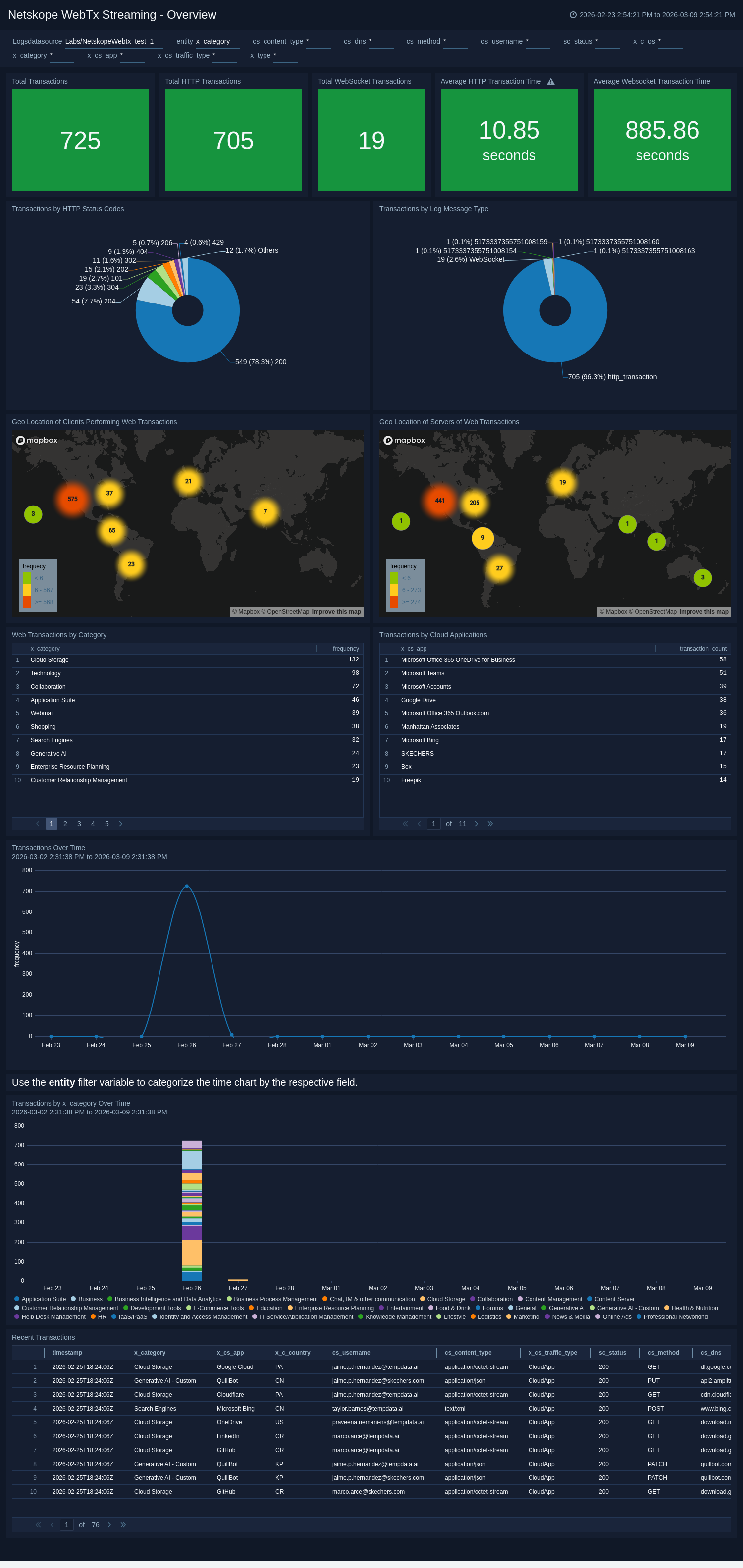
The Netskope WebTx Streaming - Overview dashboard in Sumo Logic provides a high-level view of web transaction activity, covering total transactions, HTTP and WebSocket volumes, and average response times. It includes geographic maps for client and server locations along with breakdowns by HTTP status, cloud applications, and web categories. Transaction trends over time and a recent transactions table give teams a single-pane view for operational monitoring and performance management.
Security Overview
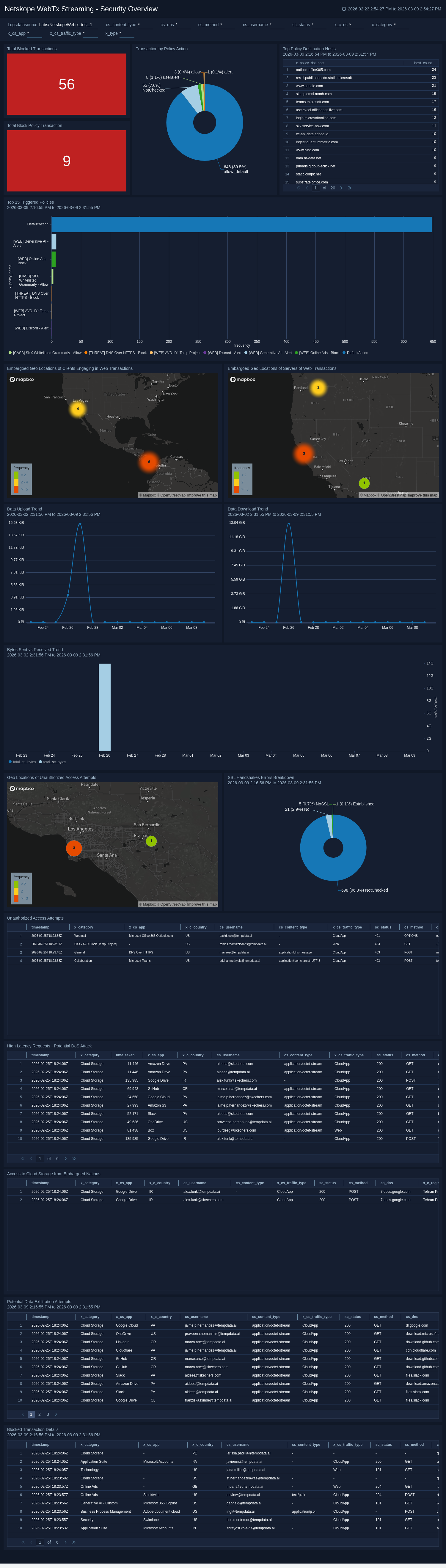
The Netskope WebTx Streaming - Security Overview dashboard in Sumo Logic delivers a focused view of web transaction security for network administrators and security teams. It highlights blocked transactions, triggered policies, unauthorized access attempts, and SSL errors, while surfacing risky geographic activity and potential data exfiltration. Upload and download trends provide additional context for data movement, making this dashboard essential for threat detection and compliance monitoring.
File Activity
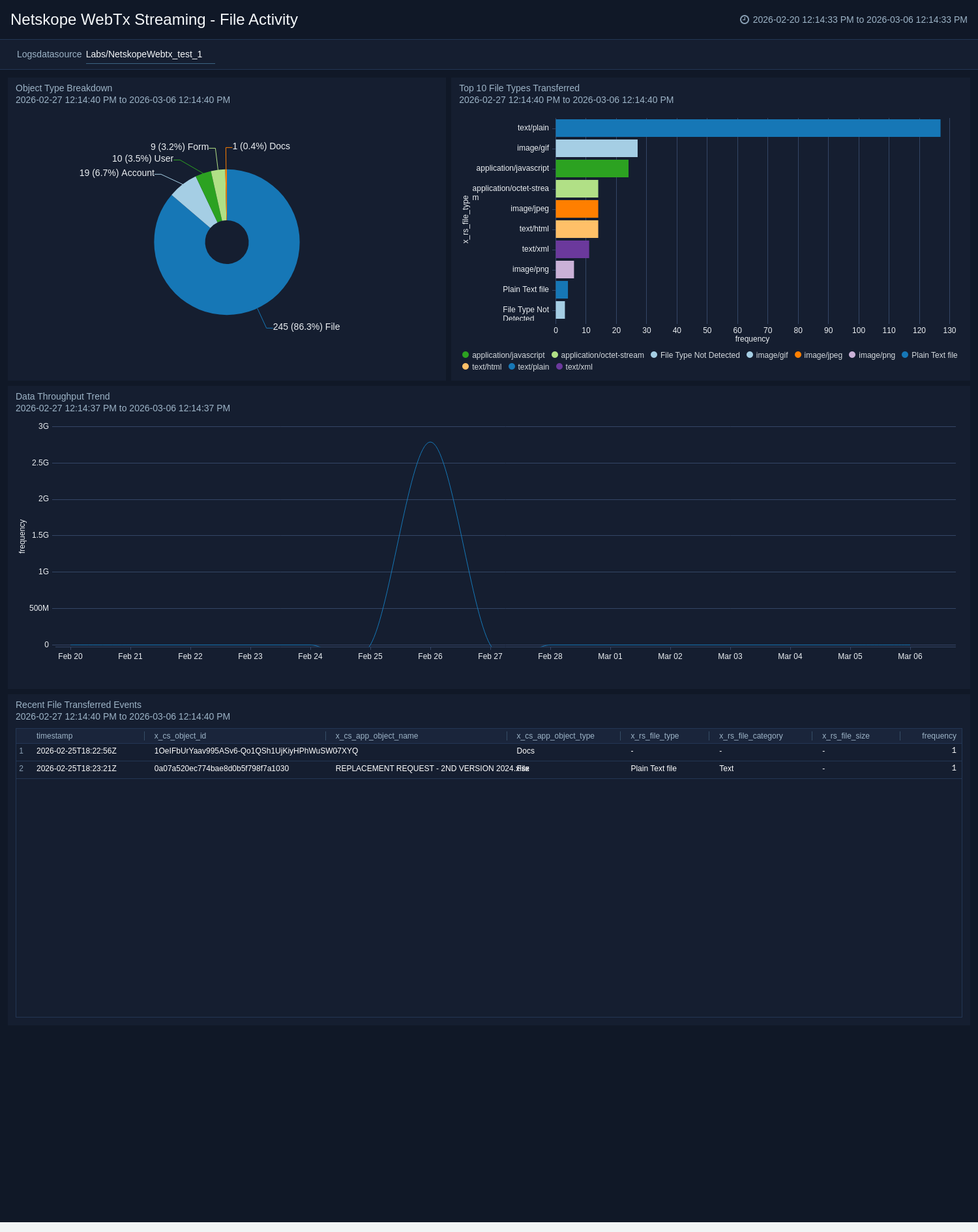
The Netskope WebTx Streaming - File Activity dashboard in Sumo Logic tracks file transfer activity across web transactions. It provides visibility into object type distributions, top file types transferred, and data throughput trends over time. A detailed recent file transfer events table captures object names, types, categories, and sizes, helping teams monitor data movement and support data loss prevention efforts.
Client and Network Insights
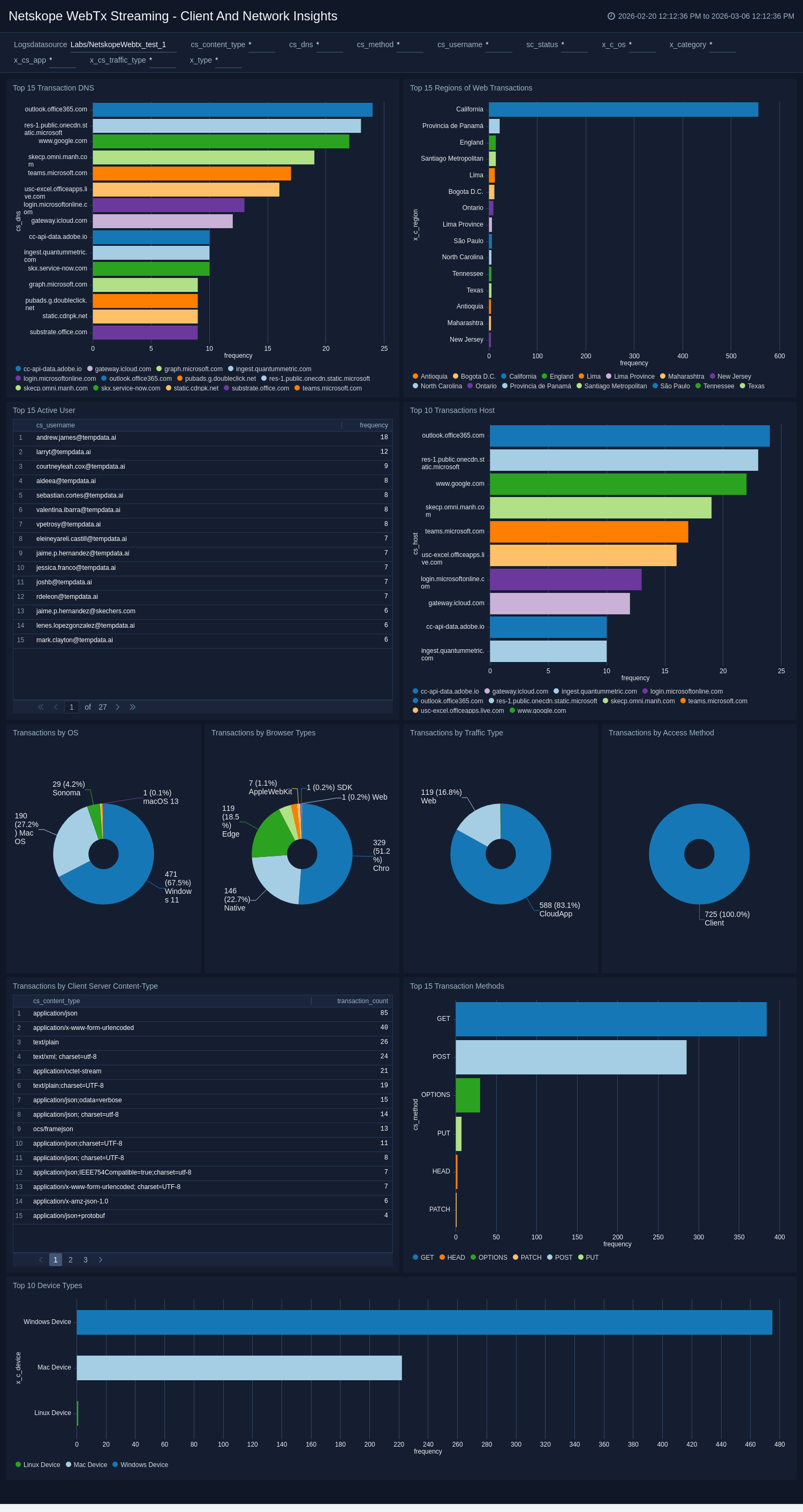
The Netskope WebTx Streaming - Client and Network Insights dashboard in Sumo Logic offers visibility into the network and client-side aspects of web transactions. It covers top DNS destinations, transaction hosts, geographic regions, HTTP methods, operating systems, browser types, device types, and access methods. These insights give network and IT teams the context needed to understand client diversity, traffic patterns, and access behaviors across the environment.
Users and Applications Overview
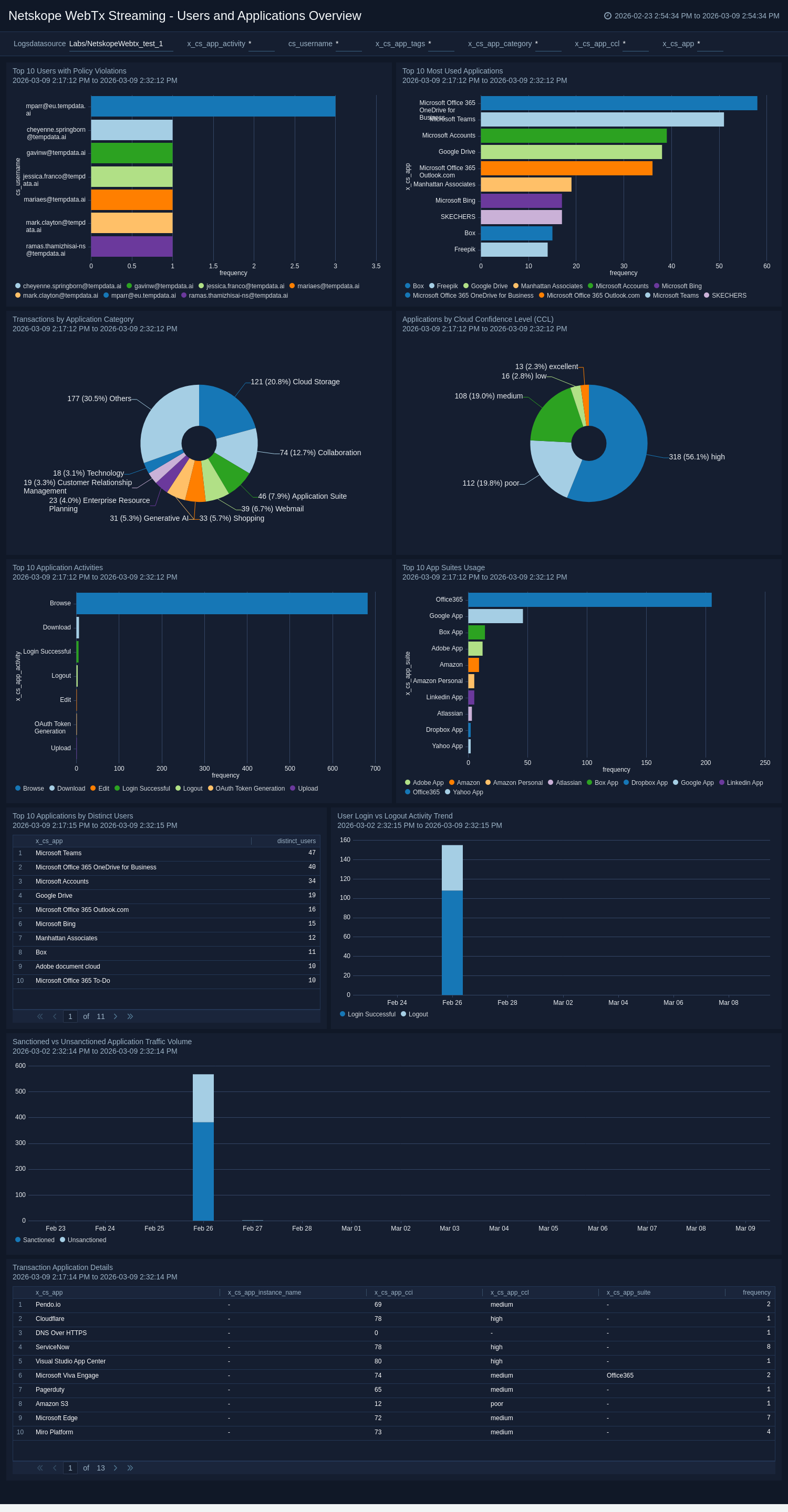
The Netskope WebTx Streaming - Users and Applications Overview dashboard in Sumo Logic provides visibility into user behavior and application usage across web traffic. It surfaces top users with policy violations, login and logout trends, most-used applications, and application categories. Sanctioned versus unsanctioned traffic comparisons and Cloud Confidence Level (CCL) ratings help teams manage shadow IT risk and enforce application governance policies.
Create monitors for Netskope WebTx Streaming app
From your App Catalog:
- From the Sumo Logic navigation, select App Catalog.
- In the Search Apps field, search for and then select your app.
- Make sure the app is installed.
- Navigate to What's Included tab and scroll down to the Monitors section.
- Click Create next to the pre-configured monitors. In the create monitors window, adjust the trigger conditions and notifications settings based on your requirements.
- Scroll down to Monitor Details.
- Under Location click on New Folder.
note
By default, monitor will be saved in the root folder. So to make the maintenance easier, create a new folder in the location of your choice.
- Enter Folder Name. Folder Description is optional.
tip
Using app version in the folder name will be helpful to determine the versioning for future updates.
- Click Create. Once the folder is created, click on Save.
Netskope WebTx Streaming alerts
| Name | Description | Trigger Type (Critical / Warning / MissingData) | Alert Condition |
|---|---|---|---|
Netskope WebTx Streaming - Embargoed Geo Locations of Clients Performing Web Transactions | This alert is triggered when access is detected and logged from client IP addresses geolocated in embargoed or sanctioned regions. This ensures compliance with regulations and corporate policies. | Critical | Count > 0 |
Netskope WebTx Streaming - Embargoed Geo Locations of Servers of Web Transactions | This alert is triggered when access is detected and logged from server IP addresses geolocated in embargoed or sanctioned regions. This ensures compliance with regulations and corporate policies. | Critical | Count > 0 |
Netskope WebTx Streaming - File Transfer to Embargoed Location | This alert is triggered when file transfers occur to embargoed or restricted geographic locations, flagging potential compliance violations or data-exfiltration risks for timely review and response. | Critical | Count > 0 |
Netskope WebTx Streaming - High Latency in Web Requests | This alert is triggered when web request response times exceed 5 seconds, which may indicate server overload, network issues, or a potential DDoS attack. You can adjust the threshold variable to match your requirements. | Critical | Count > 0 |
Netskope WebTx Streaming - Large Data Download Events | This alert is triggered when a download transaction exceeds an abnormally large size (greater than 500MB), helping detect potential data exfiltration or misuse of cloud storage services. You can also adjust the threshold variable in the monitor query to match your requirements. | Critical | Count > 0 |
Netskope WebTx Streaming - Sanctioned Application Access Detected | This alert is triggered when users access cloud applications tagged as “Sanctioned” beyond a defined threshold, indicating possible shadow IT usage that violates organizational policy. | Warning | Count > 5 |
Netskope WebTx Streaming - Suspicious Login from Unusual Location | This alert is triggered when logins originate from geographic locations that deviate from typical user behavior patterns, which may indicate account compromise or unauthorized access. | Critical | Count > 0 |
Netskope WebTx Streaming - Unauthorized Access Attempts | This alert is triggered when unauthorized access attempts (401/403) are detected in web transactions, highlighting unusually frequent failures across users or devices for timely investigation. | Critical | Count > 2 |
Upgrading/Downgrading the Netskope WebTx Streaming app (Optional)
To update the app, do the following:
Next-Gen App: To install or update the app, you must be an account administrator or a user with Manage Apps, Manage Monitors, Manage Fields, Manage Metric Rules, and Manage Collectors capabilities depending upon the different content types part of the app.
- Select App Catalog.
- In the Search Apps field, search for and then select your app.
Optionally, you can identify apps that can be upgraded in the Upgrade available section. - To upgrade the app, select Upgrade from the Manage dropdown.
- If the upgrade does not have any configuration or property changes, you will be redirected to the Preview & Done section.
- If the upgrade has any configuration or property changes, you will be redirected to the Setup Data page.
- In the Configure section of your respective app, complete the following fields.
- Field Name. If you already have collectors and sources set up, select the configured metadata field name (eg _sourcecategory) or specify other custom metadata (eg: _collector) along with its metadata Field Value.
- Click Next. You will be redirected to the Preview & Done section.
Post-update
Your upgraded app will be installed in the Installed Apps folder and dashboard panels will start to fill automatically.
See our Release Notes changelog for new updates in the app.
To revert the app to a previous version, do the following:
- Select App Catalog.
- In the Search Apps field, search for and then select your app.
- To version down the app, select Revert to < previous version of your app > from the Manage dropdown.
Uninstalling the Netskope WebTx Streaming app (Optional)
To uninstall the app, do the following:
- Select App Catalog.
- In the 🔎 Search Apps field, run a search for your desired app, then select it.
- Click Uninstall.