 Meet the new
 Tenable

The Tenable app empowers security professionals to gain comprehensive visibility and actionable insights into your organization's security posture by leveraging data from the Tenable Vulnerabilities API, Audit Events API, and Asset API. This integration enables you to proactively monitor, analyze, and respond to security vulnerabilities and audit events, helping you strengthen your cybersecurity defenses and reduce risk.
Key features of the Tenable app include:
- Vulnerability Assessment. Harness the Tenable Vulnerabilities API to perform in-depth vulnerability assessments across your infrastructure. This app provides a range of security use cases for vulnerabilities, including:
- Tracking Vulnerabilities Over Time. Monitor the evolution of vulnerabilities over time, from their initial discovery to resolution.
- Identifying High-Severity Vulnerabilities. Quickly pinpoint and prioritize high-severity vulnerabilities that require immediate attention.
- Identifying Affected Hosts. Easily locate hosts affected by specific vulnerabilities and streamline remediation efforts.
- Checking for Exploitation. Detect exploit availability and malware exploitation related to vulnerabilities.
- Audit Event Monitoring. Leverage the Tenable Audit Events API to monitor and analyze critical audit events within your organization. This app delivers valuable insights, including:
- Real-time Event Analysis. Monitor audit events in real time to enable rapid incident response.
- Suspicious Activity Detection. Identify suspicious or unauthorized activities across your network and systems.
- Compliance Reporting. Streamline compliance monitoring by tracking events relevant to regulatory requirements.
- User Behavior Analysis. Gain visibility into user behavior patterns and potential security risks.
- Asset Event Monitoring. Leverage the Tenable Assets Export API to gain comprehensive visibility into all assets across your infrastructure. This app provides a range of asset management use cases, including:
- Asset Discovery & Lifecycle Tracking. Track new, terminated, and deleted assets to maintain a complete and current inventory.
- Operating System & System Type Breakdown. View the distribution of operating systems and system types to support patching and compliance.
- Scan Source & Agent Coverage. Monitor how assets are discovered and identify gaps in agent deployment across your environment.
- Asset Trend Analysis. Track asset trends over time across network, OS, scan source, and agent coverage dimensions.
- Enhanced Security Posture. By combining data from the Tenable Vulnerabilities API, Audit Events API, and Asset Events API, you can strengthen your organization's security posture by proactively addressing vulnerabilities and monitoring security incidents.
- Risk Reduction. Identify and promptly mitigate high-severity vulnerabilities and security threats to reduce the risk of security breaches.
- Efficient Remediation. Locate affected hosts and prioritize remediation efforts to streamline the process of securing your environment.
- Compliance Assurance. Simplify compliance monitoring and reporting by tracking relevant audit events and security controls.
- Real-time Insights. Gain real-time insights into your security environment to enable rapid incident response and threat containment.
Log types
This app uses Tenable source to collect Vulnerabilities data, Audit Events and Asset API from the Tenable platform.
Sample log messages
Refer to the Tenable API documentation for Vulnerabilities data, Audit Events, and Asset API log messages.
Sample queries
={{Logsdatasource}} finding_id severity
| json "finding_id", "severity", "state", "asset.hostname", "plugin.family", "plugin.type" as id, severity, state, hostname, plugin_family, plugin_type nodrop
| where !isBlank(plugin_type)
// global filters
| where severity matches "{{severity}}" and state matches "{{state}}" and hostname matches "{{hostname}}" and plugin_family matches "{{plugin_family}}"
| count by id, severity
| count by severity
| sort by _count, severity asc
={{Logsdatasource}} crud action
| json "id", "action","actor.name","crud" as id, action, actor_name, crud nodrop
| where !isEmpty(action)
// global filters
| where action matches "{{action}}" and actor_name matches "{{actor_name}}" and crud matches "{{crud}}"
| timeslice 1h
| count by id, _timeslice, action
| count as count by _timeslice, action
| transpose row _timeslice column action
| fillmissing timeslice
={{Logsdatasource}} first_seen id
| json "id", "operating_systems[0]" as id, os nodrop
// global filters
| where os matches "{{os}}"
| count by id
| count
Collection configuration and app installation
Depending on the set up collection method, you can configure and install the app in three ways:
- Create a new collector and install the app. Create a new Sumo Logic Cloud-to-Cloud (C2C) source under a new Sumo Logic Collector and later install the app, or
- Use an existing collector and install the app. Create a new Sumo Logic Cloud-to-Cloud (C2C) source under an existing Sumo Logic Collector and later install the app, or
- Use existing source and install the app. Use your existing configured Sumo Logic Cloud-to-Cloud (C2C) source and install the app.
Use the Cloud-to-Cloud Integration for Tenable to create the source and use the same source category while installing the app. By following these steps, you can ensure that your Tenable app is properly integrated and configured to collect and analyze your Tenable data.
Create a new collector and install the app
To set up collection and install the app, do the following:
Next-Gen App: To install or update the app, you must be an account administrator or a user with Manage Apps, Manage Monitors, Manage Fields, Manage Metric Rules, and Manage Collectors capabilities depending upon the different content types part of the app.
- Select App Catalog.
- In the 🔎 Search Apps field, run a search for your desired app, then select it.
- Click Install App.
note
Sometimes this button says Add Integration.
- In the Set Up Collection section of your respective app, select Create a new Collector.
- Collector Name. Enter a Name to display the Source in the Sumo Logic web application. The description is optional.
- Timezone. Set the default time zone when it is not extracted from the log timestamp. Time zone settings on Sources override a Collector time zone setting.
- (Optional) Metadata. Click the +Add Metadata link to add a custom log Metadata Fields. Define the fields you want to associate, each metadata field needs a name (key) and value.
 A green circle with a checkmark is shown when the field exists and is enabled in the Fields table schema.
 An orange triangle with an exclamation point is shown when the field doesn't exist, or is disabled in the Fields table schema. In this case, you'll see an option to automatically add or enable the nonexistent fields to the Fields table schema. If a field is sent to Sumo Logic but isn’t present or enabled in the schema, it’s ignored and marked as Dropped.
- Click Next.
- Configure the source as specified in the
Infobox above, ensuring all required fields are included. - In the Configure section of your respective app, complete the following fields.
- Field Name. If you already have collectors and sources set up, select the configured metadata field name (eg _sourcecategory) or specify other custom metadata (eg: _collector) along with its metadata Field Value.
- Click Next. You will be redirected to the Preview & Done section.
Post-installation
Once your app is installed, it will appear in your Installed Apps folder, and dashboard panels will start to fill automatically.
Each panel slowly fills with data matching the time range query received since the panel was created. Results will not immediately be available but will be updated with full graphs and charts over time.
Use an existing collector and install the app
To set up the source in the existing collector and install the app, do the following:
Next-Gen App: To install or update the app, you must be an account administrator or a user with Manage Apps, Manage Monitors, Manage Fields, Manage Metric Rules, and Manage Collectors capabilities depending upon the different content types part of the app.
- Select App Catalog.
- In the 🔎 Search Apps field, run a search for your desired app, then select it.
- Click Install App.
note
Sometimes this button says Add Integration.
- In the Set Up Collection section of your respective app, select Use an existing Collector.
- From the Select Collector dropdown, select the collector that you want to set up your source with and click Next.
- Configure the source as specified in the
Infobox above, ensuring all required fields are included. - In the Configure section of your respective app, complete the following fields.
- Field Name. If you already have collectors and sources set up, select the configured metadata field name (eg _sourcecategory) or specify other custom metadata (eg: _collector) along with its metadata Field Value.
- Click Next. You will be redirected to the Preview & Done section.
Post-installation
Once your app is installed, it will appear in your Installed Apps folder, and dashboard panels will start to fill automatically.
Each panel slowly fills with data matching the time range query received since the panel was created. Results will not immediately be available but will be updated with full graphs and charts over time.
Use an existing source and install the app
To skip collection and only install the app, do the following:
Next-Gen App: To install or update the app, you must be an account administrator or a user with Manage Apps, Manage Monitors, Manage Fields, Manage Metric Rules, and Manage Collectors capabilities depending upon the different content types part of the app.
- Select App Catalog.
- In the 🔎 Search Apps field, run a search for your desired app, then select it.
- Click Install App.
note
Sometimes this button says Add Integration.
- In the Set Up Collection section of your respective app, select Skip this step and use existing source and click Next.
- In the Configure section of your respective app, complete the following fields.
- Field Name. If you already have collectors and sources set up, select the configured metadata field name (eg _sourcecategory) or specify other custom metadata (eg: _collector) along with its metadata Field Value.
- Click Next. You will be redirected to the Preview & Done section.
Post-installation
Once your app is installed, it will appear in your Installed Apps folder, and dashboard panels will start to fill automatically.
Each panel slowly fills with data matching the time range query received since the panel was created. Results will not immediately be available but will be updated with full graphs and charts over time.
Viewing Tenable dashboards
All dashboards have a set of filters that you can apply to the entire dashboard. Use these filters to drill down and examine the data to a granular level.
- You can change the time range for a dashboard or panel by selecting a predefined interval from a drop-down list, choosing a recently used time range, or specifying custom dates and times. Learn more.
- You can use template variables to drill down and examine the data on a granular level. For more information, see Filtering Dashboards with Template Variables.
- Most Next-Gen apps allow you to provide the scope at the installation time and are comprised of a key (
_sourceCategoryby default) and a default value for this key. Based on your input, the app dashboards will be parameterized with a dashboard variable, allowing you to change the dataset queried by all panels. This eliminates the need to create multiple copies of the same dashboard with different queries.
Overview
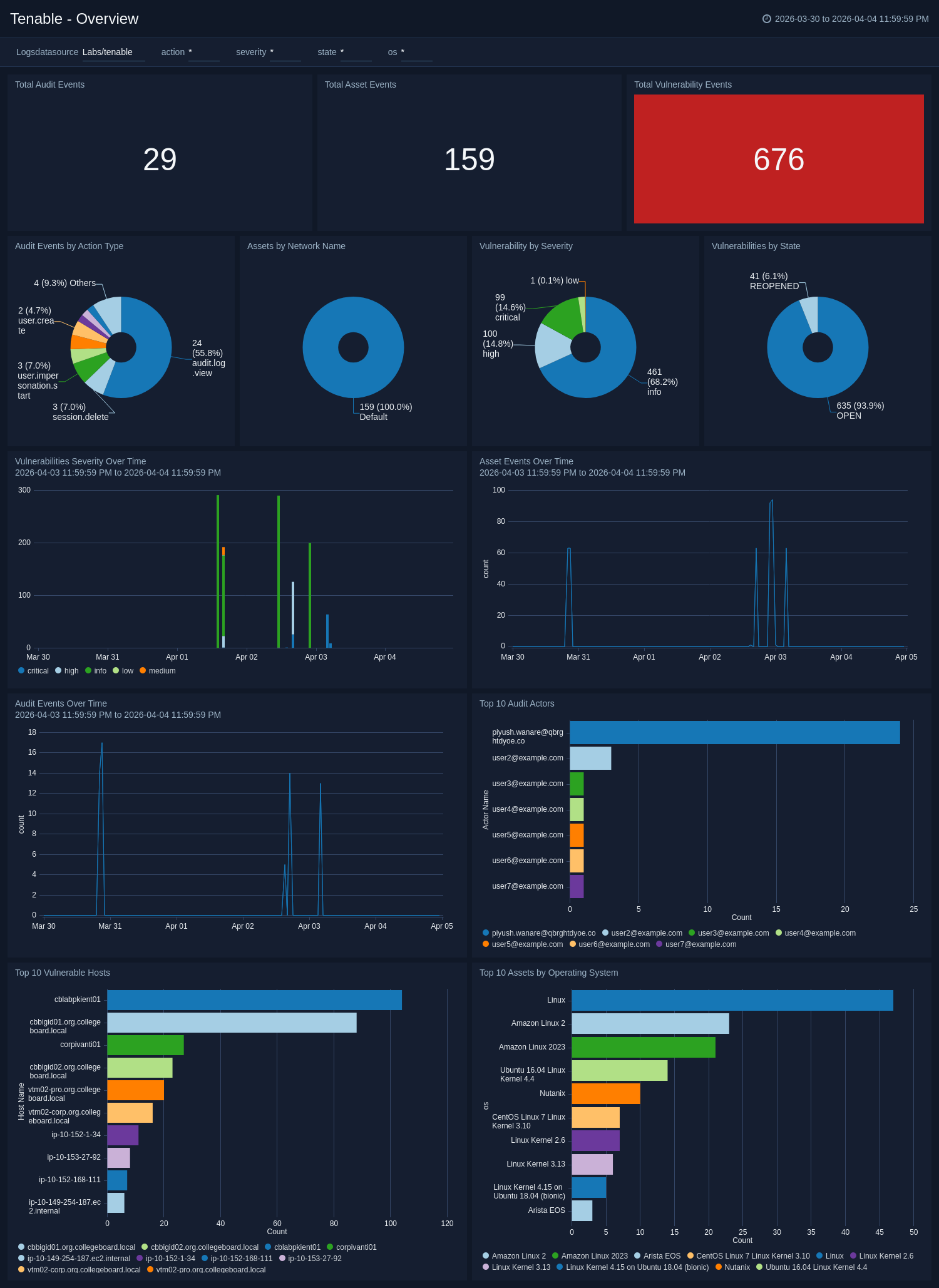
The Tenable - Overview dashboard gives an overview of Tenable audit events, asset inventory, and vulnerability findings. Use this dashboard to monitor overall security posture across all Tenable data sources.
Vulnerability Analysis
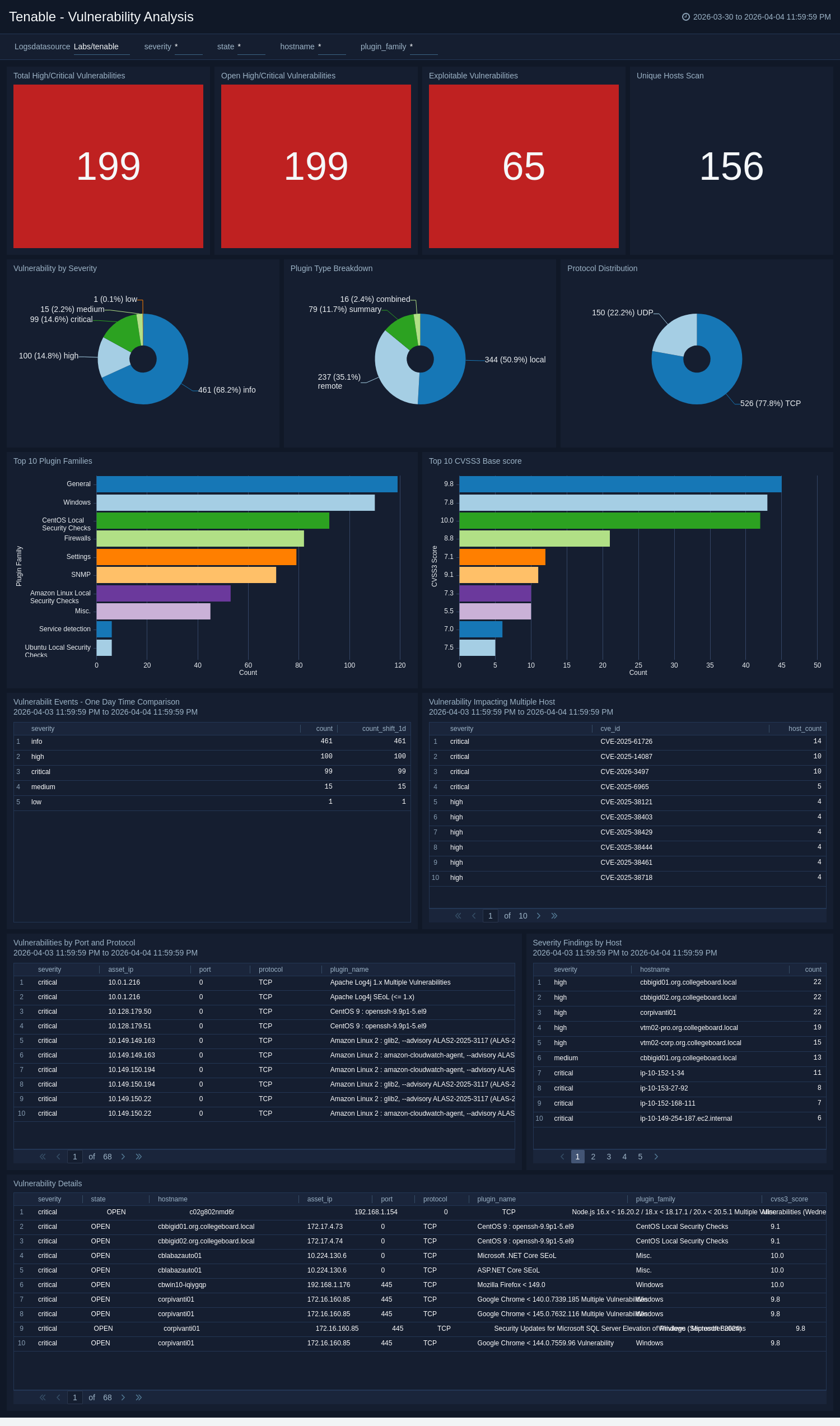
The Tenable - Vulnerability Analysis dashboard provides in-depth vulnerability assessments across your infrastructure. Use this dashboard to identify and prioritize vulnerabilities, track remediation efforts, and monitor trends in vulnerability data to strengthen your organization's security posture.
Audit Activity
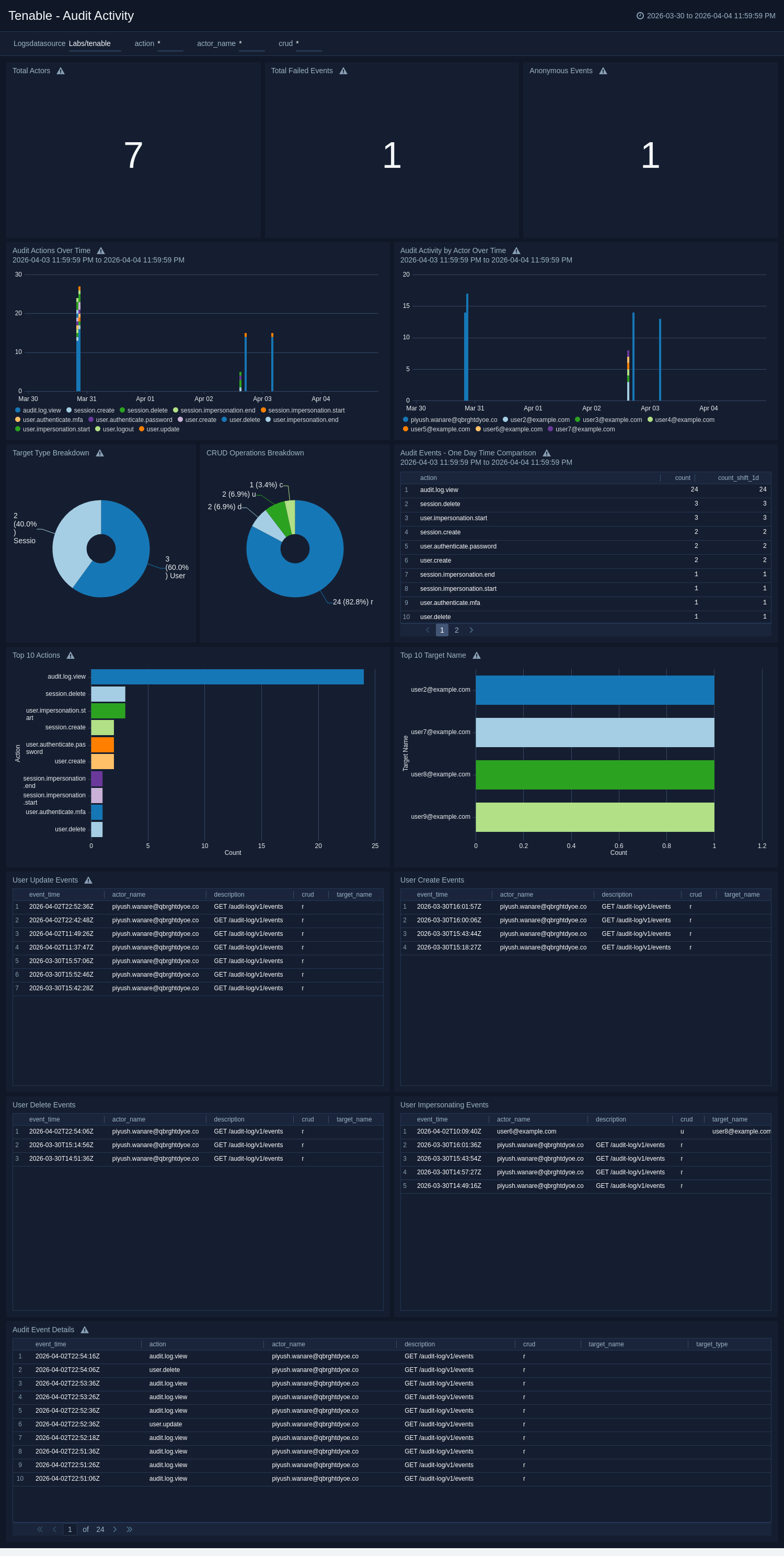
The Tenable - Audit Activity dashboard leverages the Tenable Audit Events API to monitor and analyze critical audit events within your organization. Use this dashboard to track user activities, system changes, and security events, enabling you to identify potential security incidents and ensure compliance with regulatory requirements.
Asset Inventory
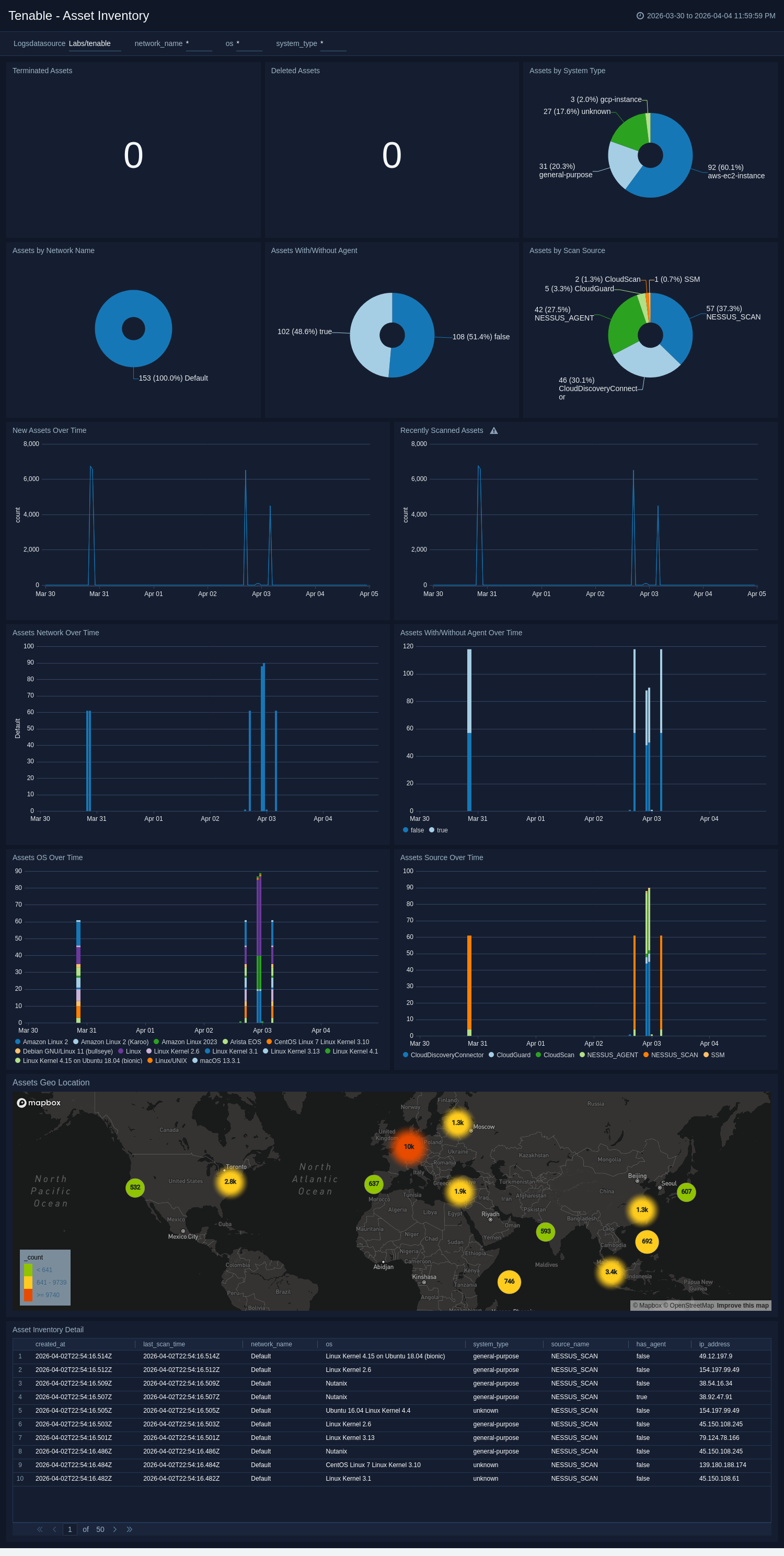
The Tenable - Asset Inventory dashboard provides a view of Tenable asset data, including operating system distribution, network segmentation, scan sources, and geo location. Use this dashboard to track asset coverage and inventory health.
Create monitors for Tenable app
From your App Catalog:
- From the Sumo Logic navigation, select App Catalog.
- In the Search Apps field, search for and then select your app.
- Make sure the app is installed.
- Navigate to What's Included tab and scroll down to the Monitors section.
- Click Create next to the pre-configured monitors. In the create monitors window, adjust the trigger conditions and notifications settings based on your requirements.
- Scroll down to Monitor Details.
- Under Location click on New Folder.
note
By default, monitor will be saved in the root folder. So to make the maintenance easier, create a new folder in the location of your choice.
- Enter Folder Name. Folder Description is optional.
tip
Using app version in the folder name will be helpful to determine the versioning for future updates.
- Click Create. Once the folder is created, click on Save.
Tenable alerts
| Name | Description | Trigger Type (Critical / Warning / MissingData) | Alert Condition |
|---|---|---|---|
Tenable - High or Critical Severity Alerts | Monitors and highlights high or critical severity detections for tenable. | Critical | Count > 3 |
Tenable - Multiple High or Critical Severity Detections from Single Host | Monitors and highlights high or critical severity detections for a single host. | Critical | Count > 0 |
Upgrade/Downgrade the Tenable app (Optional)
To update the app, do the following:
Next-Gen App: To install or update the app, you must be an account administrator or a user with Manage Apps, Manage Monitors, Manage Fields, Manage Metric Rules, and Manage Collectors capabilities depending upon the different content types part of the app.
- Select App Catalog.
- In the Search Apps field, search for and then select your app.
Optionally, you can identify apps that can be upgraded in the Upgrade available section. - To upgrade the app, select Upgrade from the Manage dropdown.
- If the upgrade does not have any configuration or property changes, you will be redirected to the Preview & Done section.
- If the upgrade has any configuration or property changes, you will be redirected to the Setup Data page.
- In the Configure section of your respective app, complete the following fields.
- Field Name. If you already have collectors and sources set up, select the configured metadata field name (eg _sourcecategory) or specify other custom metadata (eg: _collector) along with its metadata Field Value.
- Click Next. You will be redirected to the Preview & Done section.
Post-update
Your upgraded app will be installed in the Installed Apps folder and dashboard panels will start to fill automatically.
See our Release Notes changelog for new updates in the app.
To revert the app to a previous version, do the following:
- Select App Catalog.
- In the Search Apps field, search for and then select your app.
- To version down the app, select Revert to < previous version of your app > from the Manage dropdown.
Uninstalling the Tenable app (Optional)
To uninstall the app, do the following:
- Select App Catalog.
- In the 🔎 Search Apps field, run a search for your desired app, then select it.
- Click Uninstall.