 Meet the new
 Auth0

Auth0 is a cloud-based, extensible identity provider for applications. The Sumo Logic App for Auth0 makes it easy to analyze and visualize your Auth0 event logs and provides insight into security and operational issues.
For more information, see Use Auth0 App for Sumo Logic in the Auth0 documentation.
Collecting logs for Auth0
This procedure explains how to collect error logs from Auth0.
Sumo Logic collects the following log types:
- Logins, both successes and failures
- Token exchanges, both successes and failures
- Warnings during logins
- User deletion
- Login failure reasons
- Connection errors
- User signup events
- Verification email events
- Password changes
- Rate limiting events
- Other operational events and errors
For more information about Auth0 logs, see Search Log Events in the Auth0 documentation.
Prerequisites
Use the Auth0 Management Portal to configure the extension. For more information, see Sumo Logic in the Auth0 documentation.
Configure a collector
Configure a hosted collector. Follow the directions in Configure a Hosted Collector and Source.
Configure a source
Configure a source on the collector. Follow the directions in Configure an HTTP Logs and Metrics Source.
Provide the required details in the fields below:
- Name
- Source Category
- Select Forward to SIEM if you have Cloud SIEM installed and you want to forward log data to Cloud SIEM. If you select Forward to SIEM, also click the +Add link and add a field whose name is
_parserwith value /Parsers/System/Auth0/Auth0. - Timestamp Parsing
- Select Extract timestamp information from log file entries.
- Default Timezone. Select the default time zone to use. Logs are sent in UTC by default and can be automatically detected.
- Timestamp Format. Select Specify a format. Click Add Timestamp Format and enter the following:
- Format:
yyyy-MM-dd'T'HH:mm:ss.SSS'Z' - Timestamp locator:
"date":"(.*?)\","
- Format:
- Message Processing
- Select Multiline Processing.
- For Infer Message Boundaries select Detect Automatically.
Use Field Extraction Rules
Parse Expression: json "date", "type", "client_id", "client_name", "ip", "user_id"
Sample log messages
{
   "log_id": "17809212622791780921262279178092126227917809212622794542",
   "data": {
      "date": "2026-06-08T17:51:02.279Z",
      "type": "s",
      "connection": "enterprise-db",
      "connection_id": "con_nD3XkfFNuYUPnmbp",
      "client_id": "7RyK6txXYPZTQGOAwwln6Eoie0gVZ2cu",
      "client_name": "CloudSync Platform",
      "ip": "fd64:3716:2209:2708::2273",
      "user_agent": "Mozilla/5.0 (Windows NT 10.0; Win64; x64) AppleWebKit/537.36 (KHTML, like Gecko) Chrome/142.132.236.84 Safari/537.36",
      "details": {
         "prompts": [
            {
               "name": "prompt-authenticate",
               "completedAt": 1780921262279,
               "connection": "enterprise-db",
               "connection_id": "con_nD3XkfFNuYUPnmbp",
               "strategy": "auth0",
               "identity": 99716766,
               "stats": {
                  "loginsCount": 42
               },
               "elapsedTime": null
            },
            {
               "name": "login",
               "flow": "universal-login",
               "initiatedAt": 1780921262279,
               "completedAt": 1780921262279,
               "user_id": "auth0|31148744",
               "user_name": "system_proc",
               "timers": {
                  "rules": 70
               },
               "elapsedTime": 5864
            }
         ],
         "initiatedAt": 1780921262279,
         "completedAt": 1780921262279,
         "elapsedTime": 6110,
         "actions": {
            "executions": [
               "jp8LFtSdXIVcIeKjcTXnTNJ75zZ3h7kBftk1n1Vu8BD2LTbzx7JZqh4u"
            ]
         },
         "session_id": "95W6HDLrCRBtqevKPcQlvkphsqHoTh6w",
         "riskAssessment": {
            "confidence": "high",
            "version": "1",
            "assessments": {
               "UntrustedIP": {
                  "confidence": "high",
                  "code": "not_found_on_deny_list"
               },
               "NewDevice": {
                  "confidence": "high",
                  "code": "match",
                  "details": {
                        "device": "known",
                        "useragent": "known"
                  }
               },
               "ImpossibleTravel": {
                  "confidence": "high",
                  "code": "location_history_not_found"
               },
               "PhoneNumber": {
                  "confidence": "neutral",
                  "code": "phone_number_not_provided"
               }
            }
         },
         "transaction_id": "vTQ7fuKBzA1709dk1J50WcGZotESeIlr",
         "session": {
            "cookie": {
               "mode": "persistent"
            }
         },
         "form": {
            "ulp-rememberUsername": "on"
         },
         "stats": {
            "loginsCount": 42
         }
      },
      "security_context": {
         "ja3": "a1ffa339ba0853d979d34a96ac9e4b6b",
         "ja4": "ca390ac92e1f55546a8faaacc6d553bcd190"
      },
      "hostname": "auth.acmecorp.com",
      "user_id": "auth0|31148744",
      "user_name": "system_proc",
      "strategy": "auth0",
      "strategy_type": "database",
      "location_info": {
         "latitude": 32.6713,
         "longitude": -111.5766,
         "country_code": "US",
         "country_name": "United States",
         "city_name": "Tucson",
         "subdivision_code": "AZ",
         "subdivision_name": "Arizona",
         "continent_code": "NA",
         "time_zone": "America/Phoenix",
         "country_code3": "USA"
      },
      "$event_schema": {
         "version": "1.0.0"
      },
      "environment_name": "env-region-4",
      "log_id": "17809212622791780921262279178092126227917809212622794542",
      "tenant_name": "nova-prod02"
   }
}
Sample queries
={{Logsdatasource}} log_id
| json "data", "log_id", "detail.data", "detail.log_id" as data, log_id, data2, log_id2 nodrop
| if (!isEmpty(data), data, data2) as data
| if (!isEmpty(log_id), log_id, log_id2) as log_id
| json field=data "type", "user_name", "client_name", "connection", "ip" as type, user_name, client_name, connection, ip nodrop
// global filters
| where type matches "{{type}}" and user_name matches "{{user_name}}" and client_name matches "{{client_name}}" and connection matches "{{connection}}" and ip matches "{{ip}}"
// panel specific
| count by log_id
| count
={{Logsdatasource}} log_id type ("s" OR "fp" OR "fu")
| json "data", "log_id", "detail.data", "detail.log_id" as data, log_id, data2, log_id2 nodrop
| if (!isEmpty(data), data, data2) as data
| if (!isEmpty(log_id), log_id, log_id2) as log_id
| json field=data "type", "user_name", "client_name", "connection", "ip" as type, user_name, client_name, connection, ip nodrop
// global filters
| where type matches "{{type}}" and ip matches "{{ip}}"
| where if ("{{user_name}}" = "*", true, user_name matches "{{user_name}}")
| where if ("{{client_name}}" = "*", true, client_name matches "{{client_name}}")
// panel specific
| where !isBlank(type) and type in ("s", "fp", "fu")
| if(type = "s", "success", "failure") as login_result
| timeslice 1h
| count by log_id, _timeslice, login_result
| count by _timeslice, login_result
| fillmissing timeslice, values all in login_result
| transpose row _timeslice column login_result
={{Logsdatasource}} user_agent
| json "data", "log_id", "detail.data", "detail.log_id" as data, log_id, data2, log_id2 nodrop
| if (!isEmpty(data), data, data2) as data
| if (!isEmpty(log_id), log_id, log_id2) as log_id
| json field=data "type", "user_name", "user_agent" as type, user_name, user_agent nodrop
// Global filter
| where if("{{type}}" = "*", true, type matches "{{type}}")
| where if("{{user_name}}" = "*", true, user_name matches "{{user_name}}")
// Panel specific
| where !isBlank(user_agent)
| count by log_id, user_agent
| count as frequency by user_agent
| sort by frequency, user_agent asc
Installing the Auth0 App
Now that you have set up collection for Auth0, install the Sumo Logic App for Auth0 to use the preconfigured searches and dashboards that provide insight into your data.
To install the app:
- Select App Catalog.
- In the 🔎 Search Apps field, run a search for your desired app, then select it.
- Click Install App.
note
Sometimes this button says Add Integration.
- On the next configuration page, under Select Data Source for your App, complete the following fields:
- Data Source. Select one of the following options:
- Choose Source Category and select a source category from the list; or
- Choose Enter a Custom Data Filter, and enter a custom source category beginning with an underscore. For example,
_sourceCategory=MyCategory.
- Folder Name. You can retain the existing name or enter a custom name of your choice for the app.
- All Folders (optional). The default location is the Personal folder in your Library. If desired, you can choose a different location and/or click New Folder to add it to a new folder.
- Data Source. Select one of the following options:
- Click Next.
- Look for the dialog confirming that your app was installed successfully.

Post-installation
Once your app is installed, it will appear in your Personal folder or the folder that you specified. From here, you can share it with other users in your organization. Dashboard panels will automatically start to fill with data matching the time range query received since you created the panel. Results won't be available immediately, but within about 20 minutes, you'll see completed graphs and maps.
Viewing the Auth0 dashboards
All dashboards have a set of filters that you can apply to the entire dashboard. Use these filters to drill down and examine the data to a granular level.
- You can change the time range for a dashboard or panel by selecting a predefined interval from a drop-down list, choosing a recently used time range, or specifying custom dates and times. Learn more.
- You can use template variables to drill down and examine the data on a granular level. For more information, see Filtering Dashboards with Template Variables.
- Most Next-Gen apps allow you to provide the scope at the installation time and are comprised of a key (
_sourceCategoryby default) and a default value for this key. Based on your input, the app dashboards will be parameterized with a dashboard variable, allowing you to change the dataset queried by all panels. This eliminates the need to create multiple copies of the same dashboard with different queries.
Overview
The Auth0 - Overview dashboard provides insights into authentication activity, tracking login geo locations on a world map and visualizing login attempts per hour over the last seven days. It highlights the top users by successful and failed logins, as well as the most frequent source IPs for failed logins, helping to identify potential security threats.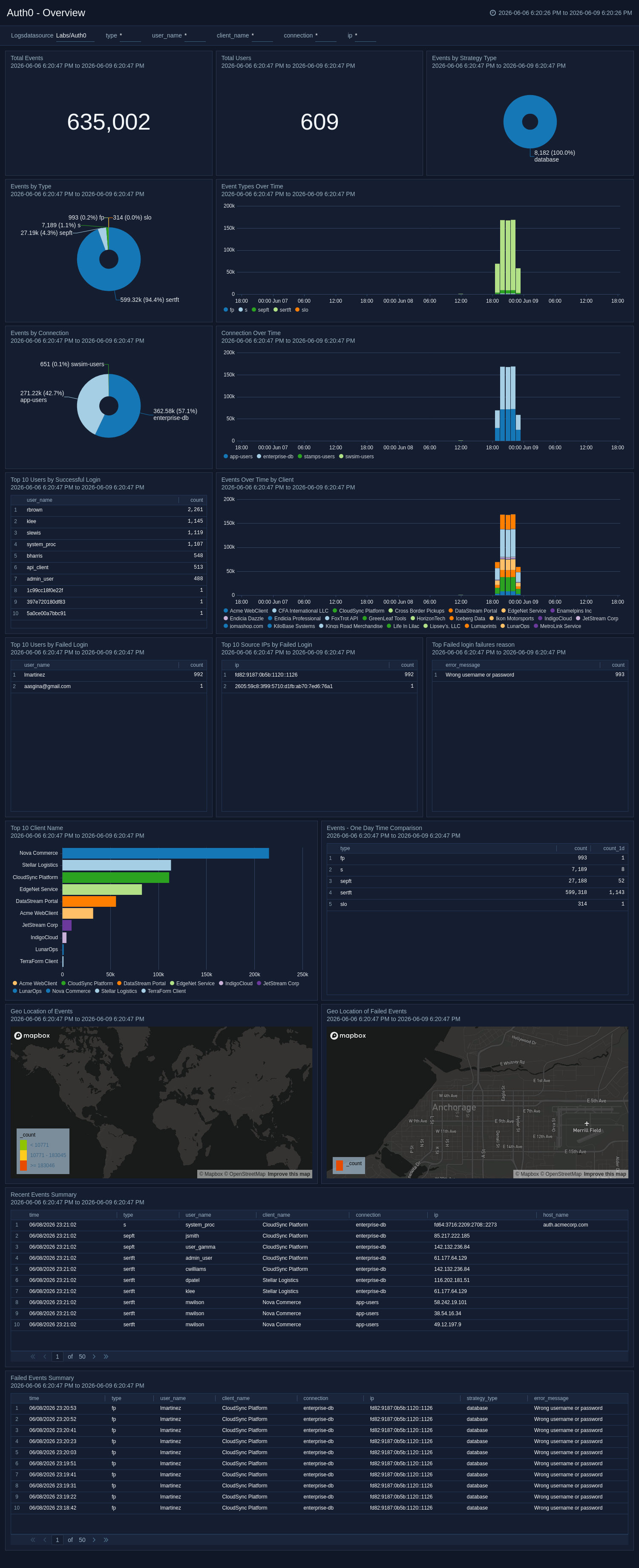
Security Analysis
The Auth0 - Security Analysis dashboard delivers security-focused analysis of Auth0 authentication events, including risk assessments, new device detection, impossible travel indicators, and login performance, to identify compromised accounts and suspicious access patterns.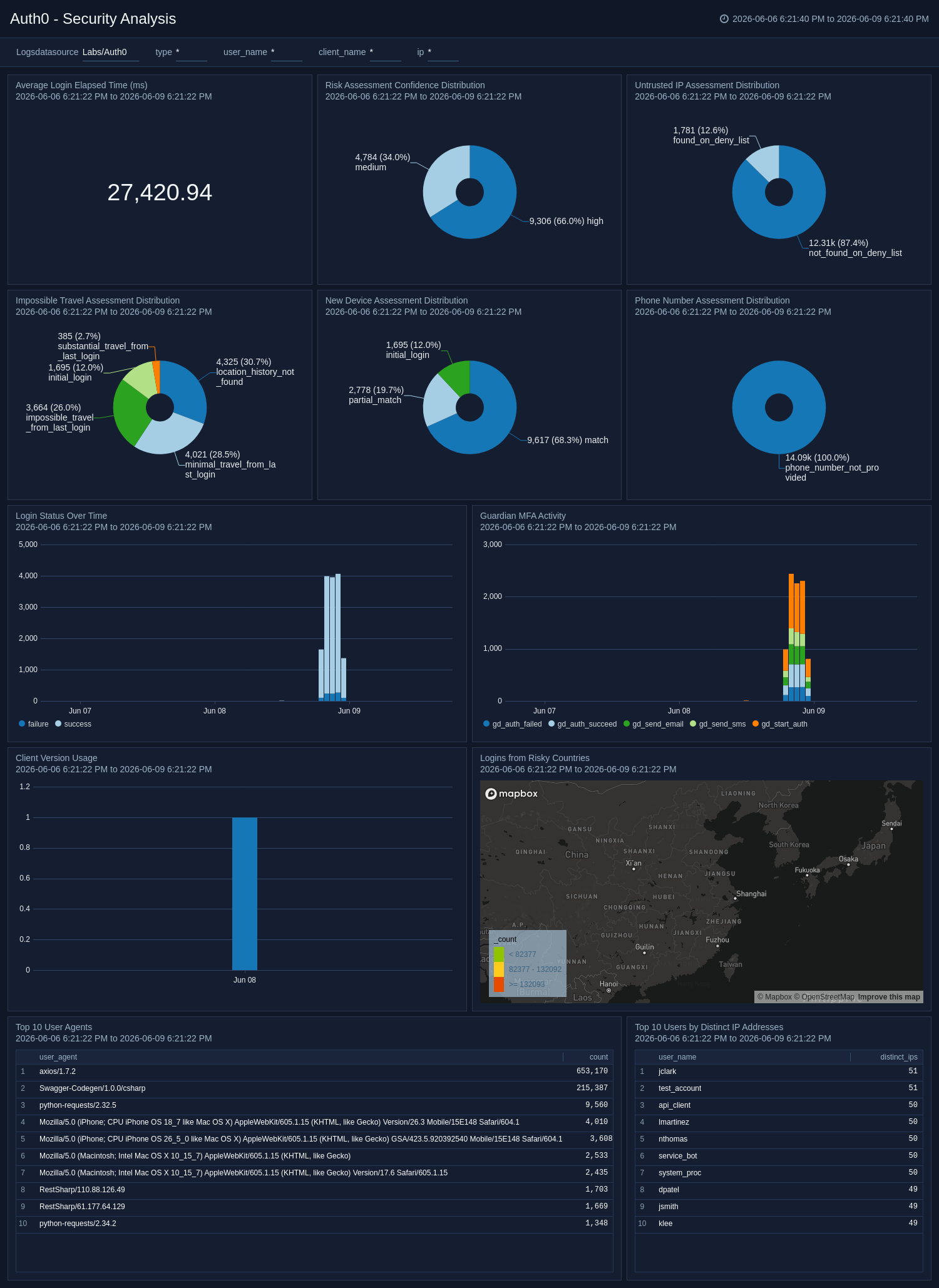
User Agent Analysis
The Auth0 - User Agent Analysis dashboard analyzes user agents, categorizing traffic by browser, operating system, platform, and whether it is automated or human-generated. It tracks user-agent activity trends, surfaces the top agents associated with failed activities, and highlights HTTP errors encountered by different client types. Category trend analysis helps teams identify unusual or unauthorized client tooling over time. Use this dashboard to detect bot activity, investigate suspicious client behaviour, and ensure that only approved tools and platforms access your environment.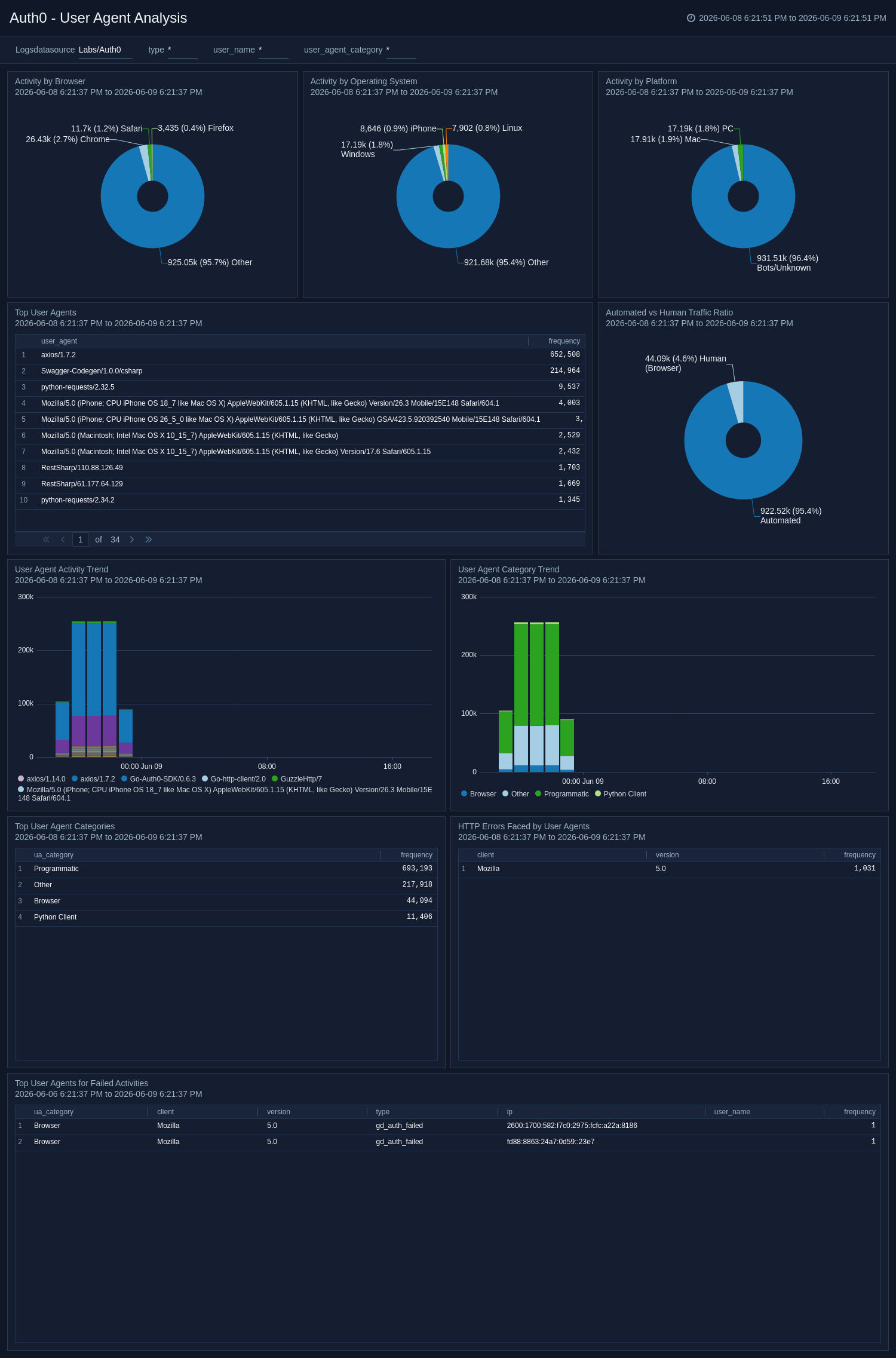
Create monitors for Auth0 app
From your App Catalog:
- From the Sumo Logic navigation, select App Catalog.
- In the Search Apps field, search for and then select your app.
- Make sure the app is installed.
- Navigate to What's Included tab and scroll down to the Monitors section.
- Click Create next to the pre-configured monitors. In the create monitors window, adjust the trigger conditions and notifications settings based on your requirements.
- Scroll down to Monitor Details.
- Under Location click on New Folder.
note
By default, monitor will be saved in the root folder. So to make the maintenance easier, create a new folder in the location of your choice.
- Enter Folder Name. Folder Description is optional.
tip
Using app version in the folder name will be helpful to determine the versioning for future updates.
- Click Create. Once the folder is created, click on Save.
Auth0 alerts
| Name | Description | Trigger Type (Critical / Warning / MissingData) | Alert Condition |
|---|---|---|---|
Auth0 - Events from Embargoed Locations | This alert is triggered when a login attempt or user action originates from an embargoed location, potentially indicating unauthorized access. Investigate the activity to verify its legitimacy and take appropriate action if malicious behavior is suspected. | Critical | Count > 0 |
Auth0 - Multiple Failed Authentication From Single User | This alert is triggered when multiple authentication failures are detected for a single user within a short time frame, which may indicate a brute-force attack, credential misuse, or user login issues. | Critical | Count > 3 |
Auth0 - Untrusted IP Detected | This alert is triggered when activity is observed from an untrusted IP address that is present on the configured deny list, indicating a potentially malicious or unauthorized source. | Critical | Count > 0 |
Upgrading the Auth0 app (optional)
To update the app, do the following:
Next-Gen App: To install or update the app, you must be an account administrator or a user with Manage Apps, Manage Monitors, Manage Fields, Manage Metric Rules, and Manage Collectors capabilities depending upon the different content types part of the app.
- Select App Catalog.
- In the Search Apps field, search for and then select your app.
Optionally, you can identify apps that can be upgraded in the Upgrade available section. - To upgrade the app, select Upgrade from the Manage dropdown.
- If the upgrade does not have any configuration or property changes, you will be redirected to the Preview & Done section.
- If the upgrade has any configuration or property changes, you will be redirected to the Setup Data page.
- In the Configure section of your respective app, complete the following fields.
- Field Name. If you already have collectors and sources set up, select the configured metadata field name (eg _sourcecategory) or specify other custom metadata (eg: _collector) along with its metadata Field Value.
- Click Next. You will be redirected to the Preview & Done section.
Post-update
Your upgraded app will be installed in the Installed Apps folder and dashboard panels will start to fill automatically.
See our Release Notes changelog for new updates in the app.
To revert the app to a previous version, do the following:
- Select App Catalog.
- In the Search Apps field, search for and then select your app.
- To version down the app, select Revert to < previous version of your app > from the Manage dropdown.
Uninstalling the Auth0 app (Optional)
To uninstall the app, do the following:
- Select App Catalog.
- In the 🔎 Search Apps field, run a search for your desired app, then select it.
- Click Uninstall.