 Meet the new
 OneLogin

The Sumo Logic app for OneLogin provides visibility into account activity, user behavior, authentication events, application provisioning, and administrative changes. It helps you monitor user lifecycles, track successful and failed logins, identify inactive or at-risk accounts, analyze risk-based authentication activity, monitor OIDC token operations, and detect security threats while supporting compliance and operational oversight.
OneLogin is an Identity Management provider that supplies a comprehensive set of enterprise-grade identity and access management solutions, including single sign-on (SSO), user provisioning, and multi-factor authentication (MFA). The Sumo Logic app for OneLogin provides real-time visibility and analysis of OneLogin user activity through event data, such as user logins, administrative operations, provisioning, adaptive MFA, API, and OIDC security, and privileged access auditing.
This app includes built-in monitors. For details on creating custom monitors, refer to Create monitors for OneLogin app.
Setting up the collection
Prerequisites
- Enable access to your OneLogin logs and ingest them into Sumo Logic.
- You must have access to OneLogin Enterprise or Unlimited plan subscription to set up OneLogin event broadcaster for events.
Once you begin uploading data, your daily data usage will increase. It's a good idea to check the Account page in Sumo Logic to ensure that you have enough quota to accommodate additional data in your account. If you need additional quota, you can upgrade your account at any time.
Configure an event broadcaster for event logs
- Add a Sumo Logic Hosted Collector to your Sumo Logic Org.
- Configure an HTTP Source for your OneLogin data. Ensure to set the Source Category when configuring the OneLogin source. For example,
onelogin. - From the OneLogin platform, configure a broadcaster that points to this endpoint. For instructions, refer to the OneLogin documentation.
- Use the Sumo Logic HTTP Source URL as the Listener URL, and a custom header is not required.
Ensure you use the SIEM (NDJSON) format.
Configure the C2C source for users' logs
Use the Cloud-to-Cloud Integration for OneLogin to create the source and use the same source category while installing the app.
Log types
The Sumo Logic app for OneLogin uses the following logs:
- Event logs in NDJSON format.
- Sumo Logic’s OneLogin Source to collect Users' Logs from OneLogin platform.
Sample log messages
{
    "status": 4,
    "username": null,
    "distinguished_name": null,
    "external_id": null,
    "group_id": null,
    "samaccountname": null,
    "updated_at": "2025-08-28T14:14:35.237Z",
    "invalid_login_attempts": 0,
    "activated_at": "2025-08-28T14:14:35.237Z",
    "created_at": "2025-08-28T14:14:35.237Z",
    "directory_id": null,
    "member_of": null,
    "lastname": "patel",
    "invitation_sent_at": "2025-08-28T14:14:35.237Z",
    "phone": null,
    "email": "RaminBenjamin@xyz.com",
    "firstname": "shivani",
    "id": 252998076,
    "locked_until": null,
    "state": 1,
    "last_login": "2025-08-28T14:14:35.237Z",
    "password_changed_at": "2025-08-28T14:14:35.237Z"
}
{
  "event": {
    "create": { "_id": "9d224e9b-df65-4328-ac4d-ac4a36c0fbd9" },
    "resource_type_id": null,
    "resolved_at": null,
    "user_name": "Benjamin Collak",
    "task_id": null,
    "directory_sync_run_id": null,
    "api_credential_name": null,
    "policy_id": null,
    "authentication_factor_id": null,
    "role_id": null,
    "authentication_factor_type": null,
    "account_id": 22348,
    "proxy_agent_id": null,
    "resolution": 0,
    "policy_name": null,
    "trusted_idp_id": null,
    "app_id": 367304,
    "login_id": 109322310,
    "adc_id": null,
    "ipaddr": null,
    "actor_user_id": null,
    "otp_device_id": null,
    "notes": null,
    "task_name": null,
    "directory_id": null,
    "entity": null,
    "role_name": null,
    "radius_config_id": null,
    "mapping_id": null,
    "privilege_name": null,
    "directory_name": null,
    "custom_message": null,
    "client_id": null,
    "certificate_id": null,
    "note_id": null,
    "adc_name": null,
    "proxy_ip": null,
    "actor_user_name": "OneLogin::Provisioning",
    "user_field_name": null,
    "authentication_factor_description": null,
    "imported_user_id": null,
    "user_id": 31810542,
    "solved": null,
    "object_id": null,
    "error_description": "team_license_limit",
    "mapping_name": null,
    "self_registration_profile_name": null,
    "service_directory_id": null,
    "imported_user_name": null,
    "proxy_agent_name": null,
    "assuming_acting_user_id": null,
    "policy_type": null,
    "otp_device_name": null,
    "group_name": null,
    "certificate_name": null,
    "param": null,
    "uuid": "9d224e9b-df65-4328-ac4d-ac4a36c0fbd9",
    "privilege_id": null,
    "event_type_id": 64,
    "login_name": "109322310",
    "note_title": null,
    "event_timestamp": "2026-06-02 10:40:17+0530",
    "group_id": null,
    "actor_system": "OneLogin::Provisioning",
    "radius_config_name": null,
    "app_name": "Dropbox",
    "resolved_by_user_id": null,
    "trusted_idp_name": null,
    "self_registration_profile_id": null,
    "user_field_id": null
  }
}
Sample queries
={{eventLogsdatasource}} event event_type_id uuid app_name
| json "event.uuid","event.event_type_id","event.app_name","event.user_name","event.actor_user_name","event.risk_score" as uuid, event_id, app_name, user_name, actor_name, risk_score nodrop
| where !isBlank(app_name)
| if(isBlank(risk_score), "0", risk_score) as risk_score
| toInt(risk_score) as risk_score
| if(risk_score == 0, "Not Defined", if(risk_score <= 4, "No Risk", if(risk_score >= 5 AND risk_score <= 25, "Low Risk", if(risk_score > 25 AND risk_score <= 50, "Medium Risk", if(risk_score > 50 AND risk_score <= 100, "High Risk", "Other"))))) as risk_level
// Global filter
| where if("{{app_name}}" = "*",true, app_name matches "{{app_name}}")
| where if("{{event_id}}" = "*",true, event_id matches "{{event_id}}")
| where if("{{user_name}}" = "*",true, user_name matches "{{user_name}}")
| where if("{{actor_name}}" = "*",true, actor_name matches "{{actor_name}}")
| where if("{{risk_level}}" = "*", true,risk_level matches "{{risk_level}}")
// Panel specific
| count by uuid, app_name
| count by app_name
| sort by _count, app_name asc
={{userLogsdatasource}} id lastname username
| json "id", "state", "status", "username" as id, state, status, user_name nodrop
| where status = "0"
| if (state = 0, "Unapproved", if (state = 1, "Approved", if (state = 2, "Rejected", if (state = 3, "Unlicensed", "Other")))) as state
// Global filter
| where if("{{state}}" = "*", true, state matches "{{state}}")
| where if("{{user_name}}" = "*", true, user_name matches "{{user_name}}")
// Panel specific
| first(state) as state, first(user_name) as user_name by id
| count
Installing the OneLogin app
To install the app, do the following:
Next-Gen App: To install or update the app, you must be an account administrator or have the required permissions, such as Manage Apps, Manage Monitors, Manage Fields, Manage Metric Rules, and Manage Collectors, depending on the content included in the app.
- Select App Catalog.
- In the 🔎 Search Apps field, run a search for your desired app, then select it.
- Click Install App.
note
Sometimes this button says Add Integration.
- Click Next in the Setup Data section.
- In the Configure App section of your respective app, complete the following field.
- Enter values for two data sources:
- Event logs data source
- User logs data source
- Field Name. If you already have collectors and sources set up, select the configured metadata field name (for example,
_sourcecategory) or specify other custom metadata (for example,_collector) along with its metadata Field Value.
- Enter values for two data sources:
- Click Next. You will be redirected to the Preview & Done section.
Post-installation
Once your app is installed, it will appear in your Installed Apps folder, and dashboard panels will start to fill automatically.
Each panel slowly fills with data matching the time range query received since the panel was created. Results will not immediately be available, but will be updated with full graphs and charts over time.
Viewing OneLogin dashboards
All dashboards have a set of filters that you can apply to the entire dashboard. Use these filters to drill down and examine the data to a granular level.
- You can change the time range for a dashboard or panel by selecting a predefined interval from a drop-down list, choosing a recently used time range, or specifying custom dates and times. Learn more.
- If required, configure the refresh interval rate for a dashboard or panel by clicking the drop-down arrow next to the refresh icon.
- Click the funnel icon in the dashboard top menu bar to filter the dashboard with template variables.
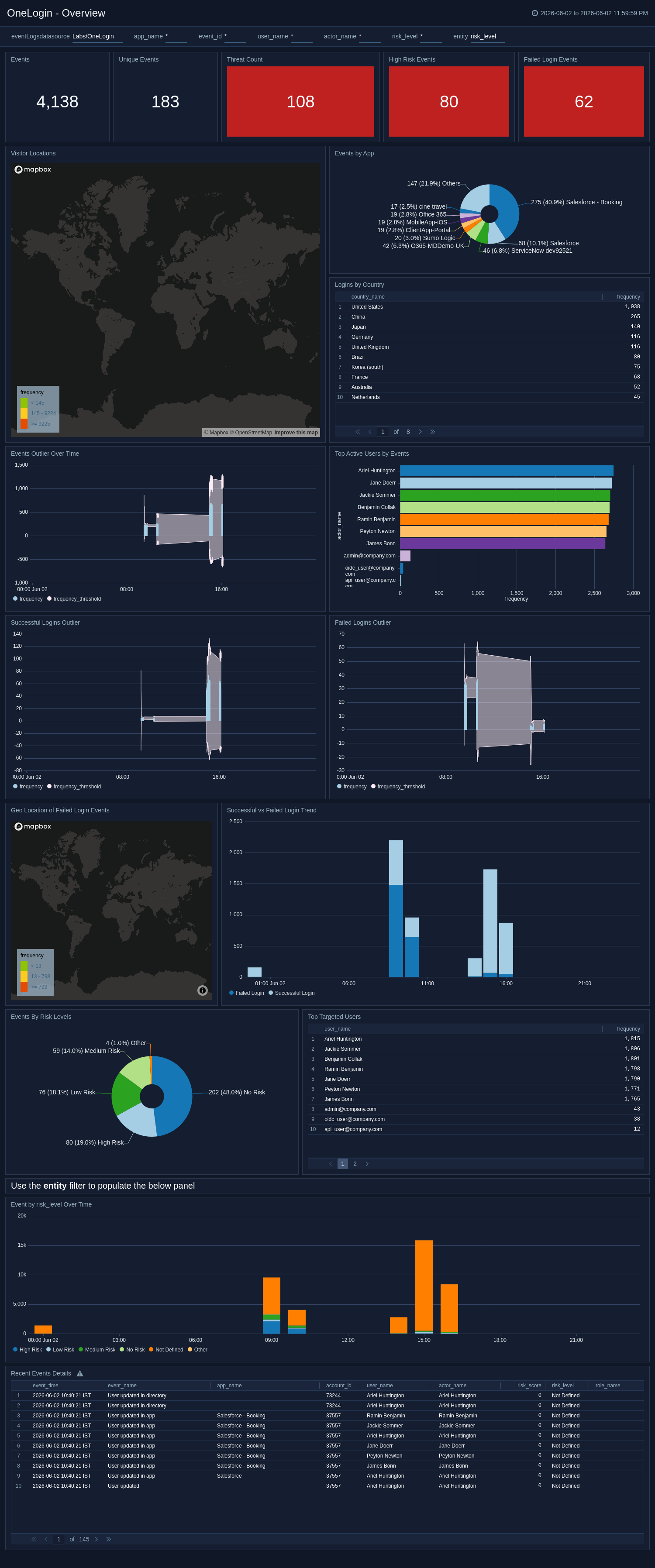
Overview
The OneLogin - Overview dashboard delivers a high-level operational summary of all activity across the OneLogin platform, including visitor geo-locations, app-specific event volumes, and login distributions by country. It highlights event outliers over time, surfaces anomalous patterns, and provides details on the most active users. This dashboard serves as the starting point for daily operational review and rapid anomaly escalation.
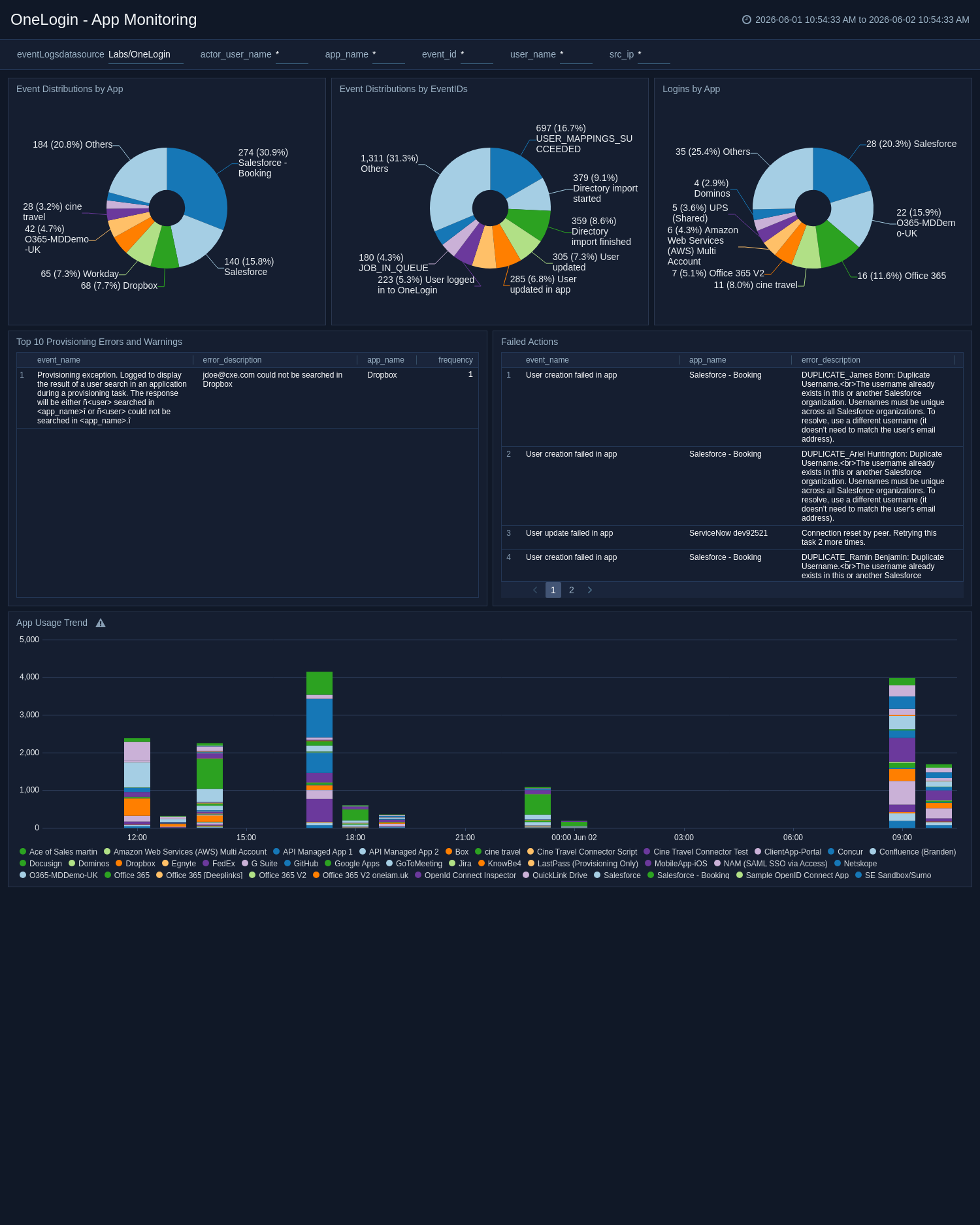
App Monitoring
The OneLogin - App Monitoring dashboard offers a consolidated view of application-related activity, tracking event distributions by app and event ID, login patterns, and provisioning health. It surfaces provisioning errors, failed actions with error descriptions, and app usage trends over time. This dashboard is critical for ensuring seamless SSO connectivity, identifying integration failures, and maintaining provisioning reliability.
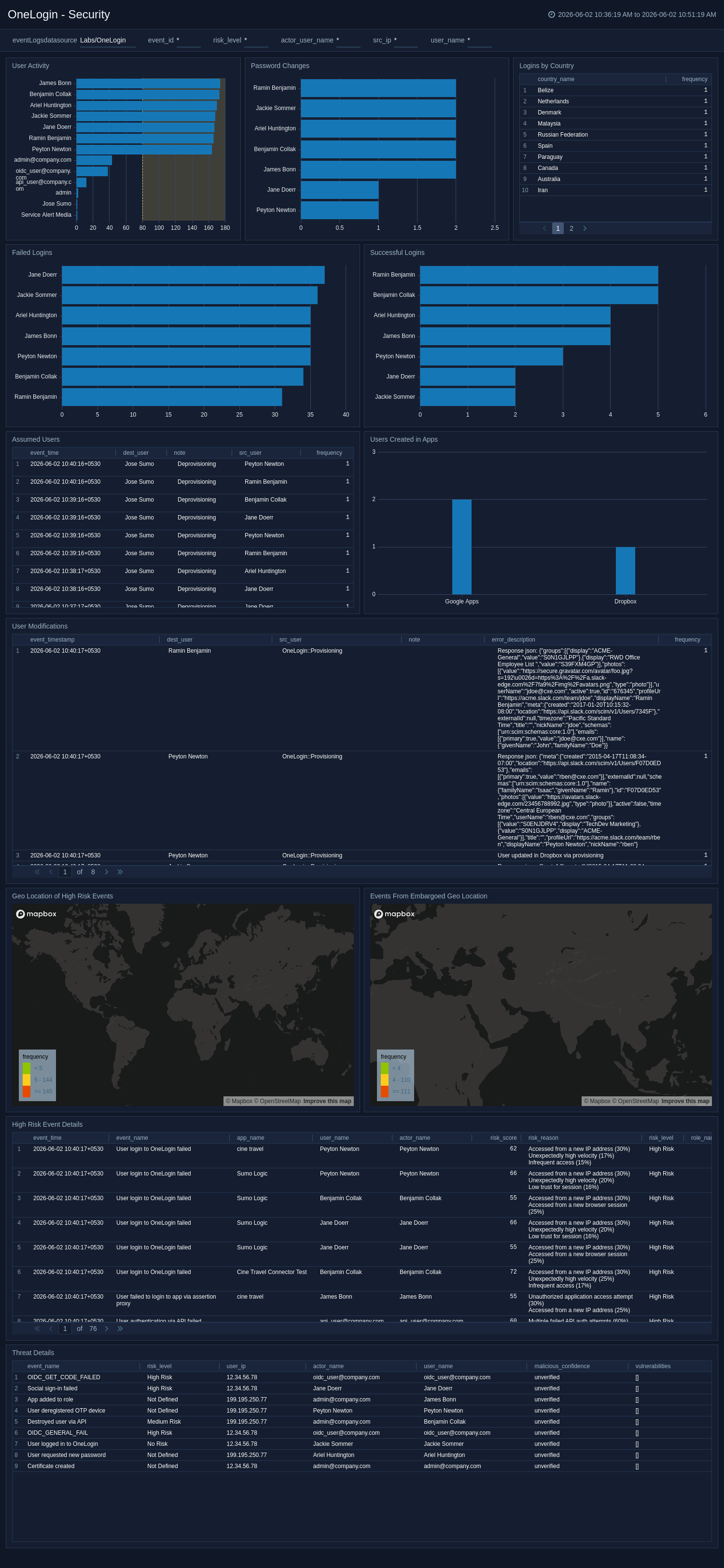
Security
The OneLogin - Security dashboard delivers a comprehensive view of security-critical events, including user authentication patterns, password changes, assumed-user sessions, and administrative user modifications. It tracks login activity by geographic location, maps high-risk events and embargoed region access, and surfaces both successful and failed authentication attempts over time. This dashboard helps security teams detect credential compromise, unauthorized access, and anomalous behavior across the identity platform.
User Inventory
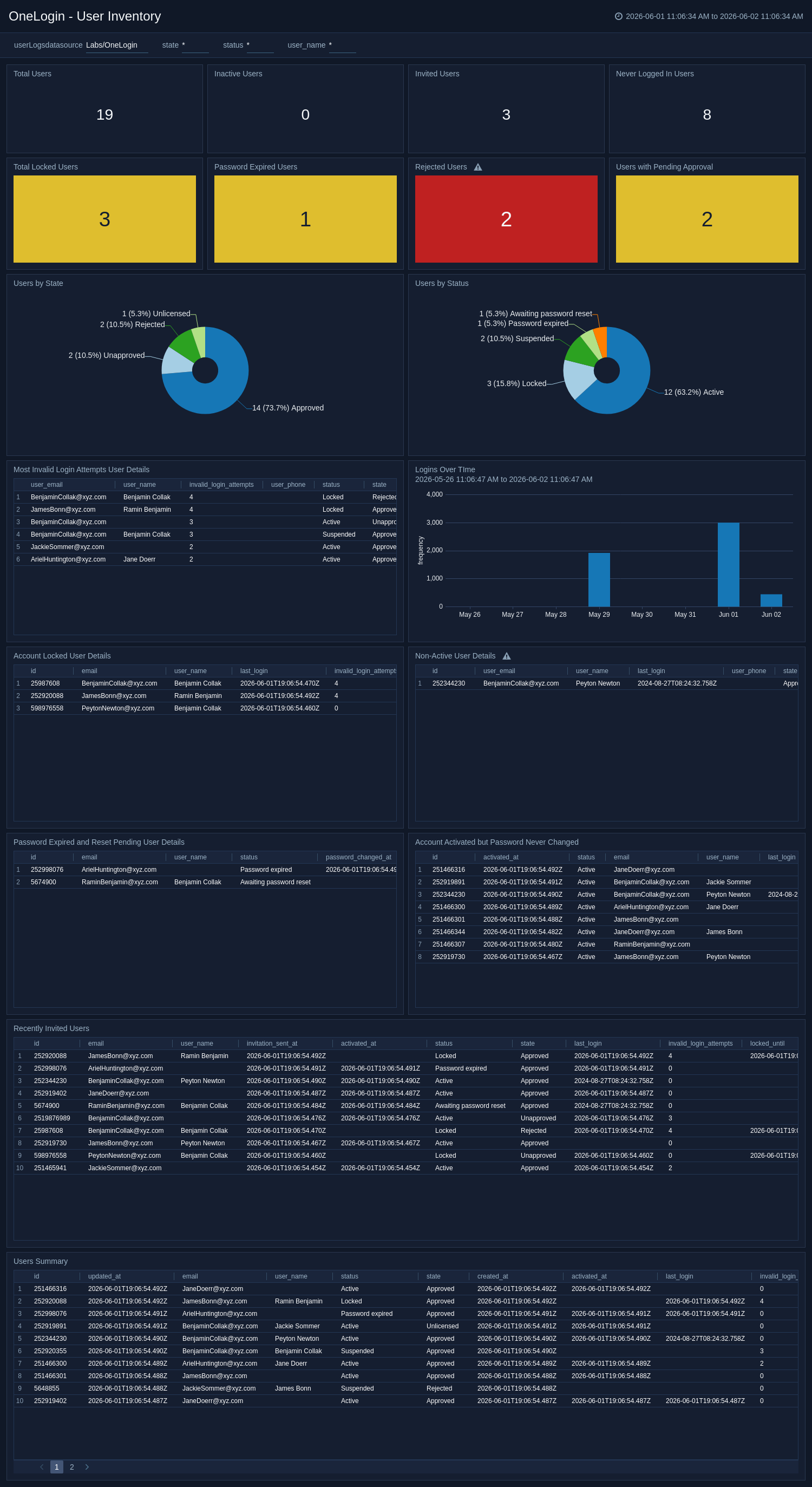
The OneLogin - User Inventory dashboard provides a centralized view of user account lifecycle tracking, total users, invited accounts, never-logged-in users, pending approvals, locked accounts, and password expiration states. It highlights risky conditions, including repeated invalid login attempts, inactive users exceeding 90 days, and accounts with unchanged passwords. This dashboard is essential for maintaining identity governance, detecting dormant account risks, and ensuring compliance with access policies.
Adaptive MFA
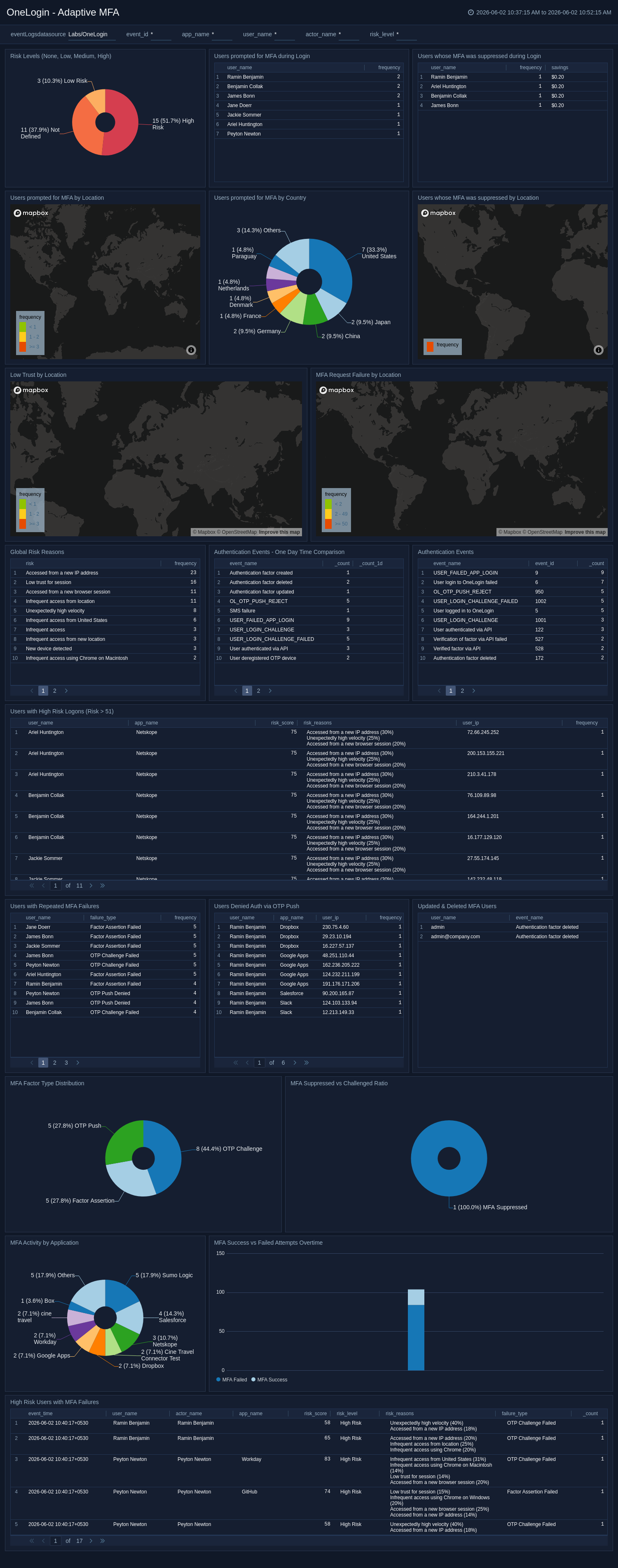
The OneLogin - Adaptive MFA dashboard provides a centralized view of multi-factor authentication activity, including risk score distribution, MFA challenge-to-suppression ratios, and factor usage patterns. It maps MFA prompts and failures by location, identifies users with high-risk logons, and tracks OTP push denials, indicating potential MFA fatigue attacks. This dashboard enables security teams to assess MFA effectiveness, detect bypass attempts, and validate adaptive policy calibration.
API Security and Monitoring
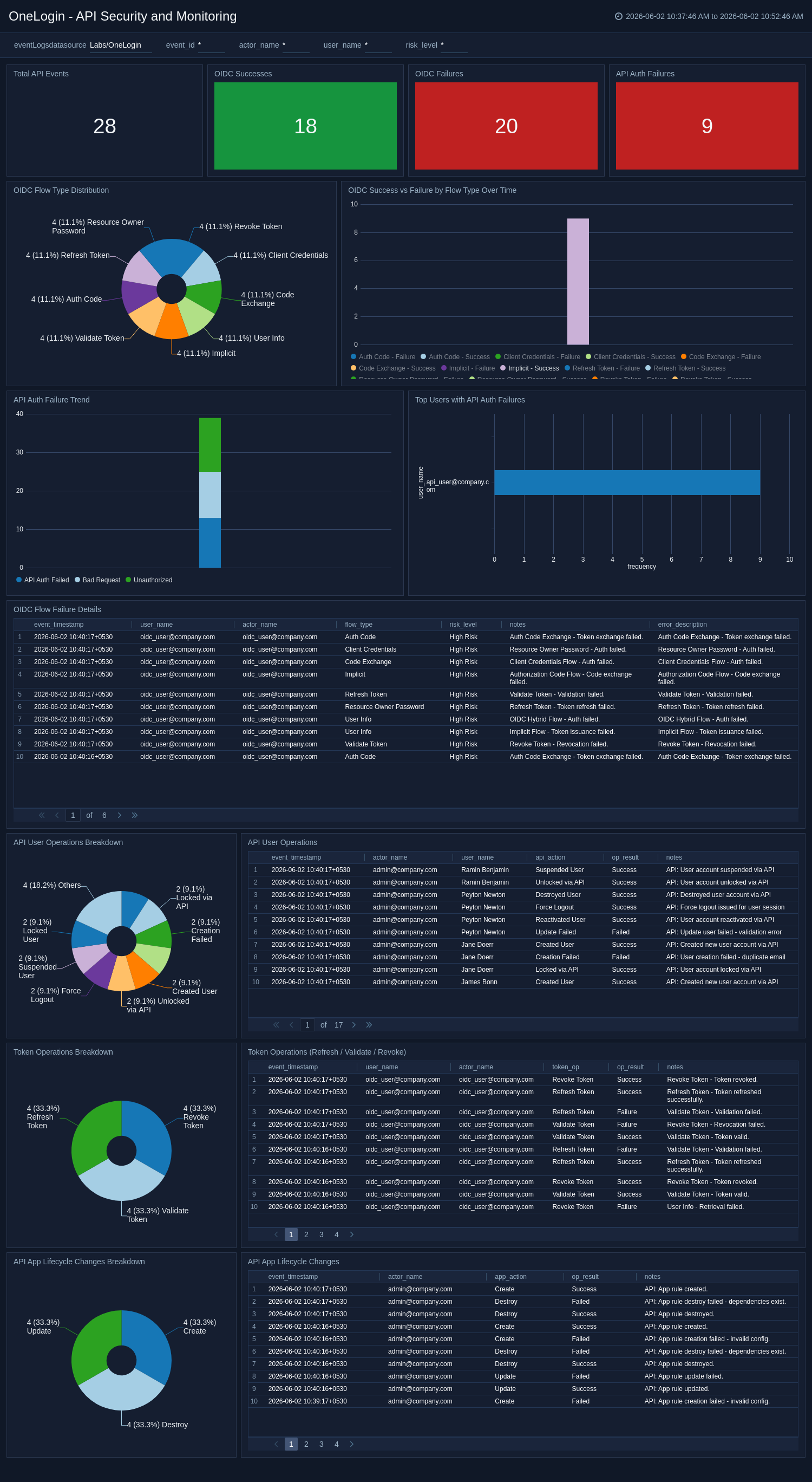
The OneLogin - API Security and Monitoring dashboard provides visibility into programmatic access patterns, including OIDC authentication flows, API credential usage, and token lifecycle operations. It tracks API authentication failures, OIDC success/failure ratios by flow type, and surfaces token operations as well as API-driven user management and application lifecycle changes. This dashboard is essential for detecting integration abuse, misconfigured OAuth clients, and unauthorized API access.
Failed Login Monitoring
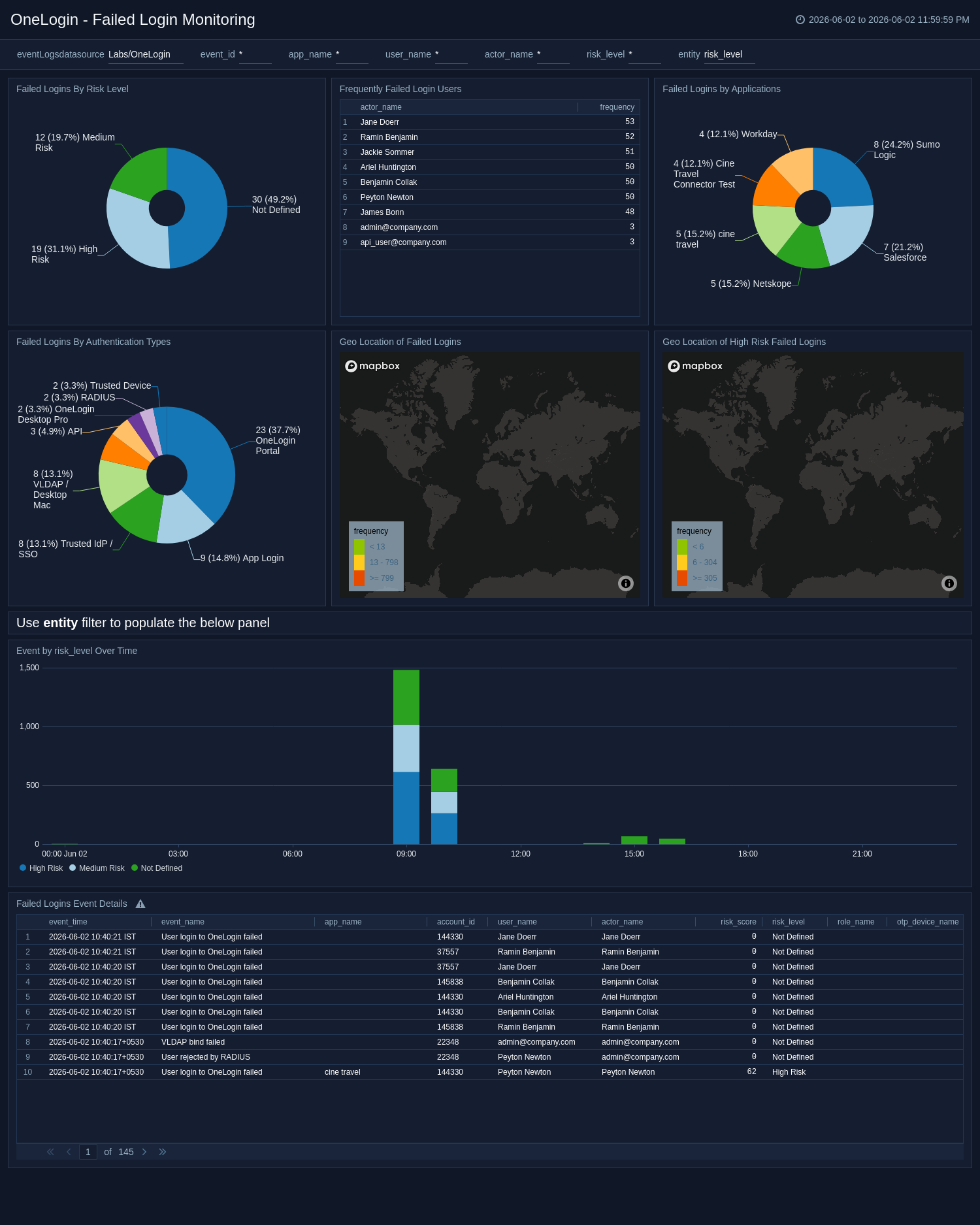
The OneLogin - Failed Login Monitoring dashboard provides focused analysis of unsuccessful authentication attempts categorized by application, risk level, and geographic origin. It correlates failed logins with risk scores, maps failures to specific users and entities, and reveals temporal spikes indicating brute-force or credential-stuffing attacks. This dashboard is essential for detecting active attacks and responding to account compromise attempts in real time.
Successful Login Monitoring
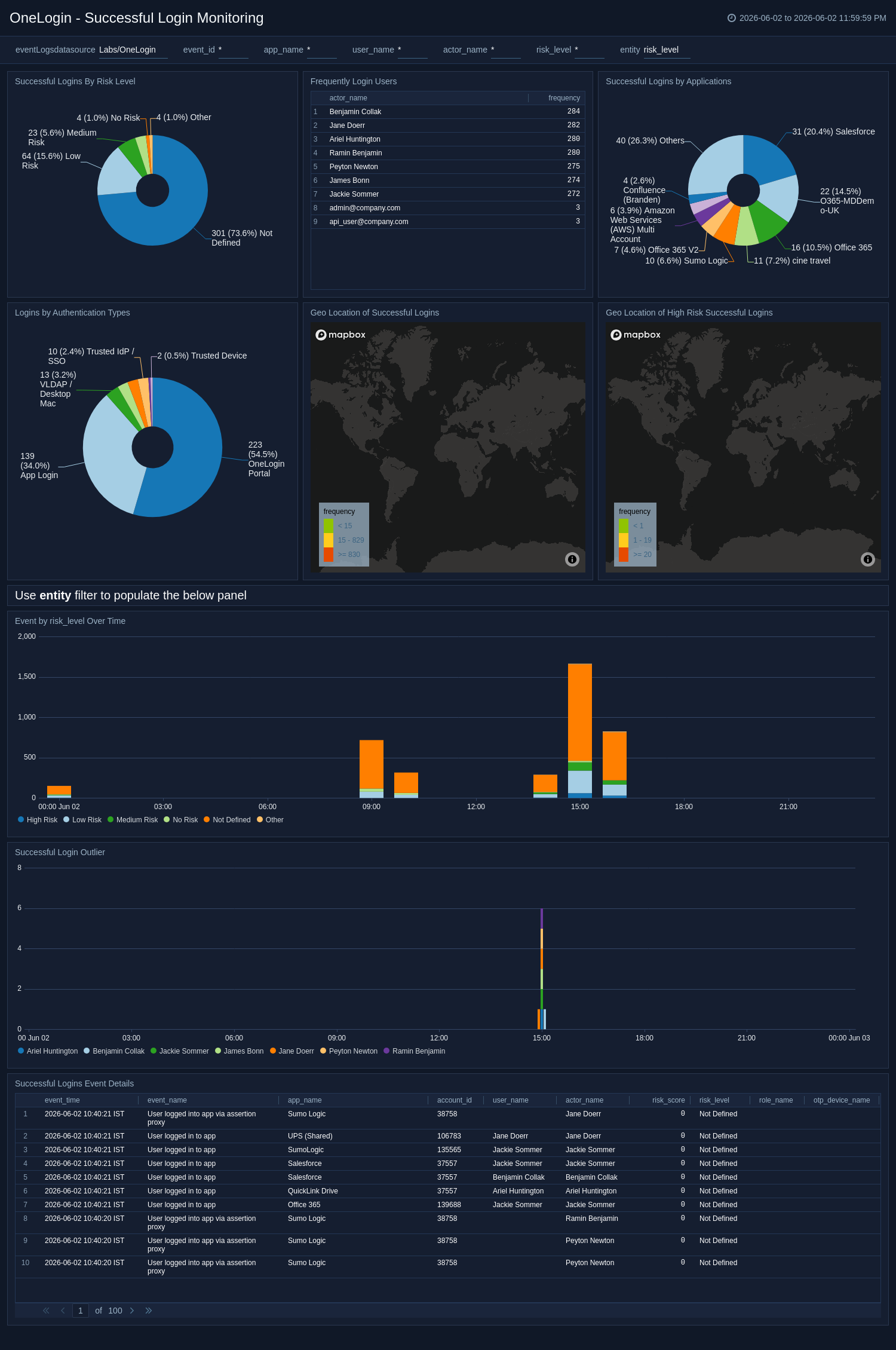
The OneLogin - Successful Login Monitoring dashboard provides visibility into all successful authentication events categorized by risk level, application, geographic origin, and user identity. It tracks login volumes to establish baselines, identifies the most active users, and correlates successful access with risk scoring to detect compromised accounts. This dashboard helps validate legitimate access and detect anomalous logins from unexpected locations or devices.
Privileged Access and Admin Audit
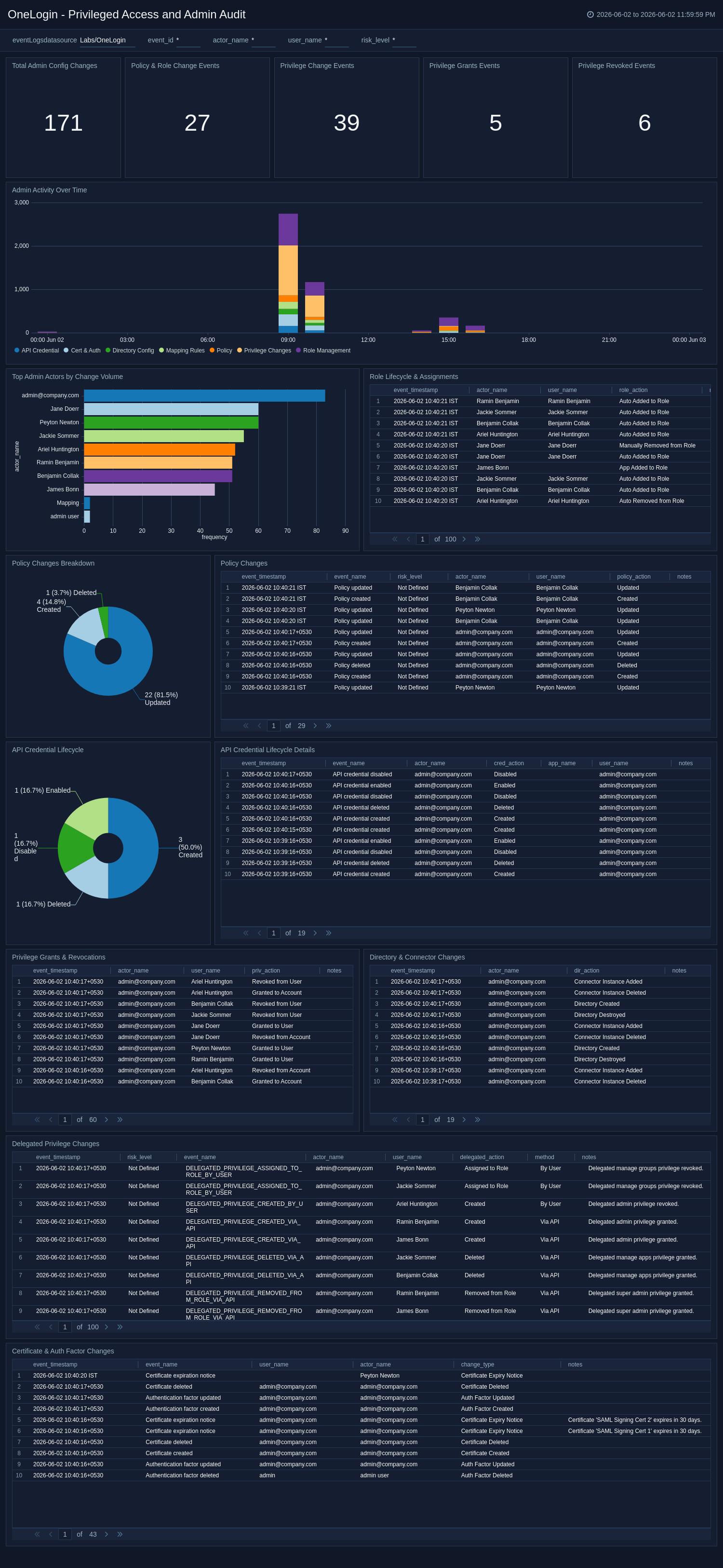
The OneLogin - Privileged Access and Admin Audit dashboard provides comprehensive oversight of administrative configuration changes, including policy lifecycle events, role assignments, privilege grants/revocations, and API credential activity. It tracks directory changes, mapping rule modifications, and delegated administrative actions, creating a complete audit trail. This dashboard is essential for verifying adherence to least privilege, detecting unauthorized privilege escalation, and maintaining compliance governance.
Create monitors for OneLogin app
From your App Catalog:
- From the Sumo Logic navigation, select App Catalog.
- In the Search Apps field, search for and then select your app.
- Make sure the app is installed.
- Navigate to What's Included tab and scroll down to the Monitors section.
- Click Create next to the pre-configured monitors. In the create monitors window, adjust the trigger conditions and notifications settings based on your requirements.
- Scroll down to Monitor Details.
- Under Location click on New Folder.
note
By default, monitor will be saved in the root folder. So to make the maintenance easier, create a new folder in the location of your choice.
- Enter Folder Name. Folder Description is optional.
tip
Using app version in the folder name will be helpful to determine the versioning for future updates.
- Click Create. Once the folder is created, click on Save.
OneLogin alerts
| Name | Description | Trigger Type (Critical / Warning / MissingData) | Alert Condition |
|---|---|---|---|
OneLogin - Account Lockout | This alert is triggered when a user account has been locked due to multiple failed login attempts. | Critical | Count > 0 |
OneLogin - Password Expired & Reset Pending | This alert is triggered when user accounts are found with expired passwords or are pending a password reset. | Critical | Count > 0 |
OneLogin - User Rejected | This alert is triggered when a user account has been rejected, indicating denied access during onboarding or approval. | Critical | Count > 0 |
OneLogin - Events from Embargoed Geo Locations | This alert is triggered when OneLogin events originate from IP addresses associated with embargoed or restricted geographic locations, which may indicate compromised credentials, VPN misuse, or policy violations. Immediate investigation is recommended to determine whether the access is legitimate or represents unauthorized activity from a sanctioned region. | Critical | Count > 0 |
OneLogin - High Risk Events Detected | This alert is triggered when OneLogin assigns a risk score greater than 51 to an authentication event, indicating an elevated likelihood of malicious activity based on contextual signals such as unusual velocity, unfamiliar locations, or new devices. Security teams should investigate the flagged user and consider enforcing step-up authentication or session termination to help prevent potential account compromise. | Critical | Count > 0 |
OneLogin - Repeated Failed Authentication Activity Detected | This alert is triggered when a single actor generates more than five failed authentication or access events within a short time window, which may indicate a brute-force attack, credential stuffing, or a misconfigured application integration. Security teams should investigate the source of the failures and consider blocking the actor or enforcing additional verification to help prevent unauthorized access. | Critical | Count > 5 |
Upgrade/Downgrade the OneLogin app (Optional)
To update the app, do the following:
Next-Gen App: To install or update the app, you must be an account administrator or a user with Manage Apps, Manage Monitors, Manage Fields, Manage Metric Rules, and Manage Collectors capabilities depending upon the different content types part of the app.
- Select App Catalog.
- In the Search Apps field, search for and then select your app.
Optionally, you can identify apps that can be upgraded in the Upgrade available section. - To upgrade the app, select Upgrade from the Manage dropdown.
- If the upgrade does not have any configuration or property changes, you will be redirected to the Preview & Done section.
- If the upgrade has any configuration or property changes, you will be redirected to the Setup Data page.
- In the Configure section of your respective app, complete the following fields.
- Field Name. If you already have collectors and sources set up, select the configured metadata field name (eg _sourcecategory) or specify other custom metadata (eg: _collector) along with its metadata Field Value.
- Click Next. You will be redirected to the Preview & Done section.
Post-update
Your upgraded app will be installed in the Installed Apps folder and dashboard panels will start to fill automatically.
See our Release Notes changelog for new updates in the app.
To revert the app to a previous version, do the following:
- Select App Catalog.
- In the Search Apps field, search for and then select your app.
- To version down the app, select Revert to < previous version of your app > from the Manage dropdown.
Uninstalling the OneLogin app (Optional)
To uninstall the app, do the following:
- Select App Catalog.
- In the 🔎 Search Apps field, run a search for your desired app, then select it.
- Click Uninstall.
Additional resources
- Use the OneLogin Automation Service Integration to automate response actions directly from Cloud SOAR playbooks.