Enterprise Audit - Collector and Data Forwarding Management for MSSP

The Enterprise Audit - Collector and Data Forwarding Management for MSSP app presents information on Collector, Sources activities, and data forwarding trends by destination types for child orgs under a MSSP org. This app utilizes predefined searches and dashboards that provide visibility into your environment. It has the following two dashboard categories:
- Collector Management
- Data Forwarding Management
Prerequisites
The Audit Event Index is only available for Trial and Enterprise accounts.
| Account Type | Account Level |
|---|---|
| Cloud Flex | Trial, Enterprise |
| Credits | Trial, Enterprise Operations, Enterprise Suite, Enterprise Security |
Installing the Enterprise Audit - Collector and Data Forwarding Management for MSSP app
Prerequisite
The Audit Event Index (sumologic_audit_events) should be enabled in all the child orgs that need to be monitored through this app in an MSSP org, prior to installation. See Audit Event Index for instructions.
To install the app:
- Select App Catalog.
- In the Search Apps field, search for and then select your app.
- Optionally, you can scroll down to preview the dashboards included with the app. Then, click Install App (sometimes this button says Add Integration).
- Click Next.
- Look for the dialog confirming that your app was installed successfully.

Once an app is installed, it will appear in your Personal folder or the folder that you specified. From here, you can share it with other users in your organization. Dashboard panels will automatically start to fill with data matching the time range query received since you created the panel. Results won't be available immediately, but within about 20 minutes, you'll see completed graphs and maps.
Viewing Enterprise Audit - Collector and Data Forwarding Management for MSSP dashboards
By default no child orgs will be selected in the dashboard and data will be populated against the audit event index of the MSSP org. Child orgs can be selected though a dropdown menu on the top left corner just below the title of the dashboard. You can also search by org name in this dropdown menu.
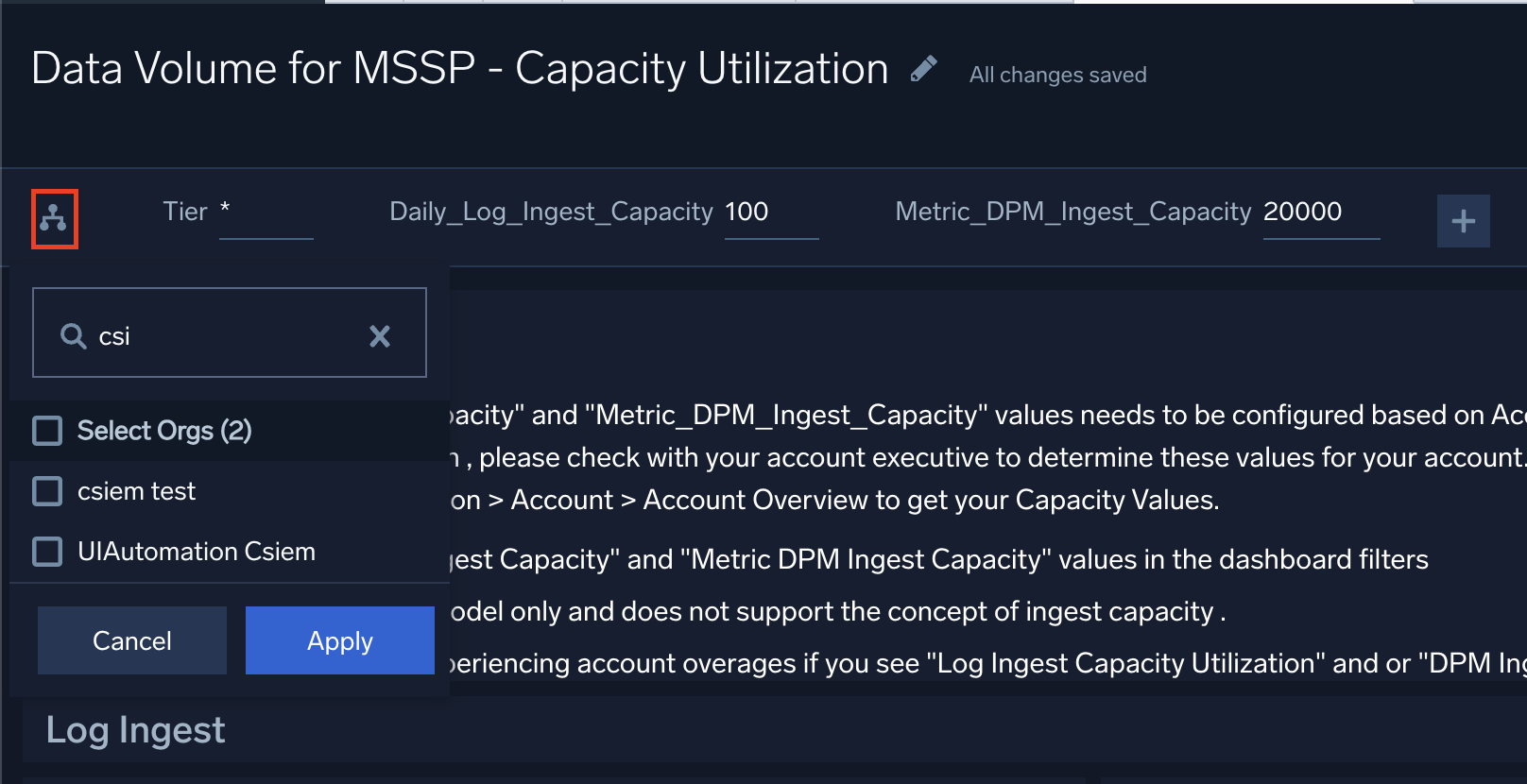
All dashboards have a set of filters that you can apply to the entire dashboard. Use these filters to drill down and examine the data to a granular level.
- You can change the time range for a dashboard or panel by selecting a predefined interval from a drop-down list, choosing a recently used time range, or specifying custom dates and times. Learn more.
- You can use template variables to drill down and examine the data on a granular level. For more information, see Filtering Dashboards with Template Variables.
- Most Next-Gen apps allow you to provide the scope at the installation time and are comprised of a key (
_sourceCategoryby default) and a default value for this key. Based on your input, the app dashboards will be parameterized with a dashboard variable, allowing you to change the dataset queried by all panels. This eliminates the need to create multiple copies of the same dashboard with different queries.
Collector Management Overview
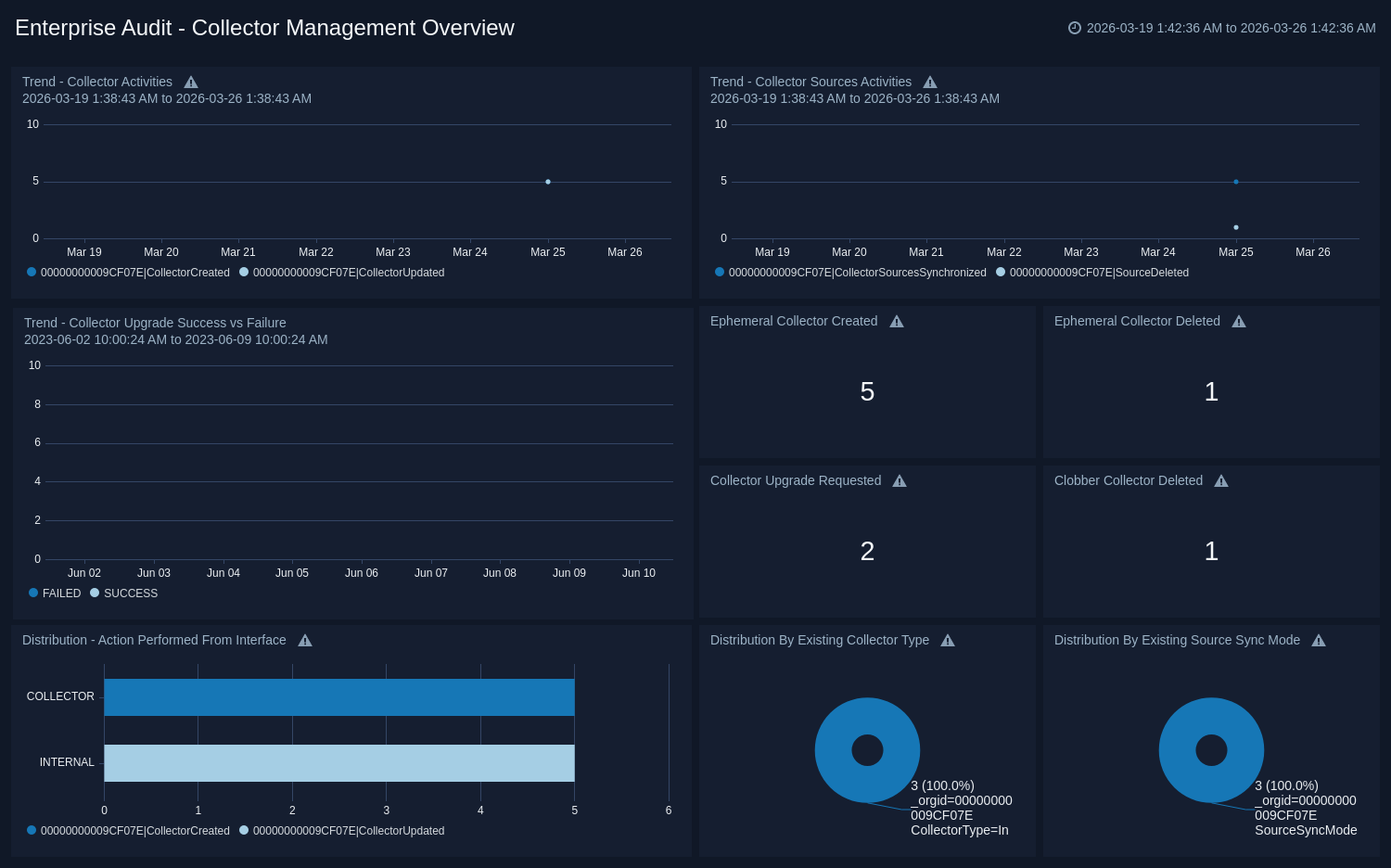
The Enterprise Audit for MSSP - Collector Management Overview dashboard provides a high-level view of trends related to collector and source activities, collector upgrade requests, upgrade successes and failures, the number of ephemeral collectors created and deleted, and the number of clobber collectors that were deleted for child orgs.
Use this dashboard to:
- Review collector types, both hosted and installable, for selected child orgs.
- Review distributions by interface from where operations are performed, whether collector, UI, or API.
- Review 7-Day trends for various collector and collector source activities.
- Get the number of ephemeral collectors that were created and deleted, as well as the number of requested collector upgrades and clobber collectors that were deleted.
- Navigate to a dashboard and view more detailed information by clicking a panel.
Collector Activities
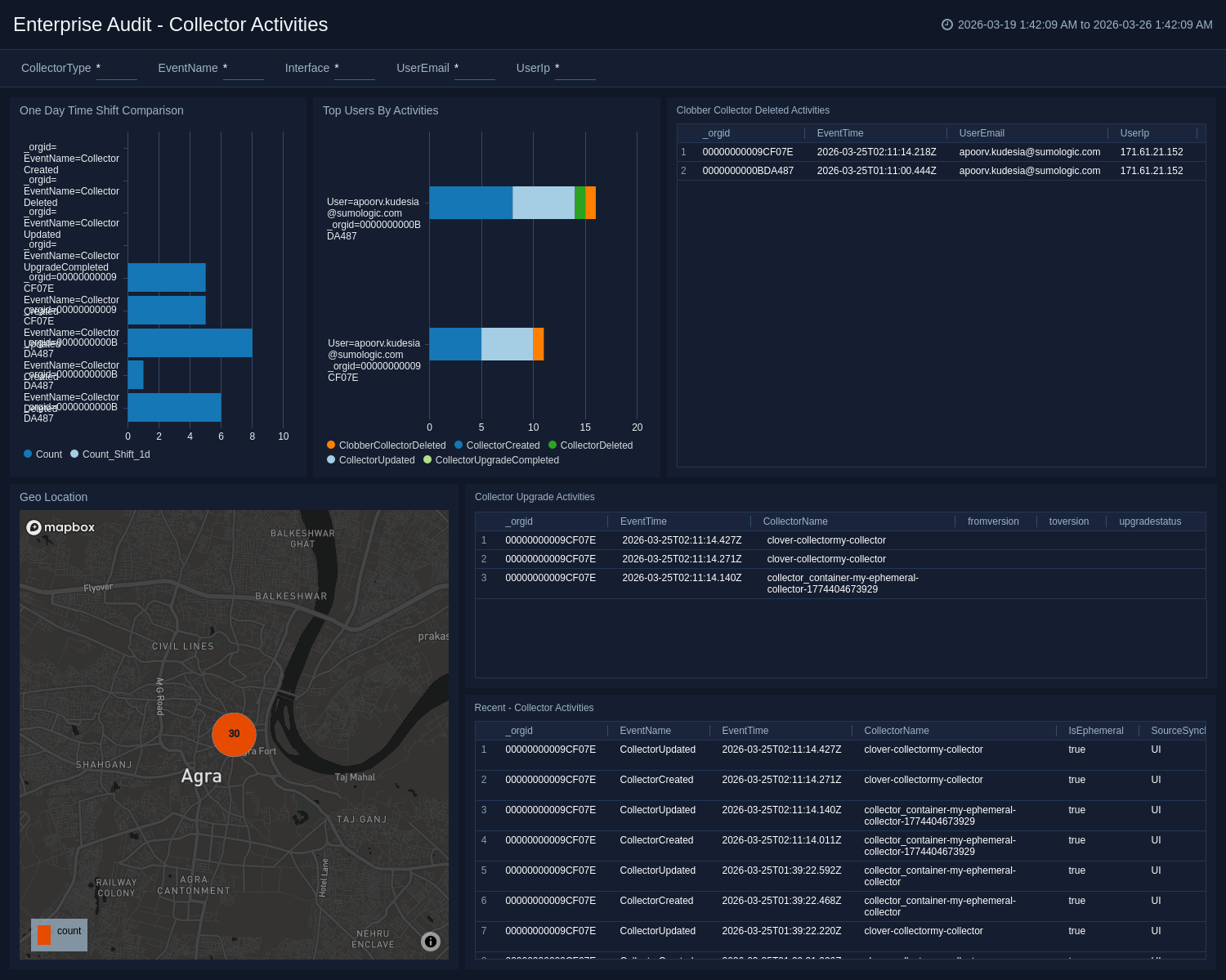
The Enterprise Audit for MSSP - Collector Activities dashboard provides detailed information on collector activities for child orgs, such as top users by activity and a one-day time comparison. You can also review data on recent collector activities and upgrades, and use pre-populated filters for a granular view of selected data.
Use this dashboard to:
- Review the geographic locations where activities are performed.
- Review the activities of top users and by a one-day time comparison.
- Analyze data for recent activities, collector upgrades, deleted clobber collectors, and all collector activities for selected child orgs.
Collector Sources Activities
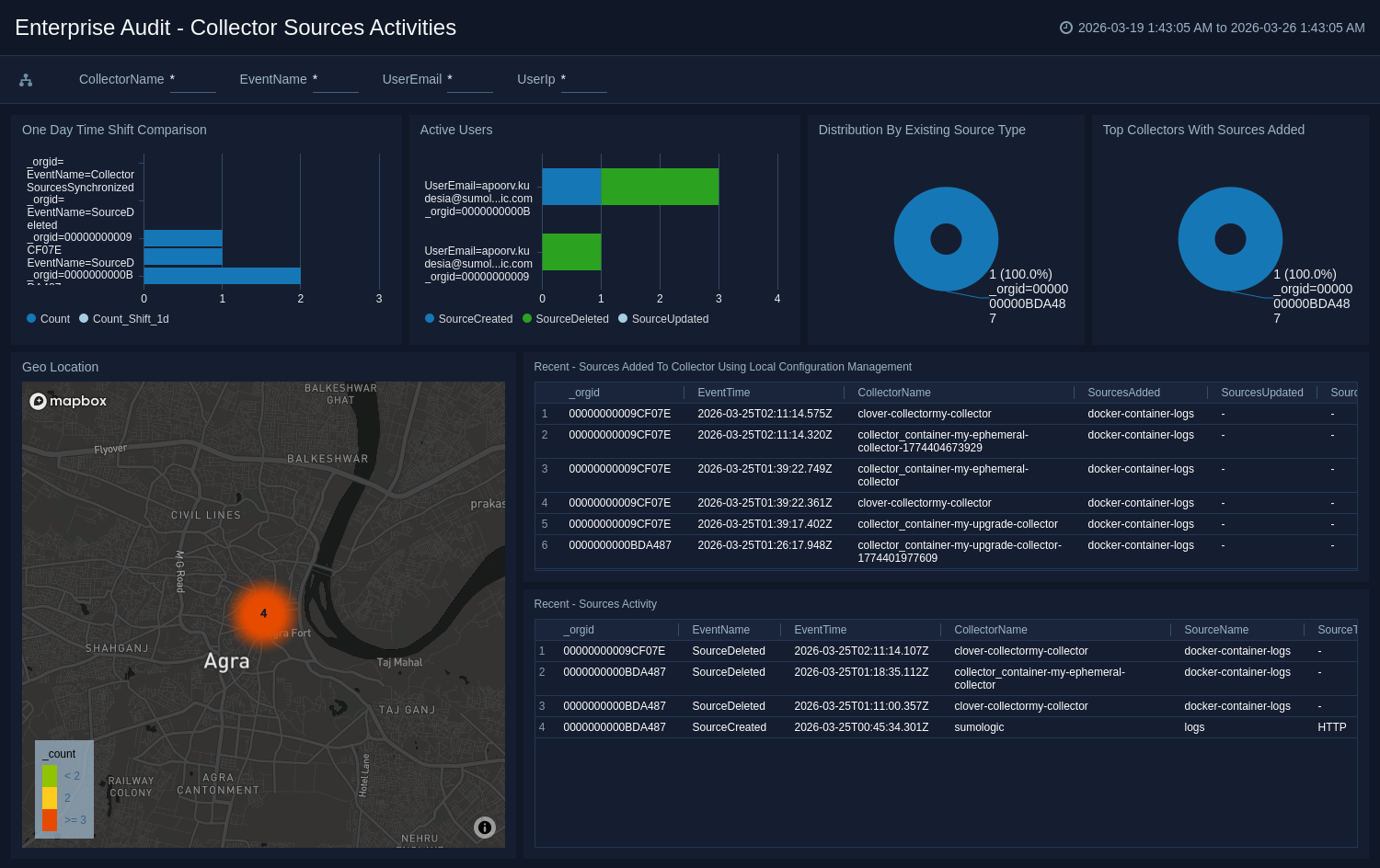
The Enterprise Audit for MSSP - Collector Sources Activities dashboard provides detailed information on created, updated and deleted sources, the top collectors where sources were added, active users, and one-day time comparisons for child orgs. You can use pre-populated filters for a more granular view of selected data.
Use this dashboard to:
- Review the geographic location where activities were performed.
- Review one-day time shift comparisons, active users, source type distribution, and the top collectors where sources were added for selected child orgs.
- Analyze data for sources recently added to a collector using local configuration management, and sources activities for all collectors.
Data Forwarding Management Overview
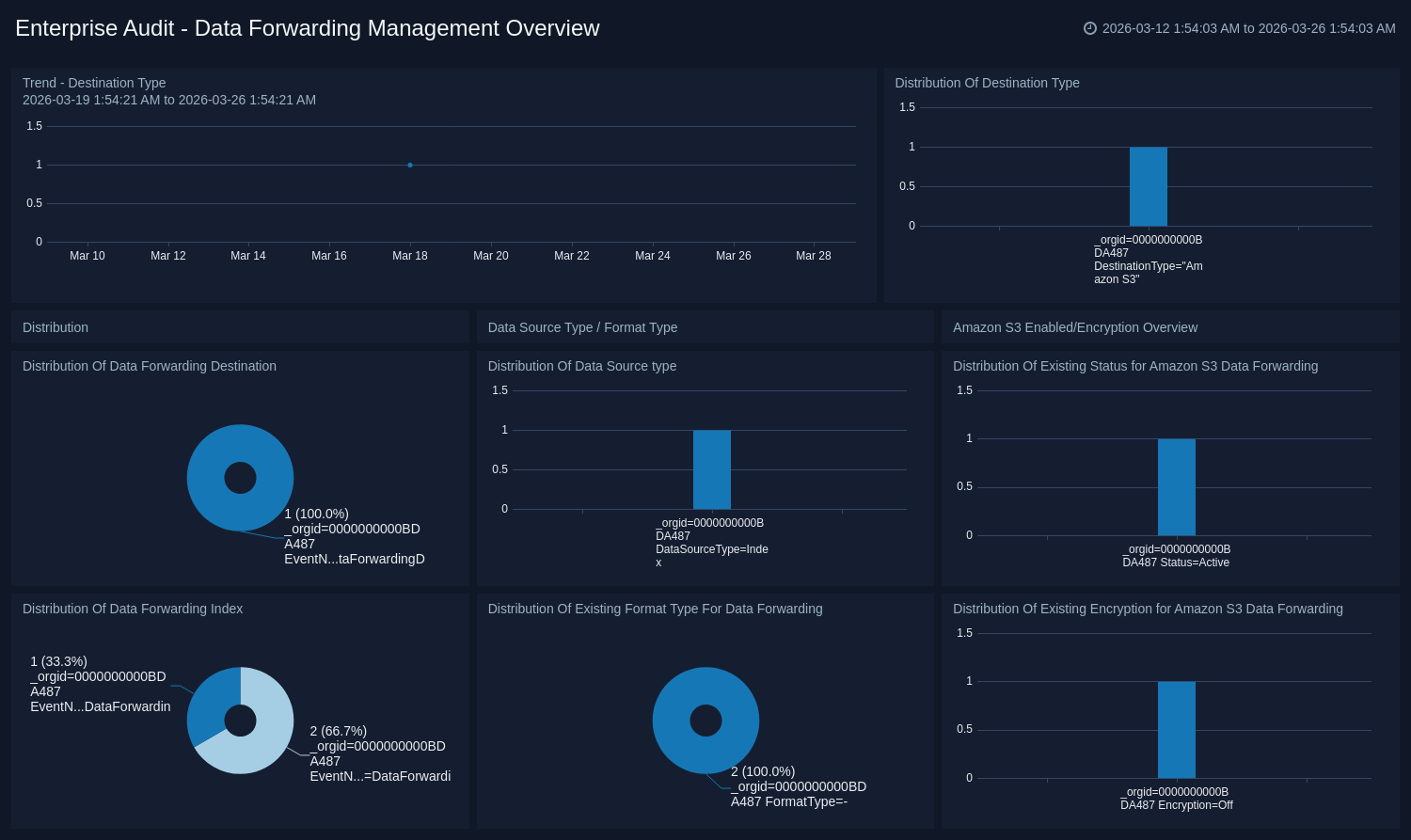
The Enterprise Audit for MSSP - Data Forwarding Management Overview dashboard provides an at-a-glance view of trends for destination types and the distribution of destination types, such as Amazon S3, hitachi, Syslog, and Generic REST for child orgs. Visual representations for the distribution of data forwarding destinations and data forwarding indexes are also shown.
Use this dashboard to:
- Assess destination type trends for selected child orgs.
- Track data forwarding destination and data forwarding index activities.
- Get a high-level view of active and inactive Amazon S3 indexes and encrypted Amazon S3 indexes.
- Get an overview of the distribution of data source types and format type for data forwarding.
Data Forwarding Destination Activities
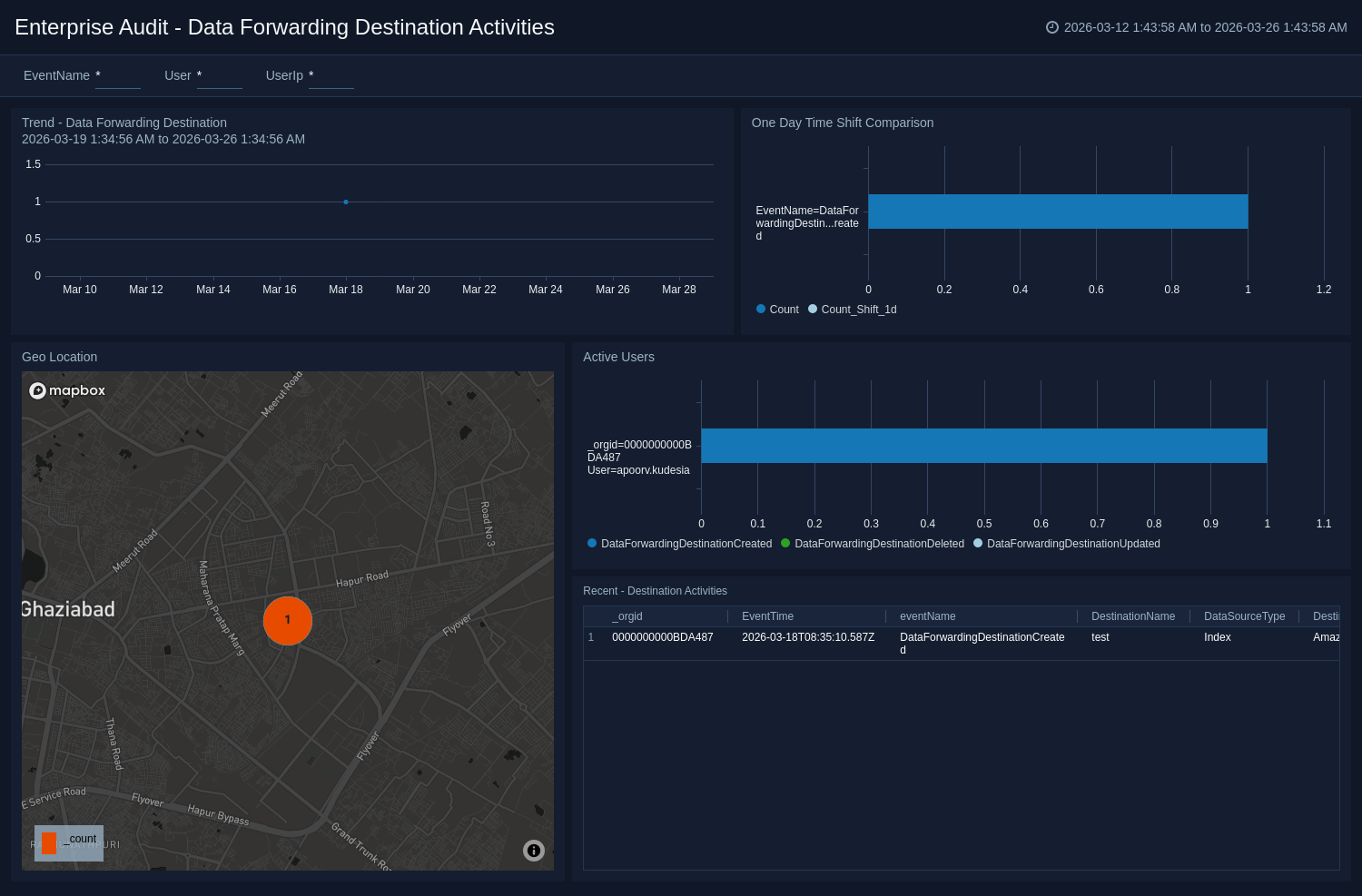
The Enterprise Audit for MSSP - Data Forwarding Destination Activities dashboard provides detailed information on data forwarding destination activities for child orgs. You can review trends for activities, their geographical locations, one-day times shift comparisons, user activity, and recent destination activities. For a more granular view of the data, you can use the pre populated filters.
Use this dashboard to:
- Review data forwarding destination trends and the geographic locations from where the activities were performed for selected child orgs.
- Get an at-a-glance overview of user activity and one-day time shift comparisons.
- Review data for all recent destination activities.
Data Forwarding Index Activities
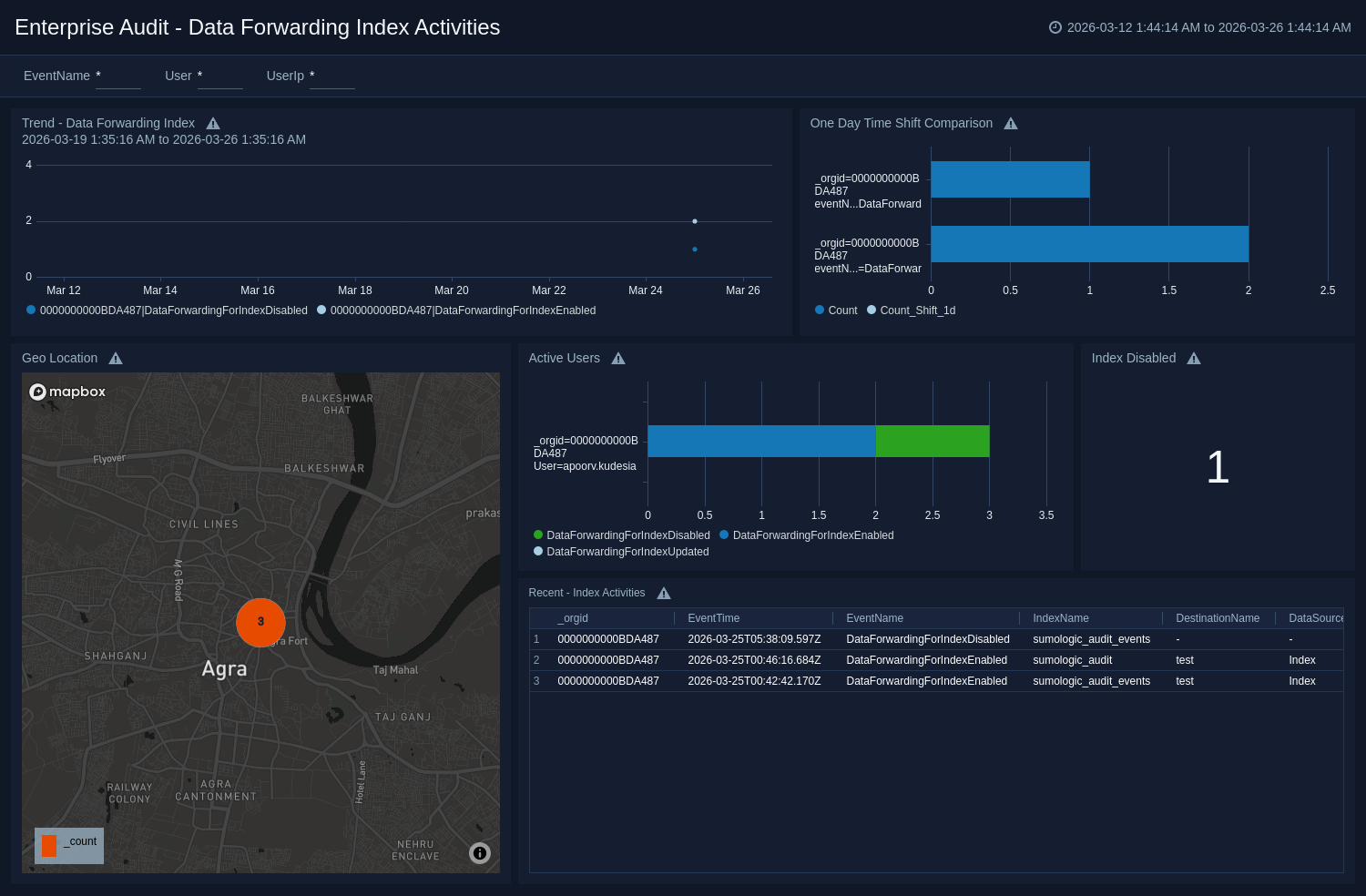
The Enterprise Audit for MSSP - Data Forwarding Index Activities dashboard provides detailed information about data forwarding indexes that were created using partitions and scheduled views for child orgs. You can review trends, geographical locations for data forwarding index activities, one-day time shift comparisons, user activities, as well as data on disabled indexes and recent index activities. For a more granular analysis of the data, you can use the pre-populated filters.
Use this dashboard to:
- Review trends for data forwarding index activities and the geographic locations where the activities were performed for selected child orgs.
- Get an at-a-glance view of user activity, one-day time shift comparisons, and the number of data forwarding index that have been disabled.
- Review data on all recent activities.
Upgrade/Downgrade the Enterprise Audit - Collector and Data Forwarding Management for MSSP app (Optional)
To update the app, do the following:
Next-Gen App: To install or update the app, you must be an account administrator or a user with Manage Apps, Manage Monitors, Manage Fields, Manage Metric Rules, and Manage Collectors capabilities depending upon the different content types part of the app.
- Select App Catalog.
- In the Search Apps field, search for and then select your app.
Optionally, you can identify apps that can be upgraded in the Upgrade available section. - To upgrade the app, select Upgrade from the Manage dropdown.
- If the upgrade does not have any configuration or property changes, you will be redirected to the Preview & Done section.
- If the upgrade has any configuration or property changes, you will be redirected to the Setup Data page.
- In the Configure section of your respective app, complete the following fields.
- Field Name. If you already have collectors and sources set up, select the configured metadata field name (eg _sourcecategory) or specify other custom metadata (eg: _collector) along with its metadata Field Value.
- Click Next. You will be redirected to the Preview & Done section.
Post-update
Your upgraded app will be installed in the Installed Apps folder and dashboard panels will start to fill automatically.
See our Release Notes changelog for new updates in the app.
To revert the app to a previous version, do the following:
- Select App Catalog.
- In the Search Apps field, search for and then select your app.
- To version down the app, select Revert to < previous version of your app > from the Manage dropdown.
Uninstalling the Enterprise Audit - Collector and Data Forwarding Management for MSSP app (Optional)
To uninstall the app, do the following:
- Select App Catalog.
- In the 🔎 Search Apps field, run a search for your desired app, then select it.
- Click Uninstall.