Nginx - OpenTelemetry Collector


Nginx is a web server used as a reverse proxy, load balancer, mail proxy, and HTTP cache. The Sumo Logic app for Nginx helps you monitor activity in Nginx. The preconfigured dashboards provide information about site visitors, including the location of visitors, devices/operating systems, and browsers used, and information about server activity, including bots, observed, and error information.
The app has been tested with Nginx version:
1.19.81.21.41.23.1
We use the OpenTelemetry collector for Nginx metric collection and for collecting Nginx logs.
The diagram below illustrates the components of the Nginx collection for each web server.
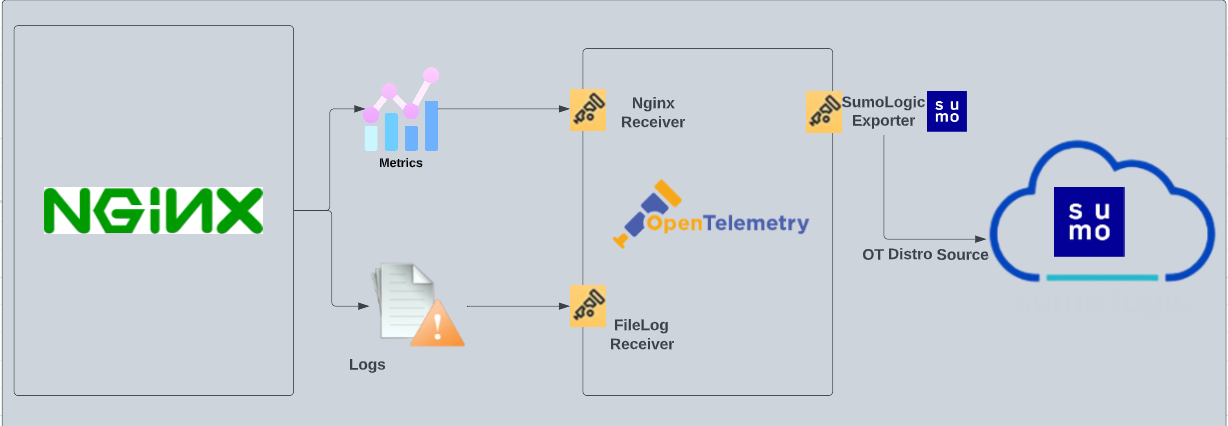
OpenTelemetry collector runs on the same host as Nginx, and uses the Nginx Receiver to obtain Nginx metrics, and the Sumo Logic OpenTelemetry Exporter to send the metrics to Sumo Logic. Nginx logs are sent to Sumo Logic through a filelog receiver.
This app includes built-in monitors. For details on creating custom monitors, refer to Create monitors for Nginx app.
Log and metrics types
The Sumo Logic app for Nginx assumes:
- Nginx app supports the default access logs and error logs format.
- For a list of metrics that are collected and used by the app, see Nginx Metrics.
Fields Creation in Sumo Logic for Nginx
Following are the Fields which will be created as part of Nginx app installation, if not already present.
webengine.cluster.name. User configured.Enter a name to uniquely identify your Nginx web server cluster. This cluster name will be shown in the Sumo Logic dashboards.webengine.node.name. Has value of host name.webengine.system. Has fixed value ofnginx.sumo.datasource. Has fixed value ofnginx.
Prerequisites
For metrics collection
-
This collection fetches stats from a Nginx Web Server instance using the
/statusendpoint. The app has been tested with Nginx versions 1.19.8, 1.21.4, and 1.23.1. -
You must configure NGINX to expose status information by editing the NGINX configuration. Refer to ngx_http_stub_status_module guide to configure the NGINX stats module ngx_http_stub_status_module.
For logs collection
- Configure your Nginx server to expose status endpoint for collecting metrics: The receiver used gets stats from an Nginx Web Server instance using the status endpoint. In order to receive server statistics, you must configure the server's nginx.conf file to enable status support.
- Configure and retrieve access and error log files: Before you can configure Sumo Logic to ingest logs, you must configure the logging of errors and processed requests in NGINX Open Source and NGINX Plus. For instructions, refer to the following documentation.
For Linux systems with ACL Support, the otelcol install process should have created the ACL grants necessary for the otelcol system user to access default log locations. You can verify the active ACL grants using the getfacl command. Install the ACL in your Linux environment, if not installed.
The required ACL may not be supported for some rare cases, for example, Linux OS Distro, which is officially not supported by Sumo Logic. In this case, you can run the following command to explicitly grant the permissions.
sudo setfacl -R -m d:u:otelcol-sumo:r-x,d:g:otelcol-sumo:r-x,u:otelcol-sumo:r-x,g:otelcol-sumo:r-x <PATH_TO_LOG_FILE>
Run the above command for all the log files in the directory that need to be ingested, which are not residing in the default location.
If Linux ACL Support is not available, traditional Unix-styled user and group permission must be modified. It should be sufficient to add the otelcol system user to the specific group that has access to the log files.
For Windows systems, log files which are collected should be accessible by the SYSTEM group. Use the following set of PowerShell commands if the SYSTEM group does not have access.
$NewAcl = Get-Acl -Path "<PATH_TO_LOG_FILE>"
# Set properties
$identity = "NT AUTHORITY\SYSTEM"
$fileSystemRights = "ReadAndExecute"
$type = "Allow"
# Create new rule
$fileSystemAccessRuleArgumentList = $identity, $fileSystemRights, $type
$fileSystemAccessRule = New-Object -TypeName System.Security.AccessControl.FileSystemAccessRule -ArgumentList $fileSystemAccessRuleArgumentList
# Apply new rule
$NewAcl.SetAccessRule($fileSystemAccessRule)
Set-Acl -Path "<PATH_TO_LOG_FILE>" -AclObject $NewAcl
Collection configuration and app installation
Follow these steps to set up and deploy the source template to collect data in Sumo Logic from a remotely managed OpenTelemetry collector.
Step 1: Set up remotely managed OpenTelemetry collector
If you want to configure your source locally, you can do so by downloading the YAML file. For details, see Configure OpenTelemetry collectors locally.
In this step, we'll install remotely managed OpenTelemetry collector and add a uniquely identifiable tag to these collectors.
- Classic UI. In the main Sumo Logic menu, Select App Catalog.
New UI. In the Sumo Logic main menu select App Catalog. - In the 🔎 Search Apps field, run a search for your desired OpenTelemetry app, then select it. For example, Apache - OpenTelemetry.
- Click the Manage dropdown and then select Add Collection.
- On the Set Up Collector page, select Add a New Collector and then click Next.
If you want to use an existing OpenTelemetry Collector, you can skip this step by selecting the Use an existing Collector option.
- Select the platform where you want to install the Sumo Logic OpenTelemetry Collector. For example, Linux.
This will generate a command that you can execute in the machine environment you need to monitor. Once executed, it will install the Sumo Logic OpenTelemetry Collector.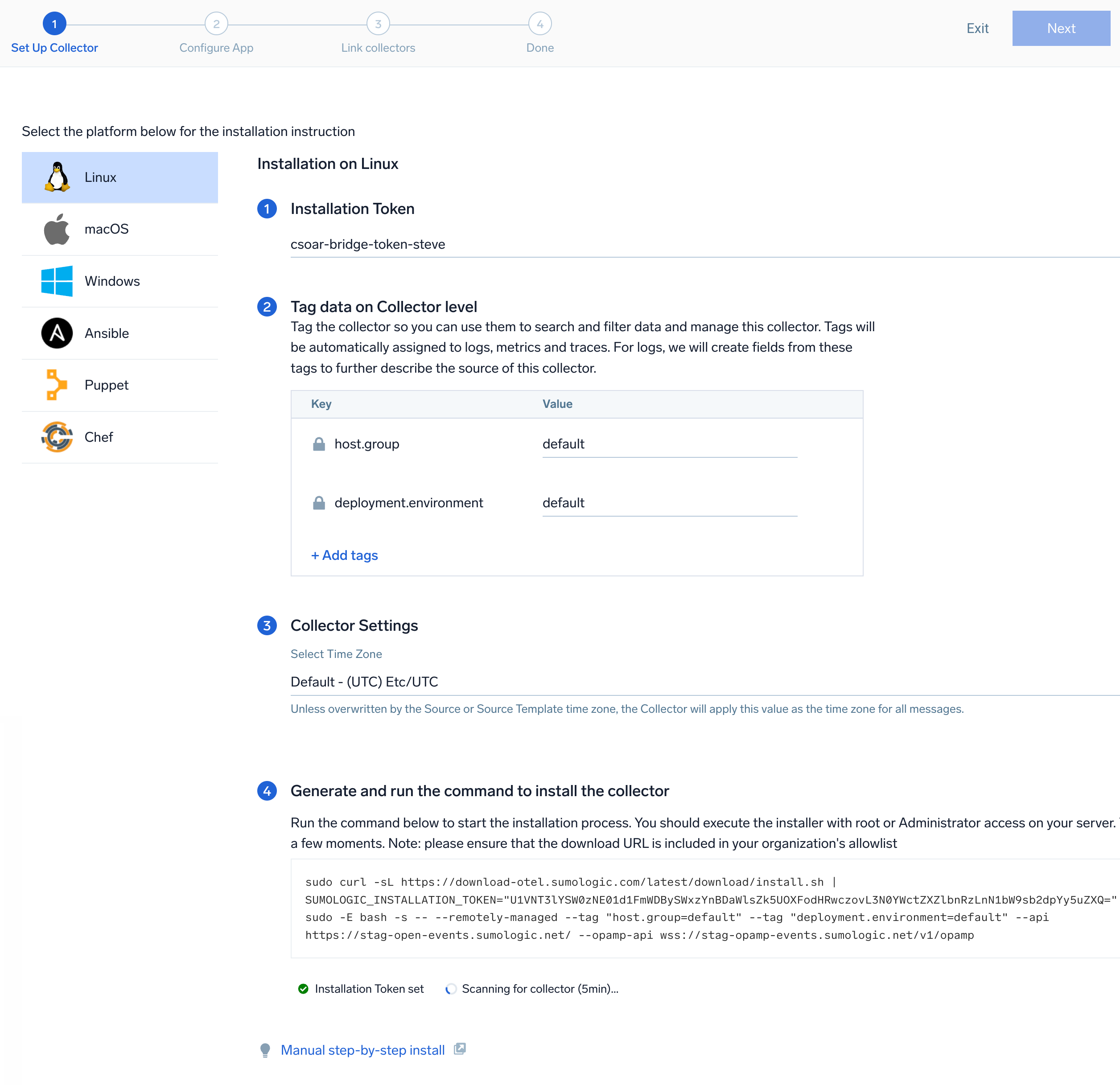 The installation commands now include a
 --remotely-managedflag. When this flag is used, a remotely managed collector is installed automatically instead of a locally managed one. If you prefer to use a locally managed collector, simply remove the flag from the installation command.
Step 2: Configure the source template
In this step, you will configure the YAML required for Nginx collection. Below are the inputs required for configuration:
- Name. Name of the source template.
- Description. Description for the source template.
- Endpoint. The URL of the httpd status endpoint (default:
http://localhost:80/status). - Path to Nginx access Log file. Enter the path to the Access log file for your Nginx instance.
- Path to Nginx error Log file. Enter the path to the error log file for your Nginx instance.
- Fields/Metadata. You can provide any customer fields to be tagged with the data collected. By default sumo tags
_sourceCategorywith the value otel/nginx user needs to provide the value forwebengine.cluster.name.
Timestamp Parsing. You can configure timestamp parsing for logs ingested using this source template. For more information, see Timestamps, Time Zones, Time Ranges, and Date Formats for the OpenTelemetry Collector.
Processing Rules. You can add processing rules for logs/metrics collected. To learn more, refer to Processing Rules.
Step 3: Push the source template to the desired remotely managed collectors
A new source template will always be created with the latest version of the source template.
Follow the below steps to create a data collection configuration to gather the required logs and link them to all the collectors with the help of collector tags.
- Complete the source template form with the name and file path for your logs (for example, error logs or access logs), then click Next.
- Under Link Collectors, you will have the option to link the collectors using the collector name or by adding tags to find the group of collectors (for example,
application = Apache).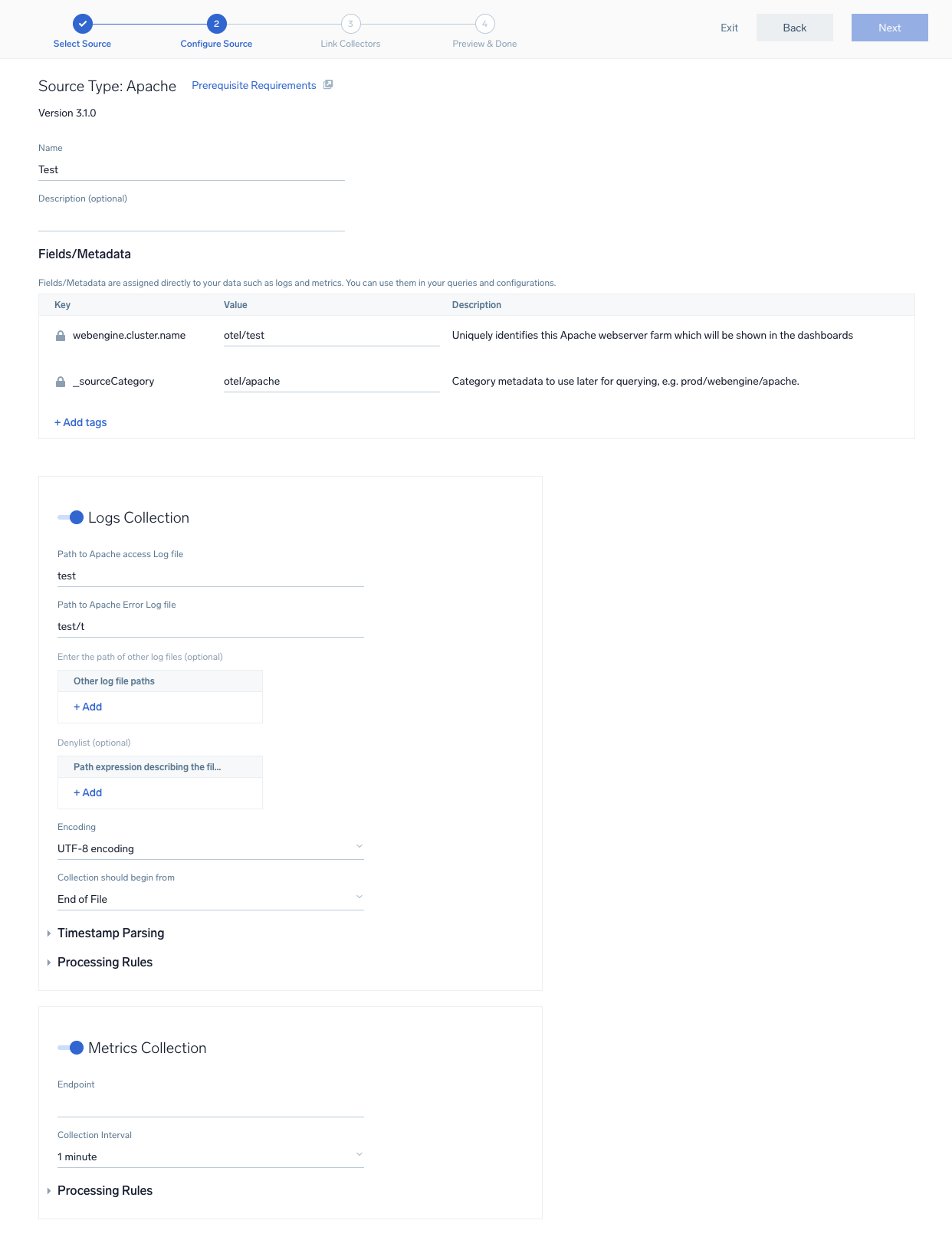
- Preview and confirm the collectors that will be linked (fetched automatically) to the newly created source template.
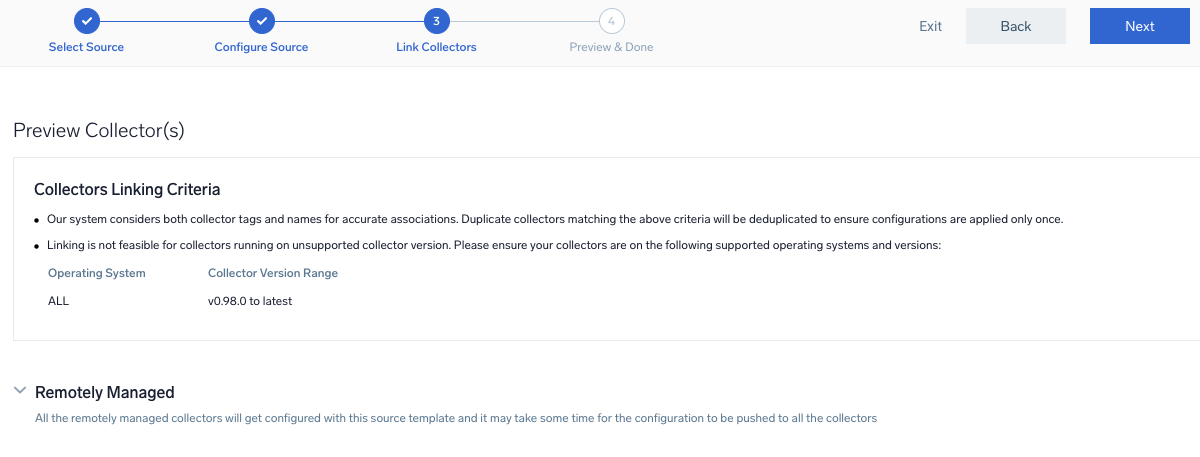
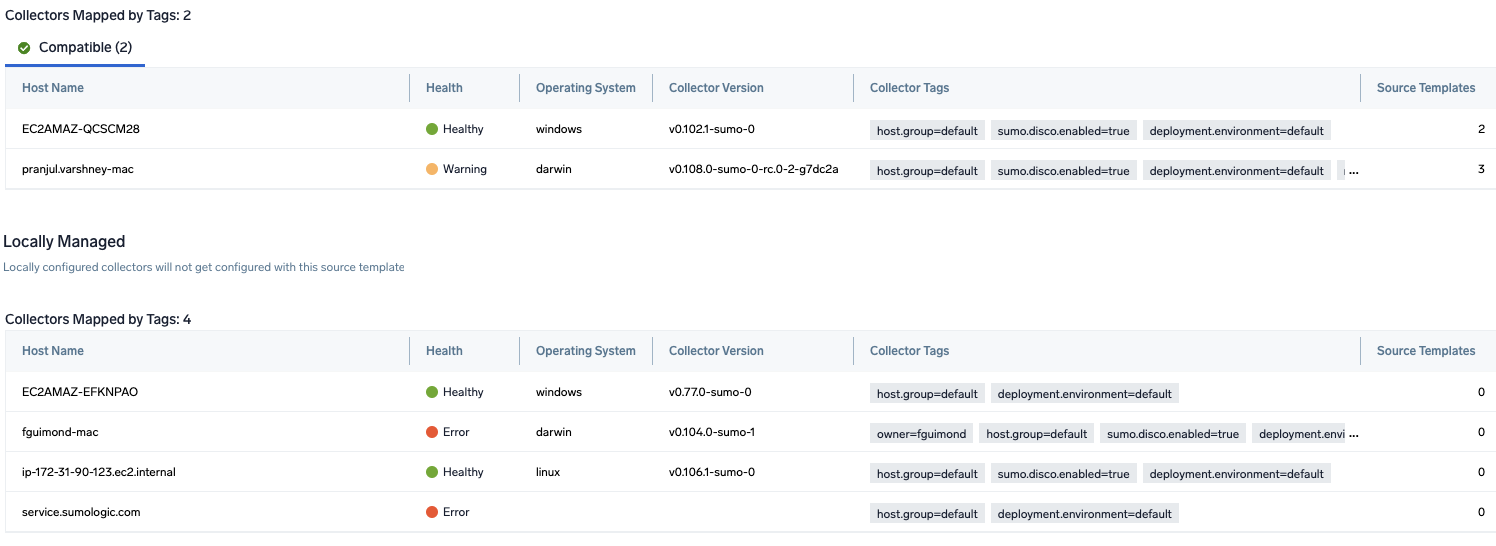
- Click Next to complete the source template creation. In the background, the system will apply the configuration to all the linked collectors and will start collecting the respective telemetry data from the remote host (in the example, it would start collecting Apache error logs).
- Click the Log Search or Metrics Search icons to search for and analyze your data collected for this source template.
Viewing the Nginx dashboards
All dashboards have a set of filters that you can apply to the entire dashboard. Use these filters to drill down and examine the data to a granular level.
- You can change the time range for a dashboard or panel by selecting a predefined interval from a drop-down list, choosing a recently used time range, or specifying custom dates and times. Learn more.
- You can use template variables to drill down and examine the data on a granular level. For more information, see Filtering Dashboards with Template Variables.
Overview
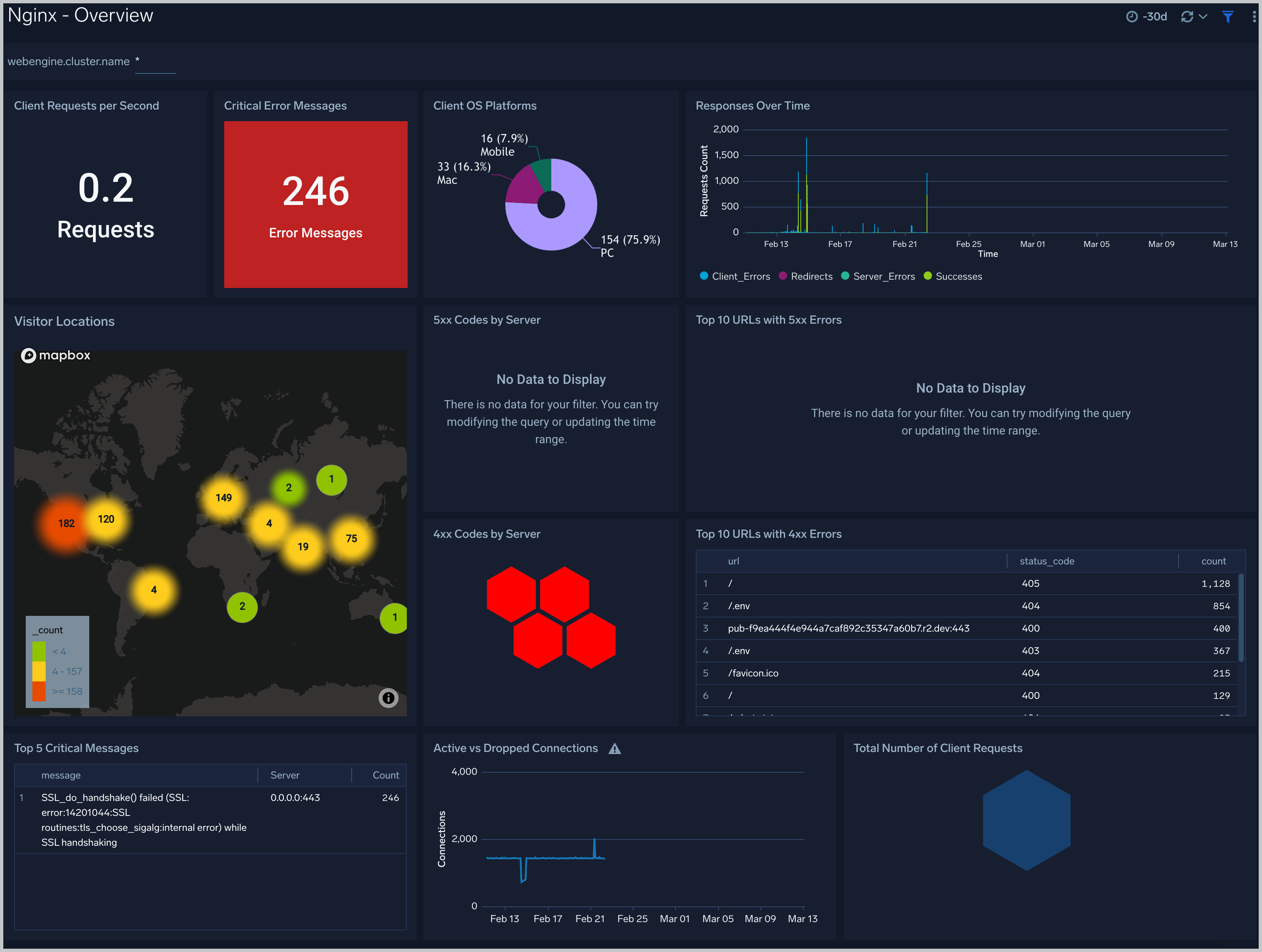
The Nginx - Overview dashboard provides an at-a-glance view of the NGINX server access locations, error logs along with connection metrics.
Use this dashboard to:
- Gain insights into originated traffic location by region. This can help you allocate computer resources to different regions according to their needs.
- Gain insights into your Nginx health using Critical Errors and Status of Nginx Server.
- Get insights into Active and dropped connection.
Error Logs
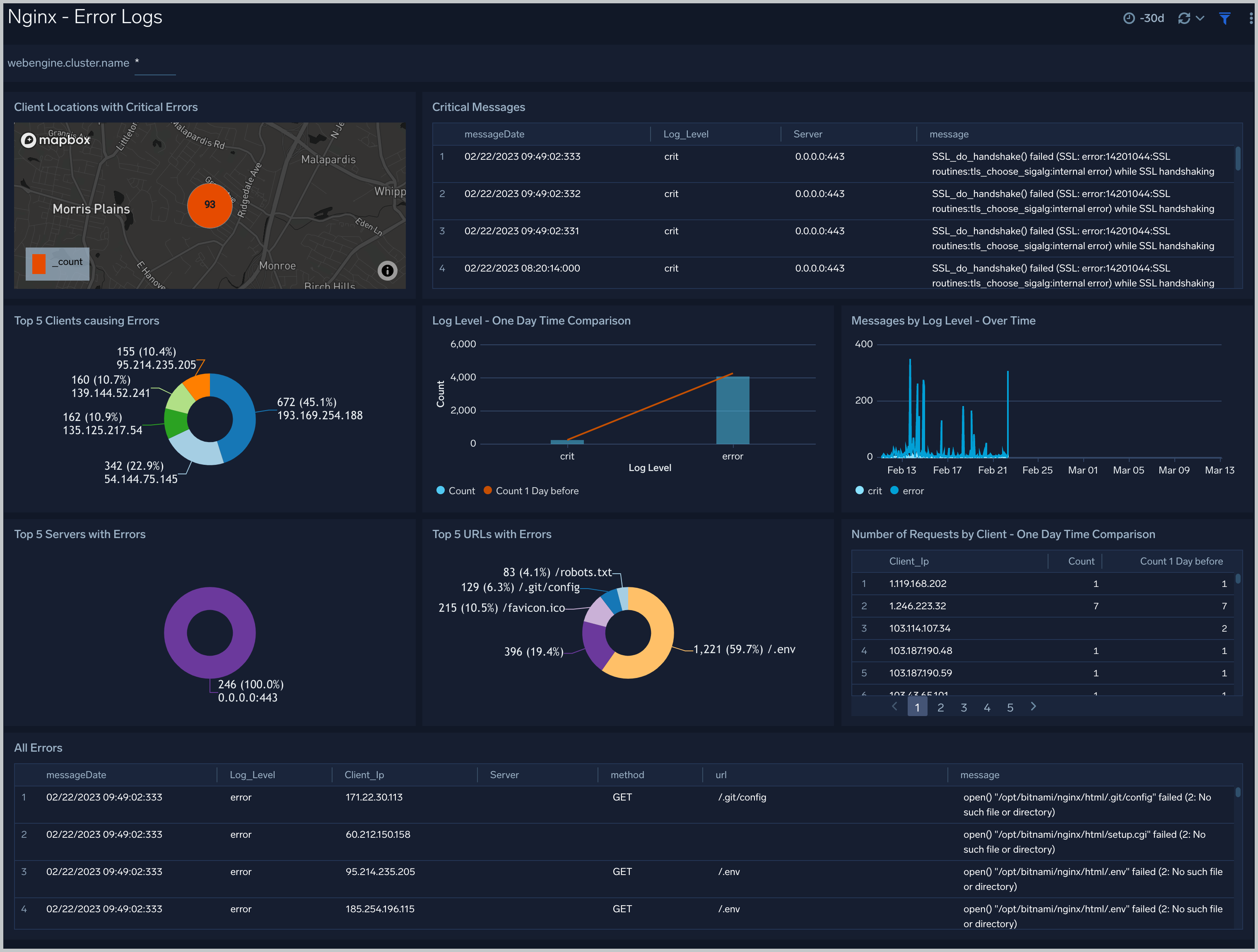
The Nginx - Error Logs Analysis dashboard provides a high-level view of log level breakdowns, comparisons, and trends. The panels also show the geographic locations of clients and clients with critical messages, new connections and outliers, client requests, request trends, and request outliers.
Use this dashboard to:
- Track requests from clients. A request is a message asking for a resource, such as a page or an image.
- Track and view client geographic locations generating errors.
- Track critical alerts and emergency error alerts.
Trends
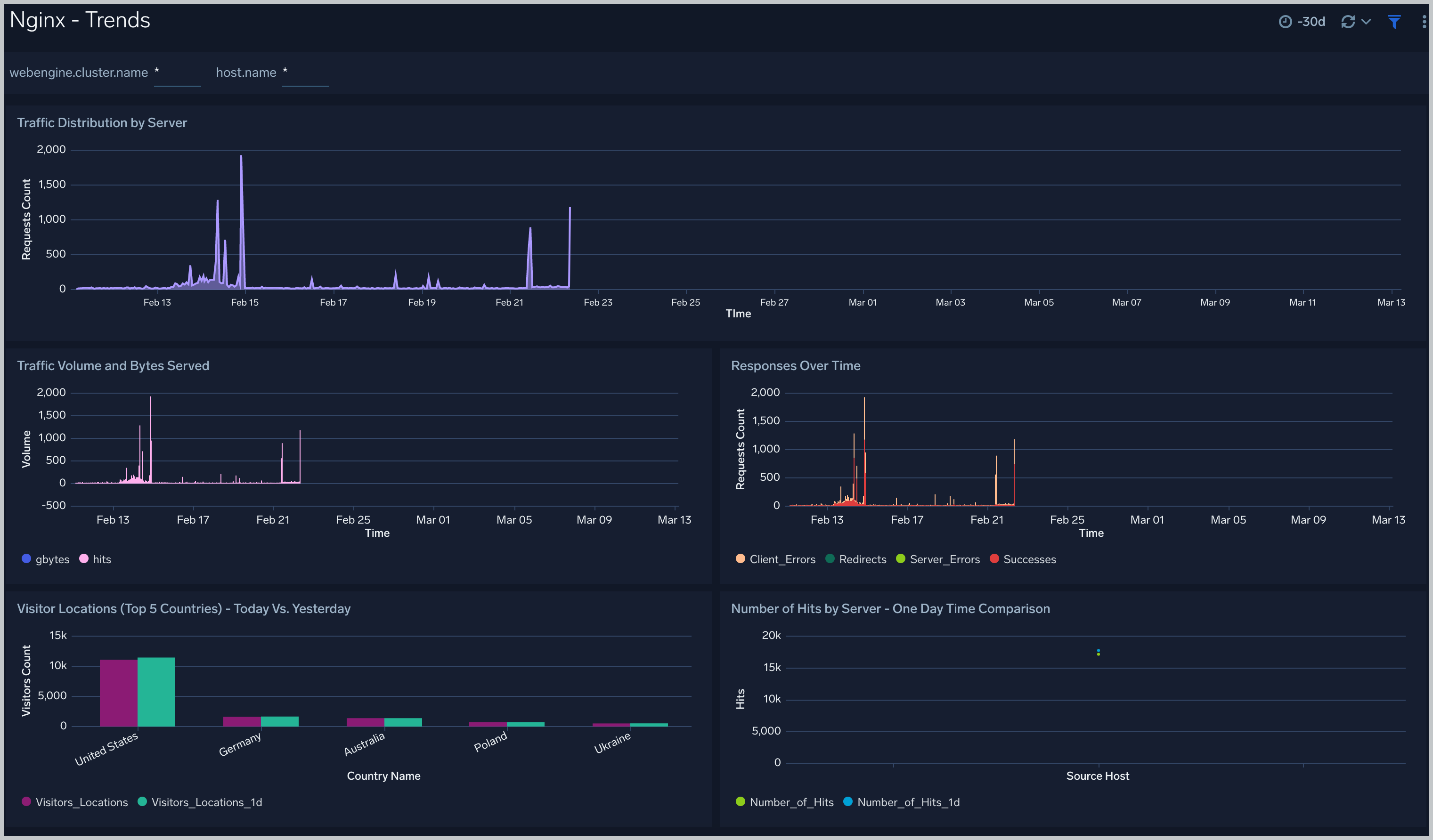
The Nginx - Trends dashboard provides a high-level view of the activity and health of Nginx servers on your network. Dashboard panels display visual graphs and detailed information on traffic volume and distribution, responses over time, as well as time comparisons for visitor locations and server hits.
Use this dashboard to:
- Understand the traffic distribution across servers, provide insights for resource planning by analyzing data volume and bytes served.
- Gain insights into originated traffic location by region. This can help you allocate compute resources to different regions according to their needs.
Outlier Analysis
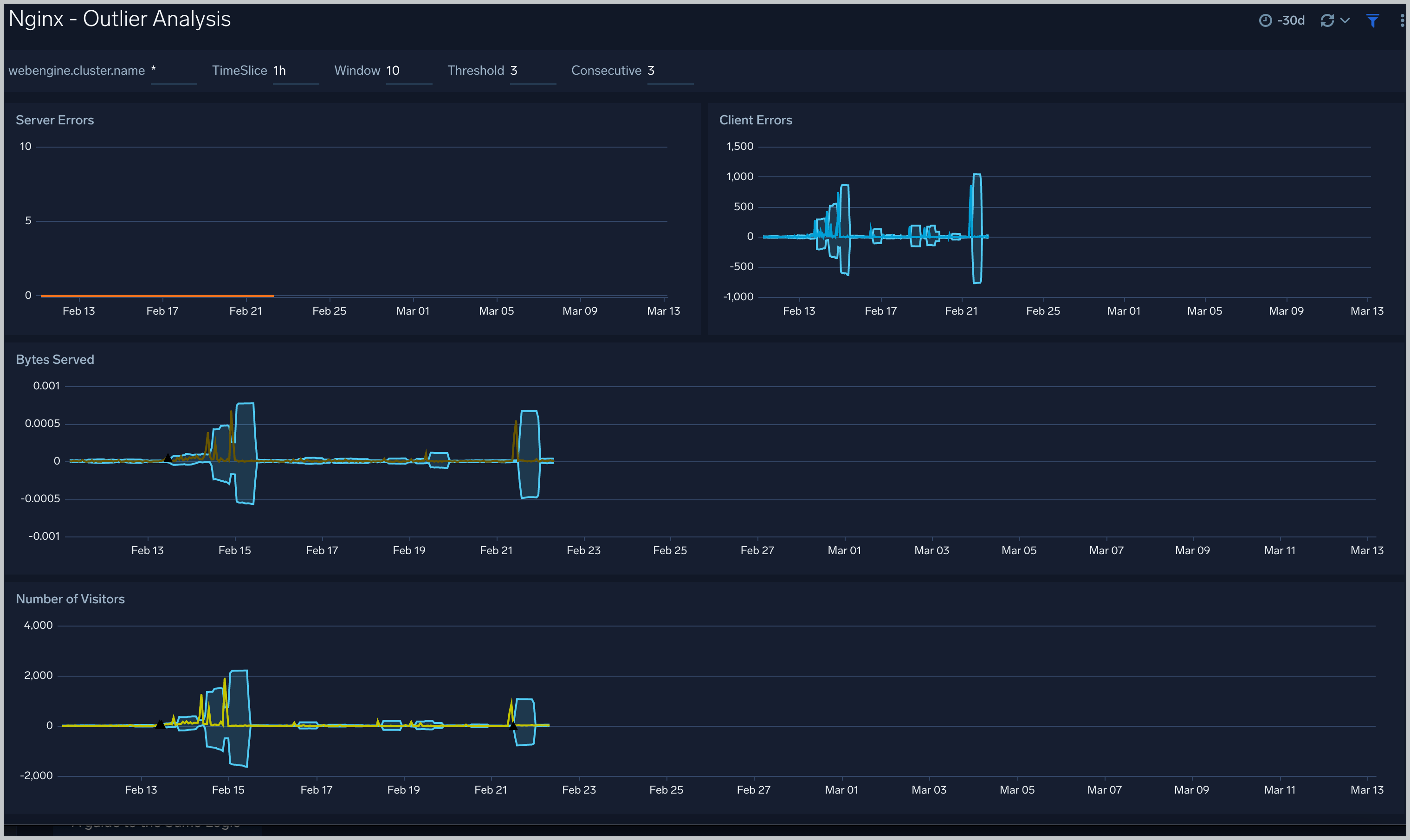
The Nginx - Outlier Analysis dashboard provides a high-level view of Nginx server outlier metrics for bytes served, number of visitors, and server errors. You can select the time interval over which outliers are aggregated, then hover the cursor over the graph to display detailed information for that point in time.
Use this dashboard to:
- Detect outliers in your infrastructure with Sumo Logic's machine learning algorithm.
- Identify outliers in incoming traffic and the number of errors encountered by your servers.
You can use schedule searches to send alerts to yourself whenever there is an outlier detected by Sumo Logic.
Threat Intel
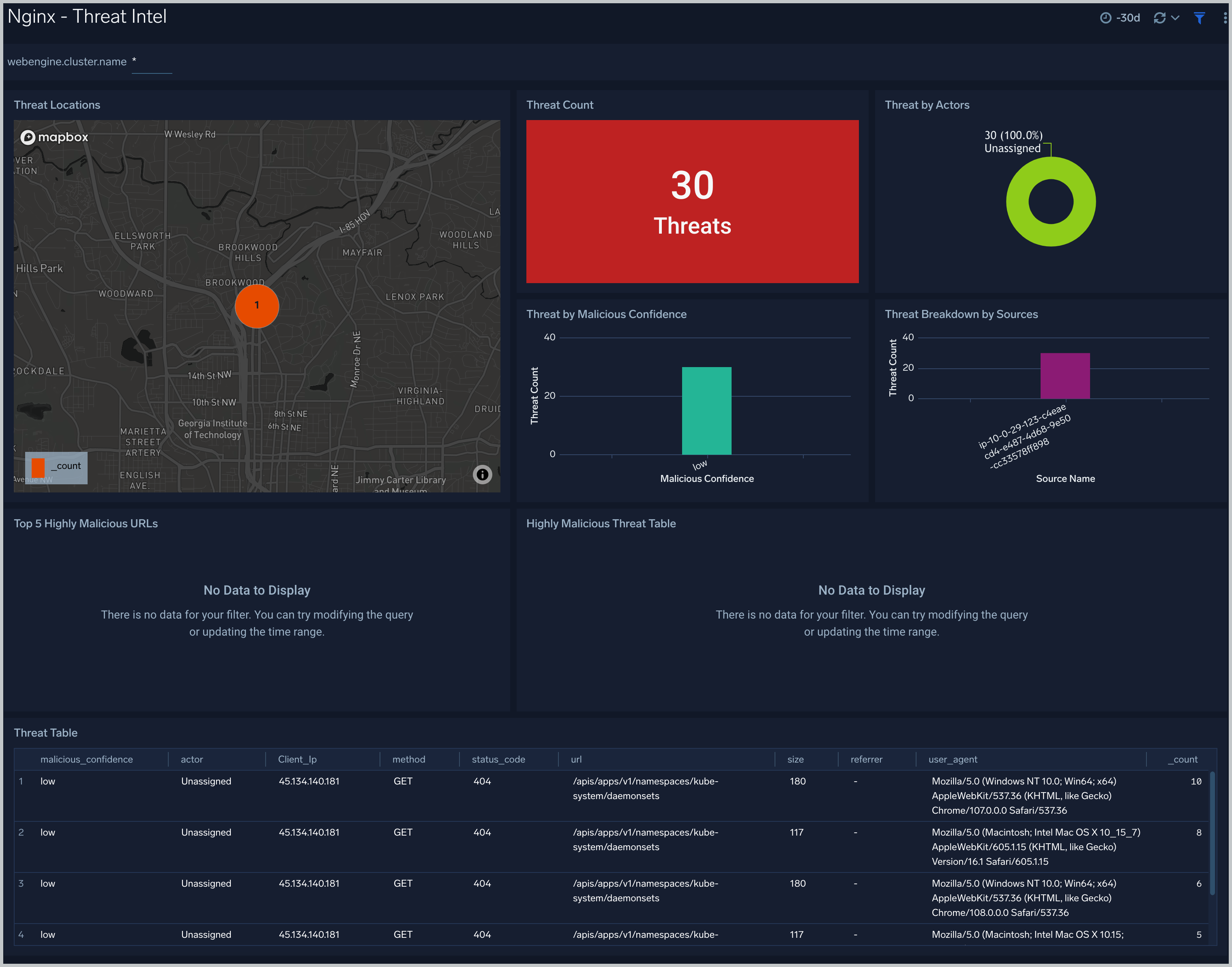
The Nginx - Threat Intel dashboard provides an at-a-glance view of threats to Nginx servers on your network. Dashboard panels display the threat count over a selected time period, geographic locations where threats occurred, source breakdown, actors responsible for threats, severity, and a correlation of IP addresses, method, and status code of threats. Use this dashboard to gain insights and understand threats in incoming traffic and discover potential IOCs. Incoming traffic requests are analyzed using Sumo Logic threat intelligence.
Web Server Operations
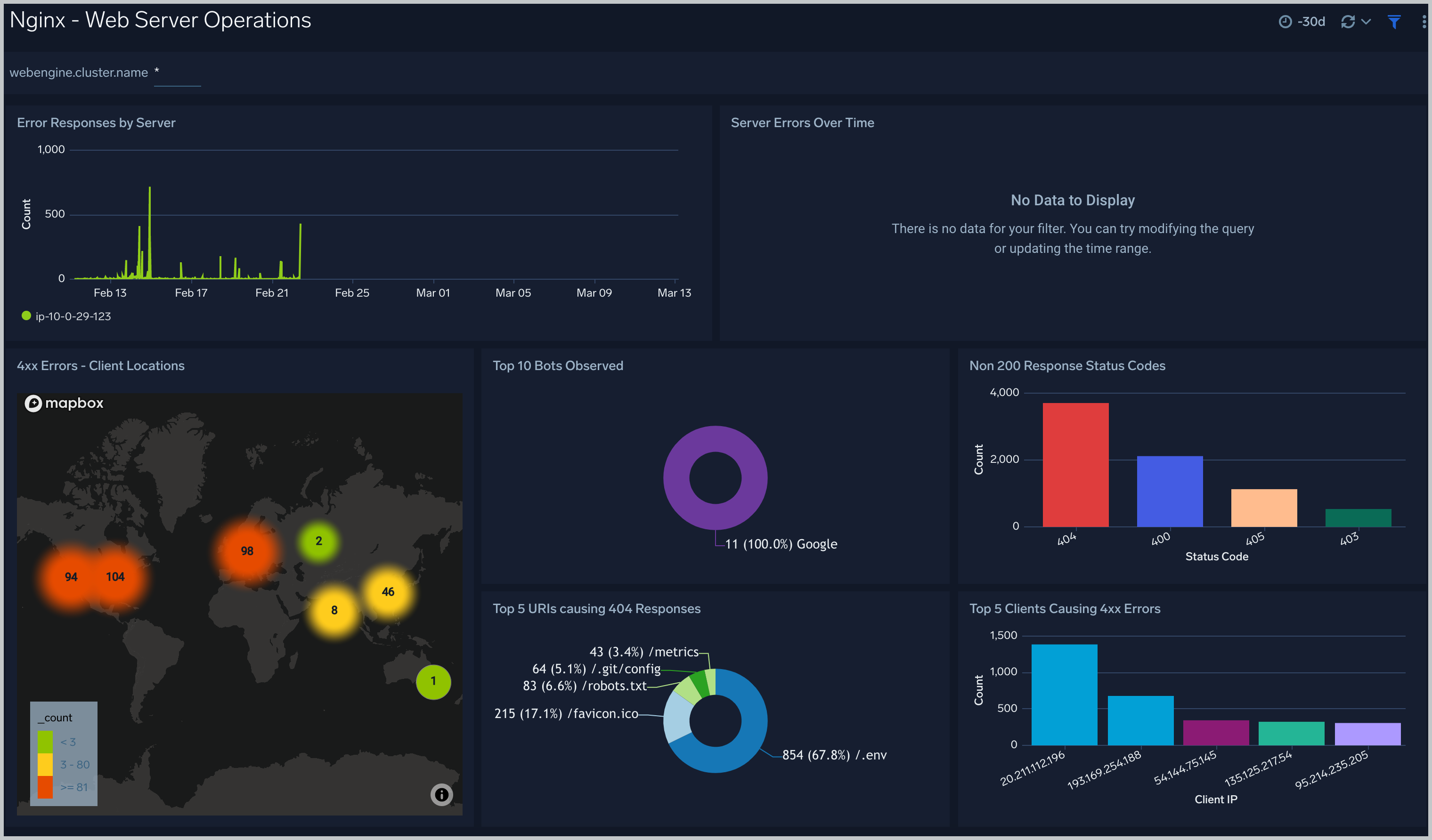
The Nginx - Web Server Operations dashboard provides a high-level view combined with detailed information on the top ten bots, geographic locations, and data for clients with high error rates, server errors over time, and non 200 response code status codes. Dashboard panels also show information on server error logs, error log levels, error responses by a server, and the top URIs responsible for 404 responses.
Use this dashboard to:
- Gain insights into Client, Server Responses on Nginx Server. This helps you identify errors in Nginx Server.
- Identify geo-locations of all Client errors. This helps you identify client location causing errors and helps you to block client IPs.
Visitor Access Types
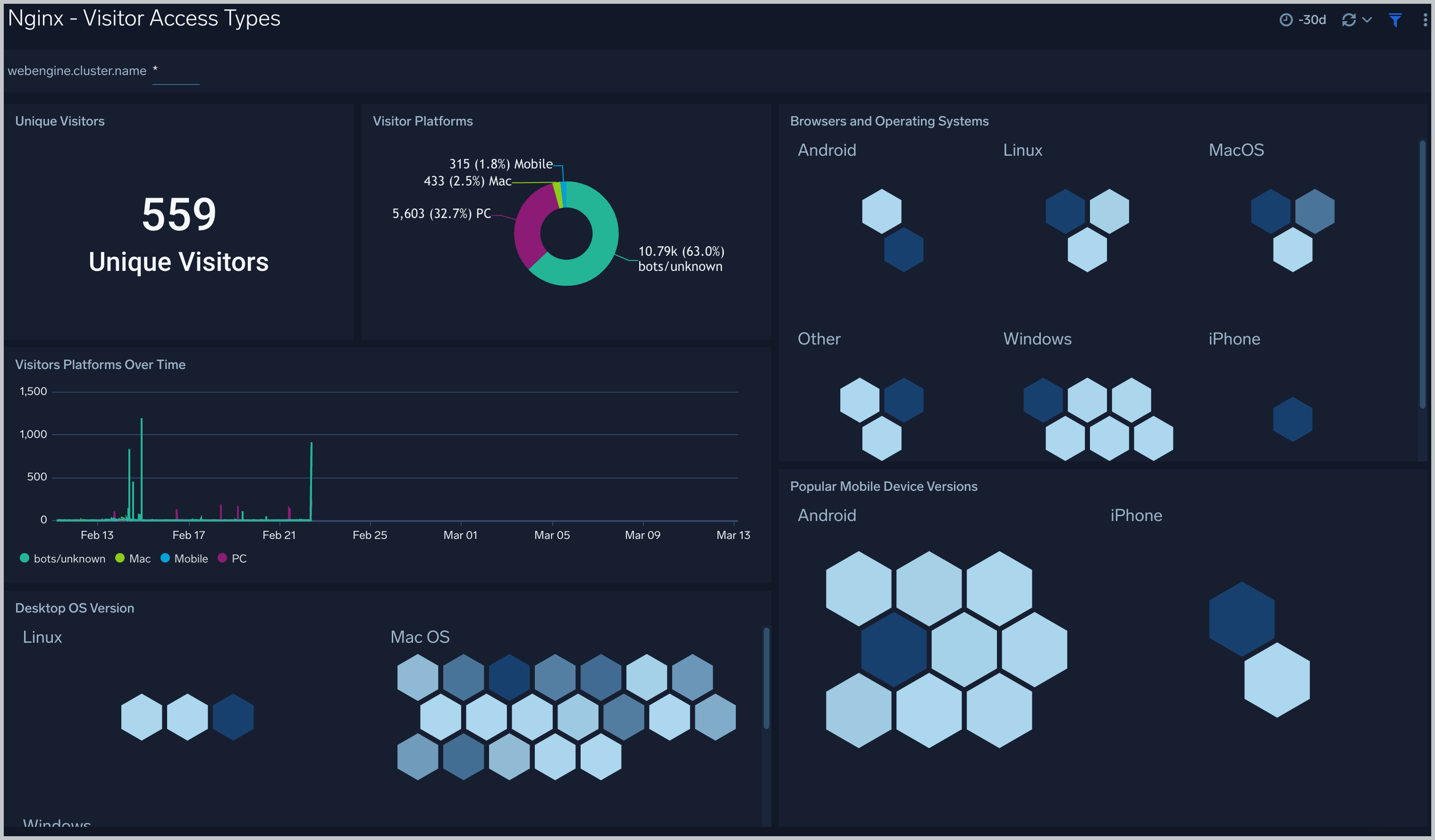
The Nginx - Visitor Access Types dashboard provides insights into visitor platform types, browsers, and operating systems, as well as the most popular mobile devices, PC and Mac versions used.
Use this dashboard to:
- Understand which platform and browsers are used to gain access to your infrastructure.
- These insights can be useful for planning in which browsers, platforms, and operating systems (OS) should be supported by different software services.
Visitor Locations
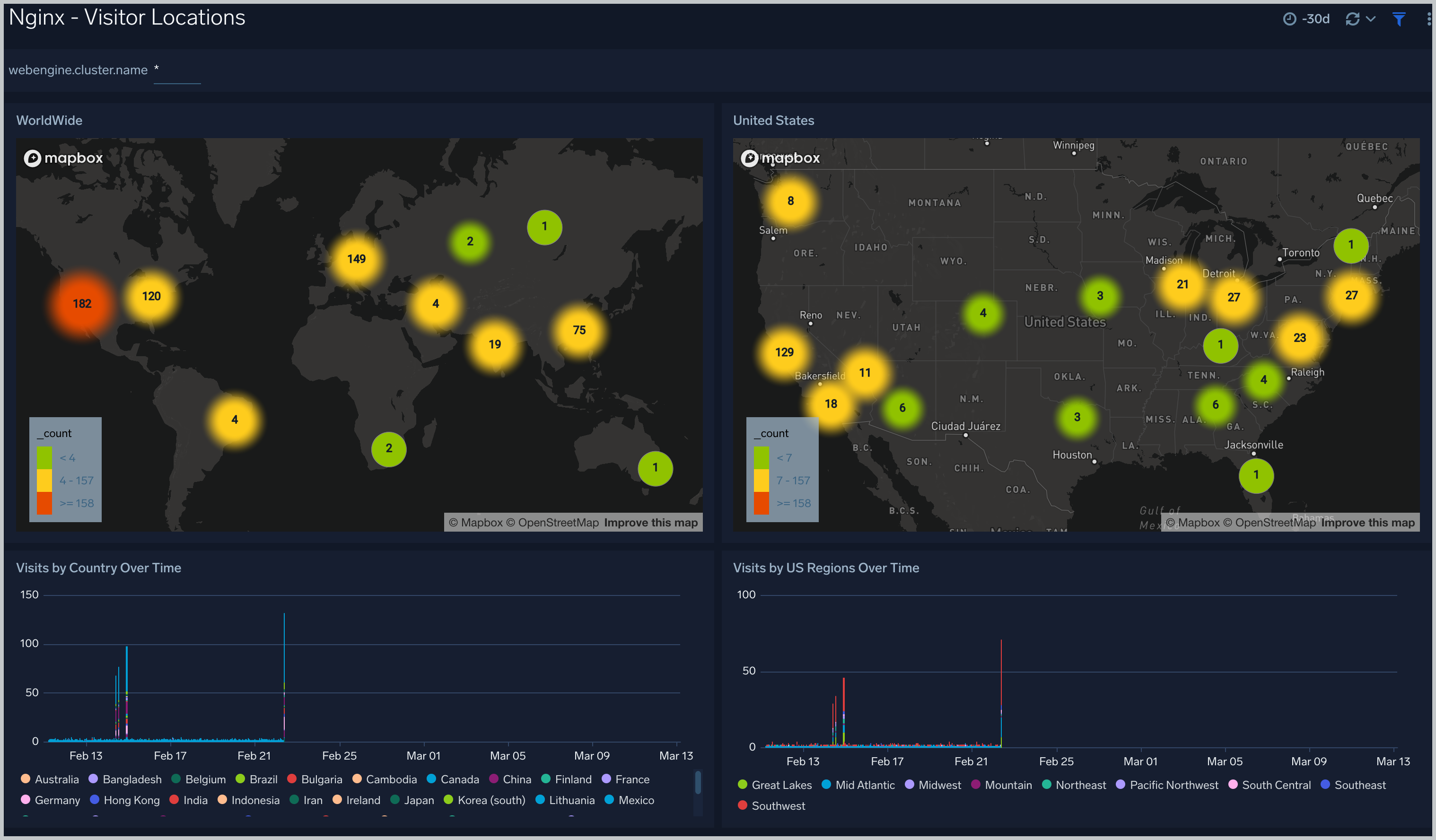
The Nginx - Visitor Locations dashboard provides a high-level view of Nginx visitor geographic locations both worldwide and in the United States. Dashboard panels also show graphic trends for visits by country over time and visits by US region over time. Use this dashboard to gain insights into geographic locations of your user base. This is useful for resource planning in different regions across the globe.
Visitor Traffic Insight
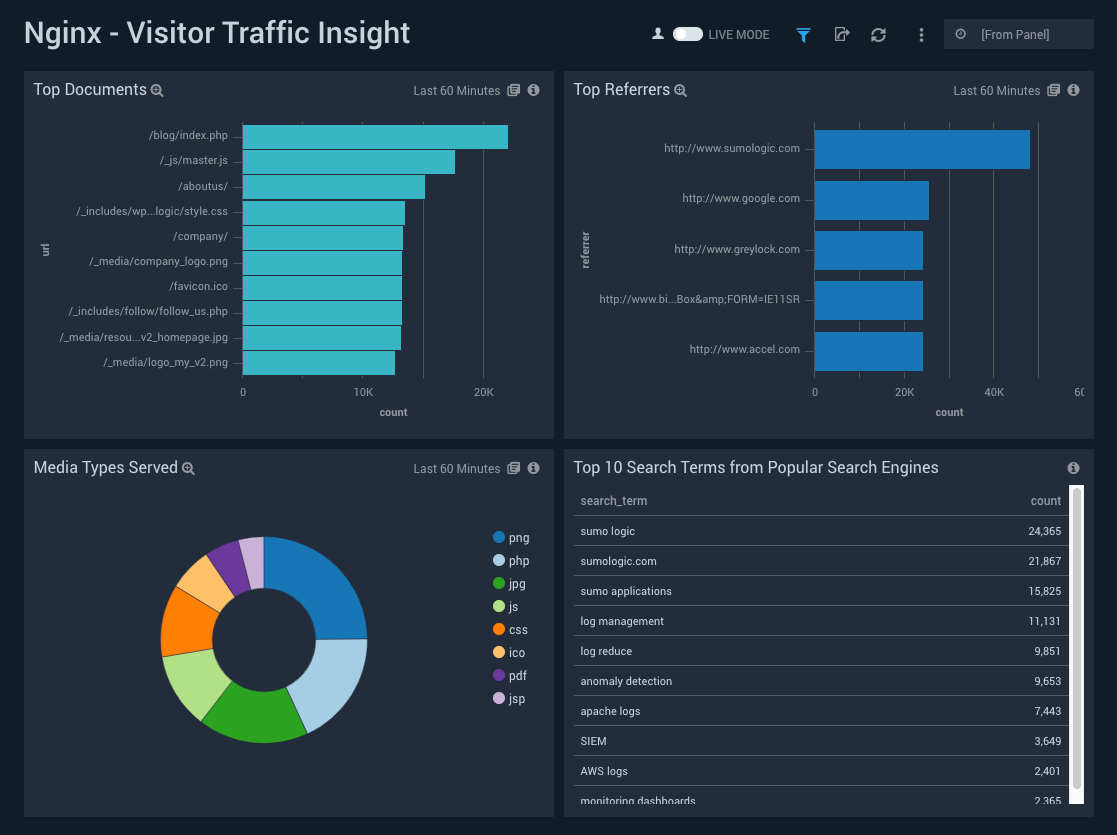
The Nginx - Visitor Traffic Insight dashboard provides detailed information on the top documents accessed, top referrers, top search terms from popular search engines, and the media types served.
Use this dashboard to:
- Understand the type of content that is frequently requested by users.
- It helps in allocating IT resources according to the content types.
Connections and Requests Metrics
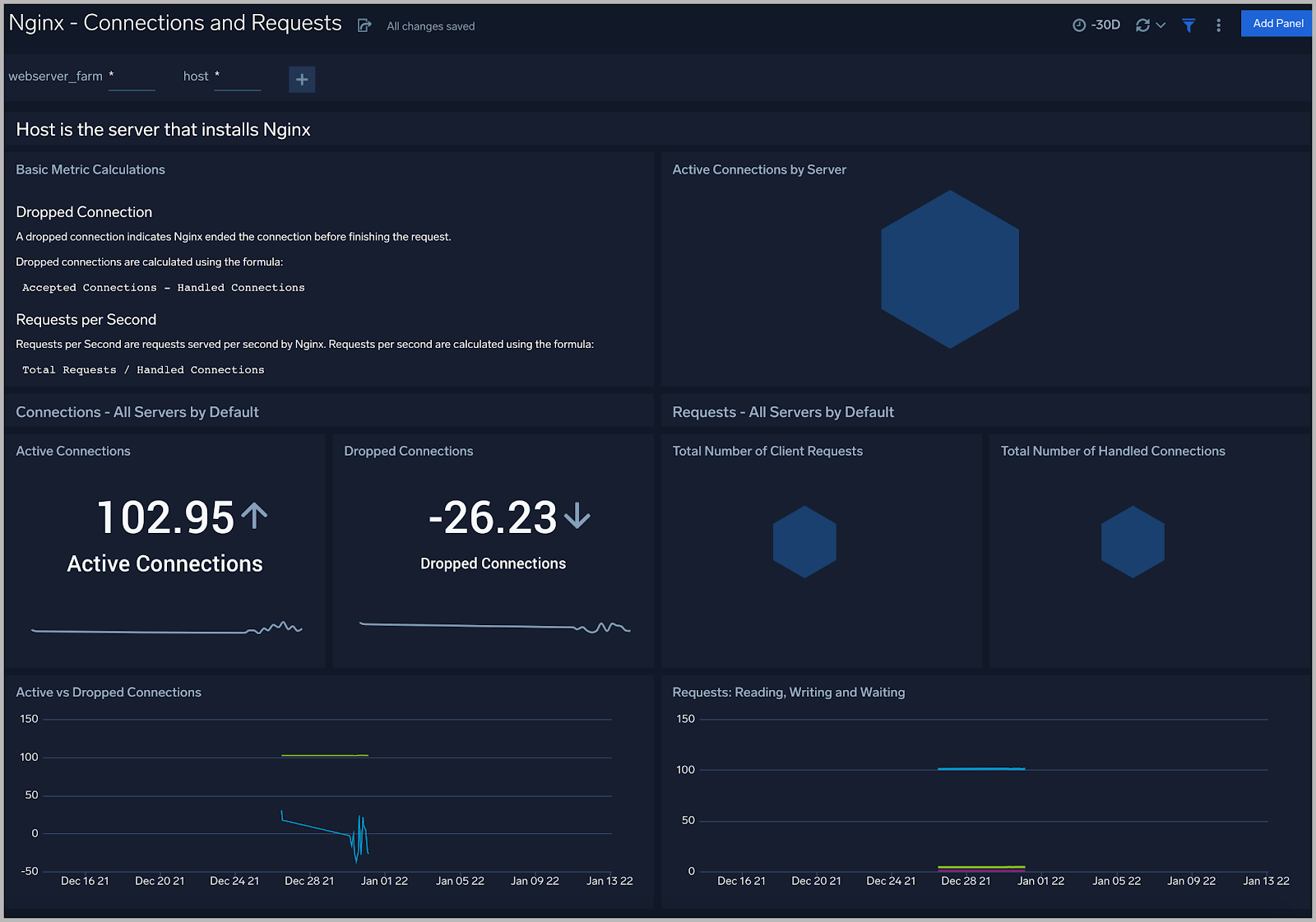
The Nginx - Connections and Requests Metrics dashboard provides insight into active, dropped connections, reading, writing, and waiting requests.
Use this dashboard to:
- Gain information about active and dropped connections. This helps you identify the connection rejected by Nginx Server.
- Gain information about the total requests handled by Nginx Server per second. This helps you understand read, write requests on Nginx Server.
Create monitors for Nginx app
From your App Catalog:
- From the Sumo Logic navigation, select App Catalog.
- In the Search Apps field, search for and then select your app.
- Make sure the app is installed.
- Navigate to What's Included tab and scroll down to the Monitors section.
- Click Create next to the pre-configured monitors. In the create monitors window, adjust the trigger conditions and notifications settings based on your requirements.
- Scroll down to Monitor Details.
- Under Location click on New Folder.
note
By default, monitor will be saved in the root folder. So to make the maintenance easier, create a new folder in the location of your choice.
- Enter Folder Name. Folder Description is optional.
tip
Using app version in the folder name will be helpful to determine the versioning for future updates.
- Click Create. Once the folder is created, click on Save.
Nginx alerts
| Alert Name | Alert Description and conditions | Alert Condition | Recover Condition |
|---|---|---|---|
Nginx - Access from Highly Malicious Sources Alert | This alert gets triggered when an Nginx server is accessed from highly malicious IP addresses. | Count > = 1 | Count < 1 |
Nginx - Critical Error Messages Alert | This alert gets triggered when we detect critical error messages for a given Nginx server. | Count > = 1 | Count < 1 |
Nginx - High Client (HTTP 4xx) Error Rate Alert | This alert gets triggered when there are too many HTTP requests (>5%) with a response status of 4xx. | Count > = 1 | Count < 1 |
Nginx - High Number of Active Connections Alert | This alert gets triggered when there are many number of active connections. | Count > = 100 | Count < 100 |
Nginx - High Server (HTTP 5xx) Error Rate Alert | This alert gets triggered when there are too many HTTP requests (>5%) with a response status of 5xx. | Count > = 1 | Count < 1 |