 Meet the new
 Upwind
Upwind is a runtime-powered cloud security platform that helps monitor cloud threats, configuration findings, and security operations activity. You can use a custom webhook in Upwind to forward events to the Sumo Logic HTTP endpoint. Using these logs, you can monitor audit activity, configuration findings, and threat detections in Sumo Logic.
For more details, see Upwind Custom Webhook documentation and Workflow documentation.
Event types
The Sumo Logic app for Upwind ingests security events into Sumo Logic through a custom webhook in Upwind workflows. Configure your webhook/workflow to send the log types you want to monitor.
The following log types are used in the Upwind Sumo Logic app:
- Audit events
- Configuration findings
- Threat detections
Sample log messages
{
    "title": "New Audit Log Event Recorded: Delete Membership Invitation",
    "event_type": "audit_log",
    "audit_id": "01KMCGGT28HSH23ENYZ2J4D4S4",
    "actor_name": "xyz Patel",
    "actor_email": "xyz.ctr@khbfgqqeyi.com",
    "activity_name": "Delete Membership Invitation",
    "target_module": "accessmanagement",
    "target_entity_id": "uinv_5lVaGyHkmzJoXr2B",
    "status": "SUCCESS",
    "ingested_time": "2026-03-28 18:39:02.708",
    "location_city": "Ahmedabad",
    "location_ip": "168.119.168.251",
    "workflow_id": "wf-8d90a595d9e0095d",
    "workflow_name": "sumo-4",
    "metadata": {
        "vendor_name": "UPWIND_SECURITY"
    }
}
Sample queries
_sourceCategory="Labs/Upwind" id severity status category mitre_attacks
| json "id", "severity", "status", "category", "resource.cloud_provider" as id, severity, status, category, cloud_provider nodrop

// global filters
| where if ("*" = "*", true, severity matches "*") and if ("*" = "*", true, status matches "*") and if ("*" = "*", true, cloud_provider matches "*") and if ("*" = "*", true, category matches "*")

| count by id
| count
Setup
This section includes instructions for collecting logs for the Sumo Logic Upwind webhook collection.
Source configuration
Follow the steps below to configure the Hosted Collector to receive Upwind events.
- In the Sumo Logic portal, create a new Hosted Collector or use an existing one.
- Add an HTTP Logs and Metrics Source.
- Configure Source Category in the HTTP Source, for example,
webhook/upwind. - Copy and save the endpoint URL of the source.
Vendor configuration
Configure the webhook integration in Upwind to send events to the Sumo Logic HTTP source.
Follow the steps below to configure the Upwind webhook and workflow.
- Sign in to your Upwind account.
- Go to Components > Integrations > Monitoring & Logging > Custom Webhook.
- Click Create Custom webhook.
- Enter webhook form data as follows:
- Webhook name. Provide a name for the integration.
- URL. Enter the Sumo Logic HTTP endpoint URL (source address) created above.
- Authentication type. Select None.
- Click Test & save to validate the connection and save your configuration.
- Go to Components > Workflow and create a new workflow.
- Select a workflow trigger and set Workflow Action to Select to a Custom webhook.
- Select the webhook integration created above and save the workflow.
- Verify Upwind events are getting ingested in Sumo Logic by executing the following query in Log Search:
_sourceCategory=webhook/upwind
For webhook and workflow details, refer to Upwind Custom Webhook documentation and Workflow documentation.
Installing the Upwind app
To install the app, do the following:
Next-Gen App: To install or update the app, you must be an account administrator or a user with Manage Apps, Manage Monitors, Manage Fields, Manage Metric Rules, and Manage Collectors capabilities depending upon the different content types part of the app.
- Select App Catalog.
- In the 🔎 Search Apps field, run a search for your desired app, then select it.
- Click Install App.
note
Sometimes this button says Add Integration.
- Click Next in the Setup Data section.
- In the Configure section of your respective app, complete the following fields.
- Field Name. If you already have collectors and sources set up, select the configured metadata field name (eg _sourcecategory) or specify other custom metadata (eg: _collector) along with its metadata Field Value.
- Click Next. You will be redirected to the Preview & Done section.
Post-installation
Once your app is installed, it will appear in your Installed Apps folder, and dashboard panels will start to fill automatically.
Each panel slowly fills with data matching the time range query received since the panel was created. Results will not immediately be available but will be updated with full graphs and charts over time.
Viewing Upwind dashboards
All dashboards have a set of filters that you can apply to the entire dashboard. Use these filters to drill down and examine the data to a granular level.
- You can change the time range for a dashboard or panel by selecting a predefined interval from a drop-down list, choosing a recently used time range, or specifying custom dates and times. Learn more.
- You can use template variables to drill down and examine the data on a granular level. For more information, see Filtering Dashboards with Template Variables.
- Most Next-Gen apps allow you to provide the scope at the installation time and are comprised of a key (
_sourceCategoryby default) and a default value for this key. Based on your input, the app dashboards will be parameterized with a dashboard variable, allowing you to change the dataset queried by all panels. This eliminates the need to create multiple copies of the same dashboard with different queries.
Audit - Overview
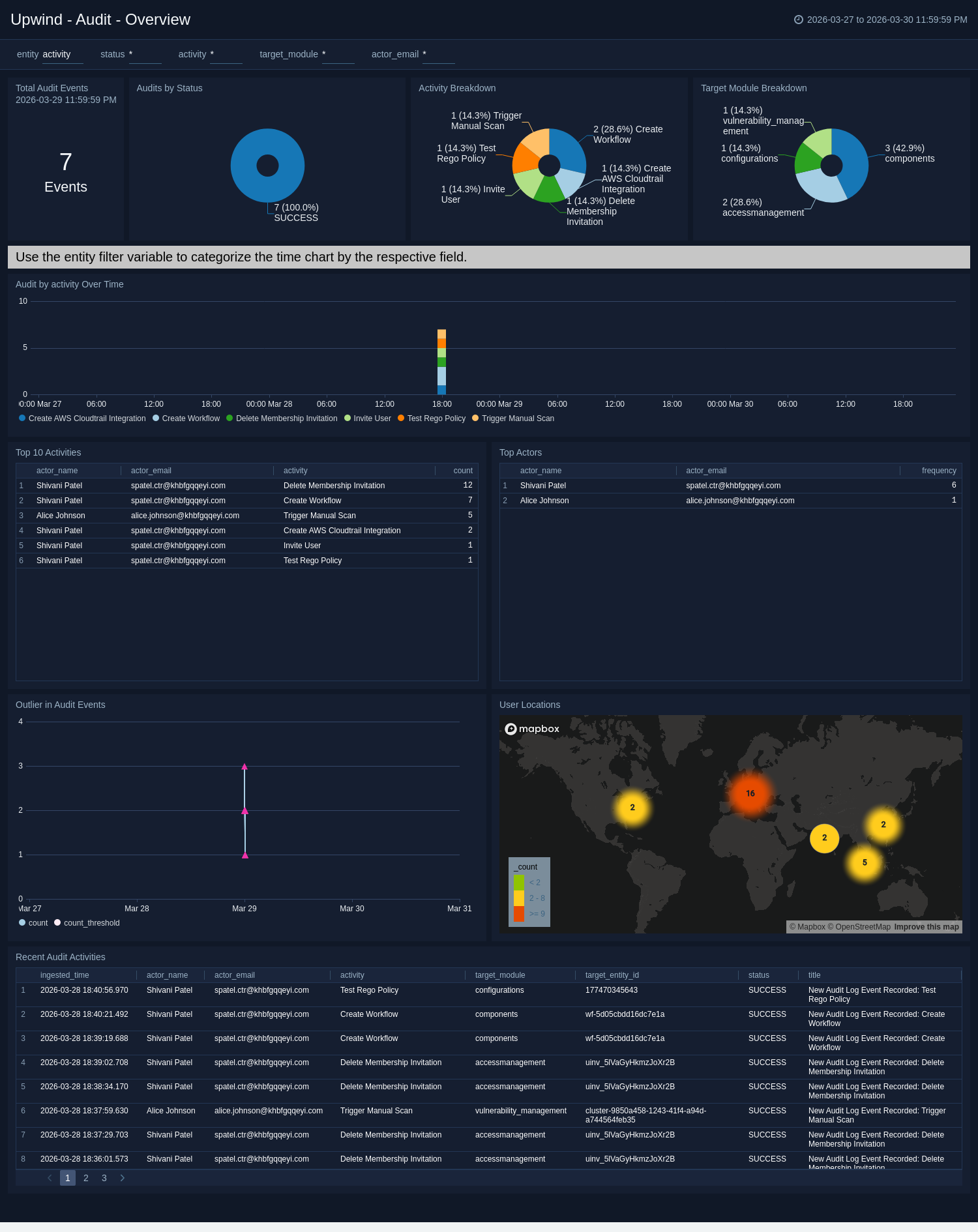
The Upwind - Audit - Overview dashboard provides high-level visibility into audit event volume and status, activity trends over time, and recent audit records for investigation.
Audit - Security and Operations
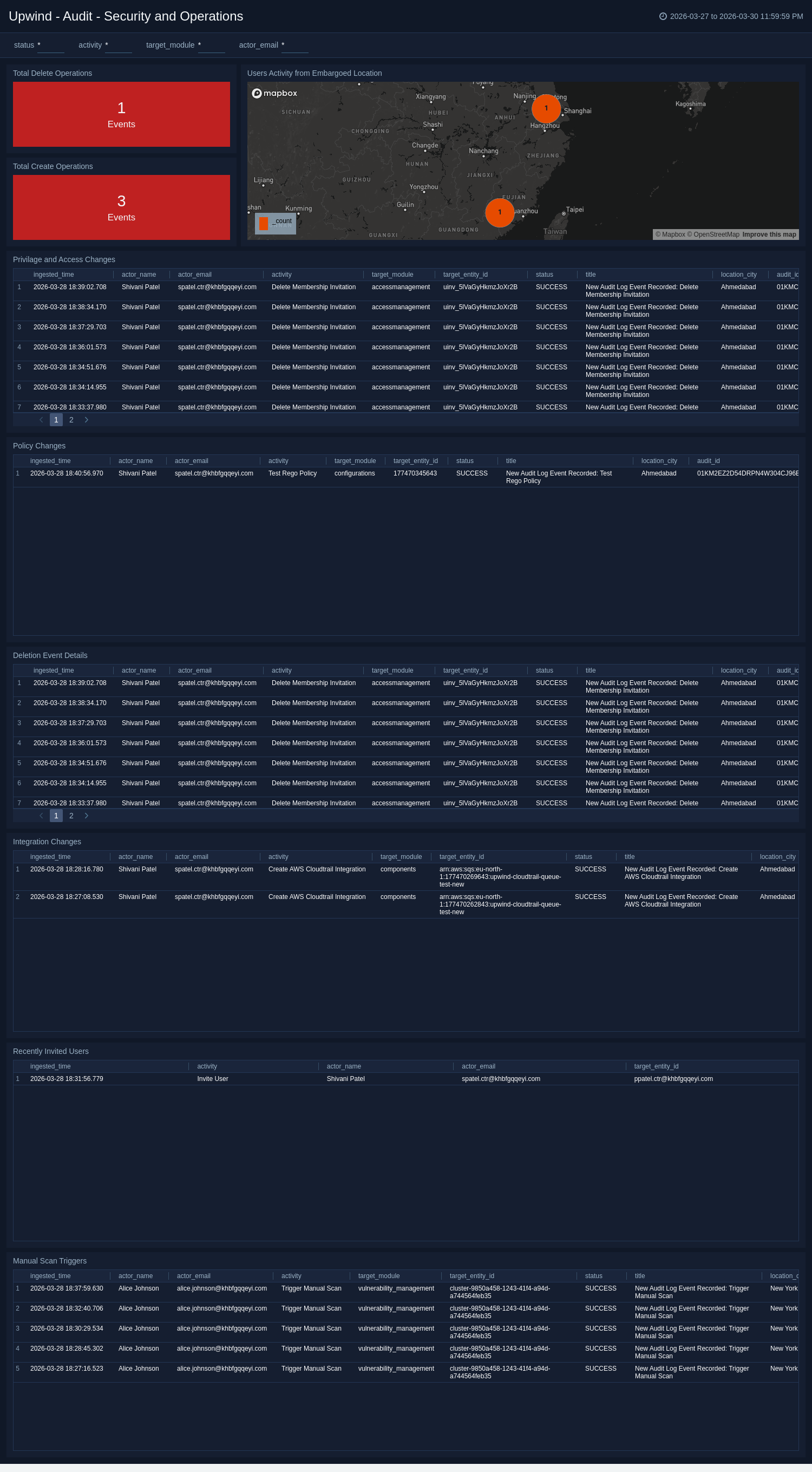
The Upwind - Audit - Security and Operations dashboard focuses on security and operations-oriented audit activity to help track sensitive changes and operational events.
Configuration Findings - Overview
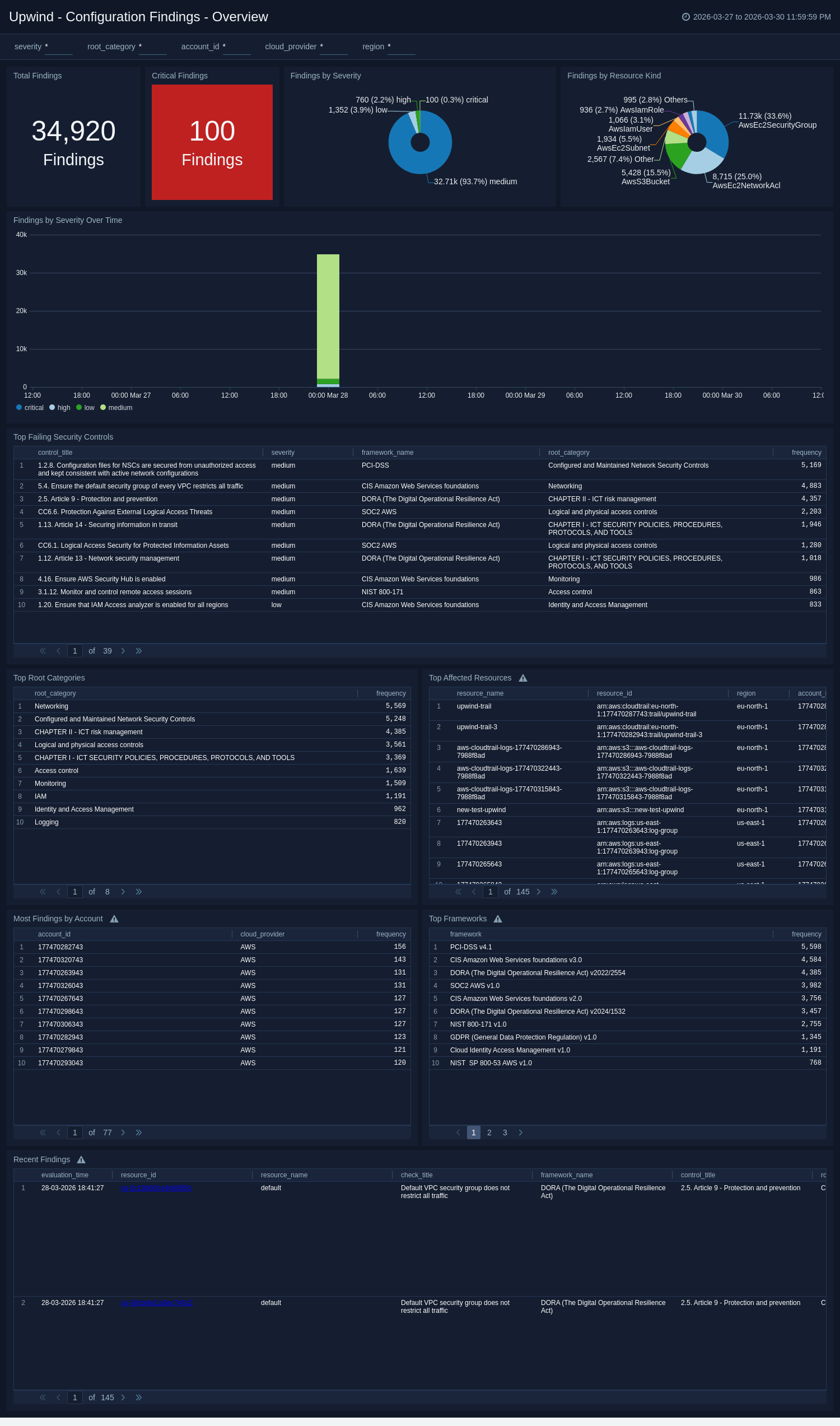
The Upwind - Configuration Findings - Overview dashboard provides insights into configuration findings, including severity and trend-oriented analysis.
Configuration Findings - Security
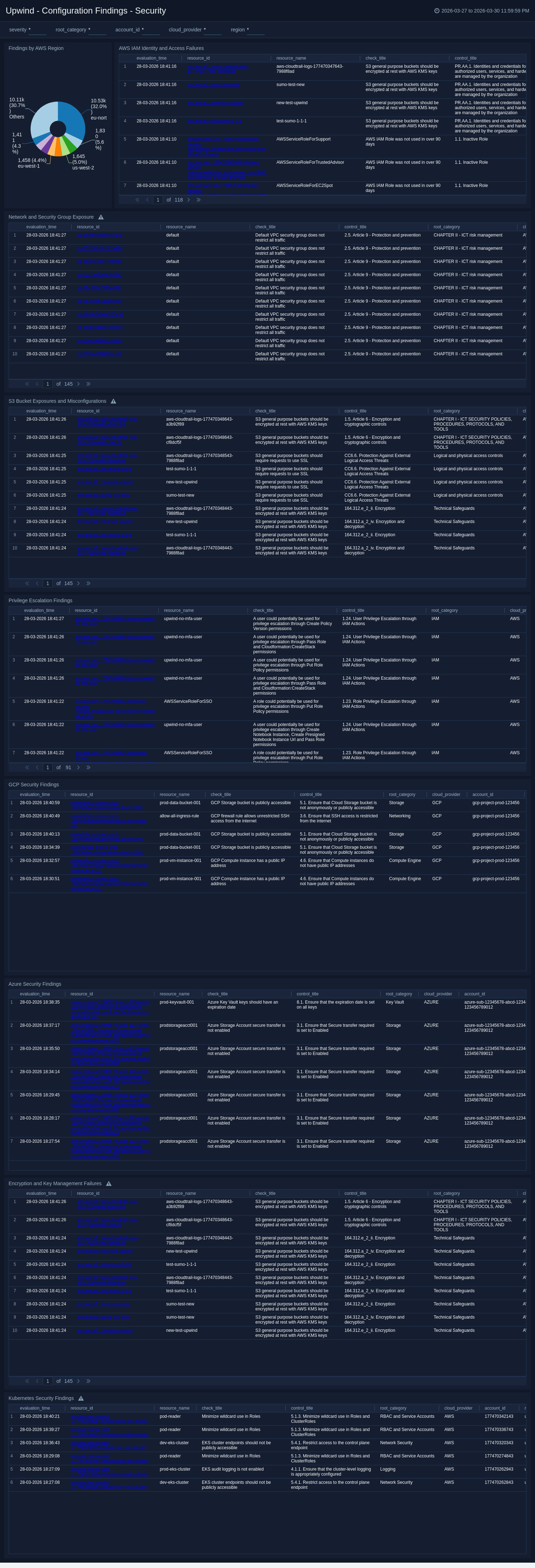
The Upwind - Configuration Findings - Security dashboard helps security teams investigate security-relevant findings and prioritize remediation.
Threat Detection - Overview
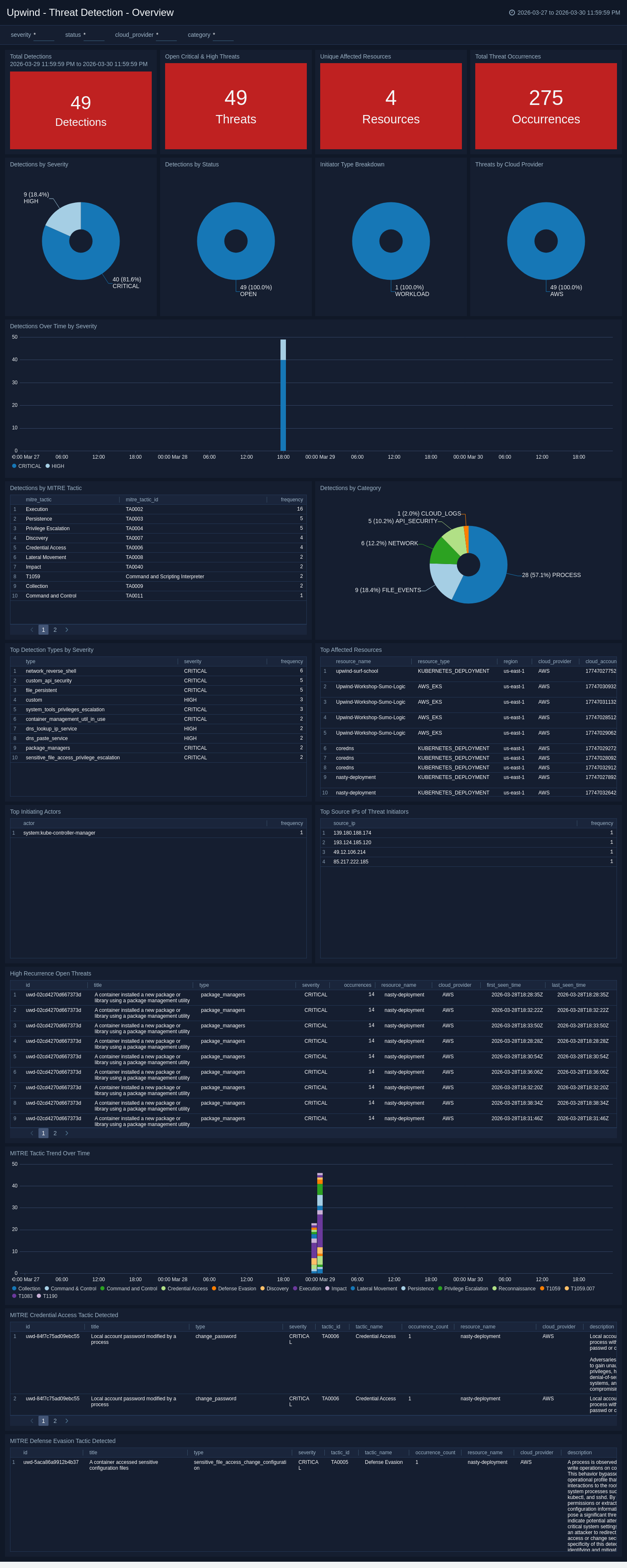
The Upwind - Threat Detection - Overview dashboard provides comprehensive visibility into threat detections, including severity distribution, MITRE ATT&CK tactics, affected cloud resources, initiating actors, and high-recurrence open threats.
Create monitors for the Upwind app
From your App Catalog:
- From the Sumo Logic navigation, select App Catalog.
- In the Search Apps field, search for and then select your app.
- Make sure the app is installed.
- Navigate to What's Included tab and scroll down to the Monitors section.
- Click Create next to the pre-configured monitors. In the create monitors window, adjust the trigger conditions and notifications settings based on your requirements.
- Scroll down to Monitor Details.
- Under Location click on New Folder.
note
By default, monitor will be saved in the root folder. So to make the maintenance easier, create a new folder in the location of your choice.
- Enter Folder Name. Folder Description is optional.
tip
Using app version in the folder name will be helpful to determine the versioning for future updates.
- Click Create. Once the folder is created, click on Save.
Upwind alerts
| Name | Description | Alert Condition | Recover Condition |
|---|---|---|---|
Upwind - Critical Threat Detection | This alert is triggered when open threats with CRITICAL or HIGH severity are detected in Upwind. This may indicate active or high-impact security risks that require immediate investigation and response. | Count > 0 | Count < = 0 |
Upwind - MITRE Defense Evasion Tactic Detected | This alert is triggered when an Upwind threat is mapped to the MITRE ATT&CK Defense Evasion tactic (TA0005). This may indicate attempts to avoid detection and conceal malicious activity. | Count > 0 | Count < = 0 |
Upwind - High Recurrence Open Threat | This alert is triggered when an open Upwind threat is observed with recurrence greater than one occurrence. This may indicate persistent or repeating malicious behavior affecting cloud resources. | Count > 1 | Count < = 1 |
Upwind - Audit Activity from Embargoed Location | This alert is triggered when Upwind audit activity originates from embargoed or high-risk geographies. This may indicate unauthorized access, policy violations, or suspicious administrative behavior from restricted locations. | Count > 0 | Count < = 0 |
Upwind - MITRE Credential Access Tactic Detected | This alert is triggered when an Upwind threat is mapped to the MITRE ATT&CK Credential Access tactic (TA0006). This may indicate attempts to steal credentials and gain unauthorized access to systems or accounts. | Count > 0 | Count < = 0 |
Upgrade/Downgrade the Upwind app (Optional)
To update the app, do the following:
Next-Gen App: To install or update the app, you must be an account administrator or a user with Manage Apps, Manage Monitors, Manage Fields, Manage Metric Rules, and Manage Collectors capabilities depending upon the different content types part of the app.
- Select App Catalog.
- In the Search Apps field, search for and then select your app.
Optionally, you can identify apps that can be upgraded in the Upgrade available section. - To upgrade the app, select Upgrade from the Manage dropdown.
- If the upgrade does not have any configuration or property changes, you will be redirected to the Preview & Done section.
- If the upgrade has any configuration or property changes, you will be redirected to the Setup Data page.
- In the Configure section of your respective app, complete the following fields.
- Field Name. If you already have collectors and sources set up, select the configured metadata field name (eg _sourcecategory) or specify other custom metadata (eg: _collector) along with its metadata Field Value.
- Click Next. You will be redirected to the Preview & Done section.
Post-update
Your upgraded app will be installed in the Installed Apps folder and dashboard panels will start to fill automatically.
See our Release Notes changelog for new updates in the app.
To revert the app to a previous version, do the following:
- Select App Catalog.
- In the Search Apps field, search for and then select your app.
- To version down the app, select Revert to < previous version of your app > from the Manage dropdown.
Uninstalling the Upwind app (Optional)
To uninstall the app, do the following:
- Select App Catalog.
- In the 🔎 Search Apps field, run a search for your desired app, then select it.
- Click Uninstall.
Additional resources
- Use the Upwind Automation Service Integration to automate response actions directly from Cloud SOAR playbooks.