Archive Log Data to S3 using OpenTelemetry Collectors
This article describes how to archive log data to Amazon S3 using OpenTelemetry collectors. Archiving allows you to store log data cost-effectively in S3 and ingest it later on demand, while retaining full enrichment and searchability when the data is re-ingested.
Do not change the name or location of the archived files in your S3 bucket. Doing so will prevent proper ingestion later.
Overview
With the OpenTelemetry-based approach, log data is sent to S3 using an OpenTelemetry collector pipeline:
Sources > OpenTelemetry collector > awss3exporter > Amazon S3
For S3 archiving, we use:
- The
awss3exportercomponent to upload data to S3. Learn more. - The
sumo_ic marshaller, which formats the archived files so they are compatible with Sumo Logic’s ingestion process.
Why use OpenTelemetry collector for archiving logs to S3
Compared to legacy Installed Collector-based archiving, the OpenTelemetry approach provides:
- Full control over metadata enrichment
- Flexible and transparent configuration through YAML
- Better alignment with modern observability pipelines
- Easier integration across hybrid and cloud-native environments
- A future-proof architecture aligned with OpenTelemetry standards
Required metadata for archived logs
For archived logs to be enriched and ingested correctly later, three resource attributes must be present on every log record. These are configured using the OpenTelemetry resource processor:
| Resource Attribute | Description | Maximum length |
|---|---|---|
_sourceCategory | This field is open and free to use to logically group data. | 1024 characters |
_sourceHost | This field is ideally the hostname of the machine where logs originate, but can be any meaningful value. | 128 characters |
_sourceName | This field is the source name such as a filename from which ingestion is happening or the type of logs (for example, dockerlogs, apachelogs). |
These attributes can be set statically in configuration, or populated dynamically using a custom resource processor (advanced use case). However, dynamic extraction requires advanced implementation and is not generally recommended unless you have strong OpenTelemetry expertise.
Archive format
Only the v2 archive format is supported when using OpenTelemetry collector. The legacy v1 format is deprecated for OpenTelemetry collector and must not be used. Learn more.
Archived files use the format:
<deployment>/<collectorID>/<bladeID>
These three identifiers are used to populate _sourceCategory, _sourceHost, and _sourceName during ingestion as described in the attributes section.
The identifier values do not need to be real IDs. Dummy values are allowed and ingestion will still work correctly. However, providing meaningful values is strongly recommended to help users differentiate log sources during ingestion. For example, if you archive Docker logs, Apache logs, and PostgreSQL logs into the same bucket, the filename alone generated by the sumo_ic marshaller does not indicate the source type. Using different collectorID and bladeID values allows you to differentiate log types during ingestion using path patterns.
In many environments, the collectorID can be a dummy value. The bladeID (source template ID) is particularly more useful for identifying log types.
Below is a sample OpenTelemetry collector configuration that archives logs from files into S3 using the supported Sumo Logic archive format.
receivers:
  filelog/myapps:
    include: ["/home/ec2-user/docker/validation/s3archive/logs/*.log"]
    start_at: beginning

processors:
  resource/add_sumo_fields:
    attributes:
      - key: _sourceCategory
        value: "testlogs"
        action: insert
      - key: _sourceHost
        value: "my-host.example.com"  # replace or dynamically set below
        action: insert
      - key: _sourceName
        value: "myapp"        # replace with a logical source name
        action: insert

  batch:
    timeout: 600s
    send_batch_size: 8192

exporters:
  awss3/my-sumo-archive:
    marshaler: "sumo_ic"

    s3uploader:
      region: "eu-north-1"
      s3_bucket: "s3-archive-test"
      s3_prefix: "v2/"
      s3_partition_format: 'dt=%Y%m%d/hour=%H/minute=%M/stag/0000000007EB64D7/000000002DFFBCA8'
      s3_partition_timezone: 'UTC'
      compression: gzip

service:
  pipelines:
    logs:
      receivers: [filelog/myapps]
      processors: [resource/add_sumo_fields, batch]
      exporters: [awss3/my-sumo-archive]
Ingestion filtering using path patterns
When configuring an AWS S3 archive source on a Hosted Collector, specify a file path pattern to control what gets ingested.
For example, to ingest only Docker logs:
v2/*/<DockerSourceTemplateID>/*
If differentiation is not required, you can use dummy 16-digit hexadecimal values for both collectorID and bladeID, and ingestion will still work with correct metadata enrichment.
Batching
The size and time window of archived files is controlled using the OpenTelemetry batch processor. For example, a batching timeout of 15 minutes produces one S3 file approximately every 15 minutes.
If the ingestion job window does not exactly align with the batching boundaries, the Hosted Collector behaves conservatively and may ingest slightly more data rather than risk data loss. This ensures no data loss around interval boundaries.
Example:
| Archive file creation window | Ingestion job window | Ingested file window |
|---|---|---|
| hour1/minute07 | hour1/minute05 to hour1/minute30 | hour0/minute52 |
| hour1/minute22 | hour1/minute05 to hour1/minute30 | hour1/minute07 |
| hour1/minute37 | hour1/minute05 to hour1/minute30 | hour1/minute22 |
| hour1/minute52 | hour1/minute05 to hour1/minute30 | hour1/minute37 |
Ingest data from archive
You can ingest a specific time range of data from your archive at any time with an AWS S3 archive source. First, create an AWS S3 archive source, then create an ingestion job.
Rules
- A maximum of 2 concurrent ingestion jobs is supported. If more jobs are needed contact your Sumo Logic account representative.
- An ingestion job has a maximum time range of 12 hours. If a longer time range is needed, contact your Sumo Logic account representative.
- Filenames or object key names must be in either of the following formats:
- Sumo Logic archive format
prefix/dt=YYYYMMDD/hour=HH/fileName.json.gz
- If the logs from archive do not have timestamps, they are only searchable by receipt time.
- If a field is tagged to an archived log message and the ingesting collector or source has a different value for the field, the field values already tagged to the archived log take precedence.
- If the collector or source that archived the data is deleted, the ingesting collector and source metadata fields are tagged to your data.
- You can create ingestion jobs for the same time range, however, jobs maintain a 10 day history of ingested data and any data resubmitted for ingestion within 10 days of its last ingestion will be automatically filtered so it's not ingested.
Create an AWS S3 archive source
You need the Manage Collectors role capability to create an AWS S3 archive source.
An AWS S3 archive source allows you to ingest your archived data. Configure it to access the AWS S3 bucket that has your archived data.
To use JSON to create an AWS S3 archive source, reference our AWS Log source parameters and use AwsS3ArchiveBucket as the value for contentType.
- New UI. In the main Sumo Logic menu select Data Management, and then under Data Collection select Collection. You can also click the Go To... menu at the top of the screen and select Collection.
Classic UI. In the main Sumo Logic menu, select Manage Data > Collection > Collection. - On the Collectors page, click Add Source next to a Hosted Collector, either an existing Hosted Collector or one you have created for this purpose.
- Select AWS S3 Archive.
- Enter a name for the new source. A description is optional.
- Select an S3 region or keep the default value of Others. The S3 region must match the appropriate S3 bucket created in your Amazon account.
- For Bucket Name, enter the exact name of your organization's S3 bucket. Be sure to double-check the name as it appears in AWS.
- For Path Expression, enter the wildcard pattern that matches the archive files you'd like to collect. The pattern:
- Can use one wildcard (*).
- Can specify a prefix so only certain files from your bucket are ingested. For example, if your filename is
prefix/dt=<date>/hour=<hour>/minute=<minute>/<collectorId>/<sourceId>/v2/<fileName>.txt.gzip, you could useprefix*to only ingest from those matching files. - Cannot use a leading forward slash.
- Cannot have the S3 bucket name.
- For Source Category, enter any string to tag to the data collected from this source. Category metadata is stored in a searchable field called
_sourceCategory. - Fields. Click the +Add Field link to add custom metadata fields. Define the fields you want to associate, each field needs a name (key) and value.
note
Fields specified on an AWS S3 archive source take precedence if the archived data has the same fields.
 A green circle with a check mark is shown when the field exists and is enabled in the fields table schema.
 An orange triangle with an exclamation point is shown when the field doesn't exist, or is disabled, in the fields table schema. In this case, an option to automatically add or enable the nonexistent fields to the fields table schema is provided. If a field is sent to Sumo Logic that does not exist in the fields schema or is disabled it is ignored, known as dropped.
- For AWS Access you have two Access Method options. Select Role-based access or Key access based on the AWS authentication you are providing. Role-based access is preferred, this was completed in the prerequisite step Grant Access to an AWS Product.
- For Role-based access, enter the Role ARN that was provided by AWS after creating the role.
- For Key access enter the Access Key ID and Secret Access Key. See AWS documentation for details.
- Create any processing rules you'd like for the AWS source.
- When you are finished configuring the source, click Save.
Archive page
You need the Manage Collectors or View Collectors role capability to manage or view an archive.
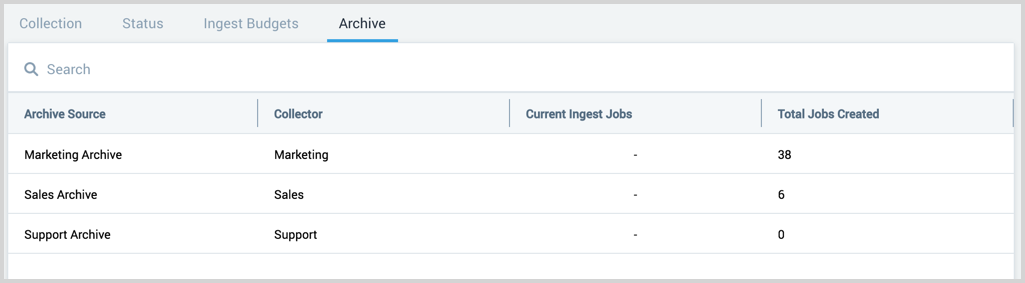
The archive page provides a table of all the existing AWS S3 archive sources in your account and ingestion jobs.
New UI. To access the archive page, in the main Sumo Logic menu select Data Management, and then under Data Collection select Archive. You can also click the Go To... menu at the top of the screen and select Archive.
Classic UI. To access the archive page, in the main Sumo Logic menu select Manage Data > Collection > Archive.
Details pane
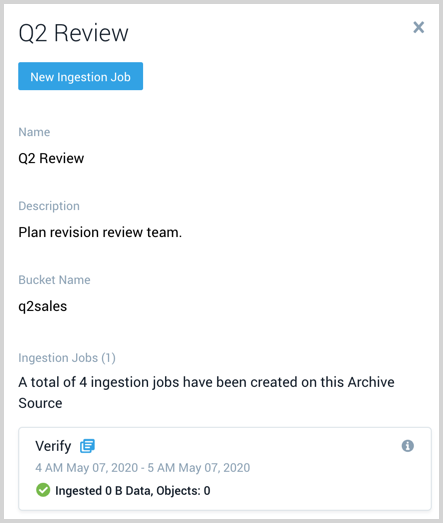
Click on a table row to view the source details. This includes:
- Name
- Description
- AWS S3 bucket
- All Ingestion jobs that are and have been created on the source.
- Each ingestion job shows the name, time window, and volume of data processed by the job. Click the icon
 to the right of the job name to start a search against the data that was ingested by the job.
 - Hover your mouse over the information icon to view who created the job and when.
- Each ingestion job shows the name, time window, and volume of data processed by the job. Click the icon
Create an ingestion job
A maximum of 2 concurrent jobs is supported.
An ingestion job is a request to pull data from your S3 bucket. The job begins immediately and provides statistics on its progress. To ingest from your archive you need an AWS S3 archive source configured to access your AWS S3 bucket with the archived data.
- New UI. In the main Sumo Logic menu select Data Management, and then under Data Collection select Archive. You can also click the Go To... menu at the top of the screen and select Archive.
Classic UI. In the main Sumo Logic menu, select Manage Data > Collection > Archive. - On the Archive page search and select the AWS S3 archive source that has access to your archived data.
- Click New Ingestion Job and a window appears where you:
- Define a mandatory job name that is unique to your account.
- Select the date and time range of archived data to ingest. A maximum of 12 hours is supported.
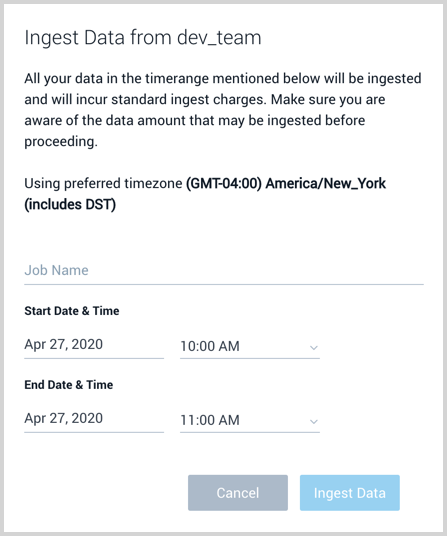
- Click Ingest Data to begin ingestion. The status of the job is visible in the details pane of the source in the archive page.
Job status
An ingestion job will have one of the following statuses:
- Pending. The job is queued before scanning has started.
- Scanning. The job is actively scanning for objects from your S3 bucket. Your objects could be ingesting in parallel.
- Ingesting. The job has completed scanning for objects and is still ingesting your objects.
- Failed. The job has failed to complete. Partial data may have been ingested and is searchable.
- Succeeded The job completed ingesting and your data is searchable.
Search ingested archive data
Once your archive data is ingested with an ingestion job you can search for it as you would any other data ingested into Sumo Logic. On the archive page find and select the archive S3 source that ran the ingestion job to ingest your archive data. In the details pane, you can click the Open in Search link to view the data in a search that was ingested by the job.
When you search for data in the Frequent or Infrequent Tier, you must explicitly reference the partition.
The metadata field _archiveJob is automatically created in your account and assigned to ingested archive data. This field does not count against your fields limit. Ingested archive data has the following metadata assignments:
| Field | Description |
|---|---|
_archiveJob | The name of the ingestion job assigned to ingest your archive data. |
_archiveJobId | The unique identifier of the ingestion job. |
Audit ingestion job requests
The Audit Event Index provides events logs in JSON when ingestion jobs are created, completed, and deleted.