 Meet the new
 Data Masking Rules
This feature is in Private Preview. For more information, contact your Sumo Logic account representative.
Data masking dynamically redacts sensitive values from your log data at query time. Logs are stored unmasked, and what each user sees depends on their role. The Data Masking page gives you one place to create, review, and manage masking rules across your organization, so sensitive information stays hidden from users who shouldn't see it.
How does data masking work?
To mask data at ingest time before it is stored, use Mask Rules in Processing Rules.
Data masking rules are applied at query processing time. Logs are stored in their original form, and masking is applied dynamically when you run a query. What you see depends on your assigned role:
- If you do not have the
View Unmasked Datarole capability, you see log data with all matching values replaced by the configured Mask String. - If you have the
View Unmasked Datacapability, you can view log data in its original, unmasked form.
Once a rule is active, any portion of a log message that matches the rule's Regex Locator pattern is substituted with the configured or default Mask String if you do not have the View Unmasked Data capability.
For example, consider a log line that contains an IP address. You can create a data masking rule with a regex pattern that targets IP addresses, so that every occurrence is replaced with a mask string of your choice.
Before masking. The IP address displayed in plain text: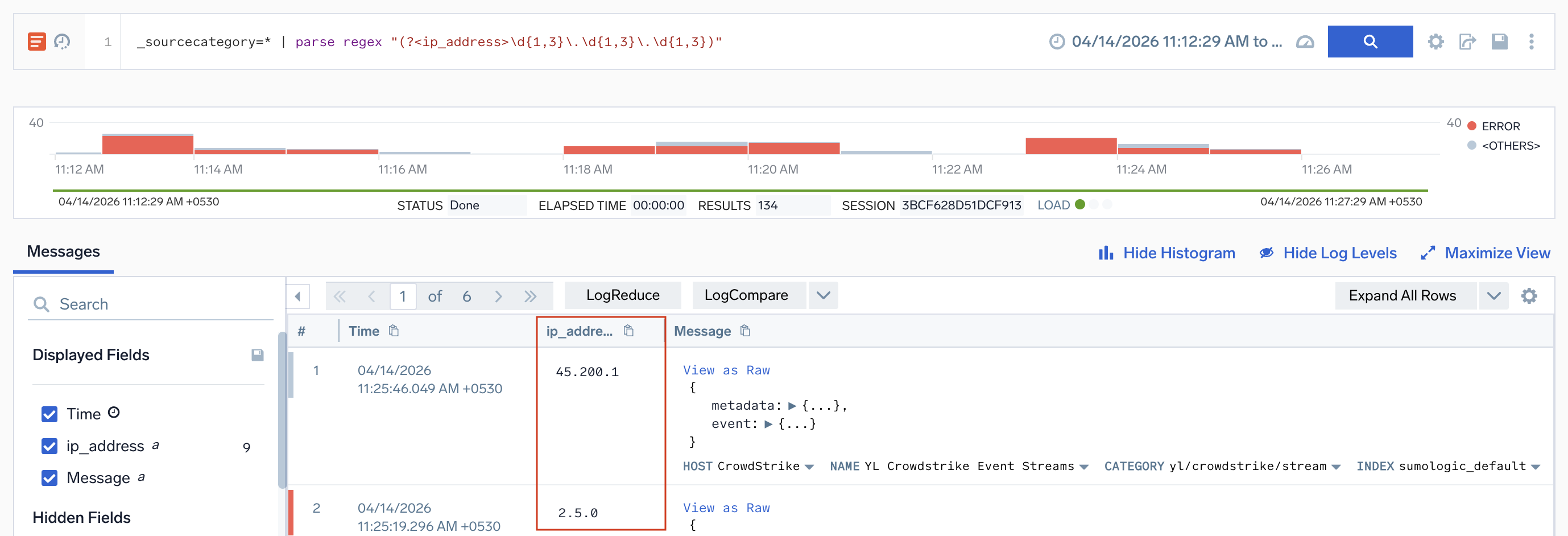
After masking. The IP address is replaced with the configured mask string: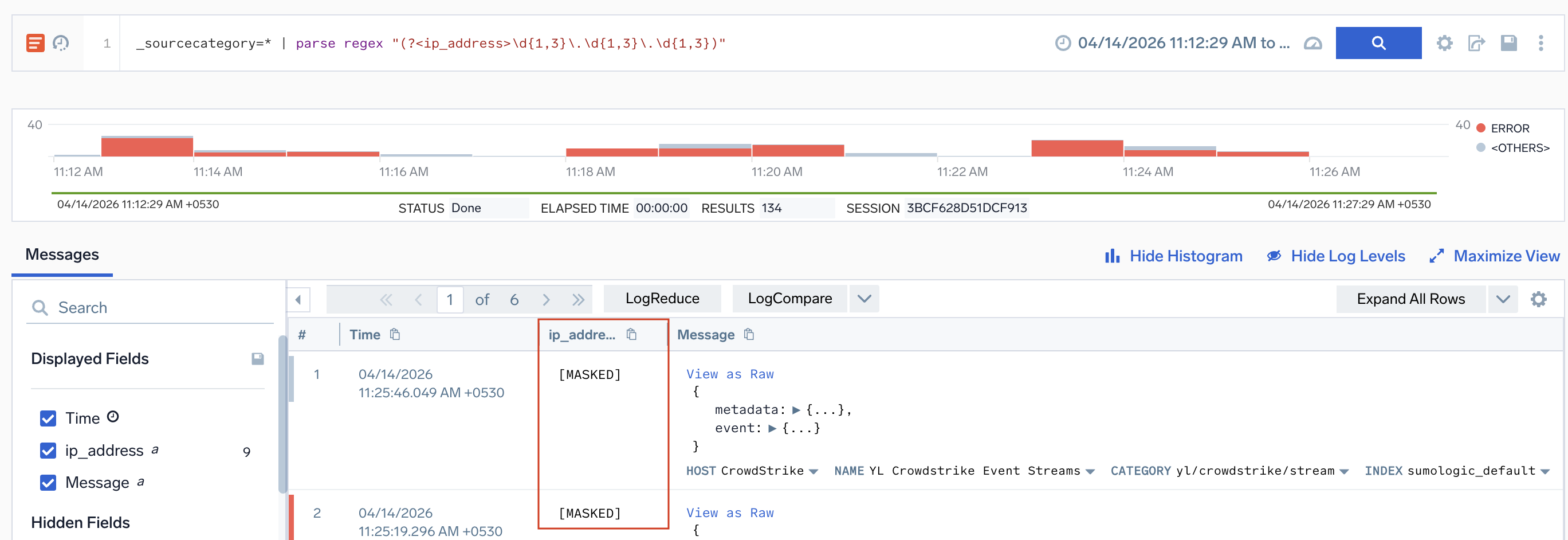
A data masking rule is applied as the last step of query processing. Any string manipulations earlier in a query execute before masking runs, which may expose sensitive values within the query pipeline.
Create a data masking rule
To create a data masking rule:
- You need the
Manage Data Masking Rulesrole capability to create, edit, or disable a rule. TheView Unmasked Datarole capability only lets you view unmasked data; it does not allow rule changes. - An organization can have a maximum of 50 data masking rules.
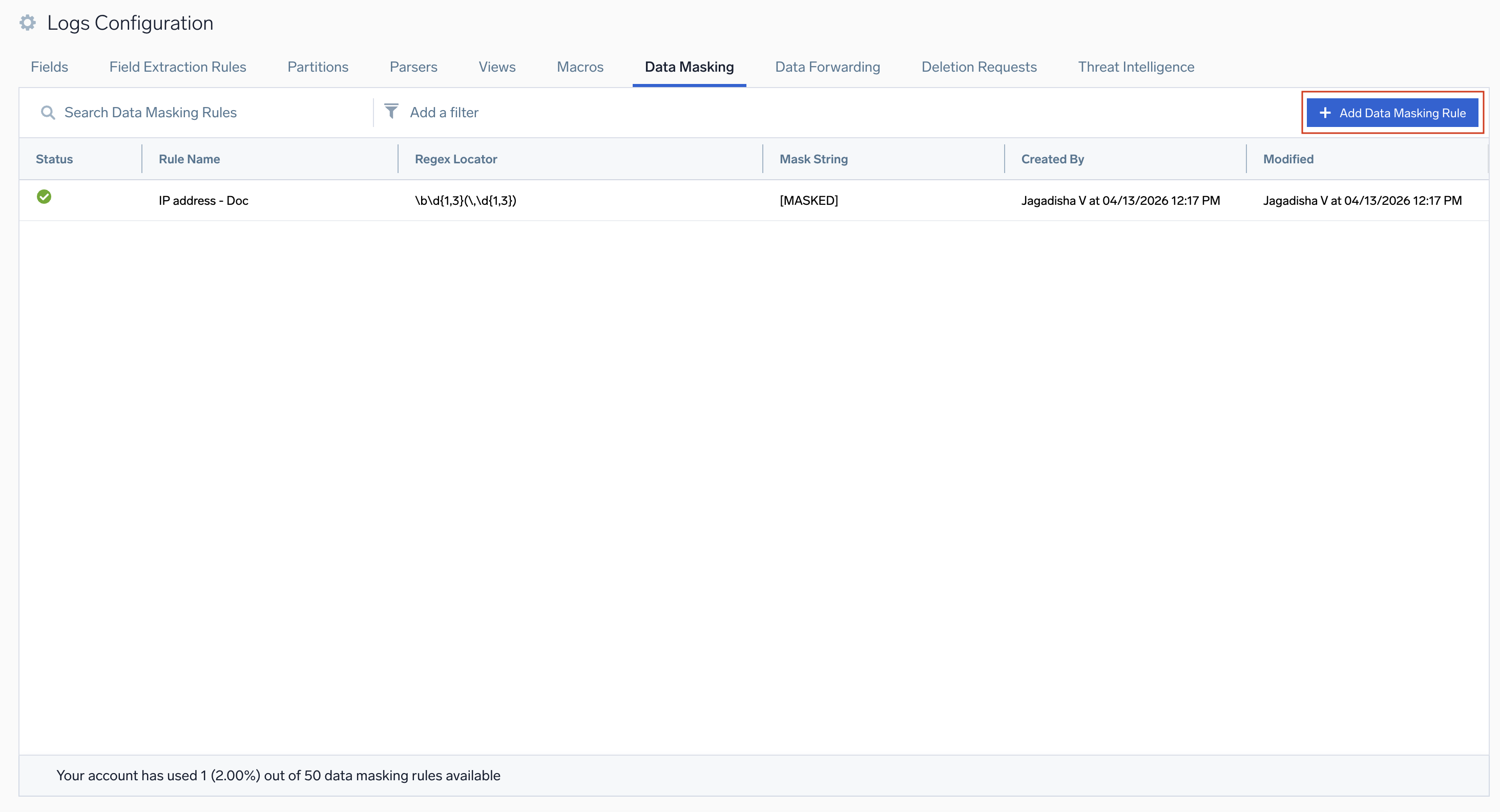
- New UI. To access the Data Masking page, in the main Sumo Logic menu, select Data Management, and then under Logs select Data Masking. You can also click the Go To... menu at the top of the screen and select Data Masking.
Classic UI. In the main Sumo Logic menu, select Manage Data > Logs > Data Masking. - Click the + Add Data Masking Rule button on the top right of the table.
- On the Create New Data Masking Rule page, fill in the following fields:
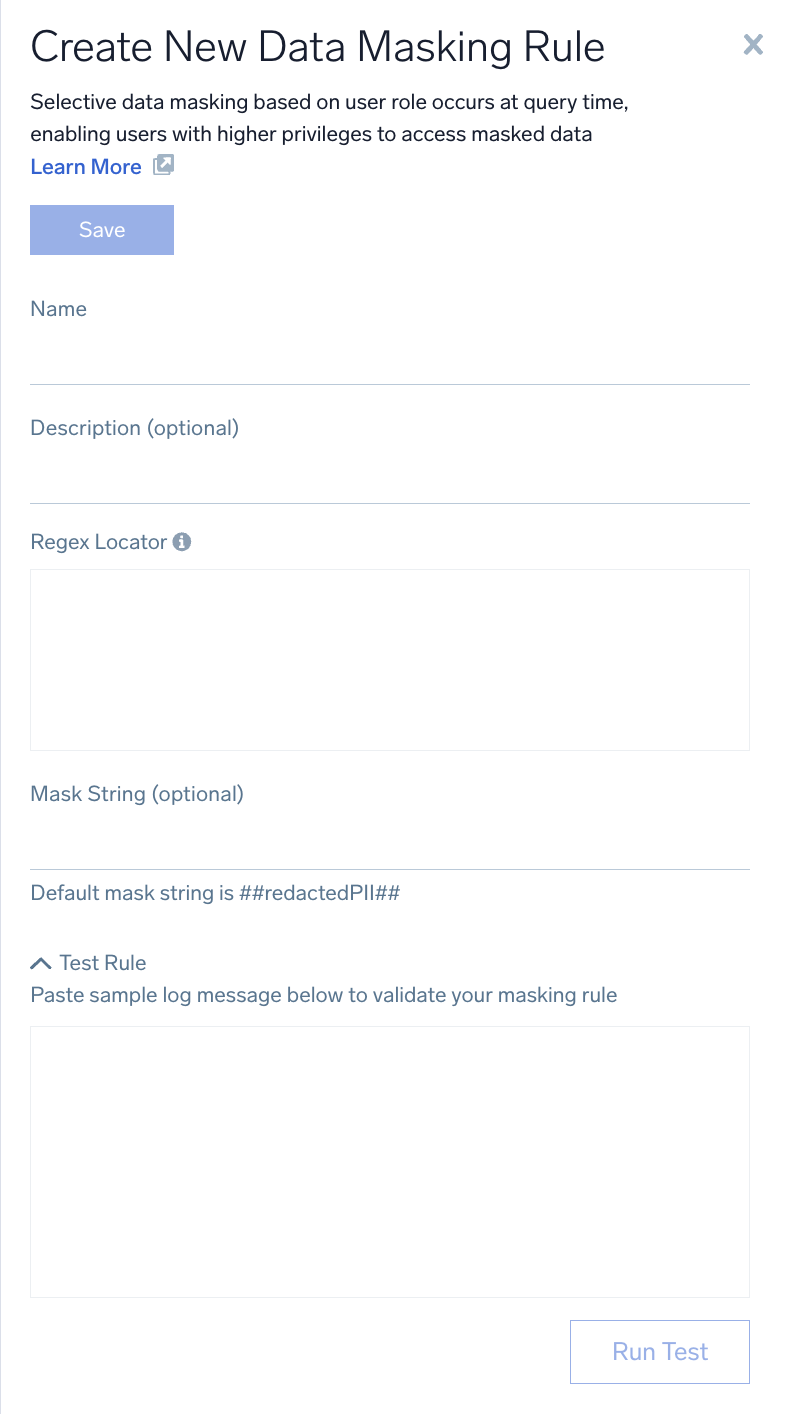
- Name. A unique, descriptive name for the rule. This cannot be changed after creation.
- (Optional) Description. A summary of what the rule masks and why.
- Regex Locator. A regular expression pattern used to identify the segment of log data to mask. Sumo Logic evaluates this pattern against incoming log messages and applies masking to every match. Ensure your regex targets only the sensitive portion to avoid unintended masking.
- (Optional) Mask String. The replacement text that substitutes any content matched by the Regex Locator. If left blank, Sumo Logic replaces matched content with a default mask.
- Test Rule. Paste a sample log message into the text area to validate your masking rule. Click Run Test to verify that masking is applied as expected.
- Click Save to activate the rule.
Edit a data masking rule
To edit a data masking rule:
- New UI. To access the Data Masking page, in the main Sumo Logic menu, select Data Management, and then under Logs select Data Masking. You can also click the Go To... menu at the top of the screen and select Data Masking.
Classic UI. In the main Sumo Logic menu, select Manage Data > Logs > Data Masking. - Click the rule you want to edit, or click the kebab icon for the rule and select Edit from the dropdown.

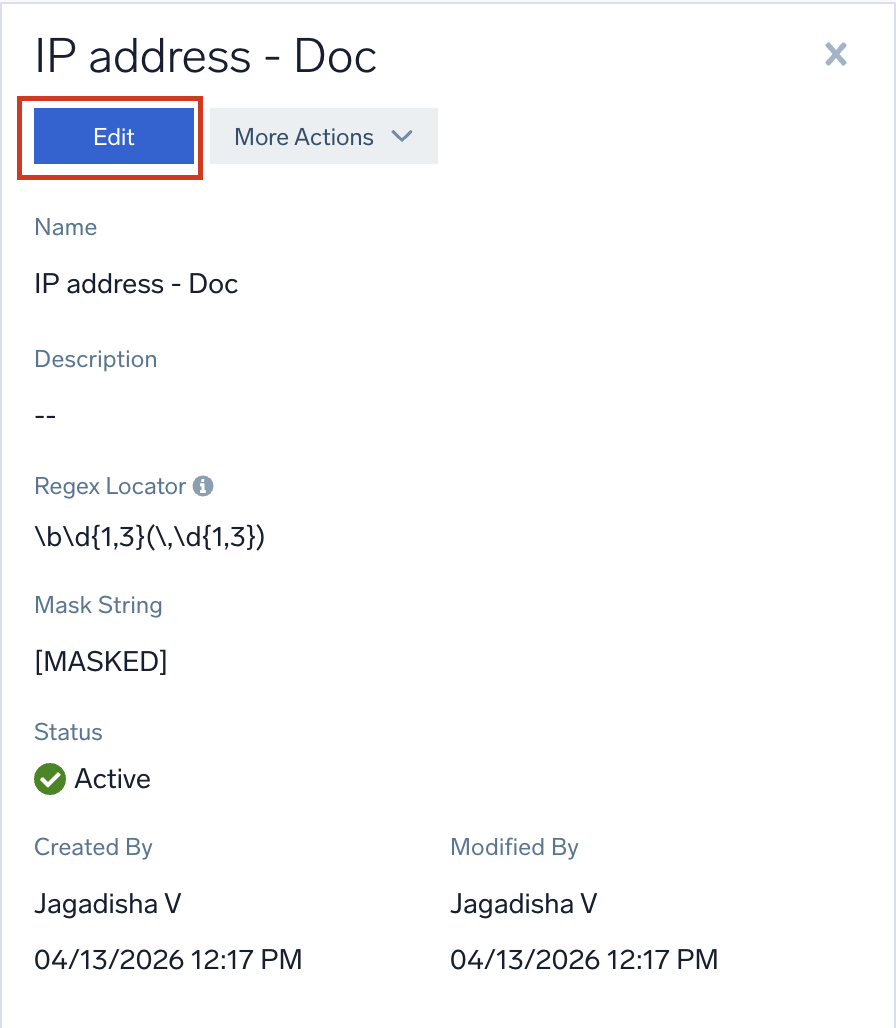
- In the right panel, click Edit.
- Edit the fields as needed.
note
The Name field cannot be edited after a rule is created.
- Click Save to update the rule.
Disable a data masking rule
To disable a data masking rule:
- New UI. To access the Data Masking page, in the main Sumo Logic menu, select Data Management, and then under Logs select Data Masking. You can also click the Go To... menu at the top of the screen and select Data Masking.
Classic UI. In the main Sumo Logic menu, select Manage Data > Logs > Data Masking. - Click the rule you want to disable, or click the kebab icon for the rule and select Disable from the dropdown.

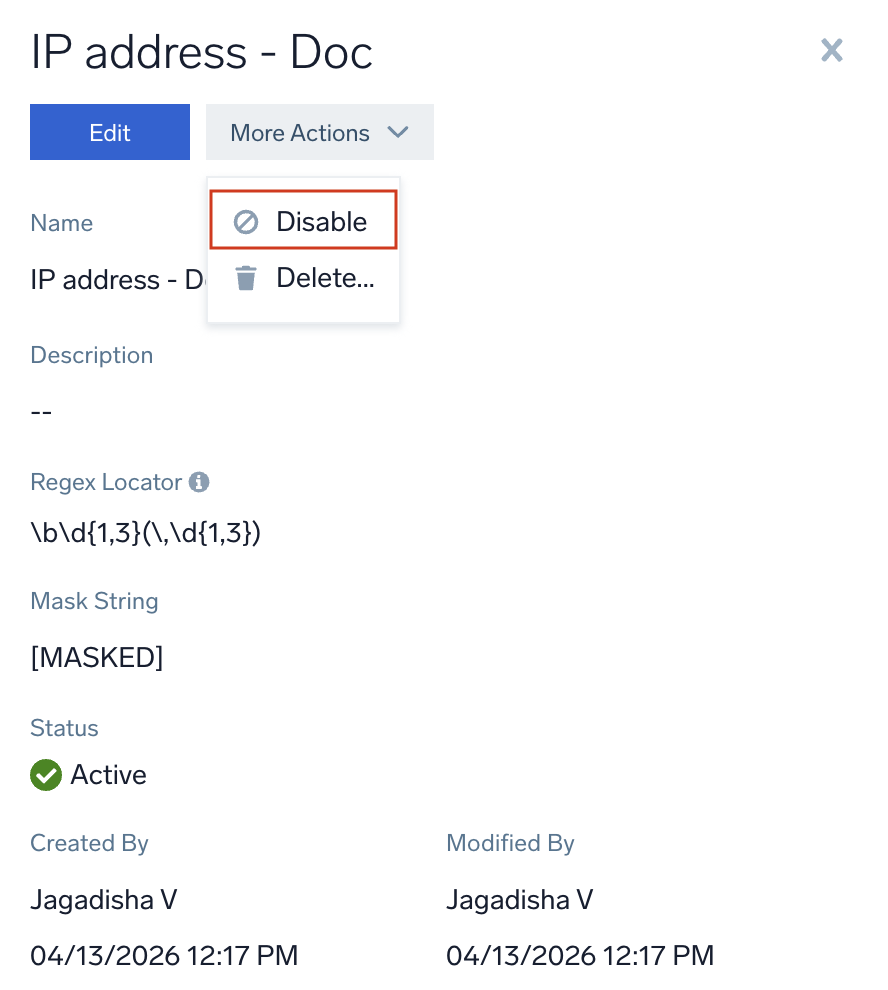
- In the right panel, click More Actions and select Disable from the dropdown.
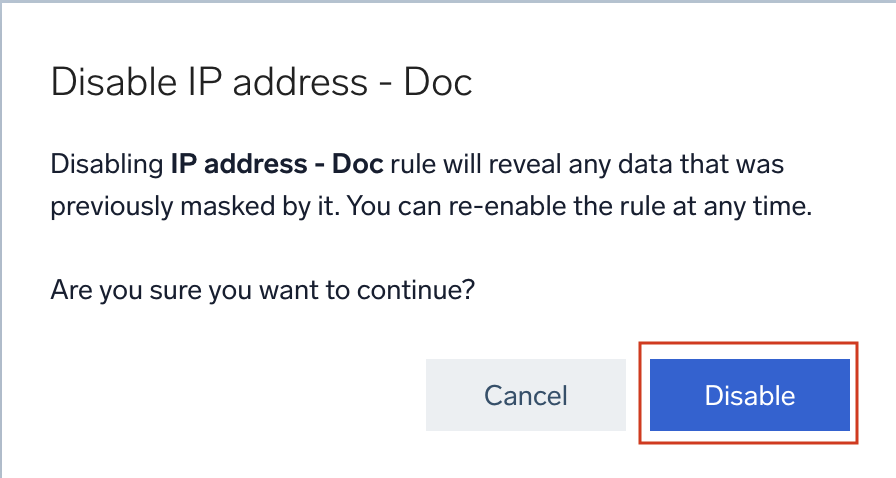
- Click Disable in the confirmation dialog to confirm.
Delete a data masking rule
To delete a data masking rule:
- New UI. To access the Data Masking page, in the main Sumo Logic menu, select Data Management, and then under Logs select Data Masking. You can also click the Go To... menu at the top of the screen and select Data Masking.
Classic UI. In the main Sumo Logic menu, select Manage Data > Logs > Data Masking. - Click the rule you want to delete, or click the kebab icon for the rule and select Delete from the dropdown.

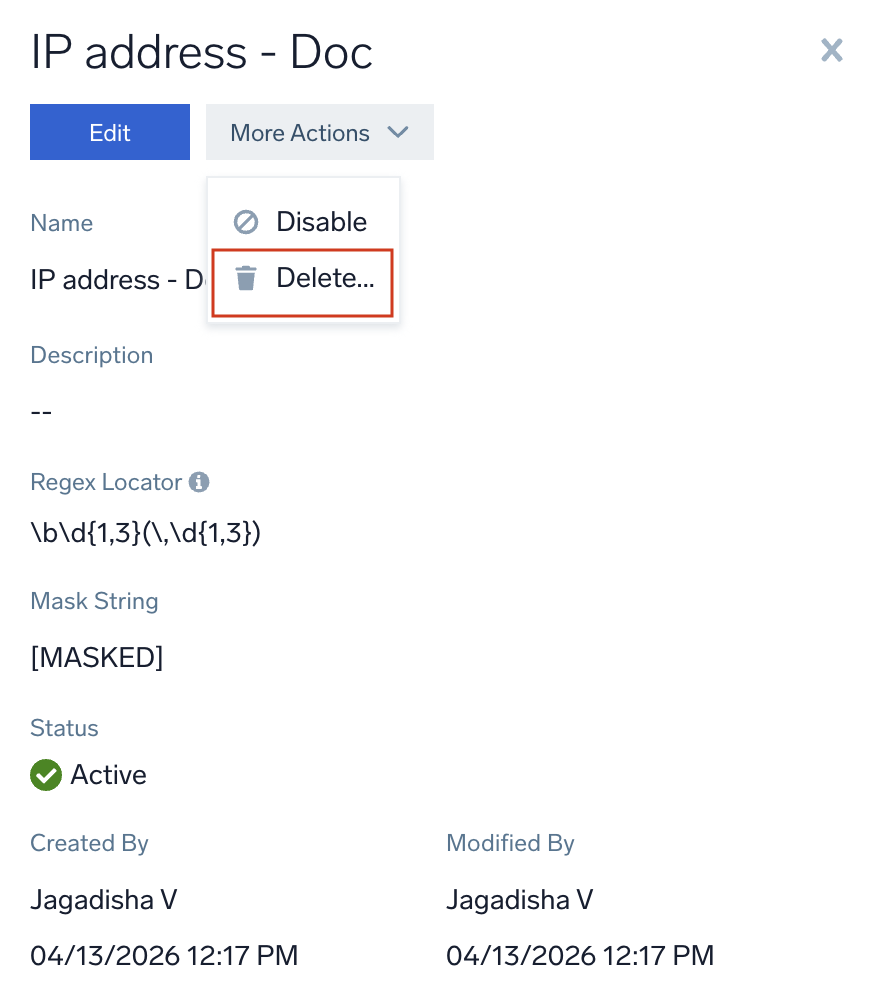
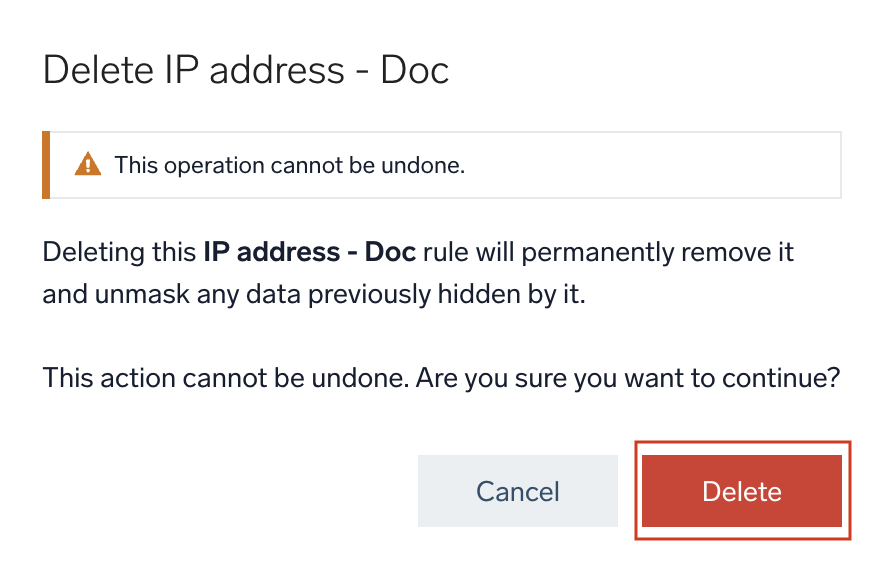
- In the right panel, click More Actions and select Delete from the dropdown.
- Click Delete in the confirmation dialog to confirm.
Audit data masking events
The Audit Event Index records detailed JSON logs for all data masking activity. Sumo Logic captures two categories of audit events:
- Rule management events. Recorded whenever a data masking rule is created, updated, or deleted. Use these to track who changed masking rules and when.
- Search results masking events. Recorded each time a search query returns results where data was masked. Use these to audit when and how often sensitive data was hidden from query results.
Because these events are stored under different metadata in the audit index, you need separate queries to retrieve each category.
To audit rule management activity (create, update, delete), run:
="sumologic_audit_events" =datamasking
To audit search results masking activity, run:
="sumologic_audit_events" =SearchResultsMasked
Limitations
Data masking runs as the final step of query processing (see How does data masking work?). The following areas have limited or no masking support:
| Area | Behavior |
|---|---|
| Scheduled Search (Save to Lookup/Index) | Results are masked or unmasked depending on the View Unmasked Data role capability of the user who created the scheduled search. |
| Timestamp | The following timestamp fields are not eligible for data masking: _messageTime, _receiptTime, and _searchableTime. |
| Metadata fields | The following system metadata fields are not eligible for data masking: _size, _collectorid, _orgid, and _sourceid. |
| Lookup UI page | Results displayed on the Lookup UI page are always shown unmasked. |
| Cloud SIEM (CSE) pages | Data masking is not applied to any Cloud SIEM pages. |
| Search autocomplete suggestions | Masking is not applied to search autocomplete suggestions, regardless of the user's role or data access level. |
FAQ
What is data masking?
Data masking lets you create and manage rules that automatically redact or replace sensitive data in your logs, enforcing data protection standards consistently across your organization.
What role capability is needed to manage data masking rules?
You need the Manage Data Masking Rules role capability to create, edit, or disable rules. If you have the View Unmasked Data capability, you can view log data in its original, unmasked form.
What should be entered as the Mask String?
The Mask String is the text that replaces any content matched by your Regex Locator. It can be any string, such as [MASKED], ****, or [REDACTED]. If you leave it blank, Sumo Logic applies a default mask. Choose a value that clearly signals to viewers that data has been intentionally hidden.
Can the rule name be edited after it's been created?
No. The Name field is locked after creation. If you need to rename a rule, delete the existing rule and create a new one with the desired name.
What is the difference between disabling and deleting a rule?
Disabling a rule pauses masking while preserving the rule's configuration so it can be re-enabled later. Deleting a rule permanently removes it and cannot be undone.
Is there a limit to how many data masking rules an organization can create?
Yes. An organization can have a maximum of 50 data masking rules. To add a new rule once the limit is reached, delete an existing rule first.
At what point is a data masking rule applied?
Data masking rules are applied as the final step during query processing. Logs are stored in their original form, and masking is applied dynamically when a query runs. To mask logs during ingestion instead, use Mask Rules within Processing Rules.
Can I manage data masking rules programmatically?
Yes. Use the Data Masking Management APIs to create, update, and manage data masking rules programmatically.