 Meet the new
Data Pipelines
Data Pipelines give you a single place to define how your logs are processed and routed in Sumo Logic. You build a pipeline on a visual graph, test it with sample data, and publish it when you are confident it works.
Benefits of Data Pipelines
Processing capabilities in Sumo Logic, such as Field Extraction Rules (FERs), live in different places and follow different patterns. Data Pipelines bring these steps together so you can see how data flows and manage it in one place.
Compared to FERs, Data Pipelines:
- Apply only the first matching pipeline to each log message. FERs do not guarantee the order in which overlapping rules run. With pipelines, you control the order by arranging pipelines with overlapping routing expressions.
- Show your processing steps as a graph.
- Let you test a whole pipeline, or only specific processing groups, with sample data before you publish it.
- Show input and output data volume and health events for each pipeline.
Data Pipelines work with logs from any collection method, including installed collectors, hosted collectors, OpenTelemetry Collectors, and Cloud-to-Cloud (C2C) sources. A message enters a pipeline if it matches the pipeline's routing expression.
Data Pipelines support logs only, and a pipeline can send data to one destination, Sumo Logic.
Key concepts
- Pipeline. A set of processing steps that applies to the logs matching its routing expression.
- Routing expression. A query-style condition that decides which logs enter the pipeline. For example,
_sourceCategory=prod/abc/*. - Processing group. An ordered group of processors. You can set a condition so the group runs only on messages that meet it.
- Processor. A single processing step, such as adding a field, masking text, or parsing JSON. Processors in a group run in sequence.
- Router. A node that sends a message to the next node based on a condition, such as the value of
_sourceHost. A router can have a default route. - Destination. Where processed data goes. This is always Sumo Logic.
How a pipeline processes data
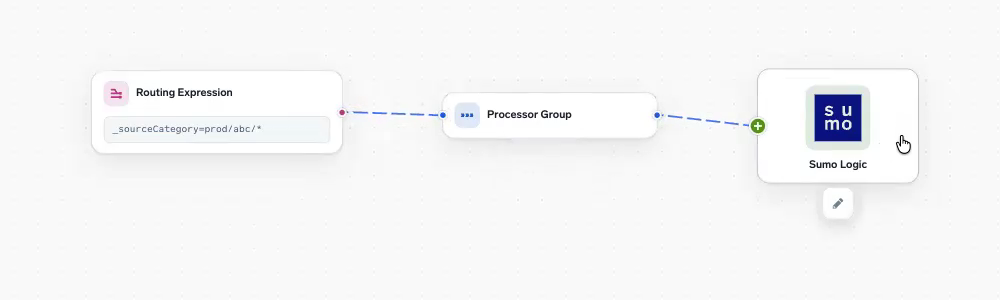
A pipeline is a graph that starts at the routing expression and ends at the Sumo Logic destination, with processing groups and routers in between.
Masking and routing by source are not separate node types. You configure masking as a processing group and routing by source as a router.
First match
Pipelines are evaluated in order, and each log message passes through only the first pipeline whose routing expression it matches. Later pipelines never see that message, even if their routing expressions also match.
For example, if a pipeline at the top of the list matches everything with a wildcard, no pipeline below it receives any data. You can create multiple pipelines with the same or overlapping routing expressions, but only the first one in the order processes the message.
To change the order, drag a pipeline to a new position in the list and confirm the change.
Processors
Within a processing group, you can add processors from the following categories:
- Parse. JSON Parse, Regex Parse, and Anchor Parse.
- Transform. Add Fields, Drop Fields, Replace Pattern, and Normalize Values. For example, Normalize Values can convert a value to lowercase or uppercase or trim whitespace.
- Advanced. SIEM Forwarding and SumoQL Parse. The SIEM Forwarding processor appears only if Cloud SIEM is enabled for your organization.
To mask sensitive data, such as email addresses, Social Security numbers (SSNs), and credit card numbers, use the Replace Pattern processor to replace or hash the matched text. For how this relates to masking rules, see Data Masking.
You can disable a processing group without deleting it.
Each processor takes the parameters listed in the following sections. Fields marked with a default are prefilled. In most processors, the field to read from defaults to _raw, which is the raw log message.
JSON Parse
Pulls values out of JSON in a field into new fields.
- Field containing JSON. The field that holds the JSON. Default is
_raw. - JSON Path and Output Field Name. One row for each value to extract. Add a row for each new field.
Regex Parse
Extracts fields from a field using named capture groups.
- Field to parse from. Default is
_raw. - Pattern. The regular expression. You can start from a preset pattern or use the full-screen editor. The pattern can be up to 16,384 characters.
Anchor Parse
Extracts the text matched by * wildcards between literal anchors.
- Field to parse from. Default is
_raw. - Anchor pattern. The literal text to match, with
*wildcards for the values to extract. The pattern can be up to 16,384 characters. - Field names. A name for each wildcard, in order.
SumoQL Parse
Runs a SumoQL expression and adds the fields it produces. This processor is not limited to parsing. It supports the same query options as a Field Extraction Rule (FER), and the same limitations apply to which operations you can use. Learn more about the supported parsing and search operators.
- Parse Expression. The parse expression to run.
- Extracted Fields. A read-only preview of the fields the expression produces.
Add Fields
Adds fields with static values. A value can reference another field as ${field}.
- Field Name and Value. One row for each field to add.
Drop Fields
Removes fields from the message.
- Fields to Drop. Select from the suggested fields or type a field name.
Replace Pattern
Replaces or hashes matched text in one field. Rules apply in the order listed.
- Field Containing Value. The field to change. Default is
_raw. - Rules. Each rule has these settings:
- Pattern. The text to match, up to 1,024 characters. Use the Regex or String toggle to set how the pattern is read.
- Action. Replace Text or Hash.
- Replace With. The replacement text. Applies to Replace Text.
- Hash Type. SHA-256 or MD5. Applies to Hash.
Normalize Values
Changes the case of values or trims whitespace.
- Normalization type. Lowercase (default), Uppercase, or Trim whitespace.
- Fields to normalize. The fields to change. The raw message is not available in the picker.
SIEM Forwarding
Tags matching messages with a parser and forwards them to Cloud SIEM.
- Parser. Use Select Parser to browse for a parser. The parser path needs to start with
/Parsers/. - Forwarding Condition. Optional. Forward only the messages that meet this condition.
How pipelines and FERs work together
Pipelines run after your data has passed through existing Field Extraction Rules (FERs). Your existing processing continues to work, and pipelines add processing on top of it.
Because pipelines do not replace FERs, you can move from FERs to pipelines gradually, without interrupting your current data flows.
Pipeline states
Data Pipelines do not use versions. Each pipeline has a published version that processes live data, and can also have a draft version.
| State | Meaning |
|---|---|
| Draft | The pipeline was saved but is not processing live data. |
| Published | The pipeline is processing live data. It is read-only. |
| Published and draft | The pipeline has a live published version and a saved draft on top of it. Each pipeline can have only one saved draft. The draft does not affect live data until it is published. |
Prerequisites
You need the following role capabilities. If you do not have the capability for an action, Sumo Logic returns a 403 error.
- View Data Pipelines. List pipelines, open a pipeline, and read pipeline metrics.
- Manage Data Pipelines. Create, update, delete, and reorder pipelines. Enable and disable pipelines. Validate and test a pipeline with sample data. Publish a pipeline, discard a draft, and update pipeline details.
Create a pipeline
- New UI. In the main Sumo Logic menu, select Data Management > Data Pipelines. You can also click the Go To... menu at the top of the screen and select Data Pipelines.
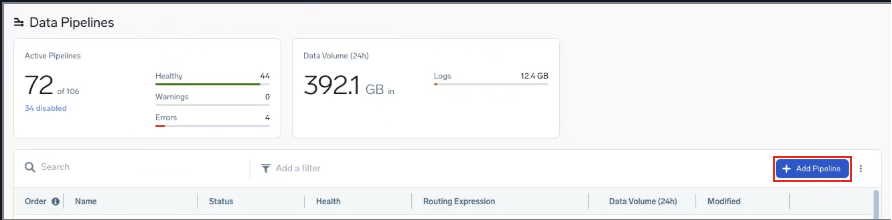
Classic UI. In the main Sumo Logic menu, select Manage Data > Data Pipelines. - The page shows the number of active pipelines, their health, and the overall data volume for the last 24 hours. Below that, it lists your pipelines in order. Click Add Pipeline.
- Enter a Pipeline Name and optionally a Description.
- Enter a Routing Expression. Select a Key and enter a Value, such as
prod/app/logs. To write the expression as a query, click Switch to Advanced.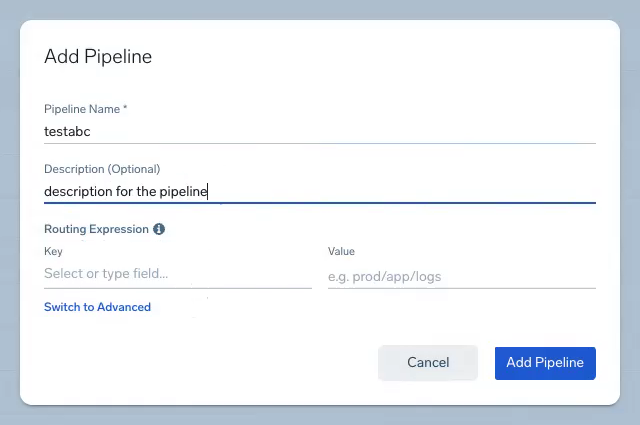
- Click Add Pipeline. The pipeline opens in a graph view with a routing expression, one processing group, and the Sumo Logic destination.
Configure a processing group
- In the graph, select a processing group.
- Enter a name that describes its purpose, such as
Extract required fields. To rename a group, click its name. - To run the group only on some messages, under Filter Condition, turn on Filter Expression. Select a Key and enter a Value. Messages that do not meet the condition skip the group. To write the condition as a query, click Switch to Advanced.
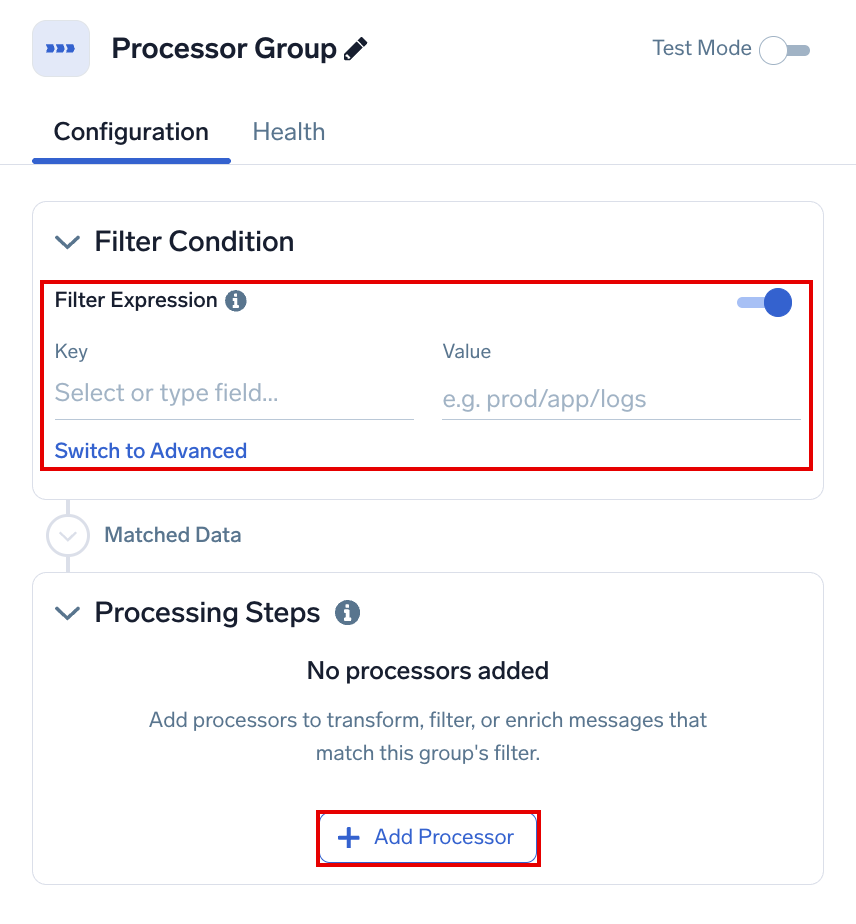
- Under Processing Steps, click Add Processor, choose a processor type, and click Add. Then configure it. For example, add a field named
environmentwith a value.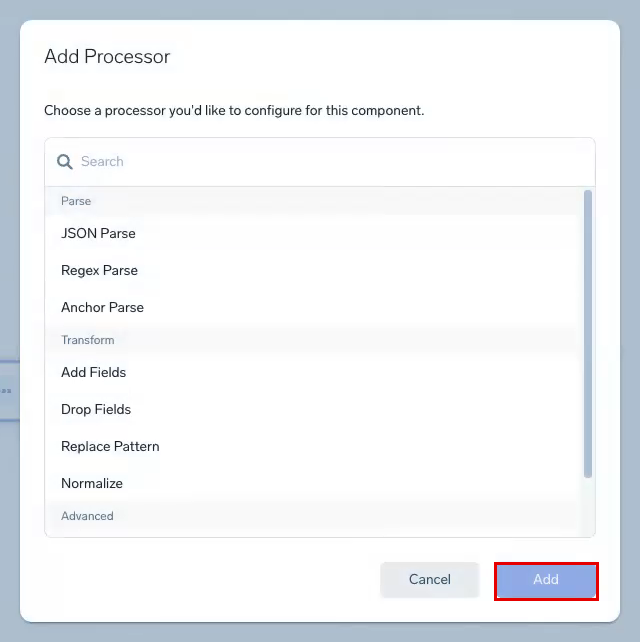
- Repeat to add more processors. They run in the order listed.
- Click Save.
To add more groups or routers, insert them between existing nodes in the graph.
Disable a new field
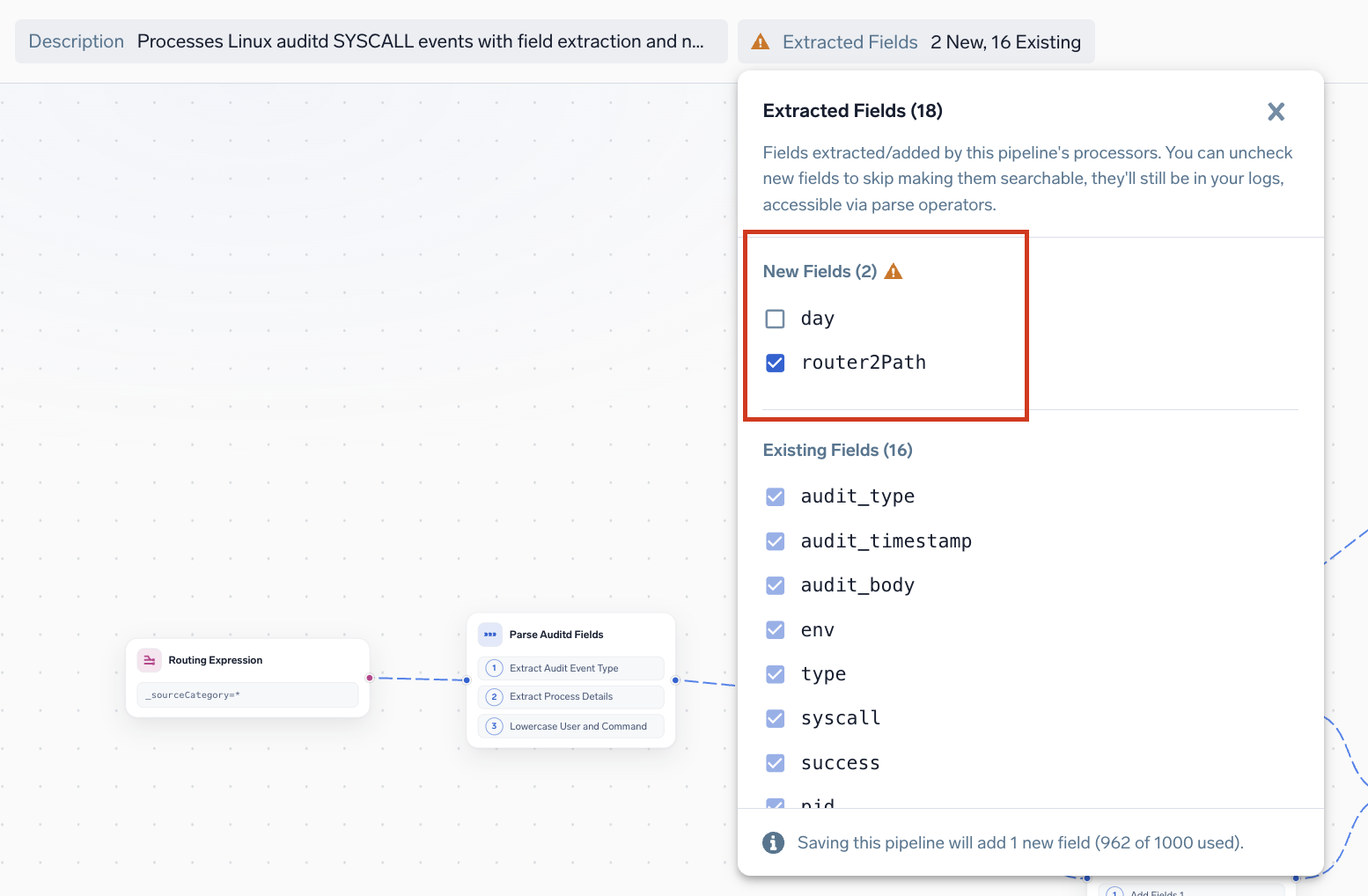
Any new field you create in a pipeline is enabled by default, which means it is searchable in Sumo Logic. If a field is temporary and you only need it inside the pipeline, you can disable it. A disabled field stays in your logs and you can access it with parse operators, but it is not searchable. For the number of new fields your organization can create, see Limitations.
- At the top of the pipeline, click Extracted Fields.
- Under New Fields, clear the checkbox next to the field.
Test and publish a pipeline
Use Test Mode to run sample messages through your draft before you publish it. Test mode is especially useful when your pipeline has many parse or masking expressions. You can test the whole pipeline or a single processing group. The test screens are the same for both.
- Open the pipeline in draft mode.
- Choose what to test:
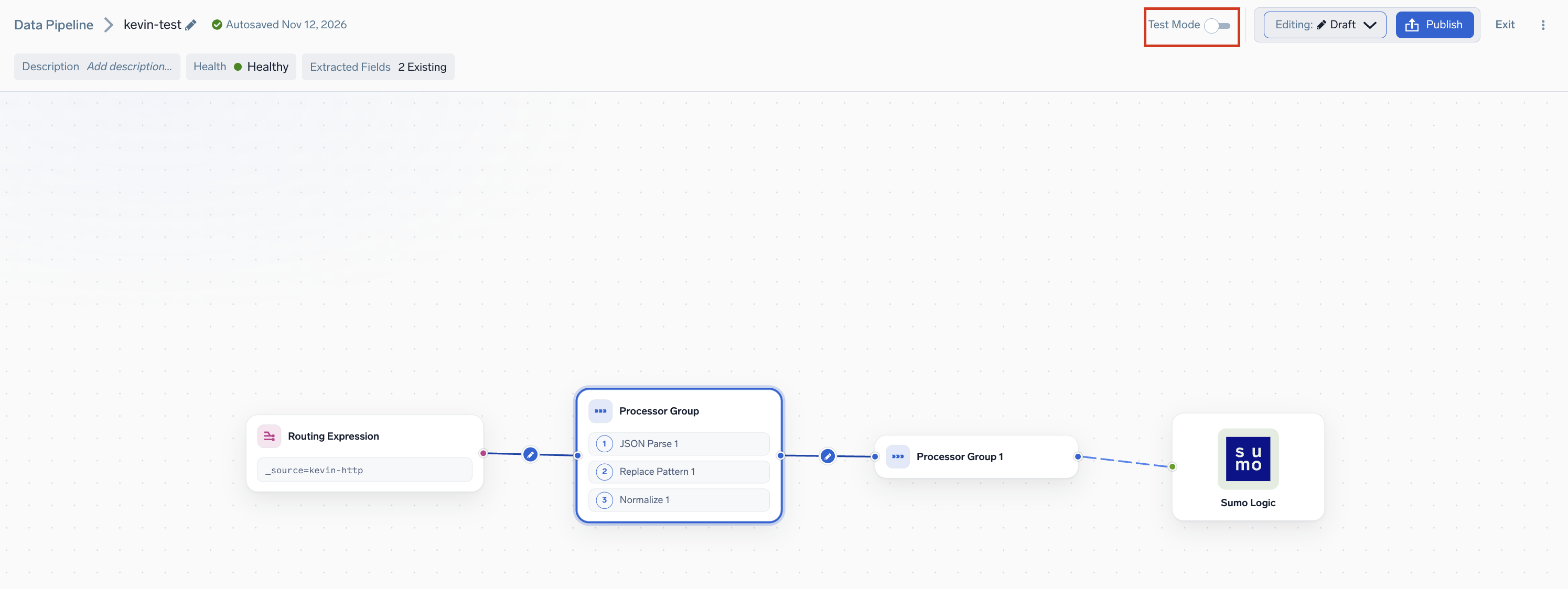
- Whole pipeline. Turn on Test Mode at the top right of the Data Pipelines page.
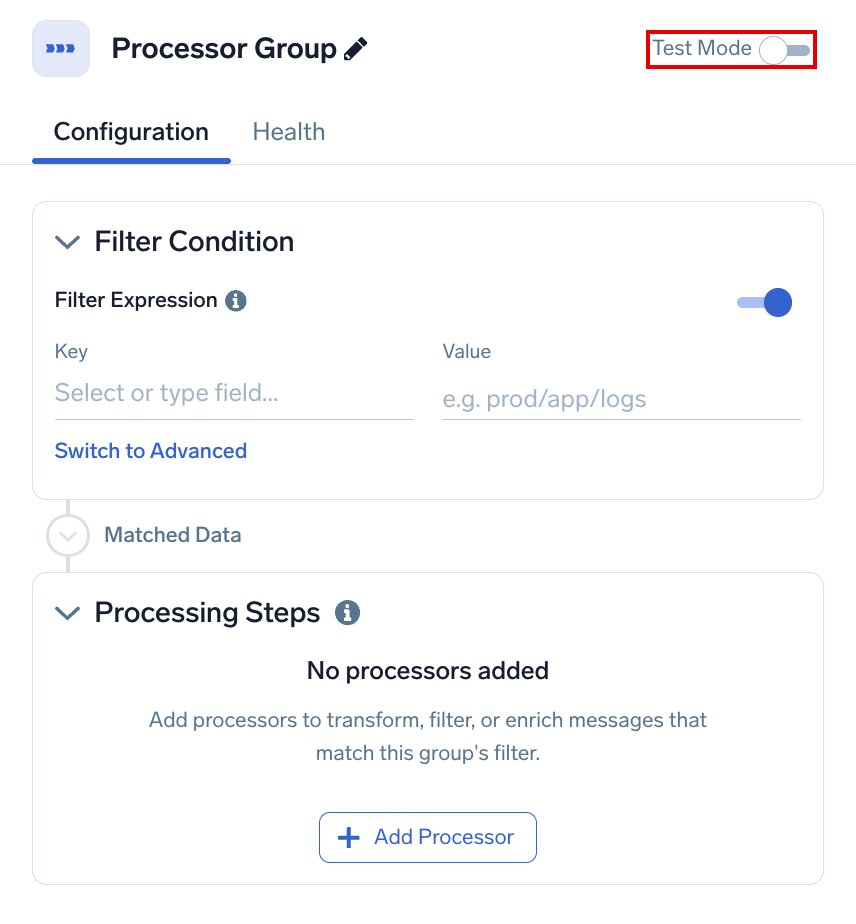
- Processing group. In the graph, click the processing group you want to test. In the right pane that shows the node details, turn on Test Mode at the top right.
- Whole pipeline. Turn on Test Mode at the top right of the Data Pipelines page.
- On the Input Sample tab, enter a sample log message. You can also set metadata fields for the message, such as
_sourceCategory.- Instead of pasting a sample, you can click Upload and select a file. Supported file types are
.log,.txt, and.json, up to 1 MB and 100 messages.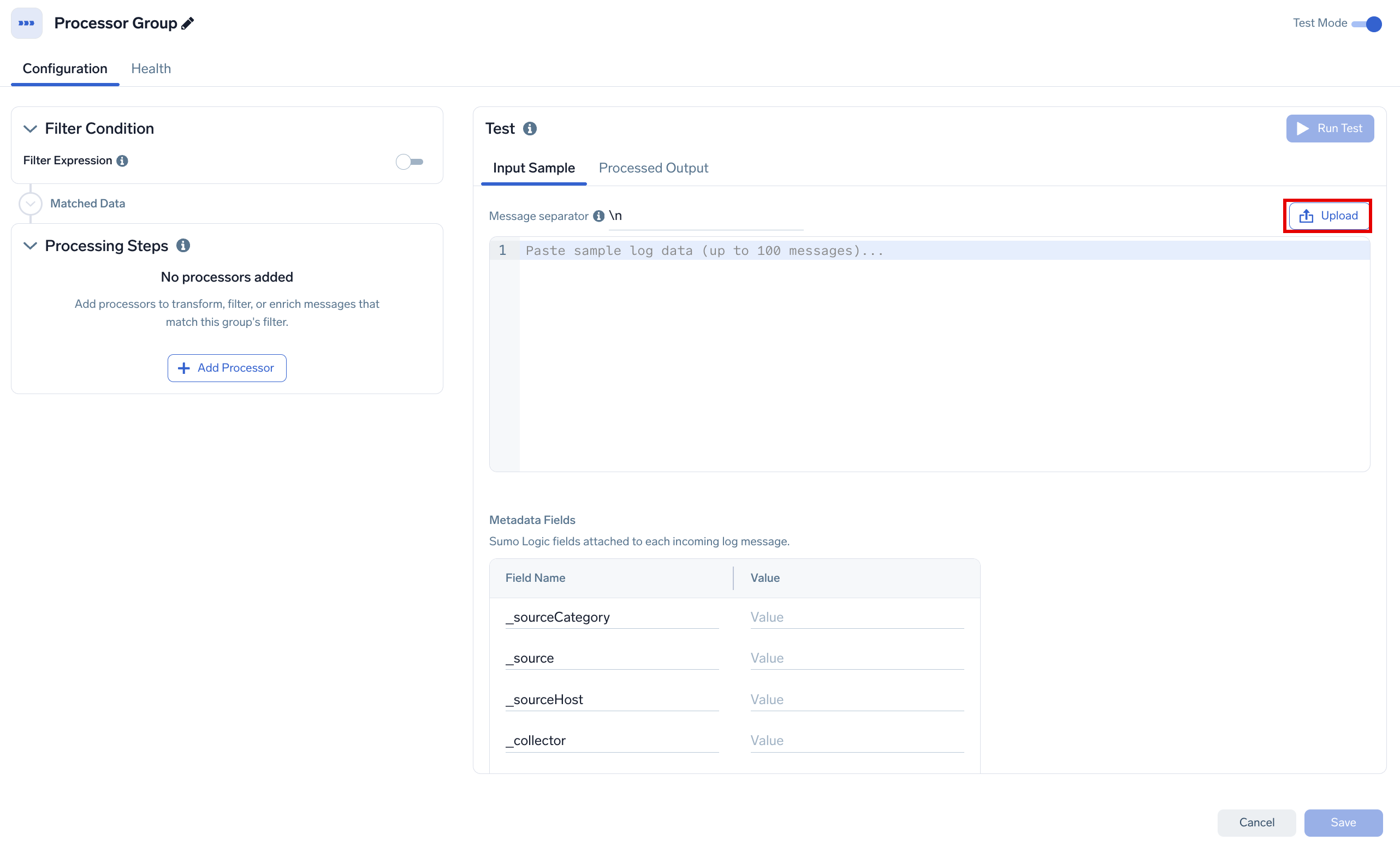
- Instead of pasting a sample, you can click Upload and select a file. Supported file types are
- Click Run Test.
- Open the Processed Output tab to compare the raw input with the processed output.
- When you are satisfied with the results, click Publish.
Test mode shows the result of each step the message passed through, so you can see how a field changed. Point to a field in the output to see its processing history. For example, you can see a value change from lowercase to uppercase after a normalization step.
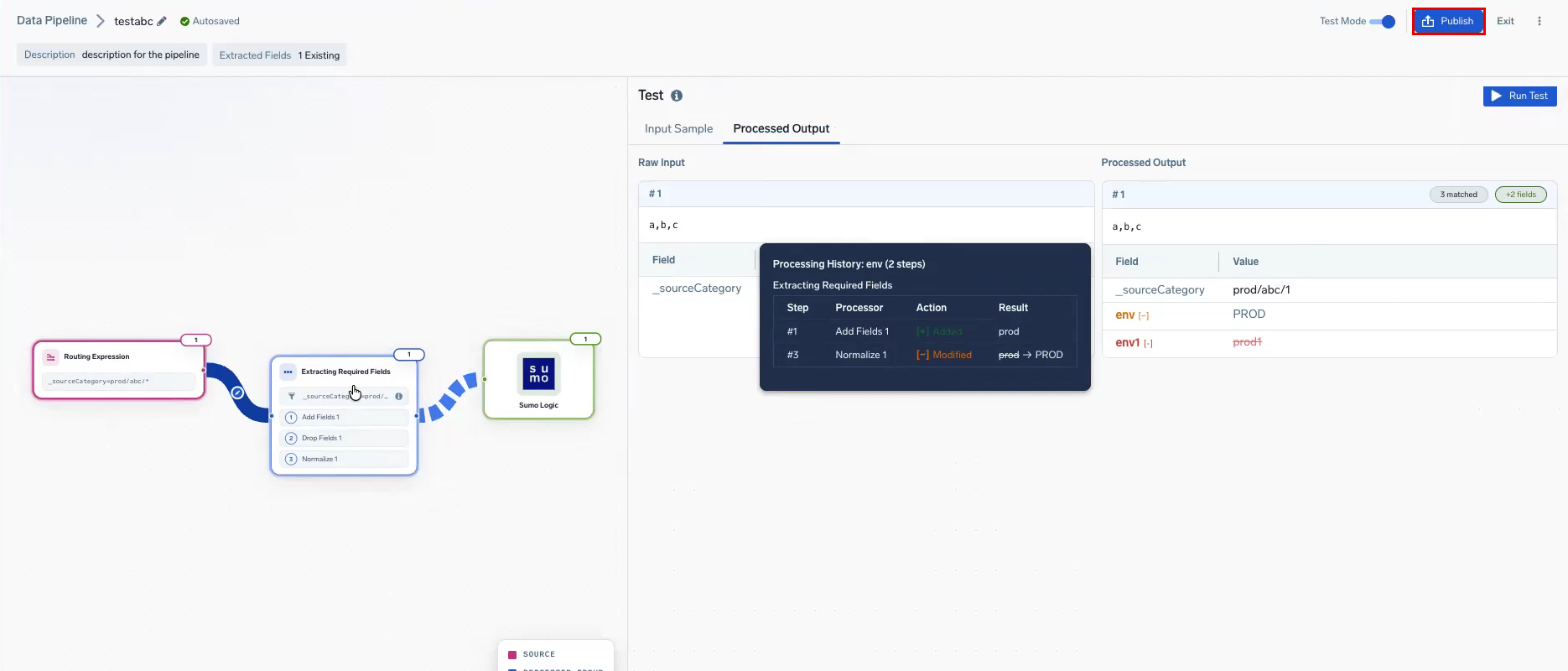
If a message does not reach a node, test mode tells you why. For example, the message might not meet the condition on a router.
Test mode does not check the pipeline's routing expression. It assumes the sample message is meant for the pipeline you are testing. Make sure your sample message also meets the conditions of any routers and processing groups you want to reach.
Edit a published pipeline
You cannot change a published pipeline directly, which prevents accidental updates. A published pipeline opens as read-only, and the page shows which version you are viewing.
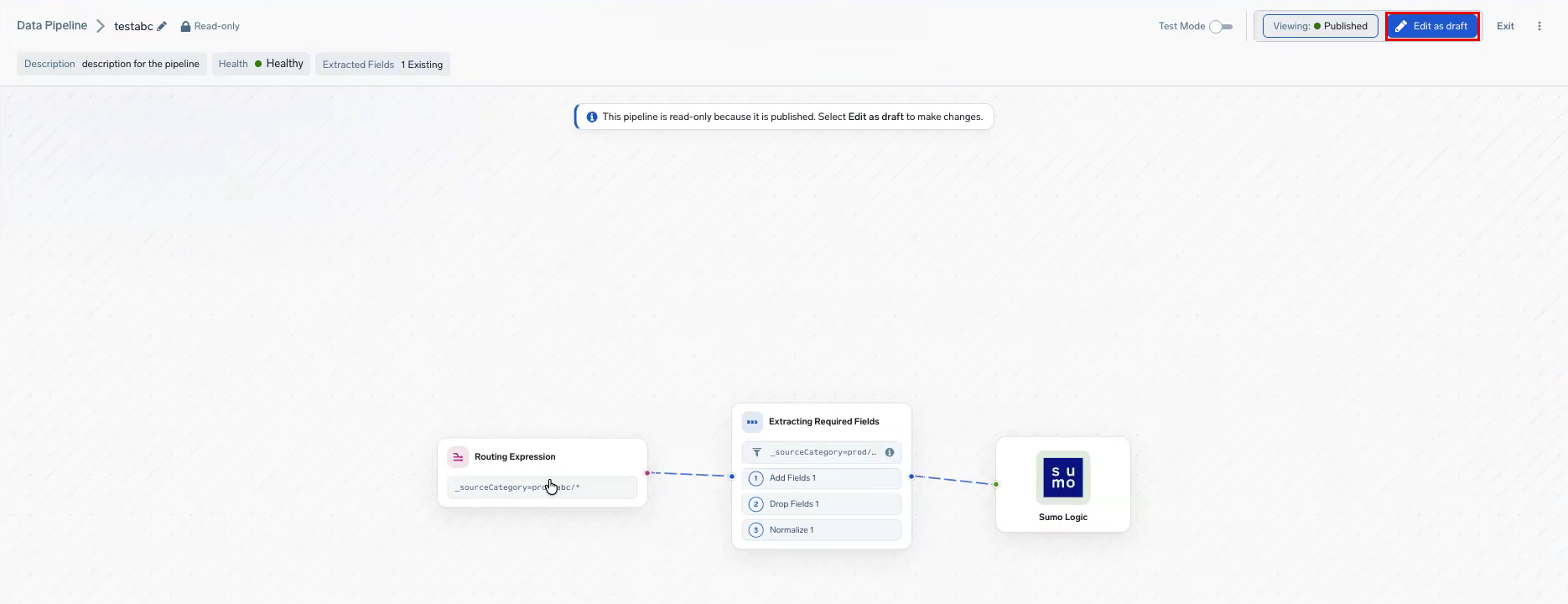
- Open the pipeline and click Edit as draft. This creates a draft.
- Make your changes and test them.
- Click Publish to replace the live version, or Save to keep working on the draft later.
Manage pipelines
From the Data Pipelines page, you can:
- Reorder pipelines to control which pipeline matches first. Drag a pipeline by its handle, then confirm the change. Reordering takes effect immediately and changes which pipeline processes incoming data first.
- Disable a pipeline, or turn it back on, with the toggle in its row.
- Duplicate a pipeline.
- Export as JSON to export a pipeline configuration.
- Delete a pipeline.
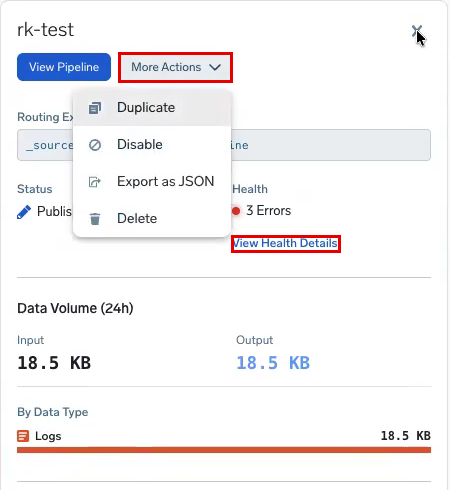
To open the Duplicate, Disable, Export as JSON, and Delete options, select a pipeline in the list and click More Actions.
Monitor pipeline health
The Data Pipelines page shows the status of each pipeline and its data volume. The Health column lists each pipeline as a green Healthy or a red Error. Healthy means the pipeline is working as expected. For each pipeline, you can see:
- Input and output data volume for the last 24 hours.
- Health events, such as execution failures in a processing group, with the error message.
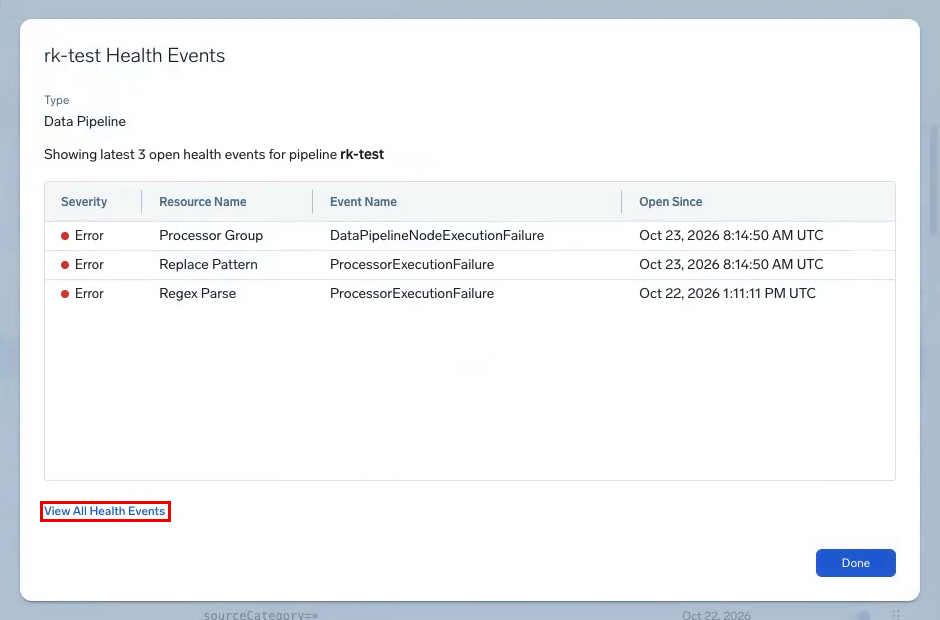
To investigate, select a pipeline in the list and click View Health Details. The dialog shows the latest open health events with their severity, resource name, event name, and the time they opened. Click View All Health Events to see the full list.
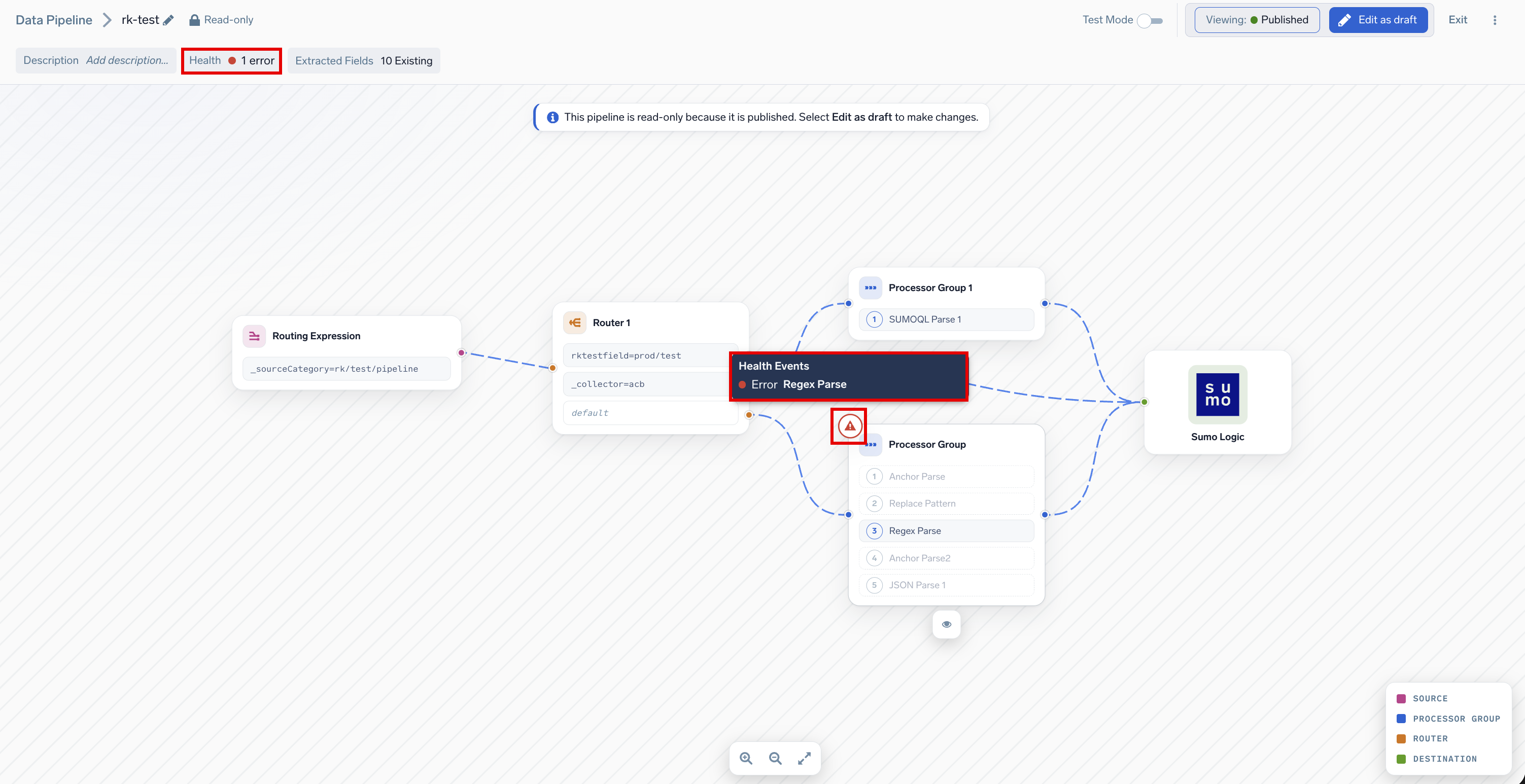
You can also see where an error occurred in the pipeline graph. To find it, open a pipeline with a red Error in the Health column. A warning icon appears on the node that has the error. Point to the node to see the error details.
Limitations
- Pipelines process logs only.
- A pipeline can have only one destination, Sumo Logic.
- The limitations that apply to Ingest Time FERs also apply to Data Pipelines.
- A pipeline needs exactly one source and at most one destination. Pipeline and node names need to be unique.
The following limits also apply to Data Pipelines.
| Item | Limit |
|---|---|
| Pipelines per organization | 50 |
| New fields per organization | 200 by default for small organizations, 400 for large organizations |
| Nodes per pipeline | 100 |
| Processors per processing group | 30 |
| Routers per pipeline | 50 |
| Routes per router | 50 |
| Routing expression length | 2,048 characters |
| Regex or anchor expression length | 16,384 characters |
| Replace Pattern: pattern length per rule | 1,024 characters |
| Extracted field value length | 16,384 characters. Longer values are truncated. |
| Message size | 256 KB |
| Pipeline name length | 256 characters |
| Pipeline description length | 1,024 characters |
| Test sample file size | 1 MB |
| Test sample messages | 100 |