Deletion Requests
Deletion requests allow you to quickly remove ingested data from Sumo Logic. This is particularly useful for addressing inadvertently ingested sensitive data.
You can independently and swiftly remove sensitive data, mitigating compliance issues and potential data exposure without needing to contact Sumo Logic support. You can also manage deletion requests programmatically via the Data Deletion Rules API.
Key features:
- User-friendly deletion. Easily delete data.
- Multiple datasets and time ranges. Flexible data management.
- Customizable filters. Tailor deletion to your needs.
- Robust auditing mechanisms. Ensure thorough tracking.
If a certificate of destruction is required, this feature cannot be used. Instead, you must create a Sumo Logic support ticket to request data deletion.
Prerequisites
| Action | Required role capability |
|---|---|
| Create or manage deletion requests | Manage Deletion Requests |
| View deletion requests only | View Deletion Requests or Manage Deletion Requests |
| Approve or reject requests | Review Deletion Requests (automatically includes Manage and View) |
By default, data deletion is disabled and can only be enabled by the account owner from the Policies page or through a Sumo Logic support ticket. These enablement actions will be captured in the audit log. To enable the the log search data deletion, follow the below steps:
- Classic UI. Go to Administration > Security > Policies.
New UI. In the main Sumo Logic menu, select Administration, and then under Account Security Settings, select Policies. - Select the Enable Log Search Data Deletion checkbox to allow users with the appropriate role capabilities to manage data deletion requests.
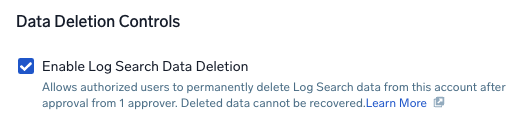
You can configure the number of approvers for each data deletion request.
Create a deletion request
You can create a data deletion request from either the Logs tab or a Log Search. Before you begin, review the following:
Data cannot be recovered once deleted. Ensure you have appropriately backed up any necessary data before submitting a deletion request.
- Once a data deletion request has been approved, data will be deleted from the organization and no users within the organization (admin or otherwise) will be able to access the data.
- Data deletion requests should not be done without planning, and any data deletion approvals should be given sufficient consideration.
- During the data deletion process, existing messages may temporarily appear duplicated for a few seconds. These duplicated messages will automatically disappear once the data deletion is complete.
- Pinned queries may continue to display data identified for deletion for up to 24 hours from the initial run, prior to the data deletion request approval.
- Data deletion requests are automatically canceled after 30 days if no action is taken.
From the Logs tab
- Classic UI. Go to Manage Data > Logs > Deletion Requests.
New UI. In the main Sumo Logic menu, select Data Management, and then under Logs, select Deletion Requests. - Click + Create Deletion Request.
- Fill out the Name, Reason, and Filter Expression fields.
note
Use the Filter Expression field to specify the criteria for the log messages you want to delete. The expression should match the content of the messages. For example, if you enter
Hello World, all messages containing that specific phrase will be deleted. - Select the Time Range when the data was ingested.
- When you're done, click Save.
- An email about your request will be sent to 50 most recently active approval users with approval access.
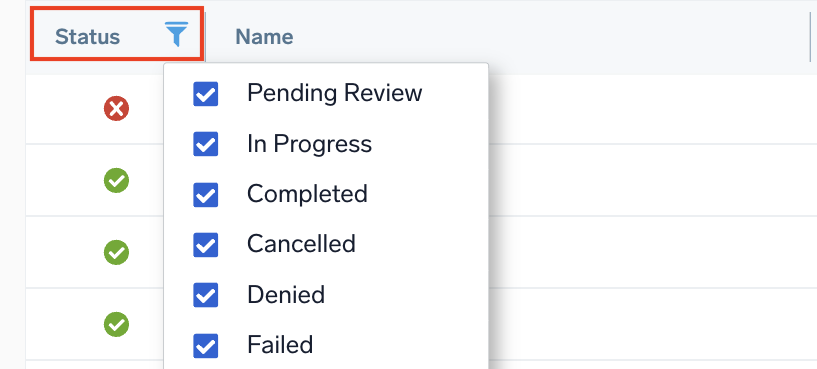
You can check on your request in the Status column.note
If you need approval from someone outside these 50 users, forward them the deletion request email.
From a Log Search
- In the Log Search, search for the required logs that needs to be deleted.
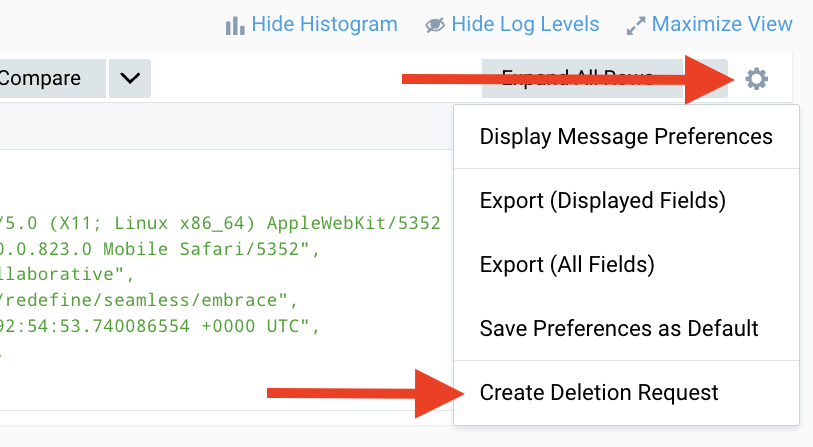
- Click the cog icon, then in the dropdown, select Create Deletion Request.
- In the popup window, enter a Name and Reason for your data deletion request, then click Create Request.
Audit deletion events
The Audit Event Index and System Event Index contain detailed JSON logs for deletion activities. To search for these events, use the metadata field _sourceCategory=deletionRule.
(_index=sumologic_*_events) AND _sourceCategory=deletionRule
| json field=_raw "resourceIdentity.name" as name nodrop
| json field=_raw "resourceIdentity.id" as id nodrop
| json field=_raw "eventName"
| json field=_raw "operator.interface" as operator nodrop
| json field=_raw "operator.email" as email nodrop

| count by _messagetime,eventname,name,id,operator,email,_view
| sort _messagetime asc
The events DeletionRuleCreated and DeletionRuleStateUpdated are contained in the sumologic_audit_events index and DeletionRuleProcessingConcluded is in the sumologic_system_events index.
Cancel a deletion request
To cancel a data deletion request:
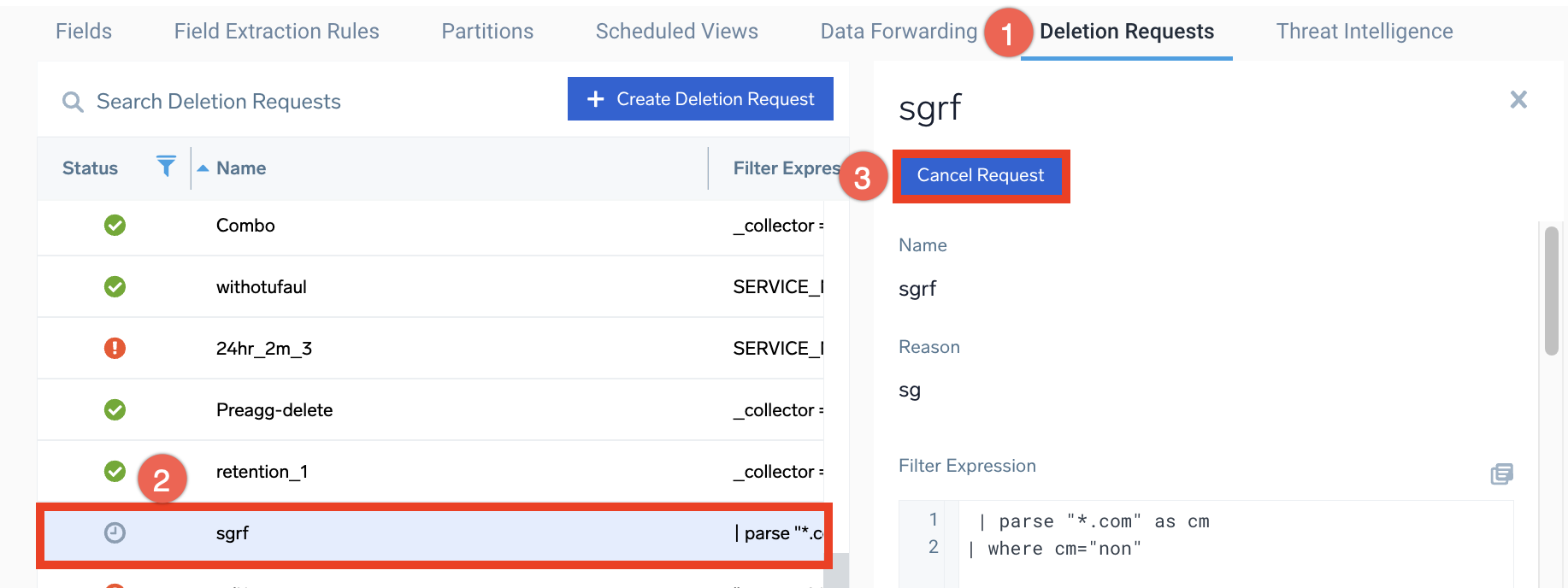
- Go to Deletion Requests.
- Select your request.
- Click Cancel Request.
Approve a deletion request
Once the deletion request is created, an email notification will be sent to the users who have approval access. To approve or reject a request, follow the steps below:
- Classic UI. Go to Manage Data > Logs > Deletion Requests.
New UI. In the Sumo Logic main menu, select Data Management, and then under Logs, select Deletion Requests.
- Filter for the status with Pending review.

- Click a deletion request to review it.

- Approve or Reject the request based on your requirement.
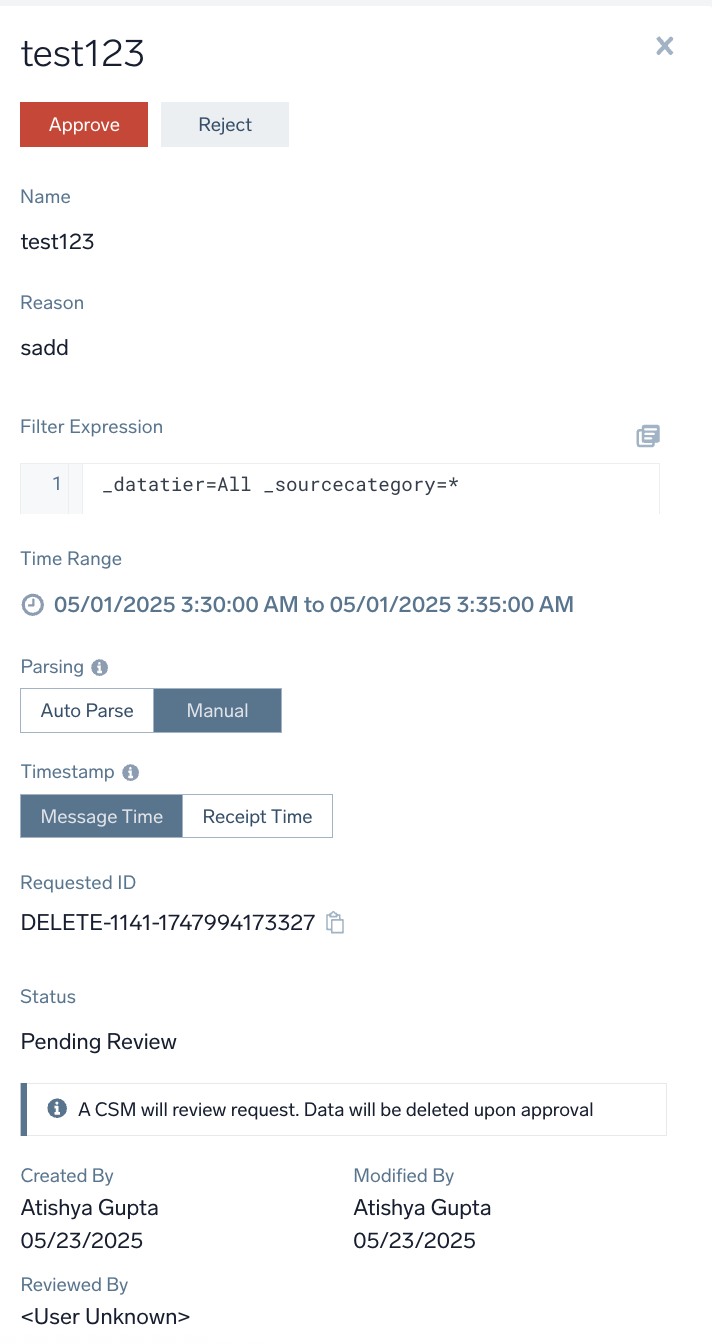
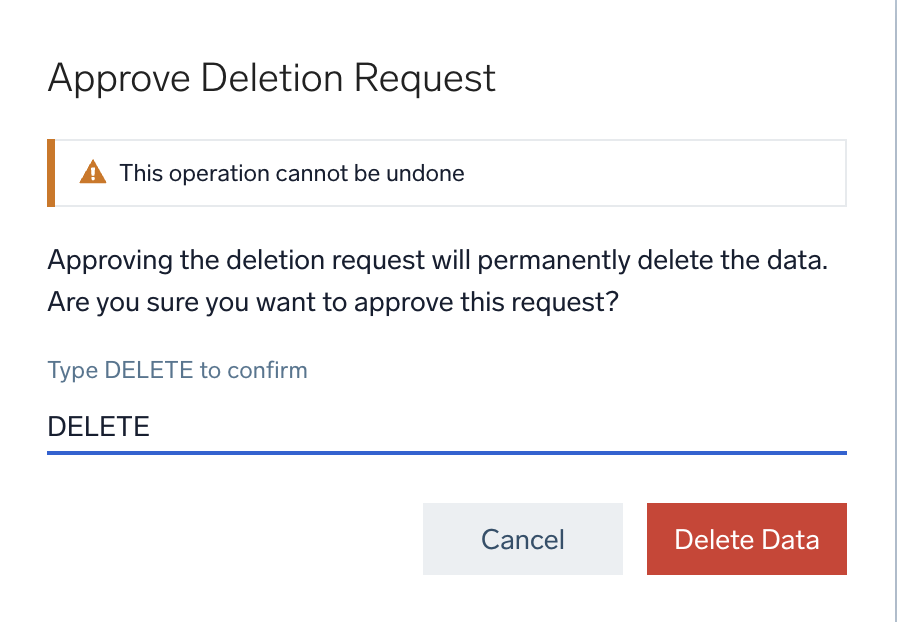
- Approve. In the Approve Deletion Request pop-up, enter Delete, and then click Delete Data. This will permanently delete the data.
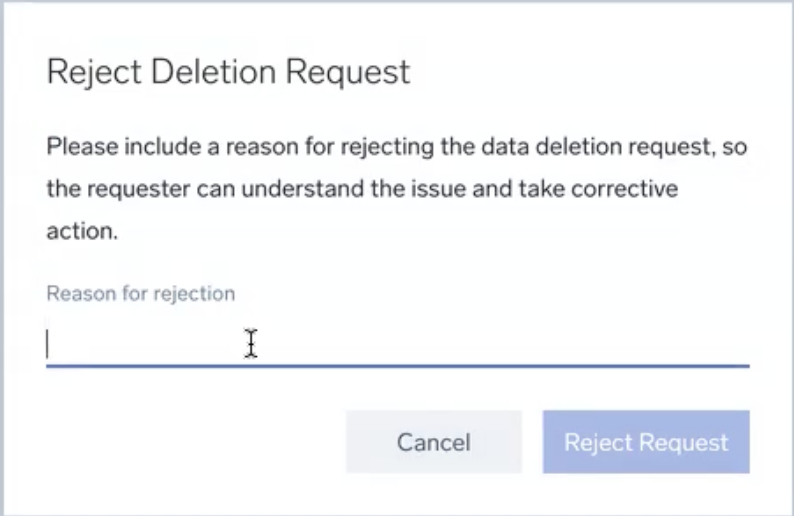
- Reject. Enter the reason for rejection in the Reject Deletion Request pop-up to help the requester understand the reason for rejection and take any necessary actions, and click the Reject Request button.
- Approve. In the Approve Deletion Request pop-up, enter Delete, and then click Delete Data. This will permanently delete the data.
To process a data deletion request, approval from two admins with the Review Deletion Requests capability is required. If required, account owner can change the default to one admin approver.
Limitations
- Deletion requests are processed sequentially (one at a time).
- Maximum 100 deletion requests at a time.
- Each request can include up to 1 petabyte (PB) of scanned data.
- Maximum 1,000,000 messages per request.
- Maximum time range of one year per request.
- Up to 10 active concurrent deletion tasks across different customers.
- Requests cannot delete data prior to February 1, 2024. Requests before this timestamp will fail.
Handling future ingestion of sensitive data
Deletion requests only apply to data already indexed, and not to future ingestion. Use processing rules to manage future ingestion of sensitive data.
Deletion scope
Deletion is restricted to partitions, default view (sumologic_default), Scheduled Views, Scheduled Search, and ad hoc views in Sumo Logic. Deletion is currently not supported for audit indexes, security indexes, and other view types. Sensitive data may still be present in these unsupported views.
Supported operators
Deletion requests support these search operators: as, concat, contains, decToHex, floor, if, in, lookup, toLower, matches, parse, toUpper, and where.