 Meet the new
 Event Extraction Rules
This feature is in Extended Preview. For more information, contact your Sumo Logic account representative.
Event Extraction Rules enables you to automatically extract, correlate, and enrich events directly from log data, making them available for event querying and analysis. By reducing noise and highlighting meaningful events, this capability accelerates troubleshooting and root cause analysis with minimal manual effort. You can precisely control how events are classified by configuring event type and priority, ensuring that the most impactful events are surfaced and clearly represented within log searches for faster, more informed insights.
Create an Event Extraction Rule
You can create an event extraction rule of your own from scratch by following the instructions below.
You need the Manage Event Extraction Rules role capability to create an event extraction rule.
- New UI. To access the Event Extraction Rules page, in the main Sumo Logic menu select Data Management, and then under Logs select Event Extraction Rules. You can also click the Go To... menu at the top of the screen and select Event Extraction Rules.
Classic UI. In the main Sumo Logic menu, select Manage Data > Logs > Event Extraction Rules. - Click the + Add Event Extraction Rule button on the top right of the table.
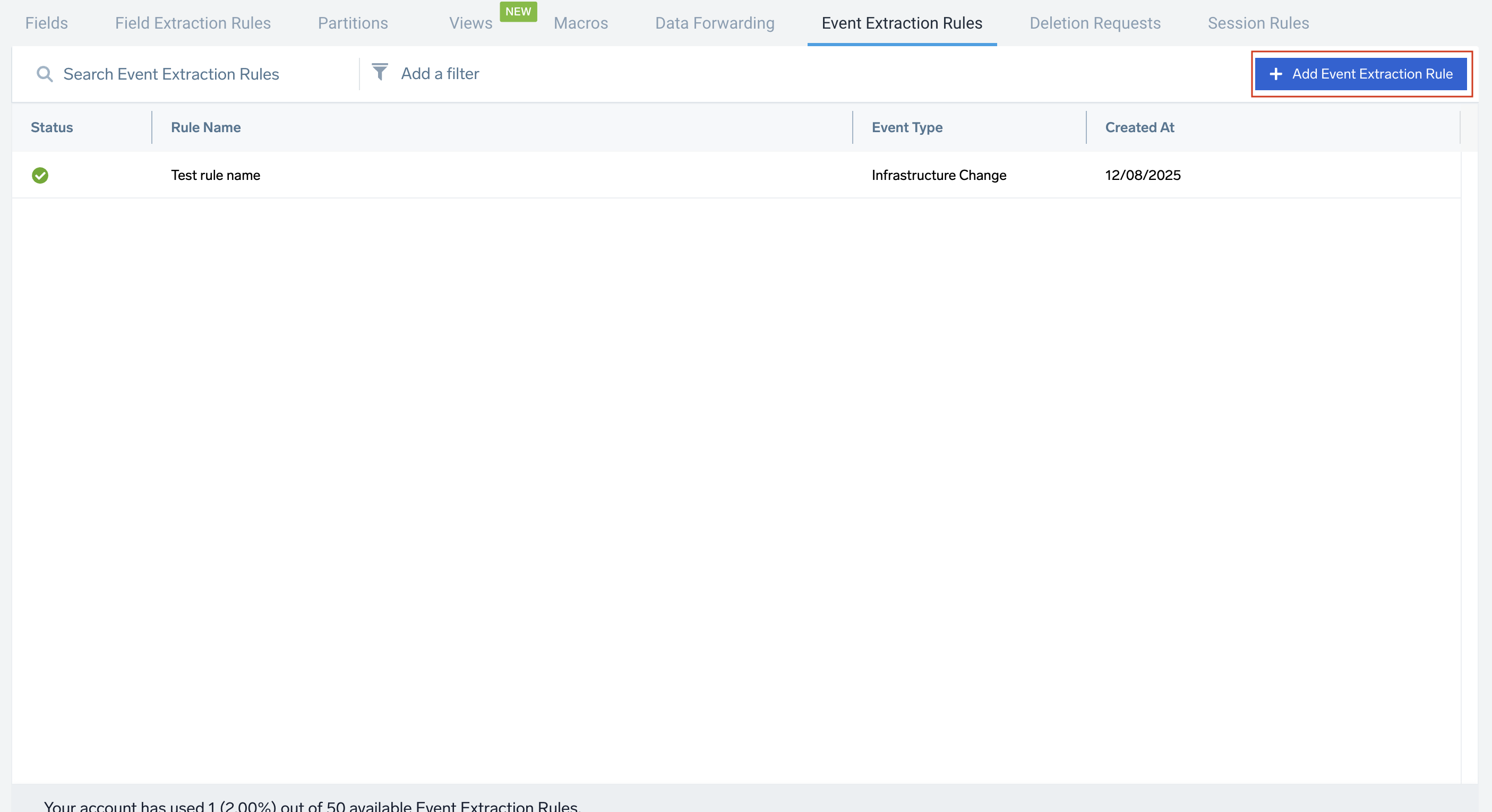
- Enter the following options in the Create New Event Extraction Rule page:
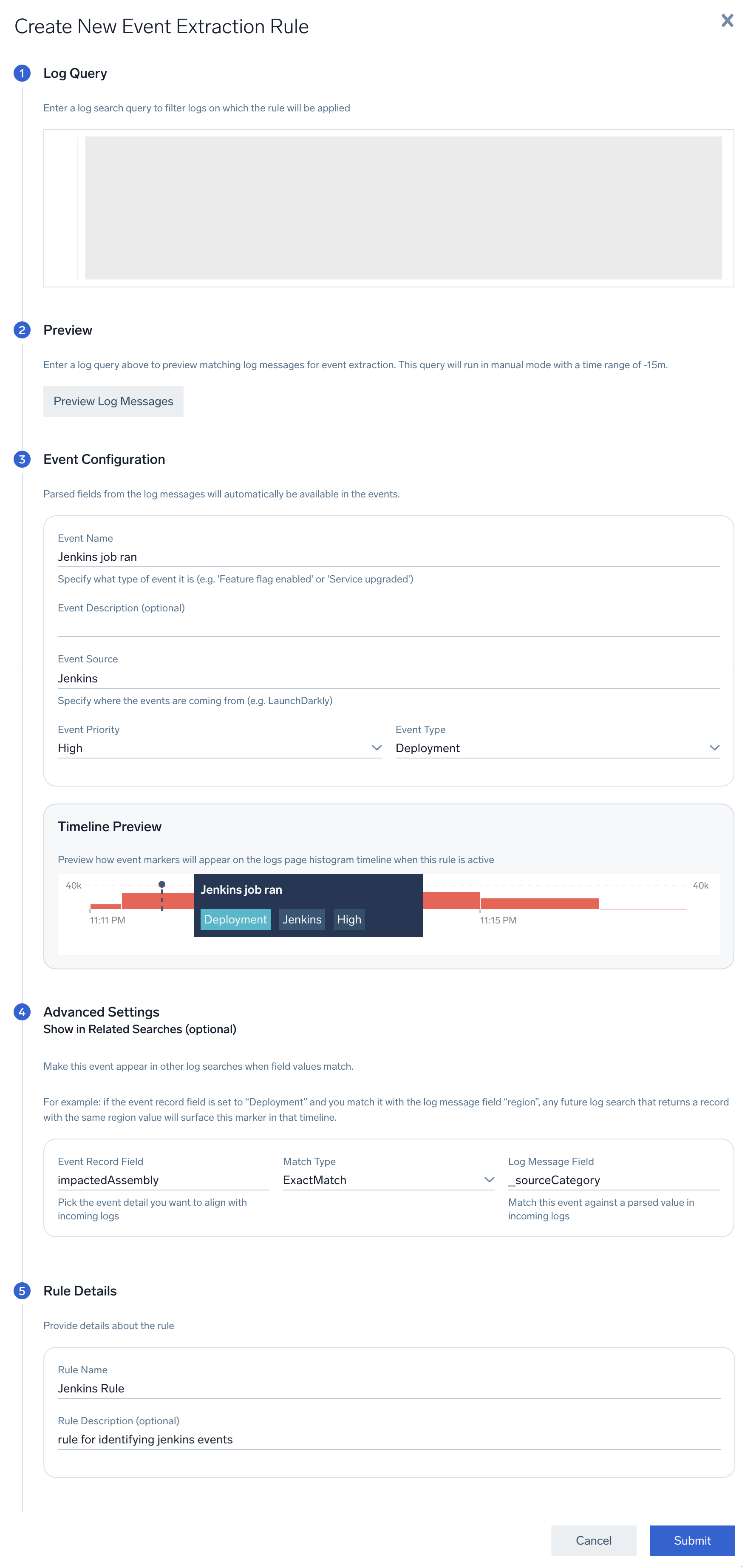
- Log Query. Enter the log search query for the event to filter the logs.
note
- To optimize query performance, limit log volume, parse and extract only the necessary fields, and use the
fieldsoperator in denylist mode to exclude unnecessary fields and return only what’s required for event correlation and visualization.". - This log query applies the same validation rules as those used for Scheduled Views.
- By default, this log query runs using the Message Time timestamp with a 15-minute time range in Manual parse mode.
- To optimize query performance, limit log volume, parse and extract only the necessary fields, and use the
- Preview. Click the Preview Log Messages button to preview the log messages for the query entered,
- Event Configuration:
- Event Name. A unique name for the event.
- Event Description (optional). An optional text field to provide additional context about the event—such as its purpose, expected behavior, or when it should occur. Helps to understand the significance of the event.
- Event Source. Specify where the event originates from. This helps you to categorize and track events across different data sources.
- Event Priority. You can select Low, Medium, or High depending on the importance of the event.
- Event Type. Defines the category of the event - Deployment, Feature Flag Change, Infrastructure Change, or Configuration Change. This helps you in filtering, grouping, and analyzing events based on their nature.
- Timeline Preview. This previews how event markers will display in the histogram timeline on the logs page when this rule is active. This marker also displays the event type, source, and priority details.
- Advanced Settings (optional). Use this section if you want to compare values from parsed event fields with fields in incoming log messages. When the selected values match, the system displays a visual marker to highlight the match.
note
Use Advanced Settings if you need precise or strict match requirements. If not configured, Sumo Logic system makes best-effort to identify related events.
- Event Record Field. Choose the field from the event record that you want to compare against incoming log data. Only extracted fields in query can be used for
eventFieldNamein correlation expression. - Match Type. Exact Match is selected by default. This option creates a marker when the value in the incoming log exactly matches the value specified in the event record field.
- Log Message Field. Select the field from the incoming log message that should be compared with the chosen event record field.
- Event Record Field. Choose the field from the event record that you want to compare against incoming log data. Only extracted fields in query can be used for
- Rule Details. Enter the rule name and rule description (optional) of your choice that makes it easy to identify the rule.
- Log Query. Enter the log search query for the event to filter the logs.
When an Event Extraction Rule is created, events only from previous seven days are automatically backfilled into the event index.
Edit a rule
To edit the existing event extraction rule, follow the below steps:
- New UI. To access the Event Extraction Rules page, in the main Sumo Logic menu select Data Management, and then under Logs select Event Extraction Rules. You can also click the Go To... menu at the top of the screen and select Event Extraction Rules.
Classic UI. In the main Sumo Logic menu, select Manage Data > Logs > Event Extraction Rules. - Navigate to the respective event rule which you wish to edit.
- On the left pane, click Edit button.
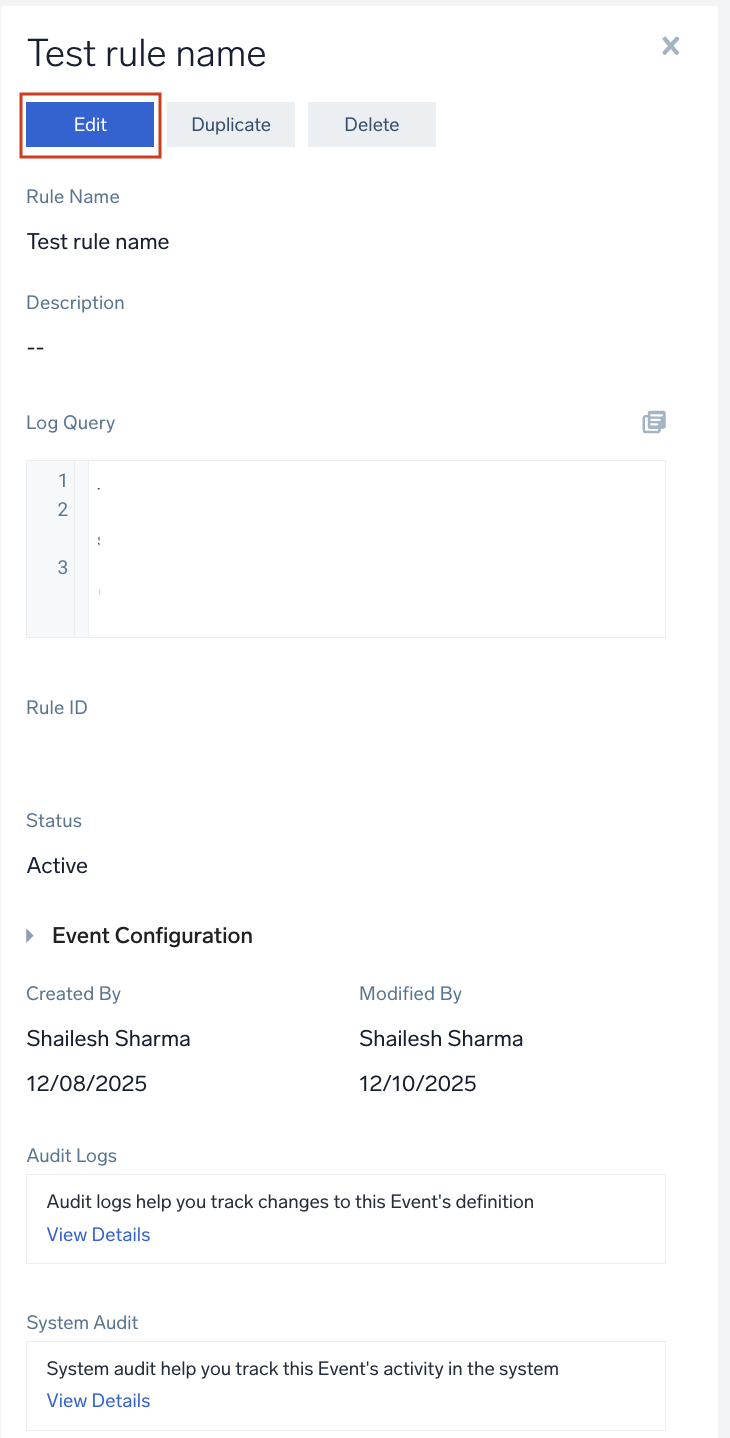
- In the event extraction rule editing pane, perform the required editing and click Submit to save the changes.
Duplicate a rule
To duplicate the existing event extraction rule, follow the below steps:
- New UI. To access the Event Extraction Rules page, in the main Sumo Logic menu select Data Management, and then under Logs select Event Extraction Rules. You can also click the Go To... menu at the top of the screen and select Event Extraction Rules.
Classic UI. In the main Sumo Logic menu, select Manage Data > Logs > Event Extraction Rules. - Navigate to the respective event rule which you wish to duplicate.
- On the left pane, click Duplicate button.
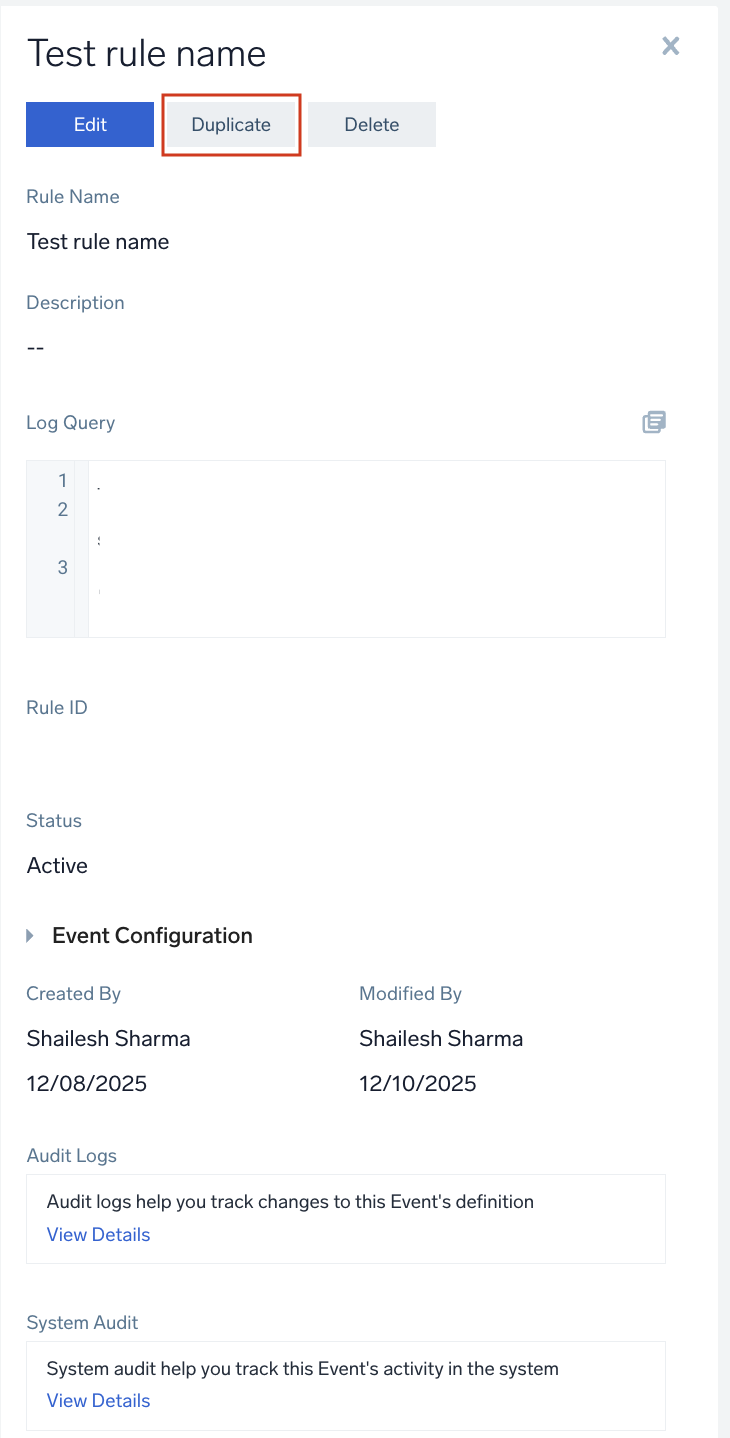
- In the event extraction rule editing pane, perform the required editing and click Submit to duplicate the changes.
Delete a rule
To delete the existing event extraction rule, follow the below steps:
- New UI. To access the Event Extraction Rules page, in the main Sumo Logic menu select Data Management, and then under Logs select Event Extraction Rules. You can also click the Go To... menu at the top of the screen and select Event Extraction Rules.
Classic UI. In the main Sumo Logic menu, select Manage Data > Logs > Event Extraction Rules. - Navigate to the respective event rule which you wish to edit.
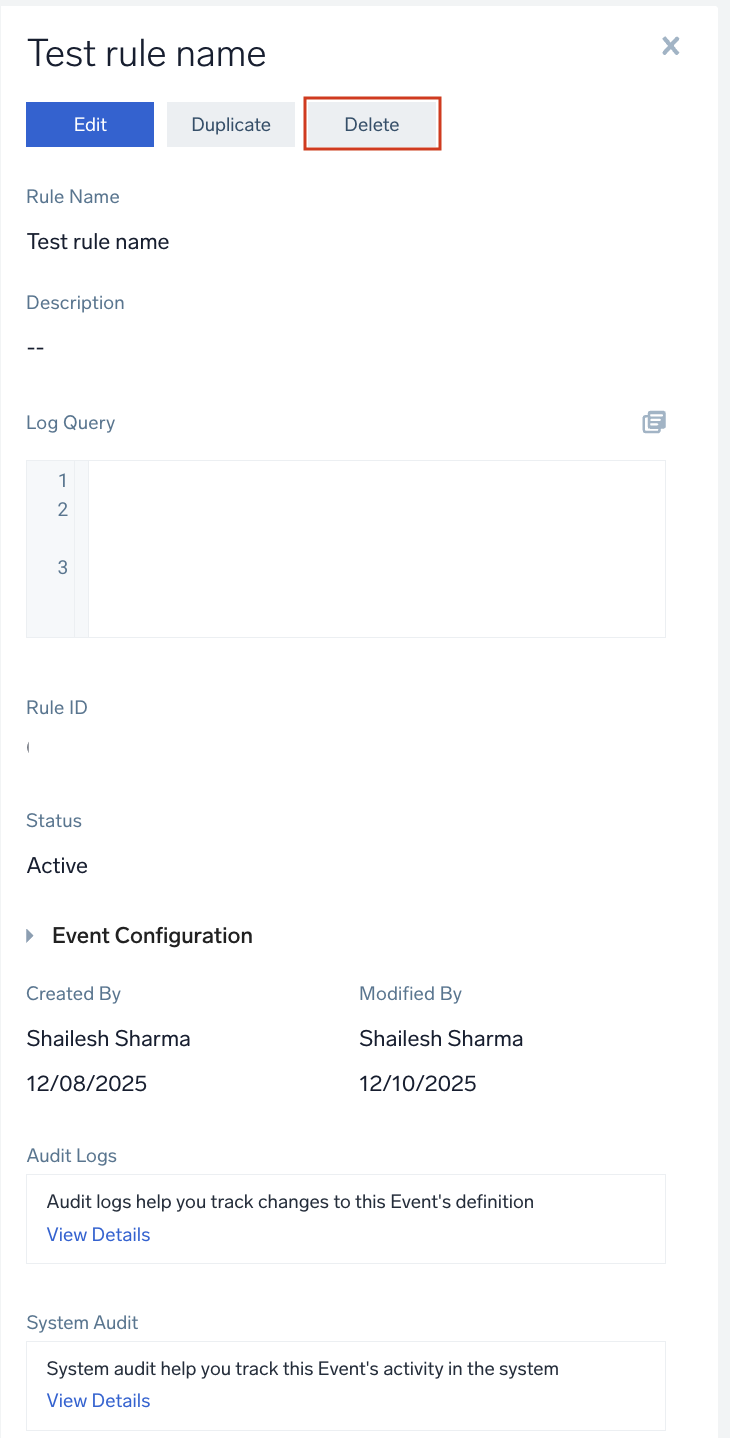
- On the left pane, click Delete button.
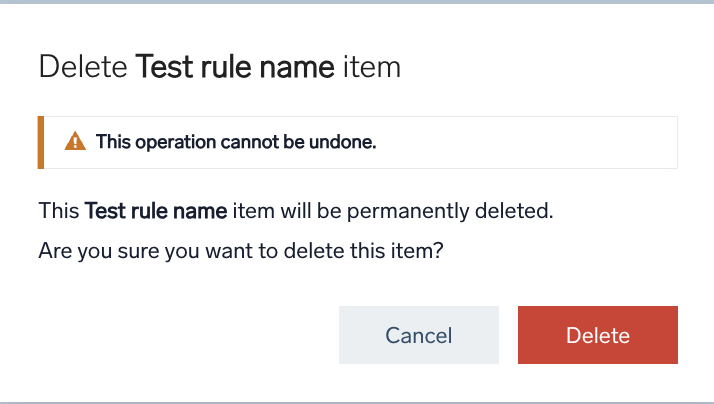
- In the Delete [rule name] item pop-up, click on Delete.
A status of Internal Cache Cleanup in Progress means your requested data has already been deleted successfully. The remaining cache cleanup is an internal background operation managed by Sumo Logic and may take additional time to complete before the request is marked as fully complete.
Examples
Cloud environments such as AWS CloudTrail, Azure Activity Logs, and GCP Audit Logs produce massive volumes of audit logs, and the events that matter are easily buried among millions of routine API calls. Event Extraction Rules surface those high-value events so you can quickly answer questions such as:
- Who deleted an IAM role?
- Who modified a security group?
- When was an S3 bucket policy changed?
- Who disabled logging?
- When was a production instance terminated?
The following examples use AWS CloudTrail logs to show how a rule turns a raw audit log into a meaningful, queryable event.
Detect IAM role deletions
Track every time an IAM role is removed so you can correlate permission changes with incidents and speed up security investigations. Given the following raw log:
{
  "eventName": "DeleteRole",
  "eventSource": "iam.amazonaws.com",
  "userIdentity": {
    "userName": "john.doe"
  },
  "awsRegion": "us-east-1",
  "eventTime": "2026-05-01T12:30:00Z"
}
Configure the rule with the following log query:
_sourceCategory=aws/cloudtrail
| json "eventName" as eventName
| json "userIdentity.userName" as user
| json "awsRegion" as region
| where eventName = "DeleteRole"
The rule extracts an IAM Role Deleted event with the fields user = john.doe, region = us-east-1, resource = IAM Role, and timestamp = 2026-05-01T12:30:00Z.
Track S3 bucket policy changes
Capture every change to an S3 bucket policy so you can correlate later S3 access failures with the policy change that caused them. Given the following raw log:
{
  "eventName": "PutBucketPolicy",
  "eventSource": "s3.amazonaws.com",
  "requestParameters": {
    "bucketName": "customer-prod-data"
  }
}
Configure the rule with the following log query:
_sourceCategory=aws/cloudtrail
| json "eventName" as eventName
| json "requestParameters.bucketName" as bucketName
| where eventName = "PutBucketPolicy"
The rule extracts an S3 Bucket Policy Modified event for the customer-prod-data bucket.
Monitor production instance terminations
Flag when a production EC2 instance is terminated so you can connect infrastructure failures and alerts to the deployments or user actions behind them. Given the following raw log:
{
  "eventName": "TerminateInstances",
  "eventSource": "ec2.amazonaws.com",
  "requestParameters": {
    "instancesSet": {
      "items": [
        { "instanceId": "i-123456" }
      ]
    }
  }
}
Configure the rule with the following log query:
_sourceCategory=aws/cloudtrail
| json "eventName" as eventName
| json "requestParameters.instancesSet.items[0].instanceId" as instanceId
| where eventName = "TerminateInstances"
The rule extracts a Production Instance Terminated event for instance i-123456.
Limitations
- You can create a maximum of 50 event extraction rules.
- For any query, a maximum of five event markers will be displayed in the histogram, regardless of the selected time range.
Operational considerations
- To restrict user access to extracted events, you can deny access to the
sumologic_userdata_eventsindex for specific roles. Ensure that you have the Usage Management capability enabled, as it is required to configure index-level access restrictions. - An Event Extraction Rule can generate a maximum of 1,000 events per hour. If this limit is exceeded, the rule may be automatically disabled and a system event will be generated. You can view those by querying the
_index=sumologic_system_eventsand_sourcecategory=eventExtractionRule. To re-enable the rule, review and refine the rule query to reduce the event volume. - Audit logs for all create, read, update, and delete (CRUD) actions performed on Event Extraction Rules are available in the
_index=sumologic_audit_eventsand_sourcecategory=eventExtractionRule.
Verify user data events
Search user data events to verify that a newly created event extraction rule is correctly generating events or to confirm the source event extraction rule for a given event. Additionally, this event index can be used in dashboards, scheduled searches, or for other event analysis use cases. Specify the _index metadata field with sumologic_userdata_events.
For example, to search user data events:
- In the Search page, enter the following:
_index=sumologic_userdata_events.infoMake sure to enter the query exactly as shown. Changing any part of the query renders it ineffective.
- Choose the time range for the events that you'd like to review.
- Click Start to run the search.
You can identify the source of event using eventExtractionRuleID field in the sumologic_userdata_events index.