 Meet the new
 Data Volume Index
The Data Volume Index gives you visibility into how much data you are sending to Sumo Logic, allowing you to proactively manage your systems’ behavior and to fine tune your data ingest with respect to the data plan for your Sumo Logic subscription.
The Data Volume Index provides data for logs and metrics:
- Logs and Tracing. Ingest volume in bytes and the number of log messages. Tracing ingest volume in billed bytes and spans count. See Log and Tracing Data Volume Index for details.
- Metrics. Ingest volume measured in data points. See Metrics Data Volume Index for details.
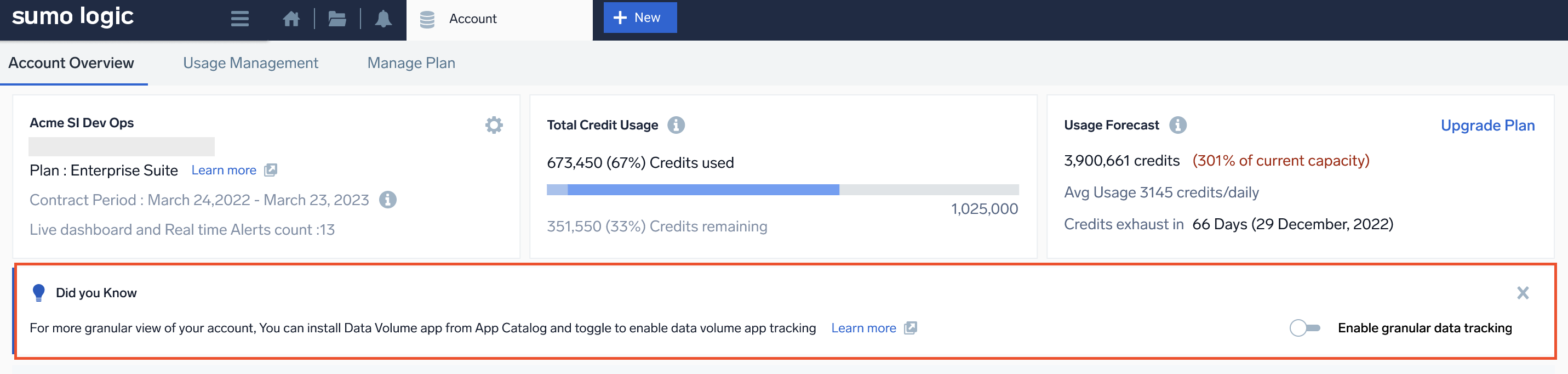
If you are a user of Credits package accounts, the Data Volume Index should be manually enabled by an administrator by toggling the Enable Granular Data Tracking button. The index then begins populating. A set of messages within the index is created every five minutes. The data do not backfill and are provided to the index only when the option is enabled.
Data Volume Index will be enabled by default for Flex package accounts.
After the Data Volume Index is enabled, you can access it using this search query:
=sumologic_volume
Creating an index typically adds a nominal amount of data to your overall volume (approximately one to two percent) when pre-aggregated. Depending on your Sumo Logic account type and subscription, this data will count against your data volume quota.
Granular data tracking
Granular data tracking is a part of usage management that allows you to proactively manage your systems’ behavior and to fine tune your data ingest with respect to the data plan for your Sumo Logic subscription. This should be manually enabled by an administrator if you are a user of Credits package accounts and this will be enabled by default for Flex package accounts. A set of messages within the index is created every five minutes. The data do not backfill and are provided to the index only when the option is enabled.
Disable granular data tracking
- New UI. In the main Sumo Logic menu select Administration, and then under Account select Account Overview. You can also click the Go To... menu at the top of the screen and select Account Overview.
Classic UI. In the main Sumo Logic menu, select Administration > Account. - Click the gear icon
 in the top left panel of the Account Overview page.
 - Click Disable Granular Data Tracking.

Ask Mobot about data volume
You can ask Mobot natural-language questions about your ingest volume without writing queries against the Data Volume Index directly. The Data Volume skill is part of Mobot's Platform Optimization Agent and is available to all Mobot users with no separate opt-in required. It is included at no additional cost for active credit subscriptions.
Admins can use it to identify noisy sources and explain month-over-month fluctuations. Finance teams can use it to attribute spend, reconcile credits, and forecast renewals.
Example questions:
Show me the daily ingest for the last week.What are my top 10 source categories by daily ingest volume?How much data went to the Infrequent tier last month?Which collector is ingesting the most?
Mobot parses your question to identify the time window, units, and breakdown you're asking for, queries this index, and returns a structured answer in any unit (GB, TB, MB, bytes, or event counts). If this index is not yet enabled, Mobot detects that and guides you through turning it on.
For more example questions, see Data volume in Mobot Example Prompts.
Guide contents
In this section, we'll introduce the following concepts:

Log and Tracing Data Volume Index
Get to know how much data your account is ingesting.
Metrics Data Volume Index
Get to know the volume of metric data points your account is ingesting.