Manage Organizations for MSSPs
This article describes how to manage Cloud SIEM rules, rule tuning expressions, organizational library content, and monitors for Managed Security Service Providers (MSSPs). MSSP administrators must ensure that the content of their child organizations is properly configured. MSSPs often consist of a parent organization with child organizations that use Cloud SIEM.
Considerations
Roles
You must have the following organization role capabilities to create and manage organizations as an MSSP administrator:
- Organizations
- View Organizations
- Create Organizations
- Manage Organizations
Multi-insights list page in Cloud SIEM
If you are logged in to a parent organization with child organizations that also use Cloud SIEM, the insights list page in Cloud SIEM allows you to view insights in child organizations.
This multi-insights list page (also known as a "federated" page) shows insights just as in a normal insights list page. When you click an insight on the page, you are automatically signed in to the child organization (if SSO is enabled for the child organization), and the insight's details open in the child organization's UI. You can also use the board view on the multi-insights page to move insights to different statuses.
To be able to see insights in child organizations, add child organizations that use Cloud SIEM. Then when the parent organization user goes to their Cloud SIEM insights list page, all the child organizations' insights appear in the list.
Manage content
To ensure that content is consistent across child organizations, use the Manage Content tab to push content in target organizations with content from a source organization.
You can push the following:
- Cloud SIEM rules
- Cloud SIEM rule tuning expressions
- Library
- Monitors
- Source templates
- New UI. In the main Sumo Logic menu, select Organizations. You can also click the Go To... menu at the top of the screen and select Organizations.
Classic UI. In the main Sumo Logic menu, select Administration > Organizations. - Select the Manage Content tab.
- In the Source Org field, select the organization that will provide the source data to be pushed in other organizations.
- In the Content bar, select the content to be pushed:
- Cloud SIEM Rules. For more information about Cloud SIEM rules, refer to Cloud SIEM Rules.
- Cloud SIEM Rule Tuning. For more information about Cloud SIEM rule tuning expressions, refer to Rule Tuning Expressions.
- Library. For more information about Library items, refer to Managing Your Sumo Logic Library. You can manage saved searches, scheuled searched, dashboards, and lookup tables items under Library.
- Monitors. For more information about Monitors, refer to Monitors.
- Source Template. For more information about source templates, refer to OpenTelemetry Remote Management Source Templates.
- Select individual items to be pushed, or all items.
- Click Push to Orgs.
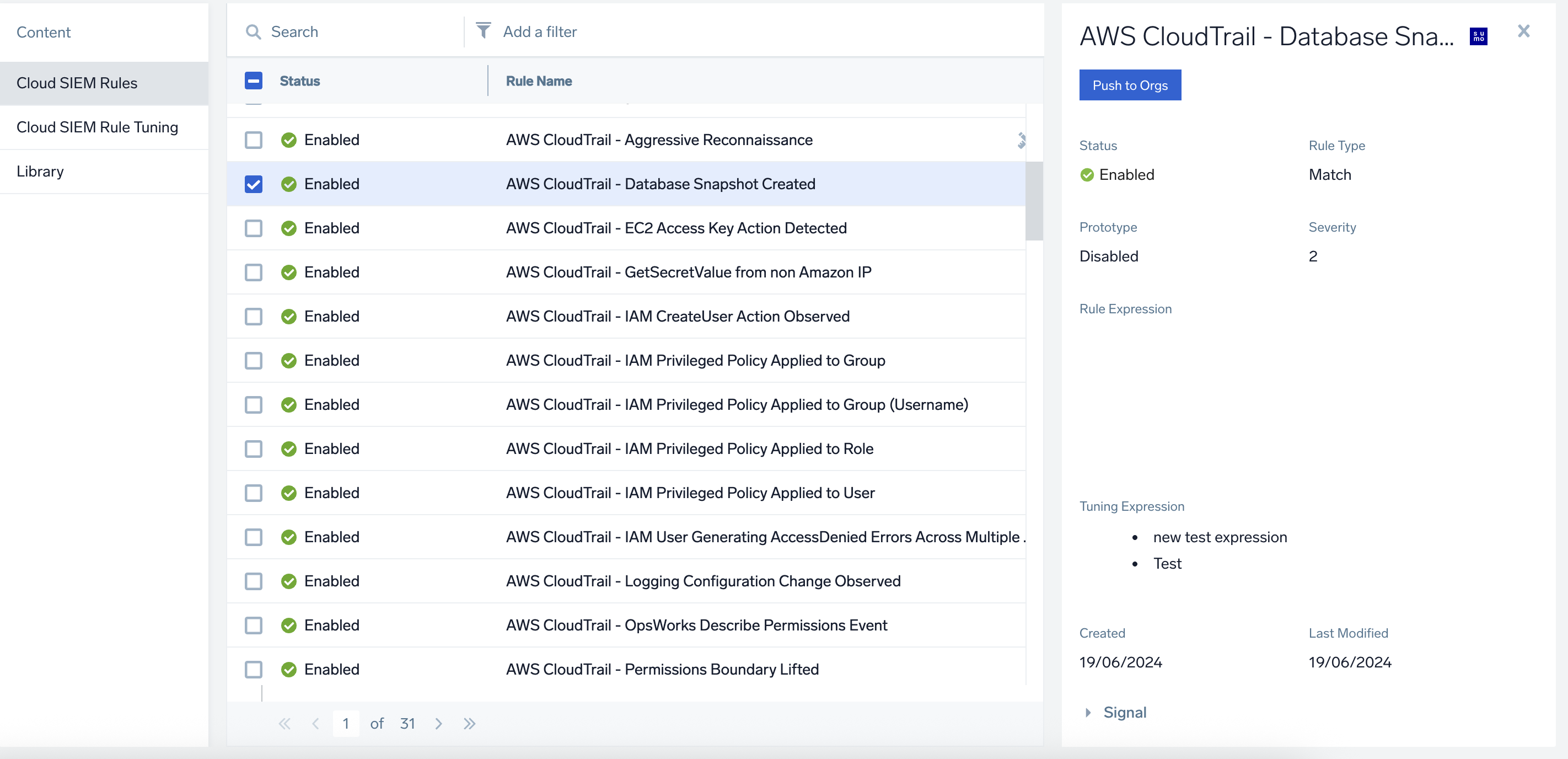
- On the Push Selected Content box, navigate to the Destinations section to select the organizations to push the selected items to. You can push to all organizations, a single child organization, or multiple child organizations.
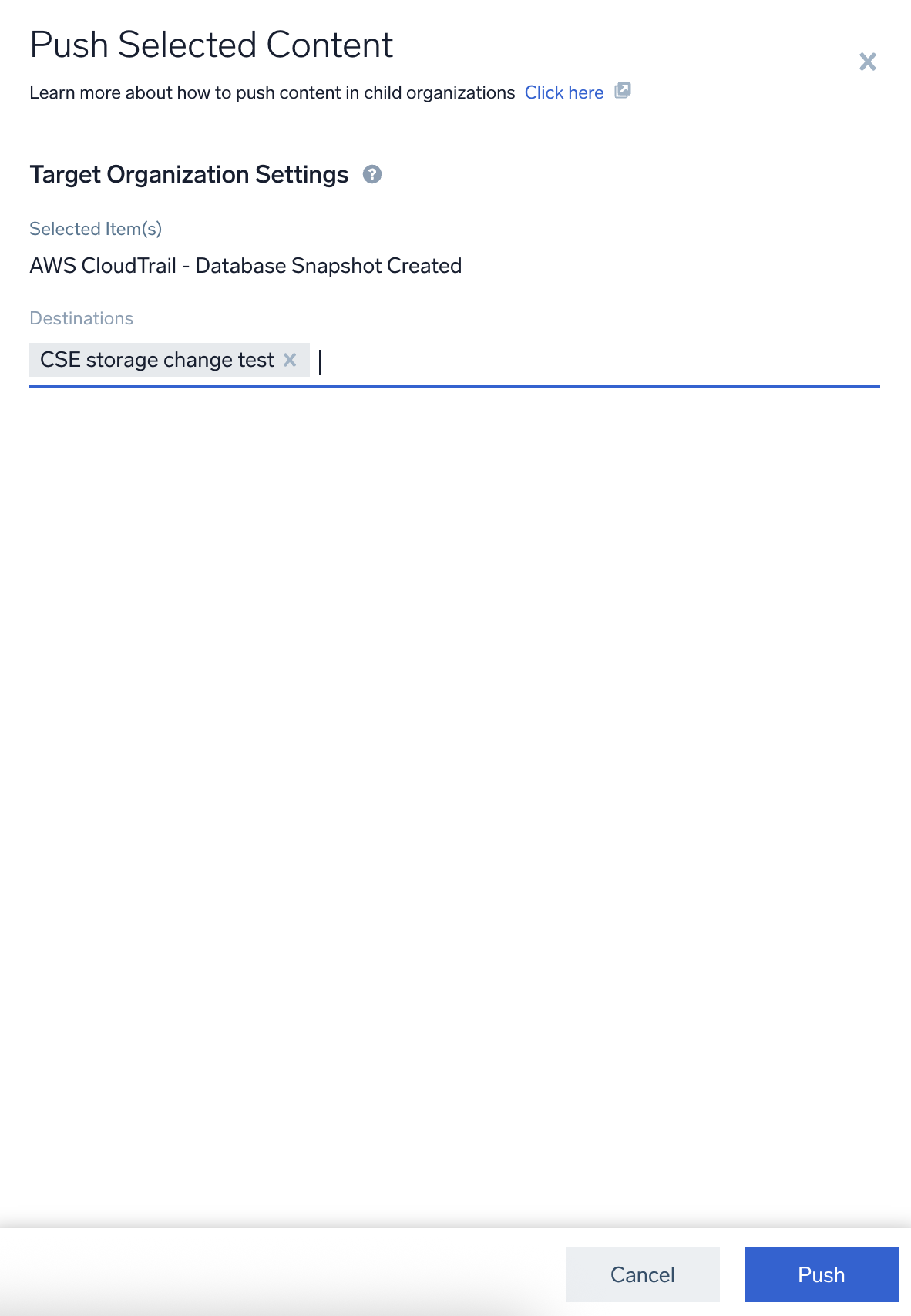
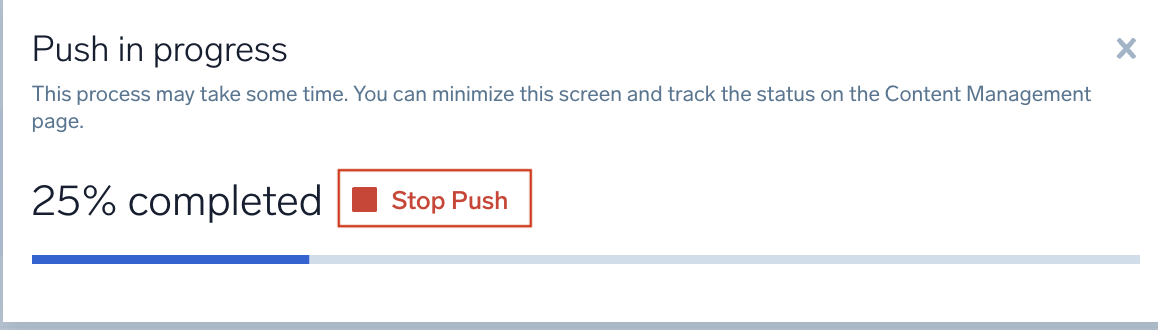
- Click Push. A Pushing in progress dialog is displayed.
- (Optional) If required, follow the below steps to stop the push:
- Click the Stop Push button on the dialog box.
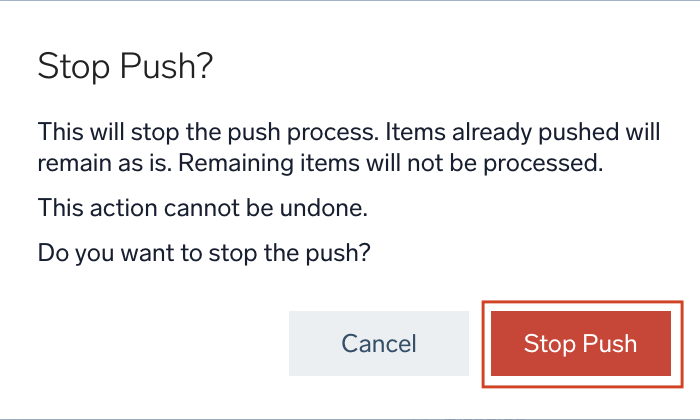
- Click Stop Push on the confirmation pop-up. To view the results table, refer to View results.
- Click the Stop Push button on the dialog box.
Tips
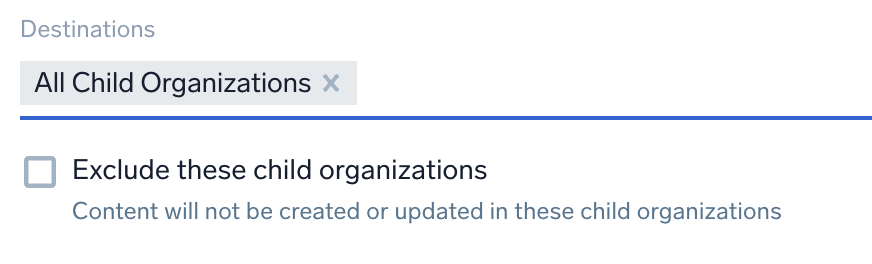
- If you select All Child Organizations, you can then select organizations to exclude, allowing you to push to all organizations except those you select:
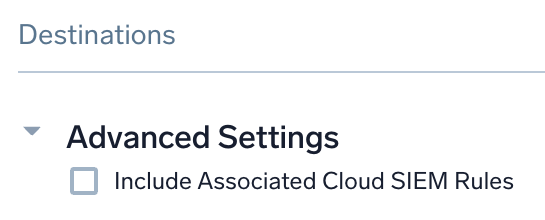
- When you push rule tuning expressions, select Include Associated Cloud SIEM Rules to push all the Cloud SIEM rules that the expressions are used on:
- Selected Library items are added to the Admin Recommended folder. Additionally, you can only select the Library contents in Source Organization under the Admin Recommended folder.
- Scheduled Searches Connection. Select Include Connection to create the scheduled searches in the target organizations if they don't already exist there. Select Ignore Connection only if you want to turn the added scheduled searches into saved searches.
- Scheduled Reports. Select Include Scheduled Reports to create the scheduled reports in the target organizations if they don't already exist there. Select Ignore Scheduled Reports only if you want to turn the added scheduled reports into saved reports.
note
Both Scheduled Searches Connection and Scheduled Reports will be available only when you select a library folder.
- In the destination organization, if a lookup with the same name already exists with a different schema and contains data, the push operation is automatically skipped and an error message is displayed. If a lookup table with the same name exists but does not contain any data, the push proceeds and the existing file is replaced with the new data.
- Monitor notifications. Select Include and Update Notifications to copy the alert notification to the target organization. If the notification does not already exist, it will be created automatically. Select Ignore Notifications to exclude the alert notification, resulting in monitors being pushed without any active notifications.
- Source Templates. Select Skip the Push to avoid pushing the source template with same name in the target organization. Select Overwrite Source Template to overwrite source template with same name in the target organization.
Limitations
- If an item with the same name exists in the target organization, it will be replaced.
- Once a push is initiated, it cannot be reversed. Administrators should carefully review their selections before updating.
- If errors occur during the push, administrators must manually re-attempt the failed push. To see failed pushes, use View History.
- Push operations may take longer based on the volume of content being pushed.
- Rule tuning expressions must be pushed separately from rules.
- Cloud SIEM Legacy Rule Type is not supported for sync or push.
- For library content, breaching 15,000 cap (Items selected in one job X Child orgs targeted in one job) would fail the sync job.
- The maximum runtime for jobs below 1200 requests (Items selected in one job X Child orgs targeted in one job) is less than or equal to 2 mins. Linear increase beyond 1200 request would take more runtime, for example, 15,201 would nearly take 30 mins.
- For CSIEM rules and tuning expression (Rule or Tuning Exp × child-orgs):
- Expected runtime for less than or equal to 300 async calls is under 2 mins.
- Expected runtime for nearly 1500 async calls is 5-7 mins.
- Expected runtime for nearly 3000 async calls is 15 mins.
- Make sure you keep the Child orgs per job less than or equal to 3 when you push more than 250 rules for a faster runtime.
- Make sure you keep the rule or tuning expressions per job less than or equal to 500 for a faster runtime.
- When pushing monitors, certain configurations will not be included. These include muting schedules, Sumo Logic Cloud SOAR connection, SLO linkages, Automation Service playbooks, HipChat settings, and tags.
- Before pushing a source template, ensure that:
- A collector is configured on each machine to forward data to Amazon S3.
- The required credentials are configured locally in the collector environment.
- The required tags are configured so that the pushed source template maps to the correct collectors in the destination organization(s).
View results
If a content push job is stopped or interrupted, you can review the progress and status of items that were processed before the interruption by accessing the results table. The results table provides visibility into successfully pushed items as well as those that failed or were stopped. Follow the steps below to view and manage the results of a stopped content push job:
- After the push is stopped, a warning banner appears at the top of the content search bar. Click View Results in the warning banner to open the Content Push Job Results page.

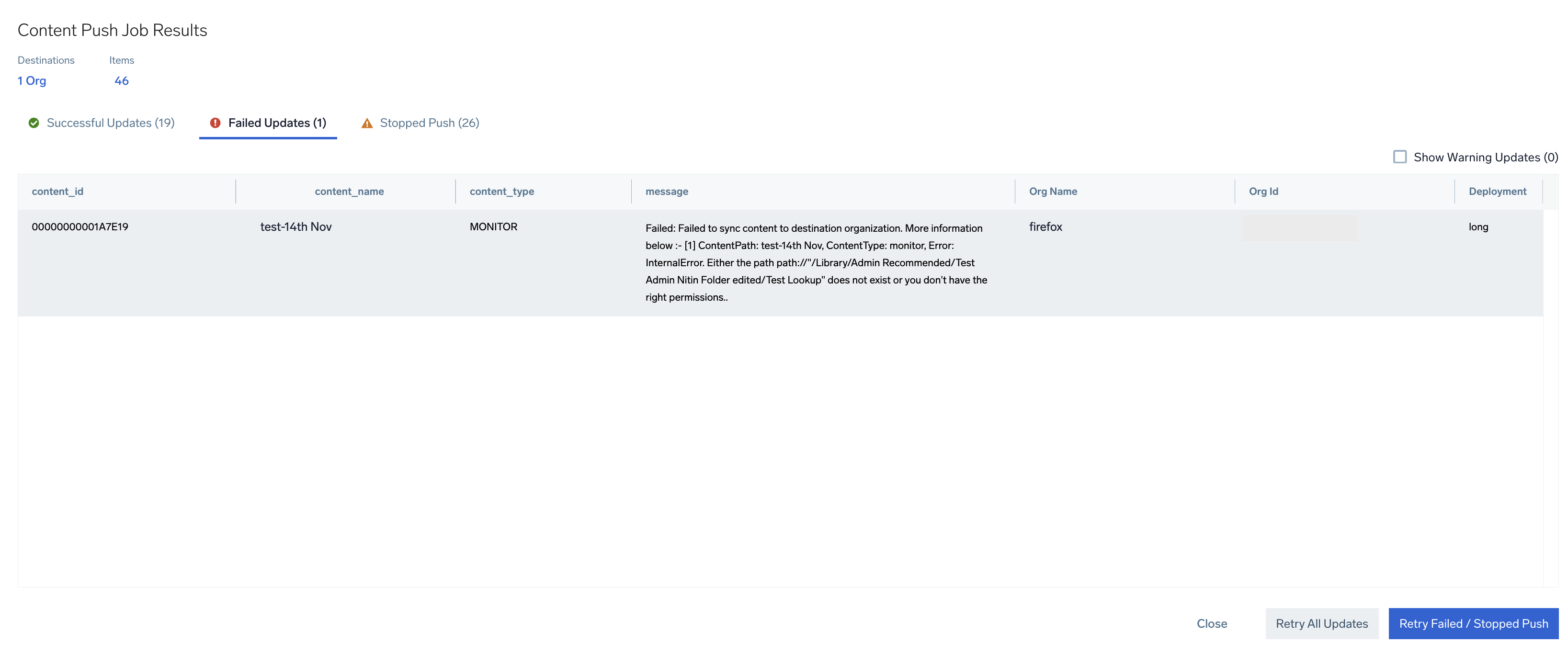
- On the Content Push Job Results page, you can view the number of destination org details with the total number of items processed. You can also find the successful, failed, and stopped items.
 note
noteSelect the Show Warning Updates checkbox to display the warning-related entries in the Failed Updates section.
- To retry all unsuccessful updates, click Retry All Updates. This retries both failed and stopped items in a single action.
- To retry only specific items, click Retry Failed/Stopped Updates to reattempt pushing items that previously failed or were stopped.
View history
- Click View History in the upper-right corner of the page. A query for push history displays:
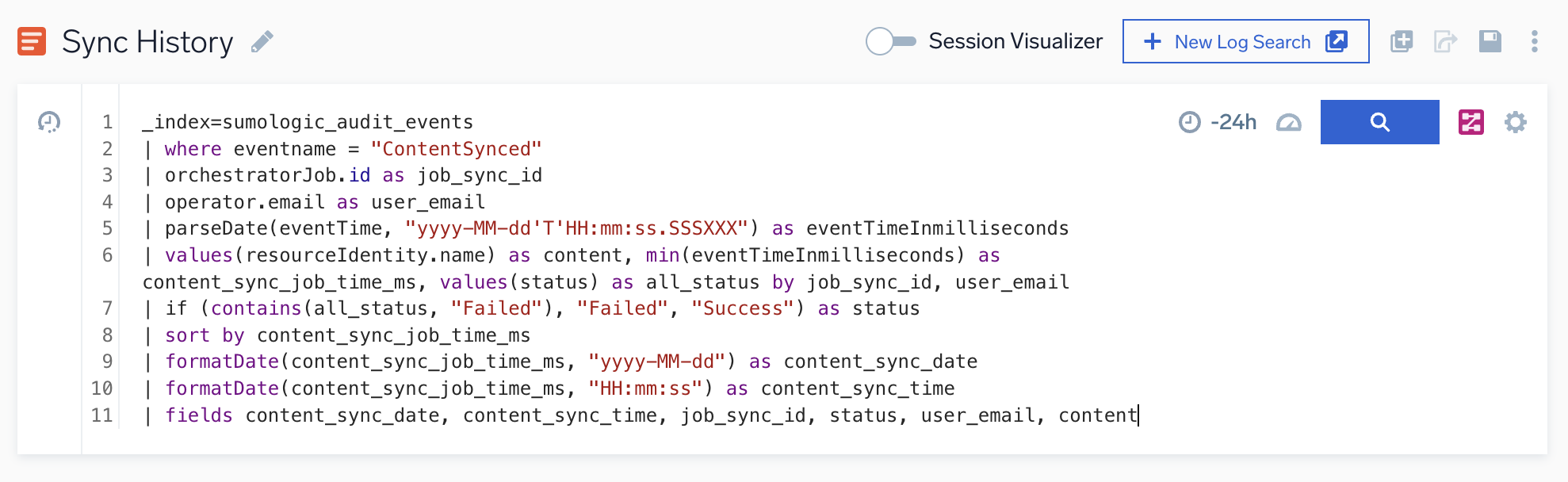
- Click the search button.

The push history displays. The email of the individual who performed the push appears in the user_email column, and the pushed items appear in the content column.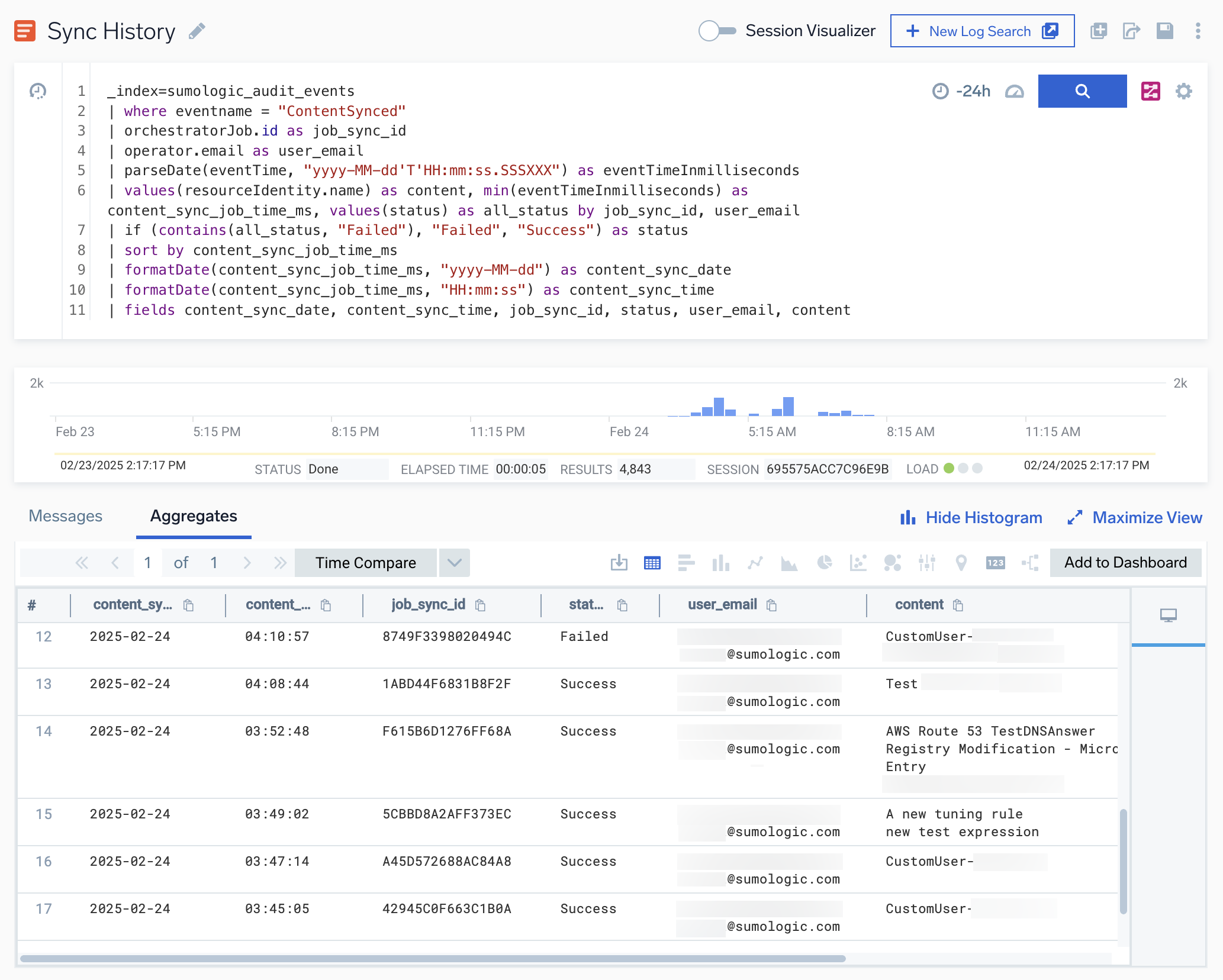
- Investigate any push that failed and re-run the push if needed.
View push in the audit log
You can view all content management push in the Audit Event Index by using the following query:
_index=sumologic_audit_events
| where eventname = "ContentSynced"
To see the results displayed the same as in View History, use the following query:
_index=sumologic_audit_events
| where eventname = "ContentSynced"
| orchestratorJob.id as job_sync_id
| operator.email as user_email
| parseDate(eventTime, "yyyy-MM-dd'T'HH:mm:ss.SSSXXX") as eventTimeInmilliseconds
| values(resourceIdentity.name) as content, values(resourceIdentity.type) as content_type, min(eventTimeInmilliseconds) as content_sync_job_time_ms, values(status) as all_status by job_sync_id, user_email
| if (contains(all_status, "Failed"), "Failed", "Success") as status
| sort by content_sync_job_time_ms
| formatDate(content_sync_job_time_ms, "yyyy-MM-dd") as content_sync_date
| formatDate(content_sync_job_time_ms, "HH:mm:ss") as content_sync_time
| fields content_sync_date, content_sync_time, job_sync_id, status, user_email, content_type, content
FAQs
- What happens when an item with the same name already exists?
It will be replaced in the child organization. - What happens if an item selected for push doesn't already exist in the target organization?
The item will be created in the target organization. - What if errors occur during pushing?
Affected items will be skipped. Once the rest of the content is pushed, you can review errors in View History and retry. - Can I roll back changes after a push operation?
No, rollback is not supported. After a push operation is initiated, changes cannot be reversed. - How can I monitor push progress?
During a push, the system displays real-time status, including progress tracking, success or failure messages, and error logs. - How can I view push history?
Click View History in the upper-right corner of the page. A query for push history will display, showing the email of the individual who performed the push and the pushed items. - Who can I contact for additional questions or support?
Reach out to your Sumo Logic representative with any questions, issues, or feedback.
Pushing Cloud SIEM Rules
Are rule tuning expressions included?
No, they are not included, but can be pushed separately.
Pushing Cloud SIEM Rule tuning expressions
- What happens if the source tuning expression contains Cloud SIEM rules?
If the Include Linked Cloud SIEM Rules option is selected, existing rules with the same name in the destination organization will be linked to match the source tuning expression. - What if no matching Cloud SIEM rules are found in the destination organization?
Push will complete with a warning, and missing rules will be logged in the audit log. You can push those rules separately and re-run the tuning expression push.