 Meet the new
 OAuth Client Setup
OAuth 2.0 enables secure authentication between Sumo Logic and external applications without sharing passwords. Use OAuth to connect AI tools, custom integrations, and third-party services to your Sumo Logic account.
Sumo Logic supports two OAuth 2.0 authentication flows:
| Flow | Use Case | Setup Complexity | Token Refresh |
|---|---|---|---|
| Authorization Code | User-facing applications with browser-based login | Simple (UI-based) | Automatic |
| Client Credentials | Service-to-service authentication, automated workflows | Moderate (API-based) | Manual or automatic |
Prerequisites
- Sumo Logic Administrator role. You'll need this to create OAuth clients and service accounts. If you're unsure whether you have this role, check your Preferences.
How permissions work
Effective permissions are always the intersection of the OAuth client's configured scopes and the caller's roles. No OAuth client can grant more access than the caller already has.
- Authorization Code flow. Effective permissions are the intersection of the authenticated user's roles and the OAuth client's configured scopes. When specific scopes are requested during authorization, effective permissions are further limited to those requested scopes.
- Client Credentials flow. Effective permissions are the intersection of the service account's roles, the OAuth client's configured scopes, and any scopes explicitly requested when obtaining a token.
A few scopes (manageLibrary, runLogSearch, viewLibrary, runMetricsQuery, and viewUsersAndRoles) grant permissions that every user has in the UI regardless of their role. These scopes are granted whenever they are configured on the OAuth client, regardless of user role. To restrict them, remove the scopes from the OAuth client's configured scopes. For CIMD clients, an administrator can edit the client's scopes. The MCP server hides the tools that require a removed scope for all users of that client.
Client ID Metadata Documents (CIMD)
Client ID Metadata Documents (CIMD) let a client identify itself to Sumo Logic using a hosted metadata URL as its client ID, without an administrator pre-registering an OAuth client. CIMD is the default, recommended authentication mechanism for MCP server clients such as the Claude Code CLI, which handle browser-based login and token refresh automatically.
CIMD uses the Authorization Code flow behind the scenes, so the same permission rules apply.
Enable CIMD
An administrator needs to enable CIMD for your organization before clients can use it.
- New UI. In the main Sumo Logic menu select Administration, and then under Account Security Settings select Policies. You can also click the Go To... menu at the top of the screen and select Policies.
Classic UI. In the main Sumo Logic menu, select Administration > Security > Policies. - Select the Enable CIMD Clients checkbox.
- (Optional) Select Restrict to pre-registered clients only to prevent Sumo Logic from automatically creating new CIMD clients. See Restrict CIMD to pre-registered clients.
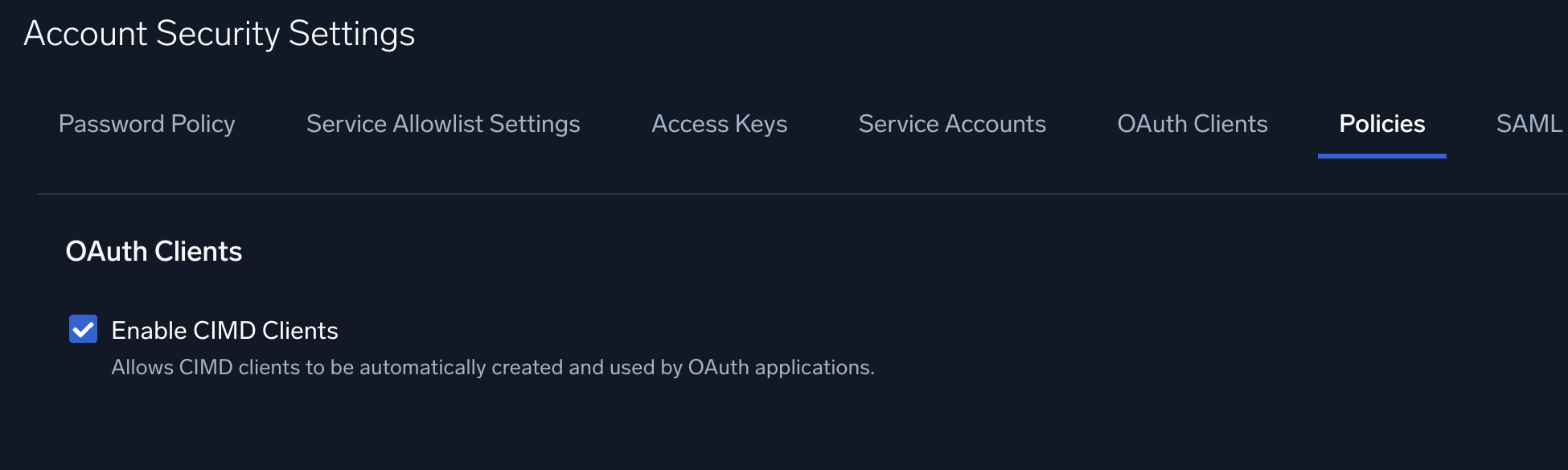
- Click Save.
By default, Sumo Logic creates a CIMD client the first time a user connects with a new client metadata URL.
Restrict CIMD to pre-registered clients
When you select Restrict to pre-registered clients only, CIMD stays enabled but Sumo Logic no longer creates CIMD clients automatically. Only CIMD clients that an administrator has already created can connect. Use this option to allow a specific set of CIMD clients in your organization. To do so, select the option, and then manually create a CIMD client for each client your users are allowed to use.
Manually create a CIMD client
Administrators can create a CIMD client at any time, whether or not Restrict to pre-registered clients only is selected. You need the CIMD URL of the client you want to allow.
- Go to Administration > Account Security Settings > OAuth Clients.
- Click + Add OAuth Client.
- For Client Type, select CIMD Authorization Code.
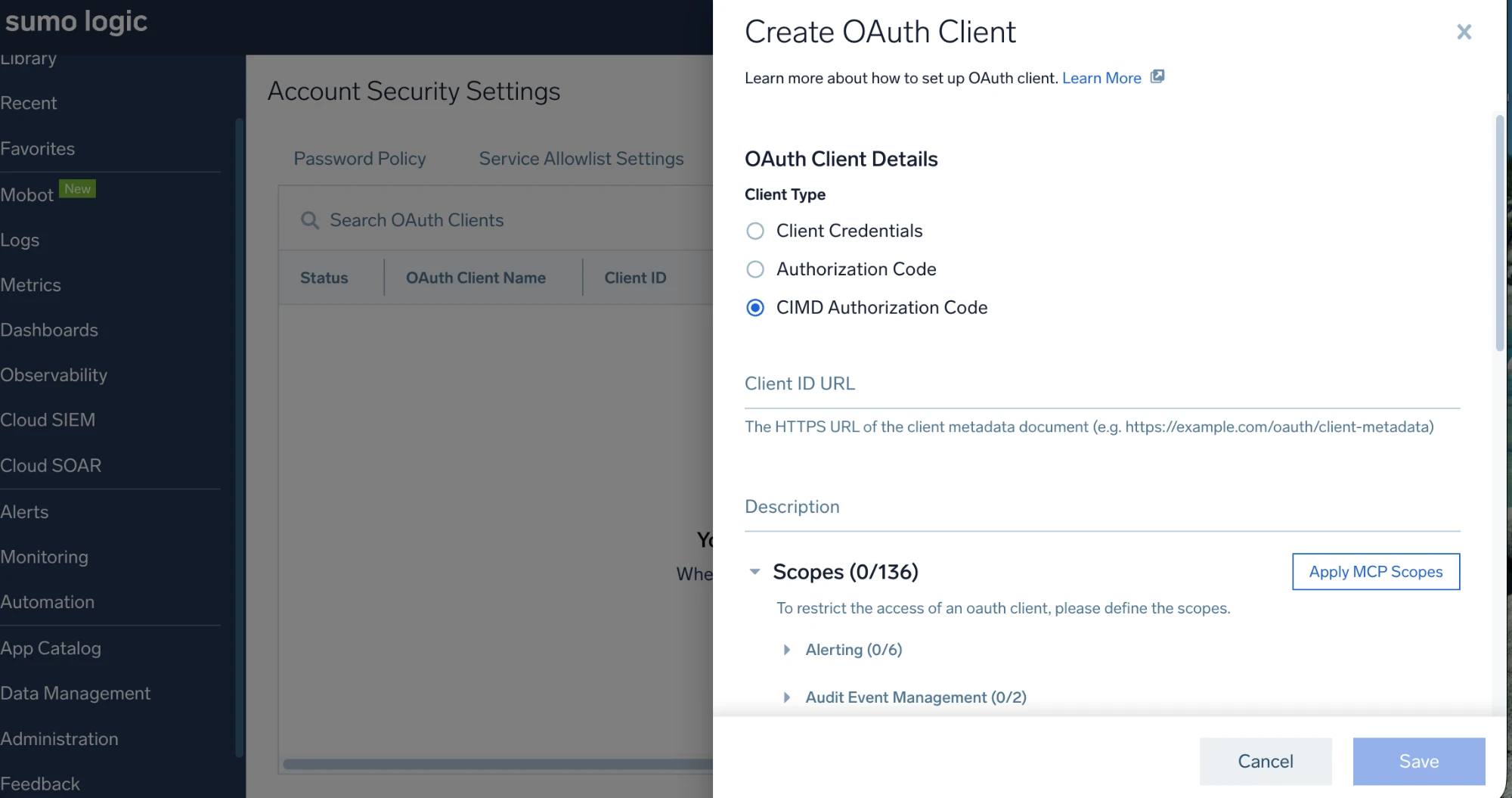
- For Client ID URL, enter the HTTPS URL of the client's metadata document, for example
https://example.com/oauth/client-metadata. - Under Scopes, click Apply MCP Scopes to automatically select the scopes MCP clients need. To select scopes individually instead, expand a category and select or clear specific scopes.
- Click Save.
The following table lists CIMD URLs for common clients.
| Client | CIMD URL |
|---|---|
| VS Code | https://vscode.dev/oauth/client-metadata.json |
| Claude Code | https://claude.ai/oauth/claude-code-client-metadata |
| Claude Desktop | https://claude.ai/oauth/mcp-oauth-client-metadata |
| Codex | https://chatgpt.com/oauth/codex/client.json |
| Google Antigravity | https://antigravity.google/oauth/client-metadata.json |
Edit CIMD scopes
Administrators can edit the scopes of an existing CIMD client on the OAuth Clients page.
- Go to Administration > Account Security Settings > OAuth Clients.
- Click the client's row, and then click Edit.
- Under Scopes, expand a category and select or clear the View and Manage checkboxes for each resource.
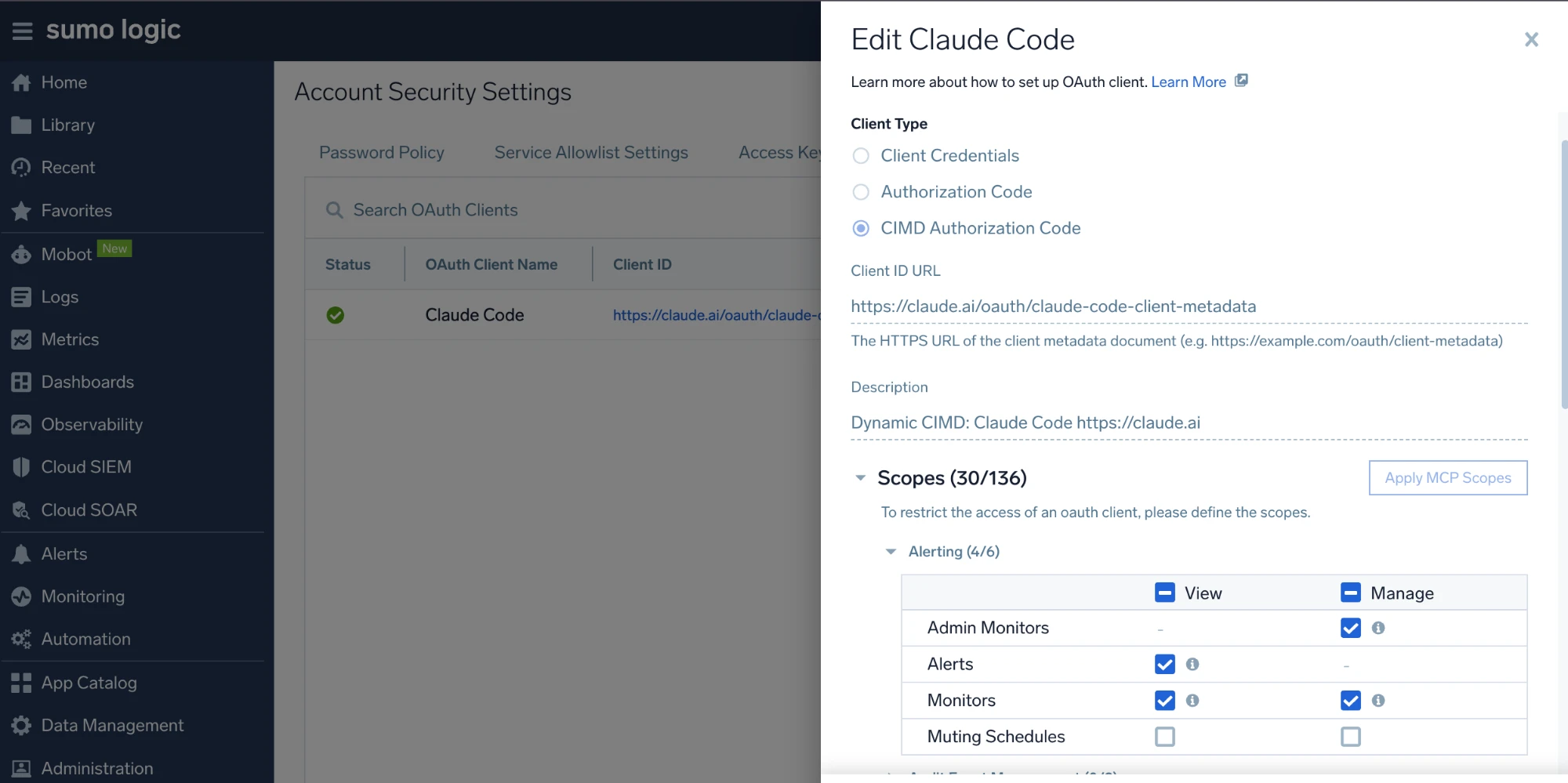
- Click Save.
The Client Type and Client ID URL of a CIMD client cannot be changed after it's created.
Clear scopes on the consent page
When a user authorizes a CIMD client, Sumo Logic shows a consent page listing the scopes the client requested, grouped by category. The user can expand a category and clear individual View or Manage checkboxes before clicking Allow, to grant the client less access than it requested.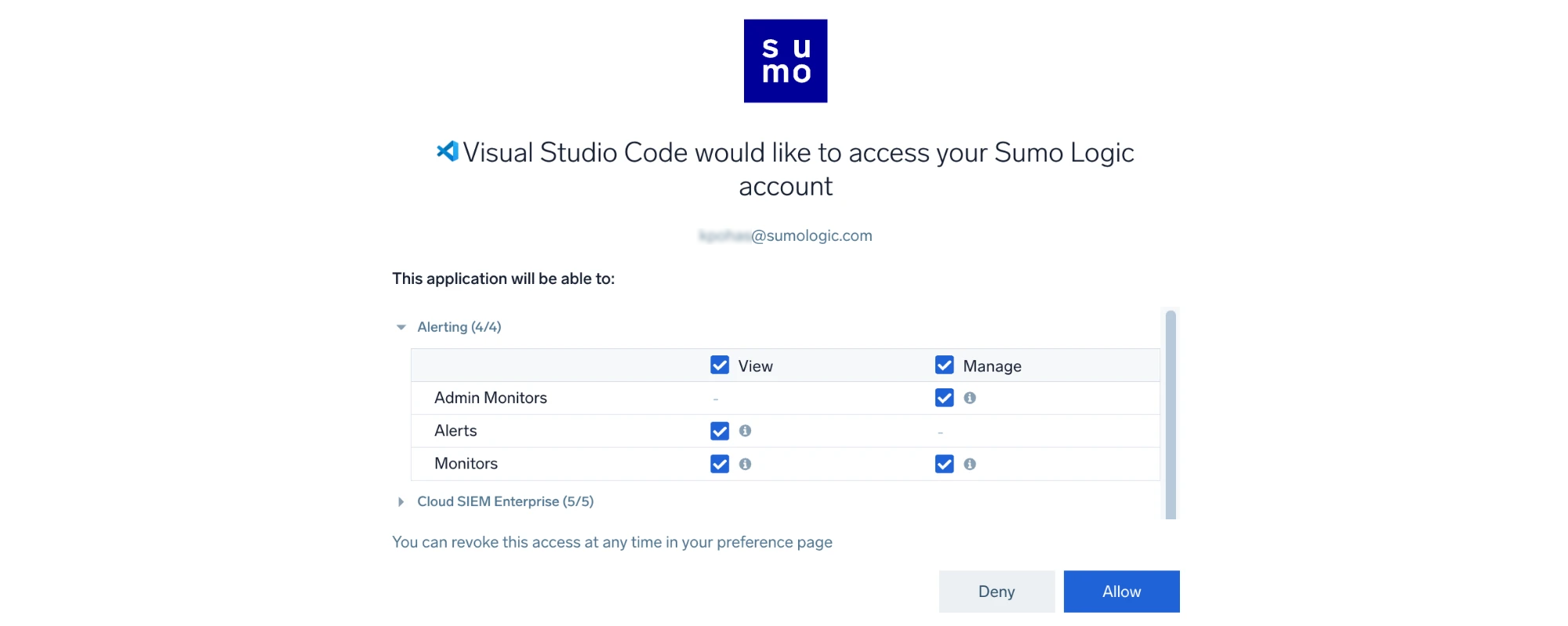
Effective permissions remain the intersection of the user's roles and the granted scopes, as described in How permissions work.
CIMD client icons
Sumo Logic displays a client's icon next to its name on the OAuth Clients, consent, and Personal Authorized Apps pages, if the client's metadata document includes a logo_uri field (a URL pointing to an icon image). This depends on the client, not on any Sumo Logic setting; clients that don't publish a logo_uri show no icon.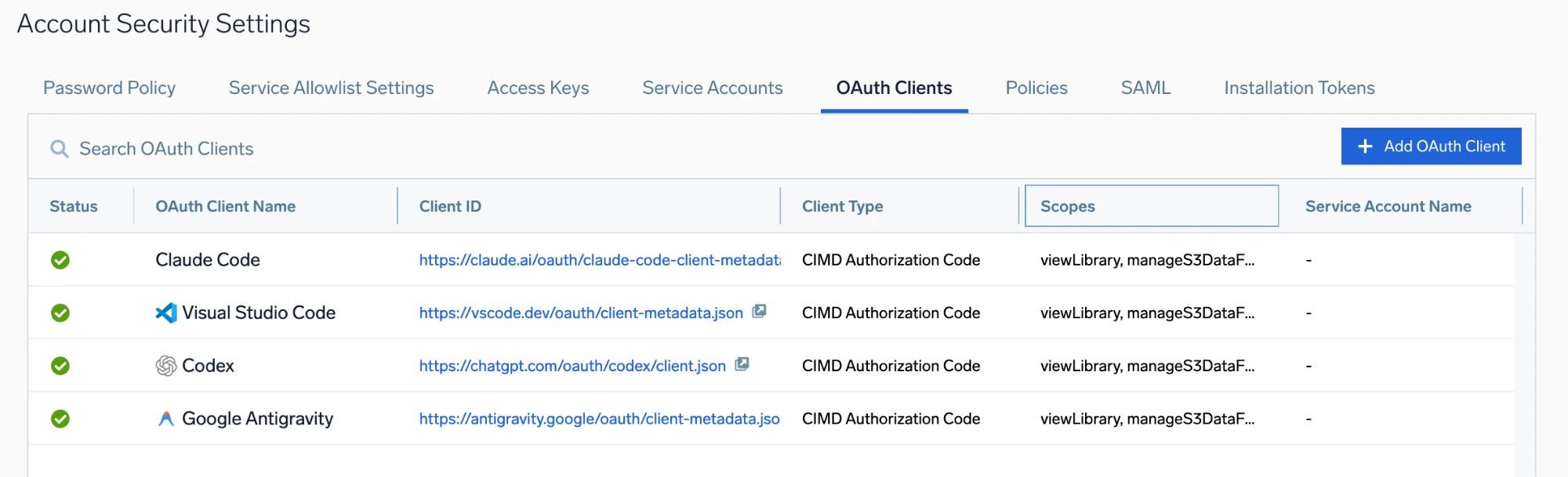
Clients that do not support CIMD can connect with a pre-registered OAuth client instead, using either the Authorization Code flow or the Client Credentials flow. See How to set up MCP without CIMD for the MCP server.
Authorization Code flow
This flow uses interactive browser-based authentication. Users authorize an external application to access Sumo Logic on their behalf, and the application receives an access token to make API requests.
Step 1: Create an OAuth client
- Log in to Sumo Logic as an Administrator.
- Go to Administration > Account Security Settings > OAuth Clients.
- Click + Add OAuth Client.
- For Client Type, select Authorization Code.
- Enter a Name and optional Description for your application.
- Set the Redirect URI to match your application's callback URL. This is where Sumo Logic will send the authorization code after the user approves access.
note
The redirect URI must match exactly what your application expects. Include the protocol (
http://orhttps://) and any path or port number. - Click Save.
- Copy the Client ID and Client Secret. You'll need these to configure your application.
Step 2: Complete the OAuth flow
Configure your OAuth library or client with the client ID, secret, and redirect URI from Step 1. Sumo Logic follows the OAuth 2.1 specification, so any compliant library handles authorization, token exchange, and token refresh automatically.
Client Credentials flow
This flow uses service accounts for server-to-server authentication. Applications authenticate directly with Sumo Logic using a client ID and client secret, without requiring user interaction.
Step 1: Create a service account
Create a Sumo Logic service account to represent your application or service. You can also use an existing service account.
- Log in to Sumo Logic as an Administrator.
- Create a service account with the appropriate roles for your use case.
- Get the service account ID. You'll use this ID in the next step.
- Via UI. Go to Administration > Account Security Settings > Service Accounts, click your service account, and copy the ID from the browser URL (appears as
selectedId=00000000076D28F9). - Via API. Alternatively, get a list of all service accounts and find the
idfield in the response.Example API request for listing service accounts
- Example request
- Example response
Replace
<accessId>and<accessKey>with your personal access key credentials. Replaceservice.sumologic.comwith your deployment endpoint if different.curl -u "<accessId>:<accessKey>" \https://service.sumologic.com/api/v1/serviceAccountsExample response highlighting service account ID{"data": [{"name": "My Service Account","email": "service@example.com","roleIds": ["00000000000001DF","00000000000002D2"],"createdAt": "2025-10-16T09:10:00.000Z","createdBy": "0000000006743FDD","modifiedAt": "2025-10-16T09:10:00.000Z","modifiedBy": "0000000006743FE8","id": "0000000000C4661B","isActive": true}]}
- Via UI. Go to Administration > Account Security Settings > Service Accounts, click your service account, and copy the ID from the browser URL (appears as
Step 2: Create an OAuth client
Create an OAuth client under your service account. This generates the credentials your application will use to authenticate.
- Log in to Sumo Logic as an Administrator.
- Go to Administration > Account Security Settings > OAuth Clients.
- Click + Add OAuth Client.
- For Client Type, select Client Credentials.
- Enter a Name and optional Description for your application.
- Select the Service Account this OAuth client will run as (created in the previous step).
- Select the Scopes your OAuth client needs. The scopes you request must already be included in your service account's effective permissions. Learn how permissions work.
- Click Save.
- Copy the Client ID and Client Secret. You'll need these to configure your application.
Creating an OAuth client via API (advanced)
Alternatively, you can create an OAuth client using the API. This allows scripted or automated OAuth client provisioning.
How are scopes enforced?
Effective permissions are the intersection of the service account's roles and the OAuth client's scopes. If a requested scope is not included in the service account's roles, it will be silently excluded from the OAuth client's effective permissions.
- Example request
- Example response
Replace <accessId> and <accessKey> with your personal access key credentials. Replace service.sumologic.com with your deployment endpoint if different.
This example grants permissions to query logs and metrics, access saved content, and manage collectors.
curl -u "<accessId>:<accessKey>" \
  https://service.sumologic.com/api/v1/oauth/clients \
  -H "Content-Type: application/json" \
  -d '{
    "type": "ClientCredentialsClient",
    "name": "My Application OAuth Client",
    "description": "OAuth client for automated log analysis",
    "scopes": [
      "runLogSearch",
      "runMetricsQuery",
      "viewLibrary",
      "manageCollectors",
      "manageFieldExtractionRules",
      "manageScheduledViews",
      "managePartitions"
    ],
    "runAs": {
      "type": "ServiceAccount",
      "runAsId": "0000000000C4661B"
    }
  }'
{
  "clientId": "zVplCFHcpTDwtktBIQmFI2K6s9HEo4HAtcQD1f1M5eQ",
  "createdAt": "2025-10-16T09:10:00.000Z",
  "createdBy": "0000000006743FDD",
  "modifiedAt": "2025-10-16T09:10:00.000Z",
  "modifiedBy": "0000000006743FDD",
  "type": "ClientCredentialsClient",
  "name": "My Application OAuth Client",
  "description": "OAuth client for automated log analysis",
  "runAs": {
    "type": "ServiceAccount",
    "runAsId": "0000000000C4661B"
  },
  "grantTypes": ["client_credentials"],
  "scopes": ["runLogSearch", "runMetricsQuery", "viewLibrary", "manageCollectors", "manageFieldExtractionRules", "manageScheduledViews", "managePartitions"],
  "effectiveScopes": ["runLogSearch", "runMetricsQuery", "viewLibrary", "manageCollectors", "manageFieldExtractionRules", "manageScheduledViews", "managePartitions"],
  "clientSecret": "EqyuIvsnae0LnMC2mbJArysXcmp0LuBsRgmyeLtSkFPEzSxdvpYQMDajn_8buaDj"
}
Copy the clientId and clientSecret from the response. These are your OAuth credentials.
Step 3: Generate an access token
Request an OAuth access token from the token endpoint using your client credentials. Replace <token-endpoint-URL> with your deployment's token endpoint. — see How do I find the authorization or token endpoint?.
Option A: Request all available permissions
Omit the scope parameter to assign all of the OAuth client's effective scopes to the access token.
curl -X POST <token-endpoint-URL> \
  -H "Content-Type: application/x-www-form-urlencoded" \
  -u "<clientId>:<clientSecret>" \
  -d "grant_type=client_credentials"
Option B: Request specific permissions
Use the scope parameter to request specific scopes. Separate multiple scopes with spaces, not commas.
curl -X POST <token-endpoint-URL> \
  -H "Content-Type: application/x-www-form-urlencoded" \
  -u "<clientId>:<clientSecret>" \
  -d "grant_type=client_credentials" \
  -d "scope=runLogSearch viewLibrary"
The response includes an access token:
{
  "access_token": "eyJhbGc...",
  "token_type": "Bearer",
  "expires_in": 1800,
  "scope": "runLogSearch viewLibrary"
}
Use this access token as a Bearer token in the Authorization header when making API requests. Replace <api-endpoint> with your deployment-specific API endpoint (for example, api.sumologic.com for US1, api.us2.sumologic.com for US2):
curl <api-endpoint>/api/v1/search/jobs \
  -H "Authorization: Bearer eyJhbGc..."
Token expiration
Access tokens generated with Client Credentials flow expire after 30 minutes. When a token expires, generate a new one by repeating the token request. Unlike Authorization Code flow, Client Credentials flow does not provide refresh tokens.
Metadata endpoints
Sumo Logic publishes OAuth 2.0 and OpenID Connect discovery documents so clients can automatically discover endpoints and supported capabilities. Replace [deployment-endpoint] with your deployment's service endpoint (for example, service.sumologic.com for US1). See How do I find the authorization or token endpoint for my deployment? for the endpoint that matches your deployment.
| Metadata document | URL |
|---|---|
| Authorization server metadata (RFC 8414) | https://[deployment-endpoint]/.well-known/oauth-authorization-server |
| OpenID Connect configuration | https://[deployment-endpoint]/.well-known/openid-configuration |
| Protected resource metadata, API (RFC 9728) | https://[api-endpoint]/.well-known/oauth-protected-resource |
| Protected resource metadata, MCP (RFC 9728) | https://[mcp-server-endpoint]/.well-known/oauth-protected-resource |
- Authorization server metadata returns the
authorization_endpoint,token_endpoint, and other supported OAuth 2.0 parameters, such as scopes, grant types, and response types. - OpenID Connect configuration returns the OpenID Provider configuration, including the
issuer, endpoint URLs, and supported claims. - Protected resource metadata advertises which authorization server issues tokens for a given resource. The API endpoint and the Sumo Logic MCP server each publish their own. Replace
[api-endpoint]with your deployment-specific API endpoint (for example,api.sumologic.comfor US1) and[mcp-server-endpoint]with your deployment's MCP server URL.
For example, to retrieve the authorization server metadata:
curl https://[deployment-endpoint]/.well-known/oauth-authorization-server
Security best practices
- Protect client secrets. For Client Credentials flow, store client secrets securely using environment variables, secrets management systems, or encrypted configuration files. — never commit them to version control. In Authorization Code flow, the
clientSecretis not directly exposed in the token exchange and carries less risk, but should still be stored securely. - Use least privilege. Request only the OAuth scopes your application needs. For Client Credentials flow, assign service accounts the minimum roles required.
- Rotate credentials regularly. Create new OAuth clients periodically and deactivate old ones. Update service account credentials on a regular schedule.
- Monitor OAuth usage. Review audit logs for OAuth client activity. Watch for unexpected patterns like unusual request volumes or access to sensitive resources.
- Implement token refresh. For Authorization Code flow, implement automatic token refresh to maintain uninterrupted access without repeatedly prompting users to log in.
- Use HTTPS. Always use HTTPS for redirect URIs and token endpoints to protect credentials in transit.
Service account content ownership
When using Client Credentials flow, any content created through the OAuth client (such as dashboards, saved searches, or scheduled views) is owned by the configured service account.
Service accounts cannot log in to the Sumo Logic UI. To view content created by a service account:
- Open the content Library.
- Select Content Administrator from the View as dropdown.
- Navigate to the service account's Personal folder.
FAQ
Which OAuth flow should I use?
Use Authorization Code flow for user-facing applications where users log in through their browser. This flow is simpler to set up and handles token refresh automatically.
Use Client Credentials flow for server-to-server authentication, automated workflows, or applications that don't have interactive users. This flow provides more control over permissions through service accounts and OAuth scopes.
How long do access tokens last?
- Authorization Code flow. Access tokens expire after 5 minutes, but are automatically renewed by your OAuth client — this is transparent to users.
- Client Credentials flow. Access tokens expire after 30 minutes. Generate a new token when the current one expires.
Can I revoke OAuth access?
Yes. To revoke access for an OAuth client:
- Go to Administration > Account Security Settings > OAuth Clients.
- Find the OAuth client you want to revoke.
- Click Delete or Deactivate (depending on UI options available).
For Client Credentials flow, you can also deactivate or delete the associated service account, which will immediately revoke all access for OAuth clients using that service account.
For Authorization Code flow, revoking Authorization Consent causes the next token refresh to fail. The current access token remains valid until it expires.
What happens if I change a service account's roles?
For Client Credentials flow, effective permissions are the intersection of the service account's roles and the OAuth client's scopes. If you restrict the service account's roles, the OAuth client's permissions are automatically reduced, even if the configured scopes remain unchanged.
What happens if a user's roles change in Authorization Code flow?
For Authorization Code flow, effective permissions are the intersection of the user's roles, the OAuth client's scopes, and the requested scopes. If a user's roles are restricted, their effective OAuth permissions are reduced at the next token refresh. If roles are expanded, the new permissions become available at the next token refresh.
How do I find the authorization or token endpoint for my deployment?
Token endpoint URLs vary by deployment:
| Deployment | Token endpoint |
|---|---|
| Asia Pacific (Seoul) | https://service.kr.sumologic.com/oauth2/token |
| Asia Pacific (Sydney) | https://service.au.sumologic.com/oauth2/token |
| Asia Pacific (Tokyo) | https://service.jp.sumologic.com/oauth2/token |
| Canada (Central) | https://service.ca.sumologic.com/oauth2/token |
| Europe (Frankfurt) | https://service.de.sumologic.com/oauth2/token |
| Europe (Ireland) | https://service.eu.sumologic.com/oauth2/token |
| Europe (Zurich) | https://service.ch.sumologic.com/oauth2/token |
| US East (N. Virginia) | https://service.sumologic.com/oauth2/token |
| US East (N. Virginia) - FedRAMP | https://service.fed.sumologic.com/oauth2/token |
| US West (Oregon) | https://service.us2.sumologic.com/oauth2/token |
To find the authorization_endpoint for your deployment (used in Authorization Code flow), query the Authorization Server Metadata:
curl https://[deployment-endpoint]/.well-known/oauth-authorization-server
The response includes authorization_endpoint, token_endpoint, and other supported OAuth parameters. For the OpenID Connect and protected resource discovery documents, see Metadata endpoints.
Can I use OAuth with the Sumo Logic APIs?
Yes. OAuth access tokens work with all Sumo Logic APIs. Include the access token in the Authorization header as a Bearer token. Replace <api-endpoint> with your deployment-specific API endpoint (for example, api.sumologic.com for US1, api.us2.sumologic.com for US2):
curl <api-endpoint>/api/v1/users \
  -H "Authorization: Bearer YOUR_ACCESS_TOKEN"