Metrics Browser
This feature is in Private Preview. For more information, contact your Sumo Logic account representative.
The Metrics Browser pane provides a clear and searchable view of all available metrics, including their associated dimensions and values. This allows you to build accurate queries without relying on guesswork, trial-and-error, or broad data scans.
By displaying only the dimension values relevant to your current selections, the pane helps you refine queries efficiently and avoid unnecessary data exploration. This reduces troubleshooting time, improves query precision, and can help optimize data usage. With contextual filtering and guided selection, you can construct metric queries more quickly and confidently.
To build a query with Metrics Browser:
- New UI. In the main Sumo Logic menu select Metrics > Metrics Search. You can also click the Go To... menu at the top of the screen and select Metrics Search.
Classic UI. Go to the Home screen and select Metrics. - The Metrics Search page opens. Click the Browser button.

The Metrics Browser dropdown displays the available metrics and filters, with the top values for each.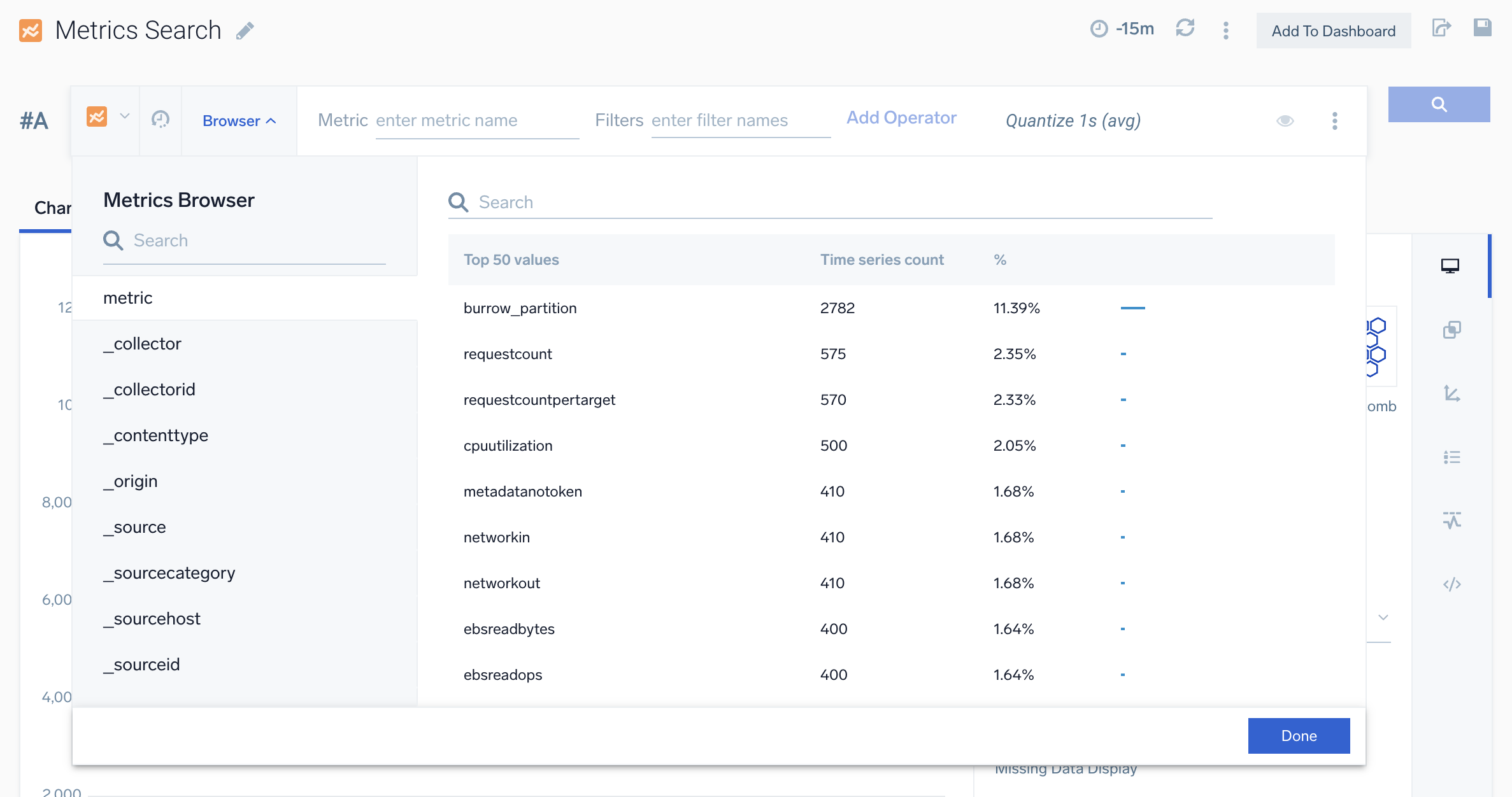
- Select metric in the left menu. Then select a metric value from the provided list of top values, or use the search bar.
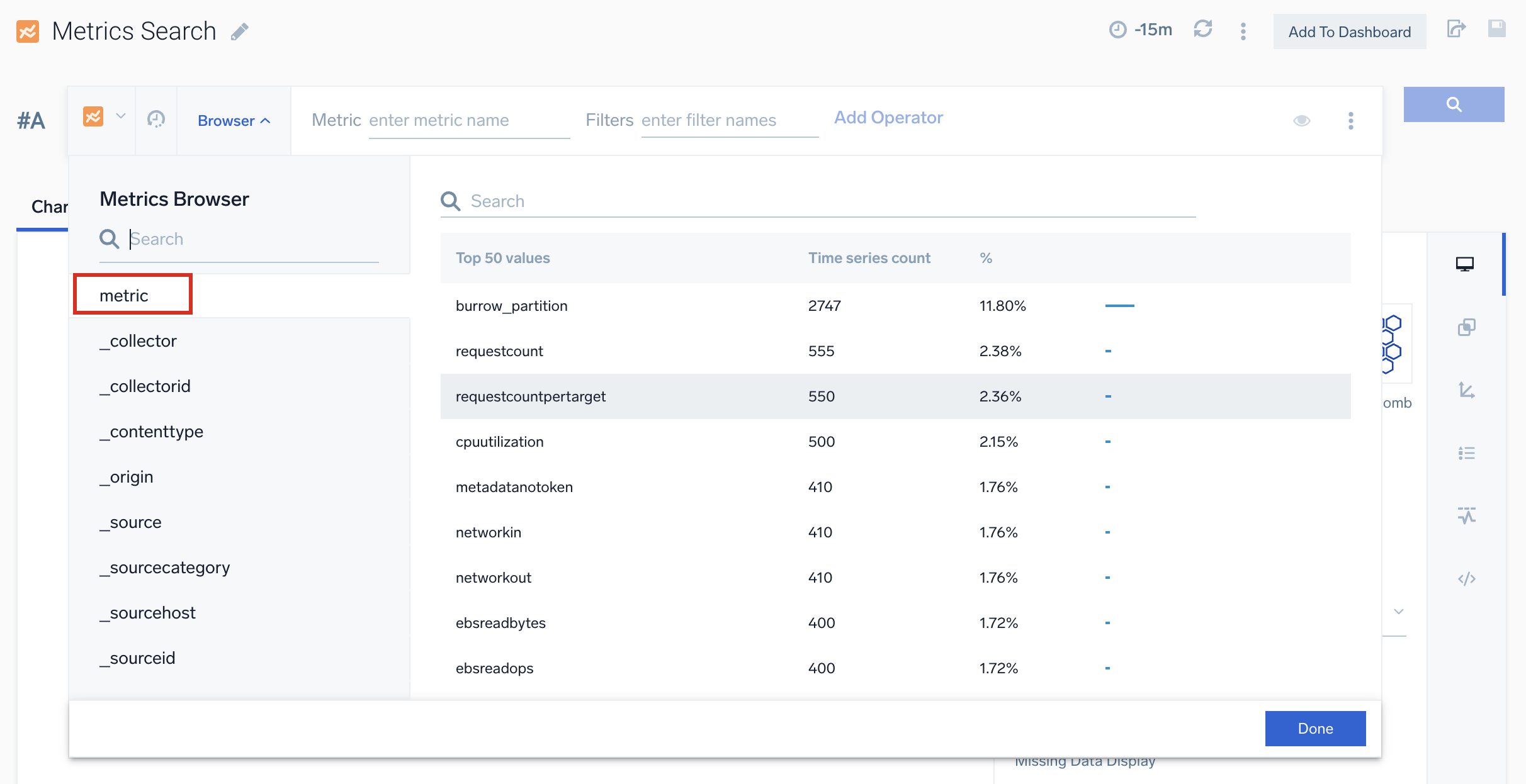
When you select a metric value, it is added to the Metric part of your query.
- Select a filter from the left panel or use the search bar to locate one. When you choose a filter, only the values relevant to the selected metric are displayed. Next, select a value from the list of available values, or use the search bar to quickly find a specific value.
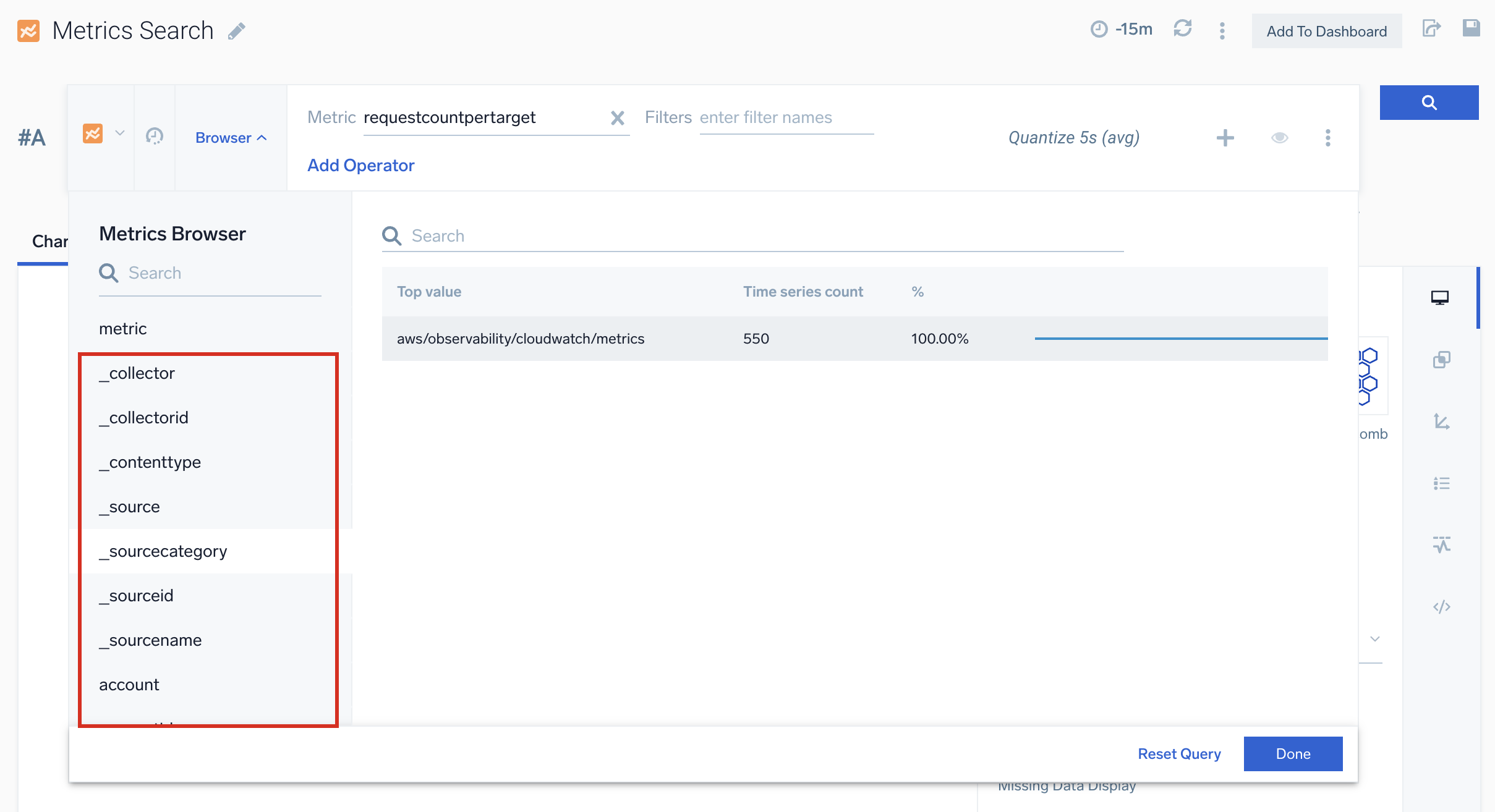
When you select a filter value, it is added to the Filters part of your query.
- Click the Search button
 , or press Enter. The results of the query are displayed. You can now work with your query as you normally would, like continuing to add filters or operators and selecting different panel settings.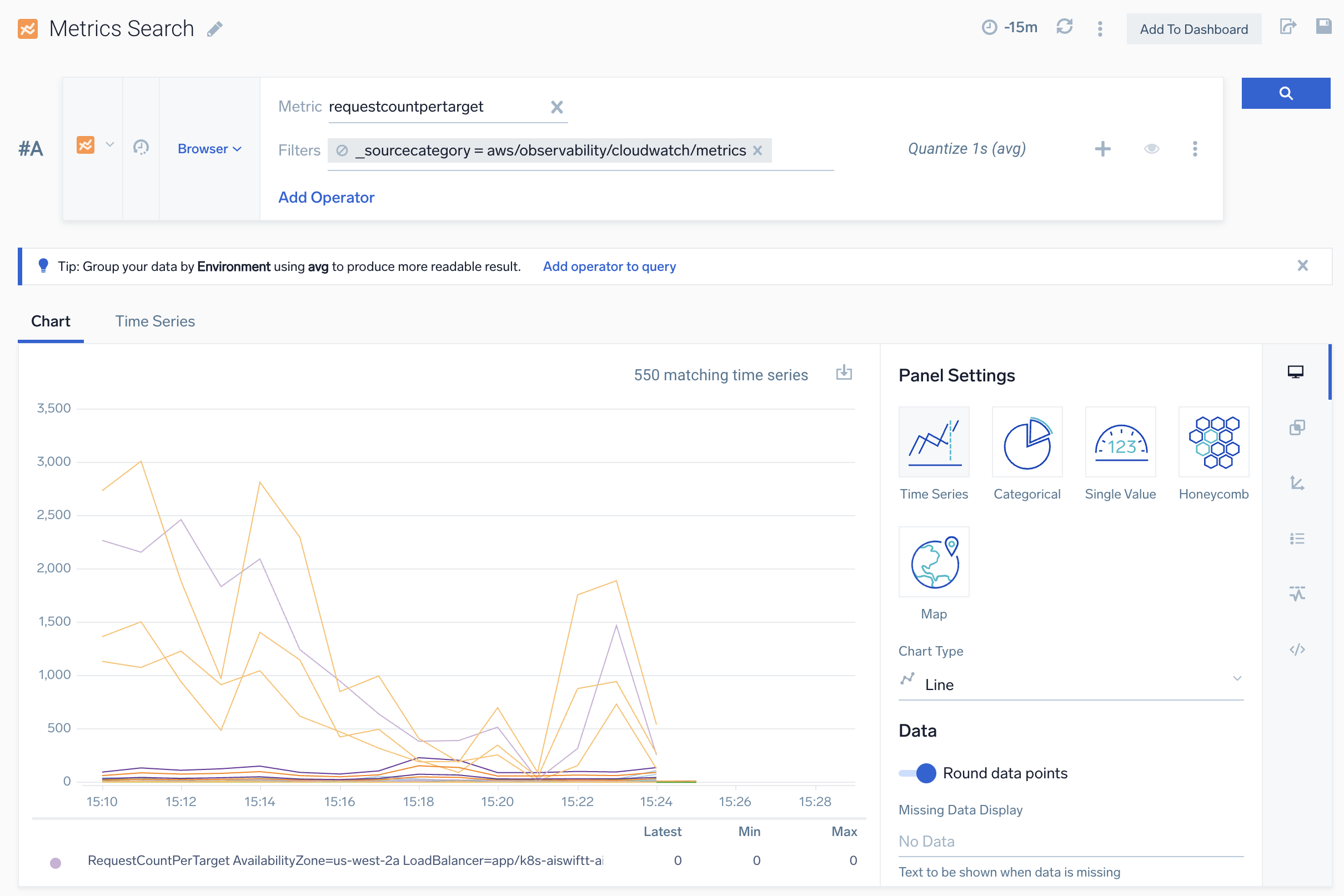
For a single metrics query row, Sumo Logic limits the number of input time series for non-aggregate queries. As a result, some selected metrics may be excluded. For more information, see Too many time series.