 Meet the new
 Manually Migrate AWS Observability from v2.x to v3.0.0 using CloudFormation
This documentation walks you through manually migrating an existing AWS Observability CloudFormation deployment from v2.x to v3.0.0.
-
This guide supports only active AWSO versions listed here. If your current version is inactive, contact the support team.
-
Ensure that the account aliases used in your v2.x.x deployment are carried over during migration. The same aliases will be reused in v3.0.0.
-
During the migration of the AWSO solution, the allowlist for login and APIs must remain disabled. Refer to the documentation for the required prerequisites and instructions on disabling the allowlist.
This migration deletes your v2.x CloudFormation stack. Your Sumo Logic collector, sources, and S3 buckets are preserved, but the stack deletion cannot be undone.
- If you prefer an automated approach, see Migrate AWS Observability from v2.x to v3.0.0 using the migration script.
- Verify that Sumo Logic IPs are allowlisted in your AWS environment.
Prerequisites
Before making any changes, create backups of the following resources:
- Field Extraction Rules. Export from Manage Data > Logs > Field Extraction Rules.
- Metric Rules. Record them from Manage Data > Metrics > Metric Rules.
You will also need:
- Your Sumo Logic Access ID and Access Key with the Administrator role. For more information, see Access Keys.
- Your Sumo Logic Org ID, found at Administration > Account > Org ID.
- The S3 bucket name(s) used by your existing v2.x stack — you will need these when deploying v3.0.0.
Step 1: Set RemoveOnDeleteStack to false
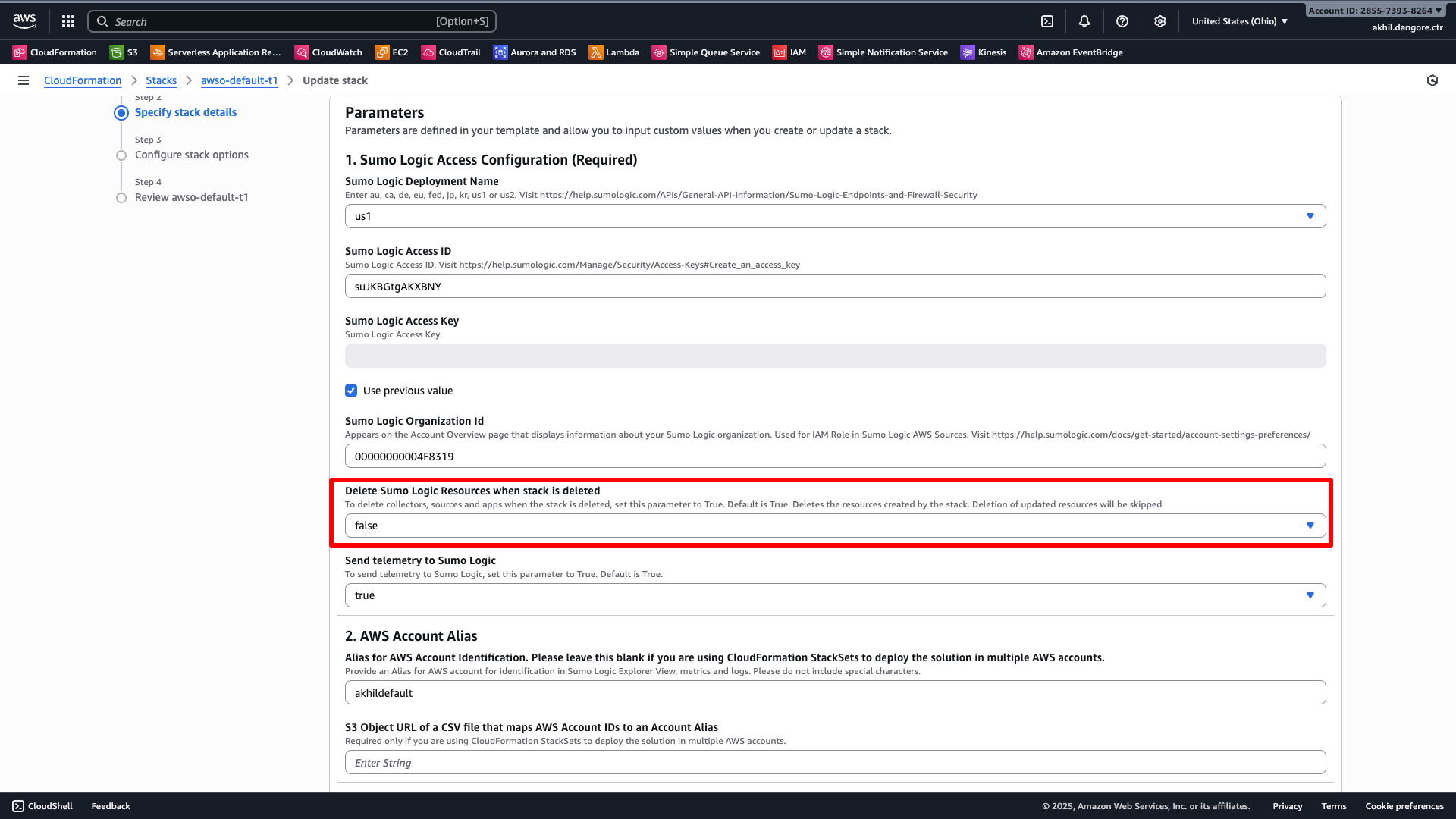
This is the most critical step. Before deleting the v2.x stack, ensure that RemoveOnDeleteStack is set to false. If this parameter is true when the stack is deleted, the Sumo Logic Lambda helper permanently deletes the collector and all associated sources.
- Navigate to AWS Console > CloudFormation > Stacks and select your v2.x stack.
- Click Update.
- Select Use existing template and click Next.
- In the parameters screen, find Delete Sumo Logic Resources when stack is deleted and set it to false.
- Click through the remaining steps and submit the update.
- Wait for the stack to reach
UPDATE_COMPLETEbefore proceeding.
Step 2: Delete the v2.x stack
- Go to AWS Console > CloudFormation > Stacks.
- Select your v2.x stack and click Delete.
- Confirm the deletion.
- Wait for the stack to reach
DELETE_COMPLETE. If the deletion gets stuck inDELETE_FAILED, this is expected — the S3 bucket cannot be deleted because it contains logs. In this case, use Force delete to complete the deletion while leaving the bucket intact.
Step 3: Verify your Sumo Logic resources are intact
After the stack is deleted, verify that your collector and sources are still present in Sumo Logic:
- Go to Manage Data > Collection > Collection.
- Find the collector named
aws-observability-<alias>-<accountId>. - Confirm that all sources that were present in your v2.x stack are still listed. Depending on which sources you had enabled, you may see some or all of the following:
alb-logsclassic-lb-logscloudtrail-logscloudwatch-metricskinesis-firehose-cloudwatch-logs
For each S3-based source (alb-logs, classic-lb-logs, cloudtrail-logs), note the S3 bucket name configured on the source and verify it matches the bucket name shown in your v2.x CloudFormation stack parameters. If they differ, the source may be referencing a stale or incorrect bucket — deploying v3.0.0 with the wrong bucket name means no log data will be ingested.
Step 4: Clean up Field Extraction Rules
The v3.0.0 deployment creates 17 new AWSO Field Extraction Rules. If they already exist from your v2.x installation, the v3.0.0 deployment will fail due to a quota conflict. You must rename or delete them before deploying.
Additionally, v3.0.0 needs 17 free slots in your FER quota. Check the quota indicator at the top of the Field Extraction Rules page before proceeding. If fewer than 17 slots are free, delete or consolidate unused rules.
- Navigate to Manage Data > Logs > Field Extraction Rules.
- Confirm you have at least 17 free quota slots available.
- Find all AWSO rules (names beginning with
AwsObservability). - Rename each one (for example, prefix with
v2_backup_) or delete them.
Step 5: Clean up Metric Rules
The v3.0.0 deployment creates 4 AWSO Metric Rules that may already exist from your v2.x install. Delete them before deploying:
- Go to Manage Data > Metrics > Metric Rules.
- Delete any of the following rules that exist (v2.x and v3.0.0 may use different names):
AwsObservabilityRDSClusterMetricsRuleorAwsObservabilityRDSClusterMetricsEntityRuleAwsObservabilityRDSInstanceMetricsRuleorAwsObservabilityRDSInstanceMetricsEntityRuleAwsObservabilityNLBMetricsRuleorAwsObservabilityNLBMetricsEntityRuleAwsObservabilityAPIGatewayMetricsRuleorAwsObservabilityApiGatewayApiNameMetricsEntityRule
Step 6: Deploy v3.0.0
Deploy the v3.0.0 CloudFormation stack using the parameter mapping table below. Use the same account alias, Sumo Logic credentials, and source creation options as your v2.x stack. When v3.0.0 detects existing Sumo Logic sources with matching names on the collector, it reuses them — no data gap occurs and no duplicate sources are created.
Template URL:
https://sumologic-appdev-aws-sam-apps.s3.us-east-1.amazonaws.com/aws-observability-versions/v3.0.0/templates/sumologic_observability.master.template.yaml
Parameter mapping
Use the following table to map your v2.x parameter values to v3.0.0:
| v2.x Parameter | v3.0.0 Parameter | Notes |
|---|---|---|
Section1aSumoLogicDeployment | Section1aSumoLogicDeployment | Same value |
Section1bSumoLogicAccessID | Section1bSumoLogicAccessID | Same value |
Section1cSumoLogicAccessKey | Section1cSumoLogicAccessKey | Same value (re-enter — masked in CFN) |
Section1dSumoLogicOrganizationId | Section1dSumoLogicOrganizationId | Same value |
Section1eSumoLogicResourceRemoveOnDeleteStack | Section1eSumoLogicResourceRemoveOnDeleteStack | Set to false |
Section1fSumoLogicSendTelemetry | Section1fSumoLogicSendTelemetry | Same value |
Section2aAccountAlias | Section2aAccountAlias | Same value |
Section2bAccountAliasMappingS3URL | Section2bAccountAliasMappingS3URL | Same value |
Section3aInstallObservabilityApps | Section3aInstallObservabilityApps | Same value |
Section4aCreateMetricsSourceOptions | Section4aCreateMetricsSourceOptions | Same value |
Section4bMetricsNameSpaces | Section4bMetricsNameSpaces | Same value |
Section4cCloudWatchExistingSourceAPIUrl | Section4cCloudWatchExistingSourceAPIUrl | Leave empty (create new) |
Section4dAWSMetricsTagFilters | Section4dAWSMetricsTagFilters | Same value |
Section5aAutoEnableS3LogsALBResourcesOptions | Section5aAutoEnableS3LogsALBResourcesOptions | Same value |
Section5bALBCreateLogSource | Section5bALBCreateLogSource | Same value |
Section5cALBLogsSourceUrl | Section5cALBLogsSourceUrl | Leave empty (create new) |
Section5dALBS3LogsBucketName | Section5dALBS3LogsBucketName | Use the existing bucket name from your v2.x stack |
Section5eALBS3BucketPathExpression | Section5eALBS3BucketPathExpression | Same value |
Section6aCreateCloudTrailLogSource | Section6aCreateCloudTrailLogSource | Same value |
Section6bCloudTrailLogsSourceUrl | Section6bCloudTrailLogsSourceUrl | Leave empty (create new) |
Section6cCloudTrailLogsBucketName | Section6cCloudTrailLogsBucketName | Use the existing bucket name from your v2.x stack |
Section6dCloudTrailBucketPathExpression | Section6dCloudTrailBucketPathExpression | Same value |
Section7aLambdaCreateCloudWatchLogsSourceOptions | Section7aCreateCloudWatchLogsSourceOptions | Renamed — drop Lambda from key name |
Section7bLambdaCloudWatchLogsSourceUrl | Section7bCloudWatchLogsSourceUrl | Renamed — drop Lambda; leave empty (create new) |
Section7cAutoSubscribeLogGroupsOptions | Section7cAutoSubscribeLogGroupsOptions | Same value |
Section7dAutoSubscribeLogGroupPattern | Section7dAutoSubscribeLogGroupPattern | Same value |
Section7eAutoSubscribeLogGroupByTags | Section7eAutoSubscribeLogGroupByTags | Same value |
Section9aAutoEnableS3LogsELBResourcesOptions | Section8aAutoEnableS3LogsELBResourcesOptions | Renamed — Section 9 → Section 8 |
Section9bELBCreateLogSource | Section8bELBCreateLogSource | Renamed — Section 9 → Section 8 |
Section9cELBLogsSourceUrl | Section8cELBLogsSourceUrl | Renamed — Section 9 → Section 8; leave empty (create new) |
Section9dELBS3LogsBucketName | Section8dELBS3LogsBucketName | Renamed — Section 9 → Section 8; use existing bucket name |
Section9eELBS3BucketPathExpression | Section8eELBS3BucketPathExpression | Renamed — Section 9 → Section 8 |
Section10aAppInstallLocation | (removed) | Removed in v3.0.0 — do not include |
Section10bShare | (removed) | Removed in v3.0.0 — do not include |
Setting the source URL parameter (for example, Section5cALBLogsSourceUrl) to an empty string forces v3.0.0 into create new mode. When v3.0.0 detects existing sources with matching names on the collector, it reuses them. So, there's no data gap.
Step 7: Update source IAM role ARNs
After v3.0.0 deploys successfully, update each existing Sumo Logic source with the new IAM role ARN that v3.0.0 creates. Although deleting the v2.x stack removes the old IAM role, the sources continue to reference it until you update them.
Find the new IAM role ARN
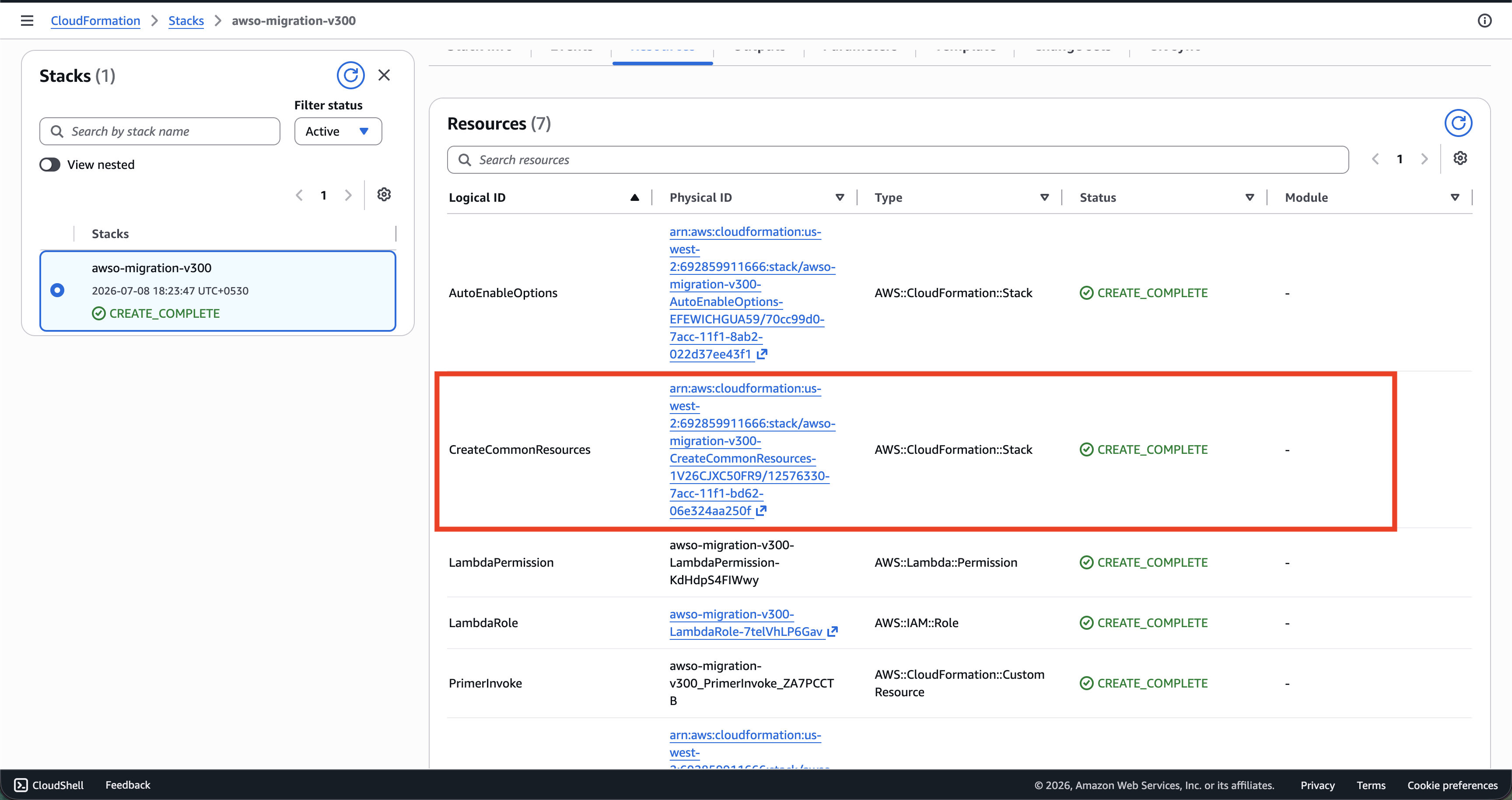
- Go to AWS Console > CloudFormation > Stacks and select your new v3.0.0 stack.
- In the Resources tab, find the nested stack named
CreateCommonResourcesand click it.
- In the
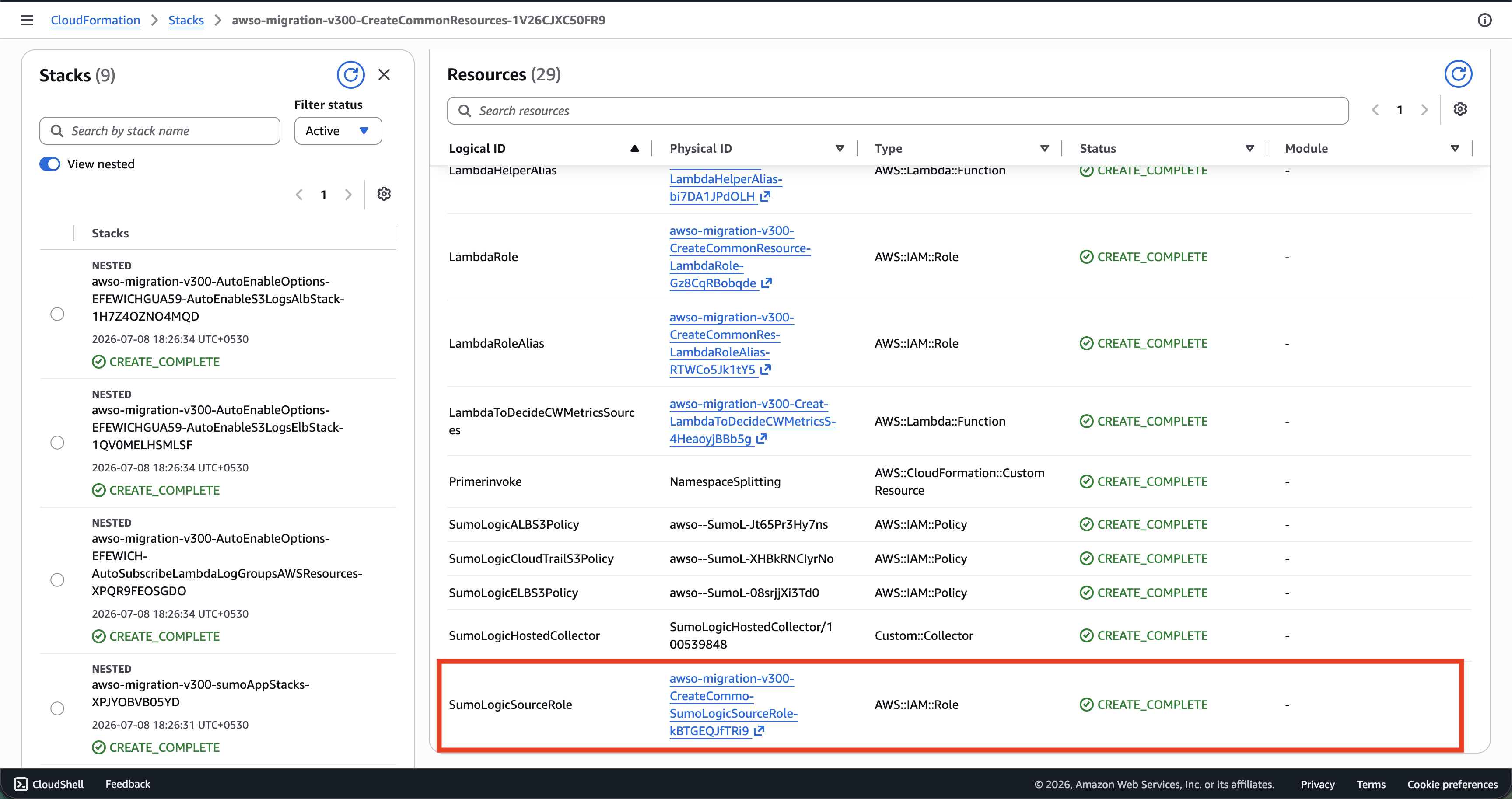
CreateCommonResourcesstack, go to the Resources tab and search forSumoLogicSourceRole. Click the Physical ID link to open the IAM role.
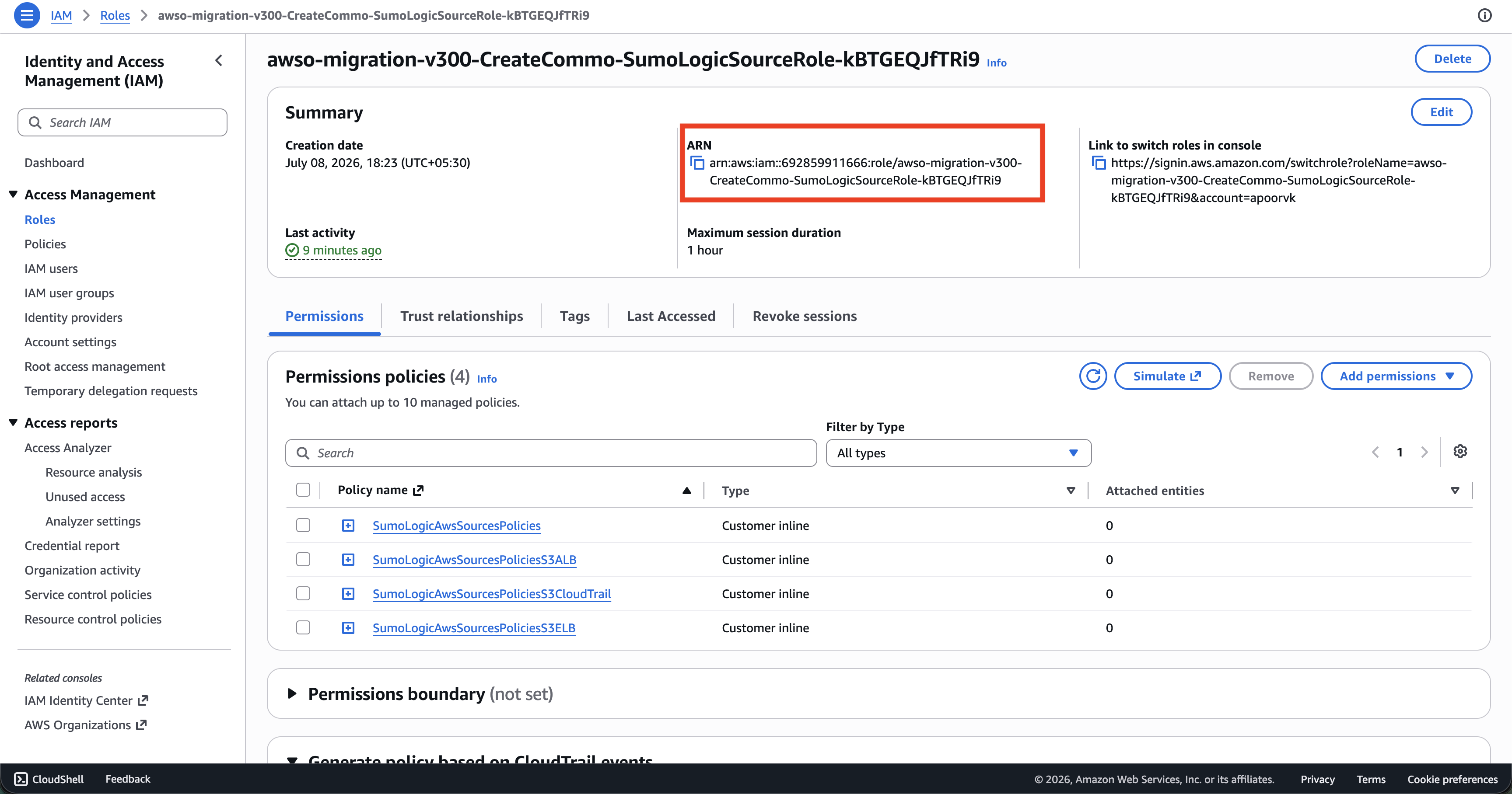
- On the IAM role page, copy the ARN shown in the Summary section.
Update the role ARN in Sumo Logic
For each S3-based source on your collector (alb-logs, classic-lb-logs, cloudtrail-logs):
- Go to Manage Data > Collection > Collection.
- Find your AWSO collector and click the source.
- Update the AWS Role ARN field with the new ARN from the step above.
- Save the source.
Step 8: Verify the migration
- Go to Manage Data > Collection > Collection and confirm all sources show a green status.
- Check that logs and metrics are flowing into Sumo Logic by running a search:
_sourceCategory=aws/observability/cloudtrail/logs_sourceCategory=aws/observability/cloudwatch/metrics
Additional checks
S3 bucket policies — verify each log bucket grants the required service principals:
- CloudTrail bucket must allow
cloudtrail.amazonaws.comto write. - ALB and ELB buckets must allow
delivery.logs.amazonaws.comto write.
The v3.0.0 stack only creates a bucket policy when it creates a new bucket. Since migration reuses existing buckets, the policy must already exist. If log delivery is silently failing, check the bucket policy in AWS Console > S3 > your bucket > Permissions > Bucket policy.
CloudTrail trail — the Aws-Observability-* trail created by v2.x is deleted with the old stack. v3.0.0 does not recreate a trail when reusing an existing bucket. If no active trail is writing to your CloudTrail bucket, create one manually from AWS Console > CloudTrail > Trails.
S3 bucket notifications — the SNS topic that notifies Sumo Logic of new S3 objects is also deleted with the v2.x stack. If your S3 sources stop receiving new events, check the bucket notification configuration in AWS Console > S3 > your bucket > Properties > Event notifications and verify the SNS topic exists. If the topic was deleted, you will need to create a new one, subscribe the Sumo Logic source endpoint to it, and update the bucket notification configuration.
Troubleshooting
| Issue | Cause | Resolution |
|---|---|---|
Stack deletion stuck in DELETE_FAILED | S3 bucket is non-empty and cannot be deleted by CloudFormation | Use Force delete on the stack — the bucket will be preserved. This is expected when the bucket contains existing log data. |
v3.0.0 deploy fails with fer:invalid_extraction_rule | AWSO Field Extraction Rules from v2.x still exist | Complete Step 4 and retry. |
| v3.0.0 deploy fails due to FER quota limit | Fewer than 17 free FER slots available | Delete or consolidate unused Field Extraction Rules until 17 slots are free, then retry. |
v3.0.0 deploy fails with metrics:rule_already_exists | AWSO Metric Rules from v2.x still exist | Complete Step 5 and retry. Note that v2.x metric rule names differ from v3.0.0 — check both name variants listed in Step 5. |
| Sources show errors after migration | Sources still reference the old deleted IAM role ARN | Complete Step 7. |
| Collector or sources not found after stack deletion | RemoveOnDeleteStack was true when the stack was deleted | Resources cannot be recovered — redeploy v3.0.0 with fresh sources. |
| S3 sources not receiving new log data | Bucket policy missing required service principal, or SNS notification topic was deleted with the v2.x stack | Check the bucket policy and S3 event notification configuration as described in Step 8. |
| No CloudTrail data after migration | The v2.x Aws-Observability-* trail was deleted with the old stack | Create a new CloudTrail trail pointing at the same S3 bucket from AWS Console > CloudTrail > Trails. |
StackSet migration (manual)
Use this section if AWSO is deployed via a CloudFormation StackSet across multiple accounts and/or regions and you prefer not to use the automation script.
For the automated approach, see the StackSet migration section in the automation guide.
Step 1: Set RemoveOnDeleteStack to false on all instances
Before deleting any instances, ensure RemoveOnDeleteStack=false is set on every stack instance. If true at deletion time, the Sumo Logic Lambda helper will permanently delete the collector and all sources.
From the StackSet management account, update all instances in the affected accounts and regions:
- Go to AWS Console > CloudFormation > StackSets and select your v2.x StackSet.
- Click Actions > Edit StackSet details.
- On the Parameters screen, set Delete Sumo Logic Resources when stack is deleted to false.
- On the Deployment options screen, scope the update to the specific accounts and regions you intend to migrate.
- Submit the update and wait for all instances to reach
CURRENT.
Step 2: Delete stack instances
- Go to AWS Console > CloudFormation > StackSets and select your StackSet.
- Click Actions > Delete stacks from StackSet.
- Enter the account IDs and regions to migrate.
- Under Retain stacks, select No to fully delete the CloudFormation stacks in each account/region (your Sumo Logic resources are preserved because
RemoveOnDeleteStack=false). - Submit and wait for the operation to reach
SUCCEEDED.
If the operation ends in FAILED for any account/region (commonly caused by a non-empty S3 bucket), go to the affected account/region, use Force delete on the stuck stack, then remove the instance from the StackSet using Delete stacks from StackSet with Retain stacks = Yes for that specific account/region.
Step 3: Verify Sumo Logic resources are intact
For each migrated account, follow Step 3 of the single-stack guide to confirm the collector and sources are still present.
Step 4: Clean up Field Extraction Rules
Follow Step 4 of the single-stack guide. This is an org-level operation — do it once, not once per account.
Step 5: Clean up Metric Rules
Follow Step 5 of the single-stack guide. This is also org-level — do it once.
Step 6: Update the StackSet to v3.0.0
You have two options depending on whether you want to reuse the existing StackSet name or create a new one.
Option A — Update the existing StackSet in-place
- Go to AWS Console > CloudFormation > StackSets and select your StackSet.
- Click Actions > Edit StackSet details.
- On the Template screen, select Replace current template and enter:
https://sumologic-appdev-aws-sam-apps.s3.us-east-1.amazonaws.com/aws-observability-versions/v3.0.0/templates/sumologic_observability.master.template.yaml
- Apply the v3.0.0 parameter mapping from the single-stack parameter table. Set
Section1eSumoLogicResourceRemoveOnDeleteStacktofalse. - On the deployment options screen, choose No overrides — there are no instances yet, so the update is definition-only.
- Submit and wait for
SUCCEEDED.
Option B — Create a new StackSet
- Go to AWS Console > CloudFormation > StackSets and click Create StackSet.
- Enter the v3.0.0 template URL above.
- Provide a new StackSet name (for example,
SUMO-LOGIC-AWS-OBSERVABILITY-V300). - Apply the v3.0.0 base parameters from the parameter mapping table above.
- Do not add any deployment targets yet — you will add instances in the next step.
Step 7: Create new stack instances
For each account/region pair, create a new stack instance with the correct per-account alias and S3 bucket names.
- Go to AWS Console > CloudFormation > StackSets and select your v3.0.0 StackSet.
- Click Actions > Add stacks to StackSet.
- Enter the target account IDs and regions.
- Under Parameter overrides, set at minimum:
Section2aAccountAlias— the account alias (for example,prod)Section5dALBS3LogsBucketName— ALB log bucket for this region (if used)Section6cCloudTrailLogsBucketName— CloudTrail log bucket for this region (if used)Section8dELBS3LogsBucketName— ELB log bucket for this region (if used)
- Submit and wait for
SUCCEEDED.
Repeat for each unique account/region combination. Each region requires its own instance because S3 bucket names differ per region.
Step 8: Update source IAM role ARNs
For each account/region, follow Step 7 of the single-stack guide to find the new SumoLogicSourceRole ARN from the v3.0.0 nested stack and update it on each Sumo Logic source.
The CreateCommonResources nested stack and SumoLogicSourceRole exist inside each member account's deployed CloudFormation stack. Assume the appropriate IAM role in each member account to access them.
Step 9: Verify the migration
For each account/region, follow Step 8 of the single-stack guide to confirm sources are healthy and data is flowing.