 Meet the new
 Deploy to Multiple Accounts and Regions
This topic has instructions for deploying AWS Observability Solution to multiple AWS accounts and regions using StackSets.
Given that we use an account alias, we recommend you use StackSets to automatically deploy the AWS CloudFormation template across all regions in one AWS account at a time. New AWS accounts can be added to an existing StackSet.
Before you start
- If this is the first time you've deployed our AWS Observability solution, read the Before You Deploy topic for more information.
- Complete the prerequisites for StackSets as described in the AWS documentation.
Step 0: Open the CloudFormation template
- Sign in to the AWS Management console.
- Choose an option to invoke AWS CloudFormation Template:
- Click this URL to invoke the latest Sumo Logic AWS CloudFormation template.
- Download the AWS Observability Solution template (S3 link for CloudFormation template): https://sumologic-appdev-aws-sam-apps.s3.us-east-1.amazonaws.com/aws-observability-versions/v3.0.0/templates/sumologic_observability.master.template.yaml to invoke the latest Sumo Logic AWS CloudFormation template.
noteIf you would like to download or inspect this or other versions of this template, see the Changelog.
- Select the AWS Region where you want to deploy the AWS CloudFormation template.
danger
- This step is critical. If you do not select the correct region, you will deploy the solution in the wrong region.
- The solution recommends deploying across regions sequentially rather than in parallel. If parallel deployment is required, the maximum recommended limit is 3 regions at a time. Exceeding this limit may result in SumoLogic API rate-limiting errors.
- Proceed to Step 0 below.
Apps Setup
Step 0: Sumo Logic access configuration
The below table displays the response to each prompt during Step 2.
| Prompt | Guideline |
|---|---|
| Sumo Logic Deployment Name | Enter au, ca, ch, de, eu, jp, s2, fed, kr, us1, or us2. See Sumo Logic endpoints by deployment and firewall security for more information on Sumo Logic deployments. |
| Sumo Logic Access ID | Sumo Logic Access ID. See Create an access key for more information. |
| Sumo Logic Access Key | Sumo Logic Access Key. This key is used for Sumo Logic API calls. |
| Sumo Logic Organization ID | You can find your org on the Preferences page in the Sumo Logic UI. Your org ID will be used to configure the IAM Role for Sumo Logic AWS Sources. |
| Delete Sumo Logic Resources when stack is deleted | To delete collectors, sources and apps in Sumo Logic when the stack is deleted, set this parameter to "True". If this is set to "False", Sumo Logic resources are not deleted when the AWS CloudFormation stack is deleted. Deletion of updated resources will be skipped. |
Step 3: AWS account alias
The below table displays the response to each prompt during Step 3.
| Prompt | Guideline |
|---|---|
| Alias for your AWS account | Enter an account alias for the AWS environment from which you are collecting data. This alias should be something that makes it easy for you to identify what this AWS account is being used for (for example, dev, prod, billing, and marketplace). This name will appear in the metrics and logs and can be queried via the “account field”. Important: Account Aliases should be alphanumeric and cannot include special characters such as “-, $, _”, and similar. Leave this blank If you're using CloudFormation StackSets to deploy the solution in multiple AWS accounts. |
| S3 URL of a CSV file that maps AWS Account IDs to an Account Alias | This parameter is applicable only If you're using CloudFormation StackSets to deploy the solution in multiple AWS accounts. The S3 URL of the CSV file should have public read access when deploying or updating the solution. Enter the S3 URL of a CSV file which contains the mapping of AWS Account IDs to an Account Alias in the following format: accountid,alias For example: 1234567,dev 9876543,prod |
Step 3: Install Apps
Perform the following steps to install apps.
- Install the apps by running the AWS CloudFormation Stack once in any given account and region. Use the configuration below to set up only app dashboards.
- Install AWS Observability Apps and Monitors templates Yes.

Step 4: Sumo Logic AWS CloudWatch Metrics Sources
- Select the Sumo Logic AWS CloudWatch Metrics Source as None.

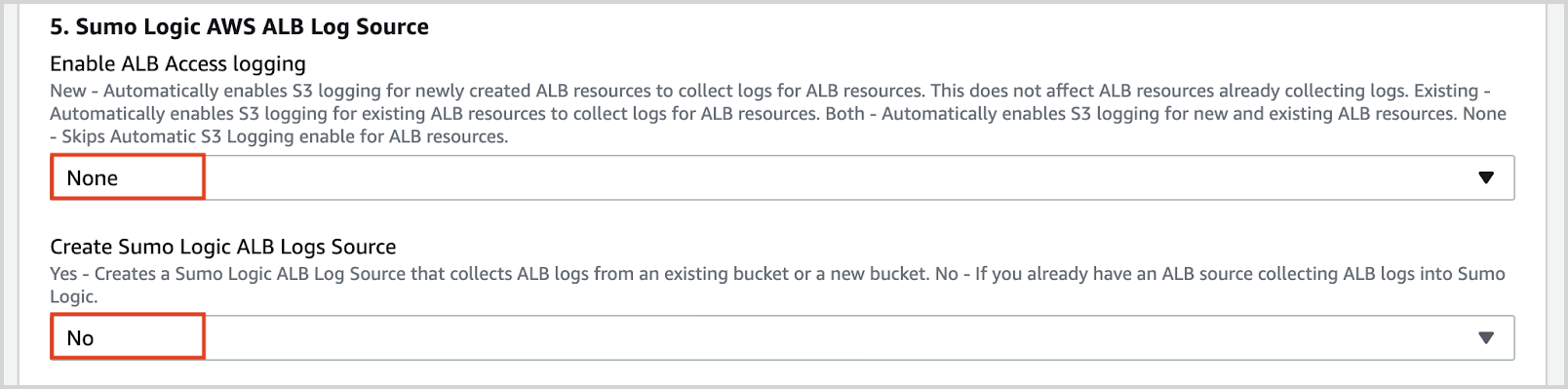
Step 5: Sumo Logic AWS ALB Log Source
- Enable ALB Access logging as None and Create Sumo Logic ALB Logs Source as No.
Step 6: Sumo Logic AWS CloudTrail Source
- Create Sumo Logic CloudTrail Logs Source as No.

Step 7: Sumo Logic CloudWatch Logs Source
- Select Sumo Logic CloudWatch Logs Source as None.

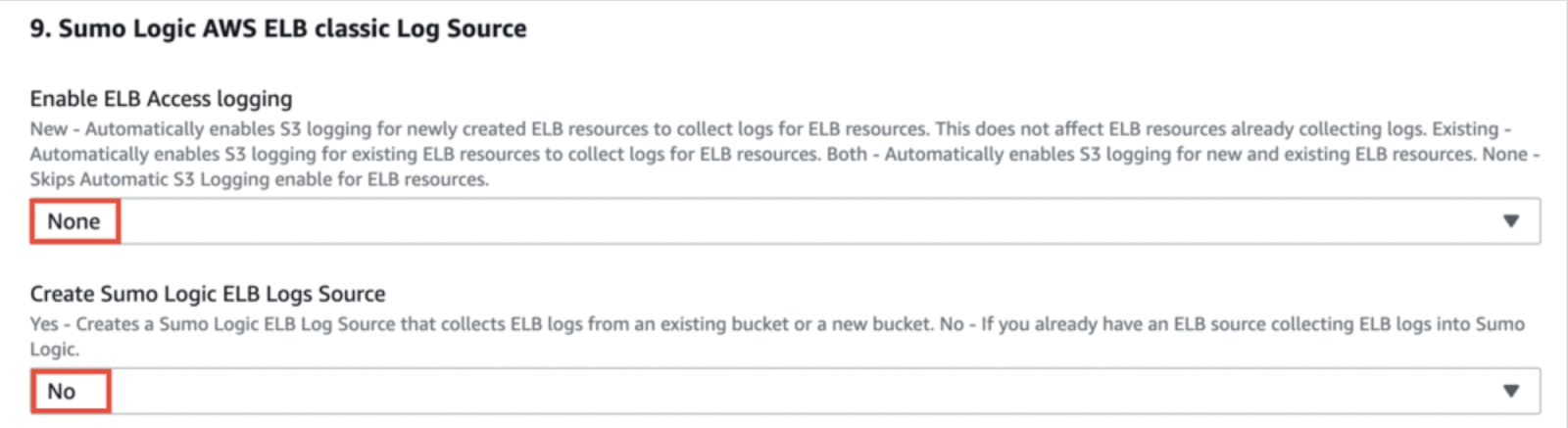
Step 8: Sumo Logic AWS ELB classic Log Source
- Enable ELB Classic Access logging as None and Create Sumo Logic ELB Classic Logs Source as No.
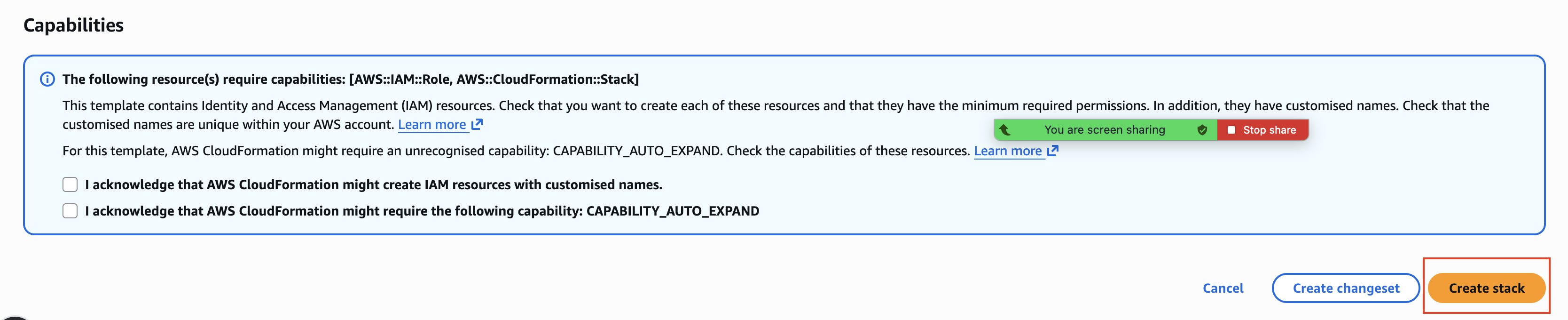
Step 9: Create Stack
Collection Setup
Determine account aliases
If you are going to deploy the solution in multiple AWS accounts, we highly recommend that you prepare a CSV file that maps your AWS account IDs to account aliases. These aliases should be something that makes it easy for you to identify what this AWS account is being used for (for example, dev, prod, billing, and marketplace). These names will appear in the Sumo Logic Explorer View, metrics, and logs and can be queried using the “account field”.
The following are examples of the CSV file format to use (accountid,alias):
234234234324,dev214324324324,prod
Upload this file to an Amazon S3 bucket and make it accessible to the account from where you are going to run the CloudFormation template.
In case you do not provide a CSV file or if we detect that it does not have the right format, the AWS account-id will be used as the alias and this value will be used for the “account” field in Sumo Logic.
Use the AWS CloudFormation template with StackSets
-
Go to StackSets in your AWS account.
-
Click Create StackSet.

-
Paste the following URL in the Amazon S3 URL option and click Next. If you'd like to download or inspect this or other versions of this template, see the Changelog.
https://sumologic-appdev-aws-sam-apps.s3.us-east-1.amazonaws.com/aws-observability-versions/v3.0.0/templates/sumologic_observability.master.template.yaml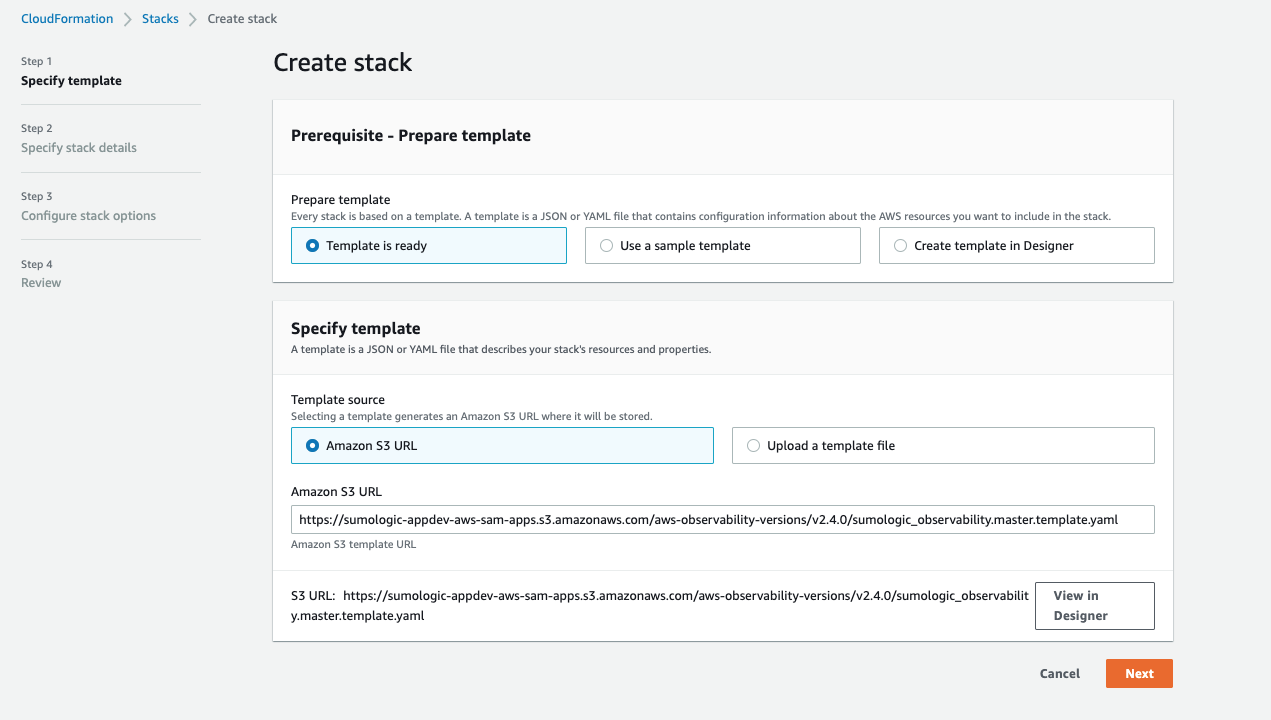
-
Provide a StackSet Name and supply the values for each of the prompts listed as per instructions in the Deploy and Use AWS Observability section with the following exception:
- Leave the field “Alias for AWS Account Identification” blank.

- Provide the S3 Object URL of a CSV file that maps AWS Account IDs to an Account Alias in Section 2 of the template “AWS Account Alias”.

- Answer No in Section 3 of the template "Sumo Logic AWS Observability Apps and Alerts".

noteThe remaining parameters will use the default values. You can update them based on your requirements. Parameters details
- Click Next.
- Leave the field “Alias for AWS Account Identification” blank.
-
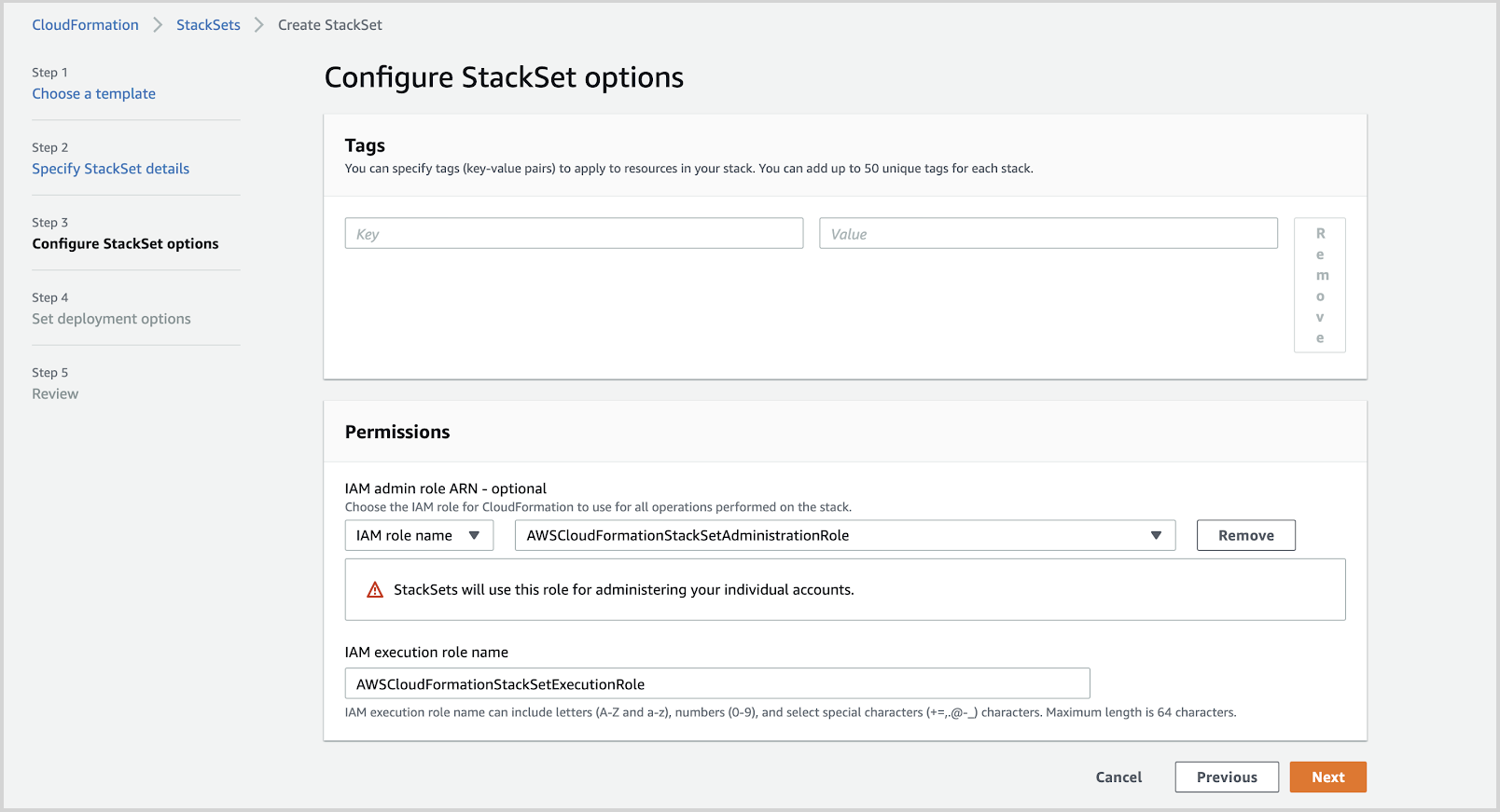
Add Tags, select the Administrator role defined in the prerequisites above, and click Next.
-
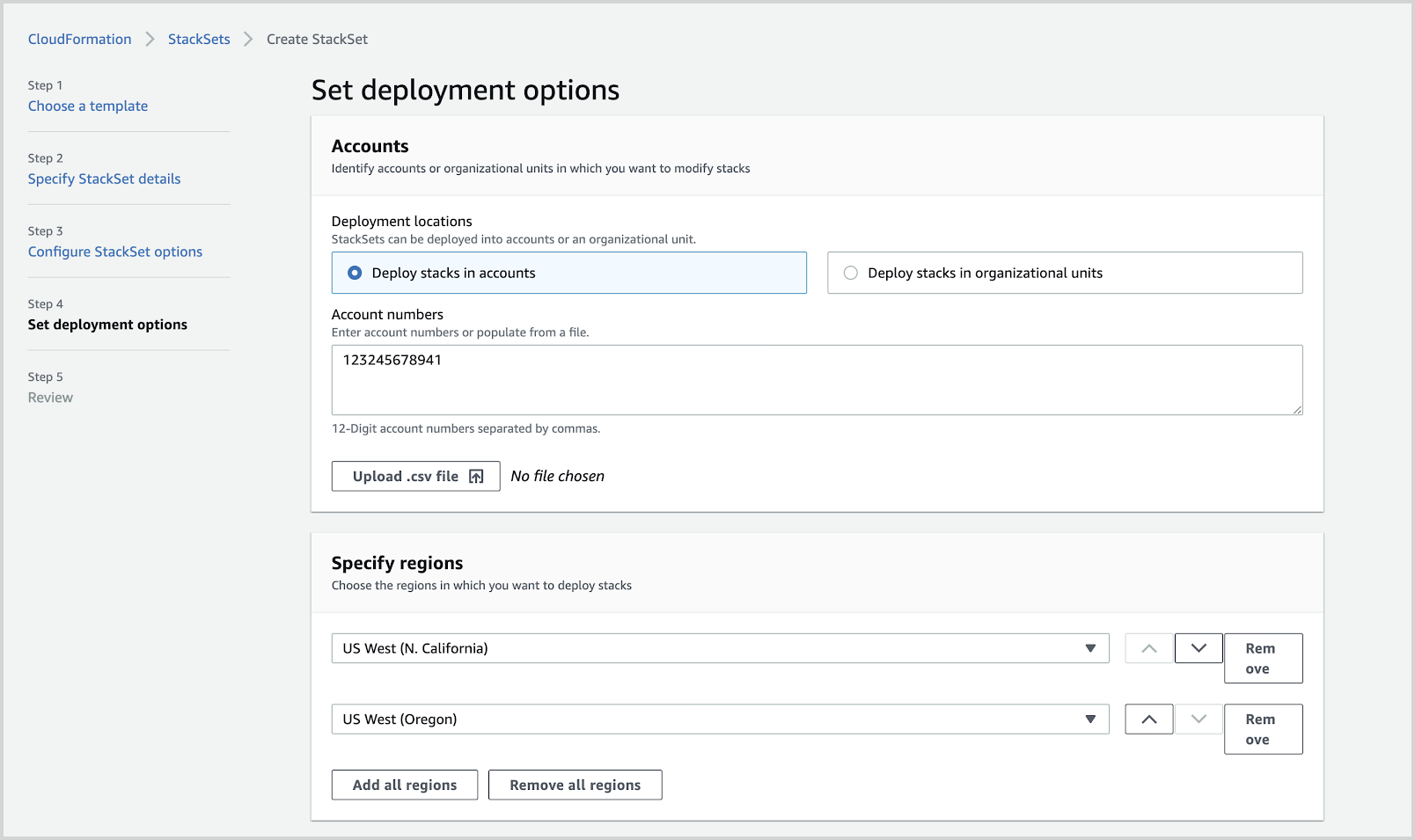
Provide a single AWS account number only and select a list of regions in the account where you would like to deploy the AWS CloudFormation template as shown in the screenshot below. You will need to select all the regions in the current account where you would like to deploy the template.
-
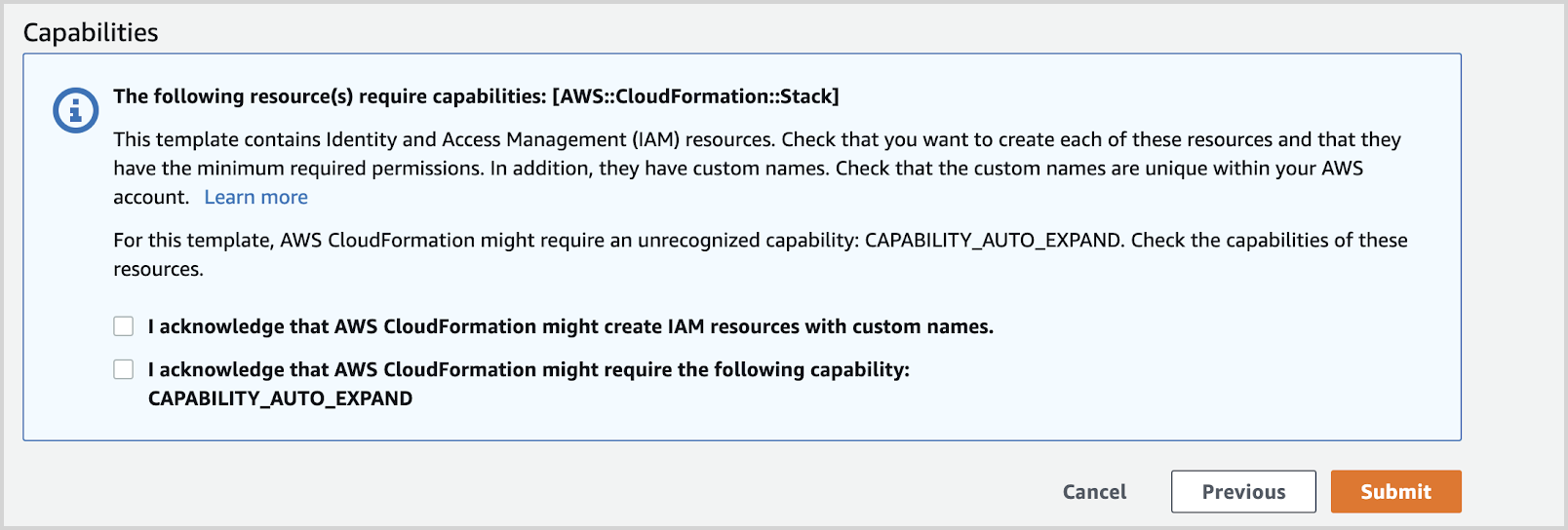
Review the details, select the capabilities and click Submit.
-
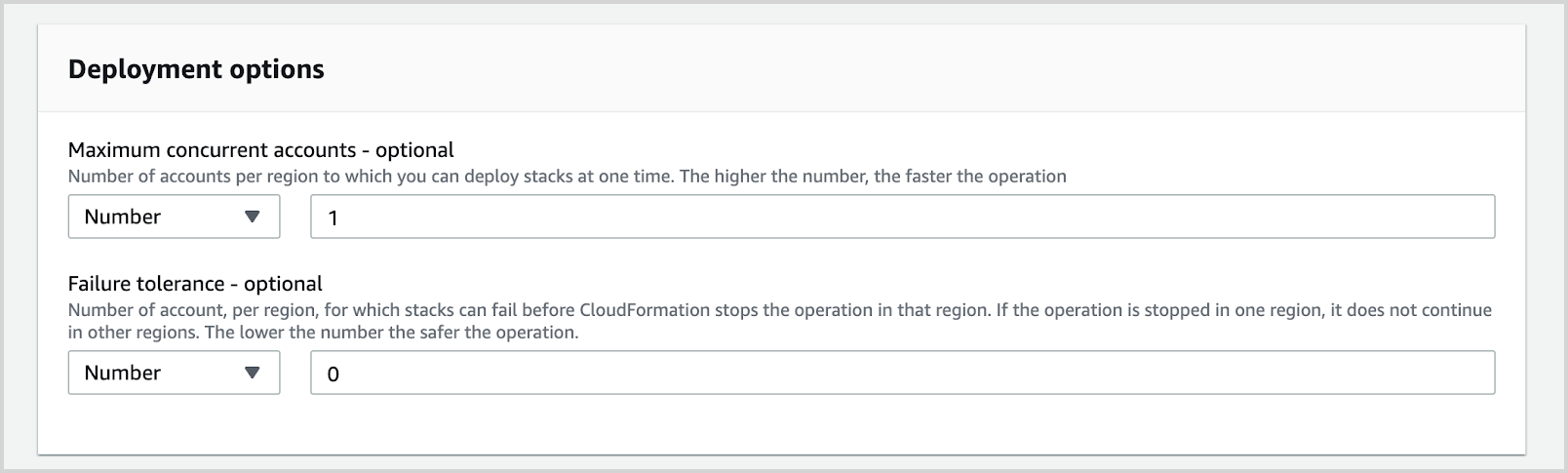
Increasing the Maximum concurrent actions to be more than 3 is not recommended and can cause your StackSet deployment to fail. Stack sets should be deployed one at a time, sequentially. Click Next.
dangerThe solution recommends deploying across regions sequentially rather than in parallel. If parallel deployment is required, the maximum recommended limit is 3 regions at a time. Exceeding this limit may result in SumoLogic API rate-limiting errors.
-
Once you hit submit, the AWS CloudFormation template will execute in the provided account and regions sequentially.
Add more accounts to the same StackSet
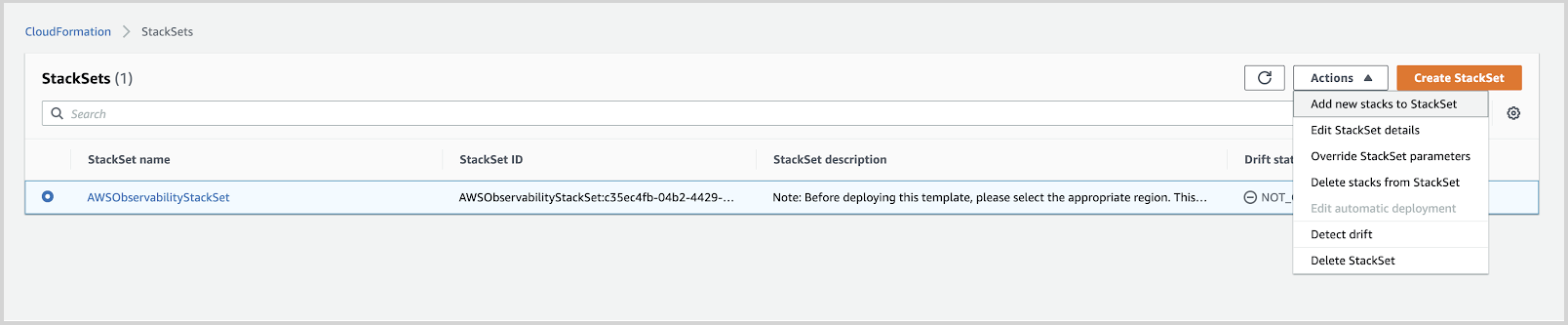
- Select Add new stacks to StackSet.
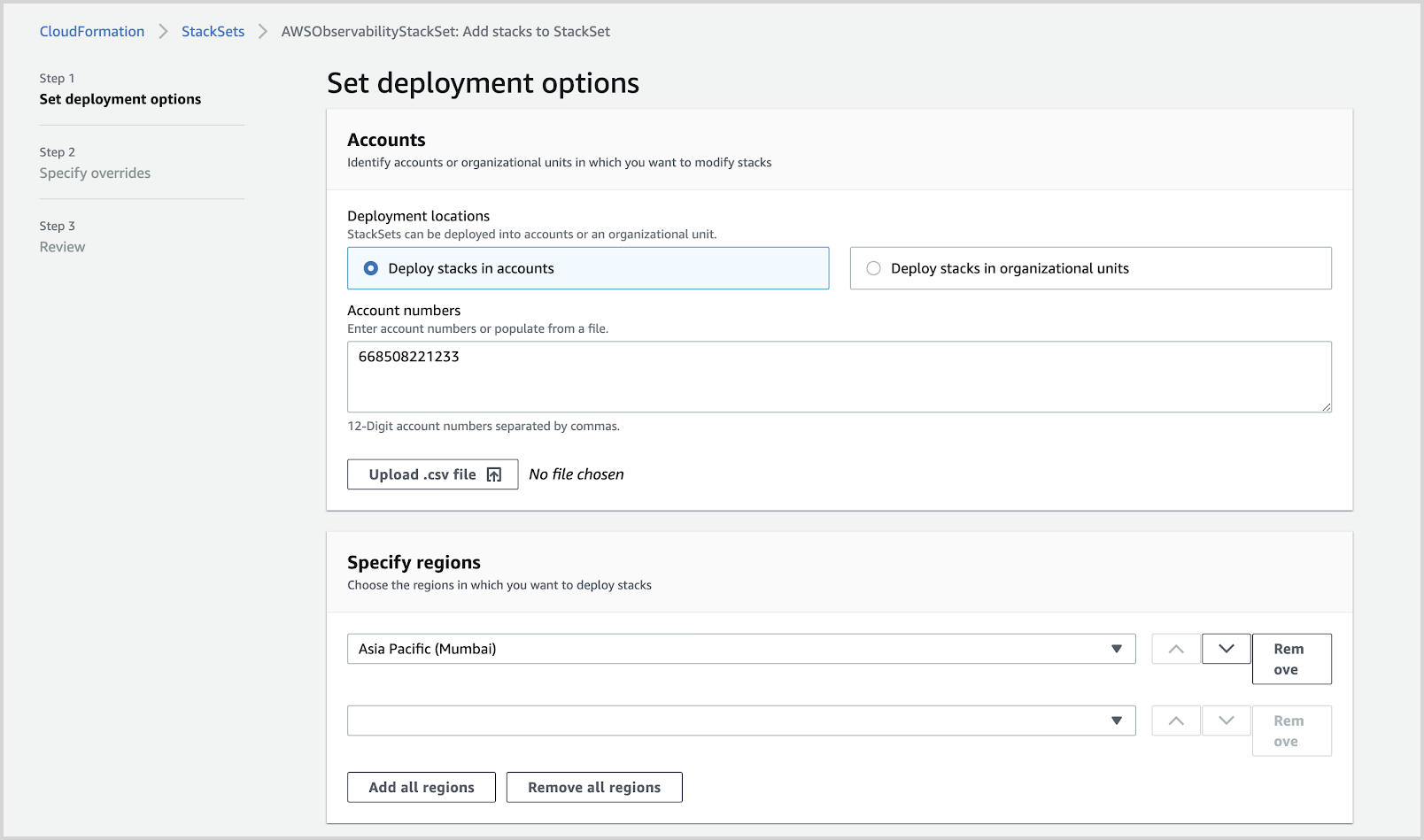
- In ‘Set deployment options’, Enter the account number and regions you want to deploy the stack.
- Verify the S3 mapping file contains the mapping for the new Account ID.
- Review the details, select the capabilities, and click Submit.