 Meet the new
 Integrate Control Tower with AWS Observability
What is AWS Control Tower?
AWS Control Tower provides the easiest way to set up and govern a new, secure, multi-account AWS environment. With AWS Control Tower, you can provision new AWS accounts that are automatically set up so they conform to company policies and best practices in a few clicks.
For more information on AWS Control Tower, see AWS Control Tower on the AWS site.
Benefits of using the AWS Observability solution with Control Tower
The AWS Observability solution can be used with Control Tower-managed accounts to:
- Quickly identify and resolve issues in and across multiple accounts and services. Enable teams to seamlessly navigate and search logs and metrics data across their AWS accounts, regions, and services. Unified service and account visibility greatly speeds up troubleshooting and minimizes downtime, improving overall system availability.
- Eliminate data silos. Unify logs and metrics across AWS accounts and services to eliminate data silos and help teams quickly identify root causes.
- Accelerate time-to-value. Streamline setup and pre-built dashboards for instant insights into AWS accounts and services, enabling visibility into the most important data out-of-the-box.
For more information on the AWS Observability solution, see About Sumo Logic AWS Observability.
Prerequisites
To integrate the AWS Observability solution with Control Tower, you collect CloudTrail audit logs from each AWS account that is managed by AWS Control Tower and store the audit logs in an S3 bucket in a Log Archive AWS account / CloudTrail administrator account.
AWS Control Tower sets up the CloudTrail administrator account (formerly the log archive account) when you enable the AWS CloudTrail centralized logging integration, and the Config aggregator account (formerly the audit account) when you enable the AWS Config service integration. You can also use an existing AWS account for either role.
We recommend you familiarize yourself with the AWS Observability Solution. For more information, see:
- About Sumo Logic AWS Observability
- Deploy and Use AWS Observability
- View the AWS Observability Solution Dashboards
CloudTrail must be enabled for EventBridge to capture CreateManagedAccount and UpdateManagedAccount events, since these events are recorded and delivered through CloudTrail.
Integrate AWS Control Tower-managed accounts with the AWS Observability solution
Integrating with AWS Control Tower takes several steps:
- Step 1:
- Set up collection manually: Create a CloudFormation stack in each AWS account managed by Control Tower.
- Set up collection automatically for new AWS accounts: Deploy a single CloudFormation template to your management account so accounts created via Control Tower Account Factory are set up automatically going forward.
- Step 2: Set up collection of AWS CloudTrail logs that are aggregated from all Control Tower-managed accounts in a centralized Log Archive AWS account / CloudTrail administrator account.
- Step 3: Create a Field Extraction Rule (FER) that will tag logs with the account aliases you set up for each child account in the previous step.
- Step 4: View the AWS Observability dashboards for your Control Tower-managed accounts.

Step 1: Set up collection of logs and metrics data from your AWS accounts
In this step, you configure the collection of logs and metrics for all AWS accounts managed by Control Tower and install the apps in the solution. Follow these steps for each AWS account managed by AWS Control Tower, either manually for existing accounts or automatically for accounts created going forward.
Set up collection manually for AWS accounts
- Log in to the AWS Management Console as the AWS account user.
- Follow steps 1 through 10 of the instructions in Deploy with AWS CloudFormation to configure the AWS Observability CloudFormation template.
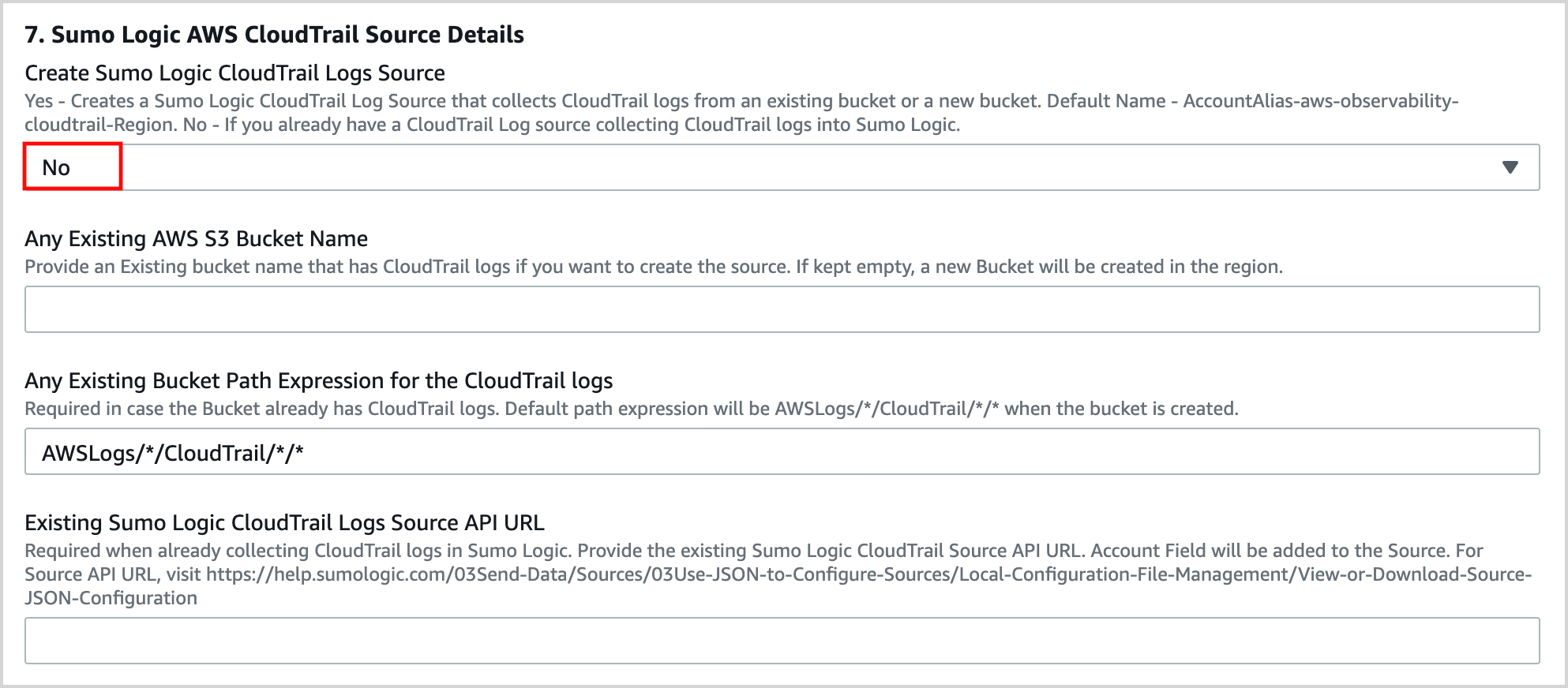
- In the Sumo Logic AWS CloudTrail Source Details section of the template, select No for Create Sumo Logic CloudTrail Logs Source and keep the default values for all other options.
Set up collection automatically for new AWS accounts
For new AWS accounts created using Control Tower Account Factory, you can configure the AWS Observability solution to deploy automatically using Control Tower lifecycle events. This eliminates the need to manually run Set up collection manually for AWS accounts for each new account going forward.
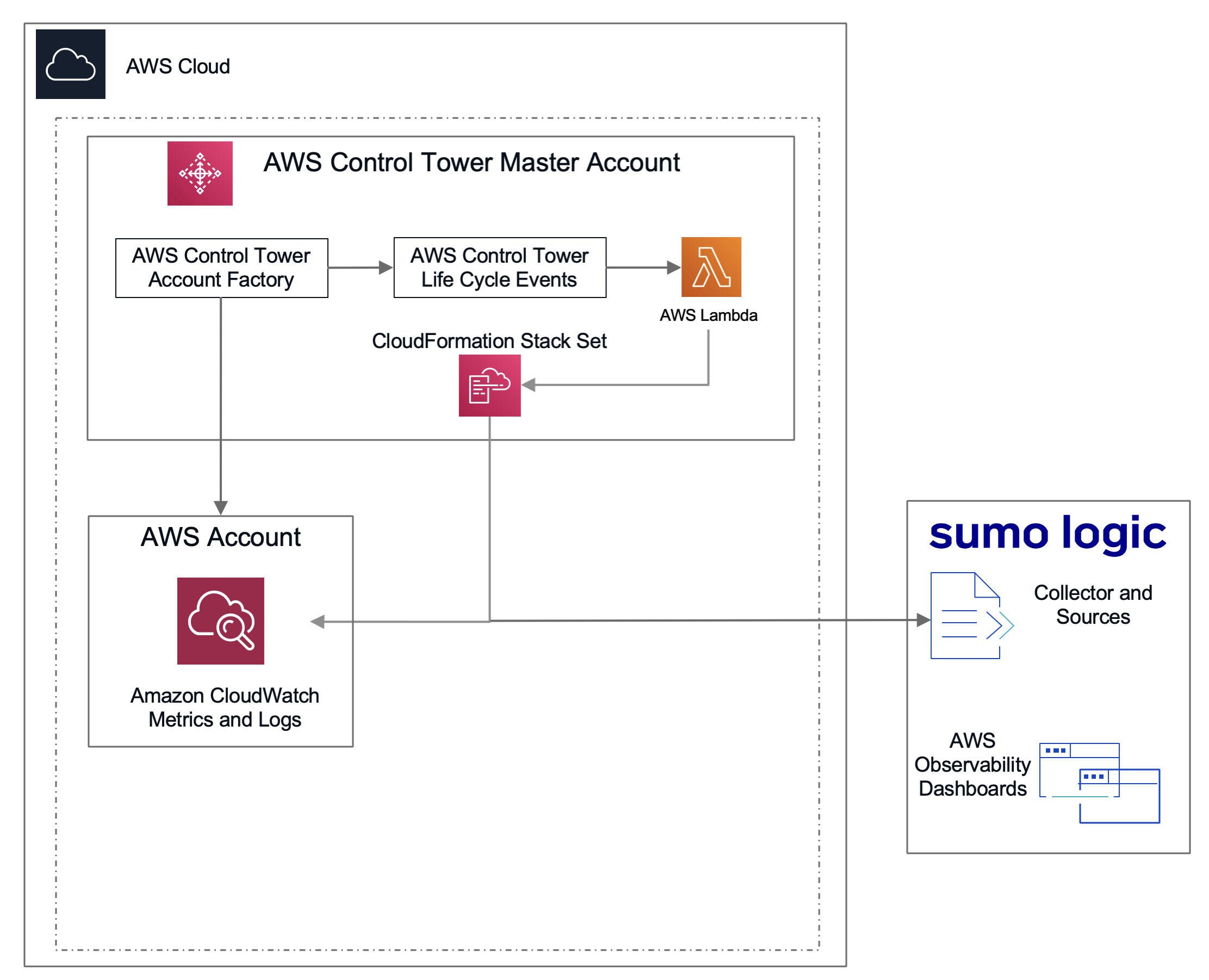
When an account creation or update succeeds in Control Tower, the solution captures the CreateManagedAccount or UpdateManagedAccount lifecycle event and triggers an AWS Lambda function. The Lambda function deploys the AWS Observability CloudFormation stack to the new account across all configured regions, with CloudTrail log source creation and app installation disabled. (The centralized Log Archive AWS account / CloudTrail administrator account handles CloudTrail logs, and apps are already installed from the manual setup above.)
The Lambda function derives the account alias from the account name (lowercase alphanumeric characters only, truncated to 30 characters) and passes it automatically to the stack.
Deploying this template to your AWS management account creates the following resources:
- An Amazon EventBridge rule that captures
CreateManagedAccountandUpdateManagedAccountevents from AWS Control Tower. - An AWS Lambda function that deploys the AWS Observability CloudFormation stack to each new account.
- An AWS Secrets Manager secret, encrypted with an AWS KMS key, that stores your Sumo Logic Access ID and Access Key for use by the Lambda function.
- AWS IAM roles with the permissions required to create CloudFormation StackSets across accounts.
To deploy the lifecycle events template:
-
Log in to the AWS Management Console as the AWS Control Tower Master Account.
-
Download and launch the Sumo Logic Control Tower CloudFormation template in the region where your Control Tower is deployed. Use the link that matches your AWS Observability version:
- AWSO v3.0.0: controltower.template.yaml
- AWSO v2.15.0: controltower.template.yaml
-
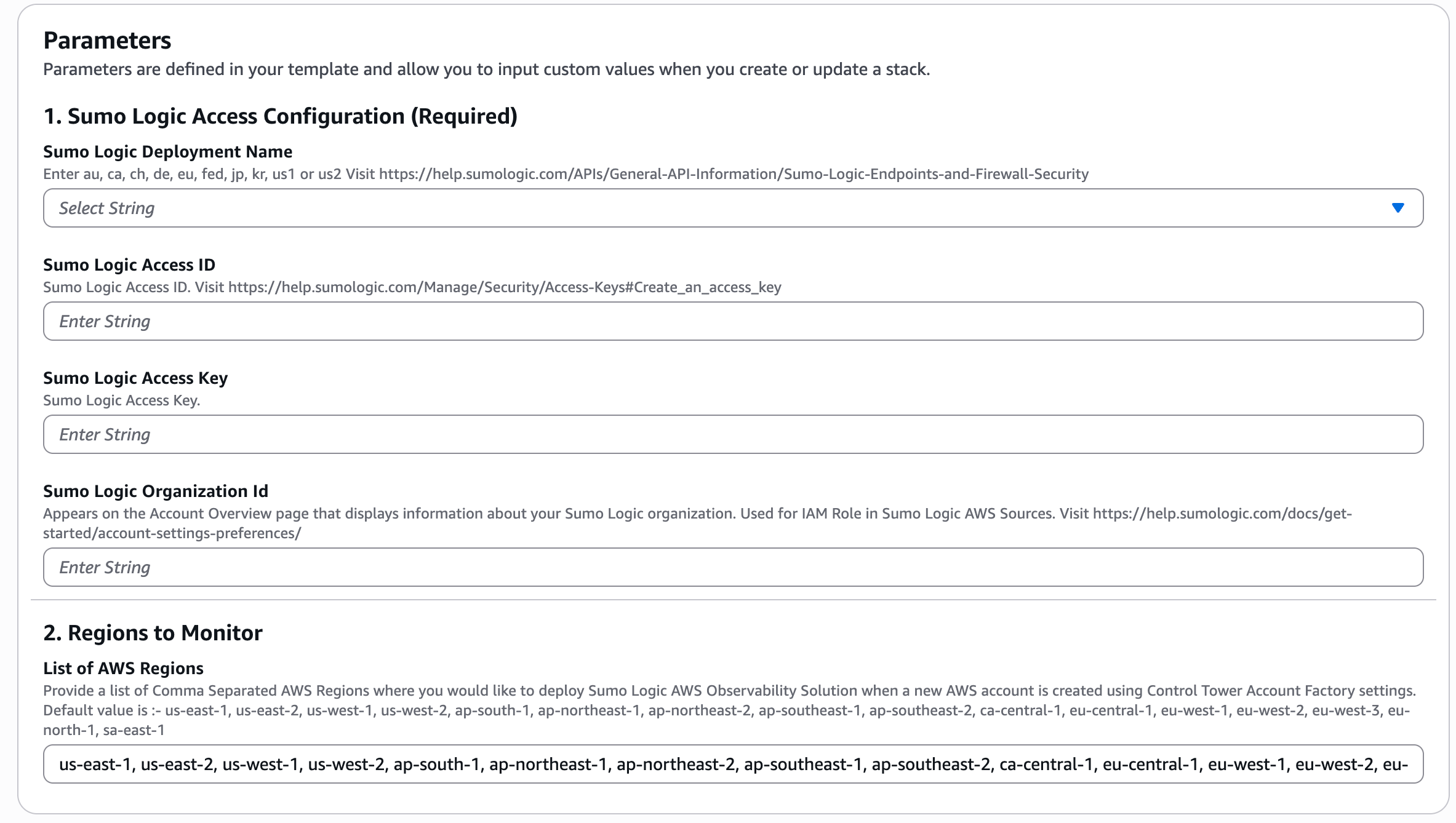
In the Sumo Logic Access Configuration section, fill in the following required fields:
Parameter Description Sumo Logic Deployment Name Your Sumo Logic deployment. Enter one of: au,ca,ch,de,eu,fed,jp,kr,us1, orus2. See Sumo Logic Endpoints and Firewall Security.Sumo Logic Access ID Your Sumo Logic Access ID. See Access Keys to create one. Sumo Logic Access Key Your Sumo Logic Access Key. Sumo Logic Organization ID Found on the Account Overview page in the Sumo Logic UI. Used for IAM role configuration in Sumo Logic AWS Sources. See Account Settings and Preferences. - In the Regions to Monitor section, enter a comma-separated list of AWS regions where you want the AWS Observability solution deployed when a new account is created. The default value is:
us-east-1, us-east-2, us-west-1, us-west-2, ap-south-1, ap-northeast-1, ap-northeast-2, ap-southeast-1, ap-southeast-2, ca-central-1, eu-central-1, eu-west-1, eu-west-2, eu-west-3, eu-north-1, sa-east-1
- Review all settings and click Create stack.
 note
noteCloudFormation creates a KMS key and stores the Sumo Logic Access ID and Access Key in AWS Secrets Manager. The secret is named using the CloudFormation stack name as an alias.
- In the Regions to Monitor section, enter a comma-separated list of AWS regions where you want the AWS Observability solution deployed when a new account is created. The default value is:
Step 2: Collect from the Log Archive AWS account / CloudTrail administrator account
In the instructions below, we assume the Log Archive AWS account / CloudTrail administrator account is used only to centralize logs across AWS Control Tower-managed accounts. If this is not the case and you want to monitor AWS services in these accounts, follow the instructions in AWS Observability Solution to set up the relevant services.
Choose the option that matches your environment:
Option 1: CloudTrail trail already exists
Use this option if the Log Archive AWS account / CloudTrail administrator account already has an active CloudTrail trail writing logs to an S3 bucket. You only need to create a Sumo Logic CloudTrail source pointing at that existing bucket — no new trail or CloudFormation stack is required.
- Grant Sumo Logic access to the S3 bucket that contains the CloudTrail logs. See Grant Access to an AWS Product.
- In Sumo Logic, create an AWS CloudTrail Source for the existing bucket. Follow the instructions in AWS CloudTrail Source, providing:
- The S3 bucket name where CloudTrail logs are delivered.
- The path expression for the log files (for example,
AWSLogs/*/CloudTrail/*/*). - The AWS region of the S3 bucket.
- A Source Category such as
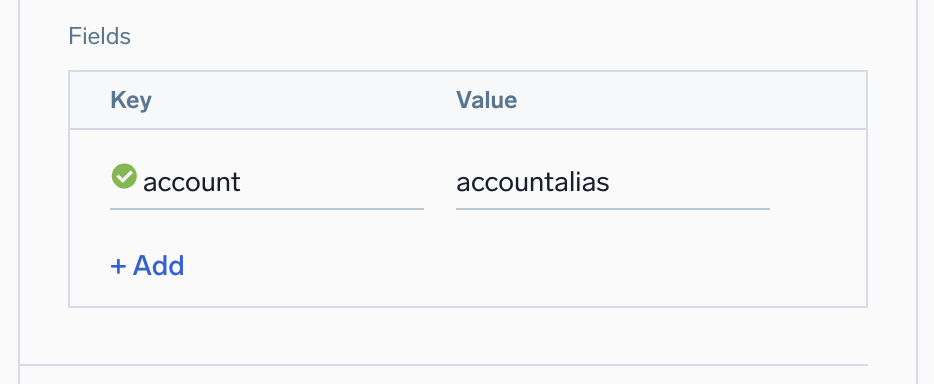
aws/observability/cloudtrail/logs. - Tag the account field in the source with the right account value
Option 2: Set up a new trail
Use this option if no CloudTrail trail exists in the Log Archive AWS account / CloudTrail administrator account and you want the AWS Observability CloudFormation template to create the trail and Sumo Logic source together.
-
Log in to the AWS Management Console as the Log Archive AWS account / CloudTrail administrator account user.
-
Follow steps 1 through 10 of the instructions in the Deploy with AWS CloudFormation to configure the AWS Observability CloudFormation template.
-
In the Sumo Logic Access Configuration section of the template, fill in as required by the template.
-
In the AWS Resources Tag Configuration section of the template, select None for Auto Enable Tagging and enter
logarchiveas the account alias. -
In the Sumo Logic AWS Observability Apps and Alerts section of the template, select No for "Install AWS Observability Apps", as they were installed in Step 1, above.

-
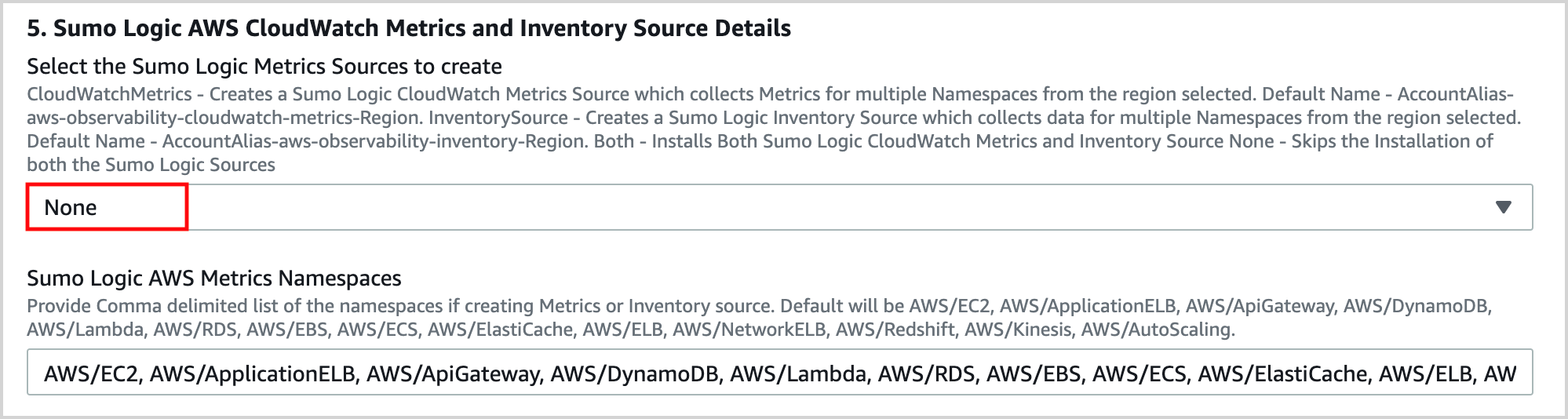
In the Sumo Logic AWS CloudWatch Metrics Sources section of the template, select None for Select the Sumo Logic Metrics Sources to create, and leave the other options blank.
-
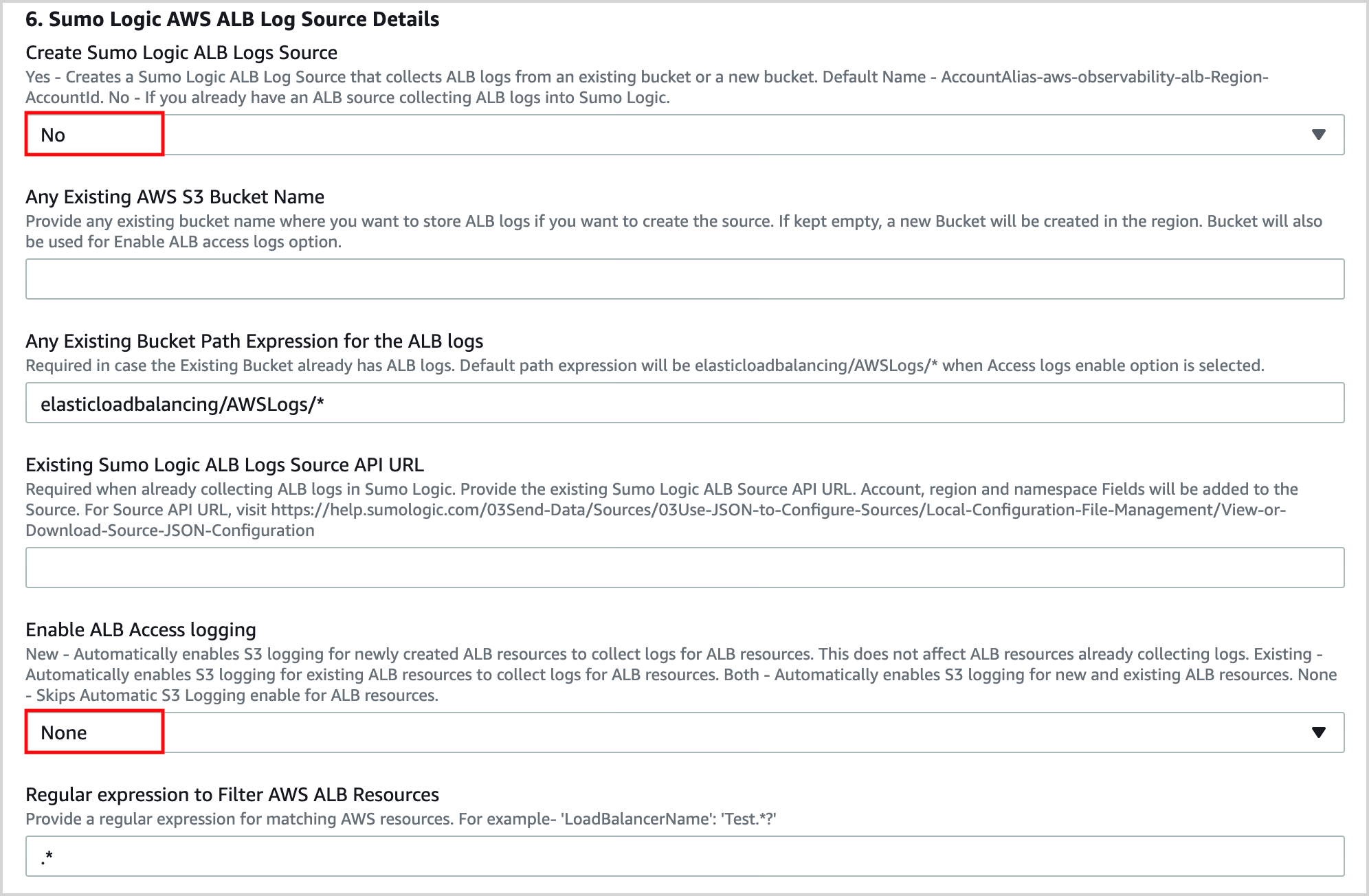
In the Sumo Logic AWS ALB Log Source section of the template:
- Select None for Enable ALB Access logging.
- Select No for Create Sumo Logic ALB Logs Source.
- Keep the default values for all the other options.
-
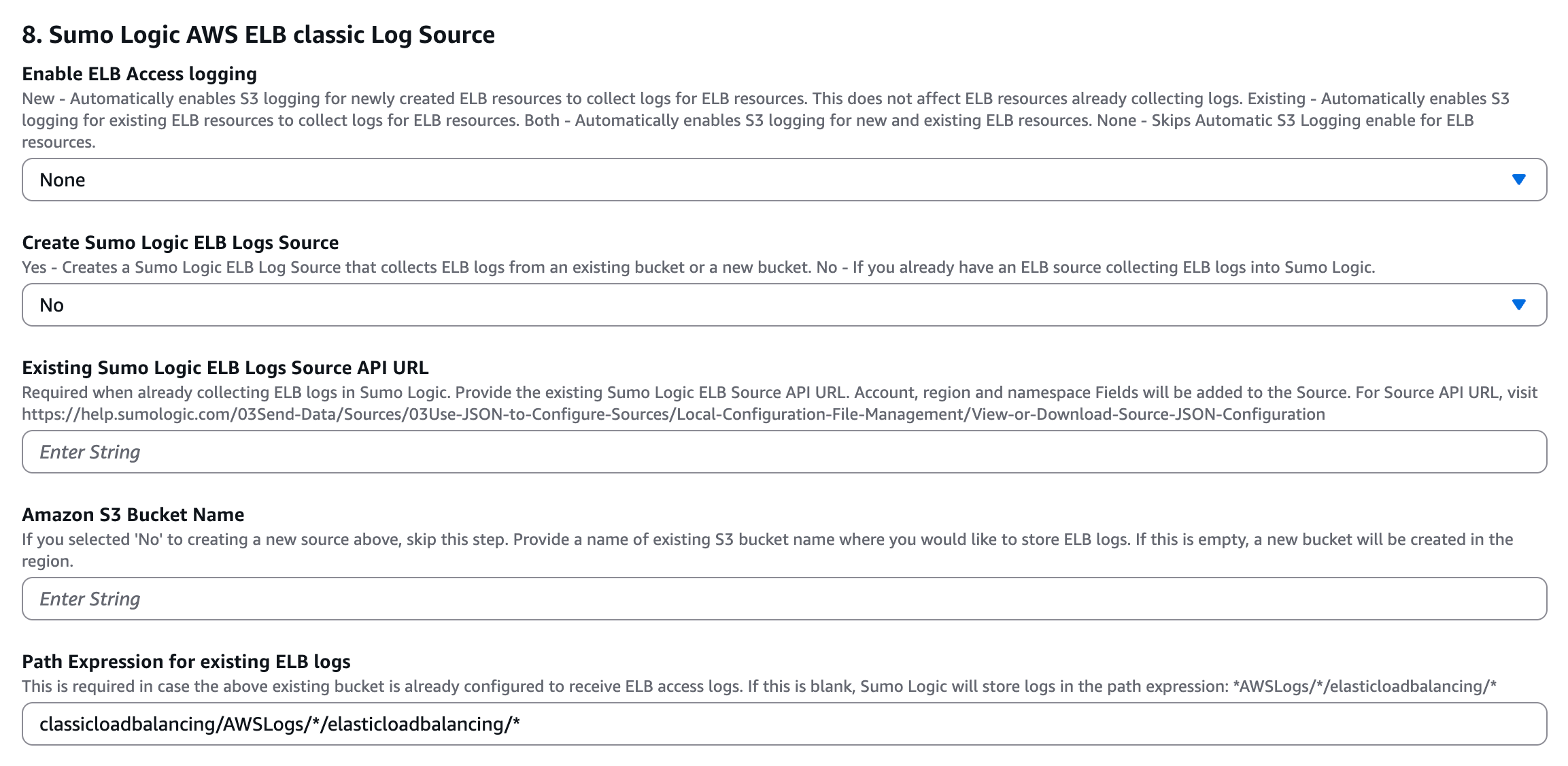
In the Sumo Logic AWS ELB classic Log Source section of the template:
- Select None for Enable ELB Access logging.
- Select No for Create Sumo Logic ELB Logs Source.
- Keep the default values for all the other options.
-
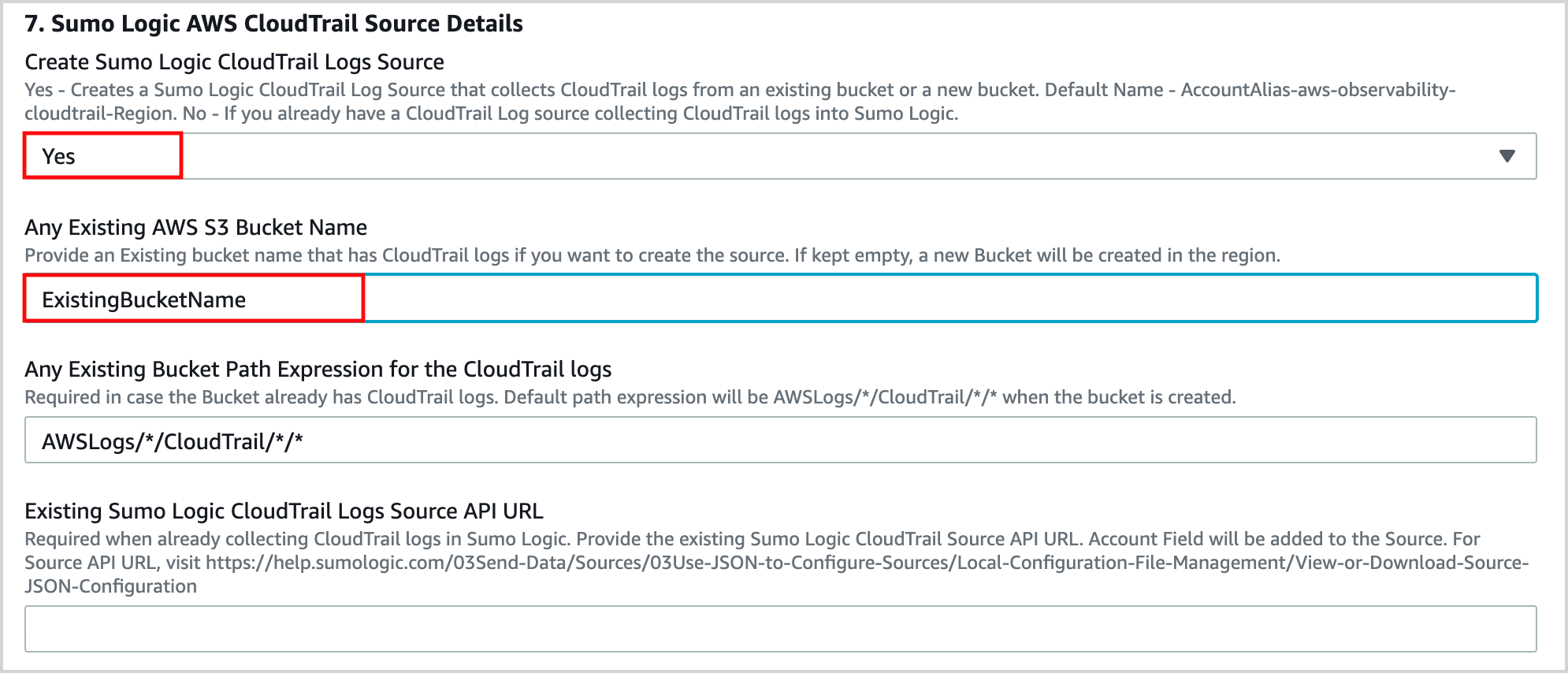
In the Sumo Logic AWS CloudTrail Source section of the template:
Case 1: Set up Sumo Logic CloudTrail Source to collect data in Sumo Logic.
- Select Yes for Create Sumo Logic CloudTrail Logs Source.
- Enter the name of the CloudTrail Bucket in Amazon S3 Bucket Name.
- Provide a path expression for the Logs in "Path Expression for existing CloudTrail logs".
Case 2: Already collecting CloudTrail Data in Sumo Logic
- Select No for Create Sumo Logic CloudTrail Logs Source and keep the default values for all the other options.
-
In the Sumo Logic CloudWatch Logs Source section of the template:
- Select None for Select the Sumo Logic CloudWatch Logs Source Type if you don't plan to collect CloudWatch logs from this account.
- If you want to monitor Lambda CloudWatch logs, fill in the details required by the template.
-
Run through the prompts and click Create the stack.
Step 3: Create Field Extraction Rule
In this step, you create a Field Extraction Rule (FER) that will tag logs with the account aliases you set up for each child account in the previous step.
You must have a role that grants you the Manage Field Extractions capability to create an FER.
-
Log in to the Sumo Logic web UI and follow the instructions in Create a Field Extraction Rule using the following values:
-
Rule Name. AWS Accounts
-
Applied At. Ingest Time
-
Scope. Specific Data
-
Metadata. _sourceCategory
-
Value. aws/observability/cloudtrail/logs
-
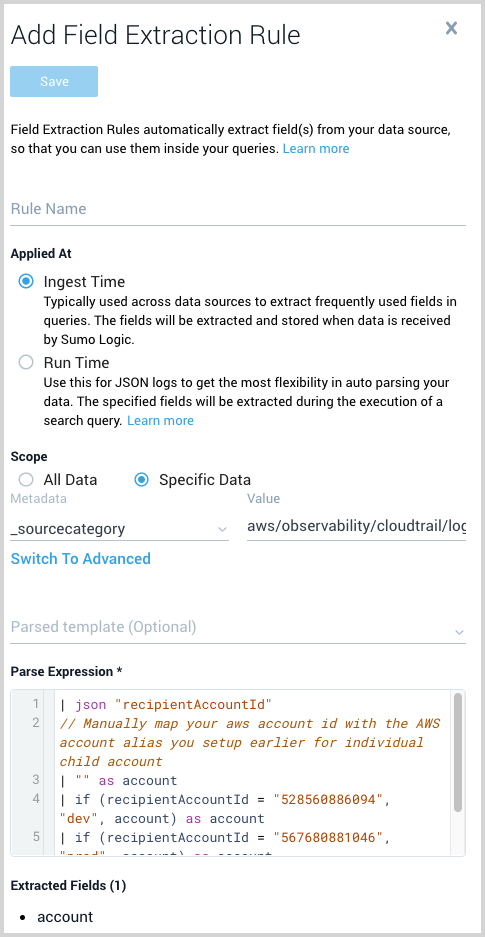
Parse Expression. Enter a parse expression to create an “account” field that maps to the alias you set for each child account in the previous step. For example, if you used the “dev” alias for an AWS account with ID "528560886094" and the “prod” alias for an AWS account with ID "567680881046", your parse expression would look like:
| json "recipientAccountId"// Manually map your AWS account ID with the AWS account alias you set up earlier for the individual child account| "" as account| if (recipientAccountId = "528560886094", "dev", account) as account| if (recipientAccountId = "567680881046", "prod", account) as account| fields account
The screenshot below shows what this would look like in Sumo Logic:
-
To backfill your collection source account tags with an AWS account alias, see Backfill AWS Account Alias.
Step 4: View the AWS Observability dashboards
Now you can start monitoring your AWS services in AWS Control Tower managed accounts. For information about the solution dashboards, see View AWS Observability Solution Dashboards.